> ## Documentation Index
> Fetch the complete documentation index at: https://easy-peasy.ai/docs/llms.txt
> Use this file to discover all available pages before exploring further.
# Teams
> Add team members to your plan, buy extra seats, see each member's usage, top up their credits, and share your work with the team.
A team shares one subscription. Every member gets their own login, their own history, and the plan's full allowance of words, credits, and characters each month. The account owner manages seats and billing.
Teams plans include 3 or more seats. The Starter and Unlimited plans (except Unlimited 50) can add seats too. Compare plans on the [pricing page](https://easy-peasy.ai/pricing).
## Your team
Open **Settings** > **Team**.
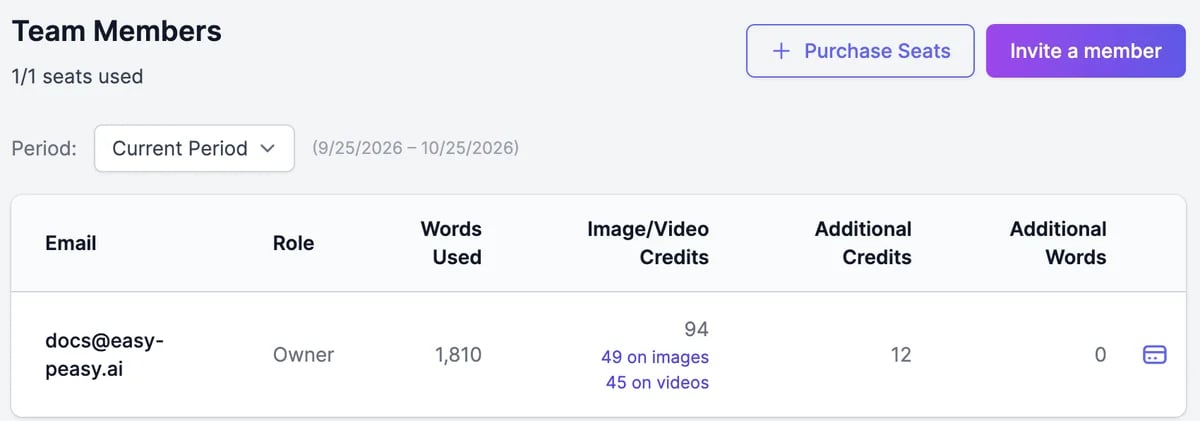 The table shows each member's usage for the selected **Period**: this billing period or up to 6 months back.
| Column | What it shows |
| -------------------------------------------- | ----------------------------------------------------------------------------- |
| **Words Used** | Words used this period |
| **Image/Video Credits** | Credits used, split into images and videos. Click a number to see those items |
| **Additional Credits**, **Additional Words** | Extra credits and words the member has on top of the plan |
Team members see a message to ask the account owner; only the owner manages the team.
## Invite team members
It's available while you have a free seat. If all seats are used, [add a seat](#add-or-remove-seats) first.
Type their email addresses, separated by commas, and click **Send**. Or copy the link under **Invite by link** and send it yourself.
When they sign up through the invitation, they join your team and appear in the table.
To remove someone, click **Remove Member** on their row and confirm. Their seat becomes free again.
## Add or remove seats
* **Purchase Seats** adds seats to your subscription, up to 50 extra. Each seat costs the same as your plan, and you pay the prorated amount for the rest of the current period.
* **Remove Seats** removes empty seats. Remove the member first. The change is immediate, and the unused time is credited on your next invoice.
On plans that can't add seats, such as Free and Unlimited 50, you'll see **Upgrade to Teams plan** instead.
## Top up a member
Click **Buy Additional Credits or Words** on a member's row, choose **Image & Video Credits** or **Words**, and pay. They go to that member only. See [Buy more credits](/docs/account/buy-credits).
## Share with your team
Most things you create can be shared with the team. Turn on **Share with Team Members**, or the team option in the share window, on:
* [transcriptions](/docs/audio/transcripts#rename-share-and-delete) and [speech](/docs/audio/text-to-speech),
* images and Marky chats,
* [agents](/docs/agents/overview), [workflows](/docs/workflows/share), and [custom tools](/docs/tools/custom-tools#share-a-tool).
Shared items appear in your teammates' lists. On the **Images** and **Videos** tabs of History, the owner can also filter by team member.
Change plan or payment details.
See your own usage this period.
The table shows each member's usage for the selected **Period**: this billing period or up to 6 months back.
| Column | What it shows |
| -------------------------------------------- | ----------------------------------------------------------------------------- |
| **Words Used** | Words used this period |
| **Image/Video Credits** | Credits used, split into images and videos. Click a number to see those items |
| **Additional Credits**, **Additional Words** | Extra credits and words the member has on top of the plan |
Team members see a message to ask the account owner; only the owner manages the team.
## Invite team members
It's available while you have a free seat. If all seats are used, [add a seat](#add-or-remove-seats) first.
Type their email addresses, separated by commas, and click **Send**. Or copy the link under **Invite by link** and send it yourself.
When they sign up through the invitation, they join your team and appear in the table.
To remove someone, click **Remove Member** on their row and confirm. Their seat becomes free again.
## Add or remove seats
* **Purchase Seats** adds seats to your subscription, up to 50 extra. Each seat costs the same as your plan, and you pay the prorated amount for the rest of the current period.
* **Remove Seats** removes empty seats. Remove the member first. The change is immediate, and the unused time is credited on your next invoice.
On plans that can't add seats, such as Free and Unlimited 50, you'll see **Upgrade to Teams plan** instead.
## Top up a member
Click **Buy Additional Credits or Words** on a member's row, choose **Image & Video Credits** or **Words**, and pay. They go to that member only. See [Buy more credits](/docs/account/buy-credits).
## Share with your team
Most things you create can be shared with the team. Turn on **Share with Team Members**, or the team option in the share window, on:
* [transcriptions](/docs/audio/transcripts#rename-share-and-delete) and [speech](/docs/audio/text-to-speech),
* images and Marky chats,
* [agents](/docs/agents/overview), [workflows](/docs/workflows/share), and [custom tools](/docs/tools/custom-tools#share-a-tool).
Shared items appear in your teammates' lists. On the **Images** and **Videos** tabs of History, the owner can also filter by team member.
Change plan or payment details.
See your own usage this period.