> ## Documentation Index
> Fetch the complete documentation index at: https://easy-peasy.ai/docs/llms.txt
> Use this file to discover all available pages before exploring further.
# Actions
> Let your agent do things during a chat: show buttons and forms, collect details, book meetings, search the web, call your API, and send emails.
Actions let your agent do more than answer. With a **Custom Button** it can send a visitor straight to your booking page; with **Collect Data** it can take a visitor's details; with **Google Calendar** it can book a meeting. You describe when each action should be used, and the agent decides during the conversation.
Actions are for paid plans. Each plan allows a number of actions per agent, shown at the top right of the page as **used / allowed**. On the Free plan, the page offers a 7-day trial. See [Limits and usage](/docs/agents/limits-and-usage).
## Add an action
Open your agent, click **Actions**, and click an action under **Add an action**.
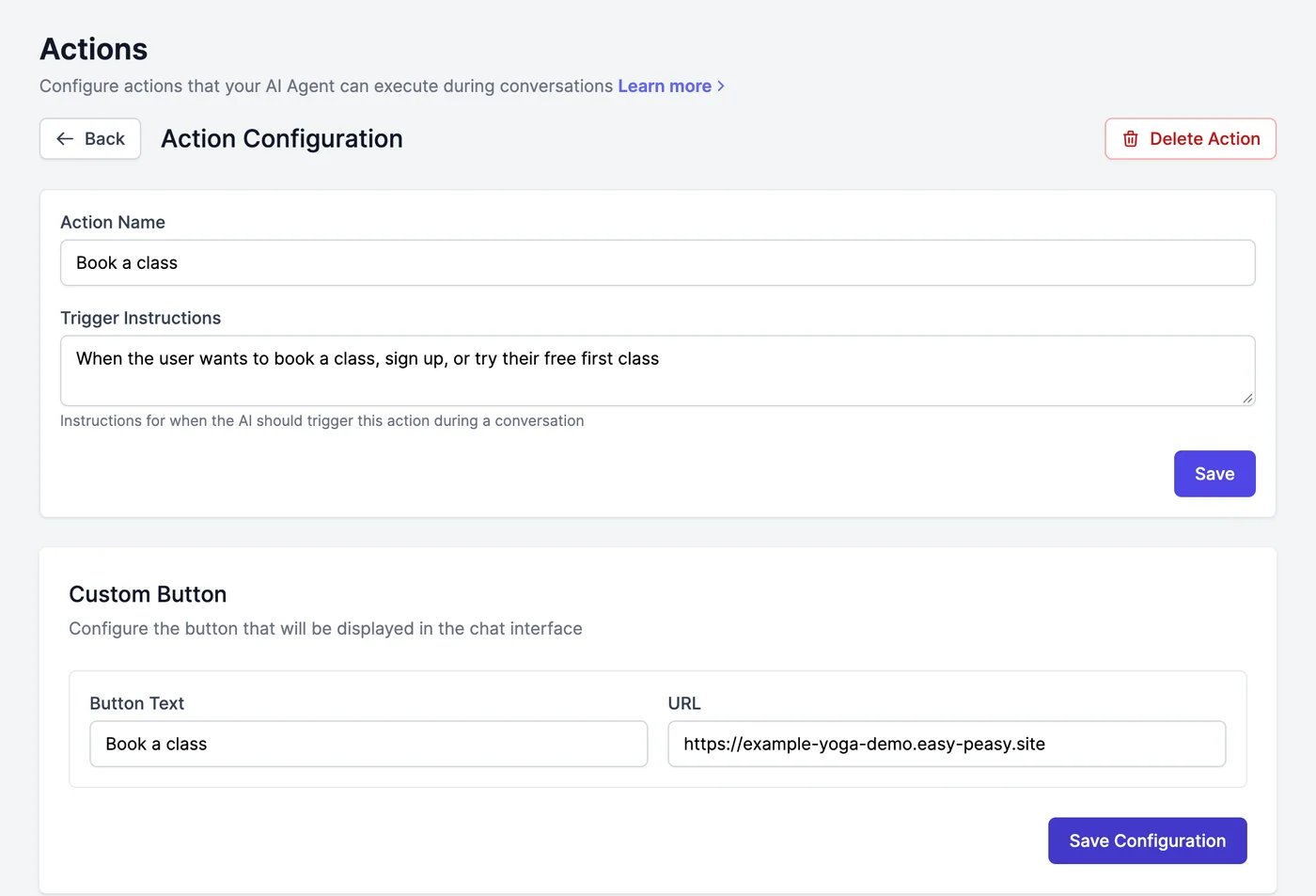
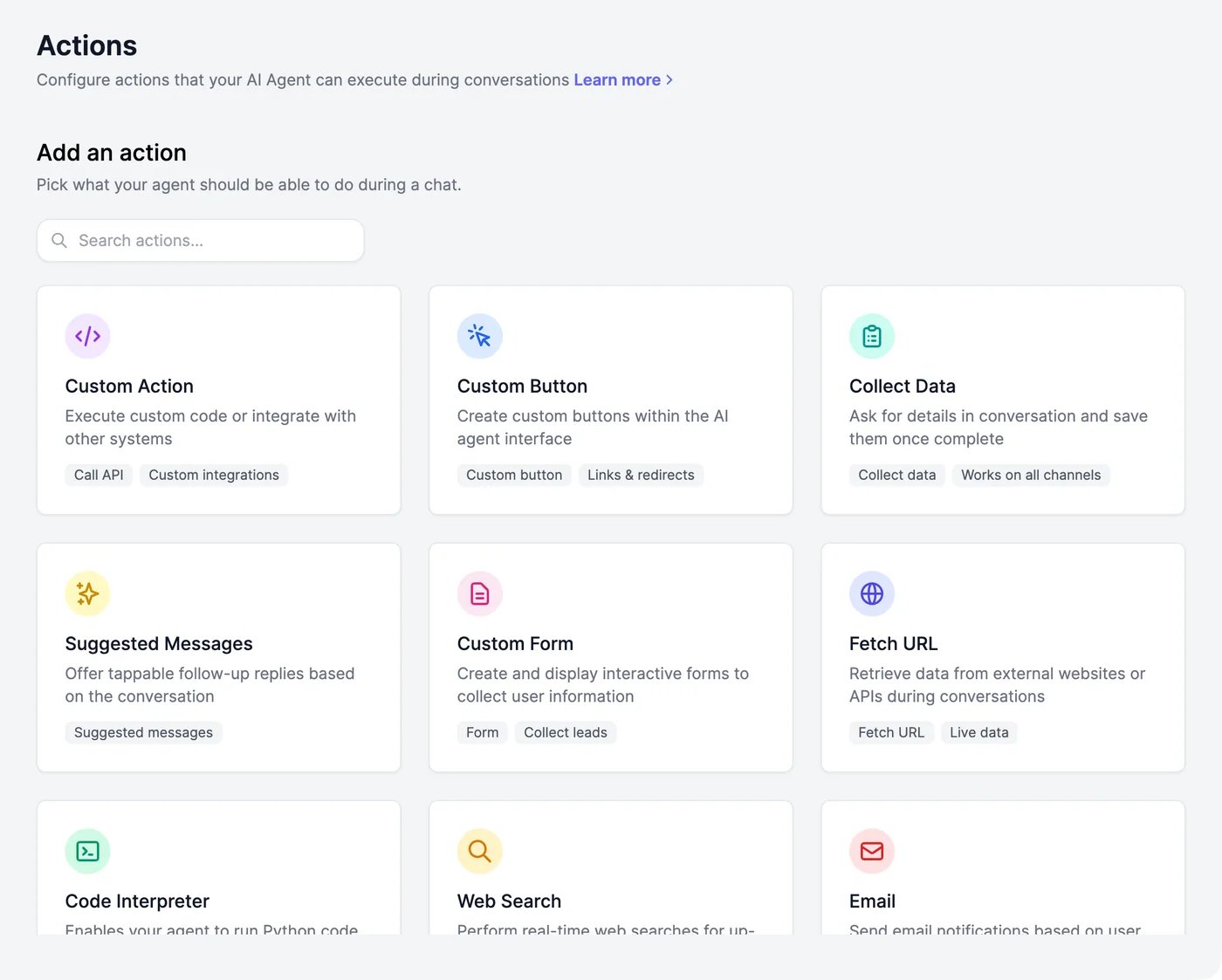 Enter an **Action Name** and the **Trigger Instructions**: when the agent should use this action. Be specific, for example "When the user wants to book a class, sign up, or try their free first class". Click **Save**.
Fill in the action's settings below, such as the button's text and link, and click **Save Configuration**.
Enter an **Action Name** and the **Trigger Instructions**: when the agent should use this action. Be specific, for example "When the user wants to book a class, sign up, or try their free first class". Click **Save**.
Fill in the action's settings below, such as the button's text and link, and click **Save Configuration**.
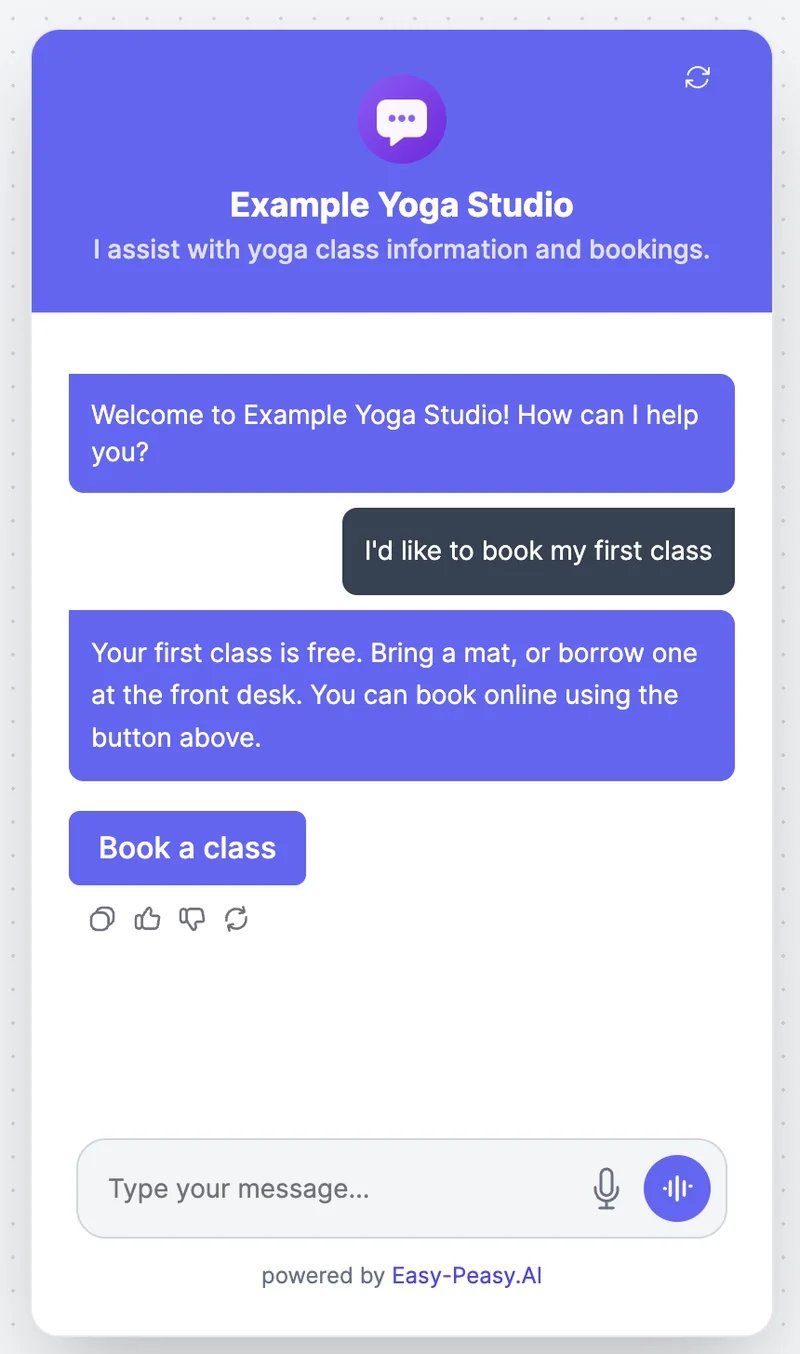
 Ask something that should trigger it in the [Playground](/docs/agents/playground).
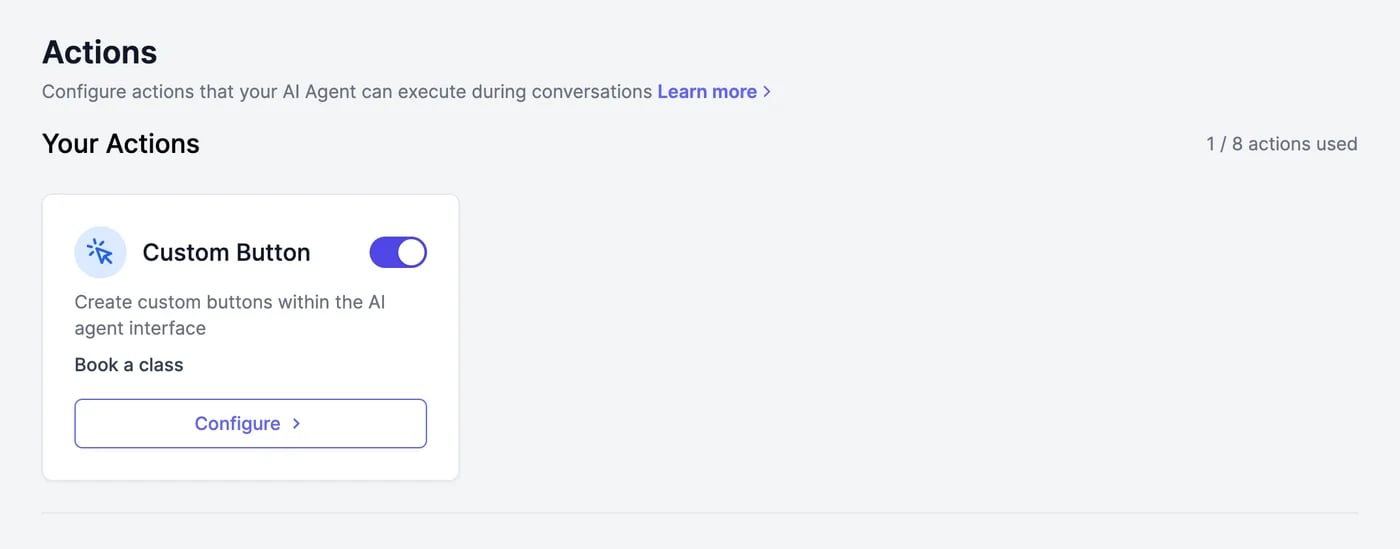
 Your actions are listed under **Your Actions**, each with a switch to turn it on or off and a **Configure** button. To remove one, open it and click **Delete Action**.
 ## Available actions
| Action | What it does | Settings |
| ---------------------- | ---------------------------------------------------------------------------------------------------- | ------------------------------------------------------------------------------------------------------------------------------------------------------------------------------------------------------------- |
| **Custom Button** | Shows a button that opens a link | **Button Text**, **URL** |
| **Collect Data** | Asks the visitor for details in the conversation, one or two at a time, and saves them when complete | The fields to ask for (each can be **Required**), **Message after saving**, **Also save to Leads**, and where to **Send submissions to**: a **Webhook URL (optional)** and **Email notifications (optional)** |
| **Custom Form** | Shows a form inside the chat | **Form Title**, **Form Description**, **Form Fields** (text, email, number, text area, select, phone, URL), **Submit Button Text** |
| **Suggested Messages** | Shows tappable replies after the agent's answer | **Auto generate suggested messages**, **Disable input field**, **Show after every message** |
| **Google Calendar** | Checks your free times and books meetings in your calendar. One per agent | Connect Google Calendar, default event title and description, meeting length, and time zone. See [Google Calendar](/docs/agents/integrations#google-calendar) |
| **Web Search** | Searches the web for current information. One per agent | **Allowed Domains (Optional)**, **Include Images** |
| **Fetch URL** | Reads a web page or an API during the chat. One per agent | **Allowed Domains (Optional)** |
| **Code Interpreter** | Runs Python for calculations and charts. One per agent | None |
| **Email** | Sends you an email, for example when a visitor asks to be contacted | **To Email Address**, **Subject Template**, **Message Template** |
| **Custom Action** | Calls your own API, for example to look up an order | **Endpoint URL**, **HTTP Method**, **Headers**, **Payload Template** |
### Collect Data or a lead form?
Both capture visitors' details. **Collect Data** asks naturally in the conversation, works on messaging channels too, and can send what it collects to email or a webhook. The [lead form](/docs/agents/leads) is a fixed form in the website chat that appears after the first answer. Turn on **Also save to Leads** to see Collect Data submissions on the same **Leads** page.
### Email templates
In the **Email** action's templates, `{{user}}` is replaced with the visitor's name and `{{message}}` with the message the agent writes. For example: subject `New message from {{user}}`, message `Message from {{user}}: {{message}}`.
### Custom Action
A **Custom Action** sends a request to your API and gives the agent the response.
* To pass values from the conversation, put `${name}` placeholders in the **Endpoint URL**, for example `https://api.example.com/orders/${order_id}`. The agent fills them in, asking the visitor if it needs to.
* For **POST** and **PUT**, the agent writes the JSON body itself. Describe the body you expect in the **Trigger Instructions**, for example "Send `{"email": "...", "question": "..."}`". The **Payload Template** is sent as written when the agent doesn't supply a body; placeholders in it aren't filled in.
* Add authentication, such as an API key, under **Headers**. The agent never sees your headers.
## How the agent decides
Each action you turn on becomes something the agent can use, with your **Trigger Instructions** as its description. The agent picks an action when the conversation matches them, and can use several in one reply. Clear, specific trigger instructions work best. You can also mention actions in the agent's [instructions](/docs/agents/instructions-and-model#instructions), for example "Always show the Book a class button after explaining prices."
Actions work in the website chat and on messaging channels such as WhatsApp and Telegram. Buttons, forms, and suggested messages are made for the website chat. Actions don't run through the [REST API](/docs/agents/integrations#rest-api).
Collect and export visitors' details.
Google Calendar, Zapier, and the REST API.
## Available actions
| Action | What it does | Settings |
| ---------------------- | ---------------------------------------------------------------------------------------------------- | ------------------------------------------------------------------------------------------------------------------------------------------------------------------------------------------------------------- |
| **Custom Button** | Shows a button that opens a link | **Button Text**, **URL** |
| **Collect Data** | Asks the visitor for details in the conversation, one or two at a time, and saves them when complete | The fields to ask for (each can be **Required**), **Message after saving**, **Also save to Leads**, and where to **Send submissions to**: a **Webhook URL (optional)** and **Email notifications (optional)** |
| **Custom Form** | Shows a form inside the chat | **Form Title**, **Form Description**, **Form Fields** (text, email, number, text area, select, phone, URL), **Submit Button Text** |
| **Suggested Messages** | Shows tappable replies after the agent's answer | **Auto generate suggested messages**, **Disable input field**, **Show after every message** |
| **Google Calendar** | Checks your free times and books meetings in your calendar. One per agent | Connect Google Calendar, default event title and description, meeting length, and time zone. See [Google Calendar](/docs/agents/integrations#google-calendar) |
| **Web Search** | Searches the web for current information. One per agent | **Allowed Domains (Optional)**, **Include Images** |
| **Fetch URL** | Reads a web page or an API during the chat. One per agent | **Allowed Domains (Optional)** |
| **Code Interpreter** | Runs Python for calculations and charts. One per agent | None |
| **Email** | Sends you an email, for example when a visitor asks to be contacted | **To Email Address**, **Subject Template**, **Message Template** |
| **Custom Action** | Calls your own API, for example to look up an order | **Endpoint URL**, **HTTP Method**, **Headers**, **Payload Template** |
### Collect Data or a lead form?
Both capture visitors' details. **Collect Data** asks naturally in the conversation, works on messaging channels too, and can send what it collects to email or a webhook. The [lead form](/docs/agents/leads) is a fixed form in the website chat that appears after the first answer. Turn on **Also save to Leads** to see Collect Data submissions on the same **Leads** page.
### Email templates
In the **Email** action's templates, `{{user}}` is replaced with the visitor's name and `{{message}}` with the message the agent writes. For example: subject `New message from {{user}}`, message `Message from {{user}}: {{message}}`.
### Custom Action
A **Custom Action** sends a request to your API and gives the agent the response.
* To pass values from the conversation, put `${name}` placeholders in the **Endpoint URL**, for example `https://api.example.com/orders/${order_id}`. The agent fills them in, asking the visitor if it needs to.
* For **POST** and **PUT**, the agent writes the JSON body itself. Describe the body you expect in the **Trigger Instructions**, for example "Send `{"email": "...", "question": "..."}`". The **Payload Template** is sent as written when the agent doesn't supply a body; placeholders in it aren't filled in.
* Add authentication, such as an API key, under **Headers**. The agent never sees your headers.
## How the agent decides
Each action you turn on becomes something the agent can use, with your **Trigger Instructions** as its description. The agent picks an action when the conversation matches them, and can use several in one reply. Clear, specific trigger instructions work best. You can also mention actions in the agent's [instructions](/docs/agents/instructions-and-model#instructions), for example "Always show the Book a class button after explaining prices."
Actions work in the website chat and on messaging channels such as WhatsApp and Telegram. Buttons, forms, and suggested messages are made for the website chat. Actions don't run through the [REST API](/docs/agents/integrations#rest-api).
Collect and export visitors' details.
Google Calendar, Zapier, and the REST API.