> ## Documentation Index
> Fetch the complete documentation index at: https://easy-peasy.ai/docs/llms.txt
> Use this file to discover all available pages before exploring further.
# Appearance
> Set your agent's name, greeting, suggested messages, colors, font, and chat features, with a live preview.
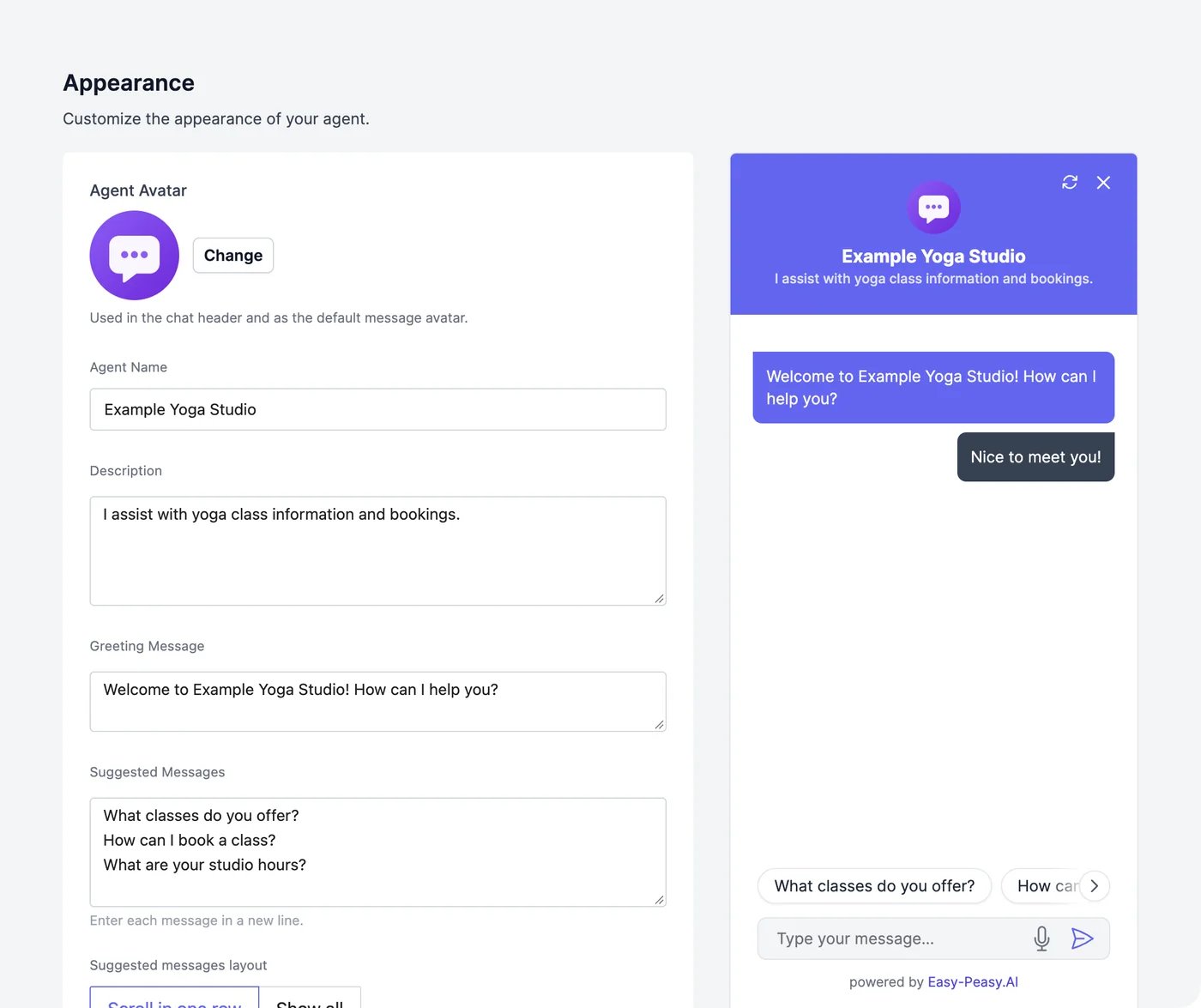
**Appearance** controls what visitors see in the chat: the header, the first message, the buttons under the text box, and the colors. The preview on the right updates as you edit. Click **Save** at the bottom to publish your changes to every website chat.
 To change the chat bubble on your website (its position, size, color, and width), use [**Channels** > **Website**](/docs/agents/website#add-the-chat-bubble).
## Content
| Setting | What it does |
| --------------------------------------------------------- | ------------------------------------------------------------------------------------------------------------- |
| **Agent Avatar** | The picture in the chat header, and next to the agent's messages if you turn that on |
| **Agent Name** | The name in the chat header |
| **Description** | The line under the name in the header |
| **Greeting Message** | The first message visitors see |
| **Suggested Messages** | Questions visitors can tap to start, one per line |
| **Suggested messages layout** | **Scroll in one row** keeps the greeting in view; **Show all** wraps every suggestion onto rows |
| **Auto show initial messages pop-ups after (in seconds)** | How long before the greeting pops up next to the closed chat bubble. Enter a negative number to turn this off |
| **Message Placeholder** | The hint text in the message box |
## Chat features
| Switch | What it does |
| ------------------------------ | ------------------------------------------------------------------------------------- |
| **Show Copy Button** | A copy button under the agent's answers |
| **Collect User Feedback** | Thumbs up and down under answers. The counts appear in [Analytics](/docs/agents/analytics) |
| **Allow Message Regeneration** | Lets visitors ask for a new version of an answer |
| **Enable Voice Input** | A microphone button that turns speech into typed text |
| **Allow image attachments** | Lets visitors send screenshots and photos |
### Image attachments
With **Allow image attachments** on, visitors can attach up to 4 images per message (PNG, JPEG, or WebP, up to 5 MB each) in the website chat, on the shareable link, and on [Telegram](/docs/agents/telegram). The agent looks at them and answers.
* The agent's model must be able to see images: GPT, Claude, or Gemini models. With another model, the attach button doesn't appear.
* Each image the agent looks at uses 200 words, on every model. The agent keeps up to 3 recent images in view, so an image is counted again for each reply it's still in view for.
## Style
To change the chat bubble on your website (its position, size, color, and width), use [**Channels** > **Website**](/docs/agents/website#add-the-chat-bubble).
## Content
| Setting | What it does |
| --------------------------------------------------------- | ------------------------------------------------------------------------------------------------------------- |
| **Agent Avatar** | The picture in the chat header, and next to the agent's messages if you turn that on |
| **Agent Name** | The name in the chat header |
| **Description** | The line under the name in the header |
| **Greeting Message** | The first message visitors see |
| **Suggested Messages** | Questions visitors can tap to start, one per line |
| **Suggested messages layout** | **Scroll in one row** keeps the greeting in view; **Show all** wraps every suggestion onto rows |
| **Auto show initial messages pop-ups after (in seconds)** | How long before the greeting pops up next to the closed chat bubble. Enter a negative number to turn this off |
| **Message Placeholder** | The hint text in the message box |
## Chat features
| Switch | What it does |
| ------------------------------ | ------------------------------------------------------------------------------------- |
| **Show Copy Button** | A copy button under the agent's answers |
| **Collect User Feedback** | Thumbs up and down under answers. The counts appear in [Analytics](/docs/agents/analytics) |
| **Allow Message Regeneration** | Lets visitors ask for a new version of an answer |
| **Enable Voice Input** | A microphone button that turns speech into typed text |
| **Allow image attachments** | Lets visitors send screenshots and photos |
### Image attachments
With **Allow image attachments** on, visitors can attach up to 4 images per message (PNG, JPEG, or WebP, up to 5 MB each) in the website chat, on the shareable link, and on [Telegram](/docs/agents/telegram). The agent looks at them and answers.
* The agent's model must be able to see images: GPT, Claude, or Gemini models. With another model, the attach button doesn't appear.
* Each image the agent looks at uses 200 words, on every model. The agent keeps up to 3 recent images in view, so an image is counted again for each reply it's still in view for.
## Style
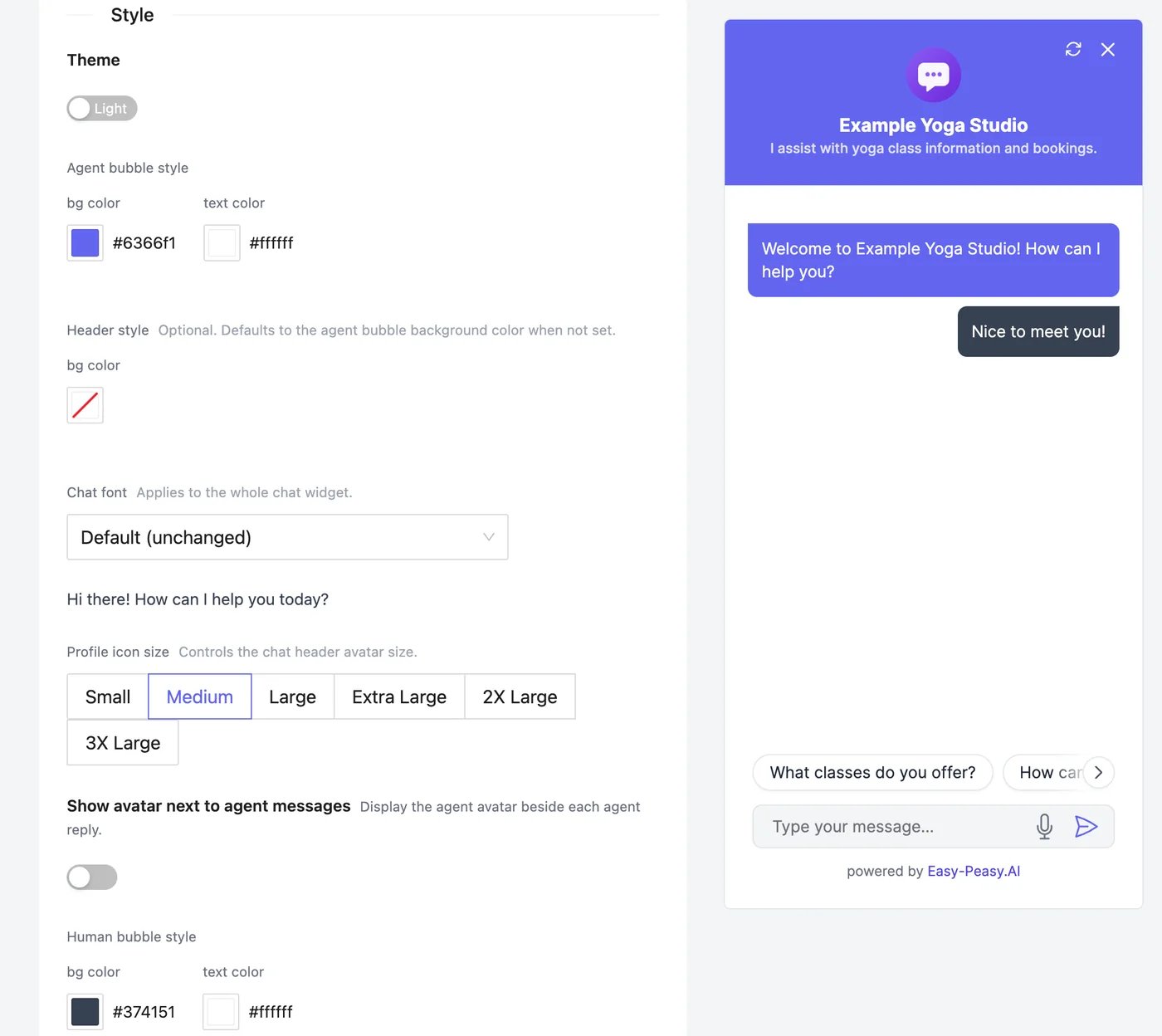 | Setting | What it does |
| -------------------------------------- | ----------------------------------------------------------------------------------------------------------------- |
| **Theme** | Light or dark chat |
| **Agent bubble style** | Background and text color of the agent's messages |
| **Header style** | Background color of the header. Empty uses the agent bubble color |
| **Chat font** | The font of the whole chat: a preset such as Inter, or **Custom web font…** with a font name and a stylesheet URL |
| **Profile icon size** | Size of the avatar in the header, from **Small** to **3X Large** |
| **Show avatar next to agent messages** | Shows an avatar beside each answer. **Message Avatar** sets a different picture for it |
| **Human bubble style** | Background and text color of the visitor's messages |
## The "Powered by" footer
**Show 'Powered by Easy-Peasy.AI' footer** can be turned off on the Unlimited 200 and higher plans and on Teams plans.
Style the chat bubble and copy the code.
Change the look while you chat.
| Setting | What it does |
| -------------------------------------- | ----------------------------------------------------------------------------------------------------------------- |
| **Theme** | Light or dark chat |
| **Agent bubble style** | Background and text color of the agent's messages |
| **Header style** | Background color of the header. Empty uses the agent bubble color |
| **Chat font** | The font of the whole chat: a preset such as Inter, or **Custom web font…** with a font name and a stylesheet URL |
| **Profile icon size** | Size of the avatar in the header, from **Small** to **3X Large** |
| **Show avatar next to agent messages** | Shows an avatar beside each answer. **Message Avatar** sets a different picture for it |
| **Human bubble style** | Background and text color of the visitor's messages |
## The "Powered by" footer
**Show 'Powered by Easy-Peasy.AI' footer** can be turned off on the Unlimited 200 and higher plans and on Teams plans.
Style the chat bubble and copy the code.
Change the look while you chat.