> ## Documentation Index
> Fetch the complete documentation index at: https://easy-peasy.ai/docs/llms.txt
> Use this file to discover all available pages before exploring further.
# Channels
> Put your agent on your website, WhatsApp, Messenger, Telegram, Slack, LINE, email, phone, and more, and see what works on each channel.
One agent can answer on many channels at once, with the same knowledge, instructions, and actions everywhere. Open your agent and click **Channels** to connect them.
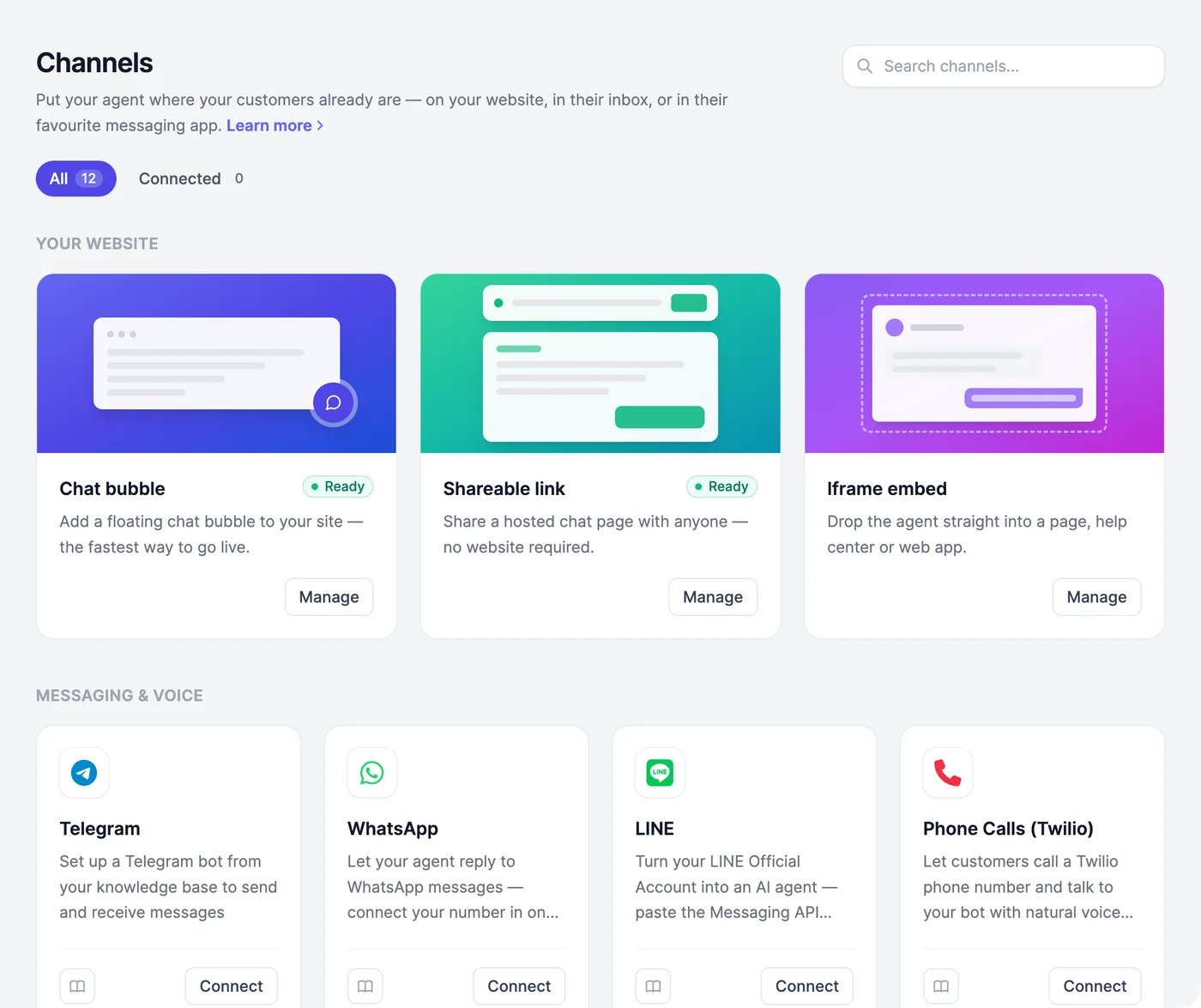 ## Available channels
| Channel | How people reach your agent | Plans |
| ----------------------------------------------------------------------------------- | ------------------------------------------------------------- | ----- |
| [Website](/docs/agents/website) | A chat bubble, a shareable link, or a chat inside a page | All |
| [Website platforms](/docs/agents/website-platforms) | WordPress, Wix, Squarespace, Webflow, and other site builders | All |
| [Telegram](/docs/agents/telegram) | Messages to your Telegram bot | All |
| [Facebook Messenger](/docs/agents/messenger) | Messages to your Facebook Page | All |
| [Slack](/docs/agents/slack) | Direct messages and @mentions in your workspace | All |
| [WhatsApp](/docs/agents/whatsapp) | Messages to your WhatsApp Business number | Paid |
| [LINE](/docs/agents/line) | Messages to your LINE Official Account | Paid |
| [Email](/docs/agents/email) | Emails to the agent's own address | Paid |
| [Phone calls](/docs/agents/phone-calls) | Calls to a Twilio phone number | Paid |
| [Shopify](/docs/agents/shopify) | The chat on your store, with product search and order status | Paid |
| [Basecamp](/docs/agents/basecamp) | Commands in a Basecamp chat | All |
| [REST API](/docs/agents/integrations#rest-api) and [Zapier](/docs/agents/integrations#zapier) | Your own apps and automations | All |
On the Free plan, the paid channels show **Pro** and an **Upgrade** button.
## Connect a channel
Click **Connect** on a channel's card. Most channels open a window where you sign in or paste a key; each channel's page has the steps. The book icon on a card opens its setup guide.
## Available channels
| Channel | How people reach your agent | Plans |
| ----------------------------------------------------------------------------------- | ------------------------------------------------------------- | ----- |
| [Website](/docs/agents/website) | A chat bubble, a shareable link, or a chat inside a page | All |
| [Website platforms](/docs/agents/website-platforms) | WordPress, Wix, Squarespace, Webflow, and other site builders | All |
| [Telegram](/docs/agents/telegram) | Messages to your Telegram bot | All |
| [Facebook Messenger](/docs/agents/messenger) | Messages to your Facebook Page | All |
| [Slack](/docs/agents/slack) | Direct messages and @mentions in your workspace | All |
| [WhatsApp](/docs/agents/whatsapp) | Messages to your WhatsApp Business number | Paid |
| [LINE](/docs/agents/line) | Messages to your LINE Official Account | Paid |
| [Email](/docs/agents/email) | Emails to the agent's own address | Paid |
| [Phone calls](/docs/agents/phone-calls) | Calls to a Twilio phone number | Paid |
| [Shopify](/docs/agents/shopify) | The chat on your store, with product search and order status | Paid |
| [Basecamp](/docs/agents/basecamp) | Commands in a Basecamp chat | All |
| [REST API](/docs/agents/integrations#rest-api) and [Zapier](/docs/agents/integrations#zapier) | Your own apps and automations | All |
On the Free plan, the paid channels show **Pro** and an **Upgrade** button.
## Connect a channel
Click **Connect** on a channel's card. Most channels open a window where you sign in or paste a key; each channel's page has the steps. The book icon on a card opens its setup guide.
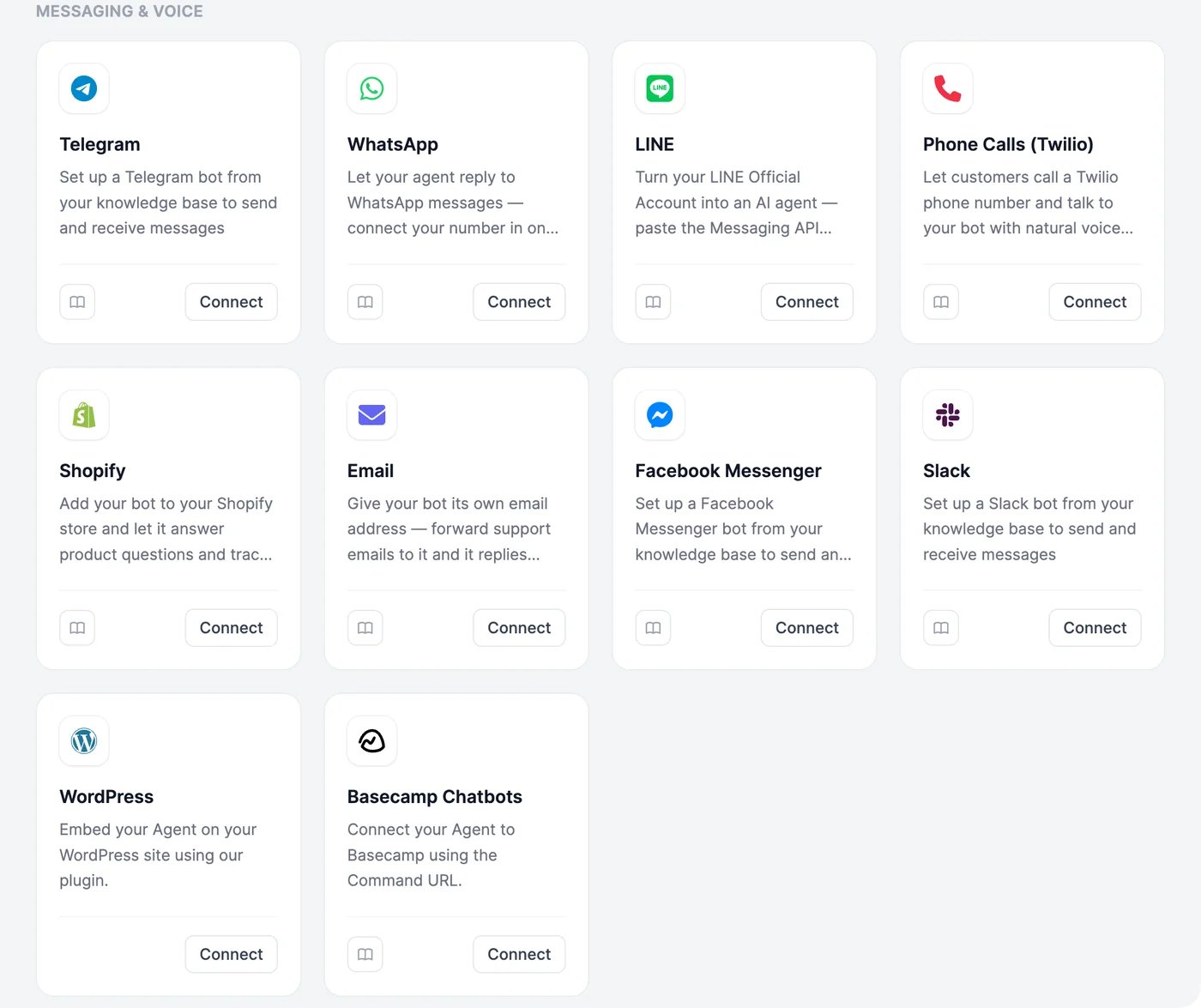 Once connected, a card shows **Connected**. **Connected** at the top of the page filters to your connected channels, and the search box finds a channel by name.
## Pause a channel
Open a connected channel and switch off **Enable integration**. The agent stops answering on that channel until you switch it back on, and the card shows **Paused**. Your other channels keep working.
## What works where
| | Website chat | WhatsApp, Messenger, Slack, LINE, Email, Basecamp | Telegram | Phone calls | REST API |
| --------------------------------------------------------- | ------------ | ------------------------------------------------- | -------- | ----------- | -------- |
| Knowledge and instructions | Yes | Yes | Yes | Yes | Yes |
| [Actions](/docs/agents/actions) | Yes | Yes | Yes | Yes | No |
| [Image attachments](/docs/agents/appearance#image-attachments) | Yes | No | Yes | — | No |
| [Voice calls](/docs/agents/voice) | Yes | No | No | Yes | No |
| [Lead form](/docs/agents/leads) | Yes | No | No | No | No |
Buttons, forms, and suggested messages are made for the website chat. [Conversations](/docs/agents/conversations) lists chats from the website, WhatsApp, Messenger, LINE, and Telegram.
Start with the chat bubble on your site.
Connect a WhatsApp Business number in one click.
Once connected, a card shows **Connected**. **Connected** at the top of the page filters to your connected channels, and the search box finds a channel by name.
## Pause a channel
Open a connected channel and switch off **Enable integration**. The agent stops answering on that channel until you switch it back on, and the card shows **Paused**. Your other channels keep working.
## What works where
| | Website chat | WhatsApp, Messenger, Slack, LINE, Email, Basecamp | Telegram | Phone calls | REST API |
| --------------------------------------------------------- | ------------ | ------------------------------------------------- | -------- | ----------- | -------- |
| Knowledge and instructions | Yes | Yes | Yes | Yes | Yes |
| [Actions](/docs/agents/actions) | Yes | Yes | Yes | Yes | No |
| [Image attachments](/docs/agents/appearance#image-attachments) | Yes | No | Yes | — | No |
| [Voice calls](/docs/agents/voice) | Yes | No | No | Yes | No |
| [Lead form](/docs/agents/leads) | Yes | No | No | No | No |
Buttons, forms, and suggested messages are made for the website chat. [Conversations](/docs/agents/conversations) lists chats from the website, WhatsApp, Messenger, LINE, and Telegram.
Start with the chat bubble on your site.
Connect a WhatsApp Business number in one click.