> ## Documentation Index
> Fetch the complete documentation index at: https://easy-peasy.ai/docs/llms.txt
> Use this file to discover all available pages before exploring further.
# Conversations
> Read what people ask your agent, see where they came from, fix wrong answers, and export conversations.
**Conversations** shows every chat your agent has had, so you can see what people ask and how the agent answers. It's the fastest way to improve an agent: find a weak answer, correct it, and the agent gets it right next time.
 ## Read conversations
Open your agent and click **Activity** > **Conversations**.
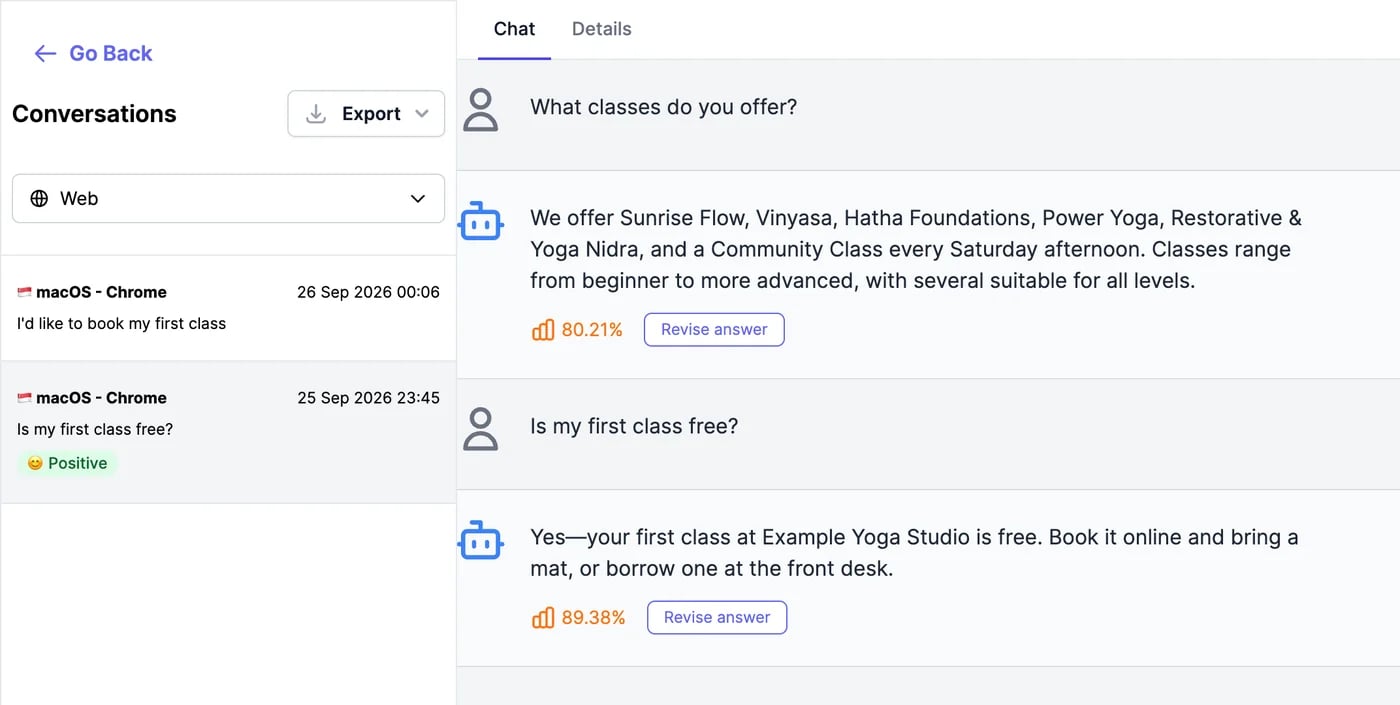
* The menu at the top chooses the channel: **Web**, **WhatsApp**, **Messenger**, **LINE**, or **Telegram**. **Web** includes the website chat, the shareable link, the Playground, and voice calls.
* Each conversation in the list shows the visitor's country, device, and browser, the time, the first message, and its sentiment once it's been analyzed.
* Click a conversation to read it. Scroll down and click **Load more conversations** for older ones.
Under each answer, a percentage shows how confident the agent was. Low scores point to questions its knowledge doesn't cover well.
Conversations on Slack, email, phone calls, Basecamp, and the REST API aren't listed here.
## Conversation details
Click **Details** above the conversation to see who the visitor was and where they came from.
## Read conversations
Open your agent and click **Activity** > **Conversations**.
* The menu at the top chooses the channel: **Web**, **WhatsApp**, **Messenger**, **LINE**, or **Telegram**. **Web** includes the website chat, the shareable link, the Playground, and voice calls.
* Each conversation in the list shows the visitor's country, device, and browser, the time, the first message, and its sentiment once it's been analyzed.
* Click a conversation to read it. Scroll down and click **Load more conversations** for older ones.
Under each answer, a percentage shows how confident the agent was. Low scores point to questions its knowledge doesn't cover well.
Conversations on Slack, email, phone calls, Basecamp, and the REST API aren't listed here.
## Conversation details
Click **Details** above the conversation to see who the visitor was and where they came from.
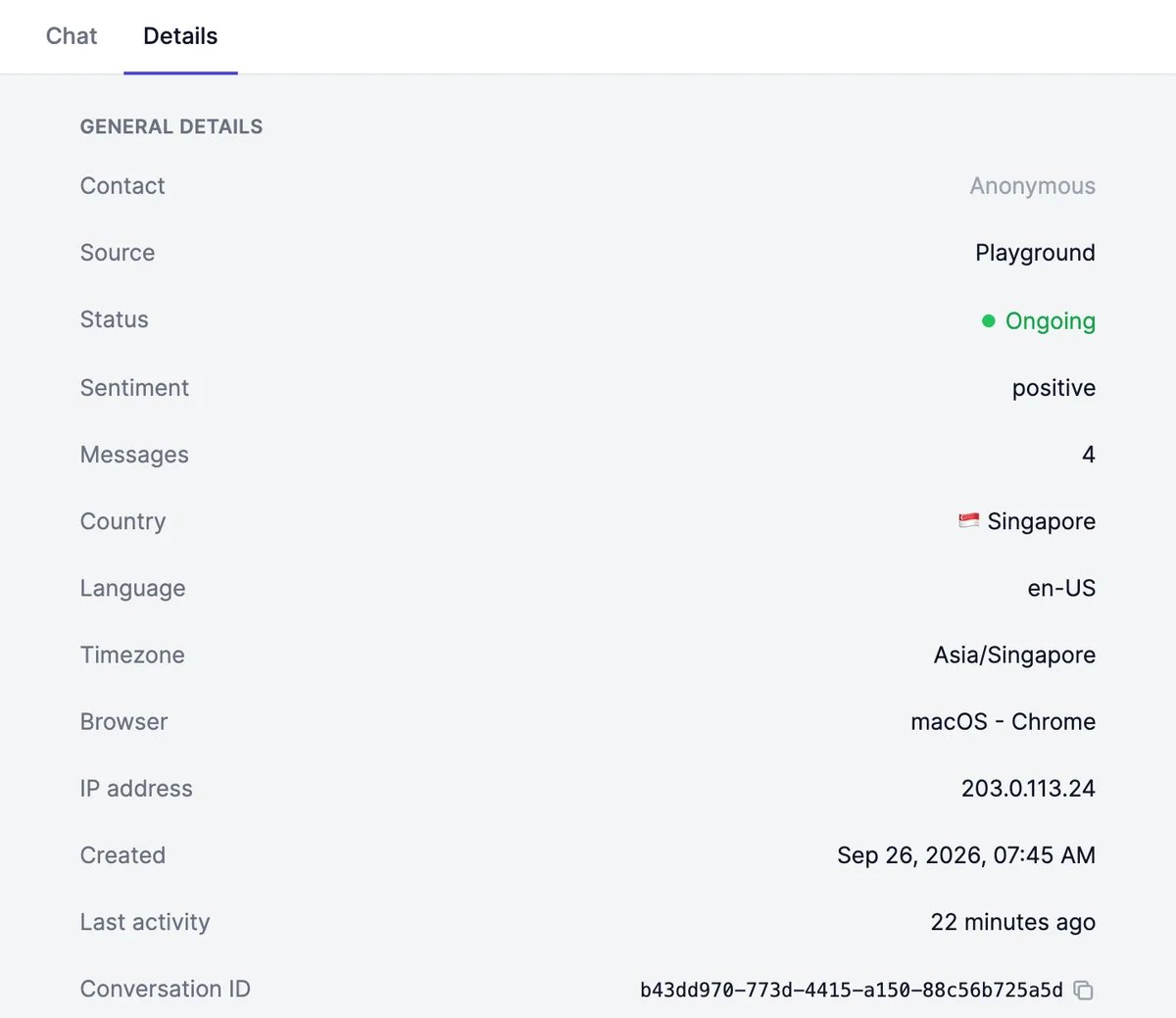 | Detail | What it shows |
| -------------------------------------------------------------------- | ---------------------------------------------------------------------------------------------------------- |
| **Contact** | The visitor's name or email when they filled in a lead form or your website passed it on, or **Anonymous** |
| **Source** | Website, Playground, or voice call |
| **Status** | **Ongoing** while the chat is active, then ended |
| **Sentiment**, **Messages** | The mood of the conversation and how many messages it has |
| **Country**, **Language**, **Timezone**, **Browser**, **IP address** | Where the visitor was and what they used |
| **Started on**, **Last page**, **Referrer** | The page the chat started on, the page they were last on, and where they came from |
| **Created**, **Last activity**, **Conversation ID** | When it started, when the last message was sent, and its ID |
To name visitors who are signed in to your website, pass their details to the chat. See [Chat widget for developers](/docs/developers/chat-widget#identify-the-visitor).
## Revise an answer
When the agent gets something wrong, click **Revise answer** under the answer. Write the answer it should have given in **Expected Response** and click **Save**.
| Detail | What it shows |
| -------------------------------------------------------------------- | ---------------------------------------------------------------------------------------------------------- |
| **Contact** | The visitor's name or email when they filled in a lead form or your website passed it on, or **Anonymous** |
| **Source** | Website, Playground, or voice call |
| **Status** | **Ongoing** while the chat is active, then ended |
| **Sentiment**, **Messages** | The mood of the conversation and how many messages it has |
| **Country**, **Language**, **Timezone**, **Browser**, **IP address** | Where the visitor was and what they used |
| **Started on**, **Last page**, **Referrer** | The page the chat started on, the page they were last on, and where they came from |
| **Created**, **Last activity**, **Conversation ID** | When it started, when the last message was sent, and its ID |
To name visitors who are signed in to your website, pass their details to the chat. See [Chat widget for developers](/docs/developers/chat-widget#identify-the-visitor).
## Revise an answer
When the agent gets something wrong, click **Revise answer** under the answer. Write the answer it should have given in **Expected Response** and click **Save**.
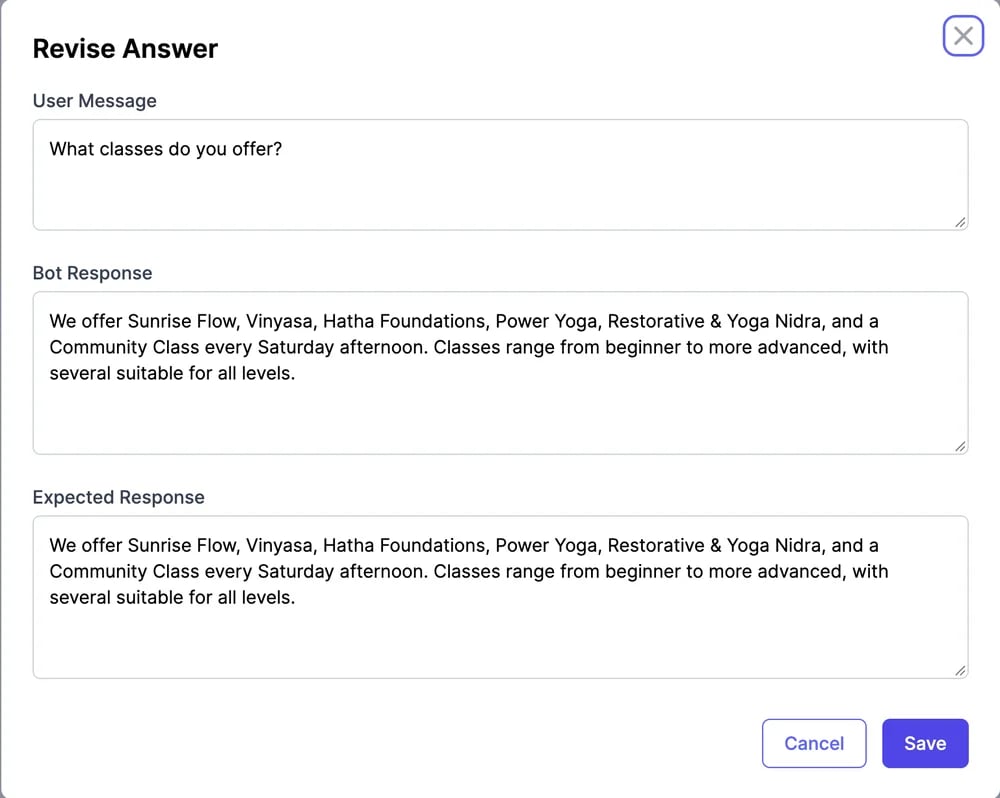 The question and your answer are added to [**Knowledge**](/docs/agents/knowledge) as a Q\&A, and the answer is marked **Revised**. The agent uses your answer from the next question on.
## Export and delete
* **Export** at the top downloads the conversations as a PDF or JSON file. It isn't available for Telegram.
* To delete a conversation, hover over it in the list and click the trash icon. Deleting can't be undone.
Chats, messages, and feedback over time.
Details your visitors left.
The question and your answer are added to [**Knowledge**](/docs/agents/knowledge) as a Q\&A, and the answer is marked **Revised**. The agent uses your answer from the next question on.
## Export and delete
* **Export** at the top downloads the conversations as a PDF or JSON file. It isn't available for Telegram.
* To delete a conversation, hover over it in the list and click the trash icon. Deleting can't be undone.
Chats, messages, and feedback over time.
Details your visitors left.