> ## Documentation Index
> Fetch the complete documentation index at: https://easy-peasy.ai/docs/llms.txt
> Use this file to discover all available pages before exploring further.
# Email
> Give your agent its own email address, forward your support mailbox to it, and optionally reply from your own domain.
Your agent can answer email. It gets its own address; anything sent there gets a reply in the same thread, signed the way you choose. Keep your existing support address and forward it to the agent, or share the agent's address directly.
Email is available on paid plans.
## Connect email
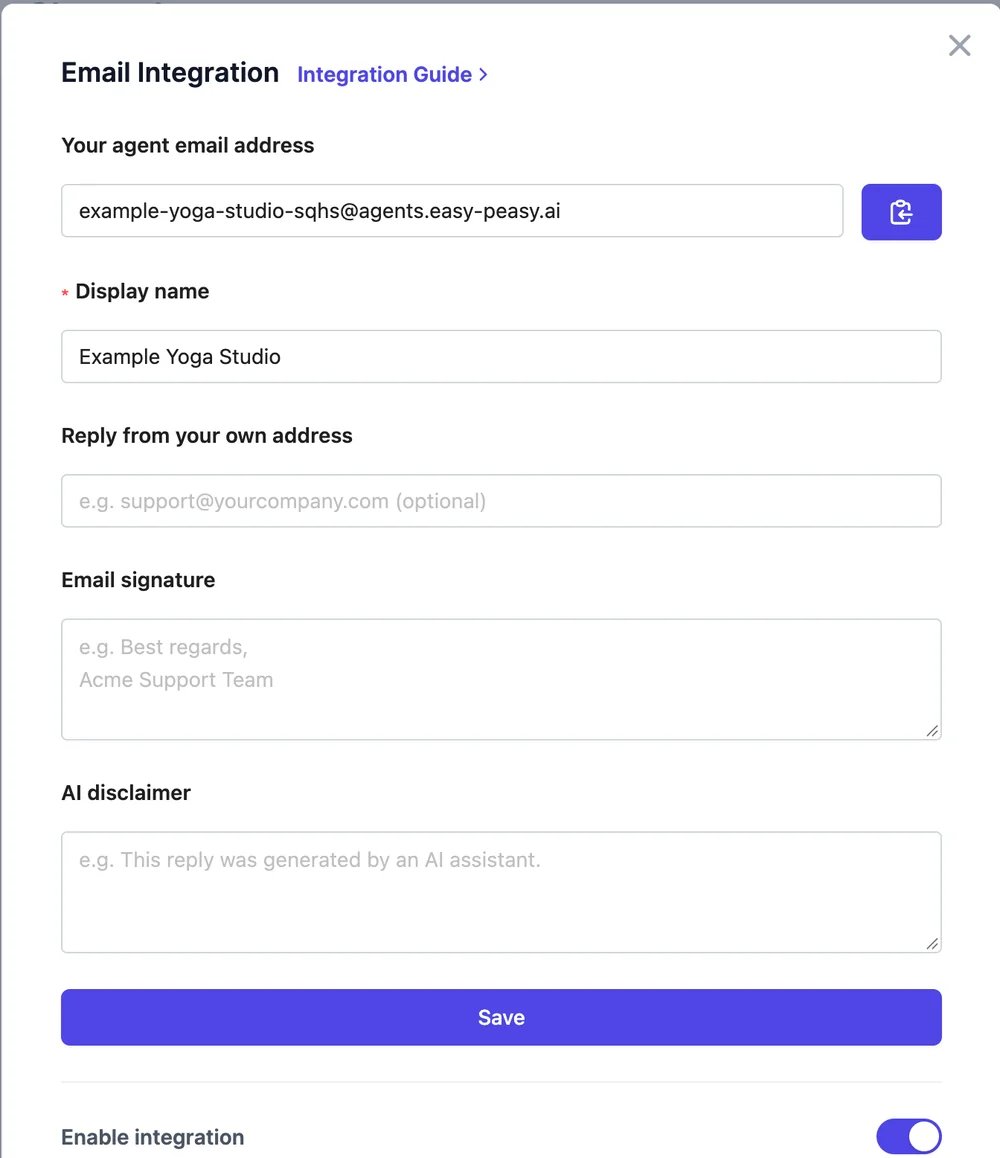
Open your agent, click **Channels**, and click **Connect** on **Email**.
| Field | What it does |
| ------------------------------- | -------------------------------------------------------------------------------------- |
| **Display name** | The sender name people see, such as "Example Yoga Studio". Up to 100 characters |
| **Reply from your own address** | Optional. See [Reply from your own domain](#reply-from-your-own-domain) |
| **Email signature** | Added to the end of every reply |
| **AI disclaimer** | A short note under the signature, such as "This reply was written by an AI assistant." |
Click **Save**.
Open the Email window again. **Your agent email address** now shows the agent's address, ending in `@agents.easy-peasy.ai`. Copy it with the button next to it. The address doesn't change.
 In your email provider, forward your support address to the agent's address:
* **Gmail and Google Workspace:** **Settings** > **Forwarding and POP/IMAP** > **Add a forwarding address**, or a routing rule in the Admin console.
* **Outlook and Microsoft 365:** **Settings** > **Mail** > **Forwarding**, or a mail flow rule in the admin center.
* **Other providers:** look for forwarding or redirect rules.
Email a question to the agent's address from a personal address. The reply usually arrives within a minute, in the same thread. Reply again to see the agent keep the context.
## Reply from your own domain
By default, replies come from Easy-Peasy.AI's mail servers with your display name, and replies to them go to the agent. To send from your own address, such as `support@example.com`:
1. Enter it in **Reply from your own address** and click **Save**. Addresses on free mail services such as Gmail can't be used.
2. **Domain verification** shows a TXT record and a CNAME record. Add both at the company that manages your domain's DNS.
3. Click **Verify domain**. DNS changes can take up to 48 hours. When the status shows **Verified**, replies come from your address.
Until then, replies keep coming from the default sender.
## What the agent answers
* Each sender's thread keeps its history, so follow-up emails are answered in context.
* Auto-replies, out-of-office messages, mailing lists, bounces, and spam are ignored, so the agent never gets stuck replying to machines.
* Your [actions](/docs/agents/actions) work in email.
To stop replies, switch off **Enable integration**. Incoming mail is ignored until you switch it back on, and the address stays yours.
Tell the agent what to do when it doesn't know.
All the places your agent can answer.
In your email provider, forward your support address to the agent's address:
* **Gmail and Google Workspace:** **Settings** > **Forwarding and POP/IMAP** > **Add a forwarding address**, or a routing rule in the Admin console.
* **Outlook and Microsoft 365:** **Settings** > **Mail** > **Forwarding**, or a mail flow rule in the admin center.
* **Other providers:** look for forwarding or redirect rules.
Email a question to the agent's address from a personal address. The reply usually arrives within a minute, in the same thread. Reply again to see the agent keep the context.
## Reply from your own domain
By default, replies come from Easy-Peasy.AI's mail servers with your display name, and replies to them go to the agent. To send from your own address, such as `support@example.com`:
1. Enter it in **Reply from your own address** and click **Save**. Addresses on free mail services such as Gmail can't be used.
2. **Domain verification** shows a TXT record and a CNAME record. Add both at the company that manages your domain's DNS.
3. Click **Verify domain**. DNS changes can take up to 48 hours. When the status shows **Verified**, replies come from your address.
Until then, replies keep coming from the default sender.
## What the agent answers
* Each sender's thread keeps its history, so follow-up emails are answered in context.
* Auto-replies, out-of-office messages, mailing lists, bounces, and spam are ignored, so the agent never gets stuck replying to machines.
* Your [actions](/docs/agents/actions) work in email.
To stop replies, switch off **Enable integration**. Incoming mail is ignored until you switch it back on, and the address stays yours.
Tell the agent what to do when it doesn't know.
All the places your agent can answer.