> ## Documentation Index
> Fetch the complete documentation index at: https://easy-peasy.ai/docs/llms.txt
> Use this file to discover all available pages before exploring further.
# Leads and notifications
> Collect visitors' names, emails, and phone numbers in the chat, export them, and get an email for every new lead and a daily summary.
Your agent can collect contact details from visitors, so you can follow up. There are two ways to do it:
* **The lead form**, a short form in the website chat that appears after the agent's first answer. Set it up on the **Leads** page.
* **The [Collect Data](/docs/agents/actions#available-actions) action**, which asks for details during the conversation and works on messaging channels too.
The lead form and notifications are for paid plans.
## Set up the lead form
Open your agent and click **Leads** in its menu.
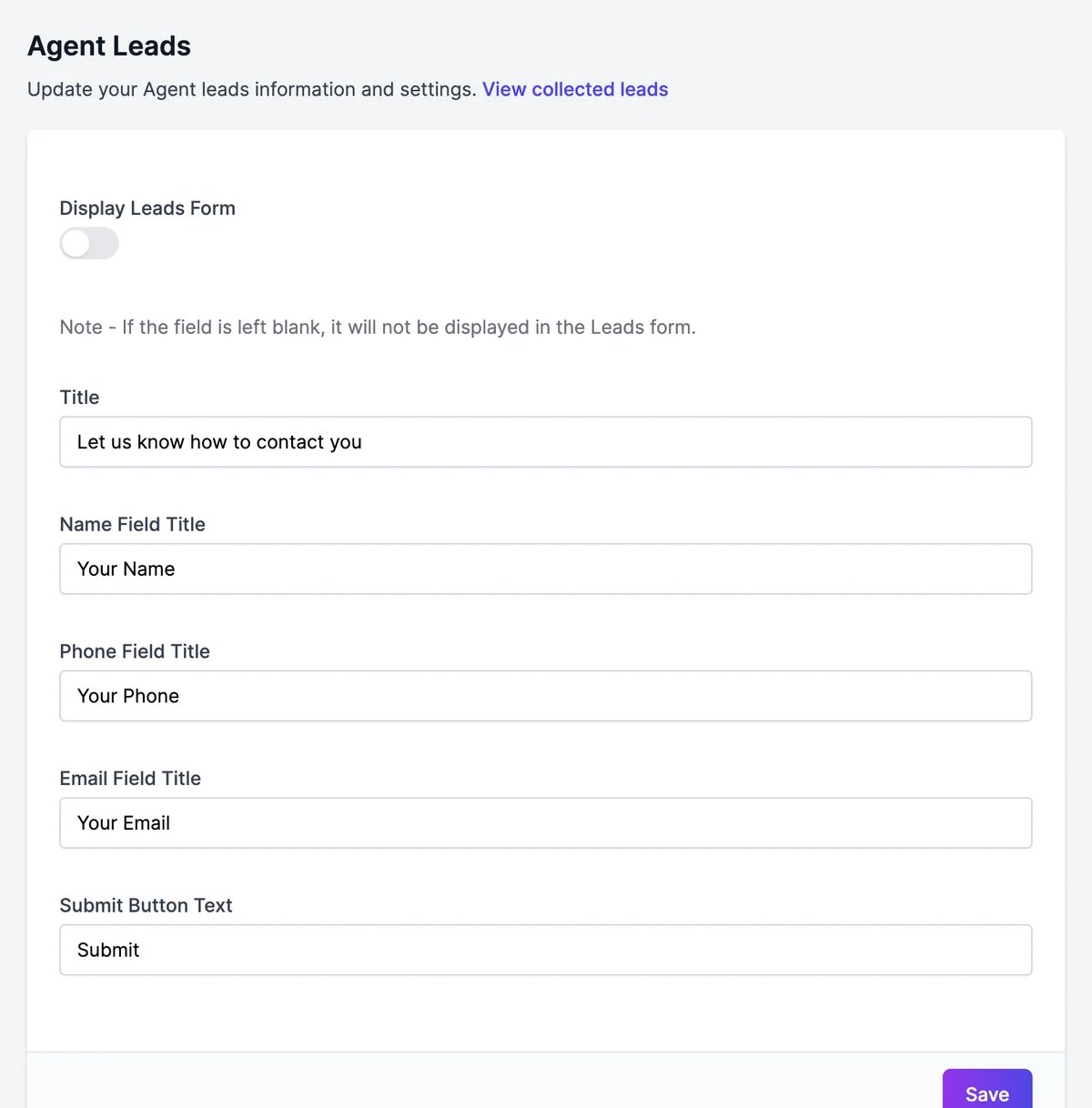 Change the **Title**, the field labels, and the **Submit Button Text** if you like. Leave a field's label empty to hide that field: for example, clear **Phone Field Title** to ask only for a name and email.
The form appears in the chat after the agent's first answer. Visitors can close it, but it comes back after the next answer until they submit it. Submitted details are also sent to the agent as a message.
## See collected leads
Open **Activity** > **Leads**, or click **View collected leads** on the **Leads** page. Each lead shows the date and the details the visitor left, 25 per page. Details collected by the **Collect Data** action appear here too when its **Also save to Leads** option is on.
Click **Export CSV** to download them for your CRM or mailing tool.
## Get notified
Open **Notifications** to choose which emails you get:
Change the **Title**, the field labels, and the **Submit Button Text** if you like. Leave a field's label empty to hide that field: for example, clear **Phone Field Title** to ask only for a name and email.
The form appears in the chat after the agent's first answer. Visitors can close it, but it comes back after the next answer until they submit it. Submitted details are also sent to the agent as a message.
## See collected leads
Open **Activity** > **Leads**, or click **View collected leads** on the **Leads** page. Each lead shows the date and the details the visitor left, 25 per page. Details collected by the **Collect Data** action appear here too when its **Also save to Leads** option is on.
Click **Export CSV** to download them for your CRM or mailing tool.
## Get notified
Open **Notifications** to choose which emails you get:
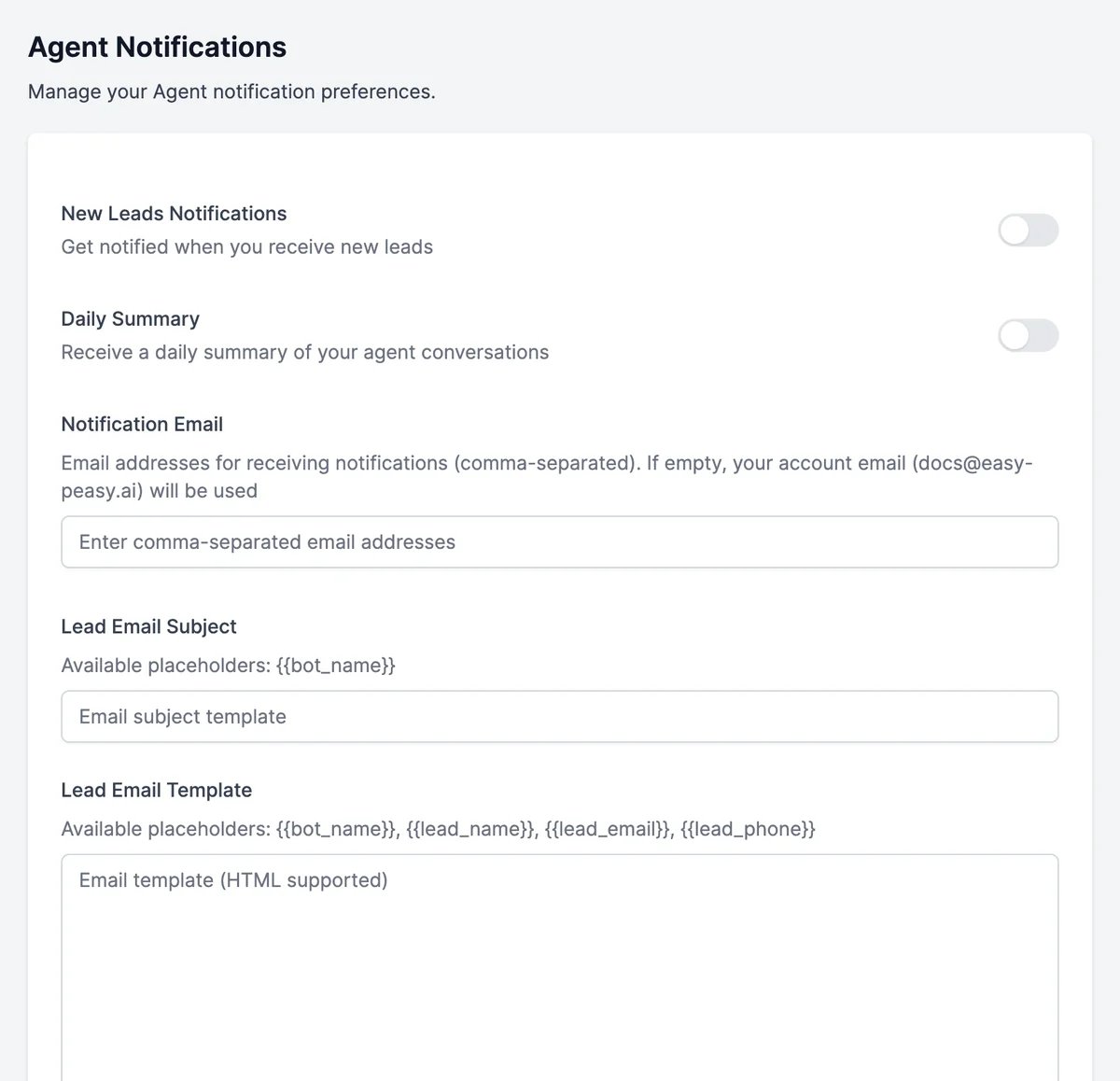 | Setting | What it does |
| --------------------------- | -------------------------------------------------------------------------------------------------------------------------------------- |
| **New Leads Notifications** | An email each time a visitor submits the lead form |
| **Daily Summary** | An email each morning with the previous day's conversations and messages, and a link to them. Nothing is sent on days without messages |
| **Notification Email** | Where to send the emails. Separate several addresses with commas. Empty uses your account email |
| **Lead Email Subject** | The subject of lead emails. `{{bot_name}}` is replaced with the agent's name |
| **Lead Email Template** | The body of lead emails, in HTML. Use `{{bot_name}}`, `{{lead_name}}`, `{{lead_email}}`, and `{{lead_phone}}` |
The daily summary covers one UTC day and arrives around 07:00 UTC.
Collect details in the conversation with Collect Data.
See who your leads talked to the agent about.
| Setting | What it does |
| --------------------------- | -------------------------------------------------------------------------------------------------------------------------------------- |
| **New Leads Notifications** | An email each time a visitor submits the lead form |
| **Daily Summary** | An email each morning with the previous day's conversations and messages, and a link to them. Nothing is sent on days without messages |
| **Notification Email** | Where to send the emails. Separate several addresses with commas. Empty uses your account email |
| **Lead Email Subject** | The subject of lead emails. `{{bot_name}}` is replaced with the agent's name |
| **Lead Email Template** | The body of lead emails, in HTML. Use `{{bot_name}}`, `{{lead_name}}`, `{{lead_email}}`, and `{{lead_phone}}` |
The daily summary covers one UTC day and arrives around 07:00 UTC.
Collect details in the conversation with Collect Data.
See who your leads talked to the agent about.