> ## Documentation Index
> Fetch the complete documentation index at: https://easy-peasy.ai/docs/llms.txt
> Use this file to discover all available pages before exploring further.
# Agents overview
> Build an AI agent trained on your website and documents, test it, and put it on your website, WhatsApp, Telegram, email, phone, and other channels.
An agent answers your customers' questions from your own content. You give it your website, documents, and FAQs, tell it how to behave, and put it where your customers already are: a chat bubble on your website, a shareable link, WhatsApp, Messenger, Telegram, Slack, LINE, email, or a phone number. Agents were called Bots before.
 ## How it works
Enter your website, say what the agent should do, and the agent is built for you: it reads your pages, writes its instructions, and matches your brand colors. See [Create an agent](/docs/agents/create).
Add documents, text, questions and answers, a sitemap, or YouTube videos in [**Knowledge**](/docs/agents/knowledge). The agent answers from what you add here.
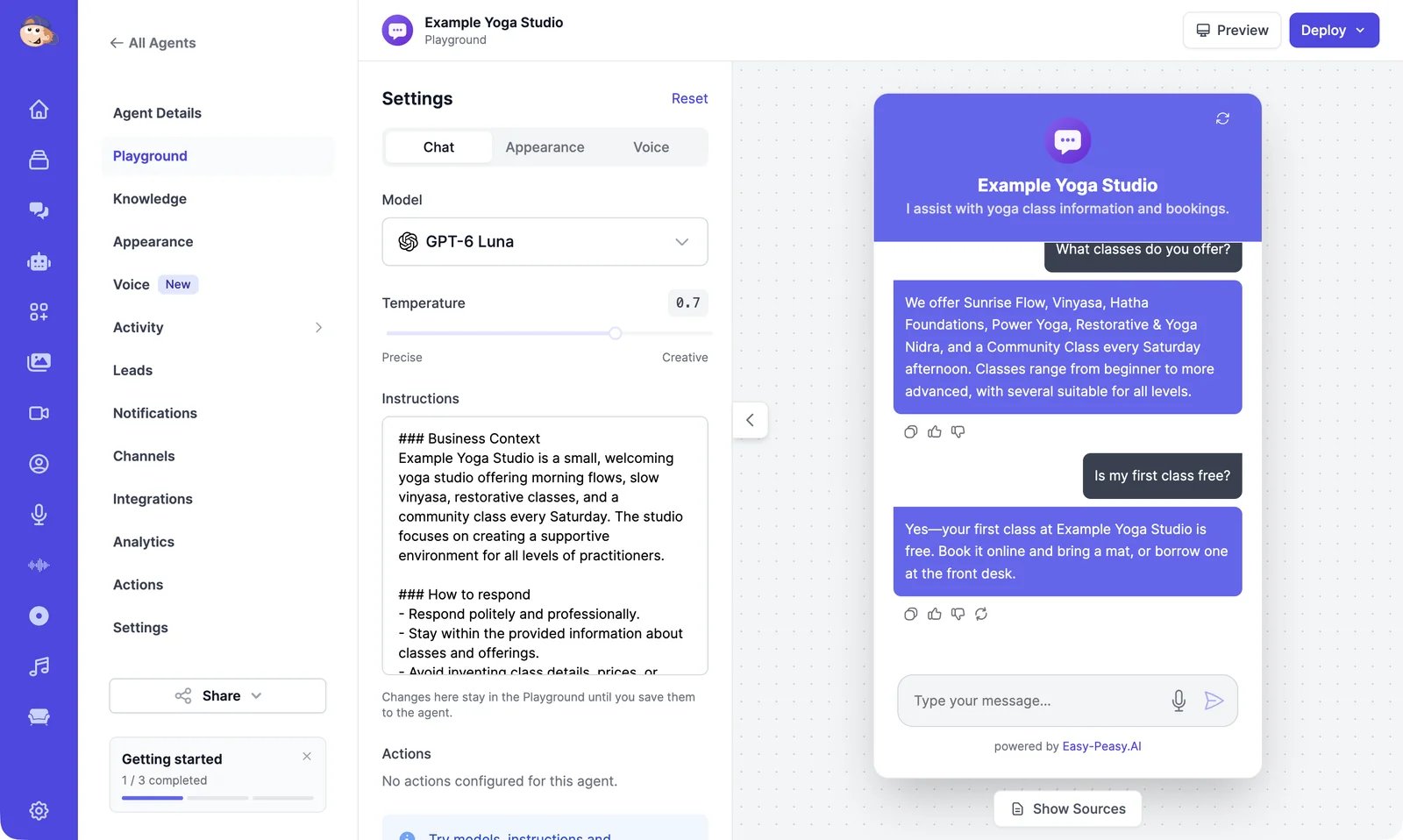
Chat with your agent, try other models and instructions, and save the setup you like. See [Playground](/docs/agents/playground).
Set the [instructions and model](/docs/agents/instructions-and-model), the [look of the chat](/docs/agents/appearance), and [actions](/docs/agents/actions) such as booking a meeting or collecting a lead.
Add the chat bubble to your [website](/docs/agents/website), or connect [WhatsApp, Telegram, email, and other channels](/docs/agents/channels).
Read [conversations](/docs/agents/conversations), improve answers, and check [analytics](/docs/agents/analytics) and [leads](/docs/agents/leads).
## Find your way around
Open **Agents** in the sidebar to see your agents. Click **Edit** on an agent to open it. Its menu has these pages:
| Page | What it's for |
| ----------------- | ------------------------------------------------------------------------------------ |
| **Agent Details** | Name, avatar, [instructions, and model](/docs/agents/instructions-and-model) |
| **Playground** | [Test the agent](/docs/agents/playground) and try other settings |
| **Knowledge** | The [content the agent answers from](/docs/agents/knowledge) |
| **Appearance** | How the [chat looks](/docs/agents/appearance): name, greeting, colors, suggested messages |
| **Voice** | [Voice calls](/docs/agents/voice) with your agent |
| **Activity** | [Conversations](/docs/agents/conversations) and collected [leads](/docs/agents/leads) |
| **Leads** | The [lead form](/docs/agents/leads) shown in the chat |
| **Notifications** | [Emails](/docs/agents/leads#get-notified) about new leads and a daily summary |
| **Channels** | Where [people talk to your agent](/docs/agents/channels) |
| **Integrations** | [Google Calendar, Zapier, and the REST API](/docs/agents/integrations) |
| **Analytics** | [Chats, messages, feedback, and sentiment](/docs/agents/analytics) over time |
| **Actions** | [Things your agent can do](/docs/agents/actions) during a chat |
| **Settings** | [Visibility, allowed domains, sharing, and deleting](/docs/agents/settings) |
The **Getting started** card under the menu lists what's left to set up. You can close it.
## What agents cost
Agents don't use image & video credits. What they use depends on your plan and the agent's model:
* **On paid plans**, replies from most models use your plan's words, the same allowance as Marky and the tools. Some models don't use words at all. See [Instructions and model](/docs/agents/instructions-and-model#models).
* **On the Free plan**, you get one agent that answers up to 100 messages every 30 days.
Your plan also sets how many agents you can have, how many actions each can use, and how much knowledge each can hold. See [Limits and usage](/docs/agents/limits-and-usage).
Build your first agent from your website.
Copy one line of code, or share a link.
## How it works
Enter your website, say what the agent should do, and the agent is built for you: it reads your pages, writes its instructions, and matches your brand colors. See [Create an agent](/docs/agents/create).
Add documents, text, questions and answers, a sitemap, or YouTube videos in [**Knowledge**](/docs/agents/knowledge). The agent answers from what you add here.
Chat with your agent, try other models and instructions, and save the setup you like. See [Playground](/docs/agents/playground).
Set the [instructions and model](/docs/agents/instructions-and-model), the [look of the chat](/docs/agents/appearance), and [actions](/docs/agents/actions) such as booking a meeting or collecting a lead.
Add the chat bubble to your [website](/docs/agents/website), or connect [WhatsApp, Telegram, email, and other channels](/docs/agents/channels).
Read [conversations](/docs/agents/conversations), improve answers, and check [analytics](/docs/agents/analytics) and [leads](/docs/agents/leads).
## Find your way around
Open **Agents** in the sidebar to see your agents. Click **Edit** on an agent to open it. Its menu has these pages:
| Page | What it's for |
| ----------------- | ------------------------------------------------------------------------------------ |
| **Agent Details** | Name, avatar, [instructions, and model](/docs/agents/instructions-and-model) |
| **Playground** | [Test the agent](/docs/agents/playground) and try other settings |
| **Knowledge** | The [content the agent answers from](/docs/agents/knowledge) |
| **Appearance** | How the [chat looks](/docs/agents/appearance): name, greeting, colors, suggested messages |
| **Voice** | [Voice calls](/docs/agents/voice) with your agent |
| **Activity** | [Conversations](/docs/agents/conversations) and collected [leads](/docs/agents/leads) |
| **Leads** | The [lead form](/docs/agents/leads) shown in the chat |
| **Notifications** | [Emails](/docs/agents/leads#get-notified) about new leads and a daily summary |
| **Channels** | Where [people talk to your agent](/docs/agents/channels) |
| **Integrations** | [Google Calendar, Zapier, and the REST API](/docs/agents/integrations) |
| **Analytics** | [Chats, messages, feedback, and sentiment](/docs/agents/analytics) over time |
| **Actions** | [Things your agent can do](/docs/agents/actions) during a chat |
| **Settings** | [Visibility, allowed domains, sharing, and deleting](/docs/agents/settings) |
The **Getting started** card under the menu lists what's left to set up. You can close it.
## What agents cost
Agents don't use image & video credits. What they use depends on your plan and the agent's model:
* **On paid plans**, replies from most models use your plan's words, the same allowance as Marky and the tools. Some models don't use words at all. See [Instructions and model](/docs/agents/instructions-and-model#models).
* **On the Free plan**, you get one agent that answers up to 100 messages every 30 days.
Your plan also sets how many agents you can have, how many actions each can use, and how much knowledge each can hold. See [Limits and usage](/docs/agents/limits-and-usage).
Build your first agent from your website.
Copy one line of code, or share a link.