> ## Documentation Index
> Fetch the complete documentation index at: https://easy-peasy.ai/docs/llms.txt
> Use this file to discover all available pages before exploring further.
# Playground
> Chat with your agent, try other models, instructions, and chat styles side by side, and save the setup you like.
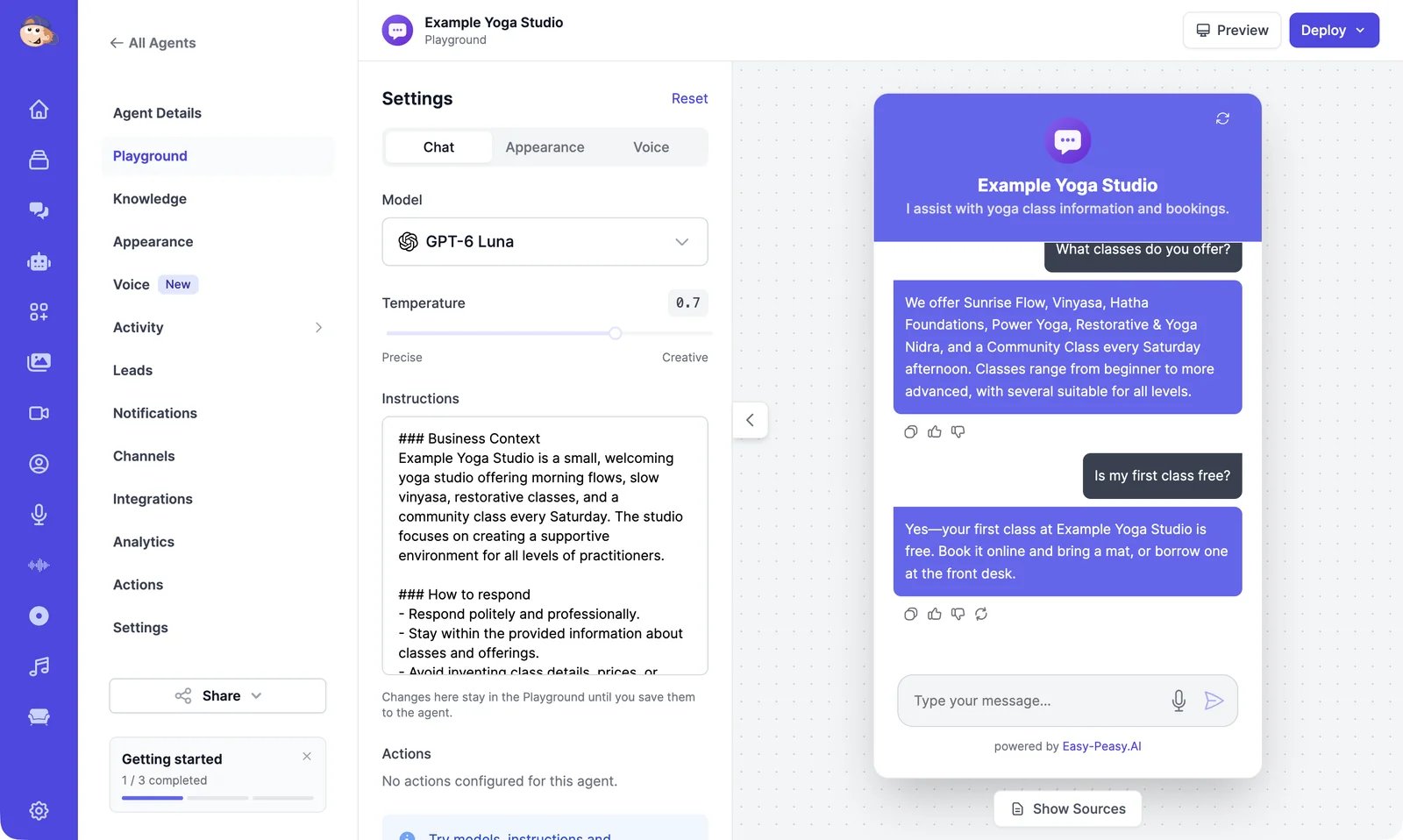
The **Playground** is where you test your agent before your customers see it. The chat on the right is the same chat your website visitors get. The settings on the left let you try another model, other instructions, or a new look, and see the effect right away.
 ## Test your agent
Open your agent and click **Playground**. Type a question in the chat, or click one of the suggested messages.
* **Show Sources** under the chat lists the knowledge the last answer came from. Use it to check whether an answer came from the right page.
* Under each answer you can copy it, rate it, or regenerate it.
* The refresh icon in the chat header starts a new conversation.
Ask the questions your customers ask most. When an answer is wrong or missing, fix it in [**Knowledge**](/docs/agents/knowledge) or in the instructions.
Playground chats are real conversations: they appear in [**Conversations**](/docs/agents/conversations) and use your plan's allowance like any other chat.
## Try a different setup
The **Chat** tab has the settings that change how the agent answers:
| Setting | What it does |
| ---------------- | ------------------------------------------------------------------------------------------ |
| **Model** | The AI model that writes the answers. See [models](/docs/agents/instructions-and-model#models) |
| **Temperature** | Lower (**Precise**) keeps answers consistent; higher (**Creative**) makes them more varied |
| **Instructions** | How the agent behaves: its role, tone, and rules |
| **Actions** | Turn [actions](/docs/agents/actions) on or off for this test only |
These changes apply only to your Playground chat. When they differ from the agent's saved setup, a bar appears at the bottom with **Unsaved setup**:
* **Save to agent** saves the model, temperature, and instructions to your agent. Every channel uses them from your next message.
* **Discard** goes back to the saved setup. **Reset** at the top does the same and also clears the chat.
The **Actions** switches are never saved. To turn an action off for real, use the [**Actions**](/docs/agents/actions) page.
## Change the look
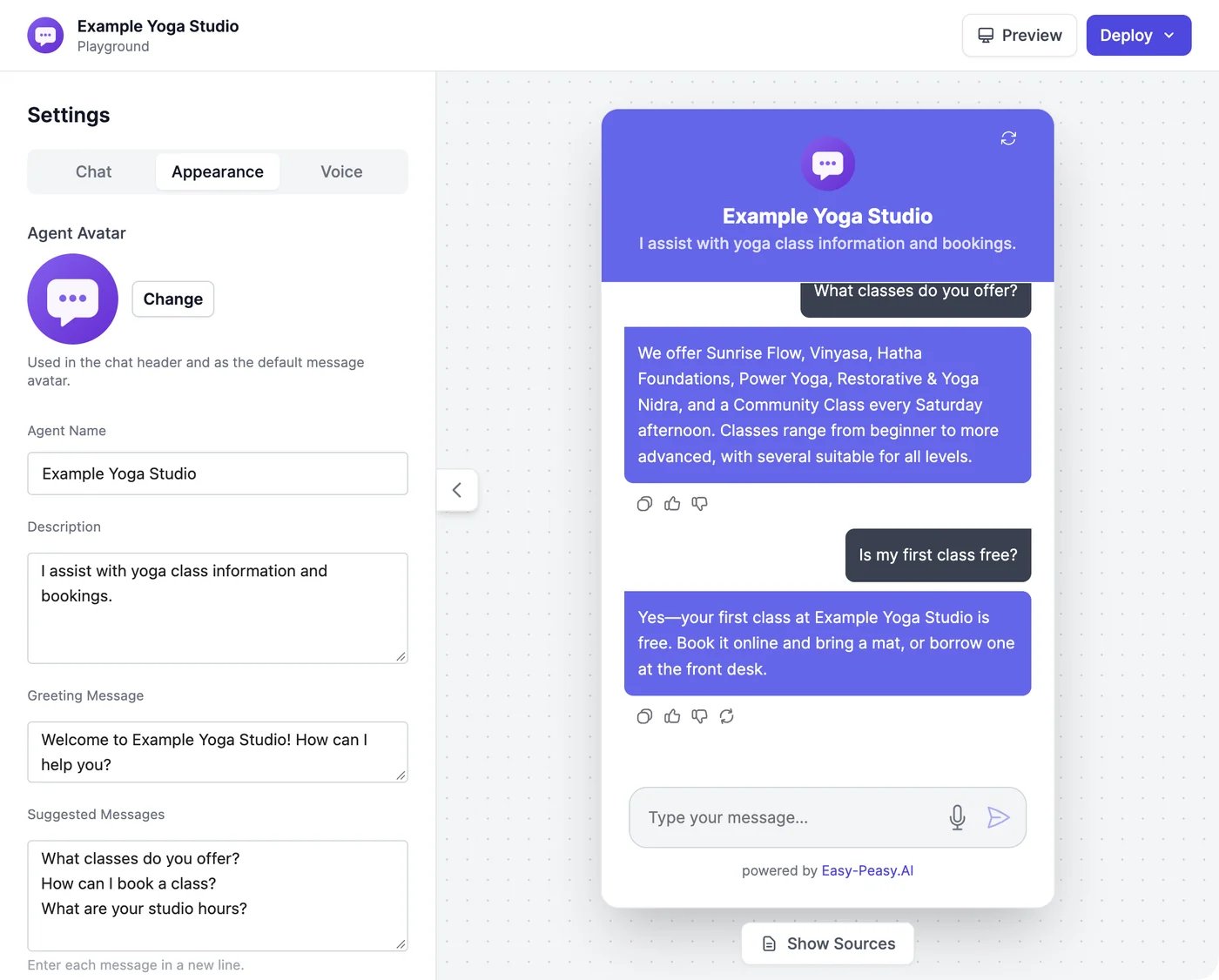
The **Appearance** tab has the same settings as the [**Appearance**](/docs/agents/appearance) page: name, greeting, suggested messages, colors, and more. The chat preview updates as you type. Click **Save** at the bottom of the tab to keep your changes.
## Test your agent
Open your agent and click **Playground**. Type a question in the chat, or click one of the suggested messages.
* **Show Sources** under the chat lists the knowledge the last answer came from. Use it to check whether an answer came from the right page.
* Under each answer you can copy it, rate it, or regenerate it.
* The refresh icon in the chat header starts a new conversation.
Ask the questions your customers ask most. When an answer is wrong or missing, fix it in [**Knowledge**](/docs/agents/knowledge) or in the instructions.
Playground chats are real conversations: they appear in [**Conversations**](/docs/agents/conversations) and use your plan's allowance like any other chat.
## Try a different setup
The **Chat** tab has the settings that change how the agent answers:
| Setting | What it does |
| ---------------- | ------------------------------------------------------------------------------------------ |
| **Model** | The AI model that writes the answers. See [models](/docs/agents/instructions-and-model#models) |
| **Temperature** | Lower (**Precise**) keeps answers consistent; higher (**Creative**) makes them more varied |
| **Instructions** | How the agent behaves: its role, tone, and rules |
| **Actions** | Turn [actions](/docs/agents/actions) on or off for this test only |
These changes apply only to your Playground chat. When they differ from the agent's saved setup, a bar appears at the bottom with **Unsaved setup**:
* **Save to agent** saves the model, temperature, and instructions to your agent. Every channel uses them from your next message.
* **Discard** goes back to the saved setup. **Reset** at the top does the same and also clears the chat.
The **Actions** switches are never saved. To turn an action off for real, use the [**Actions**](/docs/agents/actions) page.
## Change the look
The **Appearance** tab has the same settings as the [**Appearance**](/docs/agents/appearance) page: name, greeting, suggested messages, colors, and more. The chat preview updates as you type. Click **Save** at the bottom of the tab to keep your changes.
 ## Set up voice calls
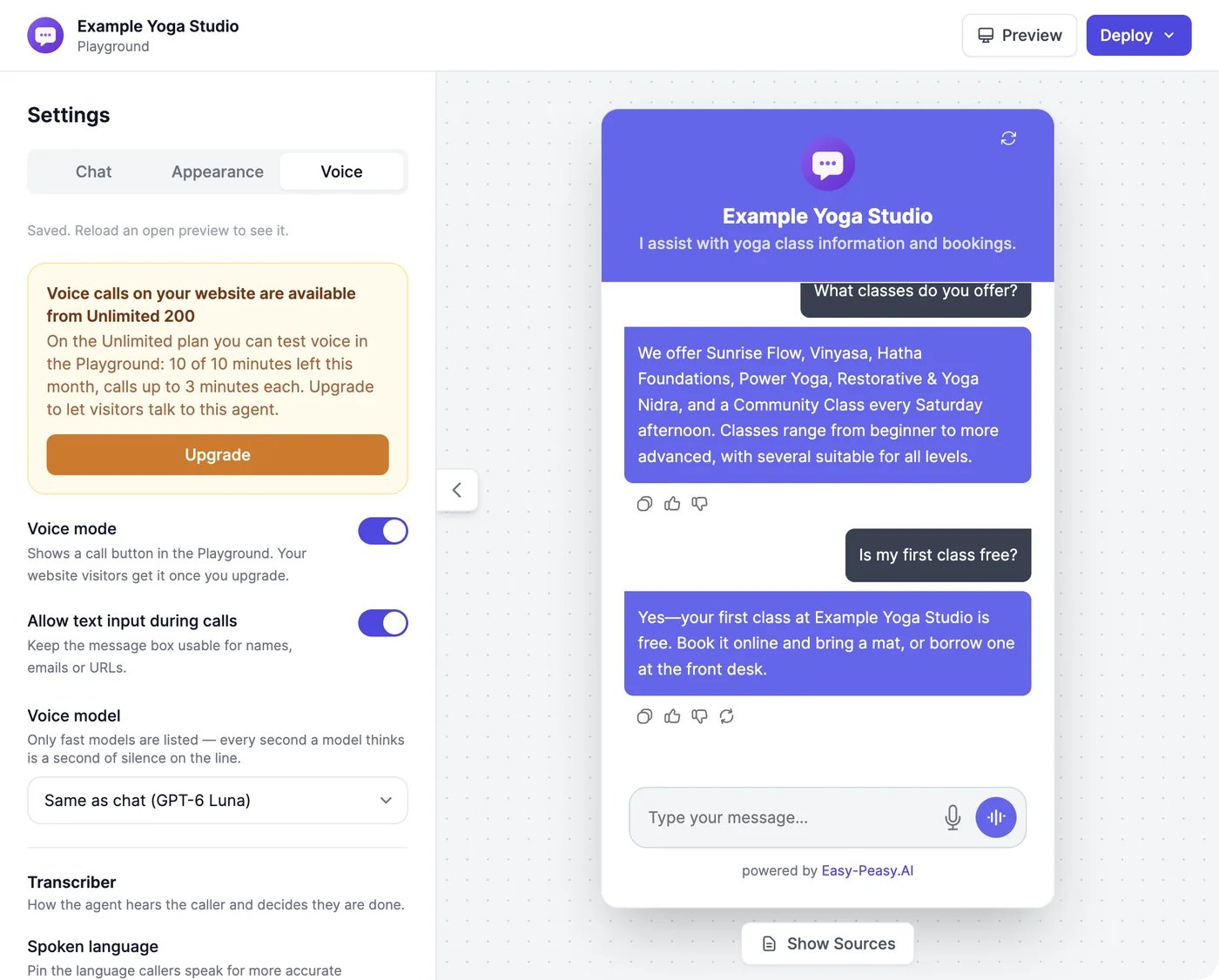
The **Voice** tab turns on voice calls and sets the voice, the model used on calls, and the call instructions. Changes here save automatically. With voice on, a call button appears in the chat. See [Voice calls](/docs/agents/voice).
## Set up voice calls
The **Voice** tab turns on voice calls and sets the voice, the model used on calls, and the call instructions. Changes here save automatically. With voice on, a call button appears in the chat. See [Voice calls](/docs/agents/voice).
 ## Preview it on a web page
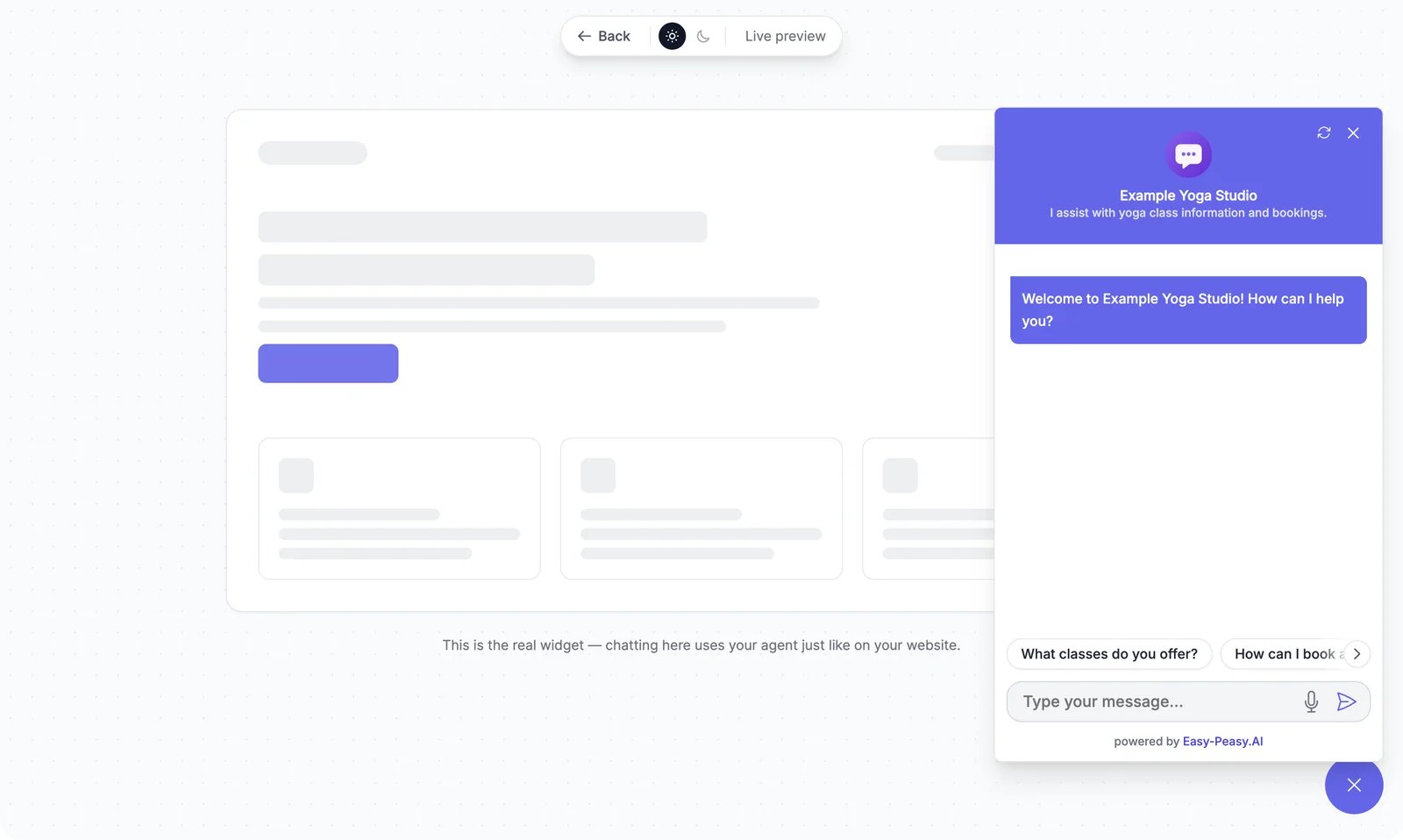
**Preview** opens your agent's real chat bubble on a sample web page, the way it looks on your website. Switch between a light and a dark page to check your colors.
## Preview it on a web page
**Preview** opens your agent's real chat bubble on a sample web page, the way it looks on your website. Switch between a light and a dark page to check your colors.
 ## Deploy
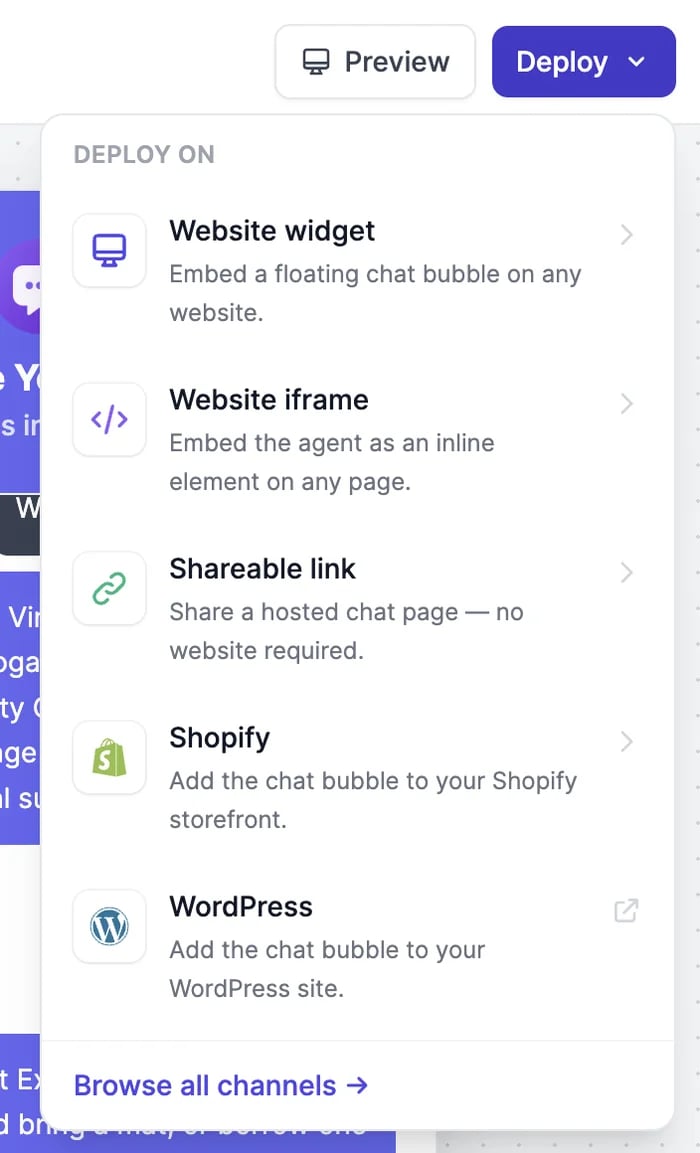
**Deploy** lists the fastest ways to put your agent live:
## Deploy
**Deploy** lists the fastest ways to put your agent live:
 | Option | What it does |
| ----------------------- | ------------------------------------------------------------------------------------------------- |
| **Website widget** | A chat bubble on your website. See [Website](/docs/agents/website) |
| **Website iframe** | The chat inside a page instead of floating over it |
| **Shareable link** | A hosted chat page you can link to |
| **Shopify** | The chat bubble plus product and order lookups on your store. See [Shopify](/docs/agents/shopify) |
| **WordPress** | The chat bubble on a WordPress site. See [Website platforms](/docs/agents/website-platforms#wordpress) |
| **Browse all channels** | WhatsApp, Telegram, email, phone, and more. See [Channels](/docs/agents/channels) |
Write better instructions and pick a model.
Put your agent where your customers are.
| Option | What it does |
| ----------------------- | ------------------------------------------------------------------------------------------------- |
| **Website widget** | A chat bubble on your website. See [Website](/docs/agents/website) |
| **Website iframe** | The chat inside a page instead of floating over it |
| **Shareable link** | A hosted chat page you can link to |
| **Shopify** | The chat bubble plus product and order lookups on your store. See [Shopify](/docs/agents/shopify) |
| **WordPress** | The chat bubble on a WordPress site. See [Website platforms](/docs/agents/website-platforms#wordpress) |
| **Browse all channels** | WhatsApp, Telegram, email, phone, and more. See [Channels](/docs/agents/channels) |
Write better instructions and pick a model.
Put your agent where your customers are.