> ## Documentation Index
> Fetch the complete documentation index at: https://easy-peasy.ai/docs/llms.txt
> Use this file to discover all available pages before exploring further.
# Telegram
> Connect your agent to a Telegram bot so it answers people who message it on Telegram.
Your agent can answer on Telegram through a bot account you create with Telegram's @BotFather. People find your bot by its username and chat with it like with anyone else. Telegram is available on every plan, including Free.
## Connect Telegram
In Telegram, open a chat with **@BotFather** and send `/newbot`. Choose a display name, such as "Example Yoga Studio", and a username that ends in `bot`, such as `ExampleYogaBot`. BotFather replies with a token like `1234567890:AAF...`. Copy it and keep it private: anyone with the token controls your bot.
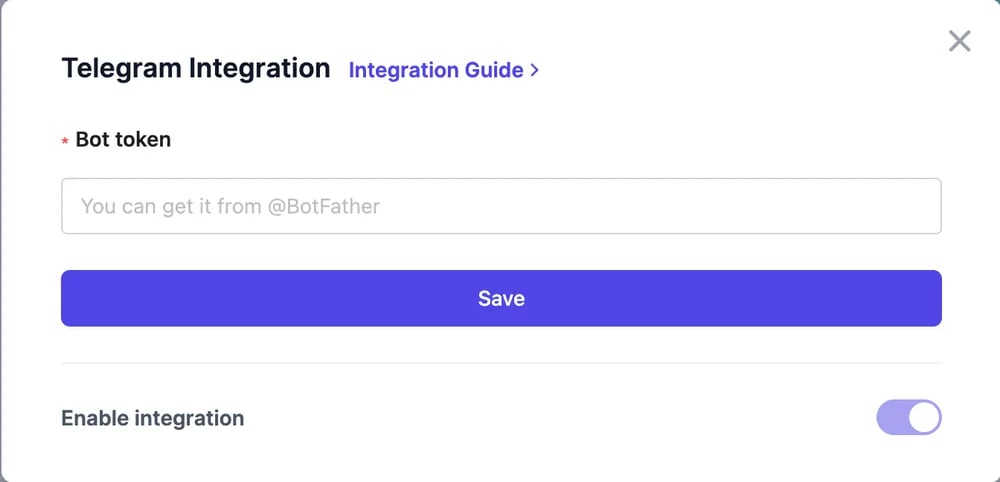
In Easy-Peasy.AI, open your agent, click **Channels**, and click **Connect** on **Telegram**. Paste the token into **Bot token** and click **Save**.
 In Telegram, search for your bot's username, send `/start`, and ask a question.
Each token can be connected to one agent. To put another agent on Telegram, create another bot with BotFather.
## How it works
* The bot answers in private chats. Each person's conversation keeps its history, so follow-up questions work.
* People can send photos and screenshots when **Allow image attachments** is on in [Appearance](/docs/agents/appearance#image-attachments). Other files aren't read.
* Your [actions](/docs/agents/actions) work on Telegram.
* Conversations appear in [**Conversations**](/docs/agents/conversations) under **Telegram**.
The bot understands three commands:
| Command | What it does |
| -------- | -------------------------------------------- |
| `/start` | Starts the conversation with a greeting |
| `/clear` | Clears the conversation history |
| `/ping` | Checks the bot is running; it answers "pong" |
## Make your bot look right
In @BotFather, `/setuserpic` sets the bot's profile photo and `/setdescription` sets the text people see before they tap **Start**. Share your bot's link, `t.me/YourBotUsername`, on your website and social profiles.
## Pause or change the token
To stop replies, open the Telegram card and switch off **Enable integration**. If your token leaks, send `/revoke` to @BotFather and connect the new token.
All the places your agent can answer.
Read your Telegram chats.
In Telegram, search for your bot's username, send `/start`, and ask a question.
Each token can be connected to one agent. To put another agent on Telegram, create another bot with BotFather.
## How it works
* The bot answers in private chats. Each person's conversation keeps its history, so follow-up questions work.
* People can send photos and screenshots when **Allow image attachments** is on in [Appearance](/docs/agents/appearance#image-attachments). Other files aren't read.
* Your [actions](/docs/agents/actions) work on Telegram.
* Conversations appear in [**Conversations**](/docs/agents/conversations) under **Telegram**.
The bot understands three commands:
| Command | What it does |
| -------- | -------------------------------------------- |
| `/start` | Starts the conversation with a greeting |
| `/clear` | Clears the conversation history |
| `/ping` | Checks the bot is running; it answers "pong" |
## Make your bot look right
In @BotFather, `/setuserpic` sets the bot's profile photo and `/setdescription` sets the text people see before they tap **Start**. Share your bot's link, `t.me/YourBotUsername`, on your website and social profiles.
## Pause or change the token
To stop replies, open the Telegram card and switch off **Enable integration**. If your token leaks, send `/revoke` to @BotFather and connect the new token.
All the places your agent can answer.
Read your Telegram chats.