> ## Documentation Index
> Fetch the complete documentation index at: https://easy-peasy.ai/docs/llms.txt
> Use this file to discover all available pages before exploring further.
# Create images from text
> Describe an image, add a style, camera, and lighting, pick a model, and generate.
You can go from an idea to a finished image in under a minute. Describe what you want, choose how it should look, and let one of the models draw it.
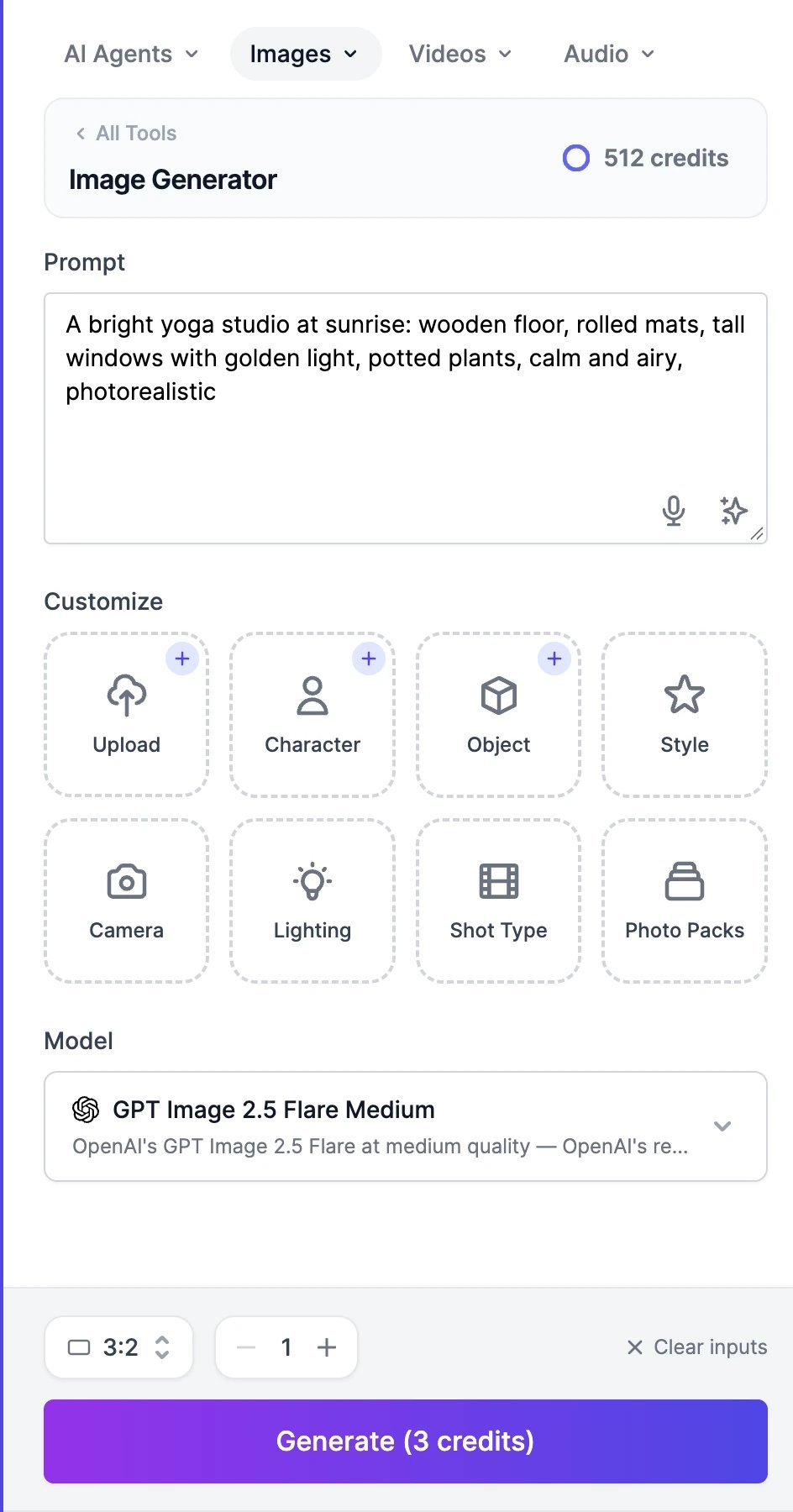 Type what you want to see in **Prompt**. Say what's in the picture, where it is, the light, and the style. For example: "A bright yoga studio at sunrise: wooden floor, rolled mats, tall windows with golden light, potted plants, calm and airy, photorealistic."
Two buttons in the box can help. **Dictate** (the microphone) lets you speak your prompt. The button next to it writes a **Random prompt** when the box is empty, or rewrites yours in more detail (**Improve prompt**).
The **Customize** buttons add ready-made directions to your prompt:
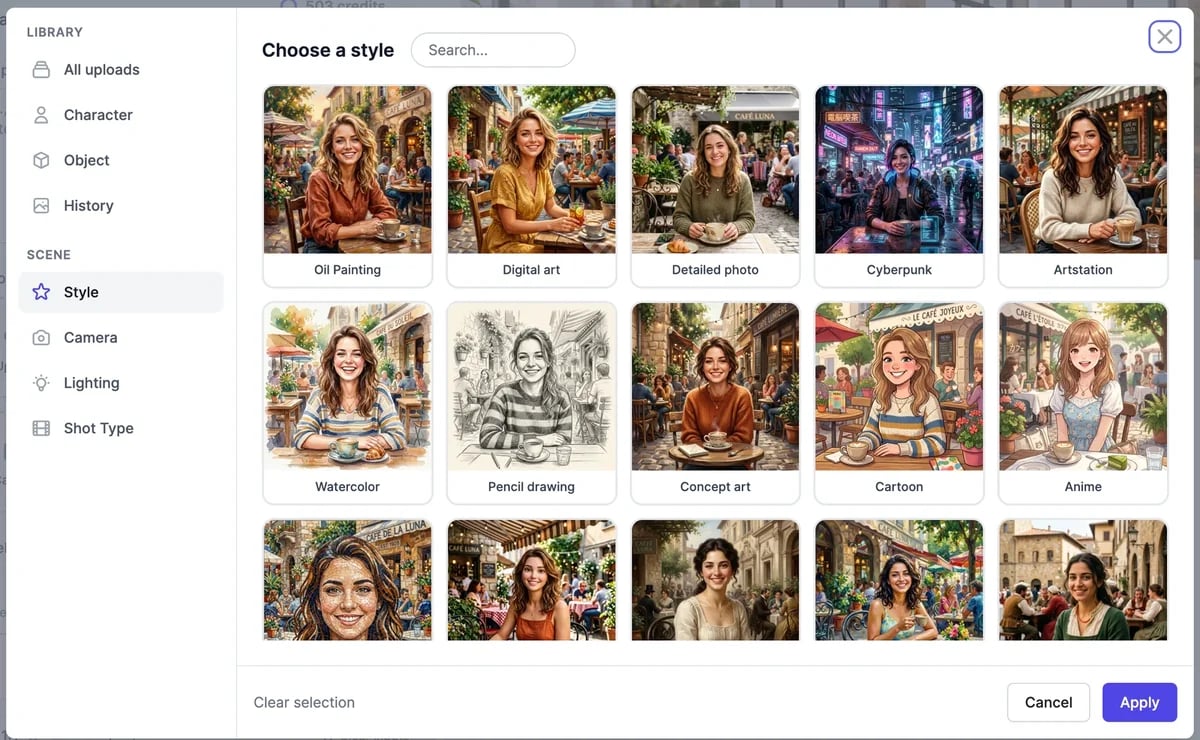
* **Style**: 43 looks, from **Oil Painting** and **Watercolor** to **Anime** and **Cyberpunk**.
* **Camera**: presets such as **Cinematic** or **Phone Snap**, or a specific camera body, lens, and aperture.
* **Lighting** and **Shot Type**: the light and the framing, such as **Golden Hour** light or a **Low Angle** shot.
Type what you want to see in **Prompt**. Say what's in the picture, where it is, the light, and the style. For example: "A bright yoga studio at sunrise: wooden floor, rolled mats, tall windows with golden light, potted plants, calm and airy, photorealistic."
Two buttons in the box can help. **Dictate** (the microphone) lets you speak your prompt. The button next to it writes a **Random prompt** when the box is empty, or rewrites yours in more detail (**Improve prompt**).
The **Customize** buttons add ready-made directions to your prompt:
* **Style**: 43 looks, from **Oil Painting** and **Watercolor** to **Anime** and **Cyberpunk**.
* **Camera**: presets such as **Cinematic** or **Phone Snap**, or a specific camera body, lens, and aperture.
* **Lighting** and **Shot Type**: the light and the framing, such as **Golden Hour** light or a **Low Angle** shot.
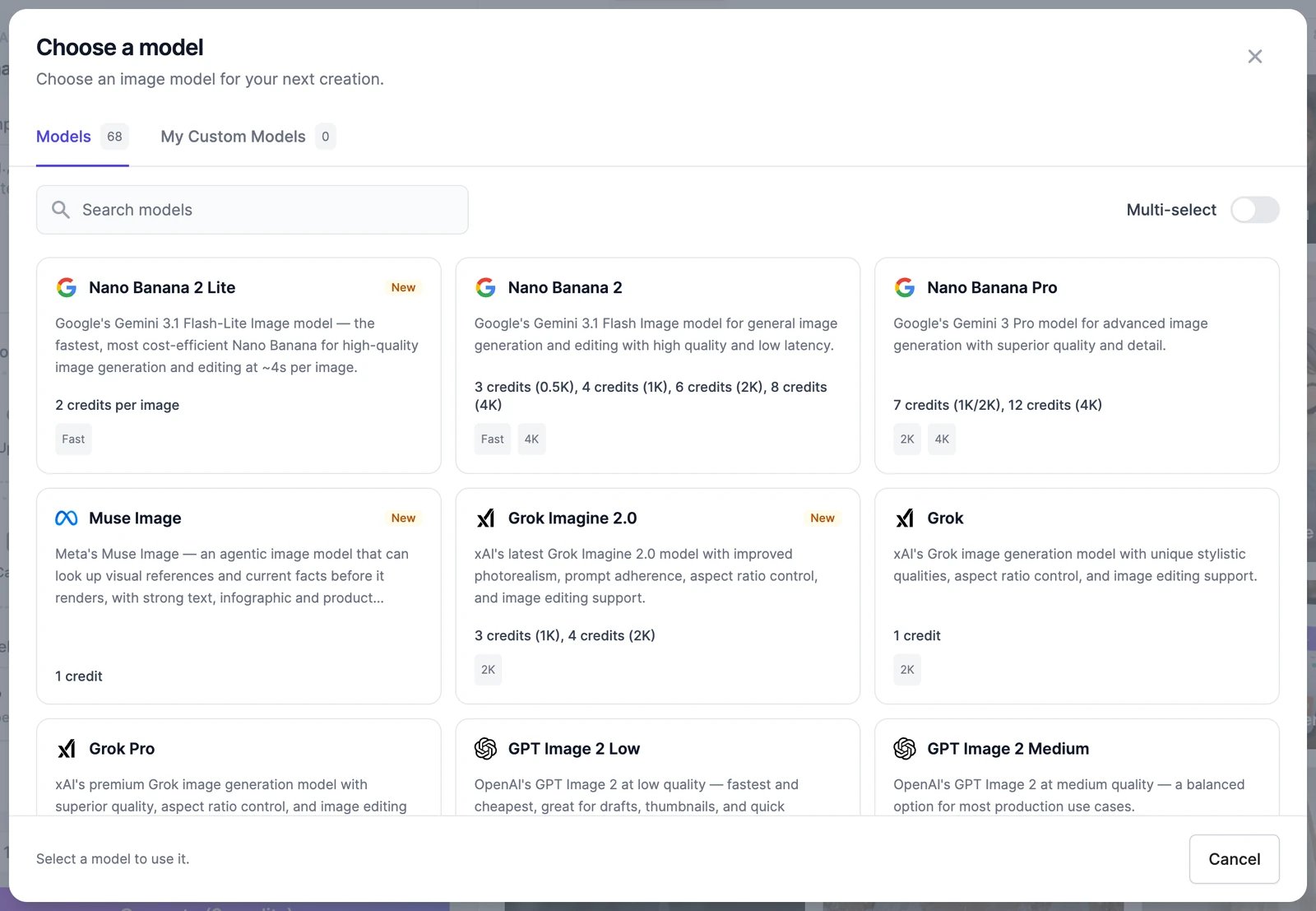
 Click the model under **Model** to open **Choose a model**. Every card says what the model is good at and what it costs per image. Search by name, or turn on **Multi-select** to generate the same prompt with several models at once and compare them. Compared images come out square, and the credits of each model add up.
 The default is **GPT Image 2.5 Flare Medium**, a good all-rounder at 3 credits. See [Image models and credits](/docs/ai-images/models) for all of them.
At the bottom of the panel, pick an aspect ratio, such as **1:1 Square**, **3:2 Standard**, or **16:9 Widescreen**, and how many images to make. You can make up to 4 at once, or 8 with some FLUX models. Models that offer it also show a **Resolution** setting, such as 1K, 2K, or 4K.
The button shows the total price, for example **Generate (3 credits)**. Your images appear in the **Images** tab on the right, usually within a minute.
## Put your own people, products, or photos in the picture
Use **Upload**, **Character**, or **Object** to add a photo. **Character** and **Object** keep a library of the people and products you add, so you can reuse them for consistent results across many images. You can also pick any of your past images from **History**.
When a photo is attached, the page switches to editing: an **Action** menu appears, set to **Edit Image with AI**, and your prompt describes what to make from the photo. See [Edit images](/docs/ai-images/edit).
**Photo Packs** turns a model you've trained on one person into themed photo sets, such as LinkedIn headshots or Halloween photos, from 3 credits per photo. It's available on paid plans.
## Tips for better images
* Be specific about the subject, the setting, and the light. "A golden retriever on a beach at sunset, low angle, warm light" beats "a dog".
* Put words you want to see in the image in quotes, and pick a model that's good at text, such as GPT Image 2.5 or Seedream 5.0 Pro.
* Try the same prompt with **Multi-select** to see which model suits it best, then stick with that one.
* To fix one detail, [edit the image](/docs/ai-images/edit) instead of generating again.
## On the Free plan
* One image at a time. Most wide and tall sizes are locked; with the default model, only the square **1:1** size is available.
* Models marked **Paid plans** in the picker are locked, and so are 4K, **Multi-select**, and Midjourney.
* Downloading needs a paid plan or bonus credits. See [Plans and credits](/docs/account/plans-and-credits#the-free-plan).
## If a generation fails or is blocked
* A tile that says **Generation Failed** doesn't cost anything. Try again, or try another model.
* If the GPT Image models refuse a prompt for policy reasons, we remake it with Seedream 5.0 Pro automatically. The tile then shows Seedream 5.0 Pro and is charged at that model's price.
* Uploaded photos are checked too. If one breaks the content policy, the button changes to **Content Blocked**.
Change part of an image with words or markers.
Download, share, upscale, or animate your results.
The default is **GPT Image 2.5 Flare Medium**, a good all-rounder at 3 credits. See [Image models and credits](/docs/ai-images/models) for all of them.
At the bottom of the panel, pick an aspect ratio, such as **1:1 Square**, **3:2 Standard**, or **16:9 Widescreen**, and how many images to make. You can make up to 4 at once, or 8 with some FLUX models. Models that offer it also show a **Resolution** setting, such as 1K, 2K, or 4K.
The button shows the total price, for example **Generate (3 credits)**. Your images appear in the **Images** tab on the right, usually within a minute.
## Put your own people, products, or photos in the picture
Use **Upload**, **Character**, or **Object** to add a photo. **Character** and **Object** keep a library of the people and products you add, so you can reuse them for consistent results across many images. You can also pick any of your past images from **History**.
When a photo is attached, the page switches to editing: an **Action** menu appears, set to **Edit Image with AI**, and your prompt describes what to make from the photo. See [Edit images](/docs/ai-images/edit).
**Photo Packs** turns a model you've trained on one person into themed photo sets, such as LinkedIn headshots or Halloween photos, from 3 credits per photo. It's available on paid plans.
## Tips for better images
* Be specific about the subject, the setting, and the light. "A golden retriever on a beach at sunset, low angle, warm light" beats "a dog".
* Put words you want to see in the image in quotes, and pick a model that's good at text, such as GPT Image 2.5 or Seedream 5.0 Pro.
* Try the same prompt with **Multi-select** to see which model suits it best, then stick with that one.
* To fix one detail, [edit the image](/docs/ai-images/edit) instead of generating again.
## On the Free plan
* One image at a time. Most wide and tall sizes are locked; with the default model, only the square **1:1** size is available.
* Models marked **Paid plans** in the picker are locked, and so are 4K, **Multi-select**, and Midjourney.
* Downloading needs a paid plan or bonus credits. See [Plans and credits](/docs/account/plans-and-credits#the-free-plan).
## If a generation fails or is blocked
* A tile that says **Generation Failed** doesn't cost anything. Try again, or try another model.
* If the GPT Image models refuse a prompt for policy reasons, we remake it with Seedream 5.0 Pro automatically. The tile then shows Seedream 5.0 Pro and is charged at that model's price.
* Uploaded photos are checked too. If one breaks the content policy, the button changes to **Content Blocked**.
Change part of an image with words or markers.
Download, share, upscale, or animate your results.