> ## Documentation Index
> Fetch the complete documentation index at: https://easy-peasy.ai/docs/llms.txt
> Use this file to discover all available pages before exploring further.
# Manage your images
> Find, download, share, animate, and delete your images, and get credits back for a result you're not happy with.
## Where your images are
* **The Images tab** on AI Images shows your latest results.
* **History** > **Images** has everything you've made, including videos. Search by prompt, filter by date, and on a team, filter by person.
* **History** > **Favorites** collects the images you've marked with the heart.
## Quick actions
Hover over an image to see its actions:
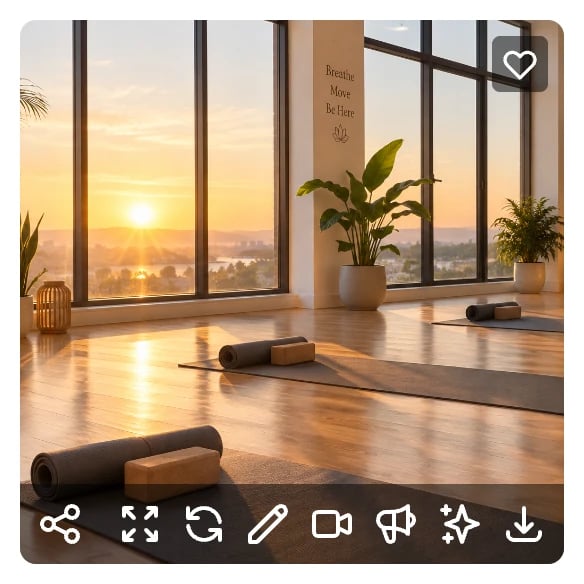 | Button | What it does |
| -------------- | ---------------------------------------------------------- |
| Share | Share the image publicly or with your team |
| Open | Open the image's details |
| Regenerate | Reopen AI Images with the same prompt, model, and settings |
| Edit Image | [Edit the image](/docs/ai-images/edit) |
| Generate Video | Turn the image into a video |
| Talking Video | Make the person in the image speak your script |
| Improve | [Upscale the image](/docs/ai-images/upscale) |
| Download | Save the image to your device |
| Heart | Add the image to your favorites |
## Image details
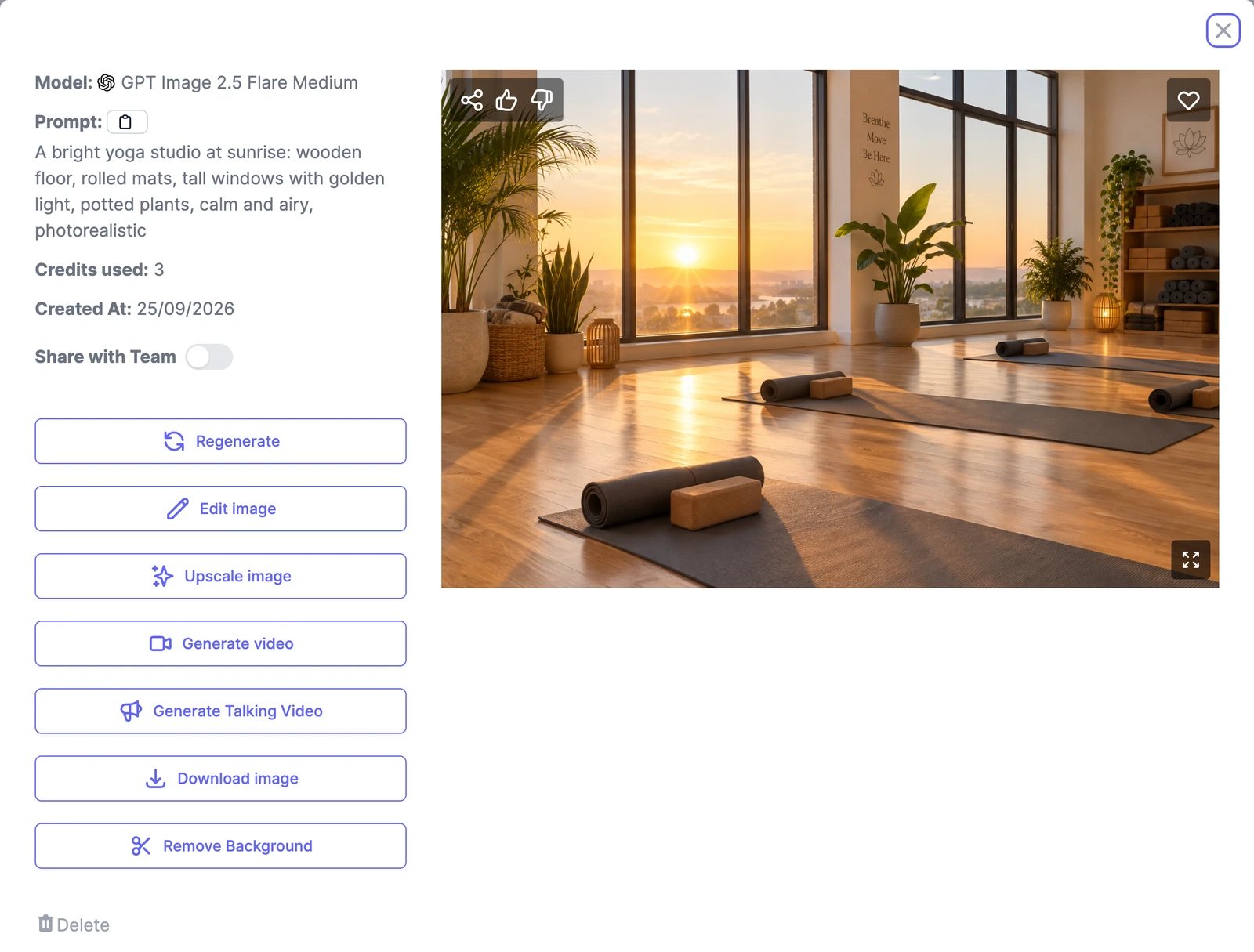
Click an image to see how it was made: the model, the prompt (with a button to copy it), the credits it used, and the date. The same actions are here as buttons, plus **Remove Background** and **Delete**.
| Button | What it does |
| -------------- | ---------------------------------------------------------- |
| Share | Share the image publicly or with your team |
| Open | Open the image's details |
| Regenerate | Reopen AI Images with the same prompt, model, and settings |
| Edit Image | [Edit the image](/docs/ai-images/edit) |
| Generate Video | Turn the image into a video |
| Talking Video | Make the person in the image speak your script |
| Improve | [Upscale the image](/docs/ai-images/upscale) |
| Download | Save the image to your device |
| Heart | Add the image to your favorites |
## Image details
Click an image to see how it was made: the model, the prompt (with a button to copy it), the credits it used, and the date. The same actions are here as buttons, plus **Remove Background** and **Delete**.
 ## Share an image
* **Share with Team** in the details makes the image visible to everyone on your team. Teams plans only.
* **Share** gives you a public link, a page for the image on easy-peasy.ai, and buttons to post it to LinkedIn, Facebook, X, and Reddit. Images you share publicly can also appear in **Examples** for other people to see. Turn **Share Publicly** off to take the page down.
Images stay private unless you share them.
## Turn an image into a video
Click **Generate Video**, pick a video model and a length, and describe the motion. The video appears on the [AI Videos](/docs/videos/generate) page when it's ready. Video uses image & video credits and is available on paid plans.
## Get credits back for a bad result
If an image came out wrong, click the thumbs-down on it. You get its credits back, up to 10% of your plan's monthly credits in each billing period. Your feedback also helps us improve the models.
## Delete an image
Open the image and click **Delete**. Deleted images can't be restored, and deleting doesn't return the credits they used.
## Download
**Download** saves the image in its original format. On the Free plan, downloading needs bonus credits; see [Plans and credits](/docs/account/plans-and-credits#the-free-plan).
## Share an image
* **Share with Team** in the details makes the image visible to everyone on your team. Teams plans only.
* **Share** gives you a public link, a page for the image on easy-peasy.ai, and buttons to post it to LinkedIn, Facebook, X, and Reddit. Images you share publicly can also appear in **Examples** for other people to see. Turn **Share Publicly** off to take the page down.
Images stay private unless you share them.
## Turn an image into a video
Click **Generate Video**, pick a video model and a length, and describe the motion. The video appears on the [AI Videos](/docs/videos/generate) page when it's ready. Video uses image & video credits and is available on paid plans.
## Get credits back for a bad result
If an image came out wrong, click the thumbs-down on it. You get its credits back, up to 10% of your plan's monthly credits in each billing period. Your feedback also helps us improve the models.
## Delete an image
Open the image and click **Delete**. Deleted images can't be restored, and deleting doesn't return the credits they used.
## Download
**Download** saves the image in its original format. On the Free plan, downloading needs bonus credits; see [Plans and credits](/docs/account/plans-and-credits#the-free-plan).