> ## Documentation Index
> Fetch the complete documentation index at: https://easy-peasy.ai/docs/llms.txt
> Use this file to discover all available pages before exploring further.
# AI Images
> Create, edit, and improve images with dozens of AI models, templates, and one-click tools in one place.
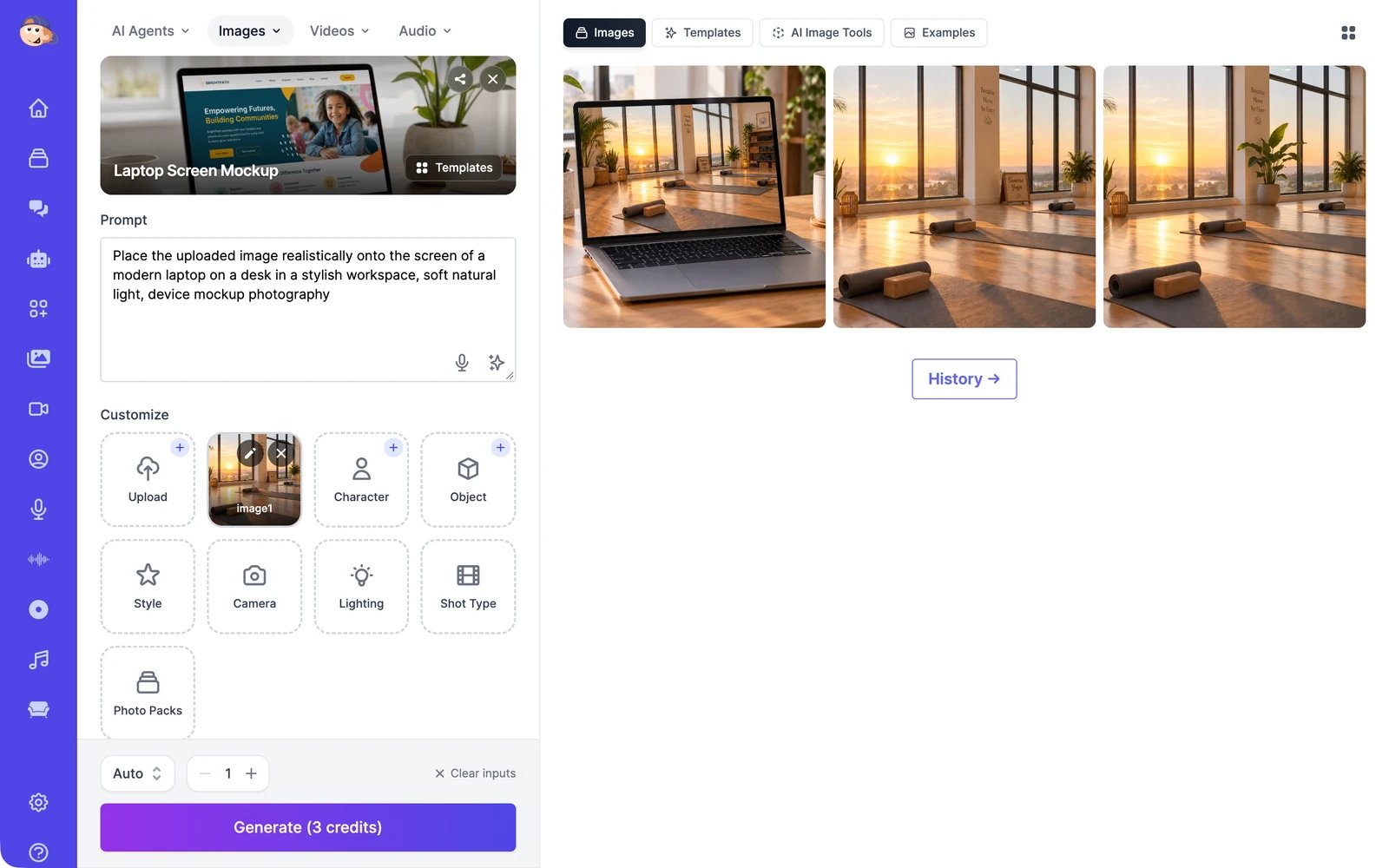 Open **AI Images** in the sidebar, or choose **Images** > **Image Generator** from the menu at the top of any tool page. The page has two halves:
* **On the left**, you describe the image, add your own photos if you want them in it, pick a model, and click **Generate**.
* **On the right**, you see your results and ideas to start from.
| Tab on the right | What's in it |
| ------------------ | --------------------------------------------------------------------------------------------------- |
| **Images** | Your latest results. Everything older is in **History** > **Images**. |
| **Templates** | Ready-made looks you can reuse with your own photos, such as mockups, posters, and portrait styles. |
| **AI Image Tools** | One-click jobs such as **Remove Background**, **Ghiblify**, and **Caricature**. |
| **Examples** | Images other people chose to share publicly, for inspiration. |
## What you can do
Describe an image, choose a style and a model, and generate up to four at once.
Change any image by describing the change, or by pointing at spots on it.
Start from a ready-made look, or run a tool like Ghiblify or Caricature.
Cut out the subject, or put it somewhere new.
Make an image sharper and up to four times larger, or restore an old photo.
Download, share, turn into video, and find everything you've made.
## More image tools
The **Images** menu at the top of the page also opens these:
| Tool | What it does |
| ------------------------------------------------ | --------------------------------------------------------------------------------------- |
| **Image Editor** | A full-page version of the editor. See [Edit images](/docs/ai-images/edit). |
| **Magic Upscaler** | See [Upscale images](/docs/ai-images/upscale). |
| **Headshots** | Professional headshots of you or your team from a few selfies. |
| **AI Photo Studio** | Train your own model from photos of a person, then generate themed photo packs with it. |
| **Interior Designer** | Redesign a room from a photo. |
| **Remove Background** and **Replace Background** | See [Remove or replace a background](/docs/ai-images/remove-background). |
## Credits
Every image uses image & video credits. The price depends on the model and, for some models, the resolution. The **Generate** button shows the total before you start. See [Image models and credits](/docs/ai-images/models) for every model's price, and [Plans and credits](/docs/account/plans-and-credits) for how credits work.
Open **AI Images** in the sidebar, or choose **Images** > **Image Generator** from the menu at the top of any tool page. The page has two halves:
* **On the left**, you describe the image, add your own photos if you want them in it, pick a model, and click **Generate**.
* **On the right**, you see your results and ideas to start from.
| Tab on the right | What's in it |
| ------------------ | --------------------------------------------------------------------------------------------------- |
| **Images** | Your latest results. Everything older is in **History** > **Images**. |
| **Templates** | Ready-made looks you can reuse with your own photos, such as mockups, posters, and portrait styles. |
| **AI Image Tools** | One-click jobs such as **Remove Background**, **Ghiblify**, and **Caricature**. |
| **Examples** | Images other people chose to share publicly, for inspiration. |
## What you can do
Describe an image, choose a style and a model, and generate up to four at once.
Change any image by describing the change, or by pointing at spots on it.
Start from a ready-made look, or run a tool like Ghiblify or Caricature.
Cut out the subject, or put it somewhere new.
Make an image sharper and up to four times larger, or restore an old photo.
Download, share, turn into video, and find everything you've made.
## More image tools
The **Images** menu at the top of the page also opens these:
| Tool | What it does |
| ------------------------------------------------ | --------------------------------------------------------------------------------------- |
| **Image Editor** | A full-page version of the editor. See [Edit images](/docs/ai-images/edit). |
| **Magic Upscaler** | See [Upscale images](/docs/ai-images/upscale). |
| **Headshots** | Professional headshots of you or your team from a few selfies. |
| **AI Photo Studio** | Train your own model from photos of a person, then generate themed photo packs with it. |
| **Interior Designer** | Redesign a room from a photo. |
| **Remove Background** and **Replace Background** | See [Remove or replace a background](/docs/ai-images/remove-background). |
## Credits
Every image uses image & video credits. The price depends on the model and, for some models, the resolution. The **Generate** button shows the total before you start. See [Image models and credits](/docs/ai-images/models) for every model's price, and [Plans and credits](/docs/account/plans-and-credits) for how credits work.