> ## Documentation Index
> Fetch the complete documentation index at: https://easy-peasy.ai/docs/llms.txt
> Use this file to discover all available pages before exploring further.
# Remove or replace a background
> Cut the subject out of any image, or place it in front of a new background you describe.
## Remove a background
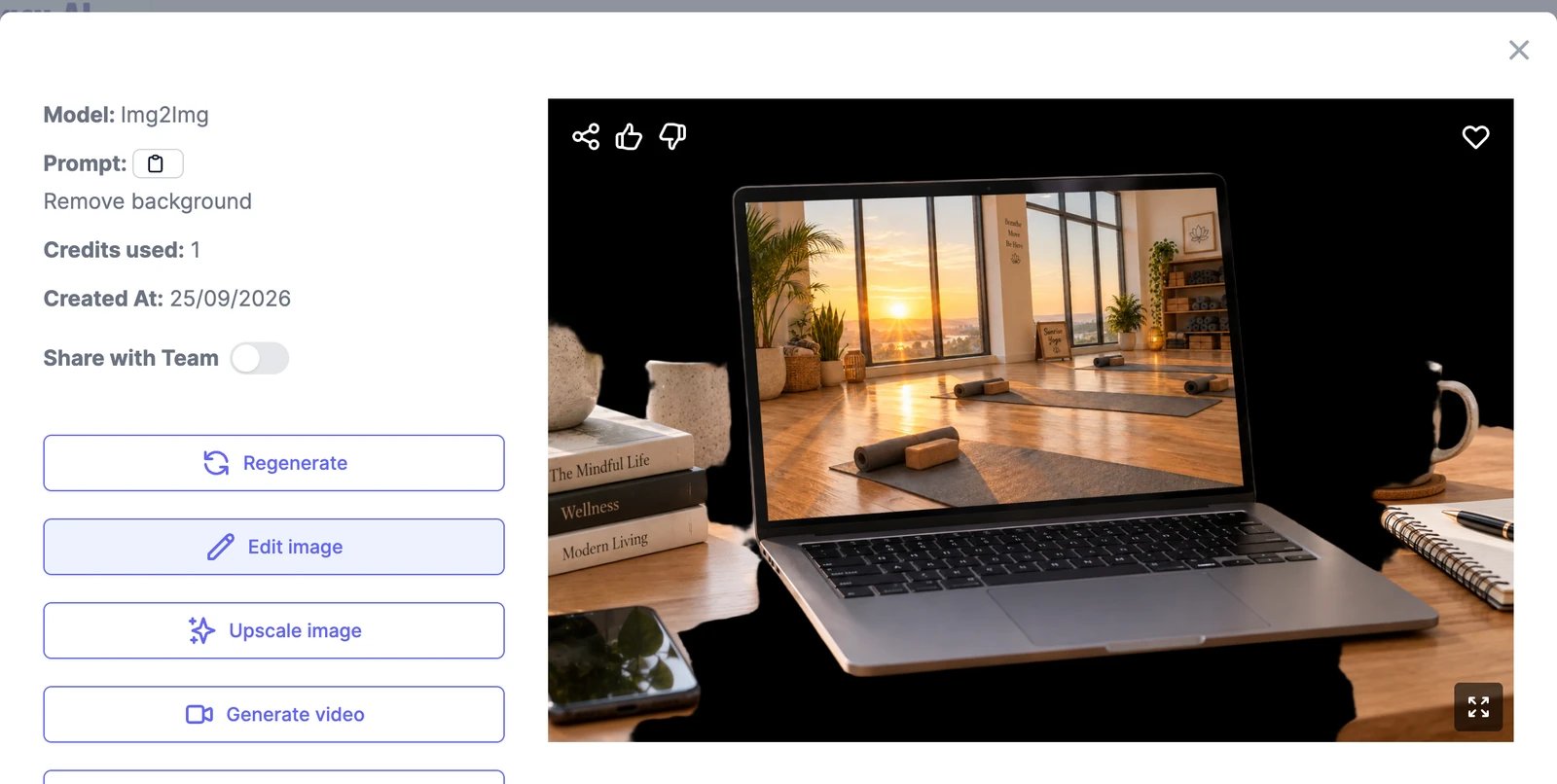
Open the image from **Images** or **History** > **Images** and click **Remove Background**. The cut-out is saved as a new image in **History** > **Images**, and the original stays as it is. It costs 1 credit.
 1. Choose **Images** > **Remove Background** from the menu at the top.
2. Drop your photo into **Upload Image**.
3. Click **Generate**.
It costs 1 credit, and the result appears in **Images**.
The result has a transparent background. Image viewers that don't support transparency show it as black or checkered, but it's transparent when you place it on a slide, website, or design.
## Replace a background
1. Choose **Images** > **Replace Background** from the menu at the top.
2. Upload your photo.
3. In **Prompt**, describe the new background, for example "a white marble countertop in a bright kitchen".
4. Click **Generate**.
The subject stays as it is and the background is replaced. It costs 2 credits per image.
For product photos, describe the surface, the light, and the setting: "on a wooden table by a window, soft morning light, shallow depth of field". A specific background looks more natural than a vague one.
## Other ways to change a background
* The **Change Background** and **Product Background Change** templates do the same job with a tested prompt. See [Templates and one-click tools](/docs/ai-images/templates-and-tools).
* To change the background and something else at the same time, [edit the image](/docs/ai-images/edit) and describe both changes.
1. Choose **Images** > **Remove Background** from the menu at the top.
2. Drop your photo into **Upload Image**.
3. Click **Generate**.
It costs 1 credit, and the result appears in **Images**.
The result has a transparent background. Image viewers that don't support transparency show it as black or checkered, but it's transparent when you place it on a slide, website, or design.
## Replace a background
1. Choose **Images** > **Replace Background** from the menu at the top.
2. Upload your photo.
3. In **Prompt**, describe the new background, for example "a white marble countertop in a bright kitchen".
4. Click **Generate**.
The subject stays as it is and the background is replaced. It costs 2 credits per image.
For product photos, describe the surface, the light, and the setting: "on a wooden table by a window, soft morning light, shallow depth of field". A specific background looks more natural than a vague one.
## Other ways to change a background
* The **Change Background** and **Product Background Change** templates do the same job with a tested prompt. See [Templates and one-click tools](/docs/ai-images/templates-and-tools).
* To change the background and something else at the same time, [edit the image](/docs/ai-images/edit) and describe both changes.