> ## Documentation Index
> Fetch the complete documentation index at: https://easy-peasy.ai/docs/llms.txt
> Use this file to discover all available pages before exploring further.
# Upscale images
> Make an image sharper and two or four times larger, add detail, or restore an old photo with the Magic Upscaler.
The Magic Upscaler enlarges an image and sharpens it, so it holds up in print or on a big screen. It can also add fresh detail, or clean up an old, faded photo.
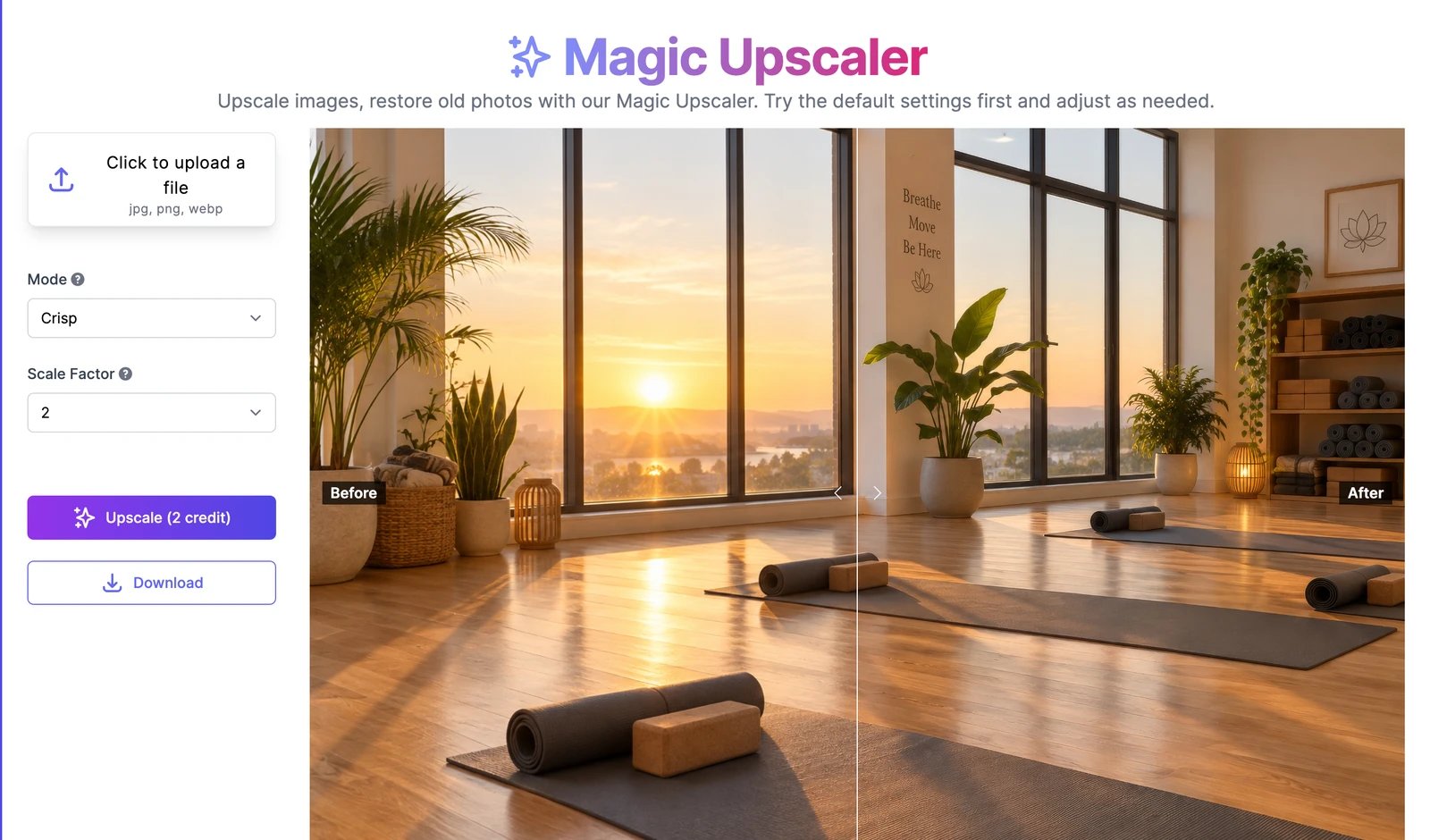 Choose **Images** > **Magic Upscaler** from the menu at the top, and upload a JPG, PNG, or WebP image up to 2,000 pixels wide.
To upscale an image you made, hover over it and click the sparkles button (**Improve**), or open it and click **Upscale image**.
| Mode | Use it for |
| --------------------- | ------------------------------------------------------------------------------------------------------------------------------------------------------- |
| **Crisp** | A sharper, larger copy that stays true to the original. Start here. |
| **Creative** | Adding new detail and texture. Sliders for **Creativity**, **HDR**, **Resemblance**, and **Fractality** control how far it can stray from the original. |
| **Restore old photo** | Old, blurry, or damaged photos. |
Pick a **Scale Factor** of 2 or 4, then click **Upscale**. Drag the slider over the result to compare **Before** and **After**, and click **Download** to save it.
The upscaled image is also saved in **History** > **Images**. When you upscale one of your own results, it gets a **Download upscaled image** button next to the original.
## Credits and plans
Upscaling costs 2 credits at 2× and 4 credits at 4×. The Magic Upscaler is available on paid plans.
Choose **Images** > **Magic Upscaler** from the menu at the top, and upload a JPG, PNG, or WebP image up to 2,000 pixels wide.
To upscale an image you made, hover over it and click the sparkles button (**Improve**), or open it and click **Upscale image**.
| Mode | Use it for |
| --------------------- | ------------------------------------------------------------------------------------------------------------------------------------------------------- |
| **Crisp** | A sharper, larger copy that stays true to the original. Start here. |
| **Creative** | Adding new detail and texture. Sliders for **Creativity**, **HDR**, **Resemblance**, and **Fractality** control how far it can stray from the original. |
| **Restore old photo** | Old, blurry, or damaged photos. |
Pick a **Scale Factor** of 2 or 4, then click **Upscale**. Drag the slider over the result to compare **Before** and **After**, and click **Download** to save it.
The upscaled image is also saved in **History** > **Images**. When you upscale one of your own results, it gets a **Download upscaled image** button next to the original.
## Credits and plans
Upscaling costs 2 credits at 2× and 4 credits at 4×. The Magic Upscaler is available on paid plans.