> ## Documentation Index
> Fetch the complete documentation index at: https://easy-peasy.ai/docs/llms.txt
> Use this file to discover all available pages before exploring further.
# Audio generator
> Create voices, music, and soundscapes together in one clip from a single description, with optional audio or image references.
**AI Audio Generator** turns a description into finished audio: a narrator over music, two characters talking in a café, a jingle, or a whole scene with voices and sound around them. Where [text to speech](/docs/audio/text-to-speech) reads your text in one voice, the audio generator directs the whole scene.
## Create audio
Click **Audio** > **AI Audio Generator** in the top menu, or find it in **All Tools**. The number at the top right shows how many text-to-speech characters you have left.
Write it in **Describe your audio**, up to 2,048 characters. Set the scene, the voices and how they speak, and the music and sounds. Put spoken words in quotes.
Not sure where to start? Pick one under **Start with an idea**, **Narration**, **Music**, **Dialogue**, or **Soundscape**, to fill in an example description and length.
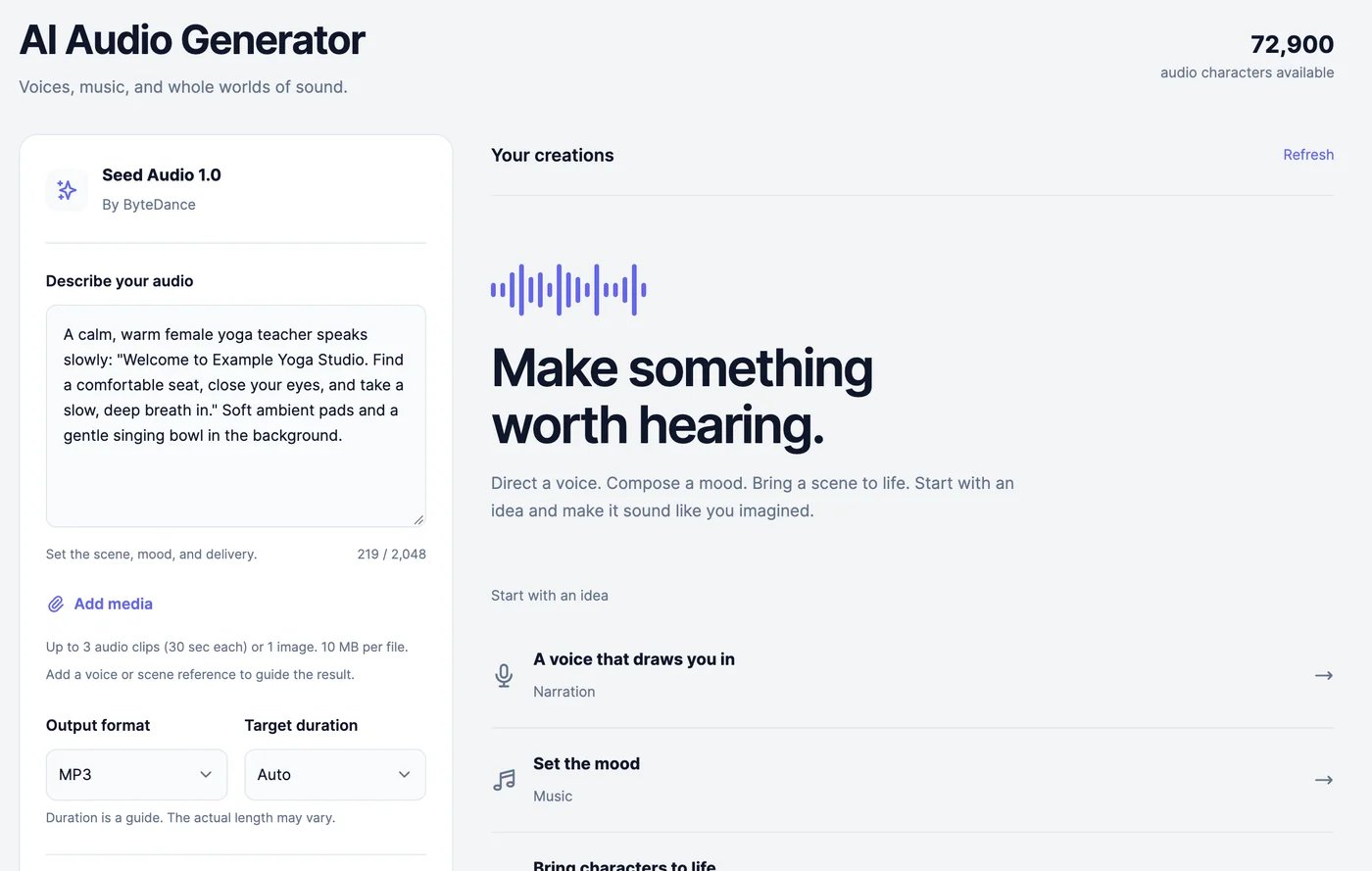 Click **Add media** to guide the result with up to 3 audio clips (MP3 or WAV, up to 30 seconds each) or 1 image (JPG, PNG, or WebP), 10 MB each. You can't mix audio and an image. Refer to the clips in your description as `@Audio1`, `@Audio2`, and `@Audio3`, for example "Use the voice from @Audio1".
* **Output format**: MP3, WAV, OGG Opus, or PCM.
* **Target duration**: **Auto**, or 5 seconds to 2 minutes. It's a guide; the actual length can differ.
The audio is ready in about 20 seconds and appears under **Your creations**.
Click **Add media** to guide the result with up to 3 audio clips (MP3 or WAV, up to 30 seconds each) or 1 image (JPG, PNG, or WebP), 10 MB each. You can't mix audio and an image. Refer to the clips in your description as `@Audio1`, `@Audio2`, and `@Audio3`, for example "Use the voice from @Audio1".
* **Output format**: MP3, WAV, OGG Opus, or PCM.
* **Target duration**: **Auto**, or 5 seconds to 2 minutes. It's a guide; the actual length can differ.
The audio is ready in about 20 seconds and appears under **Your creations**.
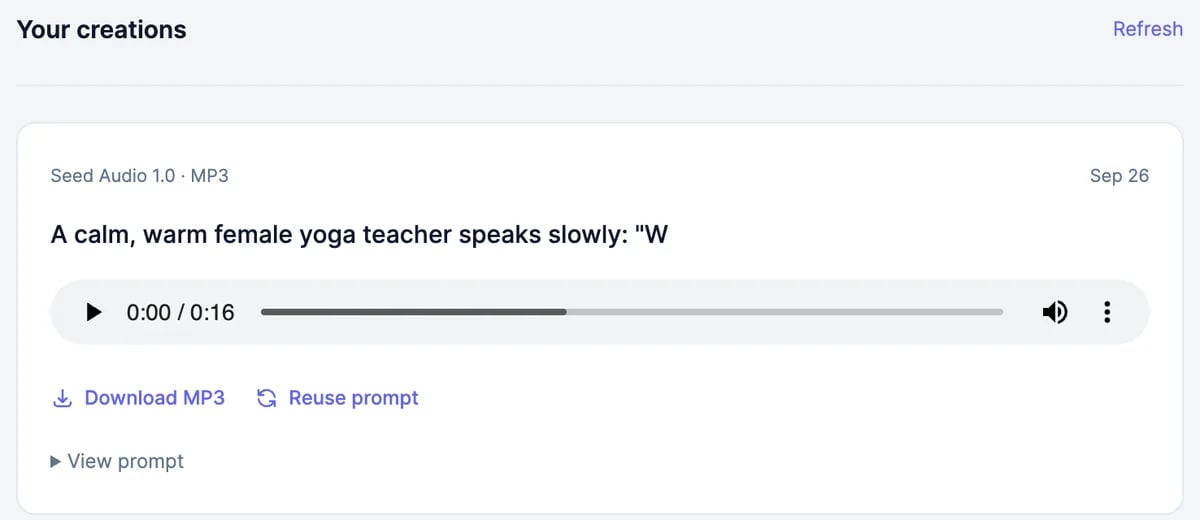 Play each creation in the list, click **Download** to save it, or **Reuse prompt** to put its description back in the form and try a variation. **View prompt** shows the full description. **Load more** shows older creations.
## Advanced settings
Play each creation in the list, click **Download** to save it, or **Reuse prompt** to put its description back in the form and try a variation. **View prompt** shows the full description. **Load more** shows older creations.
## Advanced settings
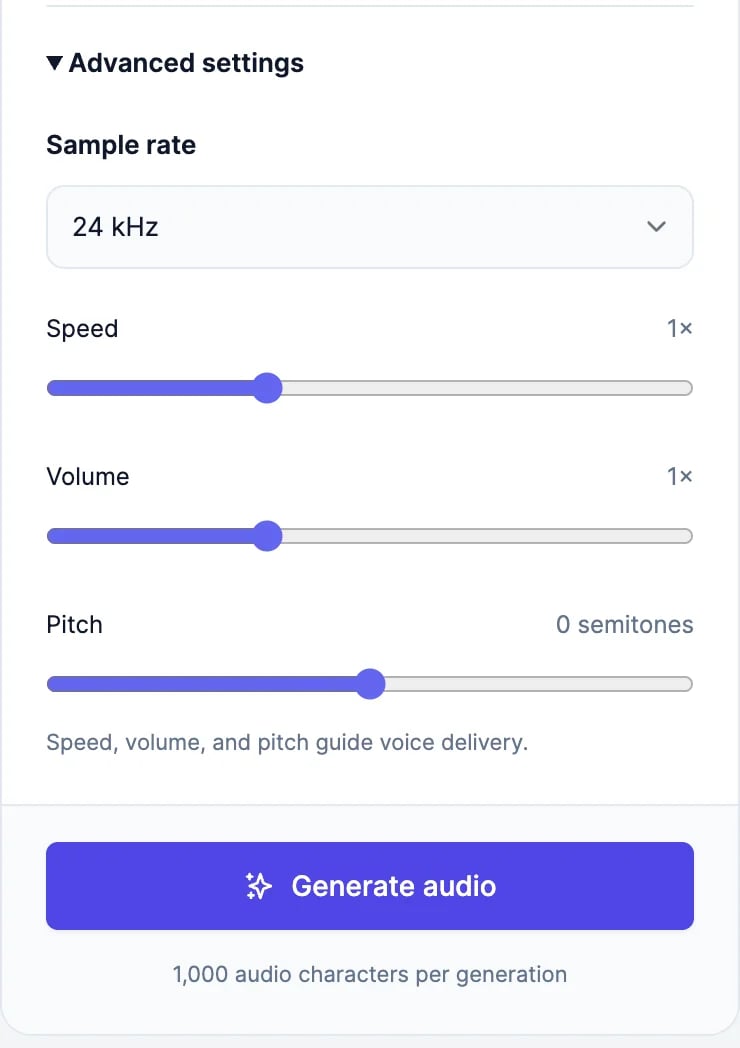 | Setting | What it does | Default |
| --------------- | ------------------------------------------------------------ | ------- |
| **Sample rate** | From 8 to 48 kHz. Higher is better quality and a larger file | 24 kHz |
| **Speed** | From 0.5x to 2x | 1x |
| **Volume** | From 0.5x to 2x | 1x |
| **Pitch** | From 12 semitones down to 12 up | 0 |
Speed, volume, and pitch mainly shape the voices.
## What it costs
Each generation uses 1,000 text-to-speech characters, whatever its length, and only when it succeeds. You need at least 1,000 characters left; otherwise the button changes to **Upgrade to generate**. The Free plan's 100 characters aren't enough. See [Audio plans and limits](/docs/audio/limits).
You can make one clip at a time, together with the [sound effect generator](/docs/audio/sound-effects).
Read a script aloud in one voice.
Make a single sound effect.
| Setting | What it does | Default |
| --------------- | ------------------------------------------------------------ | ------- |
| **Sample rate** | From 8 to 48 kHz. Higher is better quality and a larger file | 24 kHz |
| **Speed** | From 0.5x to 2x | 1x |
| **Volume** | From 0.5x to 2x | 1x |
| **Pitch** | From 12 semitones down to 12 up | 0 |
Speed, volume, and pitch mainly shape the voices.
## What it costs
Each generation uses 1,000 text-to-speech characters, whatever its length, and only when it succeeds. You need at least 1,000 characters left; otherwise the button changes to **Upgrade to generate**. The Free plan's 100 characters aren't enough. See [Audio plans and limits](/docs/audio/limits).
You can make one clip at a time, together with the [sound effect generator](/docs/audio/sound-effects).
Read a script aloud in one voice.
Make a single sound effect.