> ## Documentation Index
> Fetch the complete documentation index at: https://easy-peasy.ai/docs/llms.txt
> Use this file to discover all available pages before exploring further.
# Record & Transcribe
> Record a meeting, call, or lecture in your browser for up to two hours and get a transcript, summary, and notes.
**Record & Transcribe** records through your microphone and transcribes the recording when you stop. Use it for in-person meetings, lectures, coaching sessions, or calls on speaker.
 ## Record
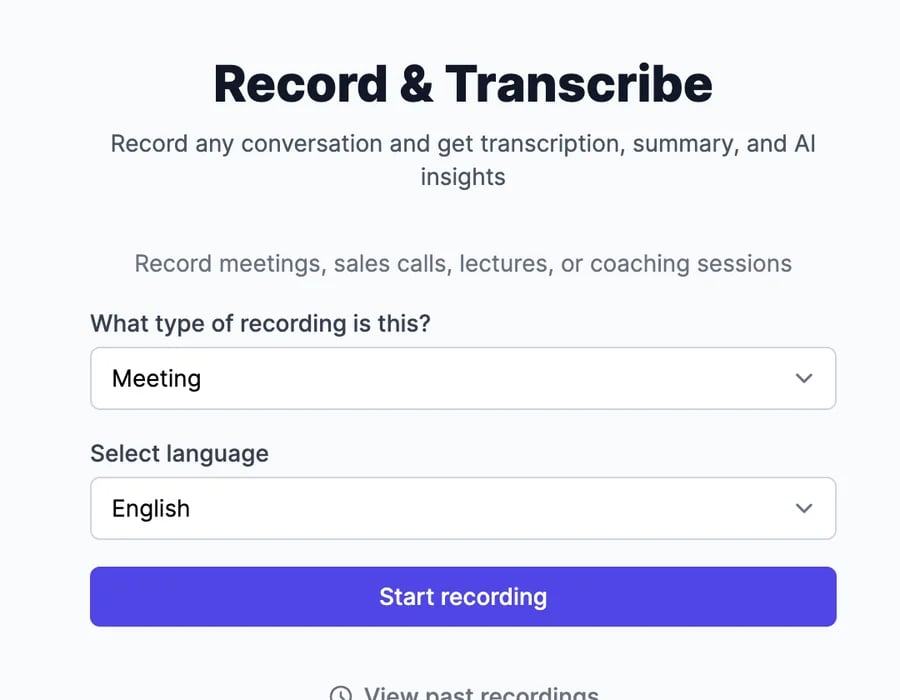
Click **Record & Transcribe** in the sidebar. Choose **What type of recording is this?**, such as Meeting or Lecture, and **Select language**. The type decides which [AI Content](/docs/audio/transcripts#ai-content) you get.
Allow microphone access when the browser asks. Recording starts right away.
Pause and resume as often as you need; paused time doesn't count. Stop when you're done. The recording uploads, and the transcript page opens.
Recordings can be up to 2 hours long; recording stops on its own at the limit. Speakers are detected automatically.
## Good to know
* **The microphone only.** It records what your microphone hears, not the sound from other apps or browser tabs. For an online meeting, play the other speakers out loud, or record in the meeting app and [upload the file](/docs/audio/speech-to-text).
* **Silence warning.** If no sound reaches the microphone for about 15 seconds, you'll see a warning. Check the input device and that the microphone isn't muted.
* **Saved as you go.** The recording uploads in 30-second pieces while you record. If the tab closes, what was recorded so far is kept; open the item from **AI Speech to Text** and click **Retry transcription** after about 15 minutes, or wait for it to be transcribed automatically.
* **Upload problems.** If pieces fail to upload when you stop, you can retry them or continue with what arrived.
## What it costs
Each recording uses one transcription, counted when you click **Start recording**. When you've used your plan's transcriptions, recording is turned off until your allowance resets or you upgrade. See [Audio plans and limits](/docs/audio/limits).
Speakers, summaries, notes, and AI Chat.
Transcribe a file or link instead.
## Record
Click **Record & Transcribe** in the sidebar. Choose **What type of recording is this?**, such as Meeting or Lecture, and **Select language**. The type decides which [AI Content](/docs/audio/transcripts#ai-content) you get.
Allow microphone access when the browser asks. Recording starts right away.
Pause and resume as often as you need; paused time doesn't count. Stop when you're done. The recording uploads, and the transcript page opens.
Recordings can be up to 2 hours long; recording stops on its own at the limit. Speakers are detected automatically.
## Good to know
* **The microphone only.** It records what your microphone hears, not the sound from other apps or browser tabs. For an online meeting, play the other speakers out loud, or record in the meeting app and [upload the file](/docs/audio/speech-to-text).
* **Silence warning.** If no sound reaches the microphone for about 15 seconds, you'll see a warning. Check the input device and that the microphone isn't muted.
* **Saved as you go.** The recording uploads in 30-second pieces while you record. If the tab closes, what was recorded so far is kept; open the item from **AI Speech to Text** and click **Retry transcription** after about 15 minutes, or wait for it to be transcribed automatically.
* **Upload problems.** If pieces fail to upload when you stop, you can retry them or continue with what arrived.
## What it costs
Each recording uses one transcription, counted when you click **Start recording**. When you've used your plan's transcriptions, recording is turned off until your allowance resets or you upgrade. See [Audio plans and limits](/docs/audio/limits).
Speakers, summaries, notes, and AI Chat.
Transcribe a file or link instead.