> ## Documentation Index
> Fetch the complete documentation index at: https://easy-peasy.ai/docs/llms.txt
> Use this file to discover all available pages before exploring further.
# Speech to text
> Transcribe audio and video files, YouTube, Instagram, TikTok, and Google Drive links, with speaker labels, timestamps, and subtitles.
**AI Speech to Text** turns recordings into text: meetings, interviews, podcasts, lectures, calls, and videos. The transcript shows who said what and when, and you can turn it into summaries, notes, and posts with [AI Content](/docs/audio/transcripts#ai-content).
## Transcribe a file or link
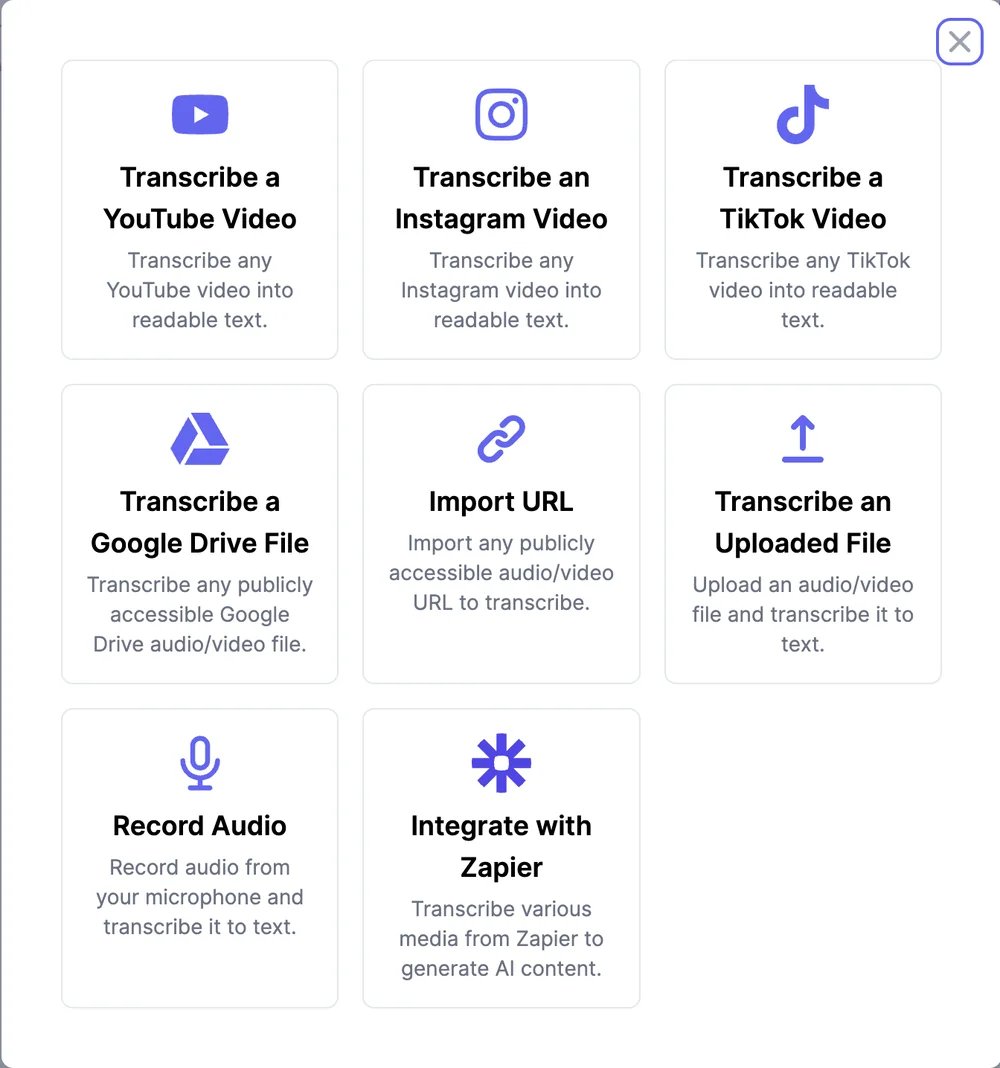
Click **AI Speech to Text** in the sidebar, then **Upload new**.
 | Source | What to give |
| ----------------------------------------------------- | ------------------------------------------------------ |
| **Transcribe an Uploaded File** | An audio or video file from your computer |
| **Transcribe a YouTube Video** | A YouTube link, including Shorts |
| **Transcribe an Instagram Video**, **a TikTok Video** | The post's link |
| **Transcribe a Google Drive File** | A Google Drive link that anyone with the link can open |
| **Import URL** | A public link to an audio or video file |
| **Record Audio** | Opens [Record & Transcribe](/docs/audio/record) |
| **Integrate with Zapier** | Sends recordings from other apps through Zapier |
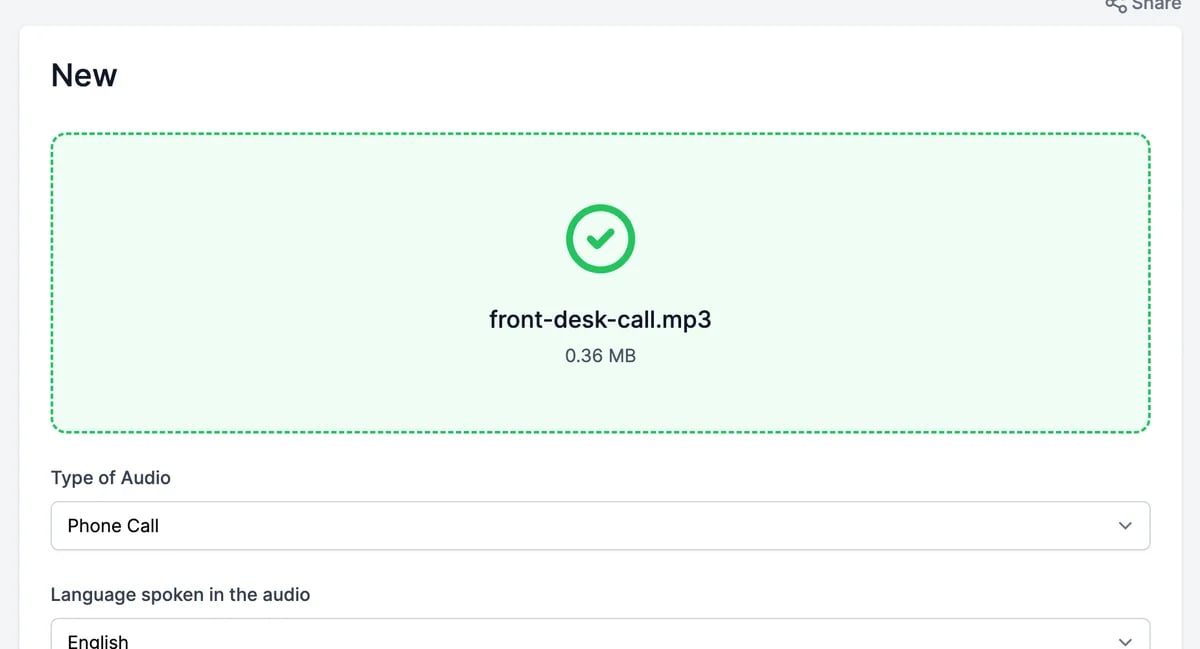
For a file, drag it in or click to choose it. Audio: MP3, M4A, WAV, FLAC, OGG, AAC, Opus, WMA. Video: MP4, MOV, WebM, AVI, MKV, FLV.
| Source | What to give |
| ----------------------------------------------------- | ------------------------------------------------------ |
| **Transcribe an Uploaded File** | An audio or video file from your computer |
| **Transcribe a YouTube Video** | A YouTube link, including Shorts |
| **Transcribe an Instagram Video**, **a TikTok Video** | The post's link |
| **Transcribe a Google Drive File** | A Google Drive link that anyone with the link can open |
| **Import URL** | A public link to an audio or video file |
| **Record Audio** | Opens [Record & Transcribe](/docs/audio/record) |
| **Integrate with Zapier** | Sends recordings from other apps through Zapier |
For a file, drag it in or click to choose it. Audio: MP3, M4A, WAV, FLAC, OGG, AAC, Opus, WMA. Video: MP4, MOV, WebM, AVI, MKV, FLV.
 | Option | What it does |
| -------------------------------------------------- | ------------------------------------------------------------------------------------------------------------------------------------------------------------------------------------------- |
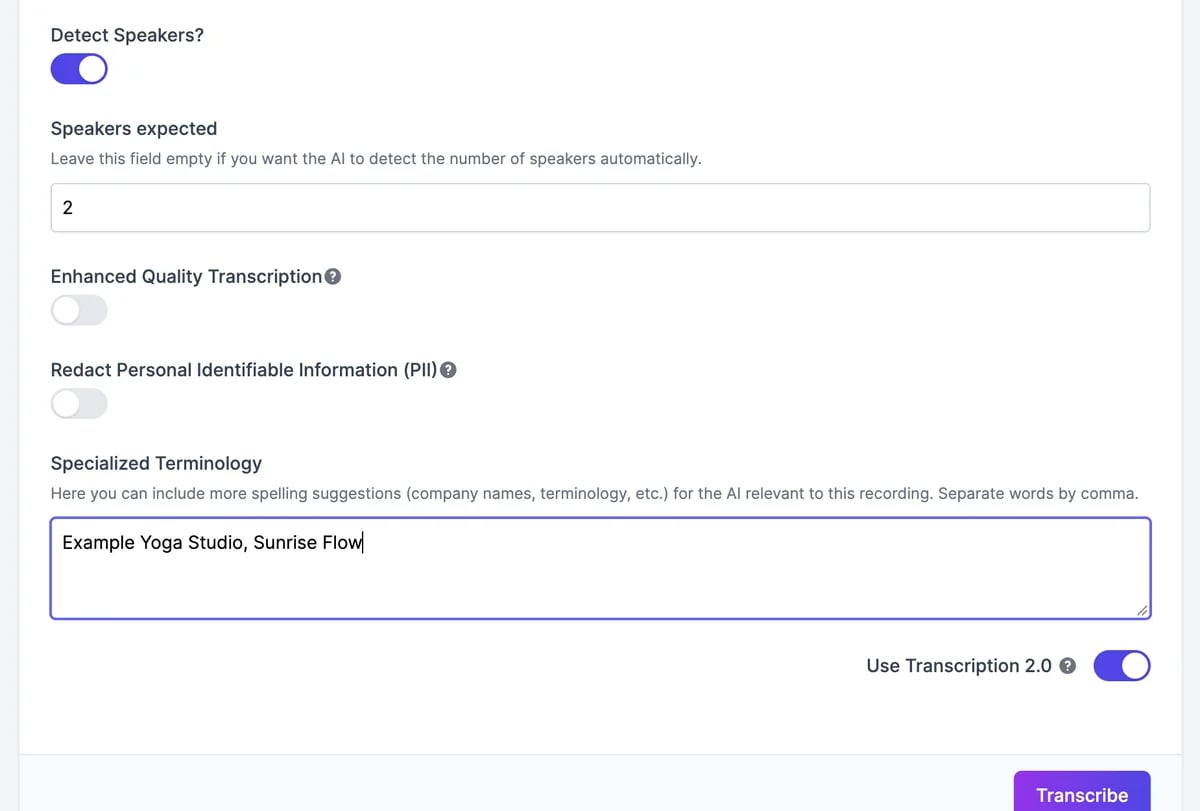
| **Type of Audio** | Podcast, Meeting, Lecture, Sales Call, Therapy Session, and so on. It decides which [AI Content](/docs/audio/transcripts#ai-content) you get |
| **Language spoken in the audio** | The language, or **Auto** to detect it. Choosing the language gives better results, especially with accents |
| **Detect Speakers?** | Labels who is speaking |
| **Speakers expected** | How many people speak. Leave it empty to detect automatically |
| **Redact Personal Identifiable Information (PII)** | Replaces personal details with `####`: names, organizations, email addresses, dates of birth, passport, social security, health care, account, and credit card numbers, and banking details |
| **Use Transcription 2.0** | The current engine, on by default. It adds subtitle downloads and speaker counts. Leave it on |
**Specialized Terminology** and **Enhanced Quality Transcription** currently only affect the older engine, used when **Use Transcription 2.0** is off.
The file uploads and transcription starts. Short recordings are done in a minute or two; long ones can take 10 to 20 minutes. You can leave the page; you'll get an email when it's ready.
| Option | What it does |
| -------------------------------------------------- | ------------------------------------------------------------------------------------------------------------------------------------------------------------------------------------------- |
| **Type of Audio** | Podcast, Meeting, Lecture, Sales Call, Therapy Session, and so on. It decides which [AI Content](/docs/audio/transcripts#ai-content) you get |
| **Language spoken in the audio** | The language, or **Auto** to detect it. Choosing the language gives better results, especially with accents |
| **Detect Speakers?** | Labels who is speaking |
| **Speakers expected** | How many people speak. Leave it empty to detect automatically |
| **Redact Personal Identifiable Information (PII)** | Replaces personal details with `####`: names, organizations, email addresses, dates of birth, passport, social security, health care, account, and credit card numbers, and banking details |
| **Use Transcription 2.0** | The current engine, on by default. It adds subtitle downloads and speaker counts. Leave it on |
**Specialized Terminology** and **Enhanced Quality Transcription** currently only affect the older engine, used when **Use Transcription 2.0** is off.
The file uploads and transcription starts. Short recordings are done in a minute or two; long ones can take 10 to 20 minutes. You can leave the page; you'll get an email when it's ready.
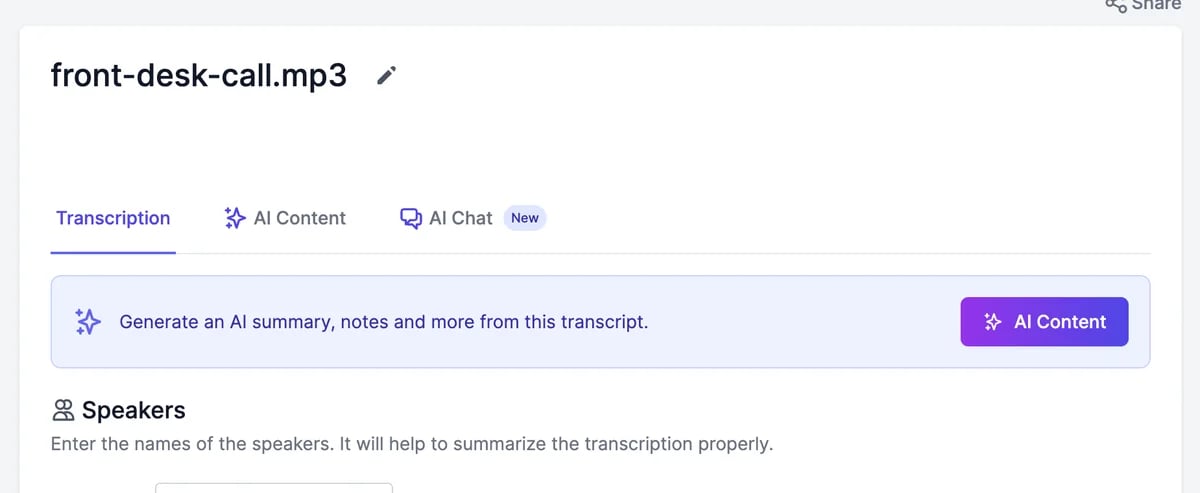 Then [read and work with the transcript](/docs/audio/transcripts).
### YouTube videos
When a YouTube video has captions, the transcript is ready in seconds as plain text, without speakers or timestamps, and subtitle downloads aren't available. Videos without captions are transcribed like a file, with speakers and timestamps.
## Your transcriptions
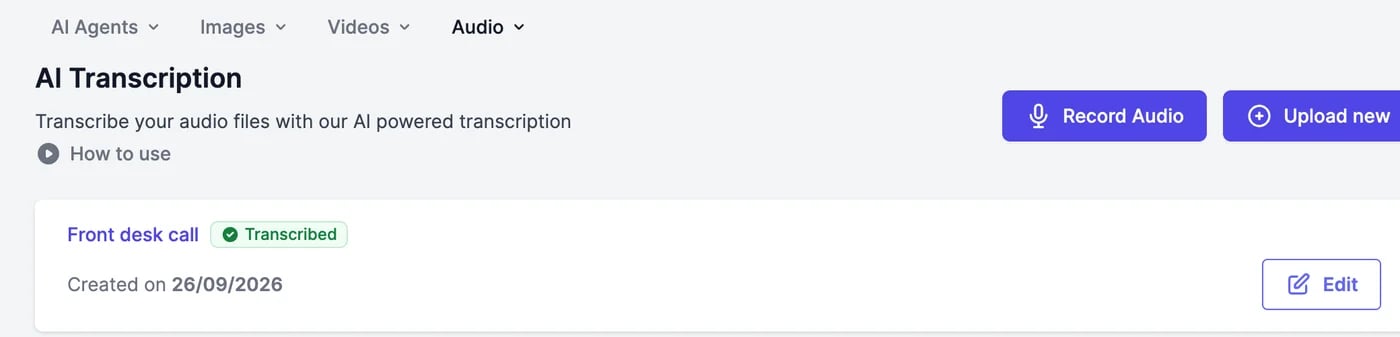
**AI Speech to Text** lists your transcriptions, 20 per page, each with its status: **Processing**, **Transcribed**, **No speech**, or **Failed**. Click one, or **Edit**, to open it.
Then [read and work with the transcript](/docs/audio/transcripts).
### YouTube videos
When a YouTube video has captions, the transcript is ready in seconds as plain text, without speakers or timestamps, and subtitle downloads aren't available. Videos without captions are transcribed like a file, with speakers and timestamps.
## Your transcriptions
**AI Speech to Text** lists your transcriptions, 20 per page, each with its status: **Processing**, **Transcribed**, **No speech**, or **Failed**. Click one, or **Edit**, to open it.
 On a Teams plan, transcriptions teammates share with the team appear here too.
## If a transcription fails
* **Failed** items are retried automatically. You can also open one and click **Retry transcription**; your file is kept.
* **No speech** means no speech was found, for example a recording with the microphone muted. Check the recording and upload it again.
## Dictate into a text box
The microphone button in Marky, the tools, and AI Images types what you say into the text box. Dictation doesn't use transcriptions.
## What it costs
Each new item uses one transcription from your plan, whatever its length. An item counts when you pick a source or start a recording, even if you don't finish it or delete it later. Retries don't count again. Check your usage on [**Settings** > **Usage**](/docs/account/usage) and see [Audio plans and limits](/docs/audio/limits).
AI Content and AI Chat use words.
## For developers
Transcribe from your own code with `POST /api/transcriptions`, which needs a paid plan. See [Create transcription](/docs/api-reference/endpoint/create-transcription).
Speakers, subtitles, AI Content, and AI Chat.
Record a meeting in your browser.
On a Teams plan, transcriptions teammates share with the team appear here too.
## If a transcription fails
* **Failed** items are retried automatically. You can also open one and click **Retry transcription**; your file is kept.
* **No speech** means no speech was found, for example a recording with the microphone muted. Check the recording and upload it again.
## Dictate into a text box
The microphone button in Marky, the tools, and AI Images types what you say into the text box. Dictation doesn't use transcriptions.
## What it costs
Each new item uses one transcription from your plan, whatever its length. An item counts when you pick a source or start a recording, even if you don't finish it or delete it later. Retries don't count again. Check your usage on [**Settings** > **Usage**](/docs/account/usage) and see [Audio plans and limits](/docs/audio/limits).
AI Content and AI Chat use words.
## For developers
Transcribe from your own code with `POST /api/transcriptions`, which needs a paid plan. See [Create transcription](/docs/api-reference/endpoint/create-transcription).
Speakers, subtitles, AI Content, and AI Chat.
Record a meeting in your browser.