> ## Documentation Index
> Fetch the complete documentation index at: https://easy-peasy.ai/docs/llms.txt
> Use this file to discover all available pages before exploring further.
# Text to speech
> Turn text into natural speech in more than 30 languages, with expressive audio tags, AI help with the script, and downloads in MP3, WAV, or Opus.
**AI Text to Speech** turns your text into a voiceover. Pick one of about 2,000 voices, or [your own](/docs/audio/voices), paste your script, and download the audio. Use it for videos, podcasts, ads, e-learning, and phone messages.
 ## Generate speech
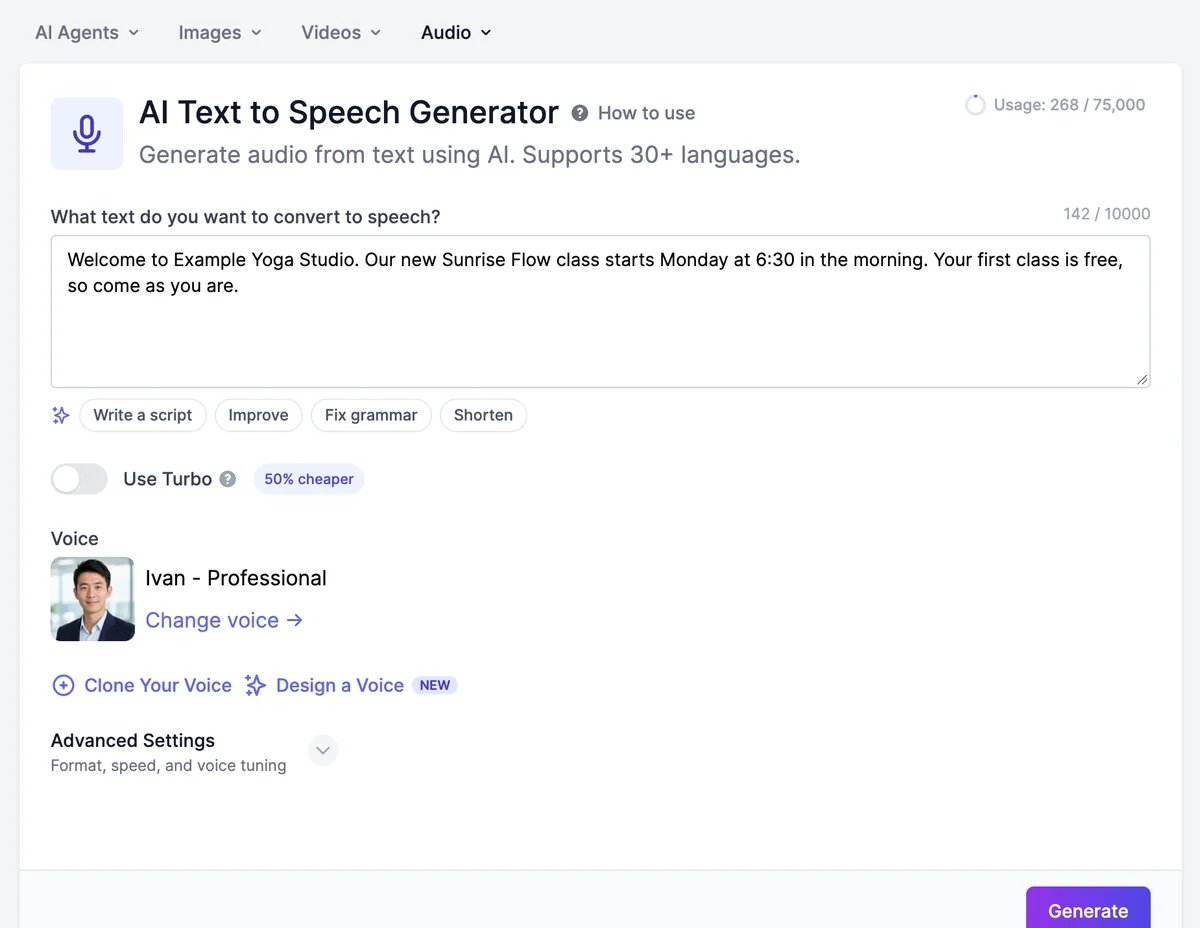
Click **AI Text to Speech** in the sidebar. **Usage** at the top right shows how many text-to-speech characters you've used this period.
Type or paste it in **What text do you want to convert to speech?** The counter shows how many characters you can use in one go (see [Length limits](#length-limits)).
To get help with the text, use the buttons under the box: **Write a script** writes one from a topic, **Improve**, **Fix grammar**, and **Shorten** rewrite what you have. **Undo** brings back your previous text.
Click **Change voice** and choose one. See [Voices and voice cloning](/docs/audio/voices).
Turn on **Use Turbo** to use half the characters, or open **Advanced Settings** to change the file format, speed, and delivery. See below.
The audio appears at the top of **Generated Audios** a few seconds later. Click **Play** to listen.
## Audio tags
Voices marked **Audio tags** in the voice list can act out stage directions written in square brackets, such as `[laughs]`, `[whispers]`, `[sighs]`, or `[exhales]`. With one of these voices selected, **Add audio tags** adds suitable tags to your text for you.
## Generate speech
Click **AI Text to Speech** in the sidebar. **Usage** at the top right shows how many text-to-speech characters you've used this period.
Type or paste it in **What text do you want to convert to speech?** The counter shows how many characters you can use in one go (see [Length limits](#length-limits)).
To get help with the text, use the buttons under the box: **Write a script** writes one from a topic, **Improve**, **Fix grammar**, and **Shorten** rewrite what you have. **Undo** brings back your previous text.
Click **Change voice** and choose one. See [Voices and voice cloning](/docs/audio/voices).
Turn on **Use Turbo** to use half the characters, or open **Advanced Settings** to change the file format, speed, and delivery. See below.
The audio appears at the top of **Generated Audios** a few seconds later. Click **Play** to listen.
## Audio tags
Voices marked **Audio tags** in the voice list can act out stage directions written in square brackets, such as `[laughs]`, `[whispers]`, `[sighs]`, or `[exhales]`. With one of these voices selected, **Add audio tags** adds suitable tags to your text for you.
![The text box with an [exhales] tag added after the first sentence, the tooltip Insert expressive tags like [laughs] or [whispers] where they fit, and the voice Hope selected](https://mintcdn.com/easy-peasyai/YtJl2eljOxzUw89V/images/audio/tts-audio-tags.webp?fit=max&auto=format&n=YtJl2eljOxzUw89V&q=85&s=6aa05bfc78ea241483de237a04189946) Other voices read the brackets aloud. If your text has tags and the voice doesn't support them, you're offered **Use a voice with audio tags**. The default voice, Hope, supports audio tags.
## Turbo
**Use Turbo** uses a faster model and counts half the characters. Try it with your voice and compare. Turbo isn't available with audio-tag voices and [Professional clones](/docs/audio/voices#professional-clone).
## Advanced Settings
Other voices read the brackets aloud. If your text has tags and the voice doesn't support them, you're offered **Use a voice with audio tags**. The default voice, Hope, supports audio tags.
## Turbo
**Use Turbo** uses a faster model and counts half the characters. Try it with your voice and compare. Turbo isn't available with audio-tag voices and [Professional clones](/docs/audio/voices#professional-clone).
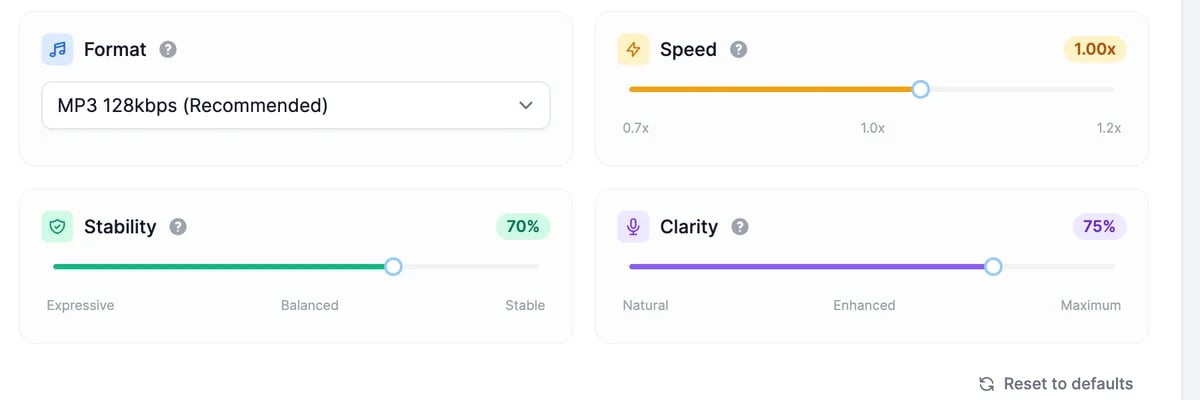
## Advanced Settings
 | Setting | What it does | Default |
| ------------- | --------------------------------------------------------------------------------------- | ----------- |
| **Format** | The audio file: MP3 at 64 to 192 kbps, WAV at 24 or 44.1 kHz, or Opus at 64 or 128 kbps | MP3 128kbps |
| **Speed** | From 0.7x to 1.2x | 1.00x |
| **Stability** | Lower (**Expressive**) varies the delivery more; higher (**Stable**) keeps it even | 70% |
| **Clarity** | How closely the audio sticks to the original voice, from **Natural** to **Maximum** | 75% |
**Reset to defaults** restores all four. Voices marked **Saver** always produce MP3 and ignore these settings and Turbo.
## Length limits
| Voice | Characters per generation |
| -------------------- | -------------------------- |
| Most voices | 10,000 (40,000 with Turbo) |
| Audio-tag voices | 5,000 |
| Professional clones | 10,000 |
| Free plan, any voice | 100 |
For longer scripts, split the text and generate it in parts.
## Your generated audio
**Generated Audios** shows your 18 newest files. All of them are in **History** > **AI Text-to-Speech**.
| Setting | What it does | Default |
| ------------- | --------------------------------------------------------------------------------------- | ----------- |
| **Format** | The audio file: MP3 at 64 to 192 kbps, WAV at 24 or 44.1 kHz, or Opus at 64 or 128 kbps | MP3 128kbps |
| **Speed** | From 0.7x to 1.2x | 1.00x |
| **Stability** | Lower (**Expressive**) varies the delivery more; higher (**Stable**) keeps it even | 70% |
| **Clarity** | How closely the audio sticks to the original voice, from **Natural** to **Maximum** | 75% |
**Reset to defaults** restores all four. Voices marked **Saver** always produce MP3 and ignore these settings and Turbo.
## Length limits
| Voice | Characters per generation |
| -------------------- | -------------------------- |
| Most voices | 10,000 (40,000 with Turbo) |
| Audio-tag voices | 5,000 |
| Professional clones | 10,000 |
| Free plan, any voice | 100 |
For longer scripts, split the text and generate it in parts.
## Your generated audio
**Generated Audios** shows your 18 newest files. All of them are in **History** > **AI Text-to-Speech**.
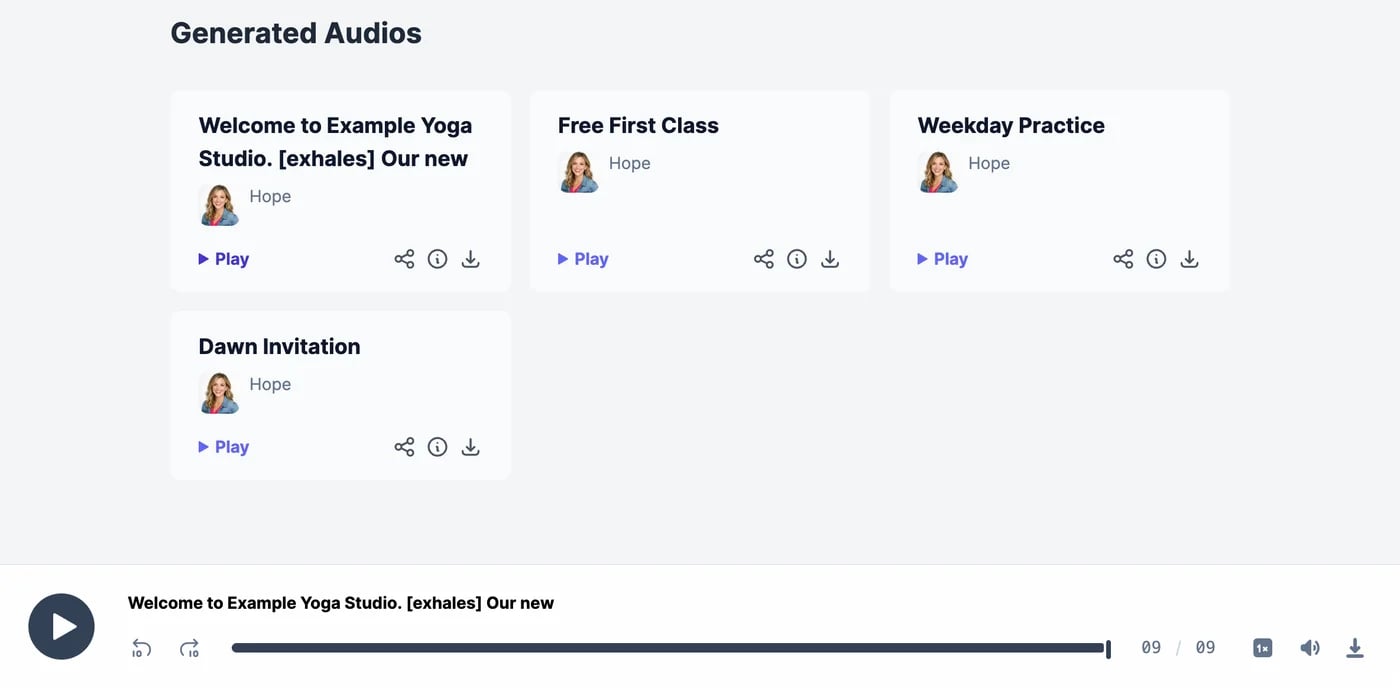 Each card has **Play**, **Share**, details (ⓘ), and **Download**. Downloads are named after the voice and the date.
Details show the text, the voice, the date, and **Characters Used**, and have these buttons:
Each card has **Play**, **Share**, details (ⓘ), and **Download**. Downloads are named after the voice and the date.
Details show the text, the voice, the date, and **Characters Used**, and have these buttons:
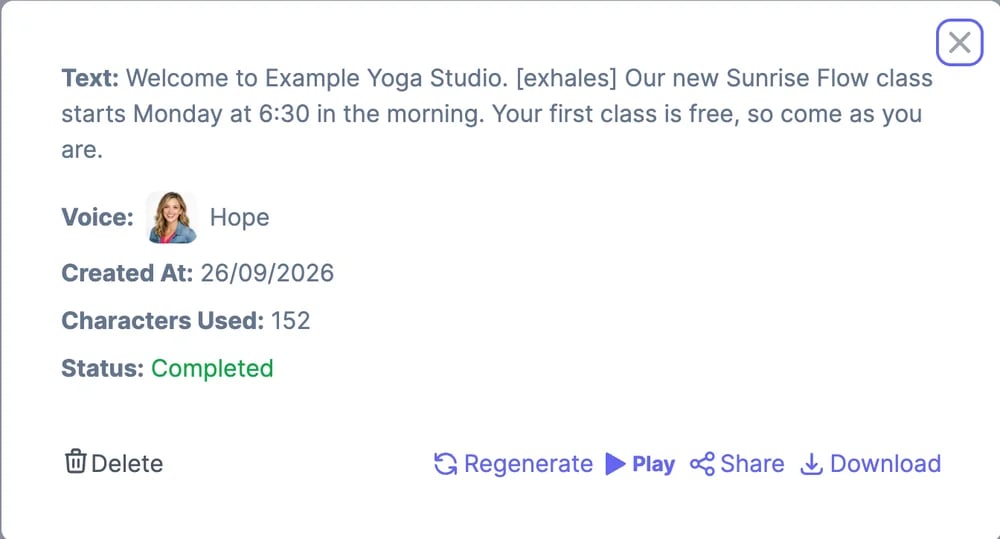 * **Regenerate** puts the text and voice back in the form, so you can change them and generate again. It doesn't copy the Advanced Settings.
* **Share** turns on a public page for the audio, with buttons to post it on LinkedIn, Facebook, X, and Reddit. On a Teams plan you can also share it with your team.
* **Delete** removes the audio. Deleted audio can't be restored.
## What it costs
Text to speech uses your plan's text-to-speech characters:
| Voice or option | Characters used |
| ----------------------- | ---------------------------------------------------------- |
| Most voices | One per character of text, including spaces and audio tags |
| **Use Turbo** | Half |
| Voices marked **Saver** | One for every 10 characters |
Characters are only counted for audio that was created; a failed generation costs nothing. The AI writing buttons (**Write a script**, **Improve**, and so on) use words, not characters. See [Audio plans and limits](/docs/audio/limits) for how many characters each plan includes and what happens when they run out.
On paid plans, you may use the audio commercially, even after your subscription ends. Audio made on the Free plan is for non-commercial use.
## For developers
The API makes speech with `POST /api/generate-text-to-speech`. See [Text to speech in the API reference](/docs/api-reference/endpoint/generate-tts).
Find a voice, clone yours, or design a new one.
Put your voiceover on a presenter.
* **Regenerate** puts the text and voice back in the form, so you can change them and generate again. It doesn't copy the Advanced Settings.
* **Share** turns on a public page for the audio, with buttons to post it on LinkedIn, Facebook, X, and Reddit. On a Teams plan you can also share it with your team.
* **Delete** removes the audio. Deleted audio can't be restored.
## What it costs
Text to speech uses your plan's text-to-speech characters:
| Voice or option | Characters used |
| ----------------------- | ---------------------------------------------------------- |
| Most voices | One per character of text, including spaces and audio tags |
| **Use Turbo** | Half |
| Voices marked **Saver** | One for every 10 characters |
Characters are only counted for audio that was created; a failed generation costs nothing. The AI writing buttons (**Write a script**, **Improve**, and so on) use words, not characters. See [Audio plans and limits](/docs/audio/limits) for how many characters each plan includes and what happens when they run out.
On paid plans, you may use the audio commercially, even after your subscription ends. Audio made on the Free plan is for non-commercial use.
## For developers
The API makes speech with `POST /api/generate-text-to-speech`. See [Text to speech in the API reference](/docs/api-reference/endpoint/generate-tts).
Find a voice, clone yours, or design a new one.
Put your voiceover on a presenter.