> ## Documentation Index
> Fetch the complete documentation index at: https://easy-peasy.ai/docs/llms.txt
> Use this file to discover all available pages before exploring further.
# Voice changer
> Turn a recording or video into a different voice while keeping your words, emotion, and timing.
**Voice Changer** re-voices a recording. You speak or act the lines; the voice changes, and your words, pacing, and emotion stay exactly as performed. It works with audio and with video: for a video, you get the video back with the new voice.
Use it to give a narration a different voice, keep one voice across takes recorded by different people, or voice a character.
## Change a voice
Click **Audio** > **Voice Changer** in the top menu, or find it in **All Tools**.
Drag the file into **Upload your audio or video**, or click to choose it. MP3, WAV, M4A, AAC, OGG, FLAC, MP4, MOV, and WebM files up to 100 MB and 30 minutes long work.
Click **Change** and pick a voice. Play a few to compare. You can use any voice from the library, and your [Instant clones and designed voices](/docs/audio/voices).
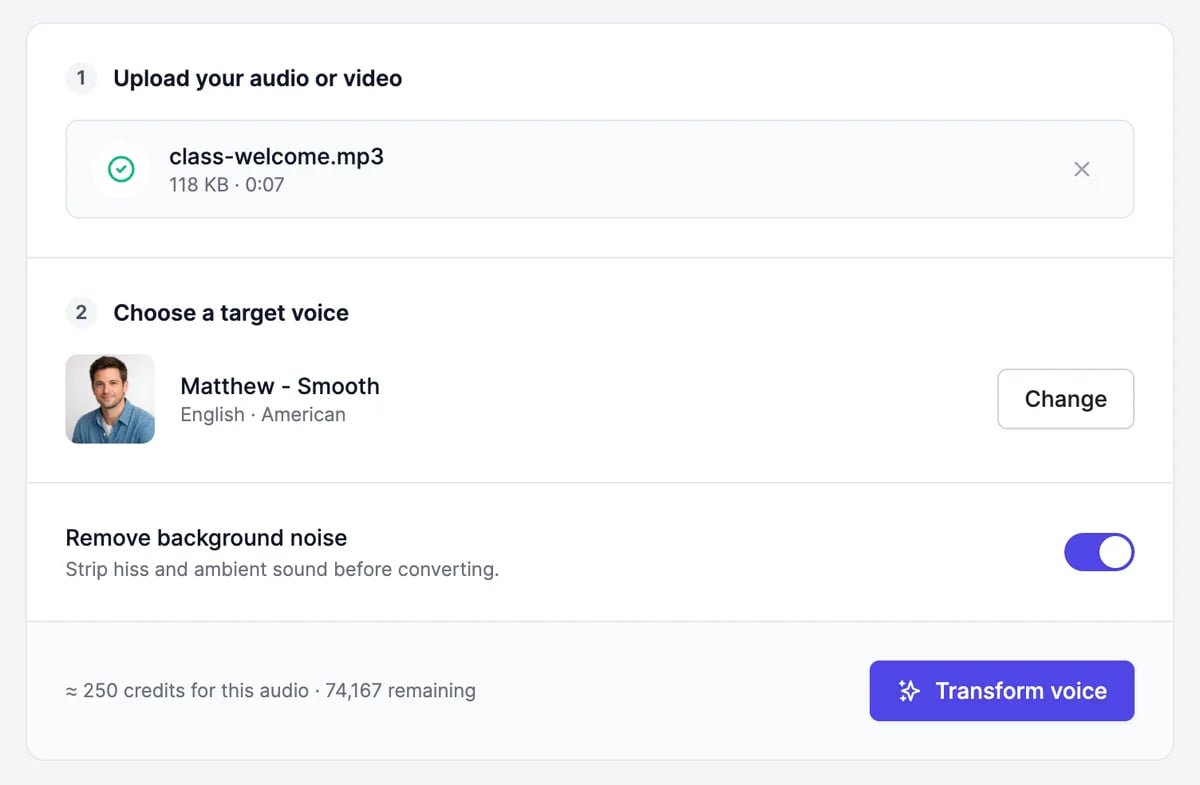 **Remove background noise**, on by default, cleans up hiss and room sound first. Turn it off to keep the original atmosphere.
The result appears under **Your conversions** a few seconds later.
**Remove background noise**, on by default, cleans up hiss and room sound first. Turn it off to keep the original atmosphere.
The result appears under **Your conversions** a few seconds later.
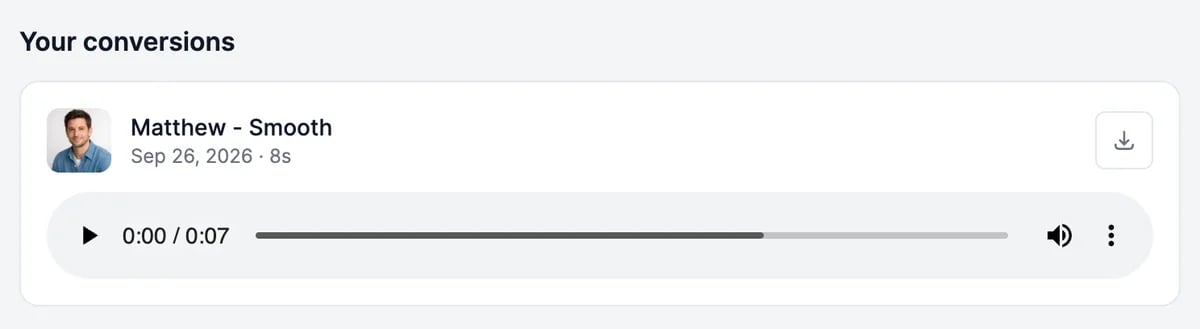 Play the result in the list, or click the download button to save it: an MP3 for audio, an MP4 for video. **Your conversions** shows your 20 most recent results; they can't be deleted or shared from this page.
## Tips
* **Record clean audio.** One speaker, close to the microphone, no music. The new voice copies your delivery, so perform the lines the way you want them to sound.
* **Match the voice to the performance.** A calm voice reading shouted lines sounds odd. Pick a voice that suits the energy of the recording.
* **Professional clones don't work here.** Voice Changer can't use [Professional clones](/docs/audio/voices#professional-clone). To change a recording into your own voice, make an [Instant clone](/docs/audio/voices#instant-clone) from the same sample.
## What it costs
Voice Changer uses your plan's text-to-speech characters, shown on this page as **Speech credits**: about 2,000 per minute of audio, or 33 per second. Before you start, the page shows an estimate for your file; the final count is based on the length of the result.
A failed conversion isn't counted. If the estimate is more than you have left, **Transform voice** changes to **Upgrade to continue**. See [Audio plans and limits](/docs/audio/limits).
Clone your voice or design a new one.
Translate a video into another language.
Play the result in the list, or click the download button to save it: an MP3 for audio, an MP4 for video. **Your conversions** shows your 20 most recent results; they can't be deleted or shared from this page.
## Tips
* **Record clean audio.** One speaker, close to the microphone, no music. The new voice copies your delivery, so perform the lines the way you want them to sound.
* **Match the voice to the performance.** A calm voice reading shouted lines sounds odd. Pick a voice that suits the energy of the recording.
* **Professional clones don't work here.** Voice Changer can't use [Professional clones](/docs/audio/voices#professional-clone). To change a recording into your own voice, make an [Instant clone](/docs/audio/voices#instant-clone) from the same sample.
## What it costs
Voice Changer uses your plan's text-to-speech characters, shown on this page as **Speech credits**: about 2,000 per minute of audio, or 33 per second. Before you start, the page shows an estimate for your file; the final count is based on the length of the result.
A failed conversion isn't counted. If the estimate is more than you have left, **Transform voice** changes to **Upgrade to continue**. See [Audio plans and limits](/docs/audio/limits).
Clone your voice or design a new one.
Translate a video into another language.