> ## Documentation Index
> Fetch the complete documentation index at: https://easy-peasy.ai/docs/llms.txt
> Use this file to discover all available pages before exploring further.
# Voices and voice cloning
> Find a voice by language and accent, clone your own voice from a recording, or design a new voice from a description.
Every text-to-speech voice comes from the voice list: about 2,000 ready-made voices, plus the voices you add yourself. Your own voices work across Easy-Peasy.AI, for example in [talking videos](/docs/videos/talking-videos) and the [Video Agent](/docs/videos/video-agent).
## Choose a voice
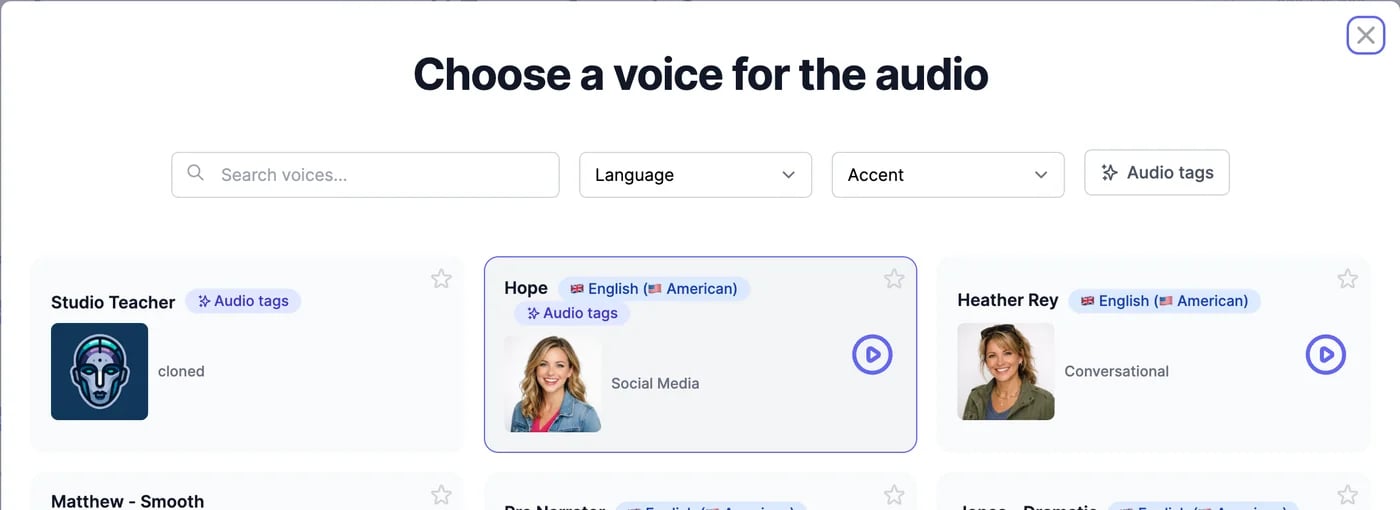
On [AI Text to Speech](/docs/audio/text-to-speech), click **Change voice**.
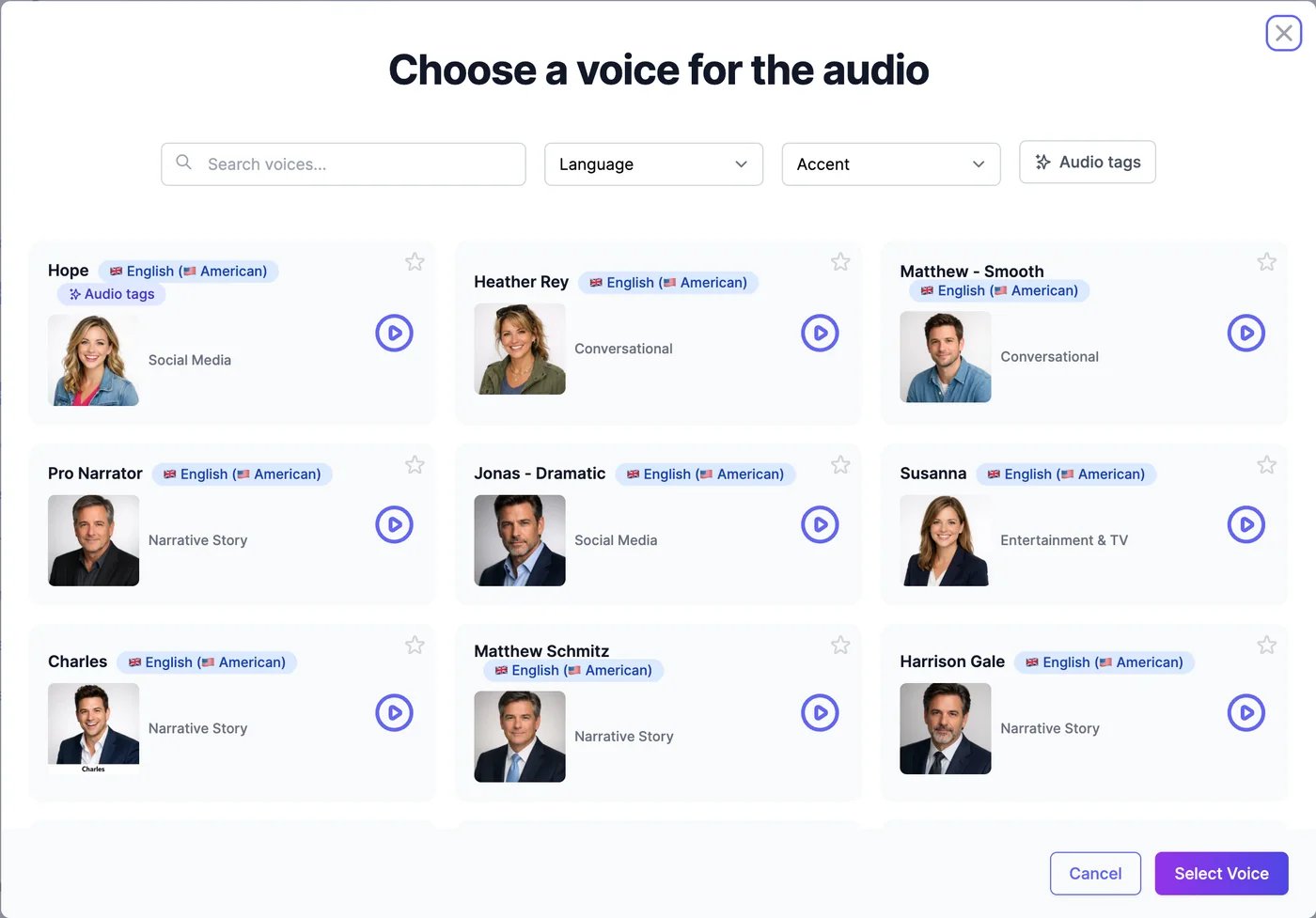 * **Search voices...** finds voices by name, language, accent, or description.
* **Language** and **Accent** narrow the list, for example English with a Singaporean accent.
* **Audio tags** shows only voices that can act out [audio tags](/docs/audio/text-to-speech#audio-tags).
* The play button plays a sample. The star marks a favourite; favourites come first in this browser.
Click a voice to choose it, then click **Select Voice**. Your own voices appear first in the list.
Two badges to know:
* **Audio tags**: the voice acts out tags like `[laughs]`. Up to 5,000 characters per generation.
* **Saver**: uses one character for every 10 you convert. It always makes MP3 and ignores Turbo and Advanced Settings.
## Your own voices
Add voices three ways:
| Option | How it works | Plans |
| ---------------------- | --------------------------------------------------------------- | ------------------------------------------ |
| **Instant** clone | Copies a voice from a short recording in seconds | All |
| **Professional** clone | Captures more of the speaker's character from a clean recording | Unlimited 50 and higher, Teams, Enterprise |
| **Design a Voice** | Creates a new voice from a written description | All |
All three count toward your plan's custom voices, from 1 on the Free plan. See [Audio plans and limits](/docs/audio/limits). Creating a voice doesn't use characters.
Only clone your own voice, or a voice you have permission to use.
## Instant clone
On AI Text to Speech, click **Clone Your Voice**. **Instant** is selected.
* **Search voices...** finds voices by name, language, accent, or description.
* **Language** and **Accent** narrow the list, for example English with a Singaporean accent.
* **Audio tags** shows only voices that can act out [audio tags](/docs/audio/text-to-speech#audio-tags).
* The play button plays a sample. The star marks a favourite; favourites come first in this browser.
Click a voice to choose it, then click **Select Voice**. Your own voices appear first in the list.
Two badges to know:
* **Audio tags**: the voice acts out tags like `[laughs]`. Up to 5,000 characters per generation.
* **Saver**: uses one character for every 10 you convert. It always makes MP3 and ignores Turbo and Advanced Settings.
## Your own voices
Add voices three ways:
| Option | How it works | Plans |
| ---------------------- | --------------------------------------------------------------- | ------------------------------------------ |
| **Instant** clone | Copies a voice from a short recording in seconds | All |
| **Professional** clone | Captures more of the speaker's character from a clean recording | Unlimited 50 and higher, Teams, Enterprise |
| **Design a Voice** | Creates a new voice from a written description | All |
All three count toward your plan's custom voices, from 1 on the Free plan. See [Audio plans and limits](/docs/audio/limits). Creating a voice doesn't use characters.
Only clone your own voice, or a voice you have permission to use.
## Instant clone
On AI Text to Speech, click **Clone Your Voice**. **Instant** is selected.
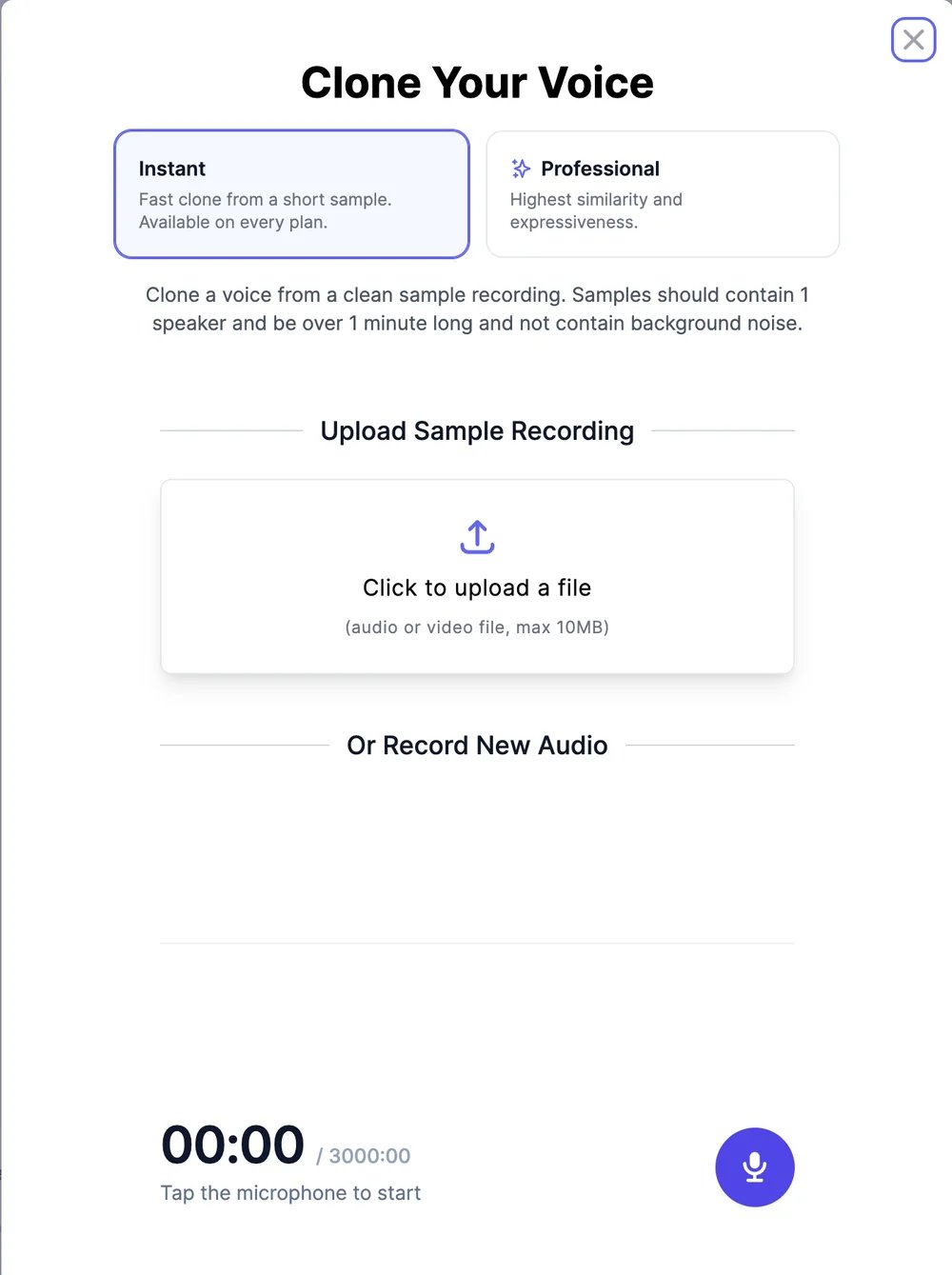 Upload an audio or video file of up to 10 MB, or click the microphone and record up to 3 minutes. Use one speaker, more than a minute of speech, and no background noise or music.
Enter a **Voice Name** and click **Add Voice**. The voice is ready to use right away.
## Professional clone
A Professional clone sounds closer to the speaker, especially their rhythm and expression.
Upload an audio or video file of up to 10 MB, or click the microphone and record up to 3 minutes. Use one speaker, more than a minute of speech, and no background noise or music.
Enter a **Voice Name** and click **Add Voice**. The voice is ready to use right away.
## Professional clone
A Professional clone sounds closer to the speaker, especially their rhythm and expression.
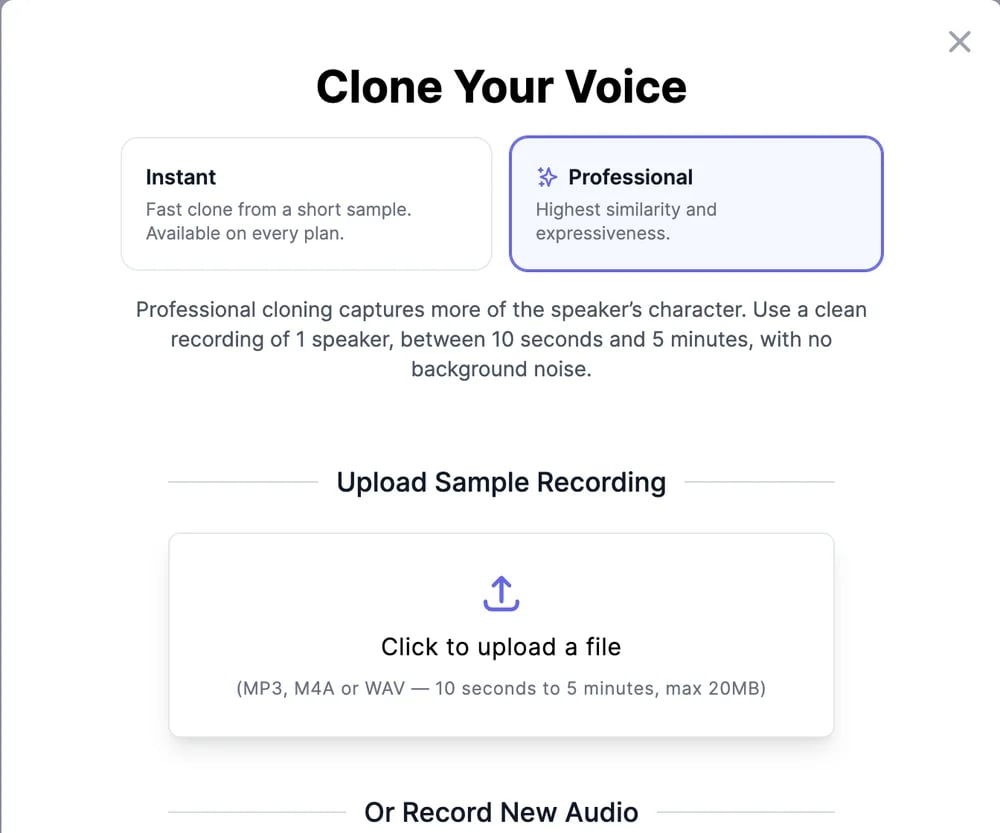 1. Click **Clone Your Voice** and choose **Professional**.
2. Upload an MP3, M4A, or WAV file, or record. The recording must be 10 seconds to 5 minutes long. If it's longer, drag the highlighted window to choose which part to use.
3. Optionally type **What does the recording say?**: the recording is checked against it, which catches silent or unclear samples before the clone is made.
4. Name the voice and save it.
Professional clones:
* Can't be deleted by you. Contact support to remove one.
* Can't be used in the Voice Changer. Make an Instant clone of the same recording for that.
* Ignore **Stability** and **Clarity**, and don't offer Turbo.
* Are removed if your subscription ends.
## Design a voice
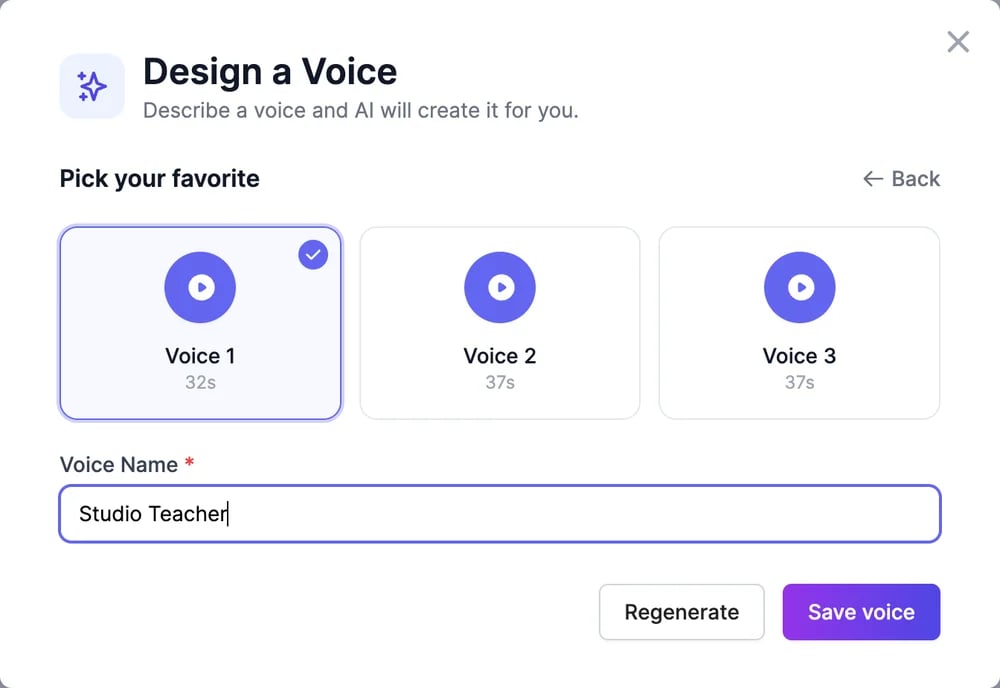
Describe the voice you want, and you get three versions to choose from.
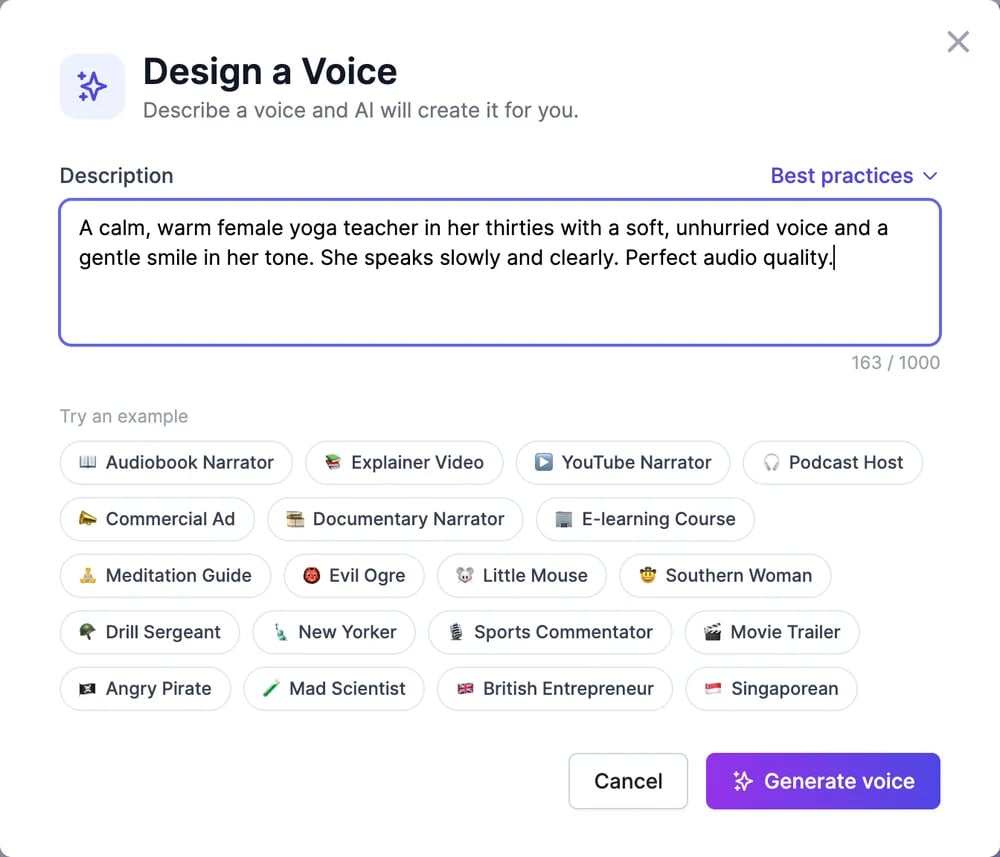
Click **Design a Voice** and write a **Description** of 10 to 1,000 characters: age, gender, accent, tone, pace, and the job it's for. **Try an example** fills in a sample, and **Best practices** has tips.
1. Click **Clone Your Voice** and choose **Professional**.
2. Upload an MP3, M4A, or WAV file, or record. The recording must be 10 seconds to 5 minutes long. If it's longer, drag the highlighted window to choose which part to use.
3. Optionally type **What does the recording say?**: the recording is checked against it, which catches silent or unclear samples before the clone is made.
4. Name the voice and save it.
Professional clones:
* Can't be deleted by you. Contact support to remove one.
* Can't be used in the Voice Changer. Make an Instant clone of the same recording for that.
* Ignore **Stability** and **Clarity**, and don't offer Turbo.
* Are removed if your subscription ends.
## Design a voice
Describe the voice you want, and you get three versions to choose from.
Click **Design a Voice** and write a **Description** of 10 to 1,000 characters: age, gender, accent, tone, pace, and the job it's for. **Try an example** fills in a sample, and **Best practices** has tips.
 After up to 30 seconds, you get three versions. Play each one.
Select your favourite, enter a **Voice Name**, and click **Save voice**.
After up to 30 seconds, you get three versions. Play each one.
Select your favourite, enter a **Voice Name**, and click **Save voice**.
 Designed voices support audio tags. They appear at the top of the voice list:
 ## Delete a voice
In the voice list, click the trash icon on one of your voices. Deleting frees a place for a new custom voice. Professional clones can't be deleted this way.
Make audio with your voice.
Custom voices and characters per plan.
## Delete a voice
In the voice list, click the trash icon on one of your voices. Deleting frees a place for a new custom voice. Professional clones can't be deleted this way.
Make audio with your voice.
Custom voices and characters per plan.