> ## Documentation Index
> Fetch the complete documentation index at: https://easy-peasy.ai/docs/llms.txt
> Use this file to discover all available pages before exploring further.
# Quickstart
> Create an account, give Marky a task, run a tool, and find your results.
This walkthrough takes about five minutes. You'll ask Marky Agent for something, run one of the tools, and then find both results in your history.
Go to [easy-peasy.ai](https://easy-peasy.ai/login) and sign up with Google, Facebook, Apple, or your email address. If you use email, open the confirmation link we send you.
New accounts start on the Free plan, so you can try everything on this page before choosing a plan. See [Plans and credits](/docs/account/plans-and-credits) for what's included.
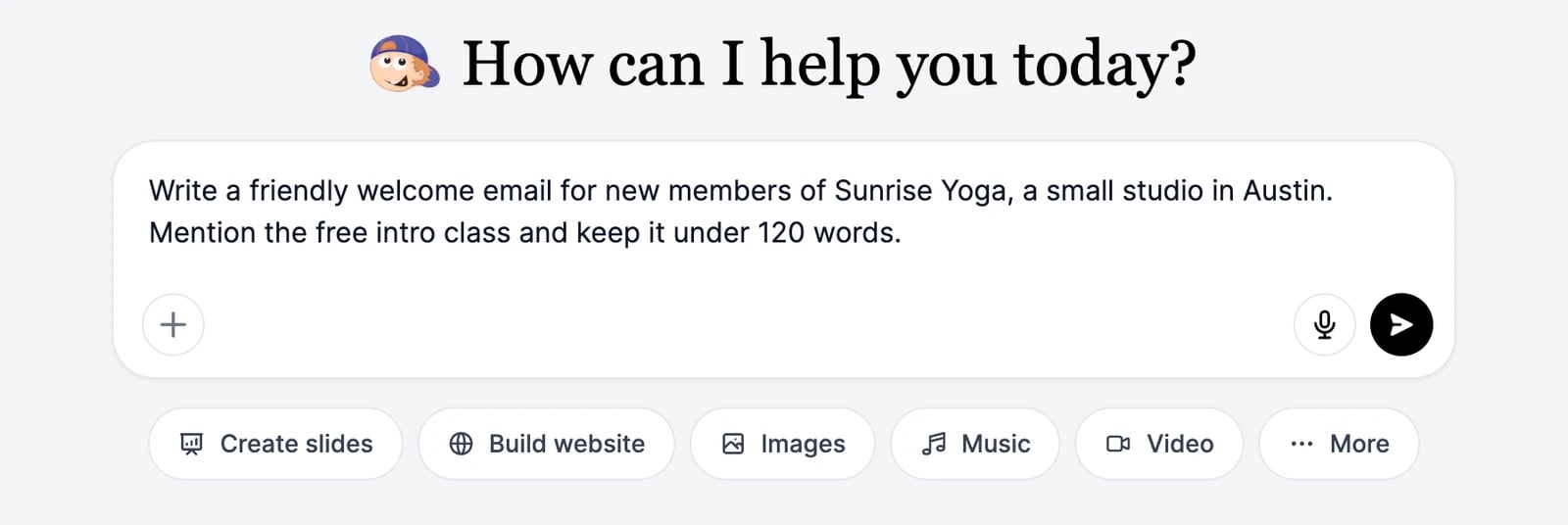
The Home screen opens with one question: **How can I help you today?** Type what you need in the box and press **Enter**.
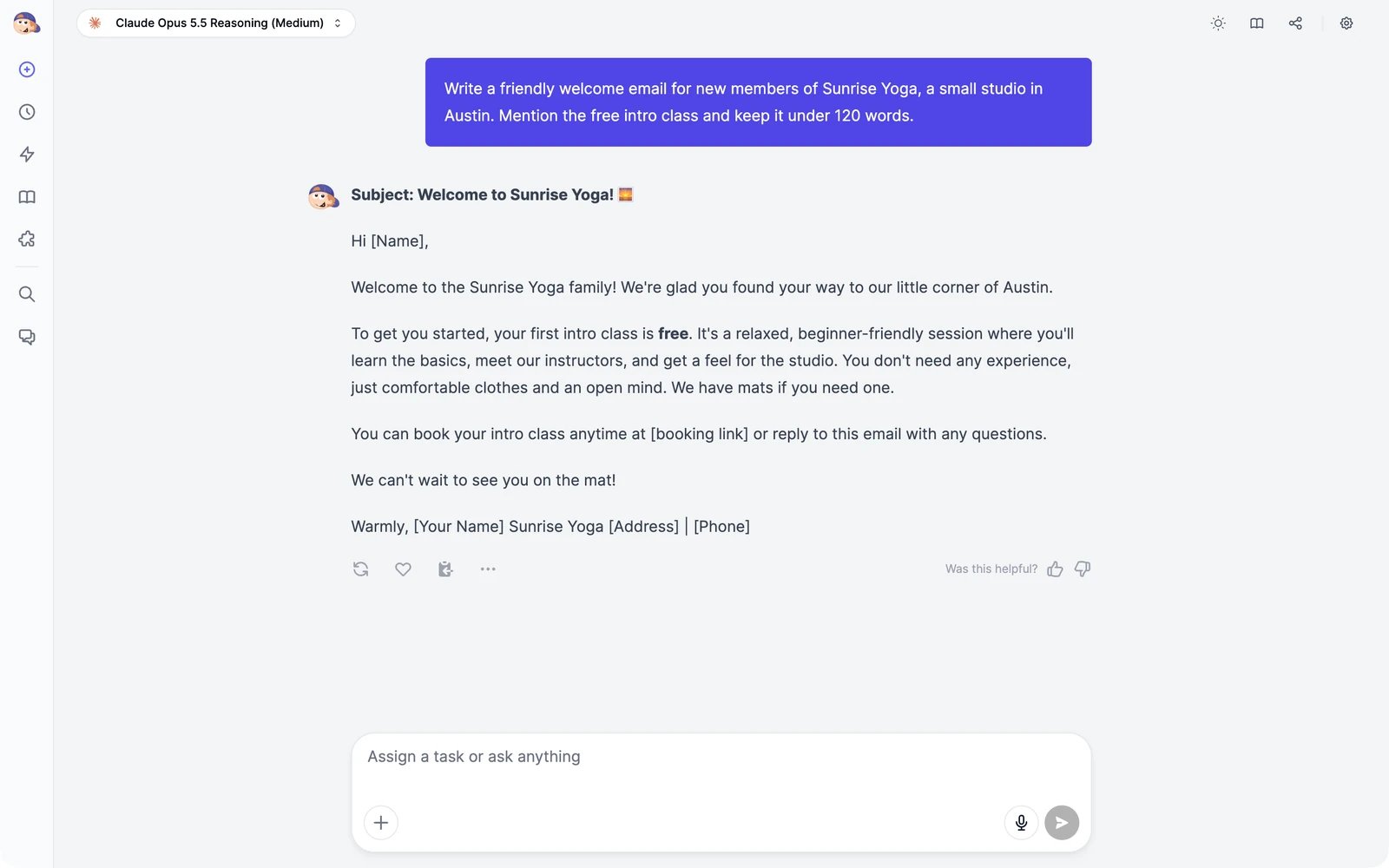
 Marky opens a chat and writes the answer. Keep the conversation going to change the result: "make it shorter", "add a line about parking", "translate it to Spanish".
 The buttons under the prompt box start common jobs in one click: **Create slides**, **Build website**, **Images**, **Music**, **Video**, and **More**.
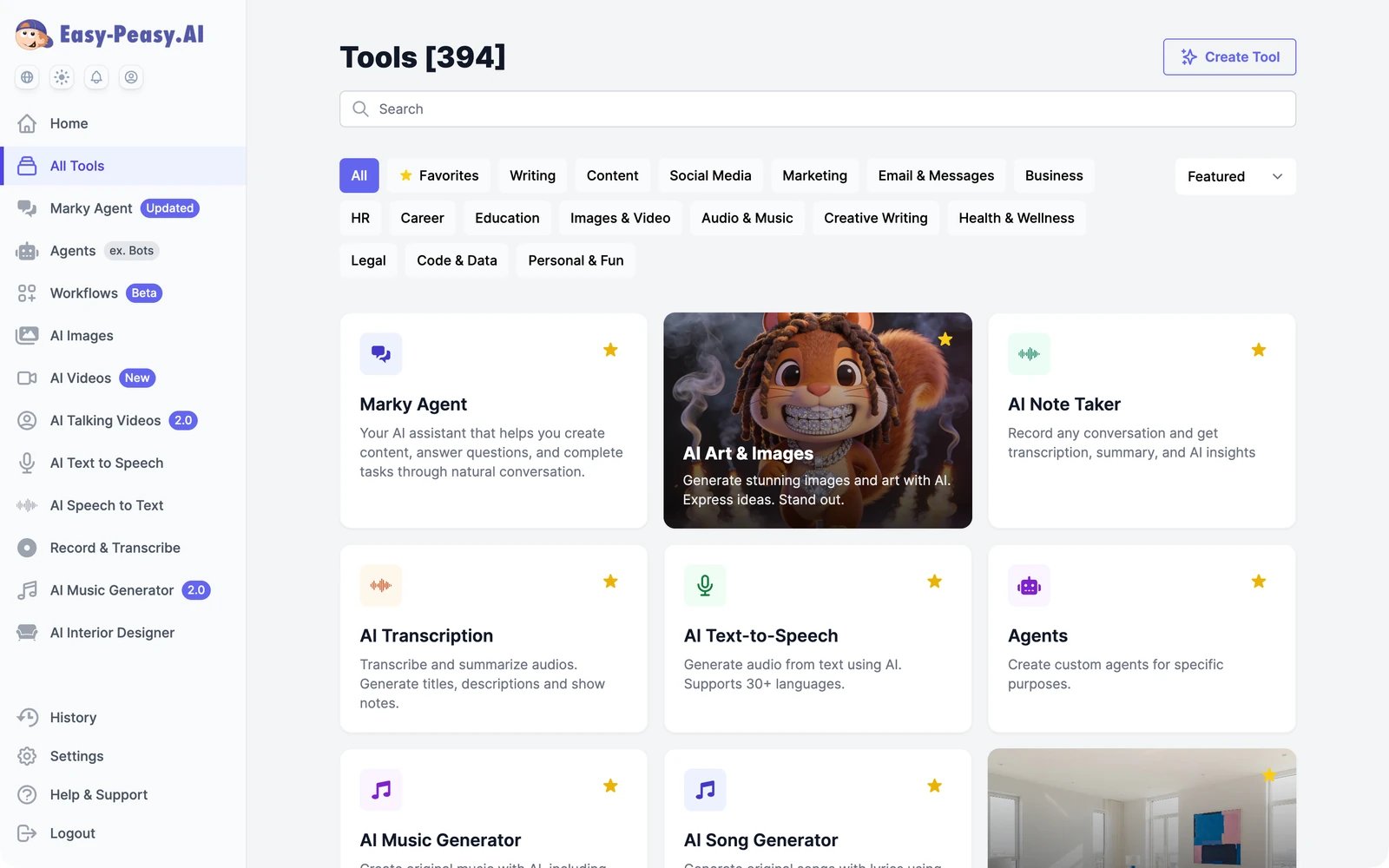
Tools are single-purpose generators with a short form to fill in. Click **All Tools** in the sidebar, then search or pick a category.
The buttons under the prompt box start common jobs in one click: **Create slides**, **Build website**, **Images**, **Music**, **Video**, and **More**.
Tools are single-purpose generators with a short form to fill in. Click **All Tools** in the sidebar, then search or pick a category.
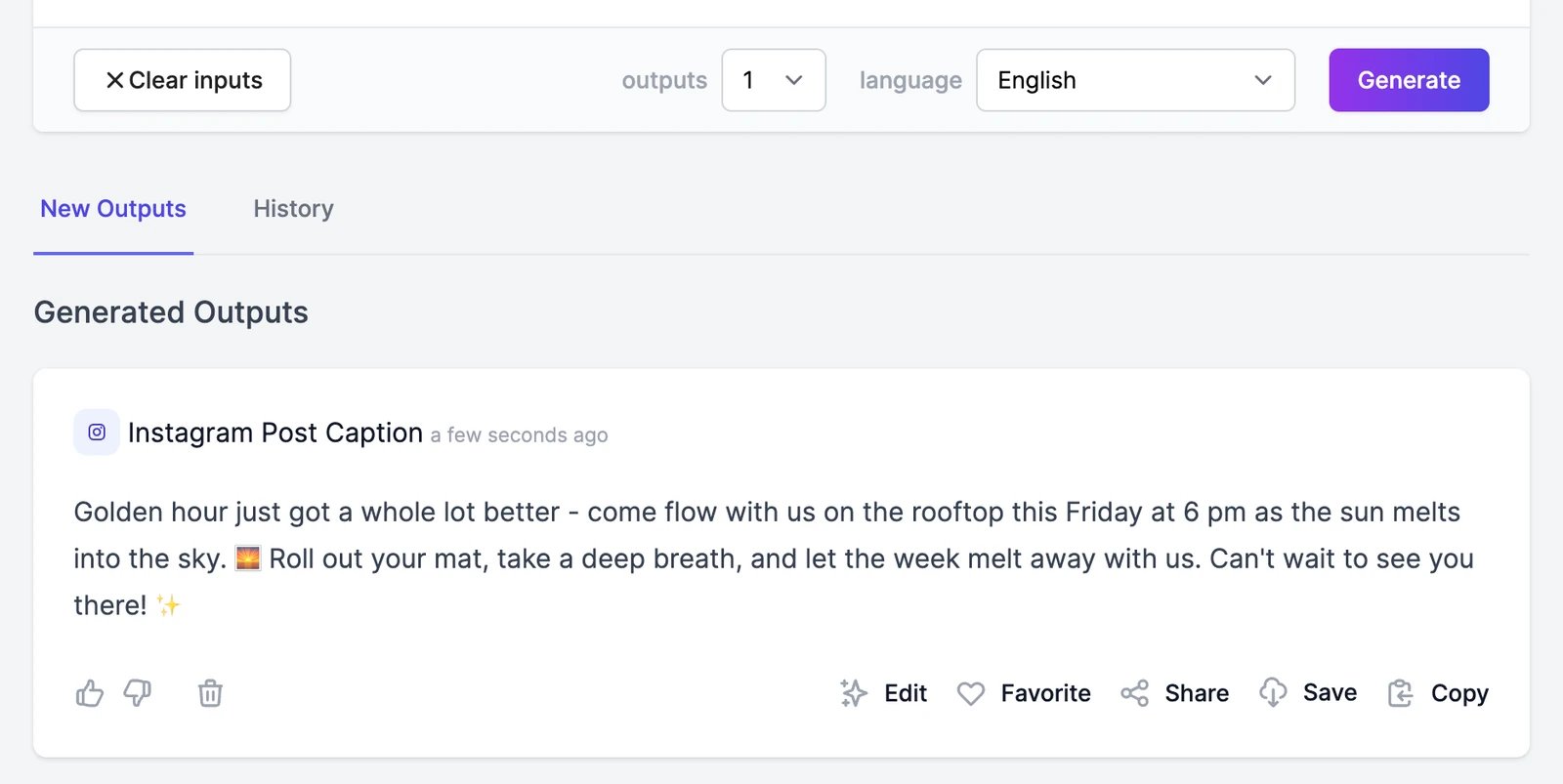
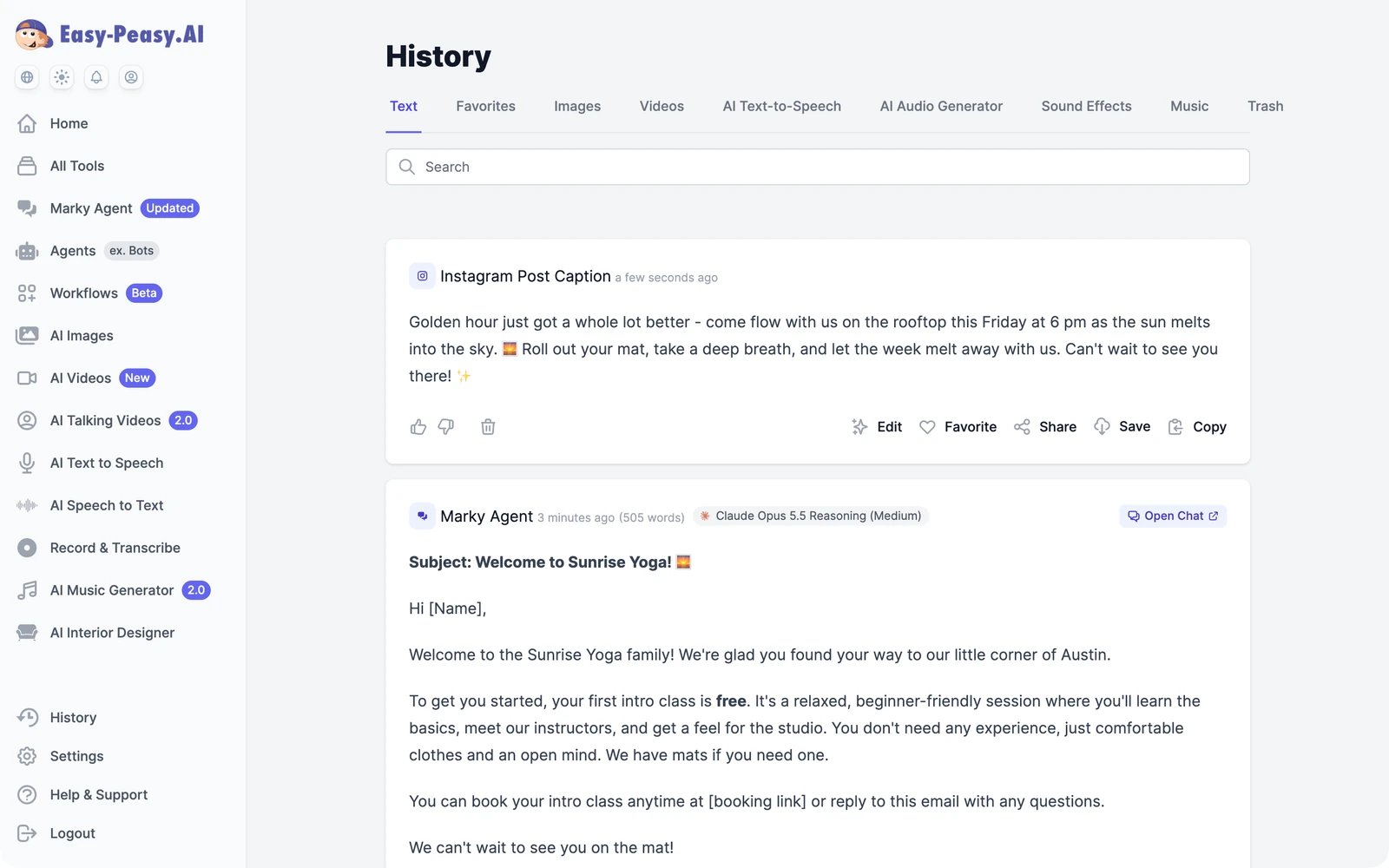
 Open a tool, fill in the fields, and click **Generate**. This example uses **Instagram Post Caption**. Each result has buttons to **Edit**, **Favorite**, **Share**, **Save**, and **Copy** it. See [Run a tool](/docs/tools/run).
 Everything you create is saved. Click **History** in the sidebar to see it, sorted into tabs such as **Text**, **Images**, **Videos**, and **Music**. Marky conversations appear here too; click **Open Chat** to continue one.
 ## Next steps
Tour the sidebar, the Home screen, and Settings.
See how words and credits are counted.
Everything Marky can do, from research to slides and websites.
Hundreds of single-purpose writing tools, and your own.
Create and edit images with dozens of models.
Generate, edit, and extend videos, or make one from a sentence.
Train an agent on your content and put it on your website and channels.
Speech, transcripts, dubbing, music, and sound effects.
## Next steps
Tour the sidebar, the Home screen, and Settings.
See how words and credits are counted.
Everything Marky can do, from research to slides and websites.
Hundreds of single-purpose writing tools, and your own.
Create and edit images with dozens of models.
Generate, edit, and extend videos, or make one from a sentence.
Train an agent on your content and put it on your website and channels.
Speech, transcripts, dubbing, music, and sound effects.