> ## Documentation Index
> Fetch the complete documentation index at: https://easy-peasy.ai/docs/llms.txt
> Use this file to discover all available pages before exploring further.
# Chat with Marky
> Send Marky a task, attach files, follow its work step by step, and answer its questions.
This page covers the basics of working with Marky: the message box, attaching files, following Marky's work, and what to do when you want to stop or redo something.
## Send a task
Click **New Chat** in the Marky sidebar, or type into the prompt box on the dashboard home page.
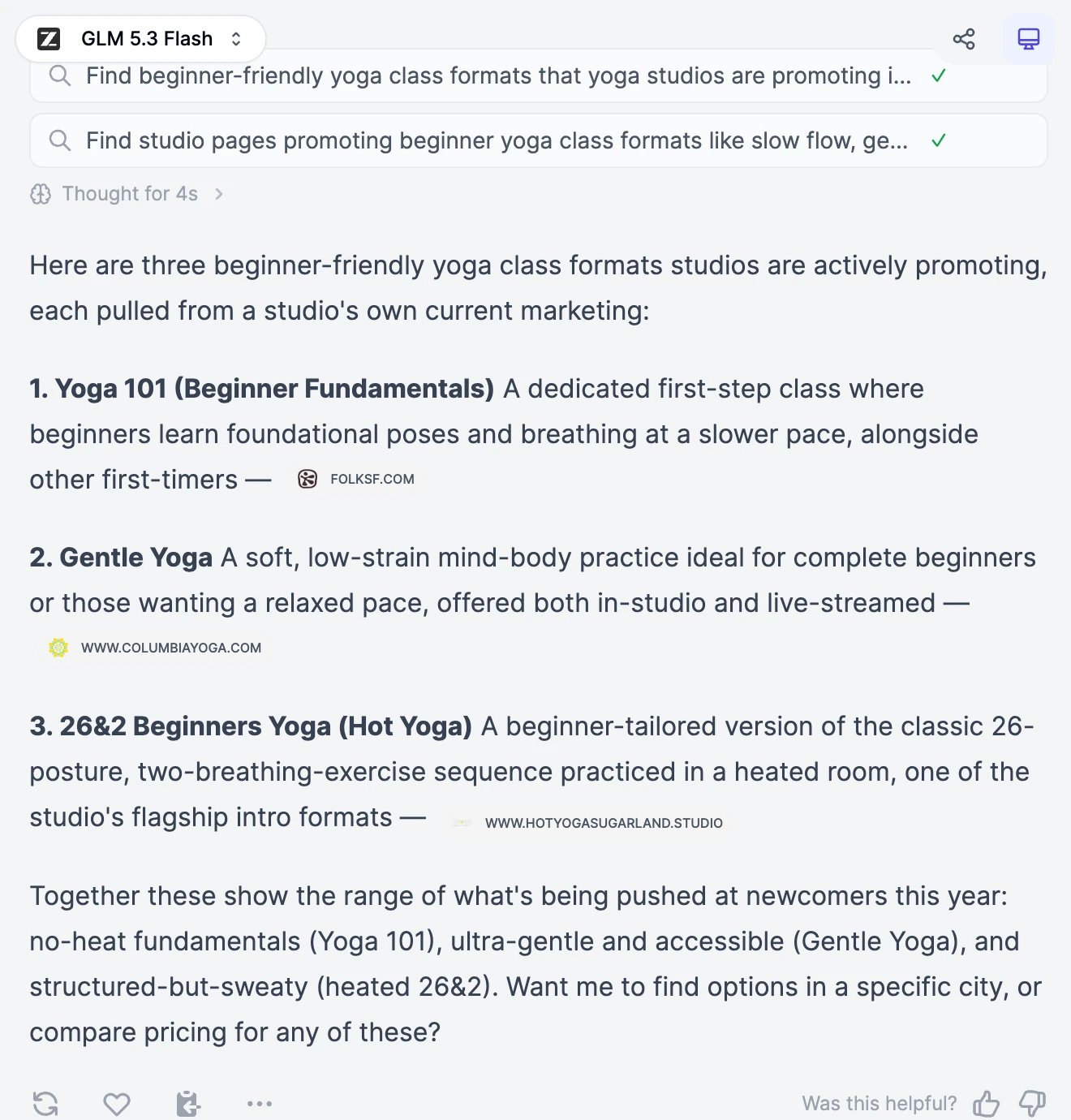
Type in the box that says **Assign a task or ask anything**. The more context you give, the better the result: who it's for, the tone, the length, and what "done" looks like. For example: "Find three beginner-friendly yoga class formats studios are promoting this year, with a source for each."
Click the send button. By default, **Enter** starts a new line and **Cmd+Enter** (or **Ctrl+Enter** on Windows) sends. You can switch this in [Chat settings](#chat-settings).
The first message in a new chat can take a few seconds longer, while Marky starts its computer.
 ## Attach files
Click **+** > **Add files or photos**, drag files onto the message box, or paste them. Marky can read documents (PDF, Word, PowerPoint, Excel, CSV, text), images, archives, code, subtitles, audio, and video.
* Up to 100 files per chat.
* Up to 50 MB per file on the Free plan and 500 MB on paid plans. Videos can be up to 500 MB on every plan.
* Wait for the upload to finish before you send.
Files are copied to Marky's computer for that chat, where it can open, analyze, and convert them. Ask for what you need: "summarize this contract", "make a chart from this spreadsheet", "turn this PDF into slides".
Only models with **Code Interpreter** can read files. If the current model can't, you'll see a message asking you to switch. See [Models and words](/docs/marky/models).
## Speak instead of typing
Click the microphone, speak for up to 60 seconds, and stop. Marky adds the transcribed text to the message box so you can check it before sending.
## The + menu
## Attach files
Click **+** > **Add files or photos**, drag files onto the message box, or paste them. Marky can read documents (PDF, Word, PowerPoint, Excel, CSV, text), images, archives, code, subtitles, audio, and video.
* Up to 100 files per chat.
* Up to 50 MB per file on the Free plan and 500 MB on paid plans. Videos can be up to 500 MB on every plan.
* Wait for the upload to finish before you send.
Files are copied to Marky's computer for that chat, where it can open, analyze, and convert them. Ask for what you need: "summarize this contract", "make a chart from this spreadsheet", "turn this PDF into slides".
Only models with **Code Interpreter** can read files. If the current model can't, you'll see a message asking you to switch. See [Models and words](/docs/marky/models).
## Speak instead of typing
Click the microphone, speak for up to 60 seconds, and stop. Marky adds the transcribed text to the message box so you can check it before sending.
## The + menu
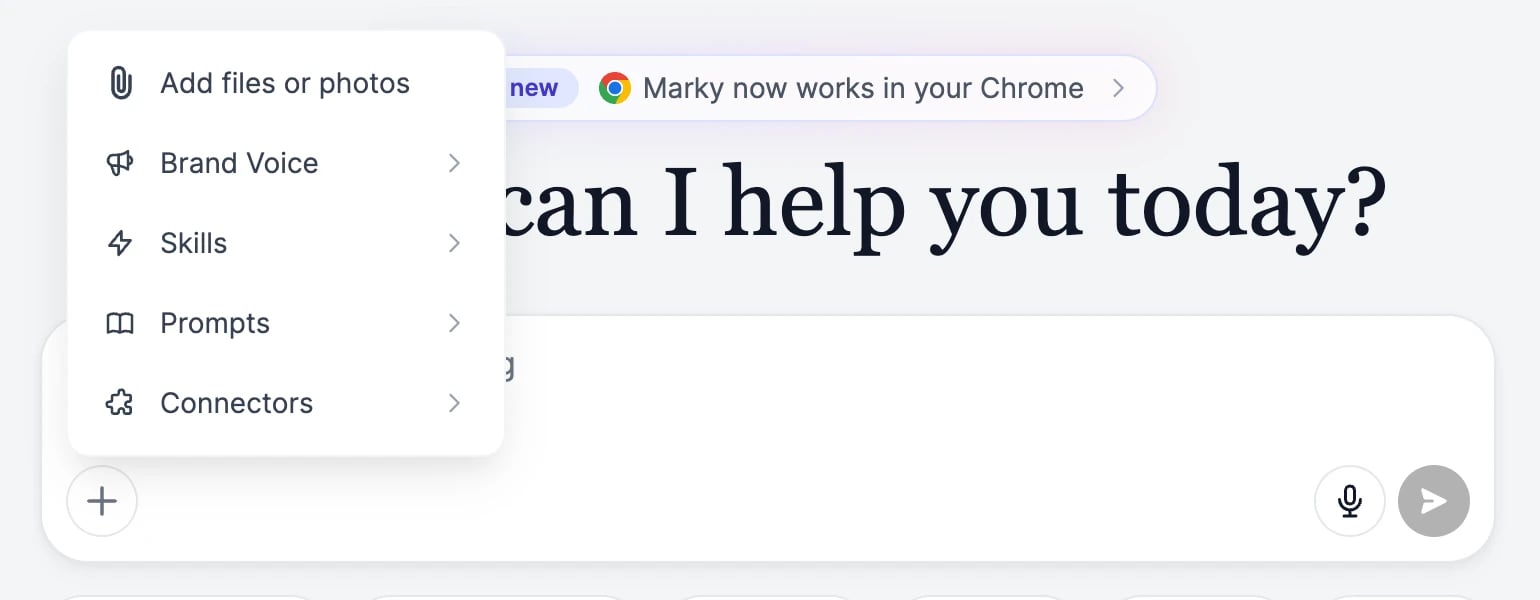 | Item | What it does |
| ----------------------- | -------------------------------------------------------------------------------------------------------------- |
| **Add files or photos** | Attaches files to the chat. |
| **Brand Voice** | Writes in the tone of one of your brand voices. See [Prompts and brand voice](/docs/marky/prompts-and-brand-voice). |
| **Skills** | Puts one of your skills to work on this message. See [Skills](/docs/marky/skills). |
| **Prompts** | Inserts one of your saved prompts. |
| **Connectors** | Shows which apps are connected and on. See [Connectors](/docs/marky/connectors). |
## Follow Marky's work
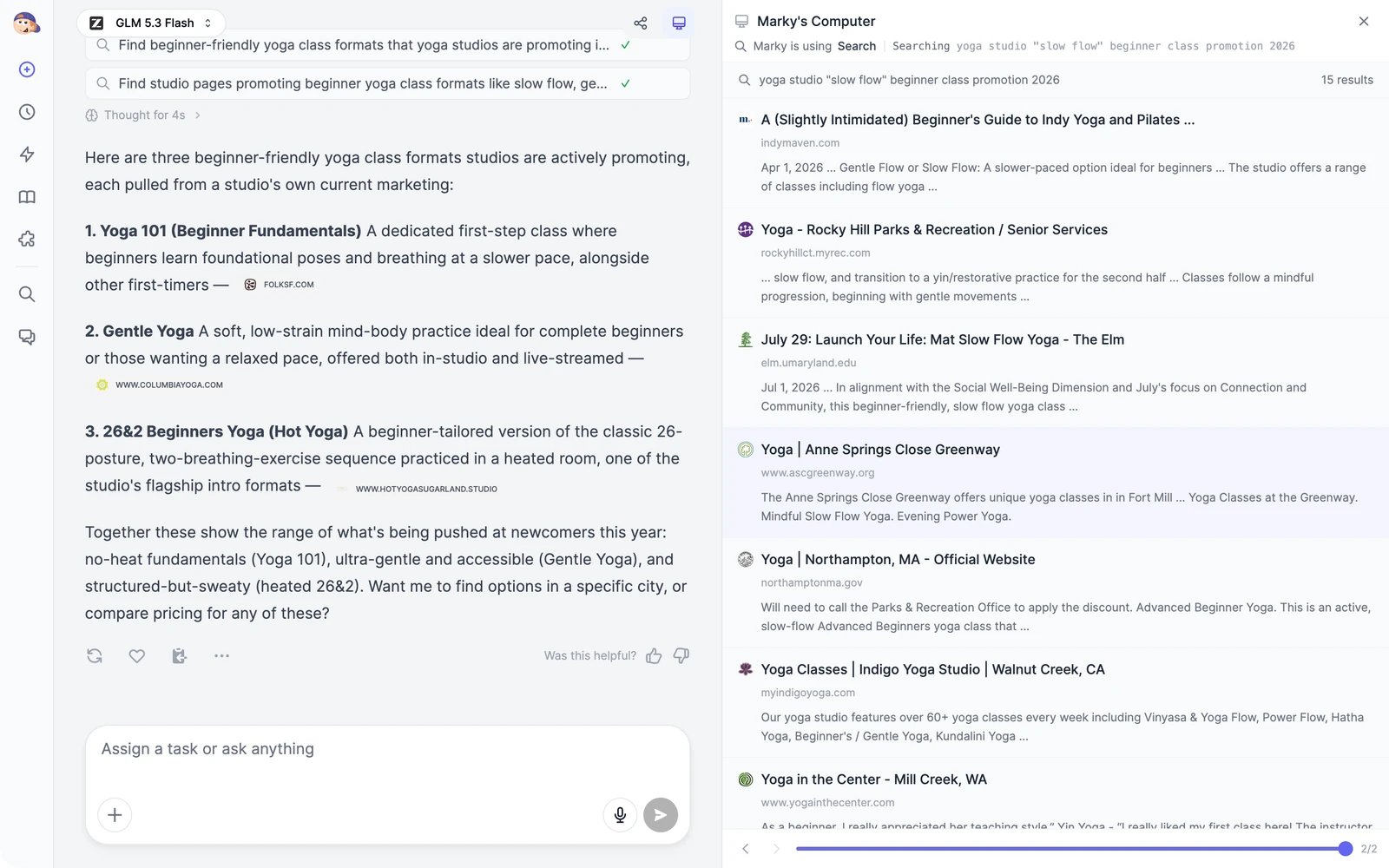
As Marky works, each step appears in the chat: searches, commands, files it reads and writes. Click a step to see it in detail.
* **Thinking**: some models think before they answer. Click **Thought for Xs** to read their reasoning.
* **Task progress**: for longer jobs, Marky writes a plan. The bar above the message box shows the current phase and how many are done. Click it to see the whole checklist.
* **Marky's Computer**: a panel on the right that shows what Marky is doing, such as search results, commands and their output, websites it opens, and files it writes. Use the arrows or the slider at the bottom to step through earlier actions, and **Jump to latest** to follow along again. The monitor icon at the top of the chat opens and closes the panel.
| Item | What it does |
| ----------------------- | -------------------------------------------------------------------------------------------------------------- |
| **Add files or photos** | Attaches files to the chat. |
| **Brand Voice** | Writes in the tone of one of your brand voices. See [Prompts and brand voice](/docs/marky/prompts-and-brand-voice). |
| **Skills** | Puts one of your skills to work on this message. See [Skills](/docs/marky/skills). |
| **Prompts** | Inserts one of your saved prompts. |
| **Connectors** | Shows which apps are connected and on. See [Connectors](/docs/marky/connectors). |
## Follow Marky's work
As Marky works, each step appears in the chat: searches, commands, files it reads and writes. Click a step to see it in detail.
* **Thinking**: some models think before they answer. Click **Thought for Xs** to read their reasoning.
* **Task progress**: for longer jobs, Marky writes a plan. The bar above the message box shows the current phase and how many are done. Click it to see the whole checklist.
* **Marky's Computer**: a panel on the right that shows what Marky is doing, such as search results, commands and their output, websites it opens, and files it writes. Use the arrows or the slider at the bottom to step through earlier actions, and **Jump to latest** to follow along again. The monitor icon at the top of the chat opens and closes the panel.
 ## When Marky asks you something
Sometimes Marky needs a decision before it continues, such as approving a style or choosing between options. It shows a question card with choices. Pick one, or choose **Other** and type your own answer, then click **Submit answers**.
If Marky needs you to log in to a website or complete a payment in its browser, it asks you to take over. See [Browse the web](/docs/marky/browser#take-over-the-browser).
## Stop, redo, or change a message
* **Stop**: while Marky works, the send button becomes a stop button. Marky stops after the current step and keeps what it has done so far.
* **Regenerate**: under Marky's latest reply, click **Regenerate** to get a new answer to your last message.
* **Edit**: hover over one of your messages and click **Edit** to change it. Marky's replies after it are removed, and it answers the new version.
* **Continue**: if you see **Marky stopped before finishing**, click **Continue** to pick up where it left off.
Marky keeps working when you close the tab or switch chats. When you come back, the reply is there.
## Reply actions
Under each reply you'll find **Regenerate**, **Favorite**, and **Copy**, and in the **⋯** menu, **Read Aloud** and **Fork chat** (a copy of the conversation up to that reply, in a new chat). The thumbs up and down under **Was this helpful?** send us feedback about the answer.
## Chat settings
Click the gear icon at the top of the chat.
## When Marky asks you something
Sometimes Marky needs a decision before it continues, such as approving a style or choosing between options. It shows a question card with choices. Pick one, or choose **Other** and type your own answer, then click **Submit answers**.
If Marky needs you to log in to a website or complete a payment in its browser, it asks you to take over. See [Browse the web](/docs/marky/browser#take-over-the-browser).
## Stop, redo, or change a message
* **Stop**: while Marky works, the send button becomes a stop button. Marky stops after the current step and keeps what it has done so far.
* **Regenerate**: under Marky's latest reply, click **Regenerate** to get a new answer to your last message.
* **Edit**: hover over one of your messages and click **Edit** to change it. Marky's replies after it are removed, and it answers the new version.
* **Continue**: if you see **Marky stopped before finishing**, click **Continue** to pick up where it left off.
Marky keeps working when you close the tab or switch chats. When you come back, the reply is there.
## Reply actions
Under each reply you'll find **Regenerate**, **Favorite**, and **Copy**, and in the **⋯** menu, **Read Aloud** and **Fork chat** (a copy of the conversation up to that reply, in a new chat). The thumbs up and down under **Was this helpful?** send us feedback about the answer.
## Chat settings
Click the gear icon at the top of the chat.
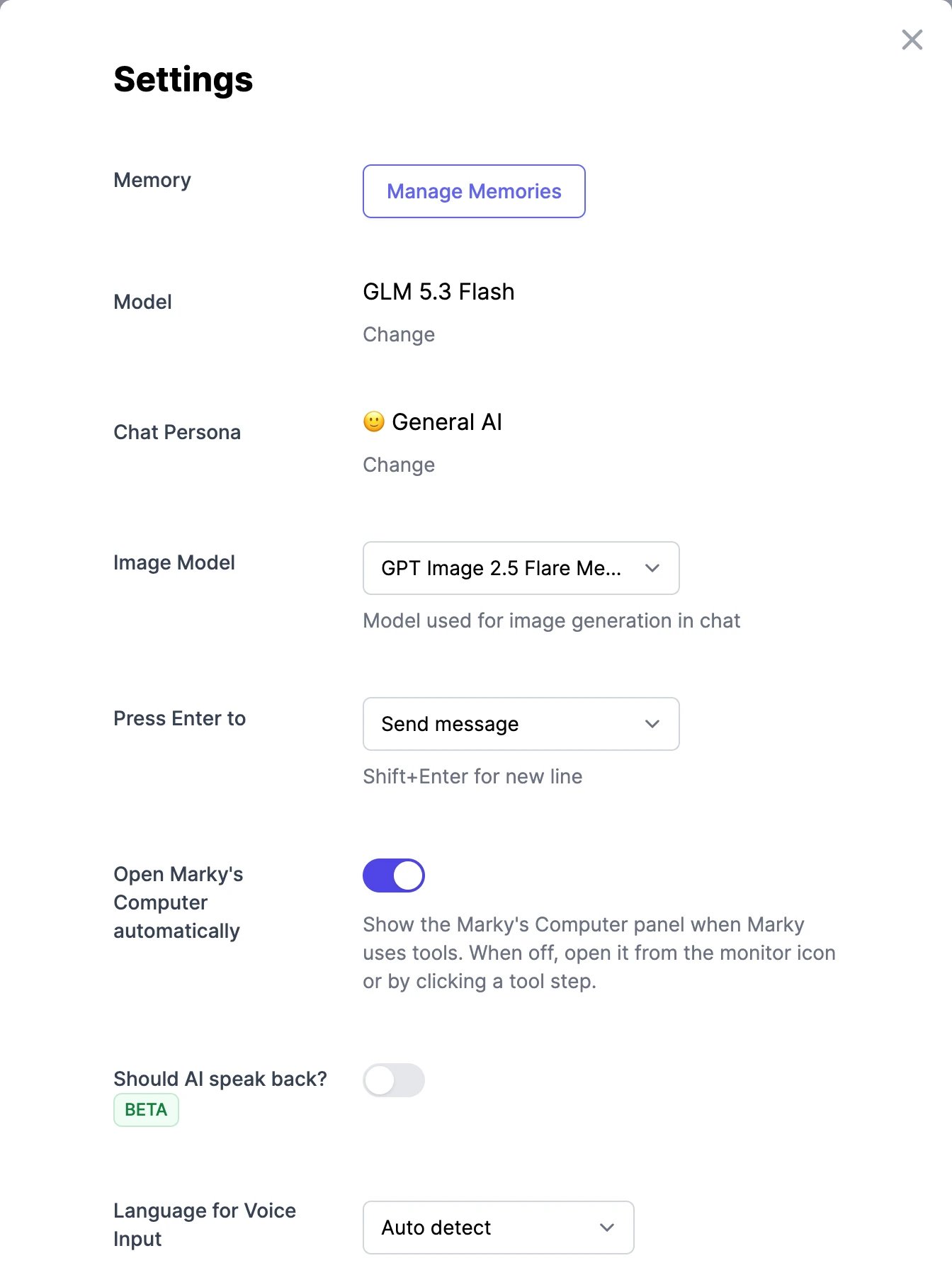 | Setting | What it does |
| --------------------------------------- | ------------------------------------------------------------------------------------------------------------------------ |
| **Memory** | Opens your saved memories. See [Memory](/docs/marky/memory). |
| **Model** | The AI model for this chat. See [Models and words](/docs/marky/models). |
| **Chat Persona** | Gives Marky a role, such as **Coding Assistant**, **Travel Guide**, or **Legal Advisor**. The default is **General AI**. |
| **Image Model** | The model Marky uses when it makes images in chat. See [Images, music, and video](/docs/marky/media). |
| **Press Enter to** | **Insert new line** (the default; send with Cmd/Ctrl+Enter) or **Send message** (Shift+Enter for a new line). |
| **Open Marky's Computer automatically** | Opens the panel whenever Marky uses a tool. Turn it off to open the panel only when you want. |
| **Should AI speak back?** | Reads Marky's replies aloud. This is in beta. |
Search, organize in folders, share, and delete chats.
Choose the model for a chat and see what it costs.
| Setting | What it does |
| --------------------------------------- | ------------------------------------------------------------------------------------------------------------------------ |
| **Memory** | Opens your saved memories. See [Memory](/docs/marky/memory). |
| **Model** | The AI model for this chat. See [Models and words](/docs/marky/models). |
| **Chat Persona** | Gives Marky a role, such as **Coding Assistant**, **Travel Guide**, or **Legal Advisor**. The default is **General AI**. |
| **Image Model** | The model Marky uses when it makes images in chat. See [Images, music, and video](/docs/marky/media). |
| **Press Enter to** | **Insert new line** (the default; send with Cmd/Ctrl+Enter) or **Send message** (Shift+Enter for a new line). |
| **Open Marky's Computer automatically** | Opens the panel whenever Marky uses a tool. Turn it off to open the panel only when you want. |
| **Should AI speak back?** | Reads Marky's replies aloud. This is in beta. |
Search, organize in folders, share, and delete chats.
Choose the model for a chat and see what it costs.