> ## Documentation Index
> Fetch the complete documentation index at: https://easy-peasy.ai/docs/llms.txt
> Use this file to discover all available pages before exploring further.
# Memory
> Let Marky remember facts about you and your business across chats, add memories yourself, or import your ChatGPT history.
With memory on, you don't have to repeat yourself. Marky remembers useful facts from your conversations, such as your business, your audience, and how you like things written, and uses them in every new chat.
## Turn memory on
Click the book icon at the top of a chat, or open [Chat settings](/docs/marky/chat#chat-settings) and click **Manage Memories**. Then switch on **Enable Memory**.
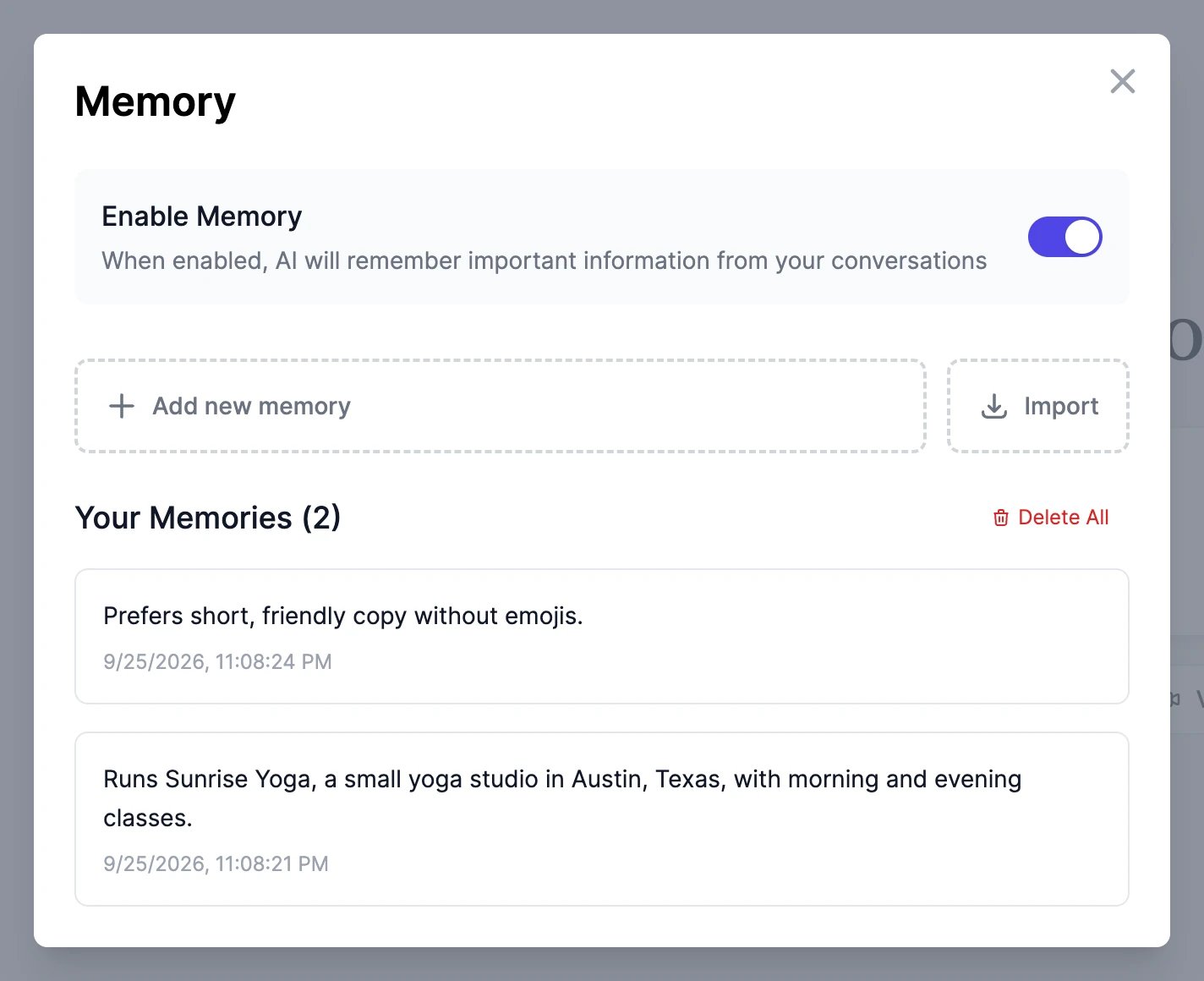 From then on, Marky saves a memory when you tell it something worth keeping. You can also ask directly: "Remember that our brand color is sage green."
## Add, remove, and review memories
* **Add new memory**: type a fact, up to 500 characters, and press **Enter**.
* **Your Memories** lists everything Marky remembers, newest first. Delete a memory you don't want with its trash icon, or remove them all with **Delete All**.
* To change a memory, delete it and add the new version.
Marky reads your newest memories first. If you have a very long list, the oldest ones may not fit, so keep memories short and remove ones that are out of date.
## Bring your memory from another AI
Click **Import** in the Memory window. Copy the prompt shown there into the other assistant, such as ChatGPT or Claude, paste its answer back, and click **Add to memory**. Memory turns on automatically.
## Import your ChatGPT conversations
You can move your whole ChatGPT history into Marky: your conversations become Marky chats you can continue, and Marky can learn about you from them.
In ChatGPT, open **Settings** > **Data controls** > **Export data**. OpenAI emails you a download link. Download the ZIP file.
On the dashboard, open **Settings** > **Data Controls** and find **Import from ChatGPT**. Upload the ZIP file (up to 2 GB), or just the `conversations.json` file from it. It's read in your browser, and you see how many conversations, messages, and images it found.
* **Also teach Marky about me** (on by default): Marky reads your custom instructions and the topics of your conversations, and saves up to 30 memories about you. Memory turns on.
* **Replace conversations I already imported**: turn this on if you're importing again and want the earlier copies updated.
Your conversations appear in a **ChatGPT** folder in the Marky sidebar, with their original dates.
### What's imported
* The final version of each conversation, as you saw it in ChatGPT. Earlier edits and regenerated answers are skipped.
* Images you uploaded to ChatGPT, up to 25 MB each.
* Not imported: images ChatGPT generated (OpenAI doesn't include them in the export), audio, and files.
Importing is free and doesn't use words. Imported chats are private to you, even on a Teams plan.
No. Memories belong to your account, and each person on a team has their own.
Yes, once it's on, in every Marky chat. Turn **Enable Memory** off to stop Marky from saving and using memories; your saved memories stay until you delete them.
Yes. Conversations that are already imported are skipped, so nothing is duplicated. Turn on **Replace conversations I already imported** to update them instead.
From then on, Marky saves a memory when you tell it something worth keeping. You can also ask directly: "Remember that our brand color is sage green."
## Add, remove, and review memories
* **Add new memory**: type a fact, up to 500 characters, and press **Enter**.
* **Your Memories** lists everything Marky remembers, newest first. Delete a memory you don't want with its trash icon, or remove them all with **Delete All**.
* To change a memory, delete it and add the new version.
Marky reads your newest memories first. If you have a very long list, the oldest ones may not fit, so keep memories short and remove ones that are out of date.
## Bring your memory from another AI
Click **Import** in the Memory window. Copy the prompt shown there into the other assistant, such as ChatGPT or Claude, paste its answer back, and click **Add to memory**. Memory turns on automatically.
## Import your ChatGPT conversations
You can move your whole ChatGPT history into Marky: your conversations become Marky chats you can continue, and Marky can learn about you from them.
In ChatGPT, open **Settings** > **Data controls** > **Export data**. OpenAI emails you a download link. Download the ZIP file.
On the dashboard, open **Settings** > **Data Controls** and find **Import from ChatGPT**. Upload the ZIP file (up to 2 GB), or just the `conversations.json` file from it. It's read in your browser, and you see how many conversations, messages, and images it found.
* **Also teach Marky about me** (on by default): Marky reads your custom instructions and the topics of your conversations, and saves up to 30 memories about you. Memory turns on.
* **Replace conversations I already imported**: turn this on if you're importing again and want the earlier copies updated.
Your conversations appear in a **ChatGPT** folder in the Marky sidebar, with their original dates.
### What's imported
* The final version of each conversation, as you saw it in ChatGPT. Earlier edits and regenerated answers are skipped.
* Images you uploaded to ChatGPT, up to 25 MB each.
* Not imported: images ChatGPT generated (OpenAI doesn't include them in the export), audio, and files.
Importing is free and doesn't use words. Imported chats are private to you, even on a Teams plan.
No. Memories belong to your account, and each person on a team has their own.
Yes, once it's on, in every Marky chat. Turn **Enable Memory** off to stop Marky from saving and using memories; your saved memories stay until you delete them.
Yes. Conversations that are already imported are skipped, so nothing is duplicated. Turn on **Replace conversations I already imported** to update them instead.