> ## Documentation Index
> Fetch the complete documentation index at: https://easy-peasy.ai/docs/llms.txt
> Use this file to discover all available pages before exploring further.
# Prompts and brand voice
> Reuse good prompts from the Prompt Library, save your own, and make Marky write in your brand's voice.
## Prompt Library
The Prompt Library has ready-made prompts for common jobs, such as social posts, ads, emails, job descriptions, and SEO briefs, plus the prompts you save yourself.
Open it with **Prompts** in the Marky sidebar, the sun icon at the top of a chat, or **+** > **Prompts** > **Open Prompt Library**.
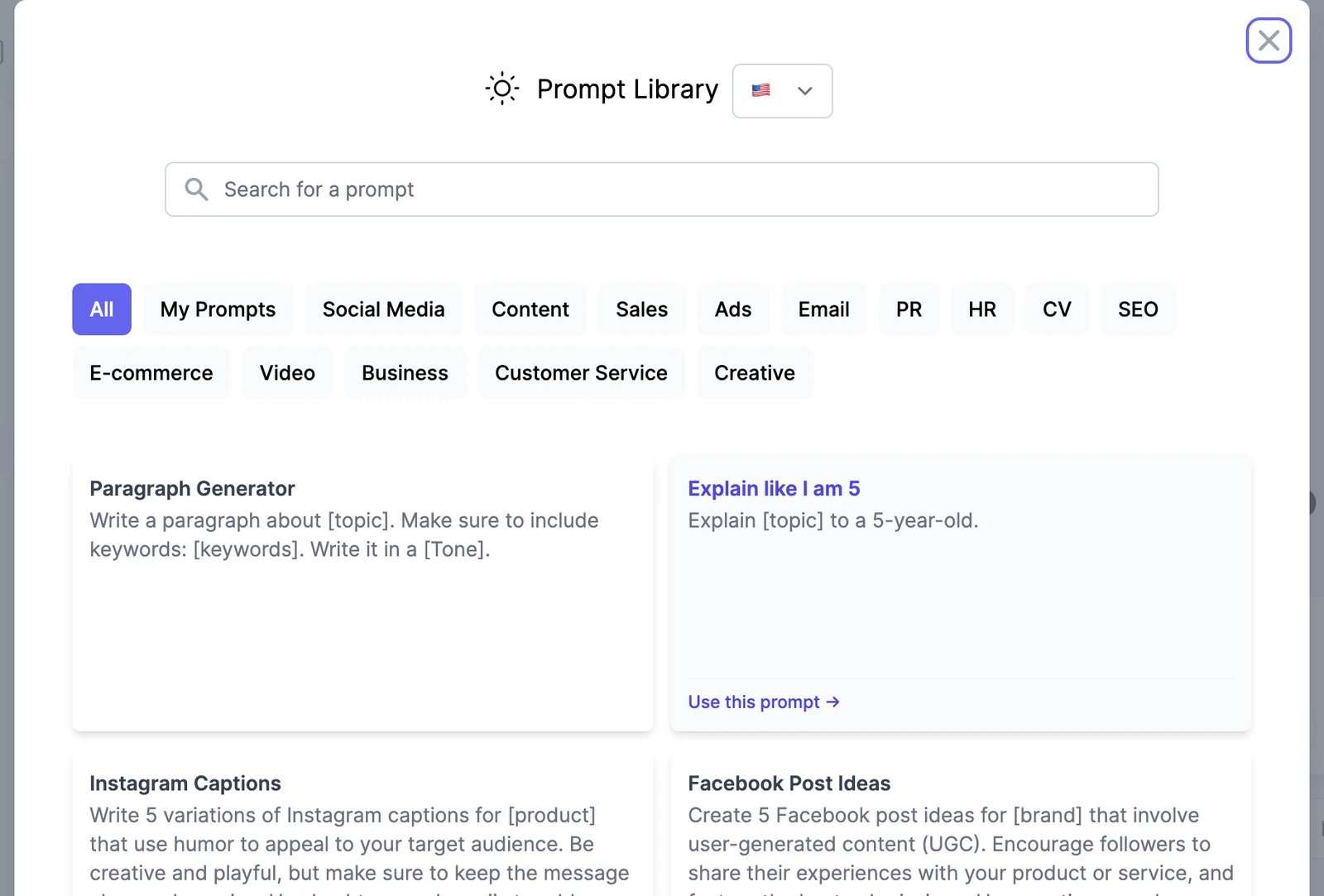 1. Pick a category, or search for a prompt. The flag next to the title switches the language of the prompts.
2. Click **Use this prompt**. The prompt goes into the message box.
3. Replace the parts in square brackets, such as `[topic]` or `[product]`, with your details, and send.
### Save your own prompts
1. In the Prompt Library, open **My Prompts** and click **Add Prompt**.
2. Enter a **Title**, a **Category**, and the **Prompt**. To have the prompt written for you, click **Write for me**, describe the prompt you need, and click **Generate**.
3. Click **Save**.
Your ten newest prompts are also in **+** > **Prompts**, one click from any chat.
On a Teams plan, turn on **Share with Team** to give your teammates the prompt. **Hide the Prompt content from the team members** lets them use it without seeing the wording.
## Brand voice
A brand voice describes how your business writes: its tone, vocabulary, and style. When one is on, Marky writes in it.
Click **+** > **Brand Voice** and pick a voice. A megaphone button appears next to **+**; hover over it to see which voice is on, or click it to change it. The voice stays on, in this chat and new ones, until you choose **None** or reload the page.
To make one, click **+** > **Brand Voice** > **Create a brand voice**. You can build it from your website, writing samples, files, or a description of your style. See [Create a brand voice](/docs/brand-voice/create) and [Use a brand voice](/docs/brand-voice/use), which also covers the writing tools.
Teach Marky a whole job, not just a prompt.
Let Marky remember facts about you and your business.
1. Pick a category, or search for a prompt. The flag next to the title switches the language of the prompts.
2. Click **Use this prompt**. The prompt goes into the message box.
3. Replace the parts in square brackets, such as `[topic]` or `[product]`, with your details, and send.
### Save your own prompts
1. In the Prompt Library, open **My Prompts** and click **Add Prompt**.
2. Enter a **Title**, a **Category**, and the **Prompt**. To have the prompt written for you, click **Write for me**, describe the prompt you need, and click **Generate**.
3. Click **Save**.
Your ten newest prompts are also in **+** > **Prompts**, one click from any chat.
On a Teams plan, turn on **Share with Team** to give your teammates the prompt. **Hide the Prompt content from the team members** lets them use it without seeing the wording.
## Brand voice
A brand voice describes how your business writes: its tone, vocabulary, and style. When one is on, Marky writes in it.
Click **+** > **Brand Voice** and pick a voice. A megaphone button appears next to **+**; hover over it to see which voice is on, or click it to change it. The voice stays on, in this chat and new ones, until you choose **None** or reload the page.
To make one, click **+** > **Brand Voice** > **Create a brand voice**. You can build it from your website, writing samples, files, or a description of your style. See [Create a brand voice](/docs/brand-voice/create) and [Use a brand voice](/docs/brand-voice/use), which also covers the writing tools.
Teach Marky a whole job, not just a prompt.
Let Marky remember facts about you and your business.