> ## Documentation Index
> Fetch the complete documentation index at: https://easy-peasy.ai/docs/llms.txt
> Use this file to discover all available pages before exploring further.
# Build websites and apps
> Describe a website or web app, watch Marky build it, preview it, and publish it at your own address.
Marky can build a complete website or web app from a description: a landing page for a launch, a portfolio, a booking site, a dashboard, a small game, or an app with sign-in and a database. You see the result in a live preview as it's built, ask for changes in plain language, and publish it when you're happy.
 ## Build a site
Start a new chat and click **Build website** under the message box.
## Build a site
Start a new chat and click **Build website** under the message box.
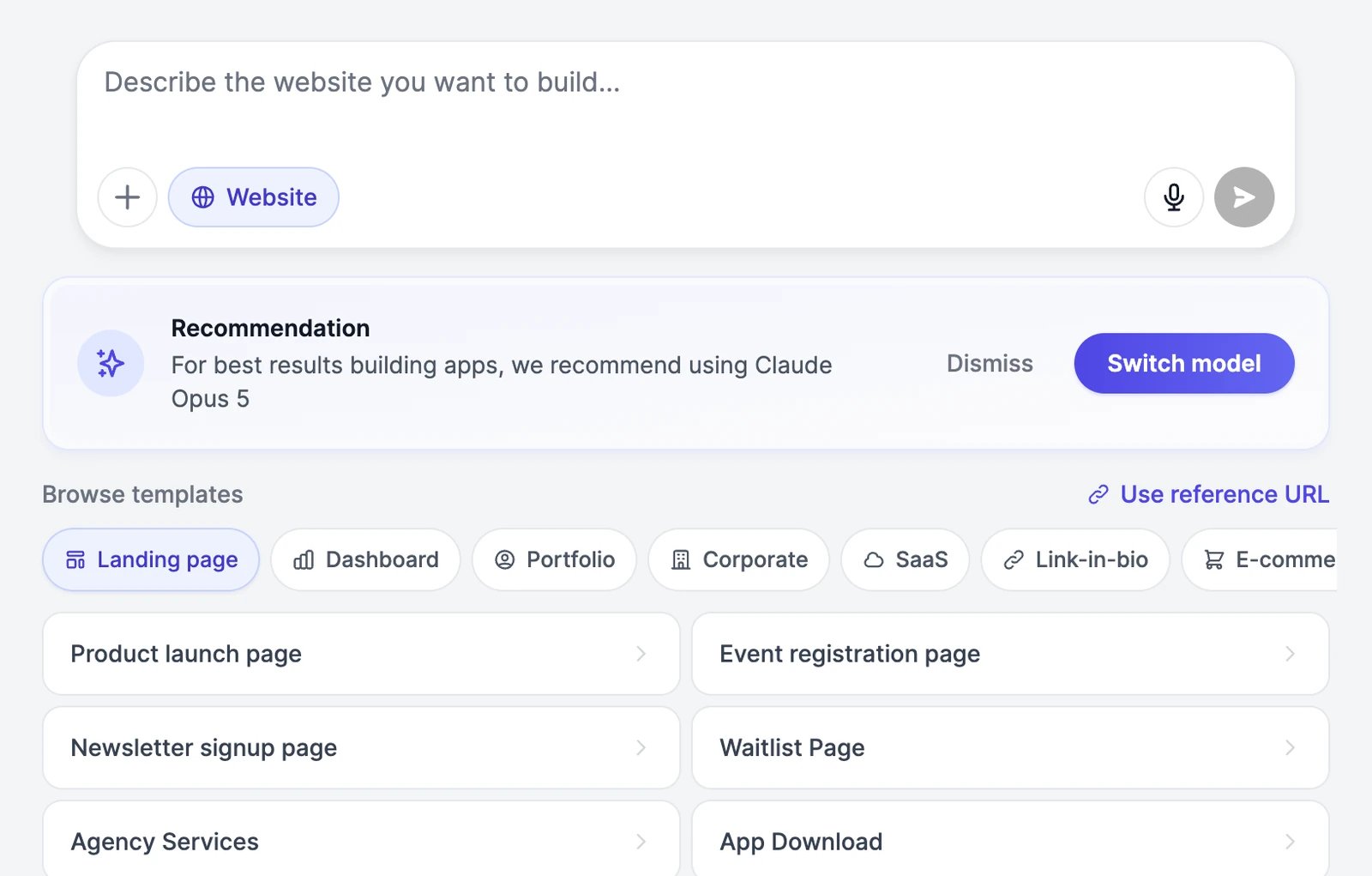 Marky suggests **Claude Opus 5** for building, because it makes fewer mistakes on large projects. Click **Switch model** to use it, or **Dismiss** to stay on your current model. See [Models and words](/docs/marky/models) for what each model costs.
Say what the site is for, the sections you want, and the look. For example: "A one-page website for Sunrise Yoga, a small yoga studio in Austin: a hero section, our classes, a weekly schedule, pricing, and a contact form."
For ideas, pick a category under **Browse templates** and click one. To copy the look of a site you like, click **Use reference URL** and paste its address; Marky takes a screenshot and uses it as a visual reference.
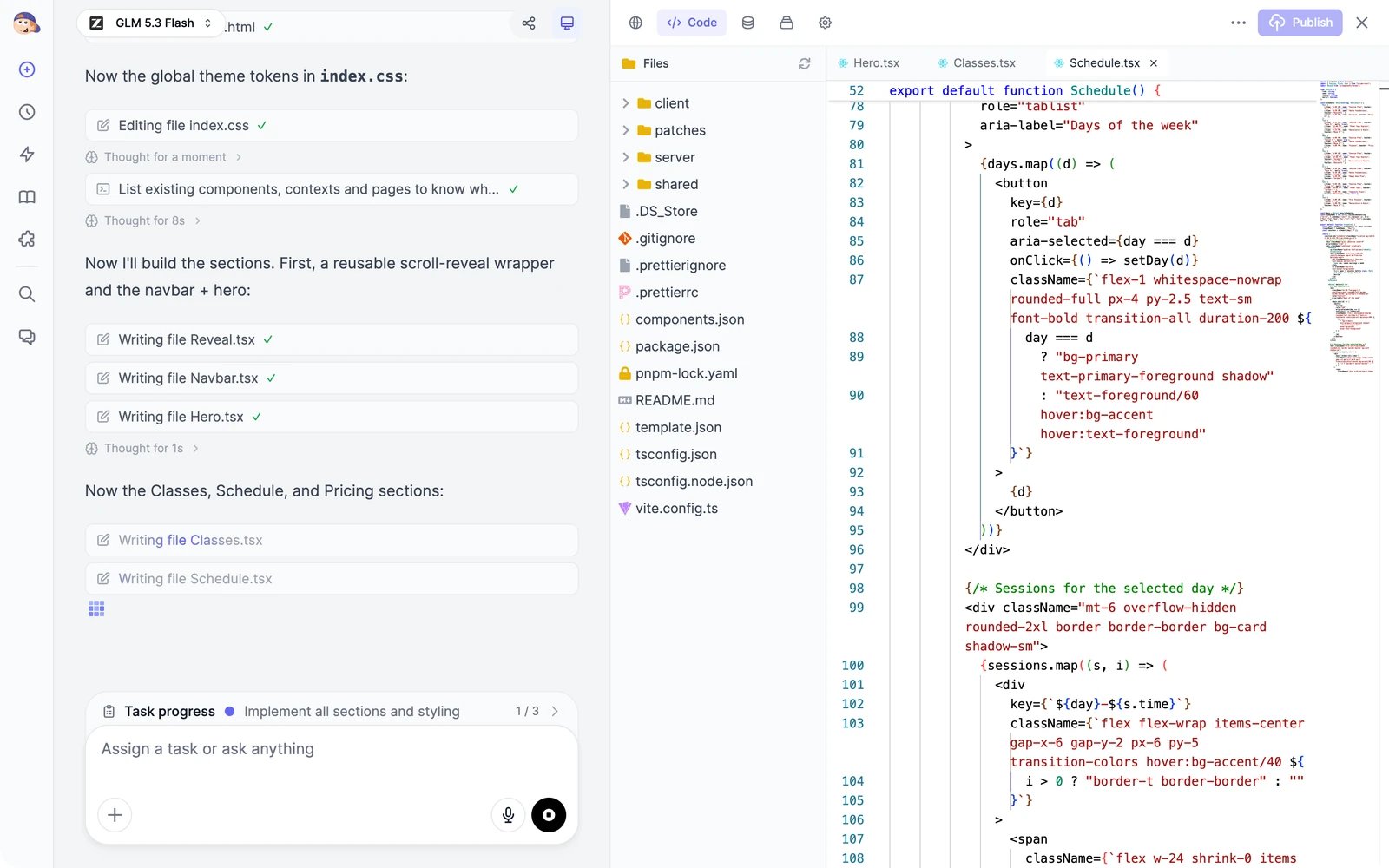
Marky plans the work, finds images, writes the code, and checks the result in its own browser. The workspace opens on the right. In the **Code** tab you can watch each file being written.
Marky suggests **Claude Opus 5** for building, because it makes fewer mistakes on large projects. Click **Switch model** to use it, or **Dismiss** to stay on your current model. See [Models and words](/docs/marky/models) for what each model costs.
Say what the site is for, the sections you want, and the look. For example: "A one-page website for Sunrise Yoga, a small yoga studio in Austin: a hero section, our classes, a weekly schedule, pricing, and a contact form."
For ideas, pick a category under **Browse templates** and click one. To copy the look of a site you like, click **Use reference URL** and paste its address; Marky takes a screenshot and uses it as a visual reference.
Marky plans the work, finds images, writes the code, and checks the result in its own browser. The workspace opens on the right. In the **Code** tab you can watch each file being written.
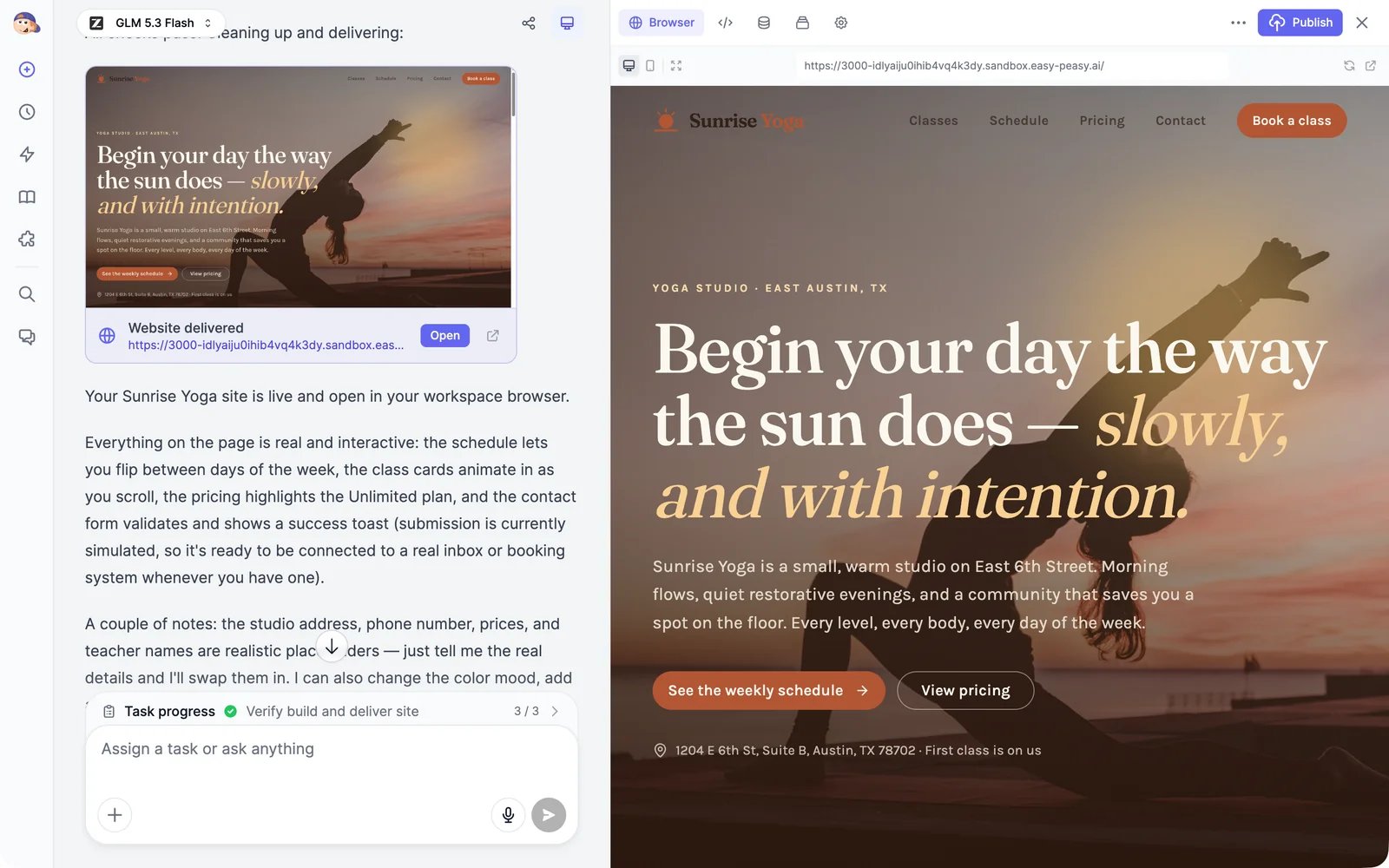
 When the site is ready, Marky posts a **Website delivered** card; click **Open** to see it again later. The **Browser** tab shows the live preview. Switch between the desktop and mobile view, refresh it, or open it in a new tab. Then ask for changes in the chat: "Make the hero image brighter", "Add a FAQ section above the contact form", "Use our logo from the attached file."
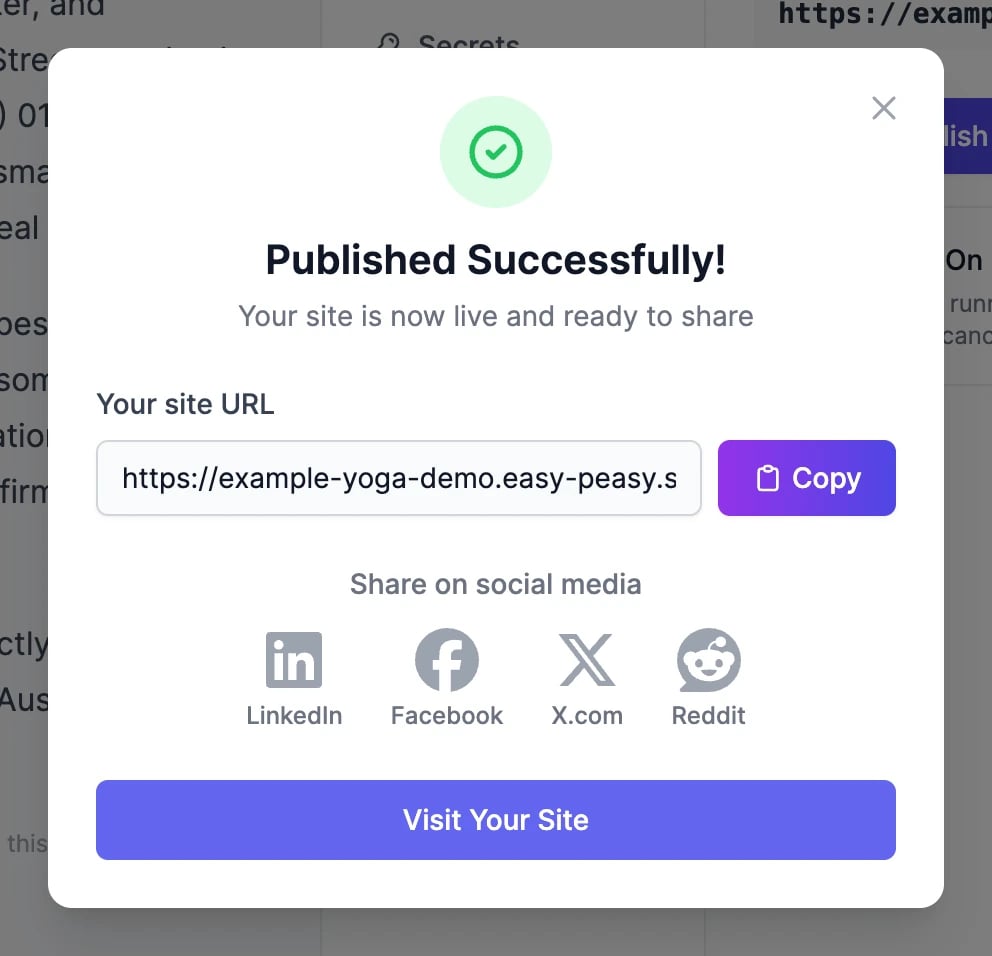
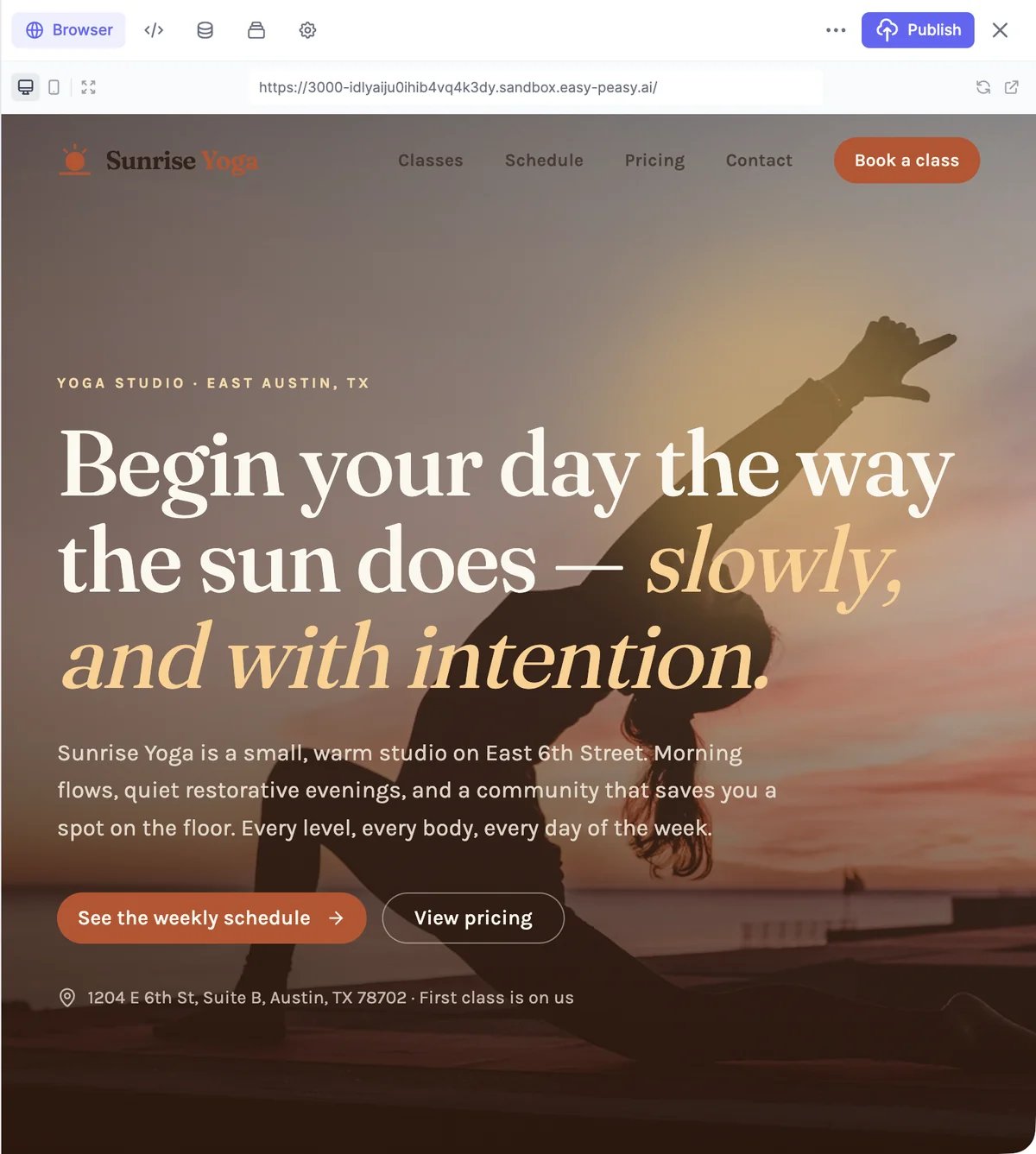 Click **Publish** at the top of the workspace. Building and publishing takes a few minutes. When it's done, **Published Successfully!** shows your site's address, which ends in `.easy-peasy.site` and is based on the project's name. Copy it, share it on social media, or click **Visit Your Site**.
 You can also ask Marky to publish the site; it asks you to confirm first.
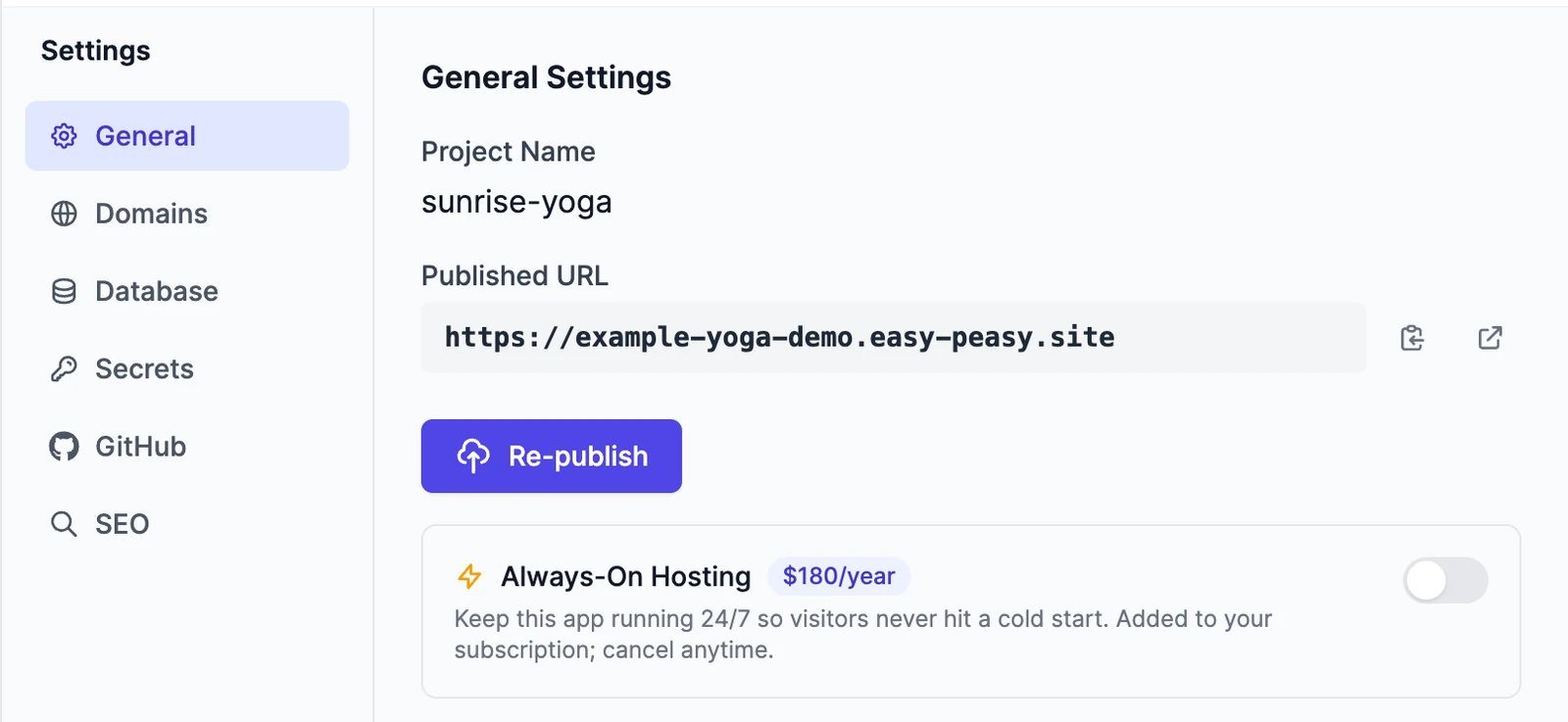
Changes you make after publishing show up in the preview right away, but not on your live site. Click **Publish** again, or **Re-publish** in **Settings** > **General**, to put them live.
## Websites, web apps, and mobile apps
Marky picks the right setup from your description:
| Project | What you get |
| -------------- | ------------------------------------------------------------------------------------------------------------------------------------------------------------------------------------------- |
| **Website** | Pages, sections, forms, and images. Most landing pages, portfolios, and company sites. |
| **Web app** | Everything in a website, plus user accounts, a database, and AI features. Ask for it when people need to sign in or save data: "a booking app where customers sign up and reserve a class". |
| **Mobile app** | An app built with Expo. Start it with **More** > **Build app** on a new chat. See [Mobile apps](#mobile-apps). |
## The workspace
| Tab | What it's for |
| ------------ | ------------------------------------------------------------------------------------------------------------------------------------------------------ |
| **Browser** | The live preview, with **Desktop view** and **Mobile view**, **Refresh**, **Open in new tab**, and **Copy URL**. Mobile apps show **Preview** instead. |
| **Code** | The project's files. Open any file to read it. |
| **Database** | The app's tables and their rows, for web apps with a database. |
| **Storage** | Files your app's visitors upload, such as profile pictures. Copy their links or delete them. |
| **Settings** | Publishing, domains, database access, secrets, and GitHub. See below. |
The **⋯** menu has **Version history**, **Push to GitHub**, and **Download ZIP**. To show or hide the workspace, use the monitor icon at the top of the chat.
### If the preview says the sandbox is paused
Marky's computer pauses when a project isn't used for a while. Click **Resume Sandbox** to wake it up; your files are kept. Published sites aren't affected: they keep running on their own.
## Mobile apps
For a mobile app, the **Preview** tab shows the app in the browser and a QR code. Scan it with the Expo Go app on your phone to try the app on a real device.
When the app is ready, click **Build** at the top of the workspace:
* **Android**: choose **Build APK** for a file you can install on any Android phone for testing, or **Build for Google Play** for an AAB file to upload to the Play Store. A build takes 5 to 15 minutes, then a download button appears. Android builds need a paid plan.
* **iOS**: coming soon.
## Undo changes with version history
Marky saves versions of your project as it works. Open **⋯** > **Version history** to see them, newest first.
You can also ask Marky to publish the site; it asks you to confirm first.
Changes you make after publishing show up in the preview right away, but not on your live site. Click **Publish** again, or **Re-publish** in **Settings** > **General**, to put them live.
## Websites, web apps, and mobile apps
Marky picks the right setup from your description:
| Project | What you get |
| -------------- | ------------------------------------------------------------------------------------------------------------------------------------------------------------------------------------------- |
| **Website** | Pages, sections, forms, and images. Most landing pages, portfolios, and company sites. |
| **Web app** | Everything in a website, plus user accounts, a database, and AI features. Ask for it when people need to sign in or save data: "a booking app where customers sign up and reserve a class". |
| **Mobile app** | An app built with Expo. Start it with **More** > **Build app** on a new chat. See [Mobile apps](#mobile-apps). |
## The workspace
| Tab | What it's for |
| ------------ | ------------------------------------------------------------------------------------------------------------------------------------------------------ |
| **Browser** | The live preview, with **Desktop view** and **Mobile view**, **Refresh**, **Open in new tab**, and **Copy URL**. Mobile apps show **Preview** instead. |
| **Code** | The project's files. Open any file to read it. |
| **Database** | The app's tables and their rows, for web apps with a database. |
| **Storage** | Files your app's visitors upload, such as profile pictures. Copy their links or delete them. |
| **Settings** | Publishing, domains, database access, secrets, and GitHub. See below. |
The **⋯** menu has **Version history**, **Push to GitHub**, and **Download ZIP**. To show or hide the workspace, use the monitor icon at the top of the chat.
### If the preview says the sandbox is paused
Marky's computer pauses when a project isn't used for a while. Click **Resume Sandbox** to wake it up; your files are kept. Published sites aren't affected: they keep running on their own.
## Mobile apps
For a mobile app, the **Preview** tab shows the app in the browser and a QR code. Scan it with the Expo Go app on your phone to try the app on a real device.
When the app is ready, click **Build** at the top of the workspace:
* **Android**: choose **Build APK** for a file you can install on any Android phone for testing, or **Build for Google Play** for an AAB file to upload to the Play Store. A build takes 5 to 15 minutes, then a download button appears. Android builds need a paid plan.
* **iOS**: coming soon.
## Undo changes with version history
Marky saves versions of your project as it works. Open **⋯** > **Version history** to see them, newest first.
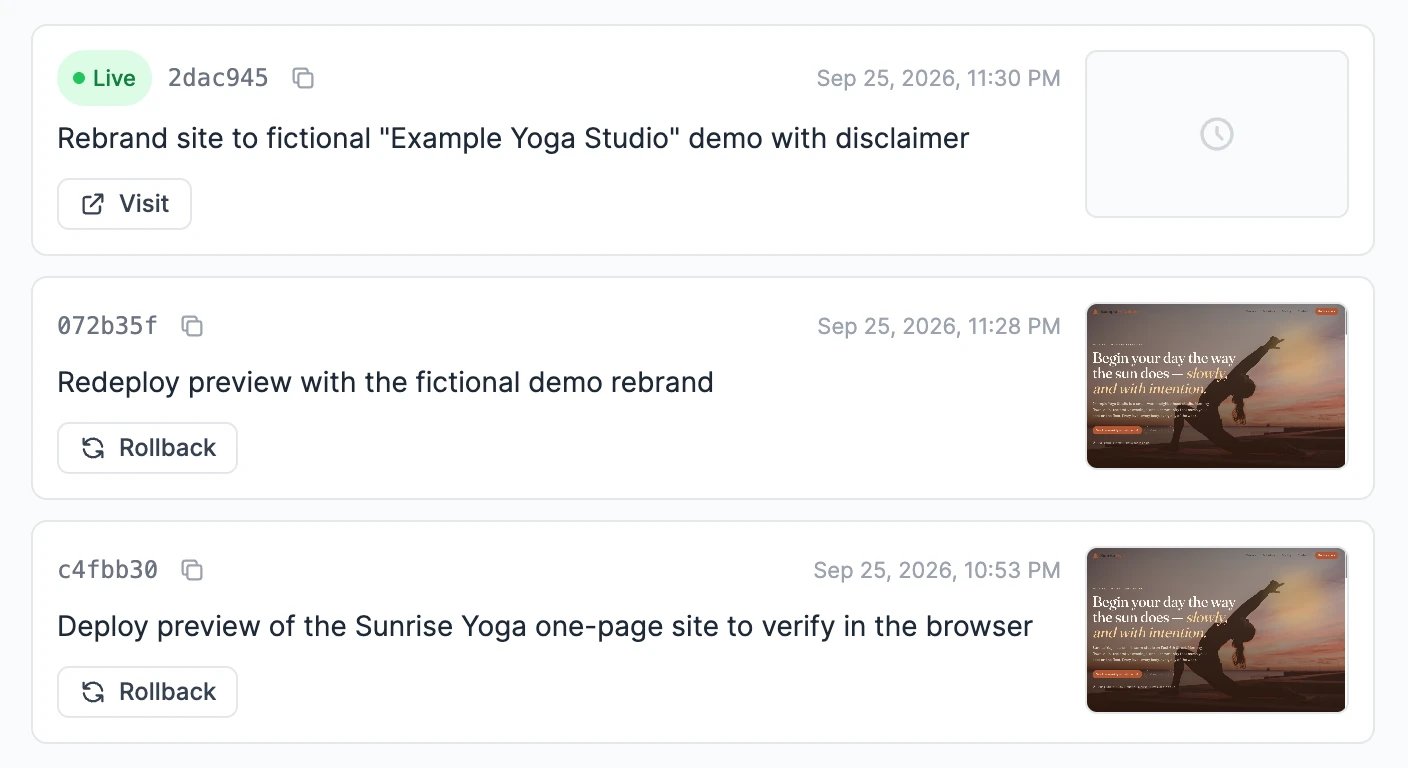 * The published version is marked **Live**. **Visit** opens it.
* If your newest version isn't published yet, it's marked **Current** and has a **Publish** button.
* **Rollback** returns the project to an older version. You're asked whether to roll back the live site too.
## Settings
Click the gear icon in the workspace.
* The published version is marked **Live**. **Visit** opens it.
* If your newest version isn't published yet, it's marked **Current** and has a **Publish** button.
* **Rollback** returns the project to an older version. You're asked whether to roll back the live site too.
## Settings
Click the gear icon in the workspace.
 | Section | What's in it |
| ------------ | --------------------------------------------------------------------------------------------------------------------------------------------------------------------------------------- |
| **General** | The published address, **Re-publish** to put your latest changes live, and **Always-On Hosting**. |
| **Domains** | Your easy-peasy.site address and custom domains. |
| **Database** | The database address for web apps, with **Download as .env**. |
| **Secrets** | API keys and other private settings your app needs, such as a payment provider's key. Click **Add Secret**, then **Save**. They stay on the server and never appear in the site's code. |
| **GitHub** | Connect a GitHub account to keep a copy of the code in a repository. |
### Change the address
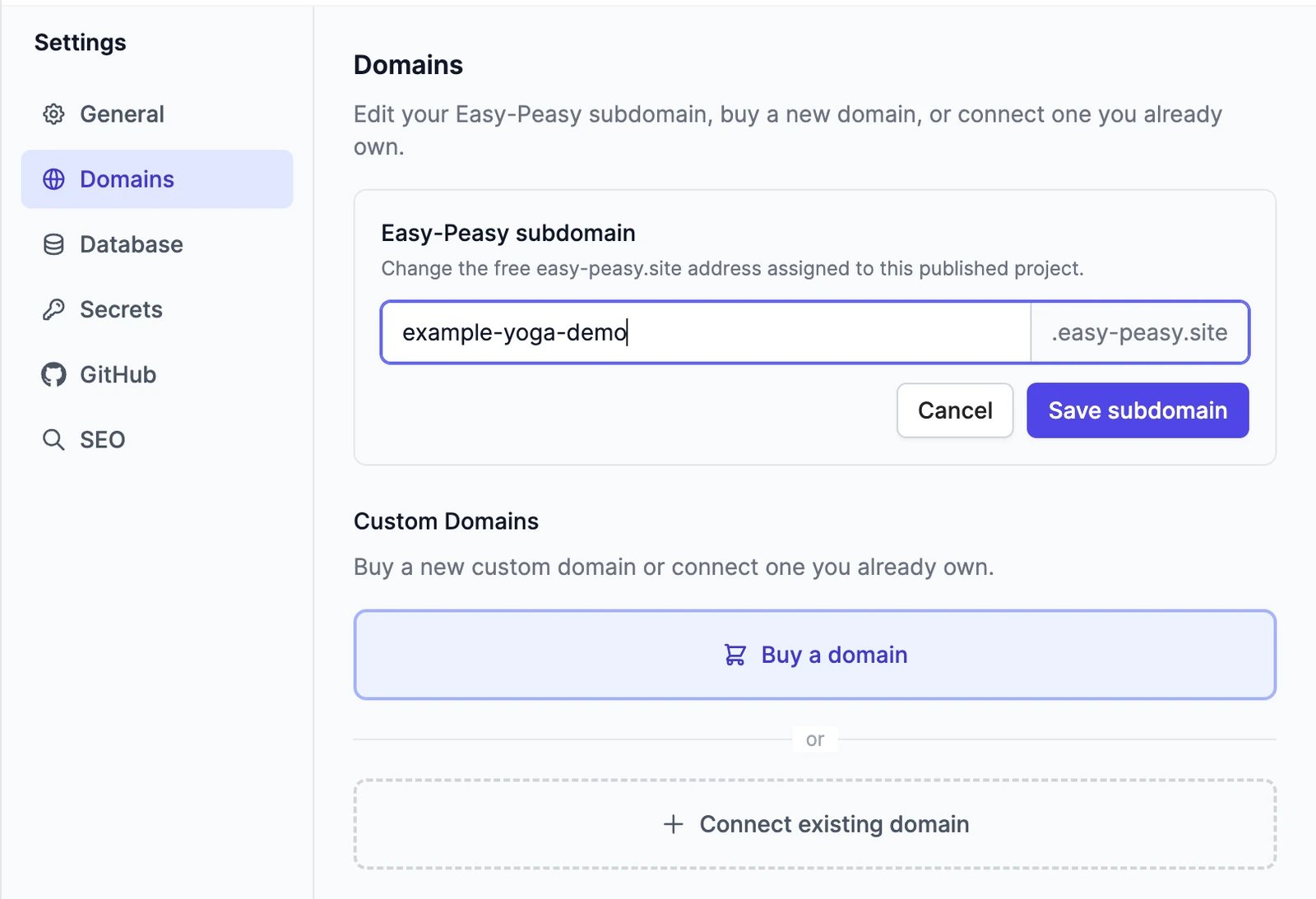
Your site gets a free address ending in `easy-peasy.site`. To change the first part, open **Settings** > **Domains**, click **Edit** next to **Easy-Peasy subdomain**, type the new name, and click **Save subdomain**. The new address works right away, and the old one stops working, so update any links you've shared.
| Section | What's in it |
| ------------ | --------------------------------------------------------------------------------------------------------------------------------------------------------------------------------------- |
| **General** | The published address, **Re-publish** to put your latest changes live, and **Always-On Hosting**. |
| **Domains** | Your easy-peasy.site address and custom domains. |
| **Database** | The database address for web apps, with **Download as .env**. |
| **Secrets** | API keys and other private settings your app needs, such as a payment provider's key. Click **Add Secret**, then **Save**. They stay on the server and never appear in the site's code. |
| **GitHub** | Connect a GitHub account to keep a copy of the code in a repository. |
### Change the address
Your site gets a free address ending in `easy-peasy.site`. To change the first part, open **Settings** > **Domains**, click **Edit** next to **Easy-Peasy subdomain**, type the new name, and click **Save subdomain**. The new address works right away, and the old one stops working, so update any links you've shared.
 ### Use your own domain
Publish the site first, then open **Settings** > **Domains** > **Custom Domains**:
* **Buy a domain**: search for a name, check the yearly price, and click **Buy**. You pay by card, and the domain is connected for you. Domains are registered for one year.
* **Connect existing domain**: enter a domain you own and click **Add Domain**, then add the DNS record shown at your domain registrar. The status goes from **Pending DNS** to **SSL Provisioning** to **Active**. Click **Check again** to refresh it.
If you connect a main domain such as `example.com`, `www.example.com` works too.
### Always-On Hosting
Published sites go to sleep when nobody visits them, and the first visit afterwards takes a few seconds to load. **Always-On Hosting** keeps the site awake, so every visit is fast. It's a paid add-on for each site, available on paid plans. You'll see the price before you add it in **Settings** > **General**.
## Keep a copy of the code
* **Download ZIP**: **⋯** > **Download ZIP** gives you the whole project.
* **Push to GitHub**: **⋯** > **Push to GitHub** creates a new repository (private or public) or links an existing one, then pushes the code. Use **Sync Changes** later to push new versions.
For safety, Marky never pushes your secrets or `.env` files to GitHub.
## Credits
Building uses words, like any Marky task, at the rate of the model you pick. Images Marky generates for the site use image & video credits; stock photos are free. Publishing is free. Custom domains and **Always-On Hosting** are paid separately.
Yes. Anyone with the address can visit it. The preview in the **Browser** tab uses a private, hard-to-guess address, but it isn't password-protected either.
If you built the site on a paid plan and the plan ends, the site's hosting is paused. Renew your plan to bring it back.
Open **Settings** > **Data Controls** on the dashboard, find the site under **My Websites** or **My Apps**, and delete it. Deleting the chat where you built it also takes the site offline. See [Manage your chats](/docs/marky/manage-chats#delete-a-chat).
Yes. Download the ZIP or push it to GitHub and work on it with your own tools. To keep building with Marky, ask for changes in the chat.
Turn a topic or a document into a finished deck.
Pick the right model for building.
### Use your own domain
Publish the site first, then open **Settings** > **Domains** > **Custom Domains**:
* **Buy a domain**: search for a name, check the yearly price, and click **Buy**. You pay by card, and the domain is connected for you. Domains are registered for one year.
* **Connect existing domain**: enter a domain you own and click **Add Domain**, then add the DNS record shown at your domain registrar. The status goes from **Pending DNS** to **SSL Provisioning** to **Active**. Click **Check again** to refresh it.
If you connect a main domain such as `example.com`, `www.example.com` works too.
### Always-On Hosting
Published sites go to sleep when nobody visits them, and the first visit afterwards takes a few seconds to load. **Always-On Hosting** keeps the site awake, so every visit is fast. It's a paid add-on for each site, available on paid plans. You'll see the price before you add it in **Settings** > **General**.
## Keep a copy of the code
* **Download ZIP**: **⋯** > **Download ZIP** gives you the whole project.
* **Push to GitHub**: **⋯** > **Push to GitHub** creates a new repository (private or public) or links an existing one, then pushes the code. Use **Sync Changes** later to push new versions.
For safety, Marky never pushes your secrets or `.env` files to GitHub.
## Credits
Building uses words, like any Marky task, at the rate of the model you pick. Images Marky generates for the site use image & video credits; stock photos are free. Publishing is free. Custom domains and **Always-On Hosting** are paid separately.
Yes. Anyone with the address can visit it. The preview in the **Browser** tab uses a private, hard-to-guess address, but it isn't password-protected either.
If you built the site on a paid plan and the plan ends, the site's hosting is paused. Renew your plan to bring it back.
Open **Settings** > **Data Controls** on the dashboard, find the site under **My Websites** or **My Apps**, and delete it. Deleting the chat where you built it also takes the site offline. See [Manage your chats](/docs/marky/manage-chats#delete-a-chat).
Yes. Download the ZIP or push it to GitHub and work on it with your own tools. To keep building with Marky, ask for changes in the chat.
Turn a topic or a document into a finished deck.
Pick the right model for building.