> ## Documentation Index
> Fetch the complete documentation index at: https://easy-peasy.ai/docs/llms.txt
> Use this file to discover all available pages before exploring further.
# Create your own tool
> Describe a tool in a sentence and get a form with the fields you need, then edit it, reuse it, and share it with your team or anyone.
When no built-in tool fits a job you do often, make your own. Describe it in a sentence; the fields, the instructions, and the form are built for you. You can then adjust it, use it like any other tool, and share it.
## Create a tool
Click **All Tools** in the sidebar, then **Create Tool** at the top right.
Type what it should make in **What do you want to create?**, such as "yoga class description for a studio schedule". Click **+ add instructions** to say which fields you want and how the result should read.
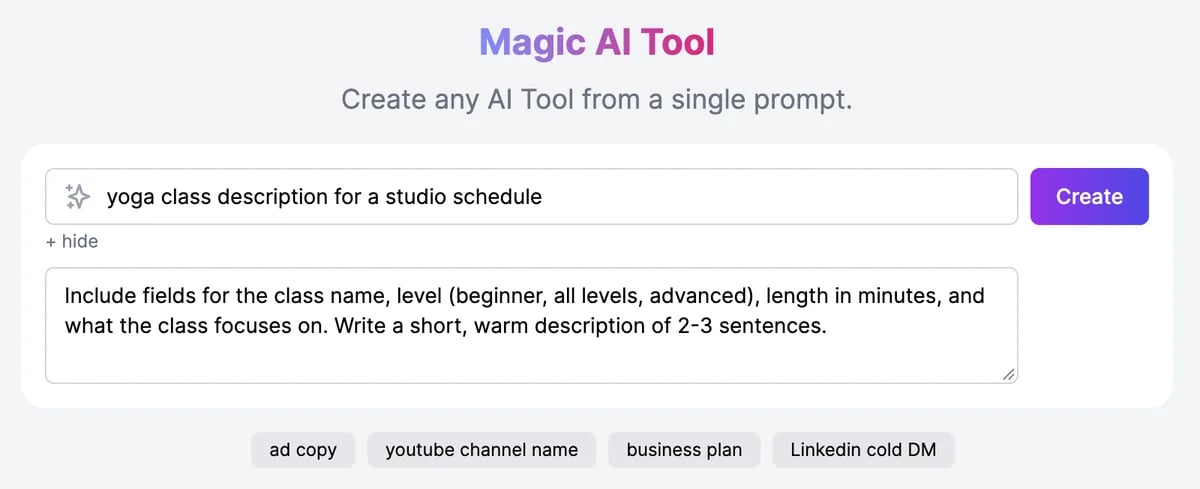 The new tool opens a few seconds later, ready to try.
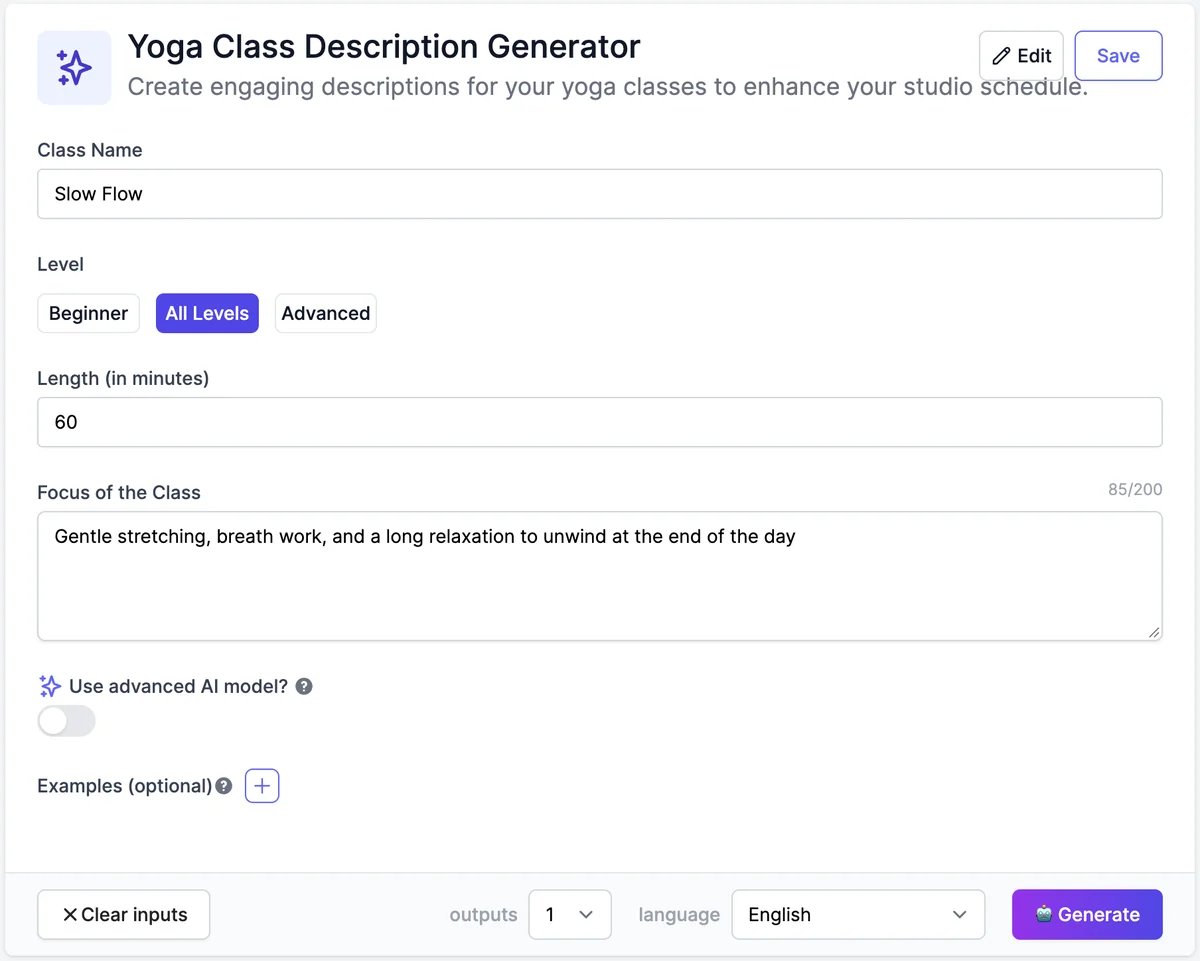 Fill in the fields and click **Generate** to check the results. When you're happy with it, click **Save**. Saved tools appear on the Tools page under **My Tools**.
 A tool you don't save isn't kept. Click **Save** before you leave the page.
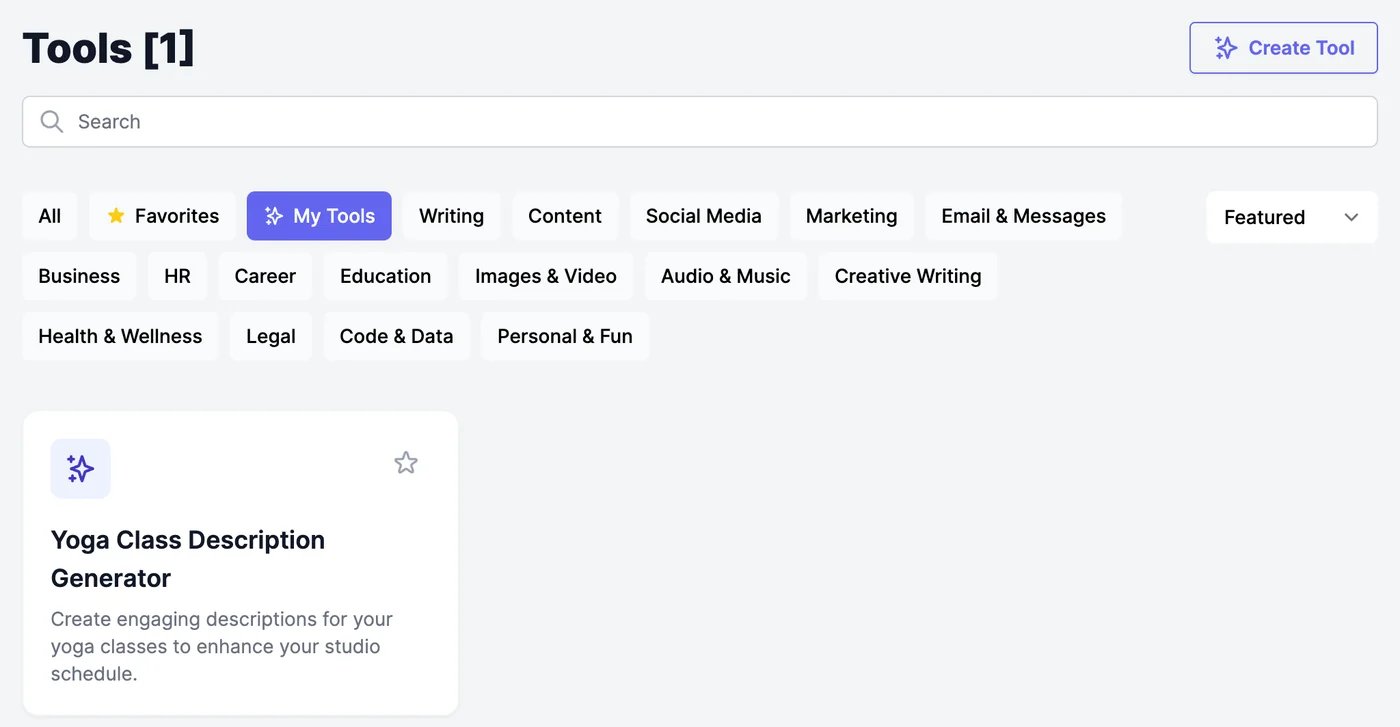 ## Edit a tool
Click **Edit** at the top of the tool.
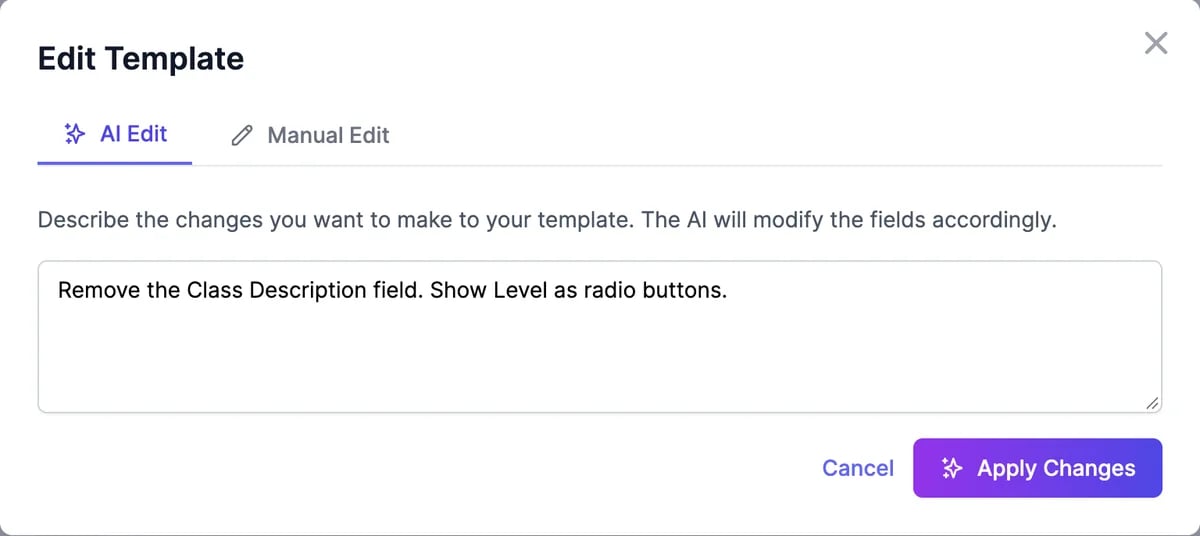
Describe the change and click **Apply Changes**. For example: "Remove the Class Description field. Show Level as radio buttons."
## Edit a tool
Click **Edit** at the top of the tool.
Describe the change and click **Apply Changes**. For example: "Remove the Class Description field. Show Level as radio buttons."
 Change the **Title**, **Description**, and **Output**, and each field's **Label**, **Type**, **Placeholder**, and **Character Limit**. **Add Field** adds a field, the arrows reorder them, and the trash icon removes one. Click **Save Changes**.
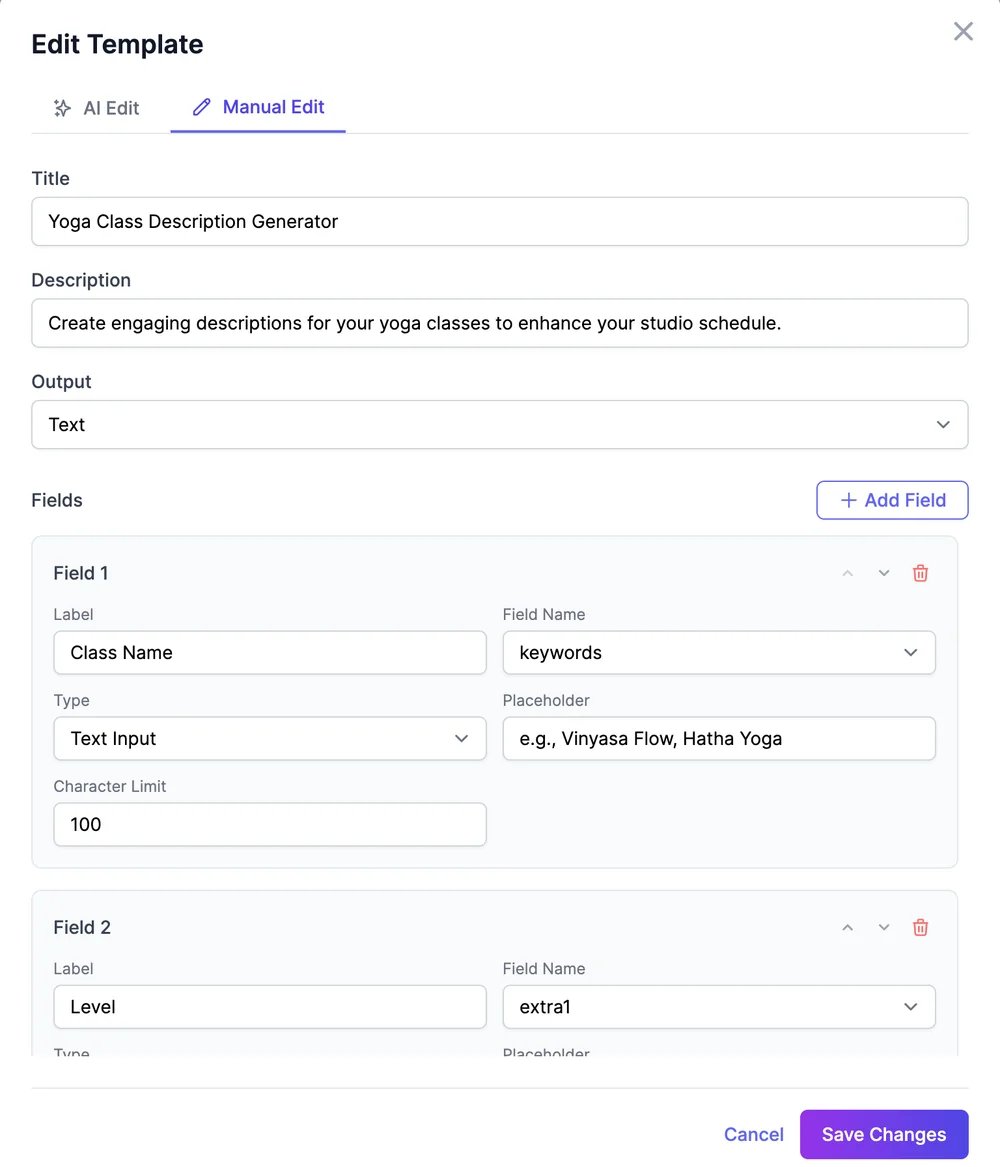 A tool can have up to 9 fields. Field types are **Text Input**, **Text Area**, **Dropdown Select**, **Checkbox**, **Radio Button**, and **Image Upload**.
**Output** decides what the tool makes:
| Output | What it makes | What it uses |
| ------------------------------------ | ----------------------------------------------------------------------- | ----------------------------------------------------------------- |
| **Text** | Written text | Words |
| **Image (from description)** | An image from the fields | 3 image & video credits |
| **Image (transform uploaded photo)** | An edited version of an uploaded photo. Needs an **Image Upload** field | 3 image & video credits |
| **Speech (voiced audio)** | A script, read aloud | Words for the script, and text-to-speech characters for the audio |
To delete a saved tool, click the trash icon at the top of it and confirm.
## Use a tool
Your tools work like the built-in ones: fill in the fields, choose the number of results and the language, and click **Generate**. See [Run a tool](/docs/tools/run).
* **Use advanced AI model?** switches text tools to a stronger model, which uses more words.
* **Examples (optional)**: add examples of results you like, and the tool follows their format.
* Results in a language other than English are made one at a time.
## Share a tool
Click **Share** at the top of a saved tool.
A tool can have up to 9 fields. Field types are **Text Input**, **Text Area**, **Dropdown Select**, **Checkbox**, **Radio Button**, and **Image Upload**.
**Output** decides what the tool makes:
| Output | What it makes | What it uses |
| ------------------------------------ | ----------------------------------------------------------------------- | ----------------------------------------------------------------- |
| **Text** | Written text | Words |
| **Image (from description)** | An image from the fields | 3 image & video credits |
| **Image (transform uploaded photo)** | An edited version of an uploaded photo. Needs an **Image Upload** field | 3 image & video credits |
| **Speech (voiced audio)** | A script, read aloud | Words for the script, and text-to-speech characters for the audio |
To delete a saved tool, click the trash icon at the top of it and confirm.
## Use a tool
Your tools work like the built-in ones: fill in the fields, choose the number of results and the language, and click **Generate**. See [Run a tool](/docs/tools/run).
* **Use advanced AI model?** switches text tools to a stronger model, which uses more words.
* **Examples (optional)**: add examples of results you like, and the tool follows their format.
* Results in a language other than English are made one at a time.
## Share a tool
Click **Share** at the top of a saved tool.
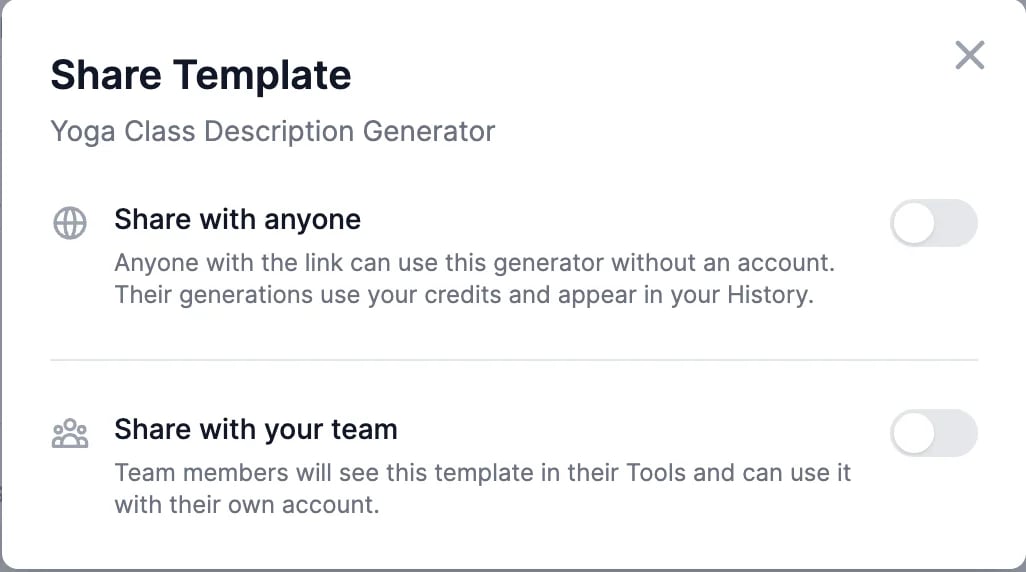 * **Share with your team** adds the tool to your teammates' **My Tools**. They use it with their own account, and can't edit or delete it.
* **Share with anyone** gives you a link to a public page where anyone can use the tool without an account.
Results made through a public link use **your** words and credits, and appear in your History. Each person can make up to 20 results a day, and a link up to 300 a day. Visitors always get the standard model and at most 2 results at a time. Turn the switch off to stop the link working.
Options, results, and sharing a result.
Make results sound like you.
* **Share with your team** adds the tool to your teammates' **My Tools**. They use it with their own account, and can't edit or delete it.
* **Share with anyone** gives you a link to a public page where anyone can use the tool without an account.
Results made through a public link use **your** words and credits, and appear in your History. Each person can make up to 20 results a day, and a link up to 300 a day. Visitors always get the standard model and at most 2 results at a time. Turn the switch off to stop the link working.
Options, results, and sharing a result.
Make results sound like you.