> ## Documentation Index
> Fetch the complete documentation index at: https://easy-peasy.ai/docs/llms.txt
> Use this file to discover all available pages before exploring further.
# Tools
> Find the right AI writing tool among hundreds, from Instagram captions to lesson plans, and keep your favourites one click away.
Tools are single-purpose AI generators: each one has a short form for one job, such as an Instagram caption, a product description, a cover letter, a lesson plan, or a SOAP note. Fill in the form, click **Generate**, and copy the result.
Use a tool when you do the same kind of writing often and want consistent results. For open-ended work, research, or several steps in a row, use [Marky Agent](/docs/marky/overview).
## Find a tool
Click **All Tools** in the sidebar. There are close to 400, including shortcuts to the other products such as Marky Agent and AI Images.
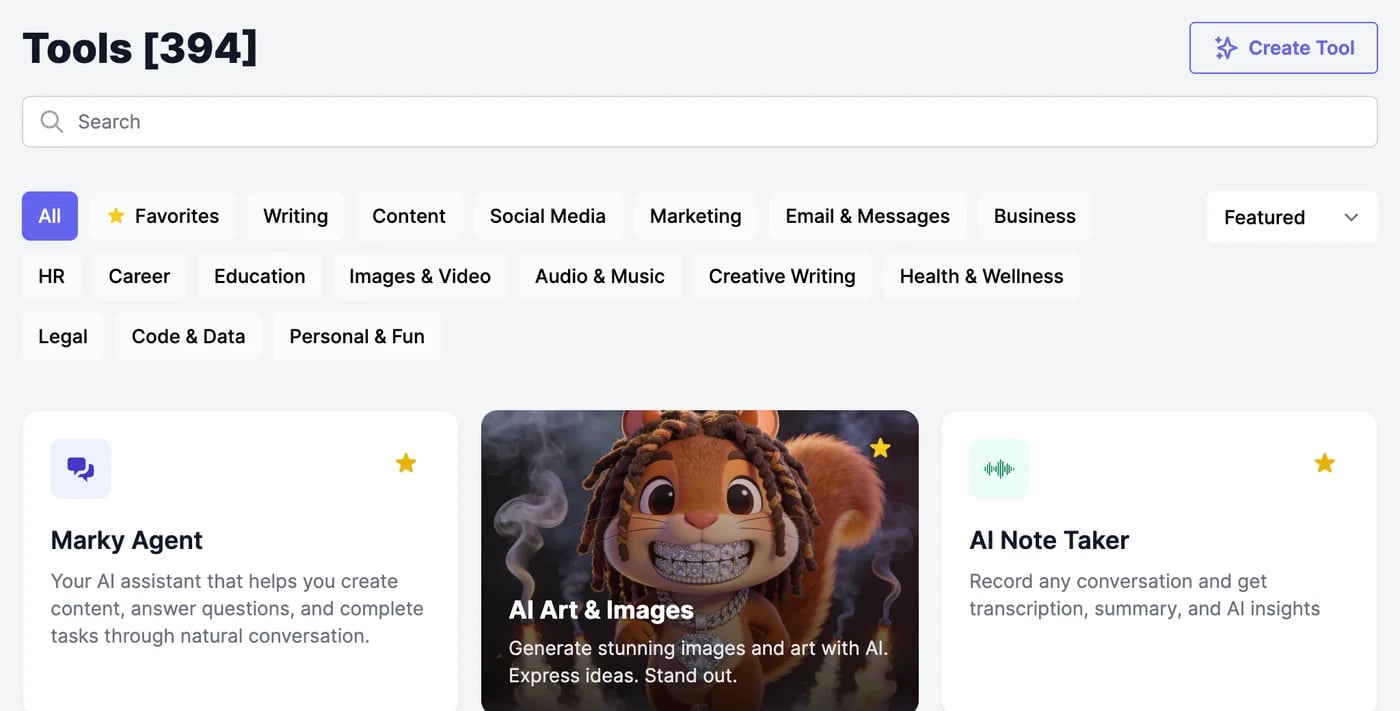 * **Search** by name or by what you want to do, for example "caption" or "email reply".
* **Filter** by category: Writing, Content, Social Media, Marketing, Email & Messages, Business, HR, Career, Education, Images & Video, Audio & Music, Creative Writing, Health & Wellness, Legal, Code & Data, and Personal & Fun.
* **Sort** by **Featured**, **Alphabetical**, or **Newest**. Featured shows your favourites first.
Searching looks through all tools, whatever filter is selected.
You can also find tools from the **Home** screen: **Recommended Tools** shows your favourites first, and its magnifier searches every tool.
## Keep your favourites
Click the star on a tool's card, or at the top right of its form, to make it a favourite. Favourites:
* appear under **★ Favorites** on the Tools page,
* come first in **Featured** and in **Recommended Tools**,
* are added to the sidebar, up to 10.
Click the star again to remove it.
## Your own tools
**Create Tool** builds a new tool from a sentence, with the fields you need. Your tools, and the ones teammates share with you, are under **My Tools**. See [Create your own tool](/docs/tools/custom-tools).
## Tools on the Free plan
On the Free plan, tools use the **Standard model** and make one result at a time. Tools for paid plans can be tried once each: they're marked **Try this template free**, and the button reads **Try Free**. After that one result, the form asks you to upgrade. See [Plans and credits](/docs/account/plans-and-credits#the-free-plan).
Fill in the form and work with the results.
Pick the AI model and see what it uses.
* **Search** by name or by what you want to do, for example "caption" or "email reply".
* **Filter** by category: Writing, Content, Social Media, Marketing, Email & Messages, Business, HR, Career, Education, Images & Video, Audio & Music, Creative Writing, Health & Wellness, Legal, Code & Data, and Personal & Fun.
* **Sort** by **Featured**, **Alphabetical**, or **Newest**. Featured shows your favourites first.
Searching looks through all tools, whatever filter is selected.
You can also find tools from the **Home** screen: **Recommended Tools** shows your favourites first, and its magnifier searches every tool.
## Keep your favourites
Click the star on a tool's card, or at the top right of its form, to make it a favourite. Favourites:
* appear under **★ Favorites** on the Tools page,
* come first in **Featured** and in **Recommended Tools**,
* are added to the sidebar, up to 10.
Click the star again to remove it.
## Your own tools
**Create Tool** builds a new tool from a sentence, with the fields you need. Your tools, and the ones teammates share with you, are under **My Tools**. See [Create your own tool](/docs/tools/custom-tools).
## Tools on the Free plan
On the Free plan, tools use the **Standard model** and make one result at a time. Tools for paid plans can be tried once each: they're marked **Try this template free**, and the button reads **Try Free**. After that one result, the form asks you to upgrade. See [Plans and credits](/docs/account/plans-and-credits#the-free-plan).
Fill in the form and work with the results.
Pick the AI model and see what it uses.