> ## Documentation Index
> Fetch the complete documentation index at: https://easy-peasy.ai/docs/llms.txt
> Use this file to discover all available pages before exploring further.
# Extend a video
> Continue a video from its last frame, trim it first if needed, and get one longer video with the original and the new part.
Extending adds a new shot to the end of a video. The new part starts from the last frame, and you get back one video: the original plus the continuation. Extend the result again to keep going.
Extending videos is available on paid plans.
## Extend a video
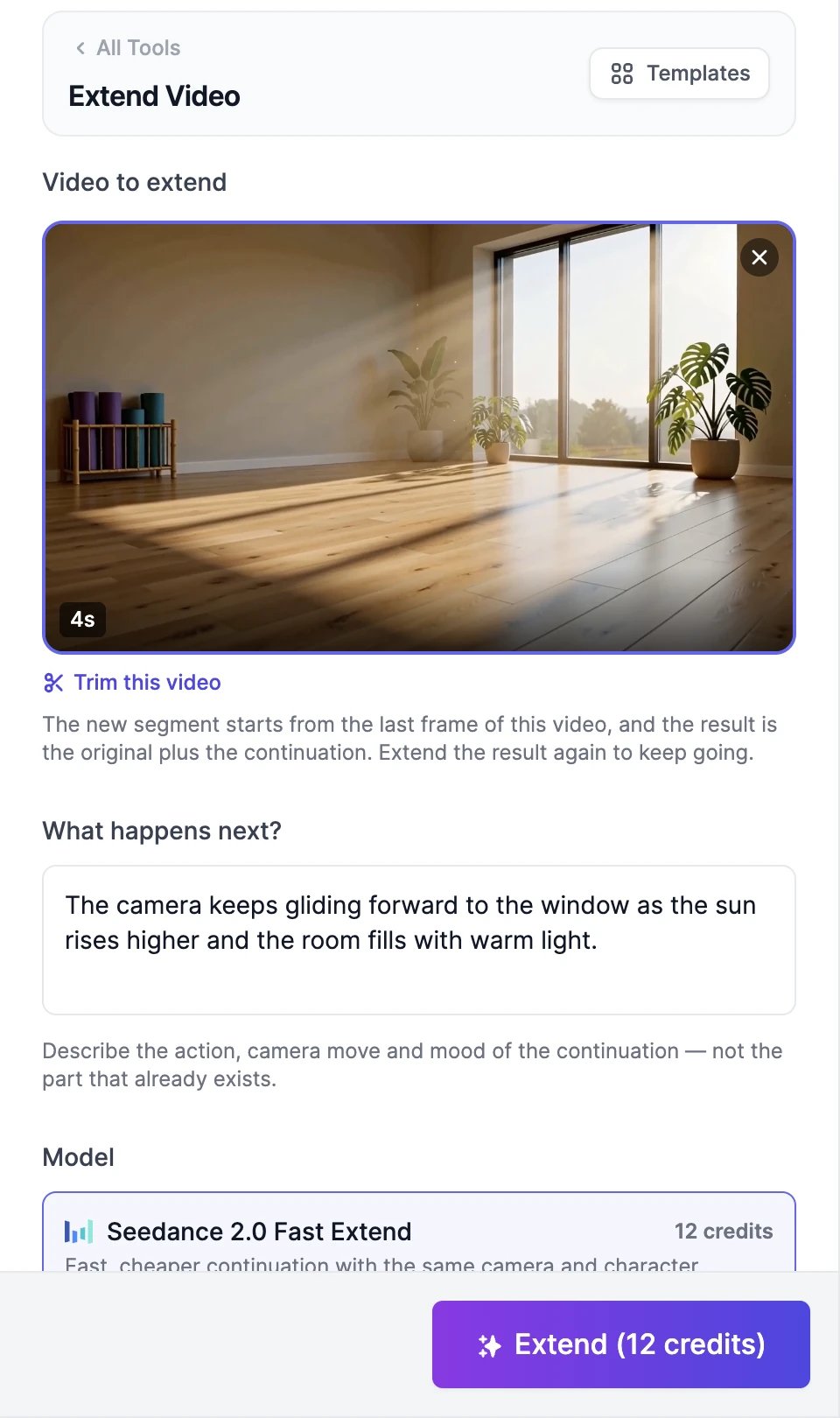
On one of your videos, open the **⋮** menu and click **Extend video**. Or open **Videos** > **Extend Video** and click **Upload a video** to use your own: MP4 or MOV, 2 to 30 seconds, up to 100 MB.
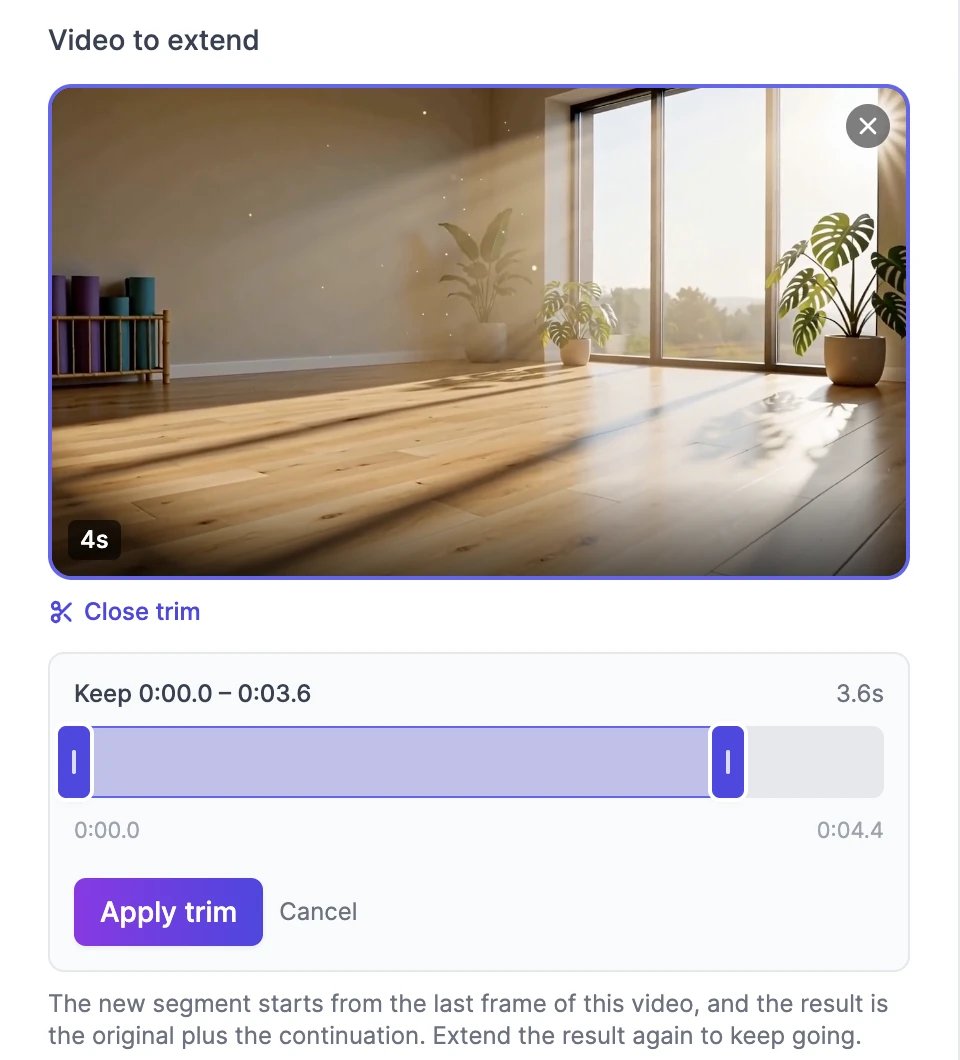
 The continuation starts from the very last frame, so cut off any part you don't want first. Click **Trim this video**, drag the handles to choose what to keep, and click **Apply trim**. Dragging the end handle shows the exact frame the new part will start from. Trimming is free, and **Undo trim** brings the full video back.
 In **What happens next?**, describe the new part only: the action, the camera move, and the mood. For example: "The camera keeps gliding forward to the window as the sun rises higher and the room fills with warm light."
Choose a model, how many seconds to **Add**, and a **Resolution**. **Finished video** shows the total length.
In **What happens next?**, describe the new part only: the action, the camera move, and the mood. For example: "The camera keeps gliding forward to the window as the sun rises higher and the room fills with warm light."
Choose a model, how many seconds to **Add**, and a **Resolution**. **Finished video** shows the total length.
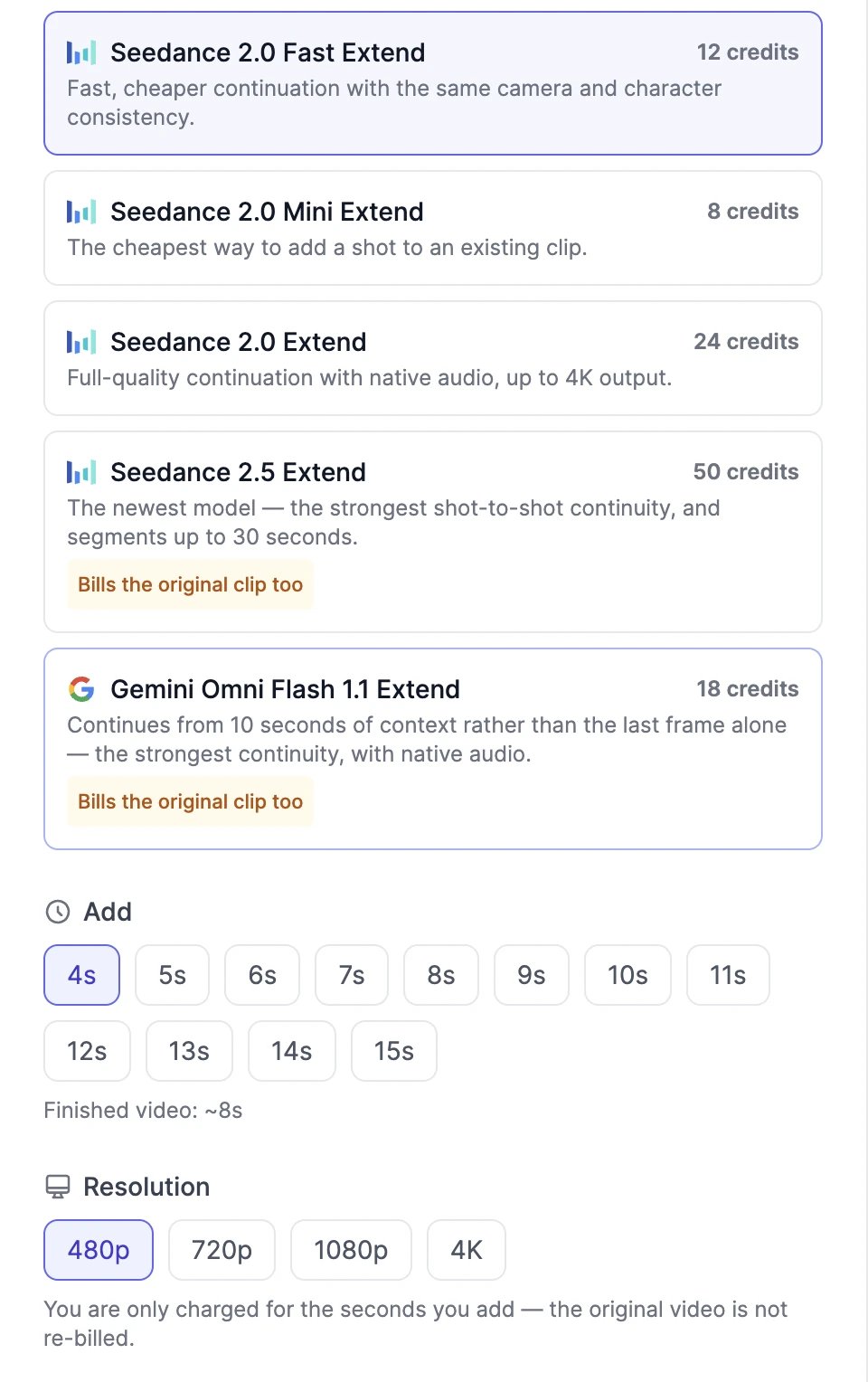 The button shows the price, for example **Extend (12 credits)**. The longer video appears in your results in a few minutes.
## Models and credits
| Model | Adds | Longest video you can extend | Credits per second at 720p |
| -------------------------------------- | ------ | ---------------------------- | --------------------------------------------------- |
| **Seedance 2.0 Fast Extend** (default) | 4–15 s | 15 s | 6 for each second added |
| **Seedance 2.0 Mini Extend** | 4–15 s | 15 s | 4 for each second added |
| **Seedance 2.0 Extend** | 4–15 s | 15 s | 12 for each second added |
| **Seedance 2.5 Extend** | 4–30 s | 30 s | 11 for each second of the original and the new part |
| **Gemini Omni Flash 1.1 Extend** | 3–10 s | 10 s, up to 20 MB | 6 for each second of the original and the new part |
* **480p costs half, and higher resolutions cost more**: 1080p is 2.5 times the 720p price and 4K is 5 times on Seedance. On Gemini Omni Flash, 1080p is 1.5 times and 4K is 3 times, and a 360p tier costs a third.
* **The Seedance 2.0 models charge only for the seconds you add.** Seedance 2.5 and Gemini Omni Flash also charge for the original video, marked **Bills the original clip too**. Their note under the resolution shows the split, such as "Billed for 9s — 5s original + 4s new". Trimming the original first makes these cheaper.
* Gemini Omni Flash continues from up to 10 seconds of the video rather than the last frame alone, and makes the whole video again at the resolution you choose.
## If something goes wrong
* **"Could not read this video's length"**: only MP4 and MOV videos can be extended. Export the video again as MP4 and upload it.
* **The video is too long for the model**: trim it, or pick a model that takes longer videos, such as Seedance 2.5 Extend.
* If the extension fails, you aren't charged.
Change something in a video instead of adding to it.
Make the result sharper.
The button shows the price, for example **Extend (12 credits)**. The longer video appears in your results in a few minutes.
## Models and credits
| Model | Adds | Longest video you can extend | Credits per second at 720p |
| -------------------------------------- | ------ | ---------------------------- | --------------------------------------------------- |
| **Seedance 2.0 Fast Extend** (default) | 4–15 s | 15 s | 6 for each second added |
| **Seedance 2.0 Mini Extend** | 4–15 s | 15 s | 4 for each second added |
| **Seedance 2.0 Extend** | 4–15 s | 15 s | 12 for each second added |
| **Seedance 2.5 Extend** | 4–30 s | 30 s | 11 for each second of the original and the new part |
| **Gemini Omni Flash 1.1 Extend** | 3–10 s | 10 s, up to 20 MB | 6 for each second of the original and the new part |
* **480p costs half, and higher resolutions cost more**: 1080p is 2.5 times the 720p price and 4K is 5 times on Seedance. On Gemini Omni Flash, 1080p is 1.5 times and 4K is 3 times, and a 360p tier costs a third.
* **The Seedance 2.0 models charge only for the seconds you add.** Seedance 2.5 and Gemini Omni Flash also charge for the original video, marked **Bills the original clip too**. Their note under the resolution shows the split, such as "Billed for 9s — 5s original + 4s new". Trimming the original first makes these cheaper.
* Gemini Omni Flash continues from up to 10 seconds of the video rather than the last frame alone, and makes the whole video again at the resolution you choose.
## If something goes wrong
* **"Could not read this video's length"**: only MP4 and MOV videos can be extended. Export the video again as MP4 and upload it.
* **The video is too long for the model**: trim it, or pick a model that takes longer videos, such as Seedance 2.5 Extend.
* If the extension fails, you aren't charged.
Change something in a video instead of adding to it.
Make the result sharper.