> ## Documentation Index
> Fetch the complete documentation index at: https://easy-peasy.ai/docs/llms.txt
> Use this file to discover all available pages before exploring further.
# Use references
> Add images of a person, product, or style, a video to guide the motion, or audio to guide the sound, and keep them consistent across videos.
References tell the model what should look or sound the same, without fixing the first frame the way a start image does. Use them to put the same person or product in every video, match a look, copy the camera movement from a clip, or give a character a particular voice.
| Reference | What it's for |
| ---------- | ---------------------------------------------------------------------------------------------------------------------------------------------- |
| **Images** | People, products, places, or a style to match. A **Character** or **Object** from your library keeps the same person or product across videos. |
| **Video** | A clip whose motion, camera work, and pacing the new video follows. On Gemini Omni Flash, the clip is the video you want to edit instead. |
| **Audio** | A voice, song, or piece of music that guides the soundtrack. It always goes with at least one image or video reference. |
## Add references
Click **Add media** under **References (optional)**.
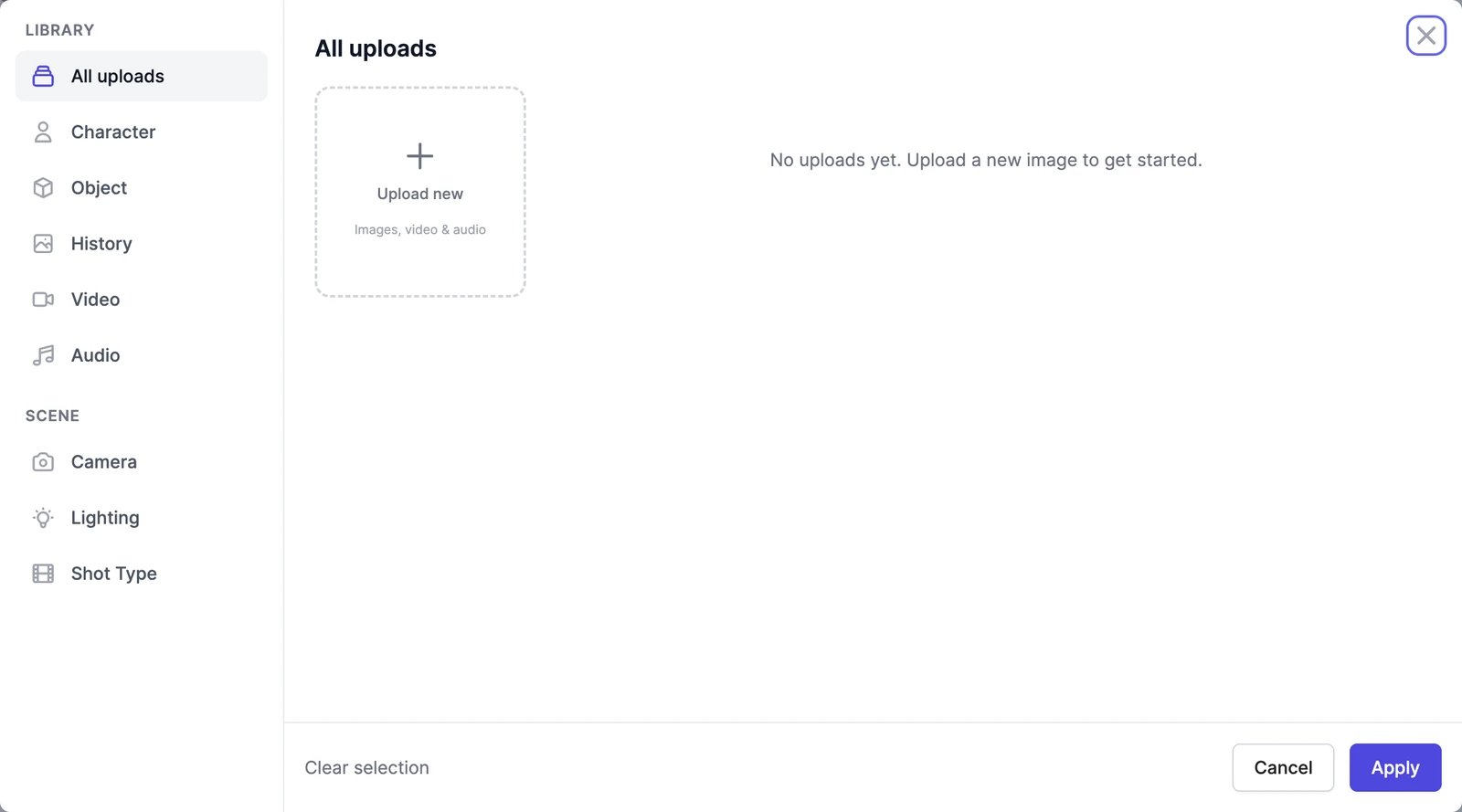 Choose from the **Library** tabs:
* **All uploads**: everything you've uploaded. **Upload new** takes images, MP4 or MOV videos, and audio files.
* **Character** and **Object**: the people and products you've saved in your library, also used in [AI Images](/docs/ai-images/generate).
* **History**: images you've generated.
* **Video** and **Audio**: a reference clip and a sound file. If an audio file is longer than the model allows, drag the highlighted window over its waveform to choose the part to use.
You can attach one video and one audio file per video.
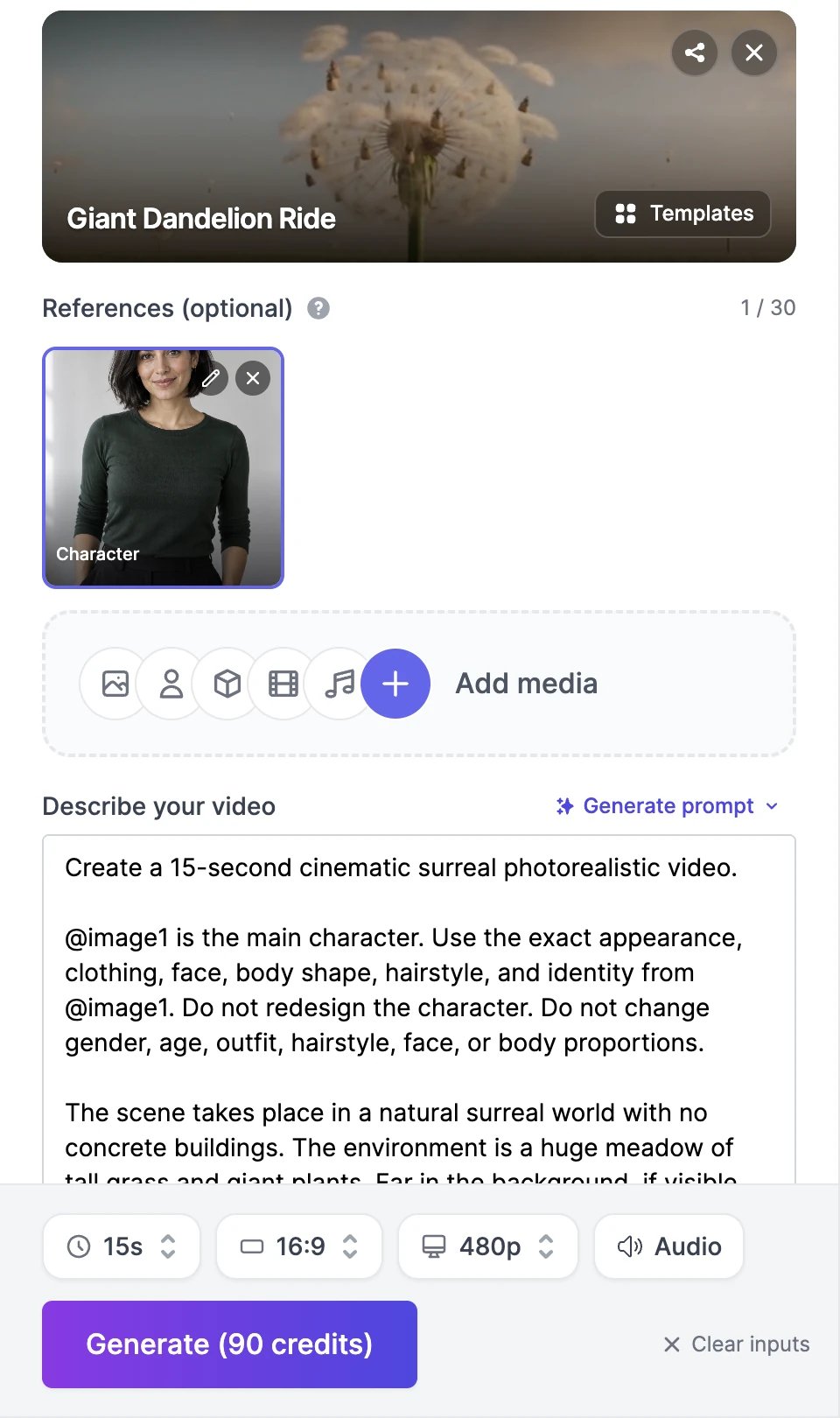
The references appear under **References (optional)** with a counter, such as **1 / 30**. If your model can't use references, the page switches to its reference version, for example from **Seedance 2.0 Fast** to **Seedance 2.0 Fast Reference**. Remove the references and it switches back.
Describe what each reference is for. Many models understand **@image1**, **@image2**, and so on, in the order you added them: "@image1 is the main character. She walks into a sunlit yoga studio and rolls out her mat."
Choose from the **Library** tabs:
* **All uploads**: everything you've uploaded. **Upload new** takes images, MP4 or MOV videos, and audio files.
* **Character** and **Object**: the people and products you've saved in your library, also used in [AI Images](/docs/ai-images/generate).
* **History**: images you've generated.
* **Video** and **Audio**: a reference clip and a sound file. If an audio file is longer than the model allows, drag the highlighted window over its waveform to choose the part to use.
You can attach one video and one audio file per video.
The references appear under **References (optional)** with a counter, such as **1 / 30**. If your model can't use references, the page switches to its reference version, for example from **Seedance 2.0 Fast** to **Seedance 2.0 Fast Reference**. Remove the references and it switches back.
Describe what each reference is for. Many models understand **@image1**, **@image2**, and so on, in the order you added them: "@image1 is the main character. She walks into a sunlit yoga studio and rolls out her mat."
 ## Rules
* **References or a start image, not both.** Adding a start or end image removes the references, and adding references hides the start and end images.
* **Audio needs company.** Add at least one image or video reference with any audio reference.
* **Audio formats.** MiniMax H3, Seedance 2.5, and WAN 3.0 accept only WAV or MP3 audio.
* **Video files** must be MP4 or MOV.
* Images you add are checked against the content policy. A blocked image is marked **Blocked** and must be removed before you can generate.
## Limits by model
The number of references each model accepts per video. Models that aren't listed don't take references.
| Model | Reference images | Reference video | Reference audio |
| --------------------- | ---------------------------- | ----------------------------------------- | ----------------------------------------- |
| MiniMax H3 | Up to 9 | Up to 3 clips, 2–15 s each, 15 s in total | Up to 3 clips, 15 s in total, WAV or MP3 |
| Seedance 2.0 Fast | Up to 9 | Up to 3 clips, 2–15 s each, 15 s in total | Up to 3 clips, 15 s in total |
| Seedance 2.0 Mini | Up to 9 | Up to 3 clips, 2–15 s each, 15 s in total | Up to 3 clips, 15 s in total |
| Seedance 2.5 | Up to 30 | Up to 3 clips, 2–30 s each, 30 s in total | Up to 10 clips, 30 s in total, WAV or MP3 |
| Seedance 2.5 Turbo | Up to 30 | Up to 3 clips, 2–30 s each, 30 s in total | Up to 10 clips, 30 s in total, WAV or MP3 |
| WAN 3.0 | Up to 9 | — | Up to 3 clips, 30 s in total, WAV or MP3 |
| Veo 3.1 Fast | Up to 3 (people and objects) | — | — |
| Gemini Omni Flash | Up to 5 | 1 clip to edit, 4–20 s | — |
| Gemini Omni Flash 1.1 | Up to 5 | 1 clip to edit, 4–10 s | — |
| MiniMax H3 Max | Up to 9 | Up to 3 clips, 2–15 s each, 15 s in total | Up to 3 clips, 15 s in total |
| Grok Imagine | Up to 7 | — | — |
| Grok Imagine 1.5 | Up to 7 | — | — |
| Seedance 2.0 | Up to 9 | Up to 3 clips, 2–15 s each, 15 s in total | Up to 3 clips, 15 s in total |
| Happy Horse | Up to 9 | — | — |
| Kling O3 Reference | Up to 4 | — | — |
| Kling O1 | Up to 4 | — | — |
| Veo 3.1 | Up to 3 (people and objects) | — | — |
## What references cost
* **Images** are included in the price on most models.
* **Reference videos** are charged by their length on Seedance 2.0, Seedance 2.5, and MiniMax H3, at the same rate per second as the video you generate. For example, a 10-second clip adds 60 credits to a Seedance 2.5 Reference video at 480p.
* On **MiniMax H3 Max Reference**, images and clips are charged by size: about four images are free, and each clip adds credits by its length.
The **Generate** button includes all of this before you start.
Many templates are built around one reference photo of you.
Compare the models that take references.
## Rules
* **References or a start image, not both.** Adding a start or end image removes the references, and adding references hides the start and end images.
* **Audio needs company.** Add at least one image or video reference with any audio reference.
* **Audio formats.** MiniMax H3, Seedance 2.5, and WAN 3.0 accept only WAV or MP3 audio.
* **Video files** must be MP4 or MOV.
* Images you add are checked against the content policy. A blocked image is marked **Blocked** and must be removed before you can generate.
## Limits by model
The number of references each model accepts per video. Models that aren't listed don't take references.
| Model | Reference images | Reference video | Reference audio |
| --------------------- | ---------------------------- | ----------------------------------------- | ----------------------------------------- |
| MiniMax H3 | Up to 9 | Up to 3 clips, 2–15 s each, 15 s in total | Up to 3 clips, 15 s in total, WAV or MP3 |
| Seedance 2.0 Fast | Up to 9 | Up to 3 clips, 2–15 s each, 15 s in total | Up to 3 clips, 15 s in total |
| Seedance 2.0 Mini | Up to 9 | Up to 3 clips, 2–15 s each, 15 s in total | Up to 3 clips, 15 s in total |
| Seedance 2.5 | Up to 30 | Up to 3 clips, 2–30 s each, 30 s in total | Up to 10 clips, 30 s in total, WAV or MP3 |
| Seedance 2.5 Turbo | Up to 30 | Up to 3 clips, 2–30 s each, 30 s in total | Up to 10 clips, 30 s in total, WAV or MP3 |
| WAN 3.0 | Up to 9 | — | Up to 3 clips, 30 s in total, WAV or MP3 |
| Veo 3.1 Fast | Up to 3 (people and objects) | — | — |
| Gemini Omni Flash | Up to 5 | 1 clip to edit, 4–20 s | — |
| Gemini Omni Flash 1.1 | Up to 5 | 1 clip to edit, 4–10 s | — |
| MiniMax H3 Max | Up to 9 | Up to 3 clips, 2–15 s each, 15 s in total | Up to 3 clips, 15 s in total |
| Grok Imagine | Up to 7 | — | — |
| Grok Imagine 1.5 | Up to 7 | — | — |
| Seedance 2.0 | Up to 9 | Up to 3 clips, 2–15 s each, 15 s in total | Up to 3 clips, 15 s in total |
| Happy Horse | Up to 9 | — | — |
| Kling O3 Reference | Up to 4 | — | — |
| Kling O1 | Up to 4 | — | — |
| Veo 3.1 | Up to 3 (people and objects) | — | — |
## What references cost
* **Images** are included in the price on most models.
* **Reference videos** are charged by their length on Seedance 2.0, Seedance 2.5, and MiniMax H3, at the same rate per second as the video you generate. For example, a 10-second clip adds 60 credits to a Seedance 2.5 Reference video at 480p.
* On **MiniMax H3 Max Reference**, images and clips are charged by size: about four images are free, and each clip adds credits by its length.
The **Generate** button includes all of this before you start.
Many templates are built around one reference photo of you.
Compare the models that take references.