> ## Documentation Index
> Fetch the complete documentation index at: https://easy-peasy.ai/docs/llms.txt
> Use this file to discover all available pages before exploring further.
# Video templates
> Start from a ready-made video: pick a template, swap in your own photo, and generate your version.
Templates are finished videos you can remake. Each one comes with its prompt, model, length, and shape already set, and many are built around a photo of a person, so you can put yourself in the scene.
 ## Use a template
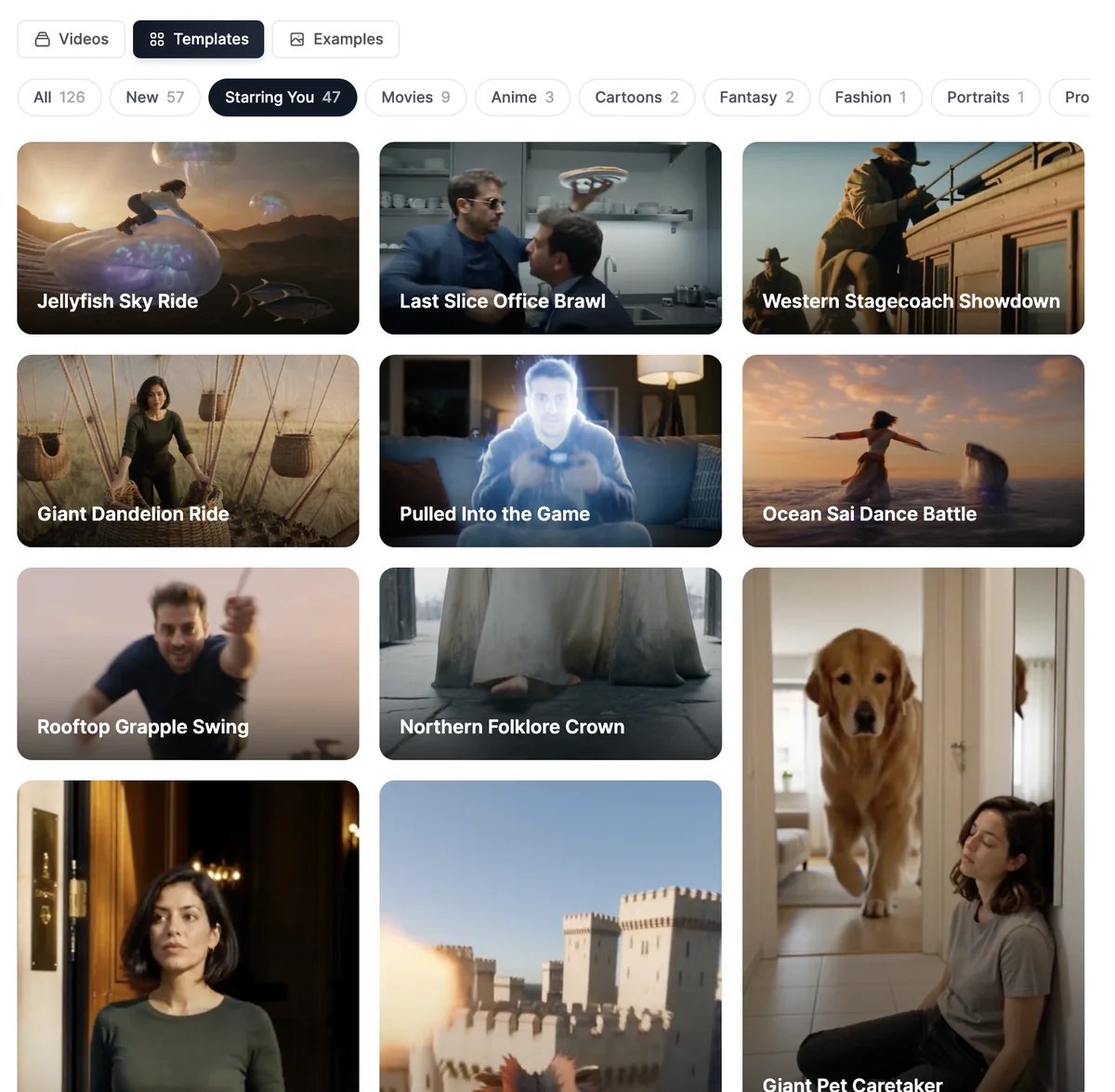
Click the **Templates** tab above your results, or the **Templates** button at the top of the page. Pick a category to narrow the list: **Starring You** has templates made for your own photo, and **New** has the latest additions.
The template fills in the prompt, the model, the length and shape, and any sample photos it needs. Its name appears at the top of the page, with a button to share the template and **✕** to remove it.
## Use a template
Click the **Templates** tab above your results, or the **Templates** button at the top of the page. Pick a category to narrow the list: **Starring You** has templates made for your own photo, and **New** has the latest additions.
The template fills in the prompt, the model, the length and shape, and any sample photos it needs. Its name appears at the top of the page, with a button to share the template and **✕** to remove it.
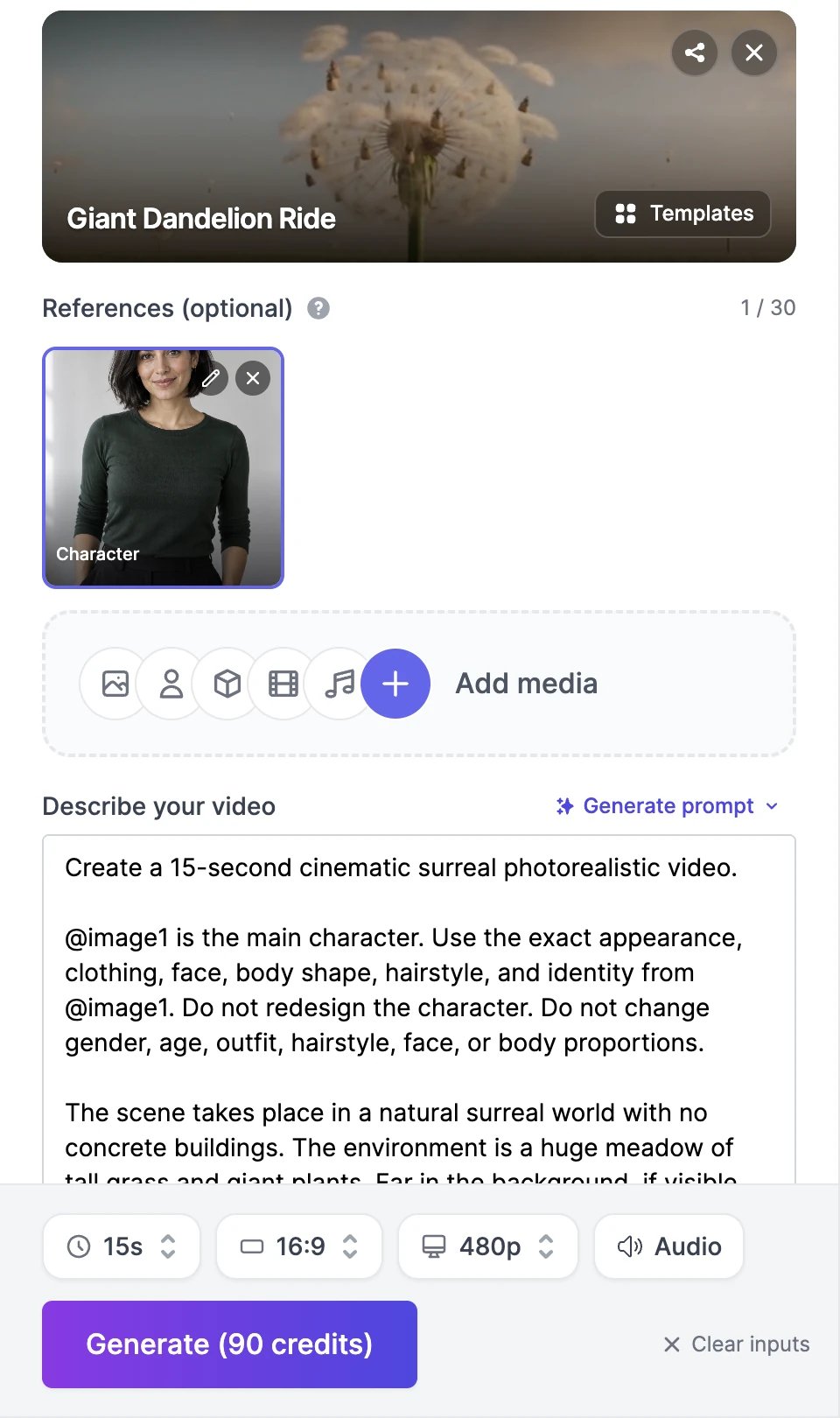 If the template uses a sample photo, such as the **Character** above, remove it with **✕**, then click **Add media** and add a photo of yourself or your product. Keep the prompt as it is: it already refers to the photo as **@image1**.
Change anything you like, such as the length or the wording, and click **Generate**. The button shows the price for the template's settings.
Removing the template with **✕** clears the settings it filled in, except the ones you've changed.
## Templates that open other tools
A few templates open a different tool with everything set up: [Motion Control](/docs/videos/motion-control), [talking videos](/docs/videos/talking-videos), or a workflow in a new tab.
## What templates cost
A template costs what its model costs for its settings, shown on the **Generate** button. Many **Starring You** templates make 15-second videos with Seedance 2.5 Reference, which costs 90 credits at 480p. On the Free plan, only the templates that use Seedance 2.0 Mini work.
## Examples
The **Examples** tab shows videos other people chose to share publicly. **Recreate** copies an example's prompt into the form, so you can make your own version.
How reference photos work.
Build a video from scratch.
If the template uses a sample photo, such as the **Character** above, remove it with **✕**, then click **Add media** and add a photo of yourself or your product. Keep the prompt as it is: it already refers to the photo as **@image1**.
Change anything you like, such as the length or the wording, and click **Generate**. The button shows the price for the template's settings.
Removing the template with **✕** clears the settings it filled in, except the ones you've changed.
## Templates that open other tools
A few templates open a different tool with everything set up: [Motion Control](/docs/videos/motion-control), [talking videos](/docs/videos/talking-videos), or a workflow in a new tab.
## What templates cost
A template costs what its model costs for its settings, shown on the **Generate** button. Many **Starring You** templates make 15-second videos with Seedance 2.5 Reference, which costs 90 credits at 480p. On the Free plan, only the templates that use Seedance 2.0 Mini work.
## Examples
The **Examples** tab shows videos other people chose to share publicly. **Recreate** copies an example's prompt into the form, so you can make your own version.
How reference photos work.
Build a video from scratch.