> ## Documentation Index
> Fetch the complete documentation index at: https://easy-peasy.ai/docs/llms.txt
> Use this file to discover all available pages before exploring further.
# Video Agent
> Describe a video in a sentence, and the agent writes the script, makes the scenes, adds a voiceover, music, and captions, and opens the result in the Video Editor.
The Video Agent turns an idea into a complete, edited video. It writes the script, picks or generates visuals for each scene, records a voiceover, adds music and captions, and assembles everything as a project in the [Video Editor](/docs/videos/video-editor), where you can change anything before you export.
Open **Videos** > **Video Agent**. The Video Agent is in beta.
 ## Make a video
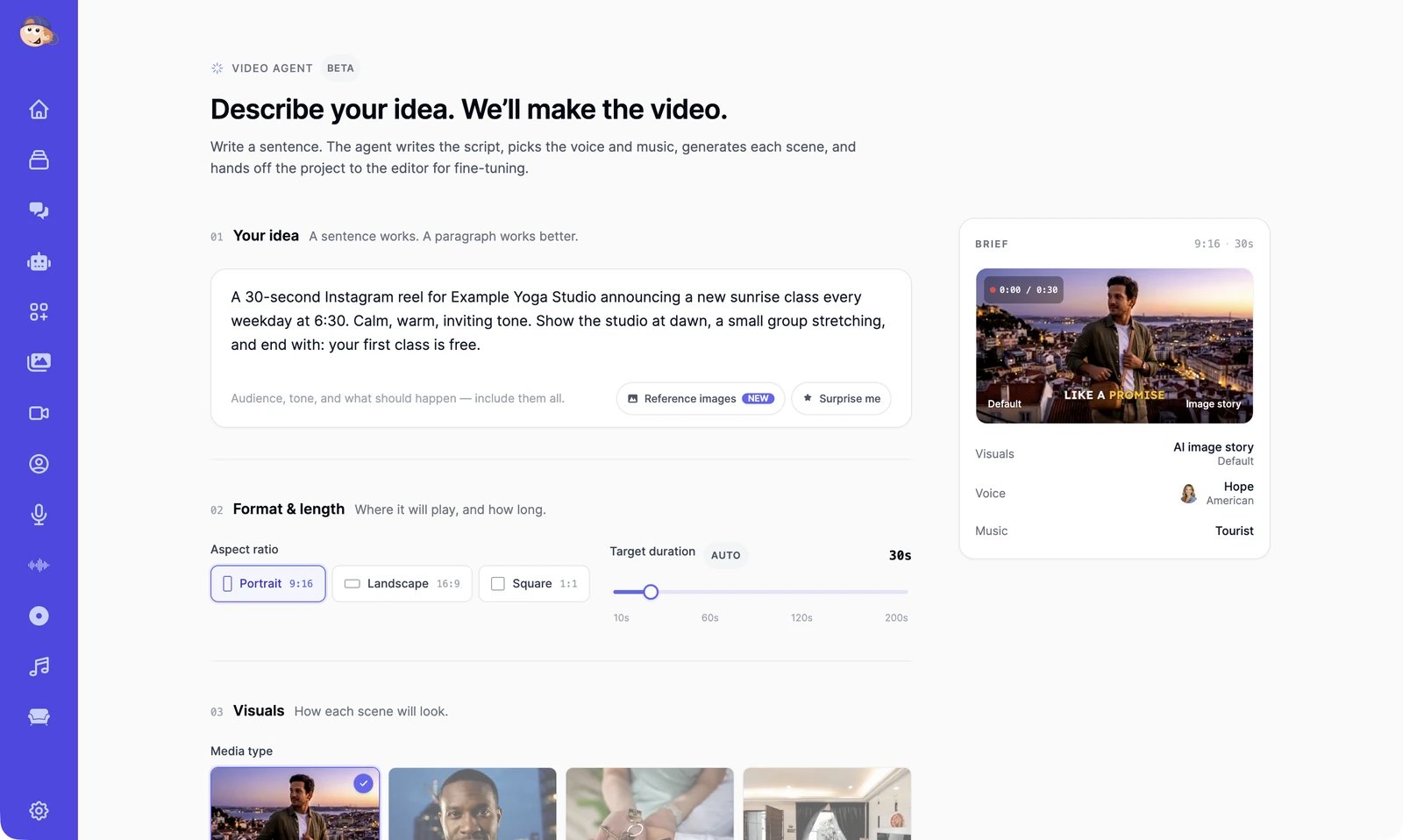
In **Your idea**, say what the video is for, who it's for, the tone, and what should happen. A sentence works; a paragraph works better. For example: "A 30-second Instagram reel for Example Yoga Studio announcing a new sunrise class every weekday at 6:30. Calm, warm, inviting tone. Show the studio at dawn, a small group stretching, and end with: your first class is free."
**Surprise me** fills in an example idea. **Reference images** lets you add up to 6 photos, such as a real property, product, or place, and the scenes are based on them.
Under **Format & length**, pick **Portrait** (9:16, the default), **Landscape** (16:9), or **Square** (1:1), and a **Target duration** from 10 to 200 seconds. **Auto** lets the agent pick the length, usually 20 to 60 seconds.
## Make a video
In **Your idea**, say what the video is for, who it's for, the tone, and what should happen. A sentence works; a paragraph works better. For example: "A 30-second Instagram reel for Example Yoga Studio announcing a new sunrise class every weekday at 6:30. Calm, warm, inviting tone. Show the studio at dawn, a small group stretching, and end with: your first class is free."
**Surprise me** fills in an example idea. **Reference images** lets you add up to 6 photos, such as a real property, product, or place, and the scenes are based on them.
Under **Format & length**, pick **Portrait** (9:16, the default), **Landscape** (16:9), or **Square** (1:1), and a **Target duration** from 10 to 200 seconds. **Auto** lets the agent pick the length, usually 20 to 60 seconds.
 | Media type | What the scenes are made of |
| ------------------------- | --------------------------------------------------------------------------------------------------------------------------------------------------------------------------------------------------- |
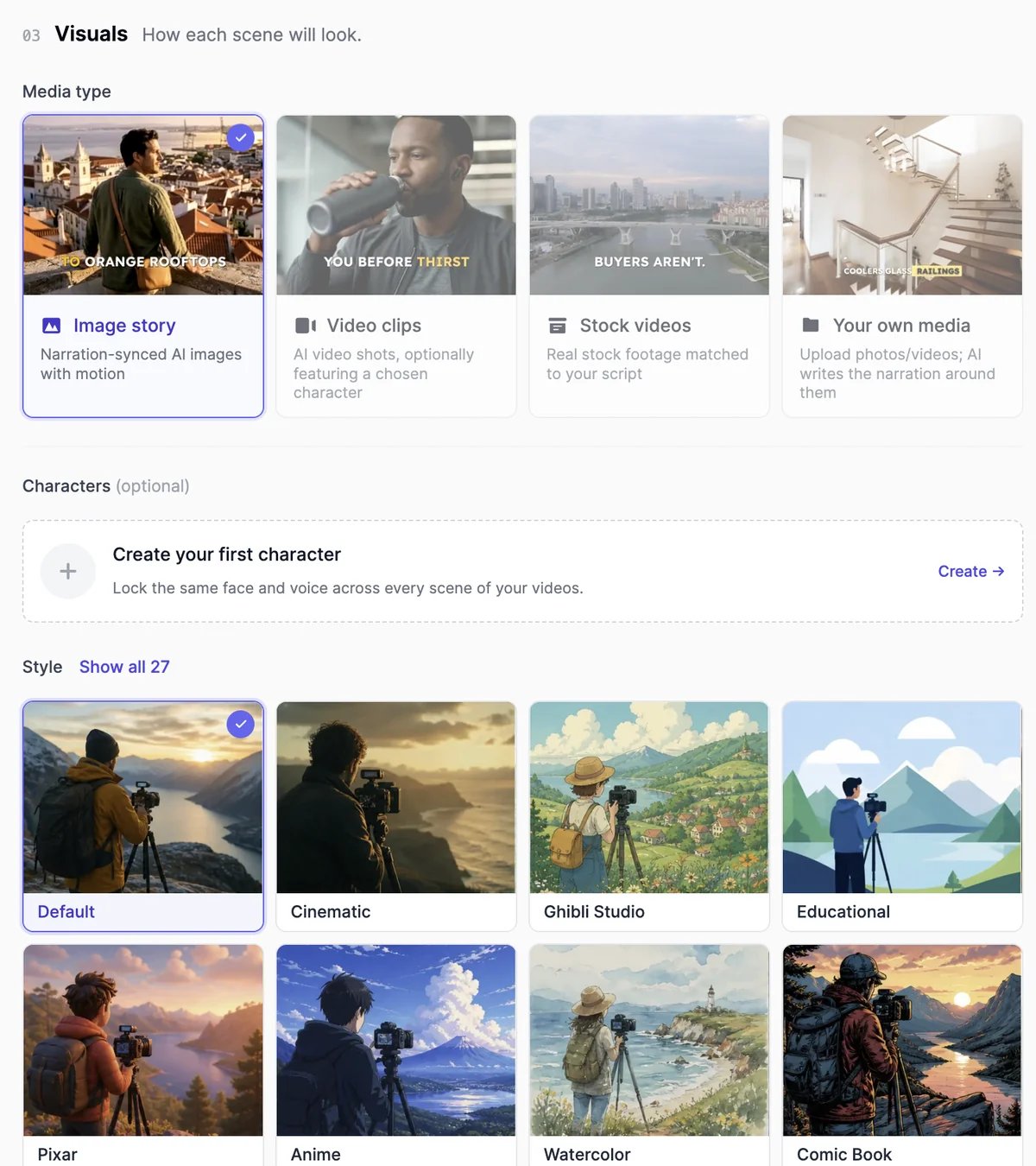
| **Image story** (default) | An AI image for each scene, with motion, timed to the narration. |
| **Video clips** | An AI video clip for each scene. Pick the **Video model**; each shows its price per second. Paid plans only. |
| **Stock videos** | Real stock footage that matches your script. |
| **Your own media** | Up to 20 of your own photos and videos, 50 MB each, with narration written around them. **Enhance photos** improves them with AI, and **Turn images into videos** animates each photo (paid plans). |
**Characters (optional)** puts the same person, with the same face, in every scene: pick one of your [custom actors](/docs/videos/talking-videos#your-own-actors) or create one. **Style** sets the look, from **Cinematic** to **Anime** or **Watercolor**; **Show all 27** lists them all.
| Media type | What the scenes are made of |
| ------------------------- | --------------------------------------------------------------------------------------------------------------------------------------------------------------------------------------------------- |
| **Image story** (default) | An AI image for each scene, with motion, timed to the narration. |
| **Video clips** | An AI video clip for each scene. Pick the **Video model**; each shows its price per second. Paid plans only. |
| **Stock videos** | Real stock footage that matches your script. |
| **Your own media** | Up to 20 of your own photos and videos, 50 MB each, with narration written around them. **Enhance photos** improves them with AI, and **Turn images into videos** animates each photo (paid plans). |
**Characters (optional)** puts the same person, with the same face, in every scene: pick one of your [custom actors](/docs/videos/talking-videos#your-own-actors) or create one. **Style** sets the look, from **Cinematic** to **Anime** or **Watercolor**; **Show all 27** lists them all.
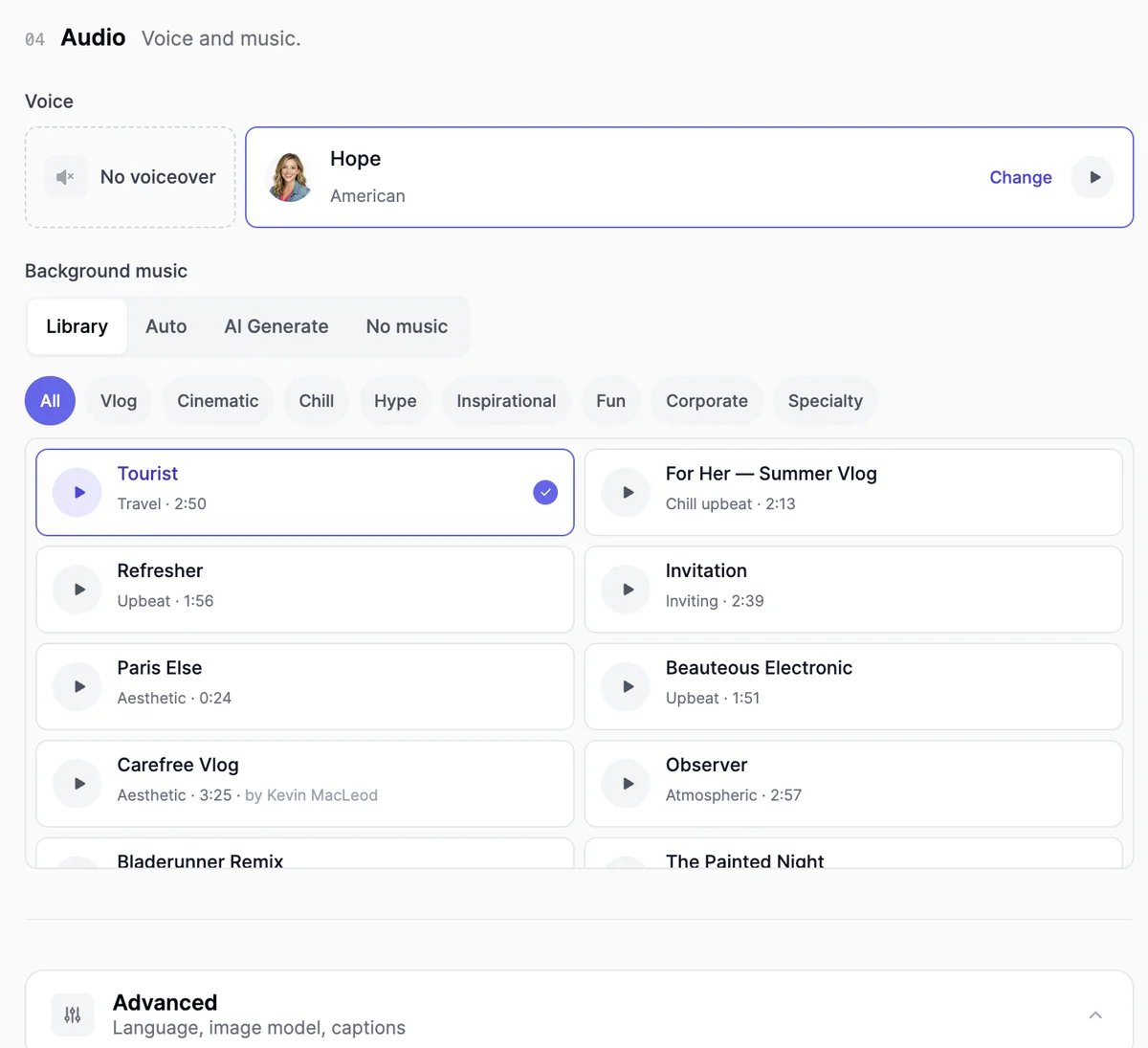 * **Voice**: the narrator. Click **Change** to pick another voice, or choose **No voiceover**.
* **Background music**: pick a track from the **Library**, let the agent choose (**Auto**), describe a track to create (**AI Generate**, always instrumental), or choose **No music**.
Open **Advanced** to set:
* **Language** of the narration and captions. **Auto** follows your idea.
* **Image model** for image scenes. The default is **GPT Image 2.5 Flare Medium**.
* **Captions** on or off, and the **Caption style**: **Viral** (the default), **Hormozi**, **Wrap**, **Faceless**, **Classic**, or **Minimal**. You can change the style later in the editor.
The agent starts working and takes you to the **AI Video Editor**, where your project shows **Generating** with a timer. It usually takes 2 to 5 minutes, longer for long videos, and you can leave the page in the meantime.
* **Voice**: the narrator. Click **Change** to pick another voice, or choose **No voiceover**.
* **Background music**: pick a track from the **Library**, let the agent choose (**Auto**), describe a track to create (**AI Generate**, always instrumental), or choose **No music**.
Open **Advanced** to set:
* **Language** of the narration and captions. **Auto** follows your idea.
* **Image model** for image scenes. The default is **GPT Image 2.5 Flare Medium**.
* **Captions** on or off, and the **Caption style**: **Viral** (the default), **Hormozi**, **Wrap**, **Faceless**, **Classic**, or **Minimal**. You can change the style later in the editor.
The agent starts working and takes you to the **AI Video Editor**, where your project shows **Generating** with a timer. It usually takes 2 to 5 minutes, longer for long videos, and you can leave the page in the meantime.
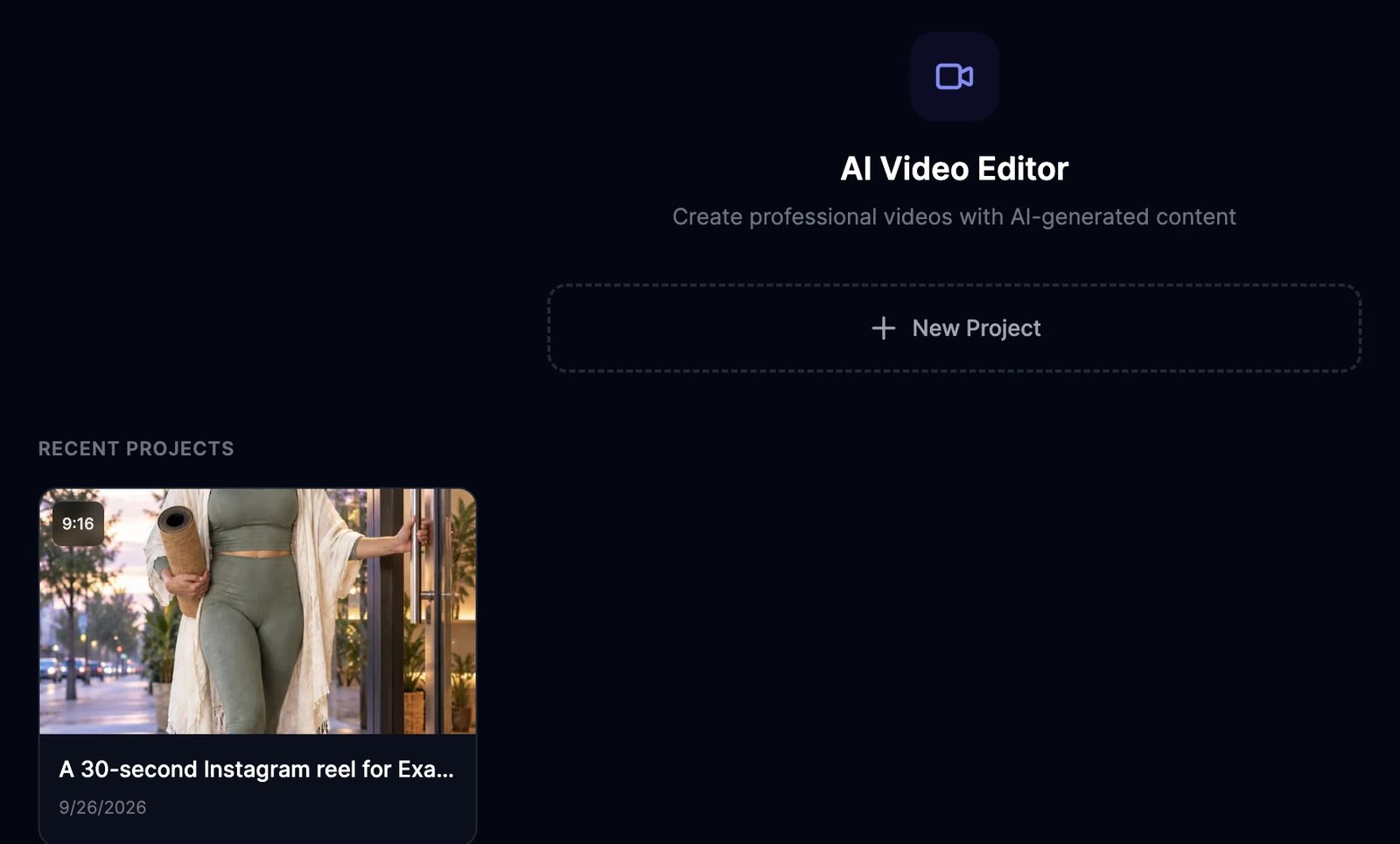 When it's done, click the project to open it. The video is laid out on tracks for the scenes, on-screen text, music, narration, and captions. Watch it, change what you want, and **Export** it as an MP4. See [Video Editor](/docs/videos/video-editor).
## Credits
There's no total price before you start. Each part is charged as it's made:
| Part | Cost |
| -------------------------------- | -------------------------------------------------------------------------------------------- |
| Scene images | The image model's price per image, 3 credits each with GPT Image 2.5 Flare Medium |
| Video clips | The video model's price per second, shown on each model. Clips without sound cost 20% less. |
| Stock videos and your own photos | Free |
| **Enhance photos** | 4 credits per photo |
| Voiceover | Text-to-speech characters: half the length of the narration |
| Music | **Library** tracks are free. **Auto** and **AI Generate** use 600 text-to-speech characters. |
| Script, captions, and planning | Free |
| Exporting the MP4 in the editor | 2 credits |
On paid plans, the agent checks your balance first and stops with a message if the video would need more credits than you have left. Try a shorter length or a cheaper video model.
If a project fails, it's marked **Generation failed**. Scenes that were already made are still charged; scenes that failed are not.
## On the Free plan
* **Image story**, **Stock videos**, and **Your own media** are available; **Video clips**, characters, and **Turn images into videos** need a paid plan.
* Background music comes from the **Library**.
* You can make 2 projects per billing period, and you need at least 1 credit left.
## Tips
* Say who the video is for and what the viewer should do at the end, such as "book a free class".
* Put names, prices, and times in your idea exactly as they should appear.
* If a scene isn't right, don't start over: open the project and [regenerate that scene](/docs/videos/video-editor#regenerate-a-clip-with-ai).
Edit and export the project.
A single presenter speaking to camera.
When it's done, click the project to open it. The video is laid out on tracks for the scenes, on-screen text, music, narration, and captions. Watch it, change what you want, and **Export** it as an MP4. See [Video Editor](/docs/videos/video-editor).
## Credits
There's no total price before you start. Each part is charged as it's made:
| Part | Cost |
| -------------------------------- | -------------------------------------------------------------------------------------------- |
| Scene images | The image model's price per image, 3 credits each with GPT Image 2.5 Flare Medium |
| Video clips | The video model's price per second, shown on each model. Clips without sound cost 20% less. |
| Stock videos and your own photos | Free |
| **Enhance photos** | 4 credits per photo |
| Voiceover | Text-to-speech characters: half the length of the narration |
| Music | **Library** tracks are free. **Auto** and **AI Generate** use 600 text-to-speech characters. |
| Script, captions, and planning | Free |
| Exporting the MP4 in the editor | 2 credits |
On paid plans, the agent checks your balance first and stops with a message if the video would need more credits than you have left. Try a shorter length or a cheaper video model.
If a project fails, it's marked **Generation failed**. Scenes that were already made are still charged; scenes that failed are not.
## On the Free plan
* **Image story**, **Stock videos**, and **Your own media** are available; **Video clips**, characters, and **Turn images into videos** need a paid plan.
* Background music comes from the **Library**.
* You can make 2 projects per billing period, and you need at least 1 credit left.
## Tips
* Say who the video is for and what the viewer should do at the end, such as "book a free class".
* Put names, prices, and times in your idea exactly as they should appear.
* If a scene isn't right, don't start over: open the project and [regenerate that scene](/docs/videos/video-editor#regenerate-a-clip-with-ai).
Edit and export the project.
A single presenter speaking to camera.