> ## Documentation Index
> Fetch the complete documentation index at: https://easy-peasy.ai/docs/llms.txt
> Use this file to discover all available pages before exploring further.
# Video Editor
> Arrange video, images, voiceover, music, text, and captions on a timeline, regenerate any clip with AI, and export an MP4.
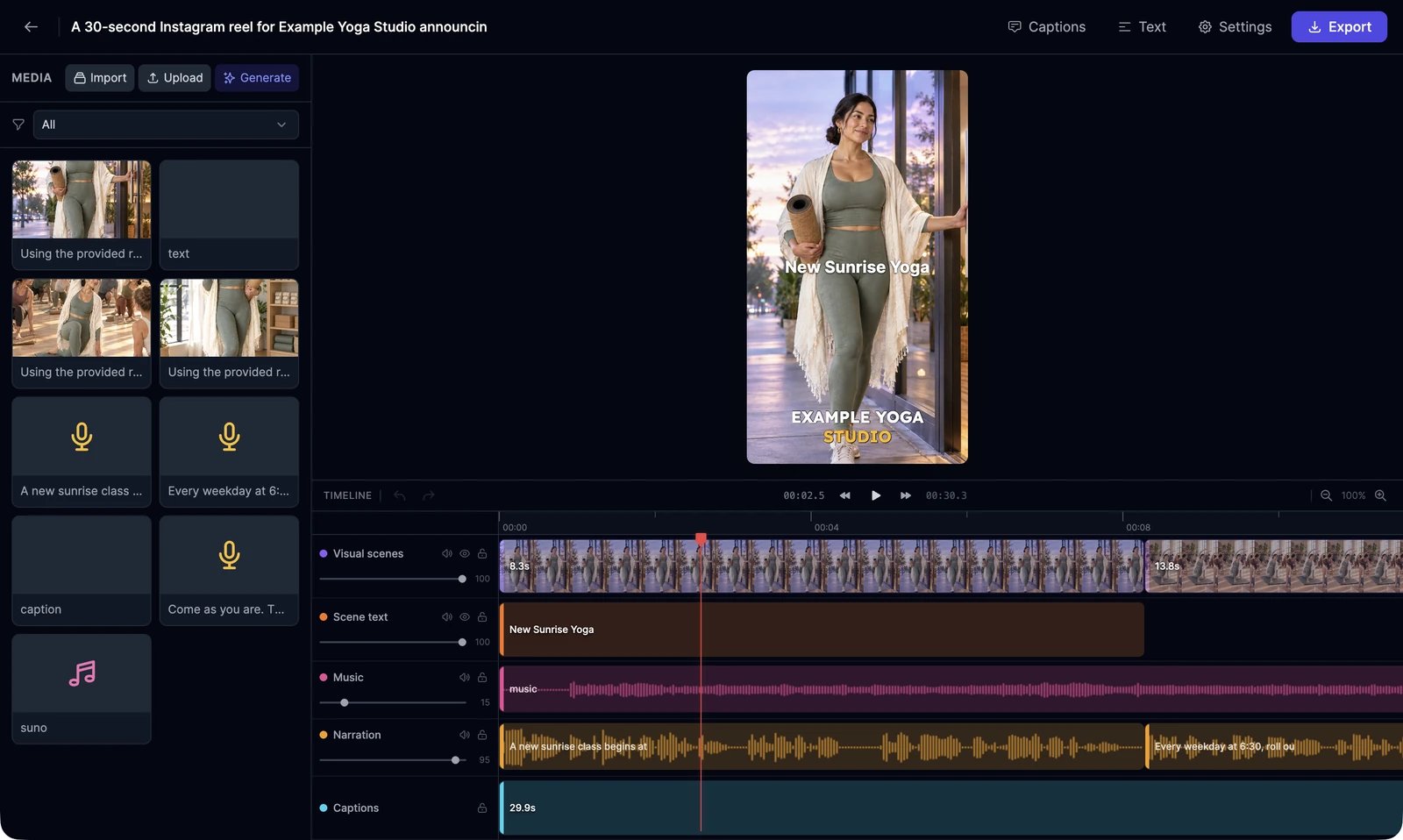
The Video Editor is where [Video Agent](/docs/videos/video-agent) projects open, and where you can build a video yourself from your clips, images, and audio. Every change saves automatically. The editor is in beta.
 ## Open or start a project
Open **Videos** > **Video Editor**. Your projects are under **Recent Projects**; click one to open it.
* **New Project** starts an empty project in 16:9.
* A project's menu has **Duplicate**, **Share with Team** (on Teams plans), and **Delete**. Deleting a project can't be undone.
To rename a project, click its title at the top. **Settings** changes the title and the **Aspect Ratio**: **16:9 Landscape**, **9:16 Portrait**, or **1:1 Square**.
## Add media
The **Media** panel on the left holds everything in the project.
| Button | What it does |
| ------------ | ------------------------------------------------------------------------------------------------------------------------------------------ |
| **Import** | Add your past videos, images, music, voiceovers, and sound effects from **Media Gallery**. Search by prompt and click **Add to Timeline**. |
| **Upload** | Add video, image, and audio files from your computer. |
| **Generate** | Open AI Images, AI Videos, talking videos, music, sound effects, or text to speech in a new tab to make something new, then import it. |
Click **Add** on a media card, or double-click it, to put it on the timeline.
## Work on the timeline
* **Move** a clip by dragging it. **Trim** it by dragging either edge. Clips on the same track can't overlap.
* **Play**, pause, and jump 5 seconds back or forward with the controls above the tracks.
* **Delete** removes the selected clip. You can also press Delete or Backspace.
* **Undo** and **Redo**: Ctrl+Z and Ctrl+Shift+Z (⌘ on a Mac).
* **Zoom** the timeline from 25% to 400%.
* Each track can be muted, hidden, or locked, and has its own volume.
## Change a clip
Click a clip to open **Clip Properties**.
| Clip | What you can change |
| ----- | ------------------------------------------------------------------------------------------------------------ |
| Video | **Volume**, **Fade In**, **Fade Out** |
| Image | **Animation Presets**, **Motion**, how it comes **In** and goes **Out**, and **Fit** (Fill or Fit) |
| Audio | **Volume**, **Fade In**, **Fade Out** |
| Text | The text, **Font**, **Size**, **Weight**, **Color**, **Position**, **Align**, **Offset**, and **Background** |
**Text** at the top adds a new text clip.
## Regenerate a clip with AI
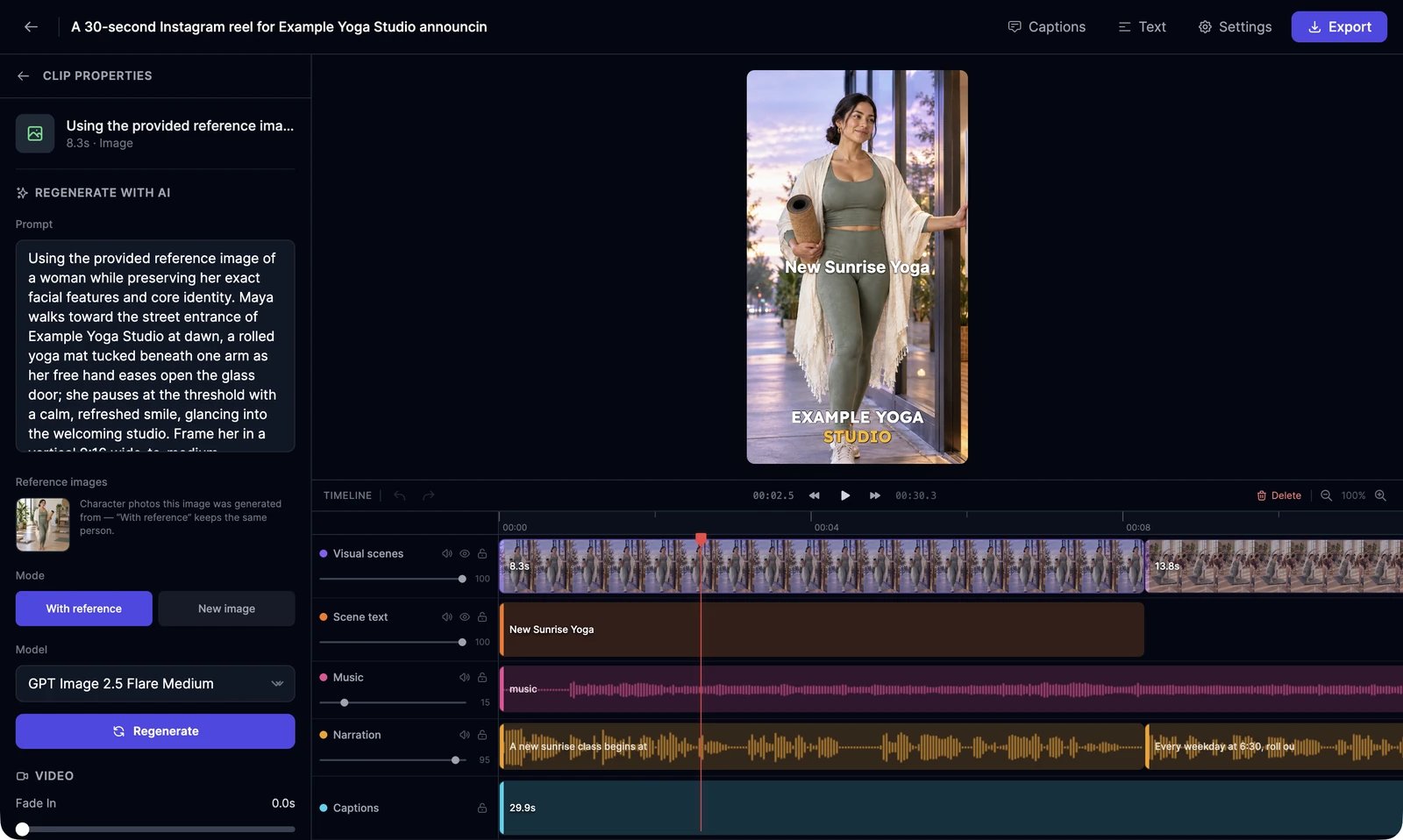
Not happy with one scene? Select it and use **Regenerate with AI** at the top of **Clip Properties**. You don't have to remake the whole video.
## Open or start a project
Open **Videos** > **Video Editor**. Your projects are under **Recent Projects**; click one to open it.
* **New Project** starts an empty project in 16:9.
* A project's menu has **Duplicate**, **Share with Team** (on Teams plans), and **Delete**. Deleting a project can't be undone.
To rename a project, click its title at the top. **Settings** changes the title and the **Aspect Ratio**: **16:9 Landscape**, **9:16 Portrait**, or **1:1 Square**.
## Add media
The **Media** panel on the left holds everything in the project.
| Button | What it does |
| ------------ | ------------------------------------------------------------------------------------------------------------------------------------------ |
| **Import** | Add your past videos, images, music, voiceovers, and sound effects from **Media Gallery**. Search by prompt and click **Add to Timeline**. |
| **Upload** | Add video, image, and audio files from your computer. |
| **Generate** | Open AI Images, AI Videos, talking videos, music, sound effects, or text to speech in a new tab to make something new, then import it. |
Click **Add** on a media card, or double-click it, to put it on the timeline.
## Work on the timeline
* **Move** a clip by dragging it. **Trim** it by dragging either edge. Clips on the same track can't overlap.
* **Play**, pause, and jump 5 seconds back or forward with the controls above the tracks.
* **Delete** removes the selected clip. You can also press Delete or Backspace.
* **Undo** and **Redo**: Ctrl+Z and Ctrl+Shift+Z (⌘ on a Mac).
* **Zoom** the timeline from 25% to 400%.
* Each track can be muted, hidden, or locked, and has its own volume.
## Change a clip
Click a clip to open **Clip Properties**.
| Clip | What you can change |
| ----- | ------------------------------------------------------------------------------------------------------------ |
| Video | **Volume**, **Fade In**, **Fade Out** |
| Image | **Animation Presets**, **Motion**, how it comes **In** and goes **Out**, and **Fit** (Fill or Fit) |
| Audio | **Volume**, **Fade In**, **Fade Out** |
| Text | The text, **Font**, **Size**, **Weight**, **Color**, **Position**, **Align**, **Offset**, and **Background** |
**Text** at the top adds a new text clip.
## Regenerate a clip with AI
Not happy with one scene? Select it and use **Regenerate with AI** at the top of **Clip Properties**. You don't have to remake the whole video.
 | Clip | How to regenerate it | Cost |
| ------------ | ------------------------------------------------------------------------------------------------------------------- | -------------------------------------------------------- |
| Image | Edit the prompt, choose **With reference** to keep the same person or **New image**, and pick a model. | The image model's price |
| Video | Choose **Re-animate frame** or **New video**, pick a model, and set a length from 2 to 15 seconds. Paid plans only. | Shown on **Regenerate · N credits** |
| Voiceover | Edit the **Script** and pick a **Voice**. The timeline and captions adjust to the new length. | Text-to-speech characters: half the length of the script |
| Music | Describe the music in **Music description**. | 600 text-to-speech characters |
| Sound effect | Describe the sound in **Sound description**. | 1,000 text-to-speech characters |
## Captions
Click **Captions** to caption your video. **Generate Captions** transcribes the voiceover and video clips you select, in the language you choose or with **Auto-detect**. Captions are free, but you need at least 1 credit left to make them.
Click a caption clip to style it in **Caption Properties**: the style, position, font size, how many words show at once (**Words per page**), and the **Highlight Color** of the word being spoken. **Apply style to all captions** copies the style to every caption. To fix words or timing, click **Edit caption text**: edit each line and its start and end times, merge or split lines, or use **Find** and **Replace with**.
## Export your video
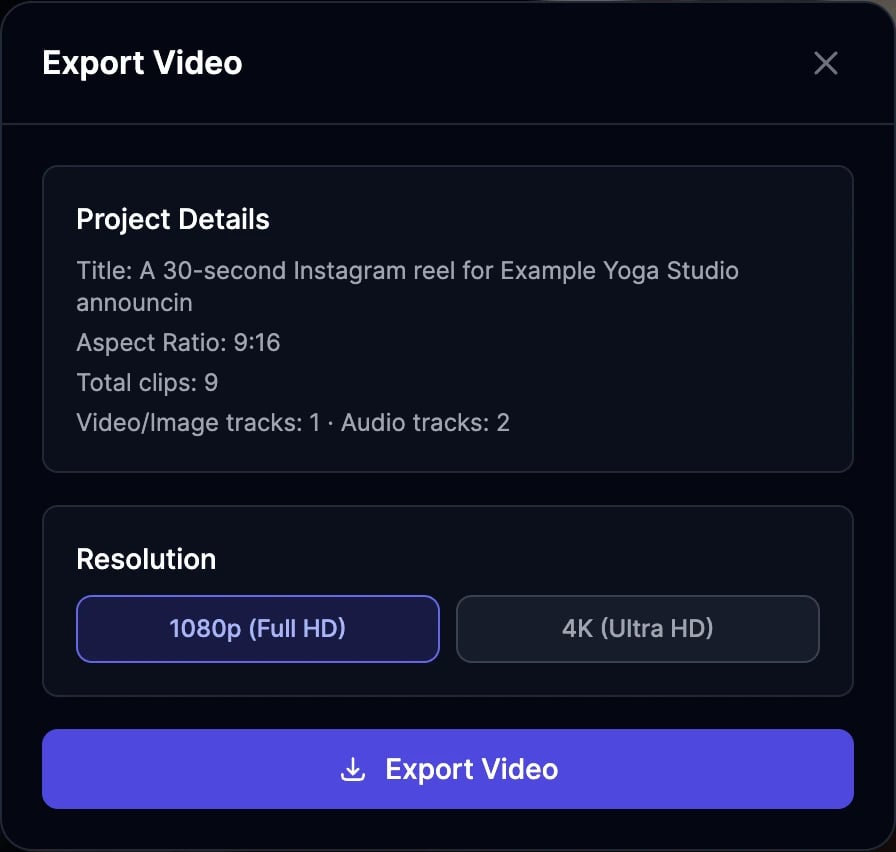
**Export Video** shows the project details. Choose **1080p (Full HD)** or **4K (Ultra HD)**.
| Clip | How to regenerate it | Cost |
| ------------ | ------------------------------------------------------------------------------------------------------------------- | -------------------------------------------------------- |
| Image | Edit the prompt, choose **With reference** to keep the same person or **New image**, and pick a model. | The image model's price |
| Video | Choose **Re-animate frame** or **New video**, pick a model, and set a length from 2 to 15 seconds. Paid plans only. | Shown on **Regenerate · N credits** |
| Voiceover | Edit the **Script** and pick a **Voice**. The timeline and captions adjust to the new length. | Text-to-speech characters: half the length of the script |
| Music | Describe the music in **Music description**. | 600 text-to-speech characters |
| Sound effect | Describe the sound in **Sound description**. | 1,000 text-to-speech characters |
## Captions
Click **Captions** to caption your video. **Generate Captions** transcribes the voiceover and video clips you select, in the language you choose or with **Auto-detect**. Captions are free, but you need at least 1 credit left to make them.
Click a caption clip to style it in **Caption Properties**: the style, position, font size, how many words show at once (**Words per page**), and the **Highlight Color** of the word being spoken. **Apply style to all captions** copies the style to every caption. To fix words or timing, click **Edit caption text**: edit each line and its start and end times, merge or split lines, or use **Find** and **Replace with**.
## Export your video
**Export Video** shows the project details. Choose **1080p (Full HD)** or **4K (Ultra HD)**.
 Rendering takes a few minutes and shows its progress. Keep the editor open until it finishes; you can close the export window itself.
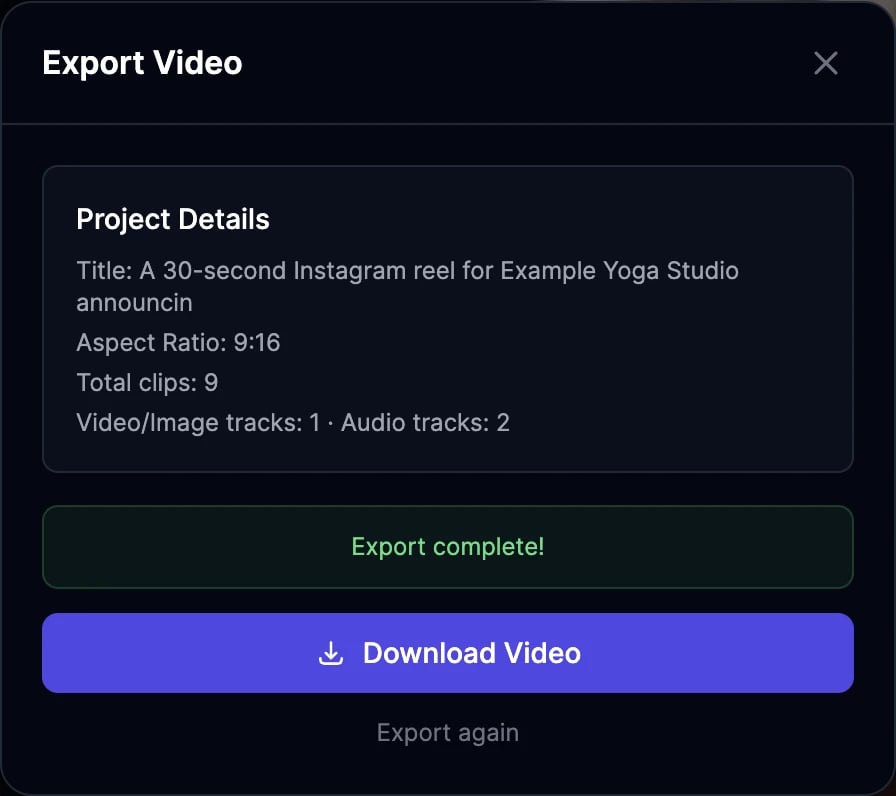
When you see **Export complete!**, click **Download Video**. The MP4 is also saved in **History** > **Videos**.
Rendering takes a few minutes and shows its progress. Keep the editor open until it finishes; you can close the export window itself.
When you see **Export complete!**, click **Download Video**. The MP4 is also saved in **History** > **Videos**.
 Each export costs 2 image & video credits. Videos are exported as MP4 at 30 frames per second: 1920 × 1080 for landscape, 1080 × 1920 for portrait, and 1080 × 1080 for square, or twice that in 4K.
Start a project from one sentence.
Find, download, and share your exports.
Each export costs 2 image & video credits. Videos are exported as MP4 at 30 frames per second: 1920 × 1080 for landscape, 1080 × 1920 for portrait, and 1080 × 1080 for square, or twice that in 4K.
Start a project from one sentence.
Find, download, and share your exports.