> ## Documentation Index
> Fetch the complete documentation index at: https://easy-peasy.ai/docs/llms.txt
> Use this file to discover all available pages before exploring further.
# Build and run a workflow
> Add nodes to the canvas, connect them, pass results between them with @ references, and run them.
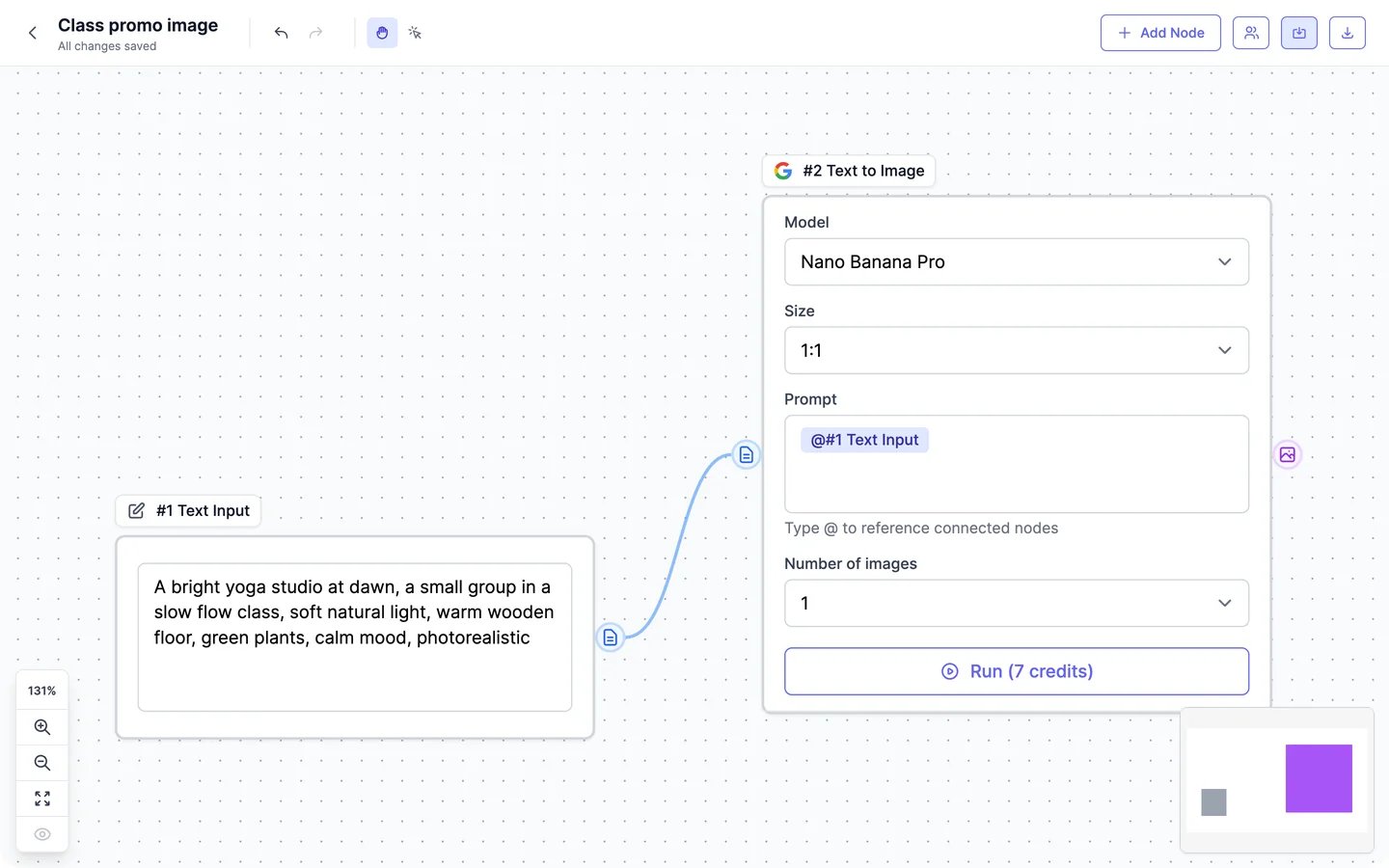
This page builds a two-step workflow: a text description goes into an image model, which makes a promo image for a yoga class.
 ## Build a workflow
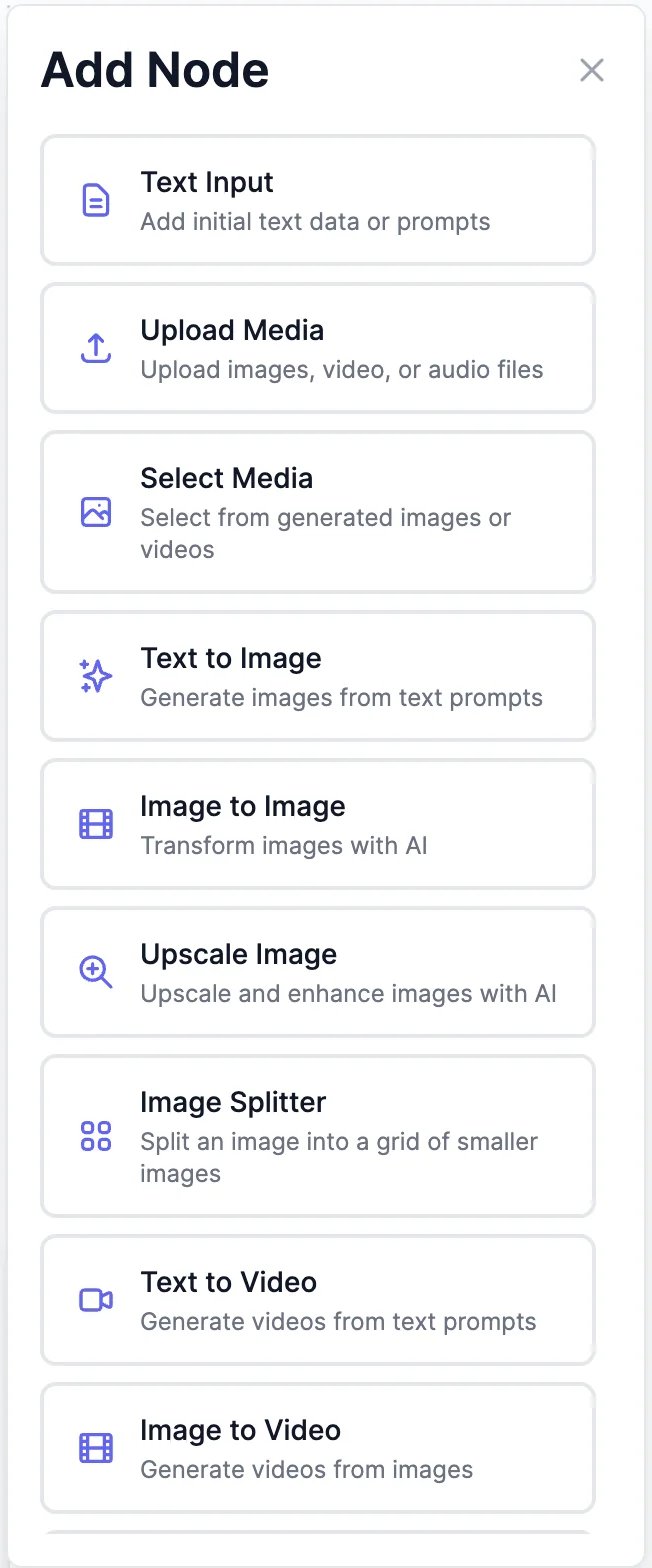
Click **Add Node** at the top right and pick one, such as **Text Input**. It appears in the middle of the canvas.
## Build a workflow
Click **Add Node** at the top right and pick one, such as **Text Input**. It appears in the middle of the canvas.
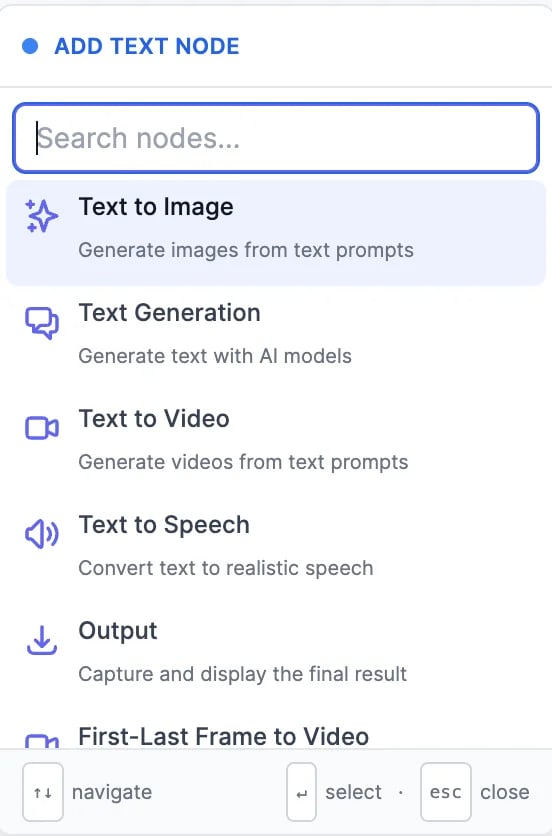
 Drag from the round handle on the right of a node to the left handle of another. Or drop the connection on an empty spot: a list of nodes that can take that output opens, with a search box.
 Handles are colored by type: blue for text, purple for images, cyan for video, and indigo for audio. You can only connect matching types.
Connecting into a prompt adds a reference like `@#1 Text Input`. When the workflow runs, the reference is replaced by that node's result. Type `@` in any prompt to reference another connected node, and add your own words around it, for example: "`@#1 Text Input`, in the style of a watercolor painting".
Pick the model and settings in each node. The **Run** button shows what a node costs before you run it.
## Run a workflow
Click **Run** in a node, or the ▶ in its header. Before it runs, any node it depends on that doesn't have a result yet runs first, so running the last node runs the whole chain. Nodes that don't depend on each other run at the same time.
Handles are colored by type: blue for text, purple for images, cyan for video, and indigo for audio. You can only connect matching types.
Connecting into a prompt adds a reference like `@#1 Text Input`. When the workflow runs, the reference is replaced by that node's result. Type `@` in any prompt to reference another connected node, and add your own words around it, for example: "`@#1 Text Input`, in the style of a watercolor painting".
Pick the model and settings in each node. The **Run** button shows what a node costs before you run it.
## Run a workflow
Click **Run** in a node, or the ▶ in its header. Before it runs, any node it depends on that doesn't have a result yet runs first, so running the last node runs the whole chain. Nodes that don't depend on each other run at the same time.
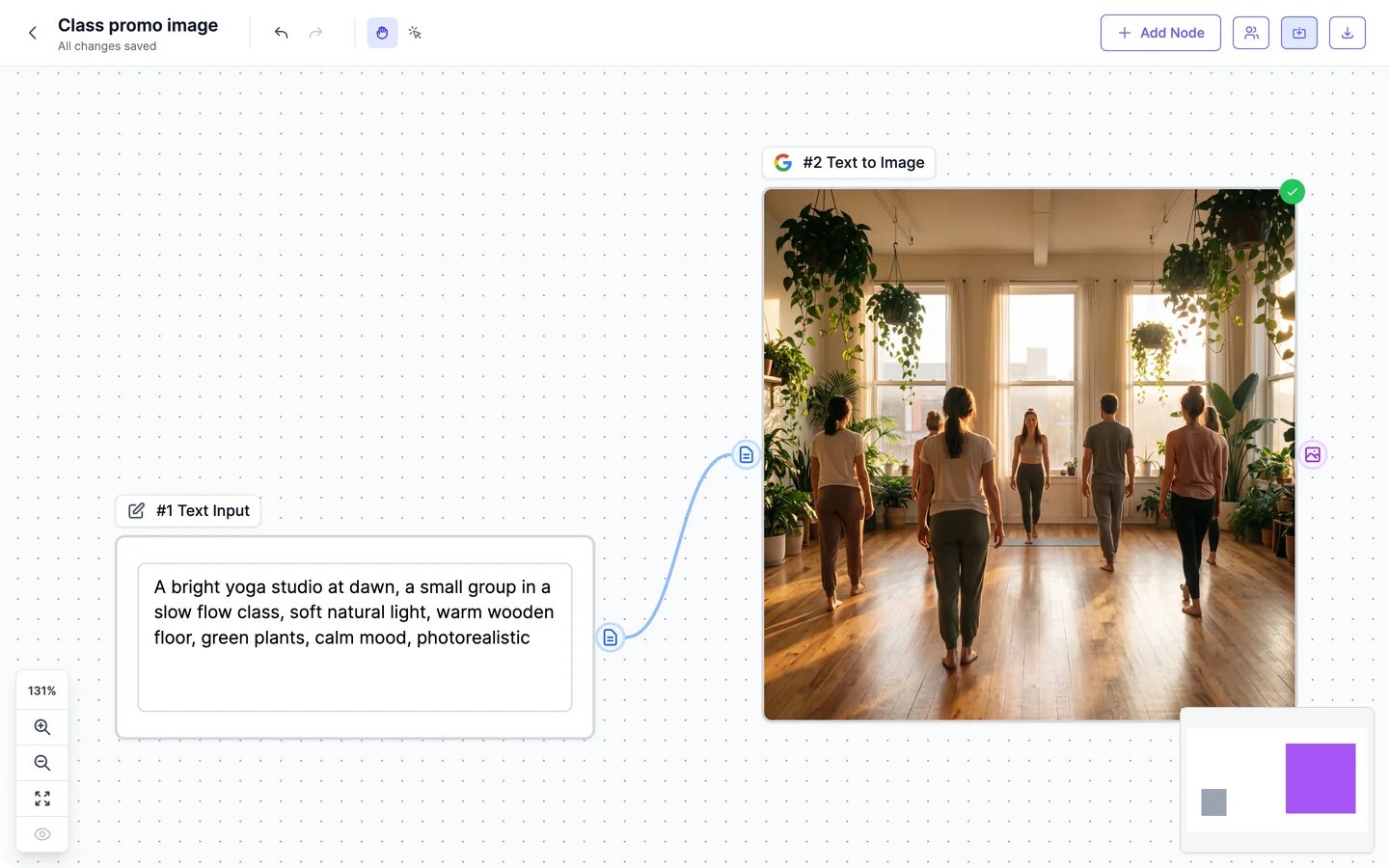 * A running node has a blue border. A finished one gets a green check, and its settings fold away; click the node's settings icon to show them again.
* A node that fails turns red and shows why, for example a missing prompt or a model that isn't on your plan.
* Results stay in the node. Open or download them from the node's menu. Images and videos you make also appear in [AI Images](/docs/ai-images/manage) and [AI Videos](/docs/videos/manage), and in History.
**To make a new version**, change the input and click **Regenerate** on the node you want to redo. Nodes that already have a result are reused, not run again, so regenerate each node you want to change.
Workflows run in your browser. Keep the page open until your nodes finish; if you leave, the page warns you, and nodes that were still running stop updating.
## Nodes
| Node | What it does |
| ---------------- | -------------------------------------------------------------------------------------------------------------------------------------------- |
| **Text Input** | Text you type, such as a topic, a script, or a prompt |
| **Upload Media** | An image (up to 10 MB), video (up to 50 MB), or audio file (up to 20 MB) from your computer. Upload several files and each gets its own node |
| **Select Media** | An image or video you made before in AI Images or AI Videos |
| Node | What it does |
| ------------------ | ------------------------------------------------------------------------------------------------------------------ |
| **Text to Image** | Makes 1 to 4 images from a prompt, with any [image model](/docs/ai-images/models). Extra images each get their own node |
| **Image to Image** | Edits connected images with an instruction, like [editing in AI Images](/docs/ai-images/edit) |
| **Upscale Image** | Makes an image 2x or 4x larger, in **Crisp**, **Creative**, or **Restore old photo** mode |
| **Image Splitter** | Cuts an image into a grid of up to 5 by 5 pieces, each in its own node |
| Node | What it does |
| ----------------------------- | ------------------------------------------------------------------------------------------------------------------ |
| **Text to Video** | Makes a video from a prompt |
| **Image to Video** | Animates an image, with an optional prompt |
| **First-Last Frame to Video** | Makes a video that moves from a first frame to a last frame |
| **References to Video** | Makes a video that keeps the characters or products from reference images |
| **Merge Videos** | Joins connected videos into one, in the order you set |
| **Talking Video** | Makes a person in an image or video speak a script or an audio file, like [talking videos](/docs/videos/talking-videos) |
Video nodes have the same models, lengths, aspect ratios, and resolutions as [AI Videos](/docs/videos/models). Their outputs include the video's first and last frames, to chain clips together.
| Node | What it does |
| -------------------- | -------------------------------------------------------------------------------------------------------------- |
| **Text Generation** | Writes text from a prompt, and can read a connected image. Choose the model, and add an optional system prompt |
| **Text Preset** | Runs one of the [tools](/docs/tools/overview), with its own fields |
| **Text to Speech** | Reads connected or typed text aloud in a voice you pick |
| **Music Generation** | Makes a song or instrumental from a description, or from your style and lyrics |
| Node | What it does |
| ---------- | ---------------------------------------------------------------------- |
| **Note** | A sticky note for instructions or comments. It doesn't run |
| **Output** | Shows a final result. Add it by dropping a connection on an empty spot |
Select several nodes and click **Group** (or press Cmd/Ctrl + G) to put them in a group you can color, lock, and move together.
In **Text Generation**, **Text to Speech**, and **Talking Video**, choose the model or voice yourself before running, rather than relying on the one shown.
## Work on the canvas
| To | Do this |
| ------------------------ | ------------------------------------------------------------ |
| Move around | Scroll, or drag the canvas in pan mode (the hand icon) |
| Select several nodes | Switch to select mode (the arrow icon) and drag a box |
| Zoom | Pinch, the + and − buttons, or Cmd/Ctrl + = and Cmd/Ctrl + − |
| Fit everything on screen | Cmd/Ctrl + 0 |
| Undo or redo | Cmd/Ctrl + Z, and Cmd/Ctrl + Shift + Z |
| Rename a node | Double-click its title |
| Copy or delete a node | Use the buttons, or the ⋯ menu, on the node |
The top bar shows **All changes saved** once your edits are saved. The download button exports the workflow as a file.
## What each node costs
Each node uses the same allowance, at the same price, as the feature it runs.
| Nodes | Use |
| ---------------------------------------------------------------------------------- | ----------------------------------------------------------------------------------------------- |
| Text to Image, Image to Image, Upscale Image, video nodes, Talking Video | Image & video credits, shown on the **Run** button. Upscaling costs 2 credits at 2x and 4 at 4x |
| Text Generation, Text Preset | Words, like [Marky](/docs/marky/models) and [tools](/docs/tools/models) |
| Text to Speech | Text-to-speech characters, one per character |
| Music Generation | 600 text-to-speech characters per song |
| Text Input, Upload Media, Select Media, Image Splitter, Merge Videos, Note, Output | Free |
Whoever runs a node pays for it, including in a [shared workflow](/docs/workflows/share).
On the Free plan, a node set to a premium model fails with a message to upgrade. Pick a model that's available on Free; the default image model, Nano Banana Pro, isn't. See [Plans and credits](/docs/account/plans-and-credits#the-free-plan).
Invite people and edit together.
Templates, import, and export.
* A running node has a blue border. A finished one gets a green check, and its settings fold away; click the node's settings icon to show them again.
* A node that fails turns red and shows why, for example a missing prompt or a model that isn't on your plan.
* Results stay in the node. Open or download them from the node's menu. Images and videos you make also appear in [AI Images](/docs/ai-images/manage) and [AI Videos](/docs/videos/manage), and in History.
**To make a new version**, change the input and click **Regenerate** on the node you want to redo. Nodes that already have a result are reused, not run again, so regenerate each node you want to change.
Workflows run in your browser. Keep the page open until your nodes finish; if you leave, the page warns you, and nodes that were still running stop updating.
## Nodes
| Node | What it does |
| ---------------- | -------------------------------------------------------------------------------------------------------------------------------------------- |
| **Text Input** | Text you type, such as a topic, a script, or a prompt |
| **Upload Media** | An image (up to 10 MB), video (up to 50 MB), or audio file (up to 20 MB) from your computer. Upload several files and each gets its own node |
| **Select Media** | An image or video you made before in AI Images or AI Videos |
| Node | What it does |
| ------------------ | ------------------------------------------------------------------------------------------------------------------ |
| **Text to Image** | Makes 1 to 4 images from a prompt, with any [image model](/docs/ai-images/models). Extra images each get their own node |
| **Image to Image** | Edits connected images with an instruction, like [editing in AI Images](/docs/ai-images/edit) |
| **Upscale Image** | Makes an image 2x or 4x larger, in **Crisp**, **Creative**, or **Restore old photo** mode |
| **Image Splitter** | Cuts an image into a grid of up to 5 by 5 pieces, each in its own node |
| Node | What it does |
| ----------------------------- | ------------------------------------------------------------------------------------------------------------------ |
| **Text to Video** | Makes a video from a prompt |
| **Image to Video** | Animates an image, with an optional prompt |
| **First-Last Frame to Video** | Makes a video that moves from a first frame to a last frame |
| **References to Video** | Makes a video that keeps the characters or products from reference images |
| **Merge Videos** | Joins connected videos into one, in the order you set |
| **Talking Video** | Makes a person in an image or video speak a script or an audio file, like [talking videos](/docs/videos/talking-videos) |
Video nodes have the same models, lengths, aspect ratios, and resolutions as [AI Videos](/docs/videos/models). Their outputs include the video's first and last frames, to chain clips together.
| Node | What it does |
| -------------------- | -------------------------------------------------------------------------------------------------------------- |
| **Text Generation** | Writes text from a prompt, and can read a connected image. Choose the model, and add an optional system prompt |
| **Text Preset** | Runs one of the [tools](/docs/tools/overview), with its own fields |
| **Text to Speech** | Reads connected or typed text aloud in a voice you pick |
| **Music Generation** | Makes a song or instrumental from a description, or from your style and lyrics |
| Node | What it does |
| ---------- | ---------------------------------------------------------------------- |
| **Note** | A sticky note for instructions or comments. It doesn't run |
| **Output** | Shows a final result. Add it by dropping a connection on an empty spot |
Select several nodes and click **Group** (or press Cmd/Ctrl + G) to put them in a group you can color, lock, and move together.
In **Text Generation**, **Text to Speech**, and **Talking Video**, choose the model or voice yourself before running, rather than relying on the one shown.
## Work on the canvas
| To | Do this |
| ------------------------ | ------------------------------------------------------------ |
| Move around | Scroll, or drag the canvas in pan mode (the hand icon) |
| Select several nodes | Switch to select mode (the arrow icon) and drag a box |
| Zoom | Pinch, the + and − buttons, or Cmd/Ctrl + = and Cmd/Ctrl + − |
| Fit everything on screen | Cmd/Ctrl + 0 |
| Undo or redo | Cmd/Ctrl + Z, and Cmd/Ctrl + Shift + Z |
| Rename a node | Double-click its title |
| Copy or delete a node | Use the buttons, or the ⋯ menu, on the node |
The top bar shows **All changes saved** once your edits are saved. The download button exports the workflow as a file.
## What each node costs
Each node uses the same allowance, at the same price, as the feature it runs.
| Nodes | Use |
| ---------------------------------------------------------------------------------- | ----------------------------------------------------------------------------------------------- |
| Text to Image, Image to Image, Upscale Image, video nodes, Talking Video | Image & video credits, shown on the **Run** button. Upscaling costs 2 credits at 2x and 4 at 4x |
| Text Generation, Text Preset | Words, like [Marky](/docs/marky/models) and [tools](/docs/tools/models) |
| Text to Speech | Text-to-speech characters, one per character |
| Music Generation | 600 text-to-speech characters per song |
| Text Input, Upload Media, Select Media, Image Splitter, Merge Videos, Note, Output | Free |
Whoever runs a node pays for it, including in a [shared workflow](/docs/workflows/share).
On the Free plan, a node set to a premium model fails with a message to upgrade. Pick a model that's available on Free; the default image model, Nano Banana Pro, isn't. See [Plans and credits](/docs/account/plans-and-credits#the-free-plan).
Invite people and edit together.
Templates, import, and export.