> ## Documentation Index
> Fetch the complete documentation index at: https://easy-peasy.ai/docs/llms.txt
> Use this file to discover all available pages before exploring further.
# Workflows
> Chain AI steps on a visual canvas, from text to images, videos, speech, and music, and reuse the whole chain with new inputs.
**Workflows** let you connect AI steps on a canvas, so the result of one step feeds the next. Write a script, turn it into images, animate them, add a voiceover, and merge the clips, then change the first step and run it all again.
Each step is a **node**: a text input, an image or video model, a tool, text to speech, and more. You build the chain once and reuse it whenever you need the same kind of result.
Workflows are in beta, and the editor works on desktop screens only.
## Open Workflows
Click **Workflows** in the sidebar, or find it in **All Tools** > **AI Agents**.
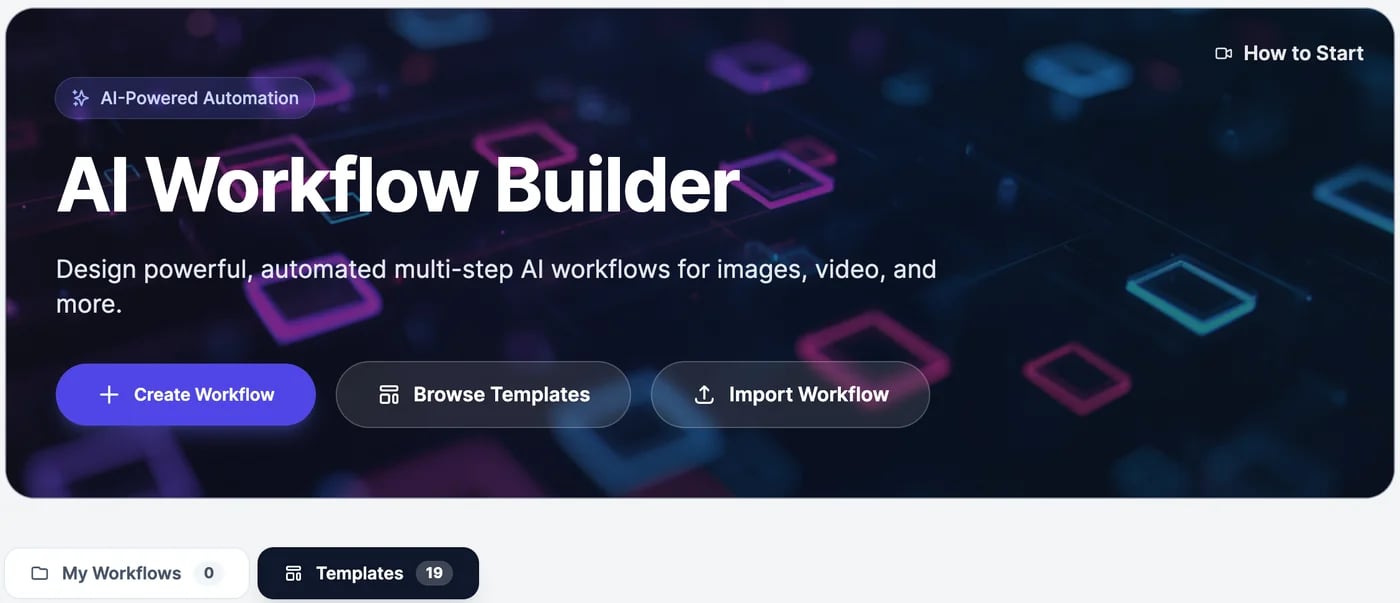 * **My Workflows** lists your workflows. Search finds them by name.
* **Shared with me** lists workflows other people shared with you. It appears once someone does.
* **Templates** has ready-made workflows for images and videos, such as virtual try-on, virtual staging, a product commercial, and an animated short film.
**How to Start** plays a short video tour.
## Create a workflow
Click **Create Workflow**. An empty canvas opens, named with today's date. Click the name at the top to rename it. See [Build and run a workflow](/docs/workflows/build).
Click **Browse Templates**, then a template to preview it. Click **Use Template** at the top right to copy it into your workflows, then change the inputs and run it.
Click **Import Workflow** and choose a workflow `.json` file exported from Easy-Peasy.AI.
## Manage your workflows
Click the ⋯ menu on a workflow's card:
* **My Workflows** lists your workflows. Search finds them by name.
* **Shared with me** lists workflows other people shared with you. It appears once someone does.
* **Templates** has ready-made workflows for images and videos, such as virtual try-on, virtual staging, a product commercial, and an animated short film.
**How to Start** plays a short video tour.
## Create a workflow
Click **Create Workflow**. An empty canvas opens, named with today's date. Click the name at the top to rename it. See [Build and run a workflow](/docs/workflows/build).
Click **Browse Templates**, then a template to preview it. Click **Use Template** at the top right to copy it into your workflows, then change the inputs and run it.
Click **Import Workflow** and choose a workflow `.json` file exported from Easy-Peasy.AI.
## Manage your workflows
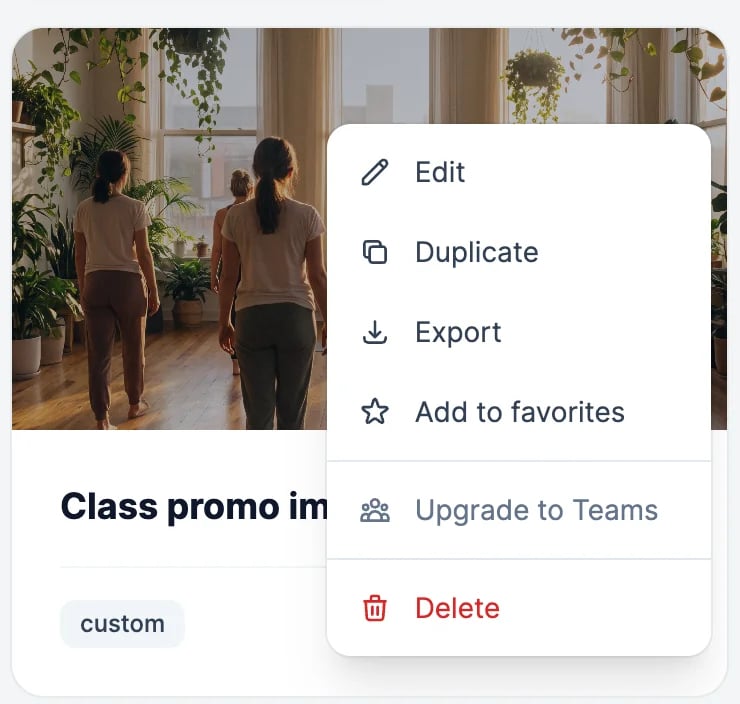
Click the ⋯ menu on a workflow's card:
 | Option | What it does |
| ------------------- | --------------------------------------------------------------------------------------------------- |
| **Edit** | Opens the workflow |
| **Duplicate** | Makes a copy, including the results already in its nodes |
| **Export** | Downloads the workflow as a `.json` file, to back it up or import it into another account |
| **Share with Team** | On a Teams plan, shares the workflow with your team. On other plans this reads **Upgrade to Teams** |
| **Delete** | Deletes the workflow. Only its owner can |
Workflows save automatically as you edit.
## What workflows cost
Workflows have no charge of their own, and there's no limit on how many you make. Each node uses the same allowance as the feature it runs: image and video nodes use image & video credits, text nodes use words, and speech and music use text-to-speech characters. Moving data between nodes, splitting images, and merging videos are free. See [Build and run a workflow](/docs/workflows/build#what-each-node-costs).
Add nodes, connect them, and run them.
Work on a workflow with other people.
| Option | What it does |
| ------------------- | --------------------------------------------------------------------------------------------------- |
| **Edit** | Opens the workflow |
| **Duplicate** | Makes a copy, including the results already in its nodes |
| **Export** | Downloads the workflow as a `.json` file, to back it up or import it into another account |
| **Share with Team** | On a Teams plan, shares the workflow with your team. On other plans this reads **Upgrade to Teams** |
| **Delete** | Deletes the workflow. Only its owner can |
Workflows save automatically as you edit.
## What workflows cost
Workflows have no charge of their own, and there's no limit on how many you make. Each node uses the same allowance as the feature it runs: image and video nodes use image & video credits, text nodes use words, and speech and music use text-to-speech characters. Moving data between nodes, splitting images, and merging videos are free. See [Build and run a workflow](/docs/workflows/build#what-each-node-costs).
Add nodes, connect them, and run them.
Work on a workflow with other people.