What if you could produce a polished, 25-second product commercial — complete with cinematic visuals, professional voiceover, and background music — without a camera, actors, or a production budget?
That’s exactly what we’ll build in this guide. You’ll learn how to use AI Workflows in Easy-Peasy.AI to go from a single product photo to a finished video ad, step by step.
Here’s the final result — a commercial for a fictional water brand called “Aura Active,” created entirely with AI:
Every frame, every word of narration, and every note of music in that video was generated by AI. Let’s walk through how it’s done.
What You’ll Need
Before you start, here’s what you’ll need:
- An Easy-Peasy.AI account (free to sign up)
- A product photo — a clean, well-lit image of whatever you’re advertising (a bottle, a gadget, a cosmetic, etc.)
- AI credits for image generation, video generation, text-to-speech, and music generation
No design experience, video editing skills, or fancy software needed. The workflow template handles the entire process.
How the Workflow Template Works
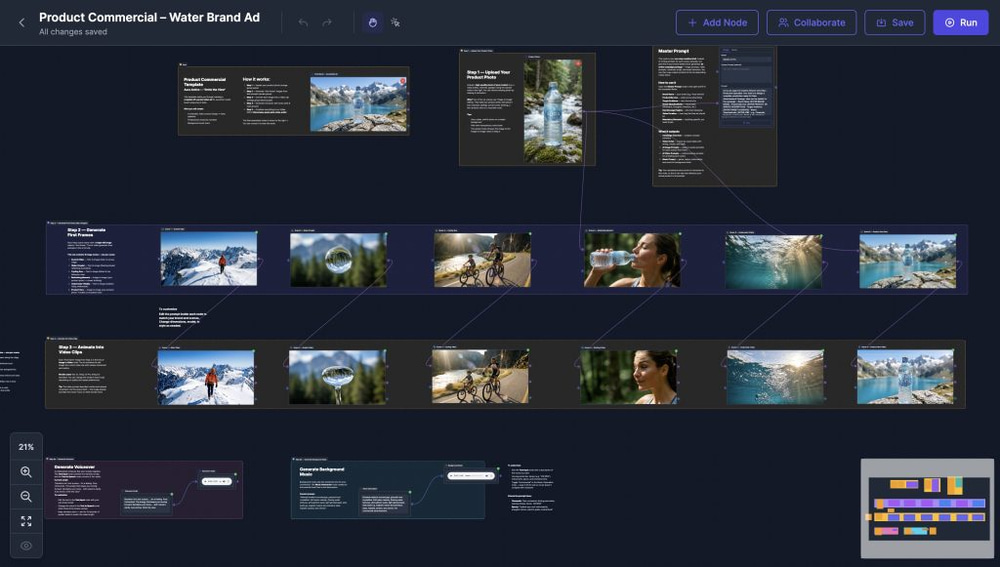
The Product Commercial template is a pre-built AI Workflow that organizes the entire ad creation process into clear steps. Each step is a group of connected AI nodes — you can see the prompts, tweak them, and run everything with a few clicks.
Here’s the high-level pipeline:
- Upload your product photo
- Generate 6 “first frame” images — the opening shot for each scene
- Animate each image into a video clip using AI video generators
- Generate voiceover narration from a script
- Generate background music from a text description
- Assemble everything in the AI Video Editor
Let’s go through each step in detail, including the exact prompts used and the results they produced.
Step 1: Upload Your Product Photo
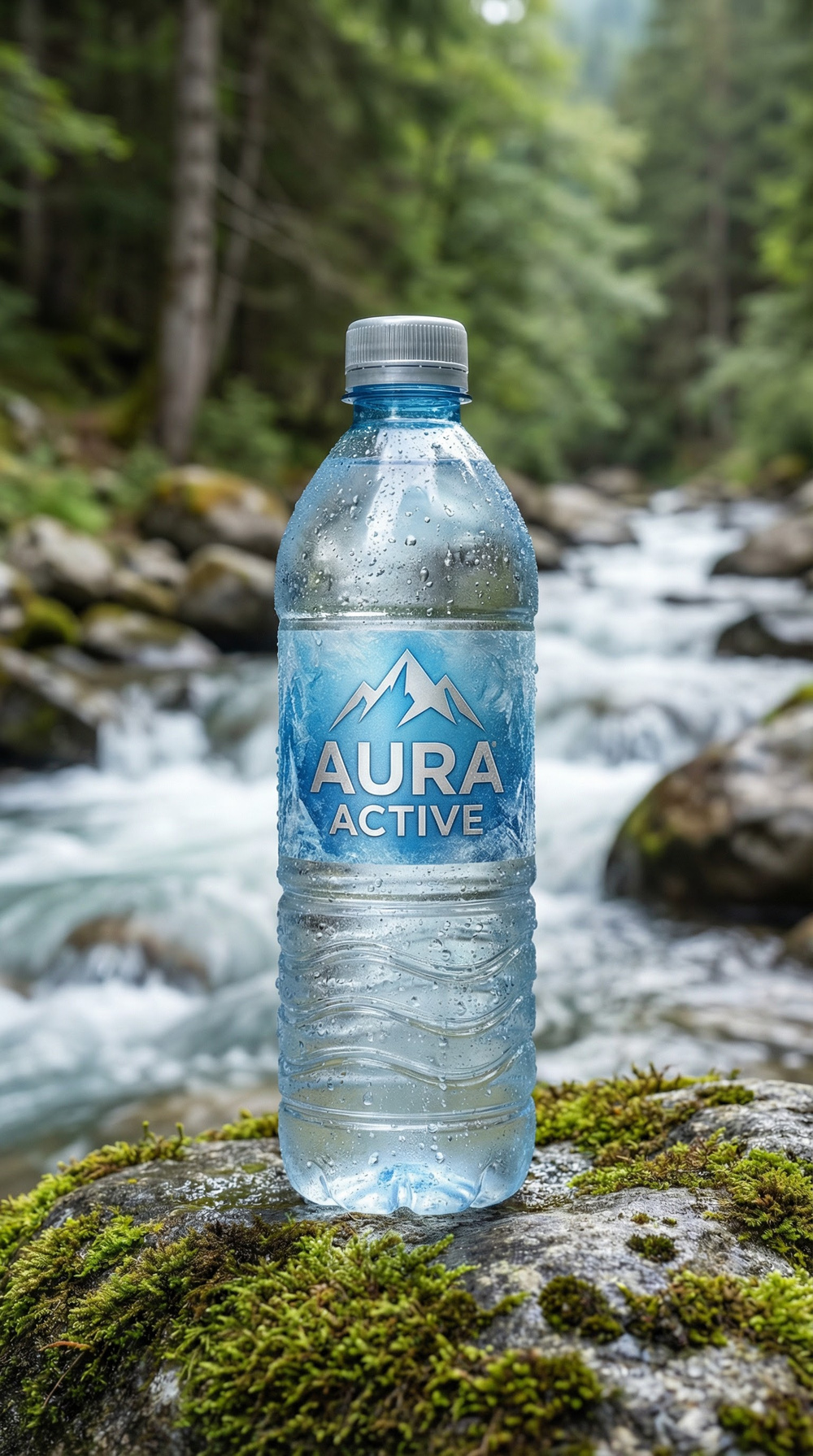
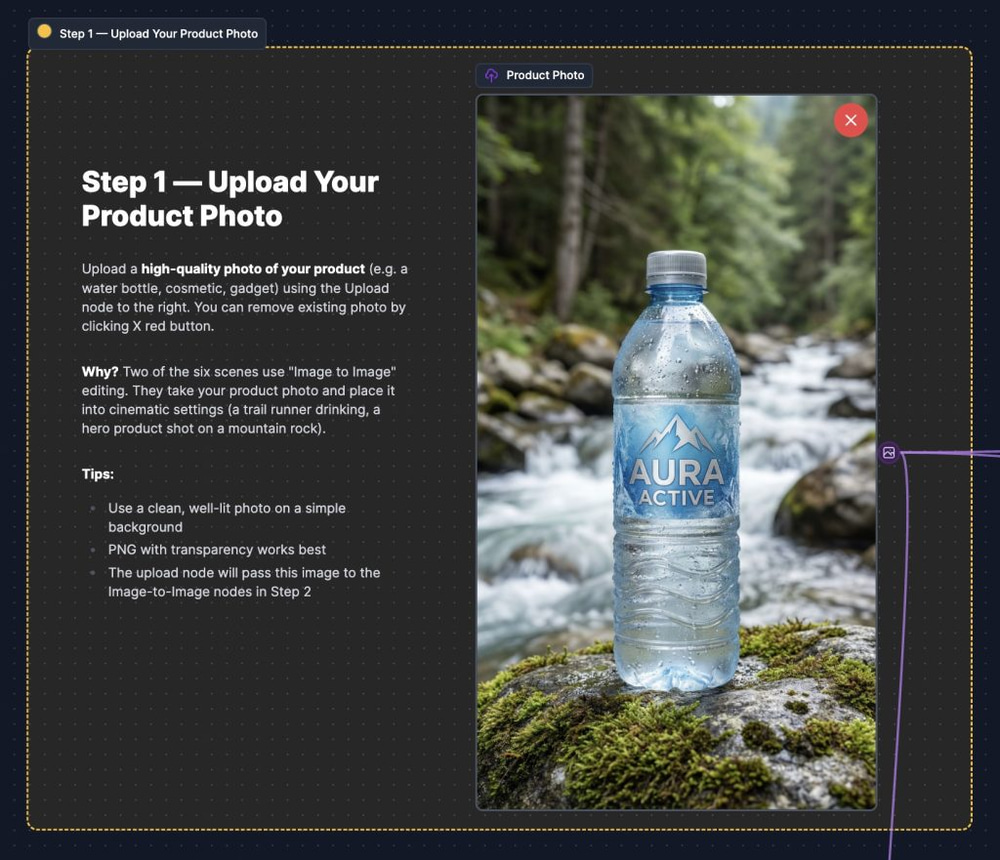
The workflow starts with a single product photo. This image is used in two of the six scenes — the AI takes your product and composites it into cinematic settings using “Image to Image” editing.
For this example, we used a photo of an Aura Active water bottle:
Tips for your product photo:
- Use a clean, well-lit image with a simple background
- PNG with transparency works best
- The higher the quality, the better the AI results
Step 2: Generate the First Frame Images
Every video scene starts with a single still image — what we call the “first frame.” The AI video generator will later animate this image into a full clip with motion and camera movement.
The template includes 6 scenes. Four use Text to Image generation (creating scenes from scratch using a text prompt), and two use Image to Image editing (taking your uploaded product photo and placing it into a new setting).
Here are all 6 scenes with the prompts used and the images they produced:
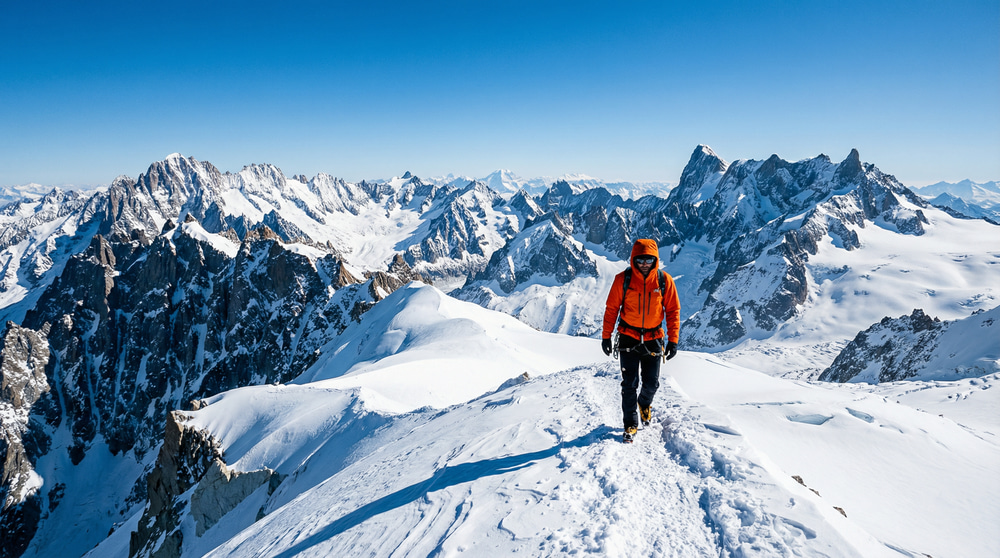
Scene 1 — Summit Hiker (Text to Image)
View the image prompt
A lone hiker in a bright orange technical jacket and black mountaineering pants is captured in an extreme wide shot, walking along a sharp, snow-covered mountain ridge. The landscape is vast and epic, with jagged peaks stretching into the distance under a clear, piercing blue sky. The sun is high, casting long, dramatic shadows on the white snow, creating high contrast. The texture of the snow is visible, with wind-swept patterns and icy crusts. The image has a cinematic commercial quality, with sharp focus, high dynamic range, and vibrant colors, emphasizing the scale of nature and the solitude of the journey. Shot on a large format camera with a 24mm lens.
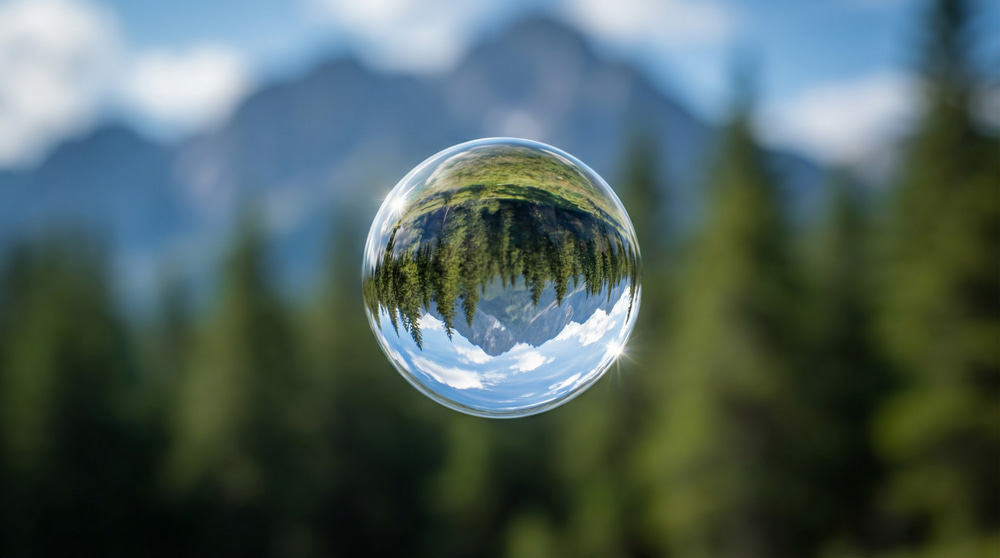
Scene 2 — Water Droplet (Text to Image)
View the image prompt
A single, perfect sphere of water is suspended in mid-air, captured in a macro close-up shot. The droplet is crystal clear, acting as a lens that inverts and reflects the majestic mountain landscape behind it in sharp detail. The background is a soft, creamy bokeh of greens and blues, representing a forest and sky, ensuring the droplet stands out as the hero. The lighting is natural and back-lit, causing the edges of the droplet to glow with a rim light effect. The texture of the water looks viscous and pure. 8k resolution, hyper-realistic style, resembling high-end product photography.
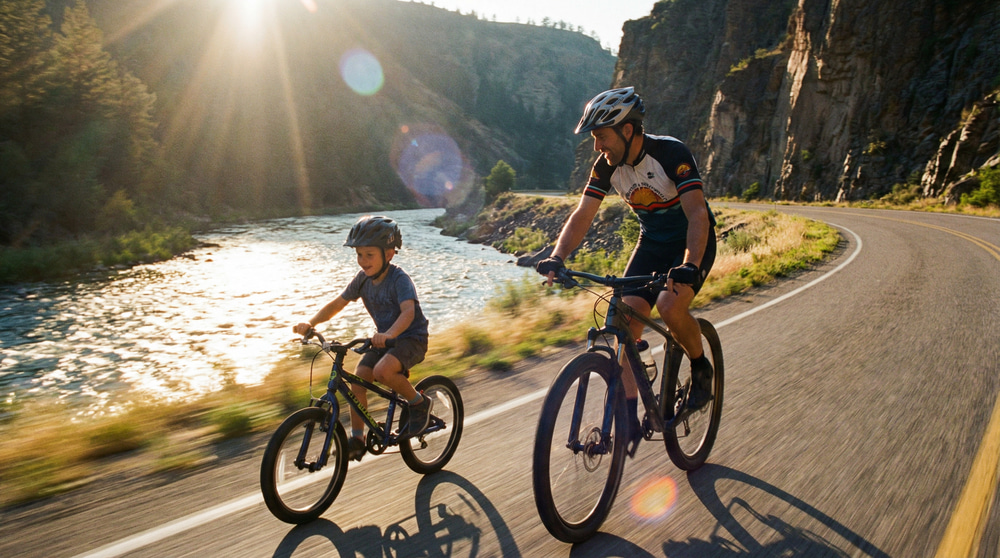
Scene 3 — Cycling Duo (Text to Image)
View the image prompt
A father and his young son are captured in a dynamic side-profile tracking shot, riding mountain bikes along a winding paved road that hugs a sparkling river. The father wears a sleek cycling jersey and helmet, looking back with a smile at his son who is wearing helmet as well, who is pedaling energetically on a smaller bike. To the left, a rushing river reflects the sunlight; to the right, a steep cliff face rises. The lighting is golden hour, casting long, warm shadows and creating a lens flare that cuts through the scene. The image captures motion blur on the background and wheels, conveying speed and energy. Cinematic 35mm style.
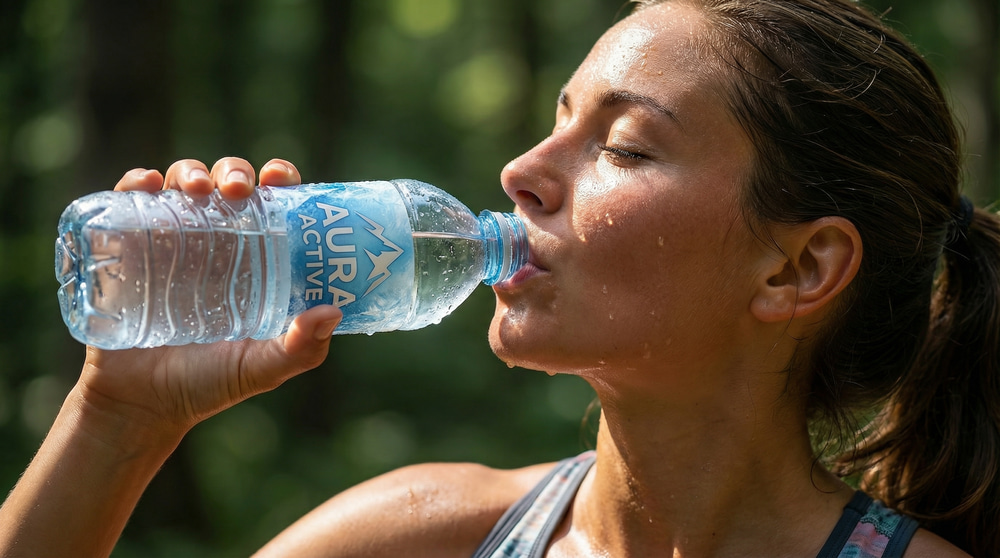
Scene 4 — Refreshing Moment (Image to Image)
This scene uses Image to Image — the AI takes your uploaded product photo and incorporates it into a new scene of a runner drinking from the bottle.
View the image prompt
A close-up portrait of a female trail runner taking a break, holding a transparent bottle of ‘Aura Active’ water. She is tilting her head back, drinking deeply, with a few droplets of water and sweat visible on her sun-kissed skin. The bottle has a modern, minimalist label. The background is a blur of deep green forest and sunlight filtering through leaves. The lighting is soft but directional, highlighting the clarity of the water in the bottle and the refreshment on her face. The image has a fresh, high-energy commercial look with vivid skin tones and crisp details.
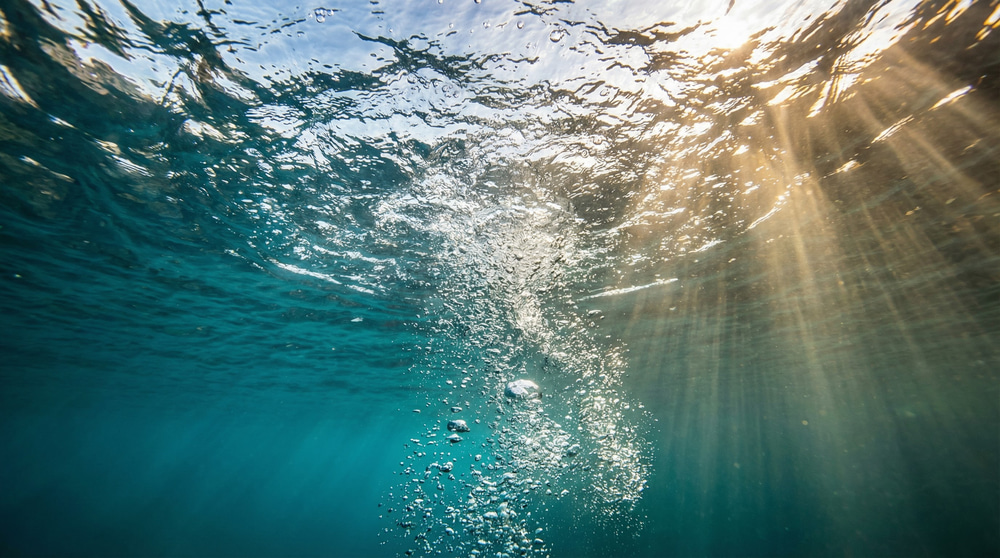
Scene 5 — Underwater Vitality (Text to Image)
View the image prompt
An underwater shot looking up towards the surface of a crystal-clear mountain lake. Thousands of tiny bubbles are rising frantically towards the surface, where sunlight breaks through the water in majestic god rays. The water is a deep, vibrant turquoise, transitioning to a lighter blue near the surface. The texture of the water is turbulent yet clear. The image is abstract and artistic, focusing on the interplay of light and fluid dynamics, symbolizing oxygenation and life. High shutter speed capture, freezing the motion of the bubbles.
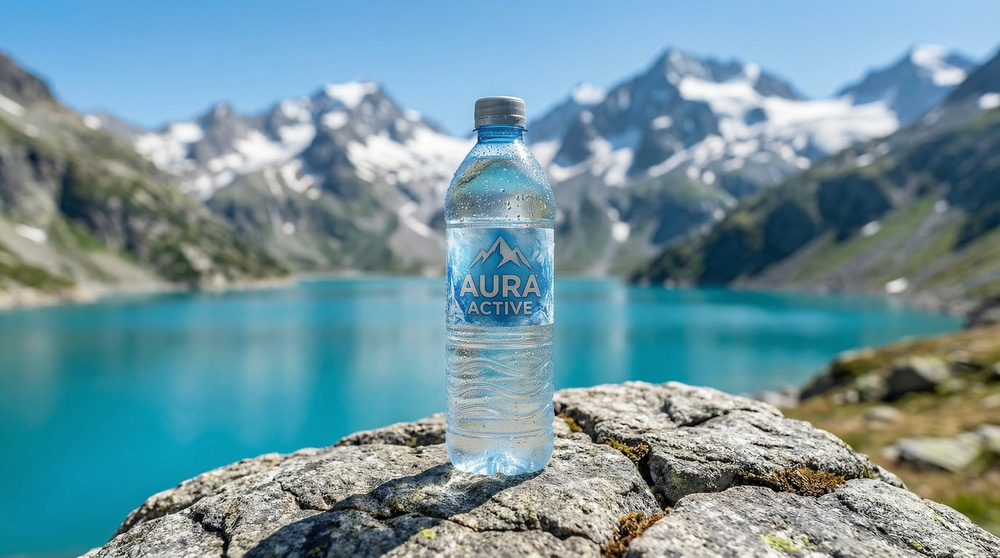
Scene 6 — Product Hero Shot (Image to Image)
The closing shot — another Image to Image scene that places your product in an epic mountain setting.
View the image prompt
A single, premium ‘Aura Active’ mineral water bottle stands triumphantly on a weathered gray rock in the foreground. The bottle features a sleek silver cap and a modern label with a mountain motif. It is covered in cold, fresh condensation droplets that catch the light, emphasizing its chilled temperature. The background is a breathtaking, slightly out-of-focus vista of a turquoise alpine lake and jagged snow-capped mountains under a clear blue sky. The lighting is bright and natural, highlighting the crystal clarity of the plastic and the purity of the water. High-end advertising photography style, 8k resolution, crisp detail.
Step 3: Animate Images Into Video Clips
Now for the fun part. Each first frame image from Step 2 is fed into an Image to Video node. The AI analyzes the still image and animates it — adding camera movement, environmental motion, and life.
The key difference between image prompts and video prompts: the image prompt describes what the scene looks like, while the video prompt describes how things move. Since the AI already has the visual from the image, the video prompt focuses on camera direction, character motion, and dynamic elements.
Here are all 6 video clips with their motion prompts:
Scene 1 — Hiker Video
Model: Veo 3.1 | Duration: 8 seconds | Resolution: 4K
View the video prompt
The hiker walks steadily along the narrow snowy ridge, battling a light wind that tugs at their jacket. The camera pans slowly to the right, following their movement while revealing the breathtaking depth of the valley below. Snow dust kicks up slightly with each step. The lighting remains bright and consistent, enhancing the feeling of altitude and fresh, cold air. The movement is smooth and cinematic, conveying determination and freedom.
Scene 2 — Droplet Video
Model: Veo 3.1 | Duration: 8 seconds
View the video prompt
The suspended water droplet hovers gently in the air, shimmering as it catches the sunlight. Inside the droplet, the reflection of the mountains distorts slightly as the water ripples in slow motion. The background remains soft and out of focus, shifting slightly as if a breeze is moving the trees. The droplet maintains its spherical shape but wobbles delicately, emphasizing its surface tension and purity before slowly beginning to fall out of frame.
Scene 3 — Cycling Video
Model: Kling 3.0 Pro
View the video prompt
The father and son cycle in sync along the riverside road. The camera tracks alongside them at the same speed, keeping them in sharp focus while the background trees and river blur past. The father points ahead towards the mountains, and the son looks up excitedly. The sunlight flickers through the trees, creating a strobing light effect on their faces. The movement is energetic and fluid, symbolizing active lifestyle and family bonding.
Scene 4 — Refreshing Moment Video
Model: Kling 3.0 Standard
View the video prompt
The runner tilts the bottle higher, taking a long, refreshing drink. Her throat moves as she swallows, and she lowers the bottle with a satisfied exhale, wiping her mouth with the back of her hand. She smiles and looks towards the horizon, regaining her breath. The sunlight dances through the leaves in the background, creating a dappled light effect that moves across her face. The atmosphere is revitalizing and triumphant.
Scene 5 — Underwater Video
Model: Veo 3.1 | Duration: 8 seconds
View the video prompt
Streams of bubbles rush upwards in slow motion, twisting and turning as they rise through the blue water. The sun rays penetrate the surface, shifting and dancing as the water ripples above. The camera floats slowly upwards, following the bubbles towards the light. The motion is hypnotic and fluid, emphasizing the purity and mineral-rich quality of the water.
Scene 6 — Product Hero Video
Model: Veo 3.1 | Duration: 8 seconds
View the video prompt
The camera performs a slow, cinematic push-in towards the single ‘Aura Active’ bottle standing on the rock. A single droplet of condensation rolls slowly down the side of the cold plastic, tracing a path through the mist on the bottle. The background lake water ripples gently in the distance, and thin clouds drift slowly across the mountain peaks. A subtle, warm lens flare sweeps across the top corner of the frame, highlighting the silver cap and the premium quality of the brand. The movement is smooth and majestic, serving as the perfect closing shot.
Step 4: Generate the Voiceover
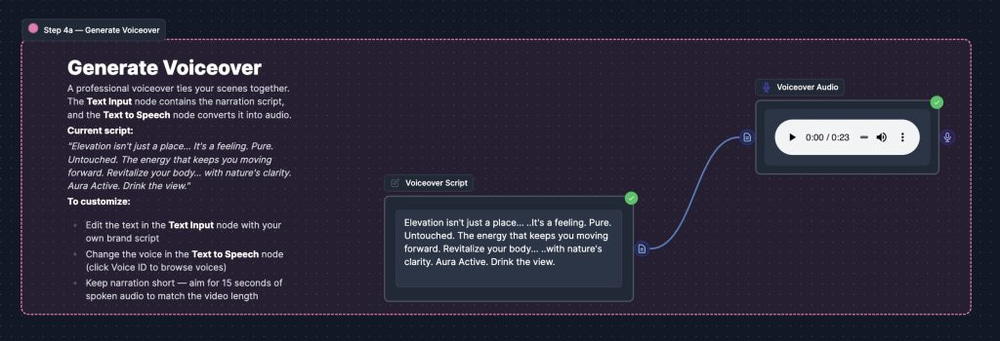
A good product commercial needs narration to tie the visuals together. The workflow includes a Text Input node for the script and a Text to Speech node that converts it into a professional-sounding voiceover.
Here’s the voiceover script used in this template:
“Elevation isn’t just a place… It’s a feeling. Pure. Untouched. The energy that keeps you moving forward. Revitalize your body… with nature’s clarity. Aura Active. Drink the view.”
The Text to Speech node lets you browse and select from dozens of voice options — male, female, different accents and styles. For a commercial, look for voices that sound confident and warm.
Tips for writing your voiceover script:
- Keep it short — aim for 15 seconds or less of spoken audio to match a 25-second video
- Write in short, punchy sentences. Pauses between phrases give the visuals room to breathe
- End with your brand name and tagline
- Use ellipsis (…) to create natural pauses in the AI-generated speech
Step 5: Generate Background Music
Background music sets the emotional tone. The workflow’s Music Generation node creates an instrumental track from a text description — no royalty issues, no licensing fees.
Here’s the music prompt used in this template:
“Ethereal ambient soundscape, peaceful and crystalline. Soft piano melody, flowing water textures, atmospheric pads, light glockenspiel, slow build-up, majestic nature documentary style, hopeful, serene, zero drums. For commercial advertisement.”
How to write effective music prompts:
- Describe the mood, not just the genre — “hopeful and serene” tells the AI more than just “ambient”
- Specify instruments you want (or don’t want) — “zero drums” keeps the track from competing with voiceover
- Mention the use case — adding “for commercial advertisement” helps the AI match the right energy
- Keep “Instrumental” toggled ON for ads so the music doesn’t include vocals that clash with your narration
Need a different vibe? Here are some alternative music prompts to try:
- Cinematic: “Epic orchestral, driving percussion, soaring strings, heroic, 120 BPM”
- Sporty: “Upbeat pop-rock instrumental, energetic drums, electric guitar, motivational”
- Luxury: “Elegant jazz, smooth saxophone, upright bass, warm and sophisticated, slow tempo”
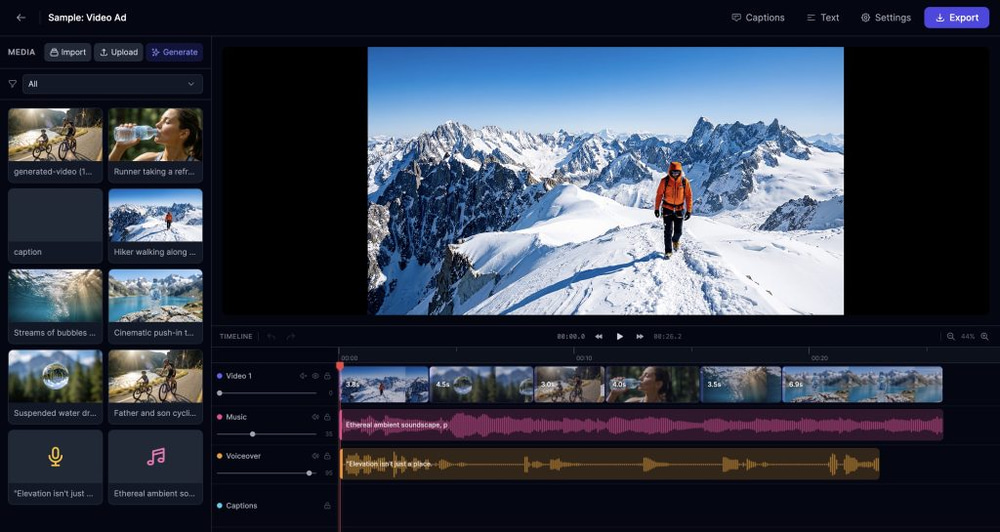
Step 6: Assemble Everything in the Video Editor
Once all 6 video clips, the voiceover, and the music track are generated, the final step is bringing everything together in the Easy-Peasy.AI Video Editor.
Here’s what the assembly process looks like:
- Download your clips — right-click any video node in the workflow and save the output
- Open the Video Editor — go to easy-peasy.ai/ai-video-editor
- Arrange clips on the timeline — drag your 6 video scenes in order
- Add the voiceover — import the TTS audio file onto a separate audio track
- Add background music — import the music file and lower the volume so it doesn’t overpower the narration
- Trim and adjust timing — cut clips to match the voiceover pacing
- Export — render your final video
Bonus: Use the Master Prompt to Plan Your Entire Campaign
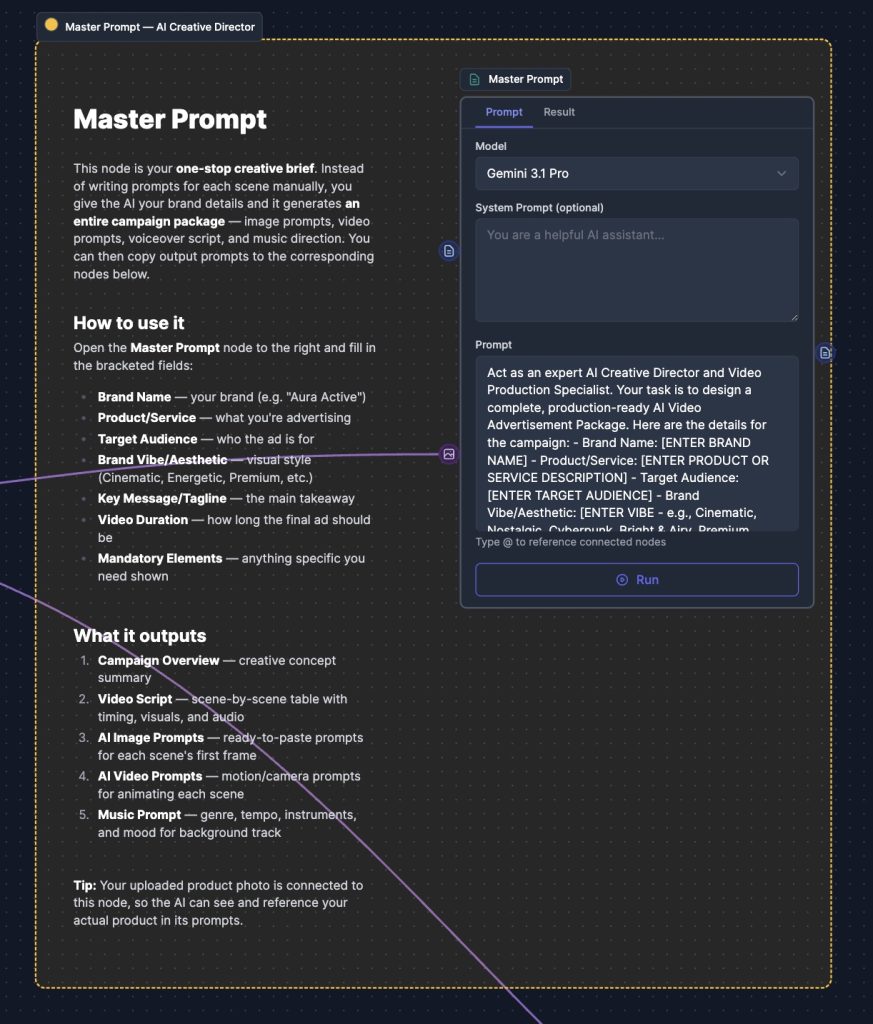
Don’t want to write 12+ prompts from scratch for your own product? The template includes a Master Prompt node (you can also use Marky Agent for refinement) that acts as your AI Creative Director.
You fill in 7 fields about your brand, and the AI generates a complete campaign package — all the image prompts, video prompts, voiceover script, and music direction you need.
Here are the fields you fill in:
| Field | Example |
|---|---|
| Brand Name | Aura Active |
| Product/Service | Premium mineral water sourced from alpine springs |
| Target Audience | Health-conscious adults aged 25-45 who enjoy outdoor activities |
| Brand Vibe/Aesthetic | Cinematic, Premium, Nature-inspired |
| Key Message/Tagline | “Drink the View” |
| Video Duration | 25 seconds |
| Mandatory Elements | Must show the product bottle in at least 2 scenes; include an underwater shot |
What the Master Prompt generates:
- Campaign Overview — a creative concept summary with color palette and lighting direction
- Video Script — a scene-by-scene table with timing, visual descriptions, and audio notes
- AI Image Prompts — ready-to-paste prompts for generating each scene’s first frame
- AI Video Prompts — motion and camera direction prompts for animating each scene
- Music Prompt — genre, tempo, instruments, and mood for the background track
You can then copy each generated prompt into the corresponding workflow nodes. It’s the fastest way to go from a brand idea to a complete video ad plan.
Tips for Customizing This Template for Your Brand
The Aura Active template is a starting point. Here’s how to adapt it for any product:
Replace the product photo
Click the red X button on the upload node to remove the existing photo, then upload your own. The Image to Image nodes (Scenes 4 and 6) will automatically use your new image.
Edit the prompts
Click any image or video node to open it and modify the prompt. Replace brand-specific details (like “Aura Active” and “mountain” references) with your own product and setting.
Change the AI models
Each node lets you select a different AI model. For faster results, use Kling 3.0 Standard. For higher quality, try Veo 3.1. For images, Nano Banana Pro offers great quality at 16:9 aspect ratio.
Adjust the scene count
You don’t have to use all 6 scenes. For a 15-second ad, 3-4 scenes may be enough. Simply skip the nodes you don’t need.
Rewrite the voiceover
Edit the text in the Text Input node with your own brand message. Keep it concise — short sentences with natural pauses work best for AI-generated speech.
How to Access the Template
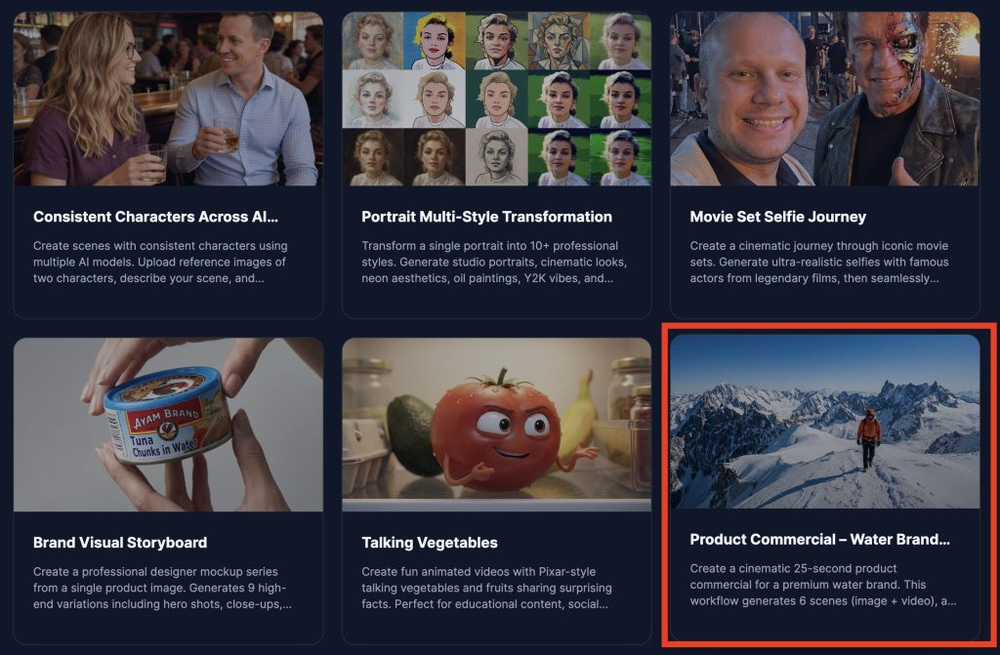
- Go to AI Workflows
- Click Templates in the top navigation
- Find “Product Commercial — Water Brand Ad” in the Video category
- Click Use Template to create a copy in your account
Or go directly to the template: Product Commercial Template
Frequently Asked Questions
How much does it cost in credits?
The full workflow uses credits for 6 image generations, 6 video generations, 1 text-to-speech conversion, and 1 music generation. The exact cost depends on the models you choose — higher-quality models like Veo 3.1 at 4K use more credits than Kling 3.0 Standard.
Can I use this for a real commercial?
Yes. All content generated through Easy-Peasy.AI paid subscription is yours to use commercially. However, always review AI-generated content before publishing — check that product details, text on labels, and brand elements look accurate.
Do I need to use all 6 scenes?
No. You can run only the scenes you want. For shorter ads (10-15 seconds), 3-4 scenes is plenty. Simply skip the nodes for scenes you don’t need.
Can I change the aspect ratio?
Yes. Each image and video node has an aspect ratio setting. The template uses 16:9 (widescreen), but you can switch to 9:16 for Instagram Reels or TikTok, or 1:1 for social media posts.
What products work best with this template?
Any physical product that photographs well — beverages, cosmetics, electronics, food packaging, fitness gear, fashion accessories. The Image to Image scenes work best when your product has a distinctive shape and clean design.
Can I add text overlays or a logo?
The AI workflow generates the raw video clips. You can add text overlays, logos, transitions, and other finishing touches in the Video Editor during the assembly step.
Start Creating Your Commercial
A year ago, producing a commercial like this would have required a video production team, location shoots, and a significant budget. Today, you can create one from your desk with a product photo and a few text prompts.
The Product Commercial template gives you a proven framework — 6 cinematic scenes, professional voiceover, background music — that you can customize for any brand. Open it, swap in your product, and start generating.