Creating animated sprite sheets for games used to take hours of painstaking pixel-by-pixel work. Now you can generate professional, game-ready sprite sheets in seconds using AI. In this guide, we’ll walk you through how to use Easy-Peasy.AI’s Sprite Sheet Generator to create animated characters for your game — no drawing skills required.
What Is a Sprite Sheet?
A sprite sheet is a single image that contains multiple frames of a character’s animation arranged in a grid. Game engines like Unity, Godot, Unreal Engine, and Phaser read these grids frame by frame to create smooth animations — like a digital flipbook.
For example, a 4×4 sprite sheet contains 16 frames. The first row might show an idle breathing animation, the second row a walk cycle, the third an attack combo, and the fourth a jump sequence. When played back at 12 frames per second, these still images come to life as fluid character animations.
Why Use an AI Sprite Sheet Generator?
Traditional sprite creation requires either strong pixel art skills or a budget to hire an artist. AI sprite generation changes the game for:
- Indie game developers who need quick prototyping assets
- Game jam participants working under tight deadlines
- Hobbyists and beginners learning game development
- Content creators who need animated characters for videos or presentations
- Students building their first games without an art team
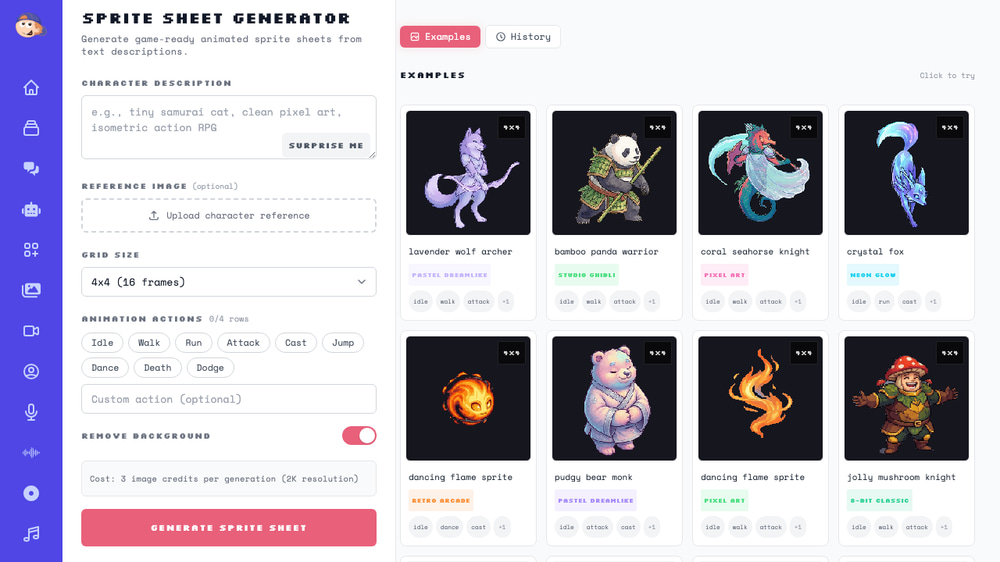
With Easy-Peasy.AI’s Sprite Sheet Generator, you describe your character in plain English and the AI creates a fully animated sprite sheet in under 30 seconds.
How to Create Your First Sprite Sheet (Step-by-Step)
Here’s how to go from idea to game-ready sprite sheet in five simple steps.
Step 1: Describe Your Character
Open the Sprite Sheet Generator and type a description of your character in the Character Description field. Be as specific as you like — mention the character’s appearance, style, and any visual details you want.
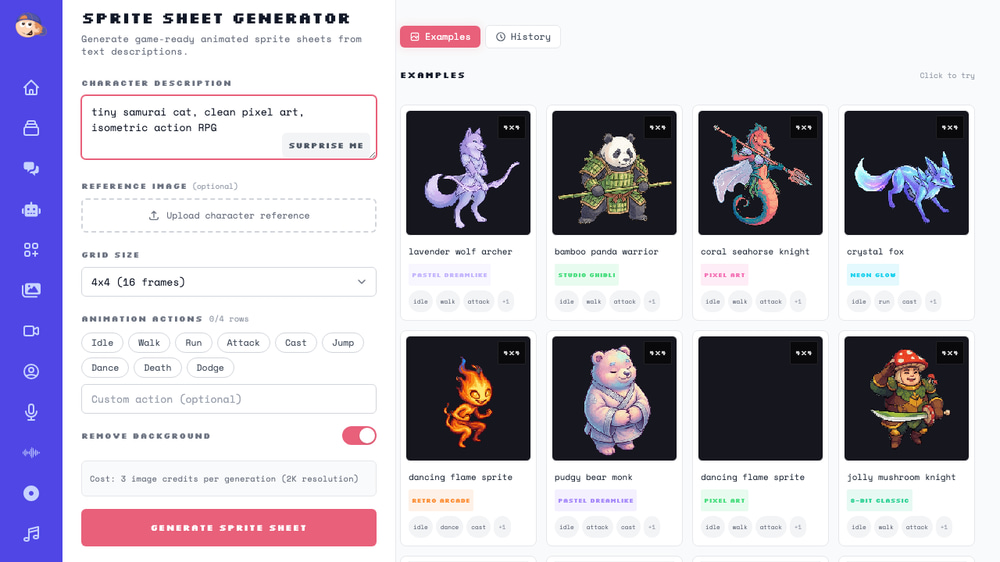
Here are some example prompts to get you started:
tiny samurai cat, clean pixel art, isometric action RPGcrystal fox, neon glowbamboo panda warrior, Studio Ghibli inspireddancing flame sprite, retro arcadehoney bee ranger, cozy storybook
Tip: Not sure what to create? Click the “Surprise Me” button and the tool will generate a random creative character concept for you.
Step 2: Upload a Reference Image (Optional)
If you already have a character design or concept art, you can upload it as a Reference Image. The AI will use your uploaded image as a visual guide to keep the generated sprite consistent with your existing character. This is perfect if you already have a character designed and want to turn it into an animated sprite sheet.
Supported formats: JPEG, PNG, and WebP (up to 10MB).
Step 3: Choose Your Grid Size
Select how many frames you want in your sprite sheet. The Grid Size determines both the total number of frames and how many animation rows you’ll get:
| Grid Size | Total Frames | Best For |
|---|---|---|
| 2×2 | 4 frames | Simple idle animations, icons |
| 3×3 | 9 frames | Basic character with 3 actions |
| 4×4 | 16 frames | Standard game character (recommended) |
| 5×5 | 25 frames | Detailed animations with 5 actions |
| 6×6 | 36 frames | Full character with many animation states |
For most games, 4×4 (16 frames) is the sweet spot — enough frames for smooth animation without being overly complex.
Step 4: Pick Your Animation Actions
This is where it gets fun. Select which animations you want your character to perform. Each action takes up one row of your sprite sheet. You can select up to as many actions as your grid size allows.
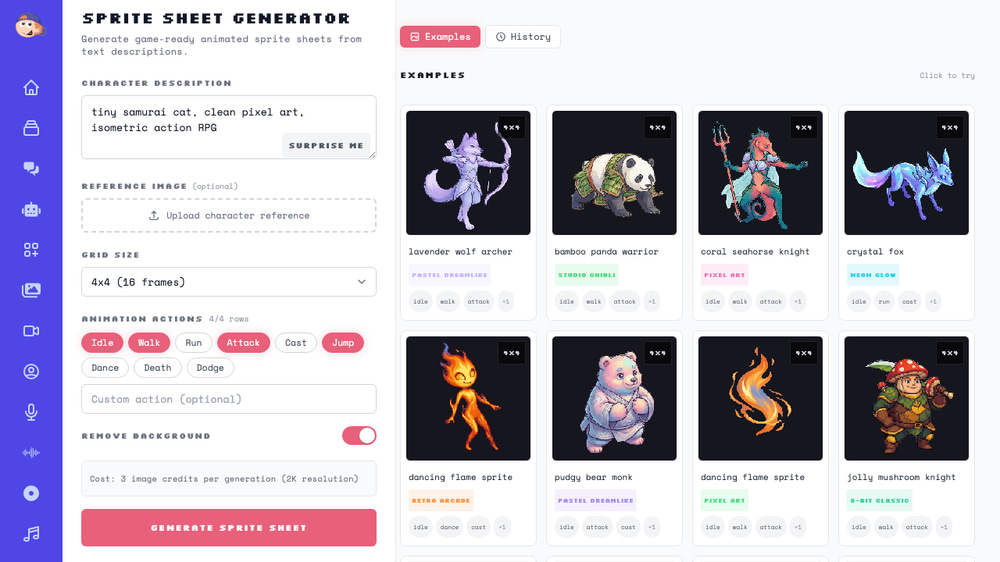
Available preset actions include:
- Idle — Breathing loop with gentle weight shifting
- Walk — Full walk cycle with arm swing
- Run — Fast run cycle with flight phase
- Attack — Wind-up, slash, follow-through combo
- Cast — Spell casting with energy effects
- Jump — Crouch, spring, peak, and land
- Dance — Rhythmic movement loop
- Death — Hit reaction and collapse
- Dodge — Sideways dodge roll
Need something specific? Use the Custom Action field to describe any animation you want — like “flying”, “swimming”, or “climbing a ladder”.
Step 5: Generate and Download
Make sure Remove Background is toggled on (it is by default) so your sprite sheet has a transparent background — essential for using it in any game engine. Then click “Generate Sprite Sheet” and wait about 20-30 seconds.
Once generated, you’ll see:
- A live animation preview that plays your sprite in real time
- Playback controls with adjustable FPS (frames per second)
- The full sprite sheet view showing all frames in the grid
- The enhanced prompt the AI used (so you can learn from it)
- Download buttons for both the original sheet and the transparent version
Your sprite sheet is generated at 2K resolution, making it high quality enough for most game projects.
Example Sprite Sheets Made with AI
Here are some examples of what the Sprite Sheet Generator can create across different art styles:
Pixel Art Style
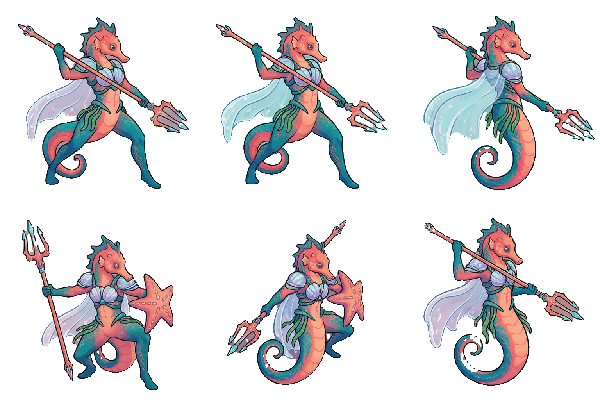
Prompt: coral seahorse knight, clean pixel art — Actions: Idle, Walk, Attack, Cast
Studio Ghibli Inspired
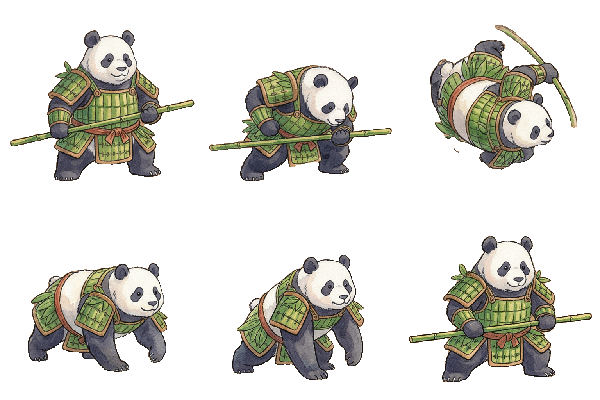
Prompt: bamboo panda warrior, Studio Ghibli inspired — Actions: Idle, Walk, Attack, Jump
Retro Arcade Style
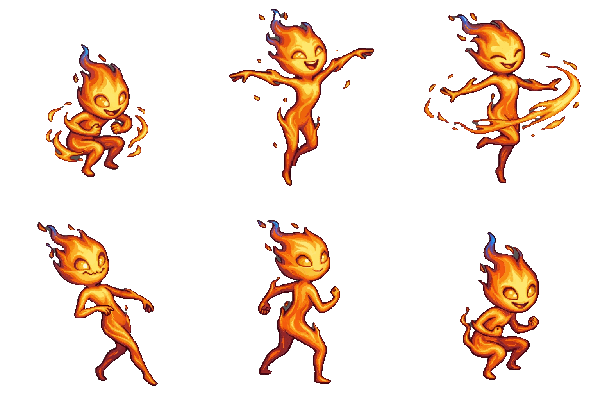
Prompt: dancing flame sprite, retro arcade — Actions: Idle, Dance, Cast, Jump
Chibi Kawaii Style
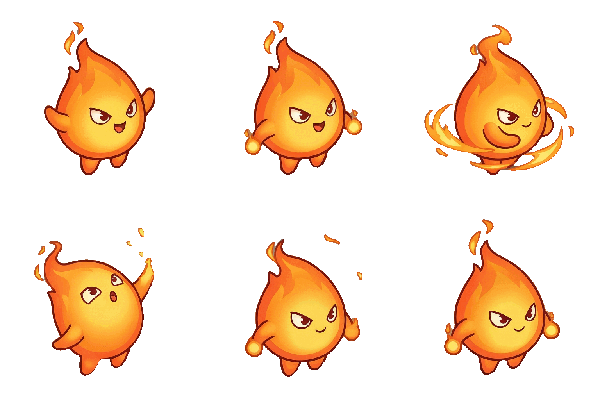
Prompt: dancing flame sprite, chibi kawaii — Actions: Idle, Dance, Cast, Jump
Cozy Storybook Style
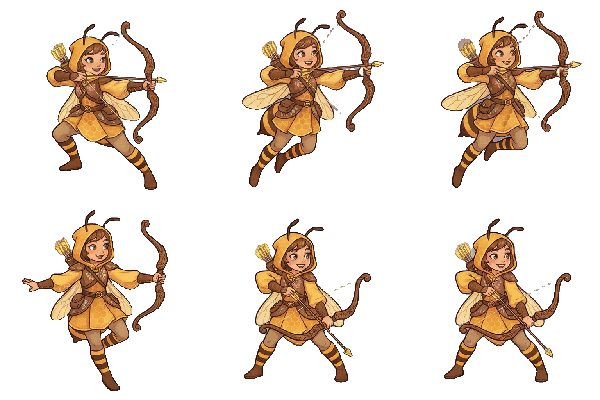
Prompt: honey bee ranger, cozy storybook — Actions: Idle, Walk, Attack, Dodge
How to Use Sprite Sheets in Your Game
Once you’ve downloaded your sprite sheet, here’s how to import it into the most popular game engines.
Unity
- Drag your PNG sprite sheet into the Unity Assets folder
- Select the image and change Sprite Mode to “Multiple” in the Inspector
- Open the Sprite Editor and use “Slice” with grid settings matching your sheet (e.g., 4 columns x 4 rows)
- Create an Animation from the sliced sprites using the Animation window
Godot
- Import your sprite sheet into the project
- Add an AnimatedSprite2D node to your scene
- In the SpriteFrames resource, use “Add Frames from Sprite Sheet”
- Set the grid dimensions and select the frames for each animation
Phaser / HTML5 Games
- Load the sprite sheet with
this.load.spritesheet() - Set the frame width and height (total image size divided by grid size)
- Create animations using
this.anims.create()with the frame ranges for each action row
Tips for Getting the Best Results
After generating hundreds of sprite sheets, here are our best tips for great results:
Write Descriptive Prompts
The more detail you give, the better the output. Instead of “a knight”, try “tiny armored knight with golden shield, clean pixel art, isometric action RPG”. Include the art style you want in your prompt.
Art Styles That Work Well
- Clean pixel art — Classic game look, works great for 2D platformers
- Chibi kawaii — Cute, big-headed characters perfect for casual games
- Studio Ghibli inspired — Soft, painterly style with warm colors
- Retro arcade / 8-bit classic — Nostalgic old-school game style
- Hand-drawn sketch — Unique, artsy look for indie games
- Pastel dreamlike — Soft, dreamy aesthetic
Use the Right Grid Size
Start with 4×4 for most characters. Use 6×6 only if you need many different animation states (like idle, walk, run, attack, cast, and dodge all on one sheet). Smaller grids like 2×2 are great for simple props or background animations.
Keep Background Removal On
Always generate with transparent backgrounds unless you have a specific reason not to. Transparent sprites are plug-and-play in any game engine without extra editing.
Use Reference Images for Consistency
If you’re making multiple sprite sheets for the same game, upload a reference image of your character to keep the look consistent across different animation sets.
How the AI Sprite Generator Works Behind the Scenes
For the technically curious, here’s what happens when you click “Generate”:
- Prompt Enhancement — Your simple description is rewritten by an AI language model into a detailed animation direction, like a director guiding an actor through a motion capture session
- Image Generation — The enhanced prompt is sent to a state-of-the-art image generation model that creates the full sprite sheet as a single 2K resolution image
- Background Removal — If enabled, an AI background removal model strips away the background, leaving clean transparent sprites ready for your game
The entire process takes about 20-30 seconds and costs 3 image credits.
Frequently Asked Questions
What resolution are the sprite sheets?
All sprite sheets are generated at 2K resolution (2048×2048 pixels), which gives you plenty of detail. For a 4×4 grid, each individual frame is 512×512 pixels.
Can I use the sprites commercially in my game?
Yes. Sprites generated with Easy-Peasy.AI can be used in commercial projects if you have a paid subscription.
What file format do I get?
You get PNG files — both with the original background and a transparent version (if background removal is enabled). PNG is the standard format supported by all major game engines.
How many credits does it cost?
Each sprite sheet generation costs 3 image credits, regardless of the grid size you choose.
Can I animate the sprite sheet before downloading?
Yes! The built-in preview player lets you see your sprite animated in real time. You can adjust the FPS (frames per second) to find the right playback speed for your game.
Do I need any art or coding skills?
No. Just type a description of your character and the AI handles everything. The tool is designed to be beginner-friendly.
Start Creating Sprite Sheets Today
Whether you’re building your first game or prototyping your next indie hit, AI-generated sprite sheets can save you hours of work. Try the Sprite Sheet Generator and bring your game characters to life in seconds.
Have questions or want to share what you’ve created? Join the Easy-Peasy.AI community and show off your sprites!