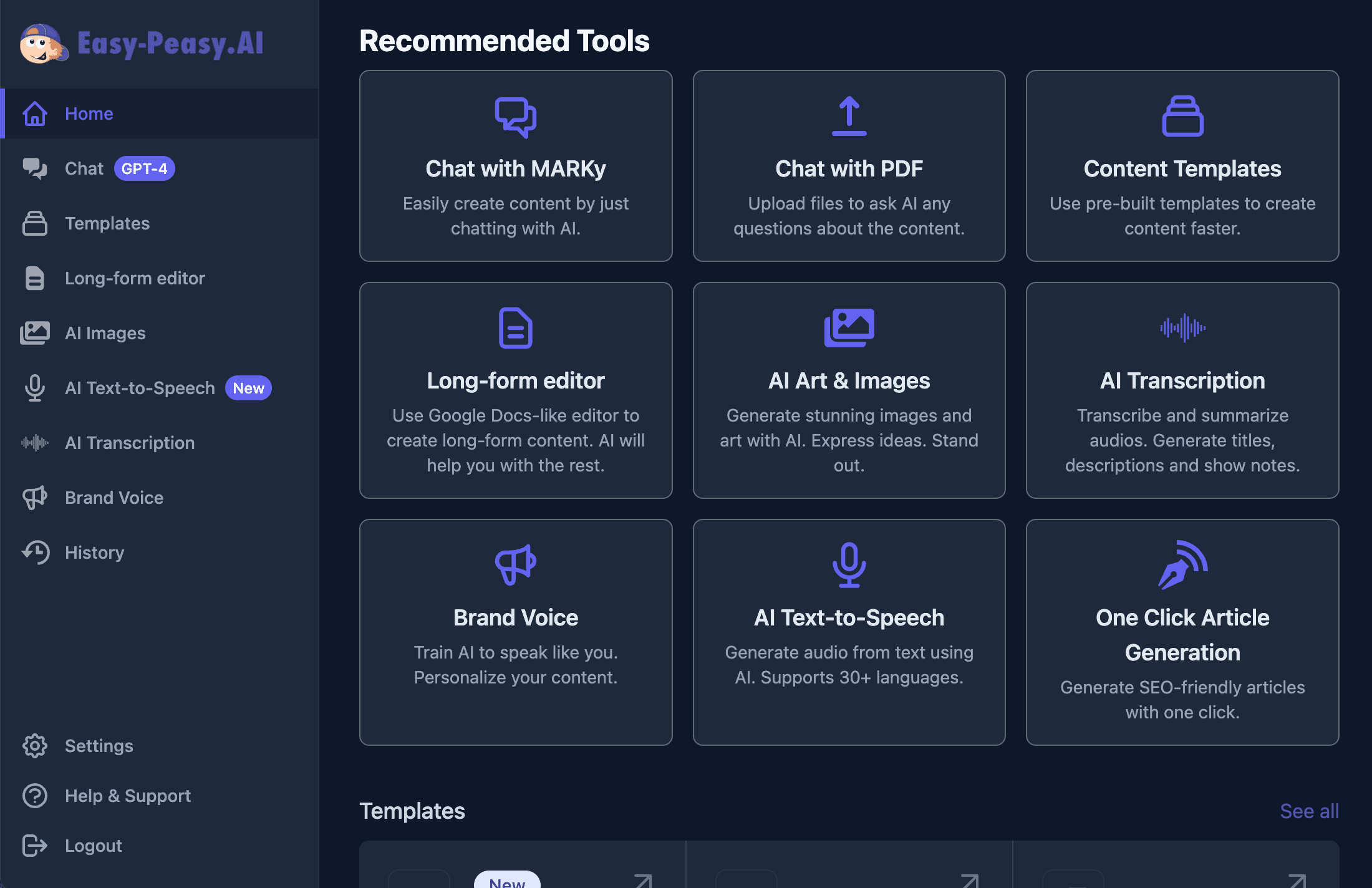
AI isn’t just for tech giants anymore. Organizations of every size — from startups to enterprises — are using artificial intelligence to automate tasks, improve decision-making, and unlock new capabilities. But knowing where to start can feel overwhelming. In this guide, we’ll break down exactly how to add AI to your organization, step by step, and show you the specific tools that make it possible — from an AI agent that builds websites and does research, to image generators, video creators, custom chatbots, and automated workflows. Easy-Peasy.AI puts all of these in one platform your entire team can use.

What Does It Mean to Add AI to Your Organization?
Adding AI to your organization means using intelligent software tools to handle tasks that traditionally required manual effort, specialized expertise, or significant time investment. This can range from automating customer support with AI chatbots to generating marketing content, analyzing data, or creating images and videos.
The key distinction: you don’t need to build AI from scratch. Modern AI platforms provide ready-to-use tools that your team can start using immediately. Think of it like adopting email in the ’90s — you didn’t need to build an email server. You just signed up for a service.
Why Should Your Organization Adopt AI?
Organizations that adopt AI gain a measurable competitive advantage. Here’s why it matters:
- Speed — Tasks that took hours now take seconds. Content creation, data analysis, customer responses — AI handles them in a fraction of the time.
- Cost savings — Reduce the need for specialized contractors or expensive software licenses. One AI platform can replace multiple tools.
- Consistency — AI produces reliable, on-brand outputs every time. No more variation in quality across team members.
- Scalability — Whether you need 10 pieces of content or 10,000, AI scales without additional headcount.
- Innovation — Free your team from repetitive tasks so they can focus on creative, strategic work that actually moves the needle.
The AI Tools Your Organization Needs
A comprehensive AI platform should cover every department’s needs. Here are the core tools that Easy-Peasy.AI provides — and how each one fits into your organization.
Marky Agent — Your AI-Powered Assistant
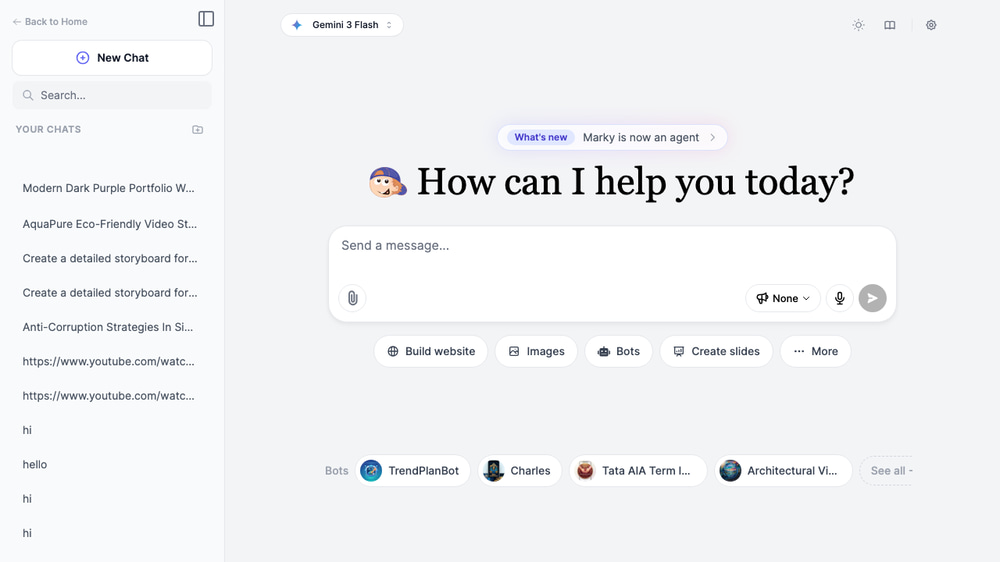
Marky isn’t just a chatbot — it’s a full AI agent that can take action on your behalf. It goes beyond answering questions to actually building, researching, coding, and creating.
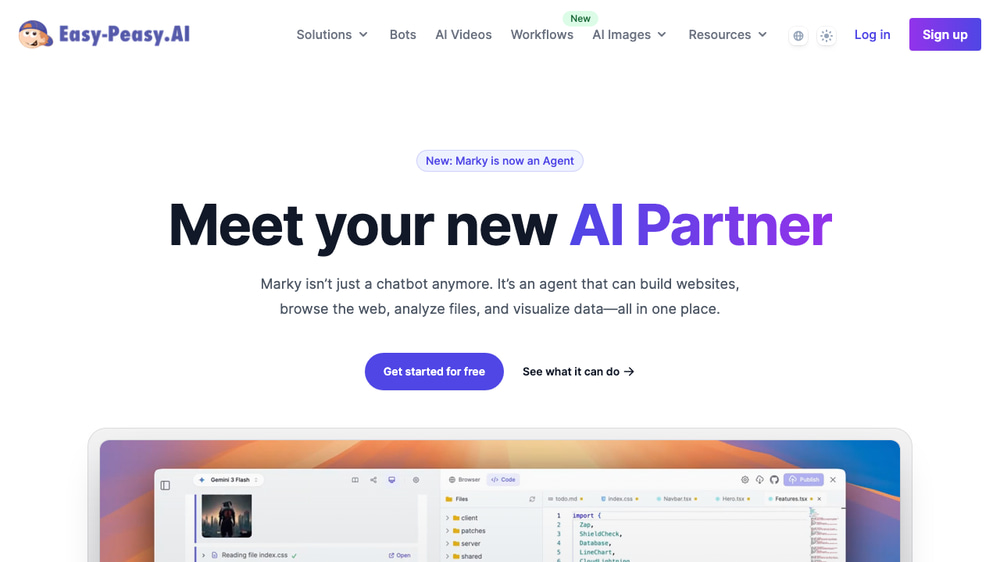
Here’s what Marky can do for your team:
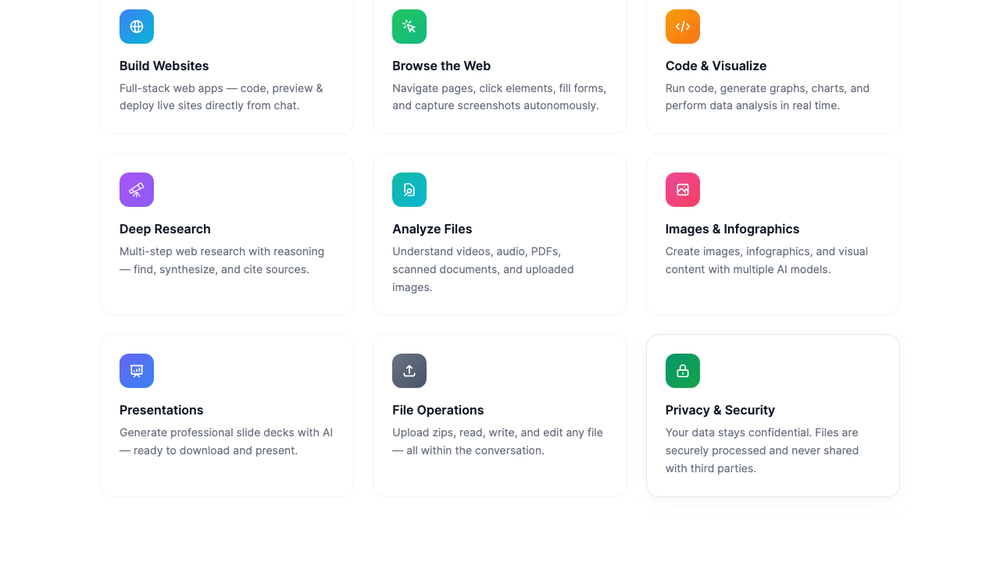
- Build Websites — Full-stack web apps with code, preview, and live deployment directly from chat
- Browse the Web — Navigate pages, click elements, fill forms, and capture screenshots autonomously
- Code & Visualize — Run code, generate graphs, charts, and perform data analysis in real time
- Deep Research — Multi-step web research with reasoning — find, synthesize, and cite sources automatically
- Analyze Files — Understand videos, audio, PDFs, scanned documents, and uploaded images
- Create Images & Infographics — Generate visual content with multiple AI models
- Generate Presentations — Professional slide decks ready to download and present
- File Operations — Upload zips, read, write, and edit any file within the conversation
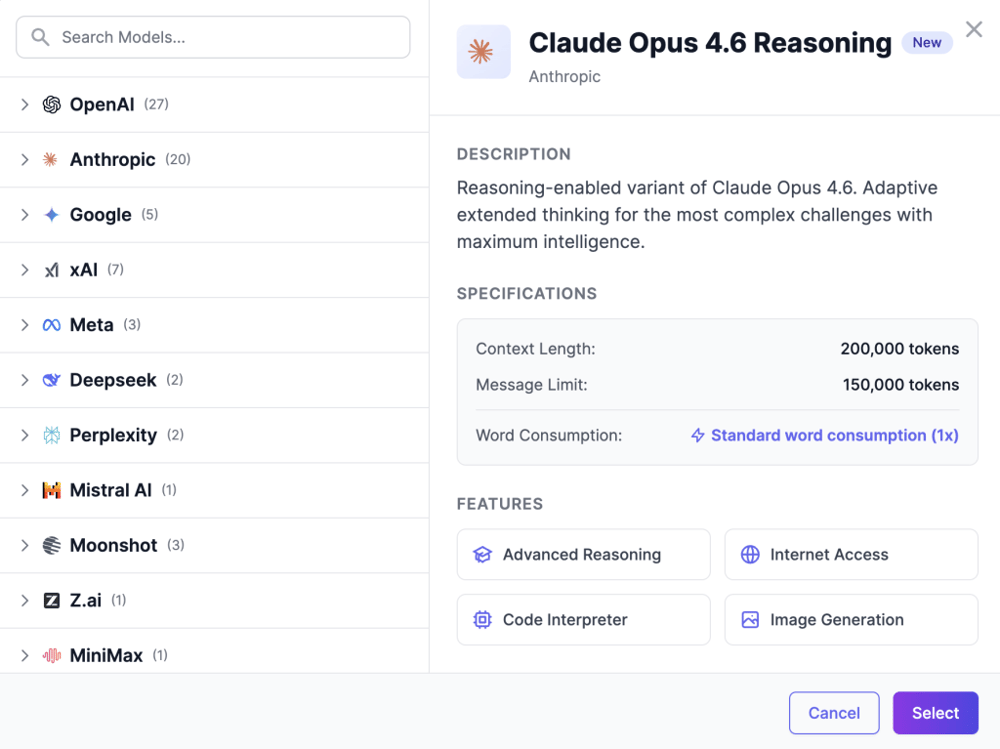
Marky supports all the best AI models in one subscription — GPTs, Claude, GLM, Gemini, DeepSeek, Meta, Perplexity, Kimi, Minimax, Mistral, and more. Your team can switch between models mid-conversation depending on the task.
Best AI models in one subscription
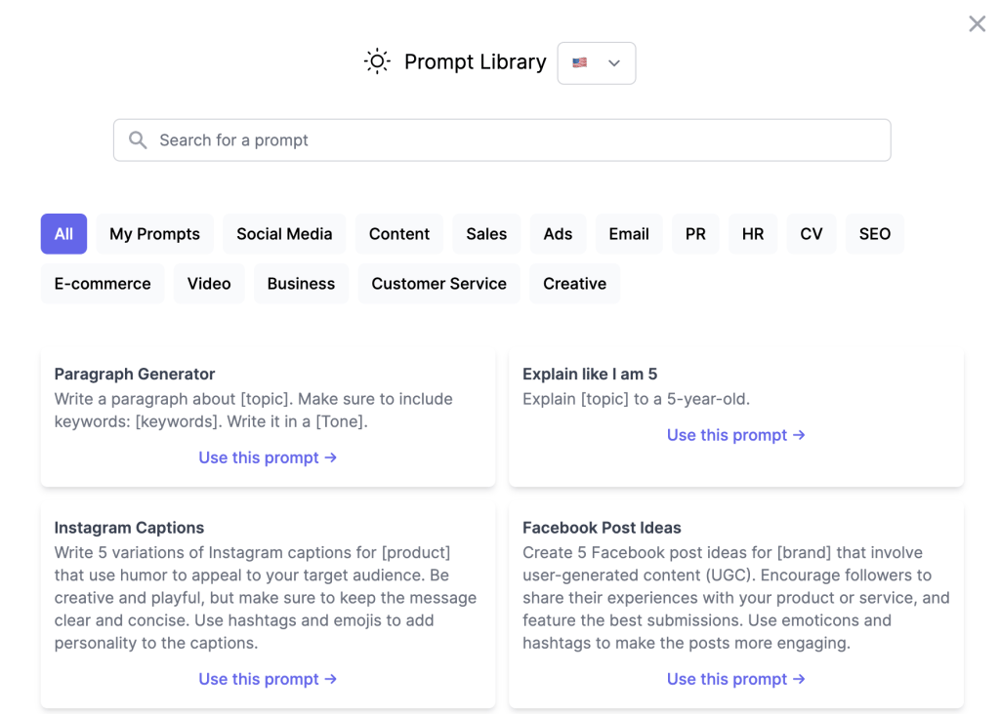
Share Prompts with your Team
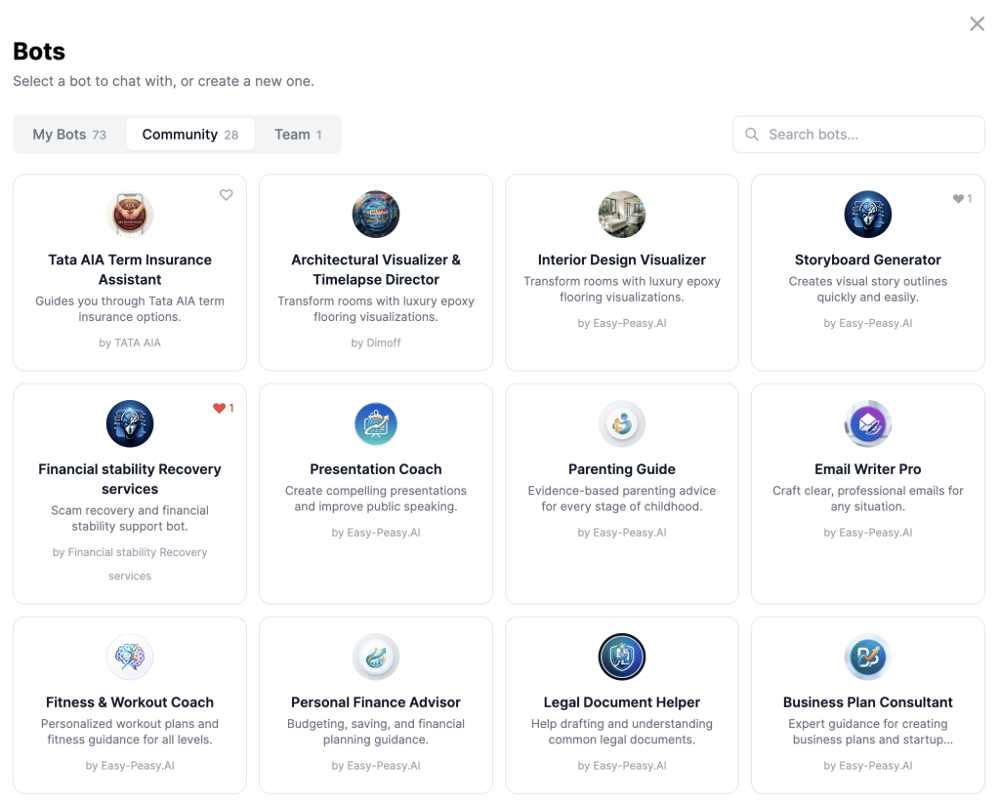
Share Custom Agents (Bots) with your Team
Best for: Every team. Marketing uses it for research and content drafts, engineering for code review and prototyping, sales for prospect research, and executives for data analysis and presentations.
AI Workflows — Automate Multi-Step AI Pipelines
AI Workflows is a visual automation builder that lets your team chain multiple AI operations together without writing a single line of code. Think of it as Zapier, but built specifically for AI tasks.
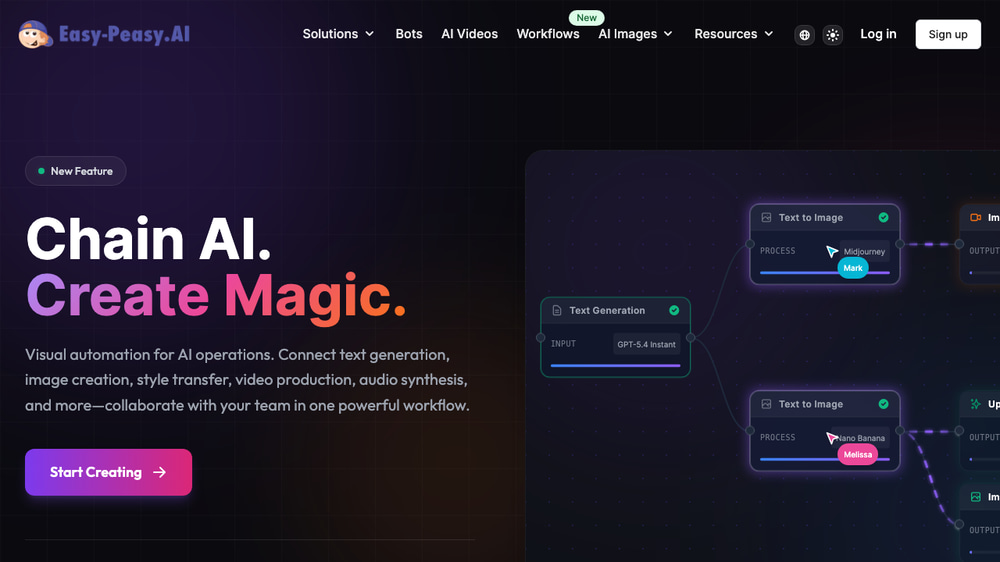
How it works in three simple steps:
- Add Nodes — Drag AI operations onto the canvas: text generation, image creation, video production, audio synthesis, and more
- Connect — Draw connections between nodes. The output of one becomes the input of the next
- Run — Hit run and watch your workflow execute. All operations process automatically
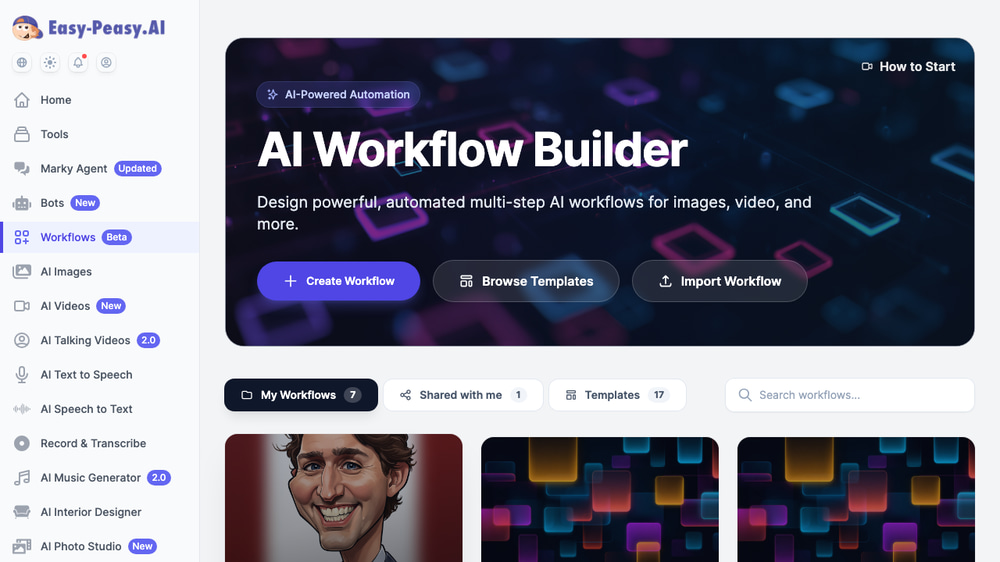
Available node types include text generation (GPT-5, Claude, Gemini), image generation, image editing, image upscaling, text-to-video, image-to-video, video merging, music generation, and text-to-speech. You can save workflows as reusable templates, share them with your team, and even import/export them as JSON files.
Best for: Marketing teams automating content pipelines (e.g., “generate blog outline → write draft → create featured image → produce social media clips”), and operations teams building repeatable AI processes.
AI Image Generator — 40+ Models in One Place
The AI Image Generator gives your team access to over 40 AI image models from every major provider — all in one interface. No need to manage separate subscriptions to Midjourney, Nano Banana, Flux, Recraft, Stable Diffusion, and others.
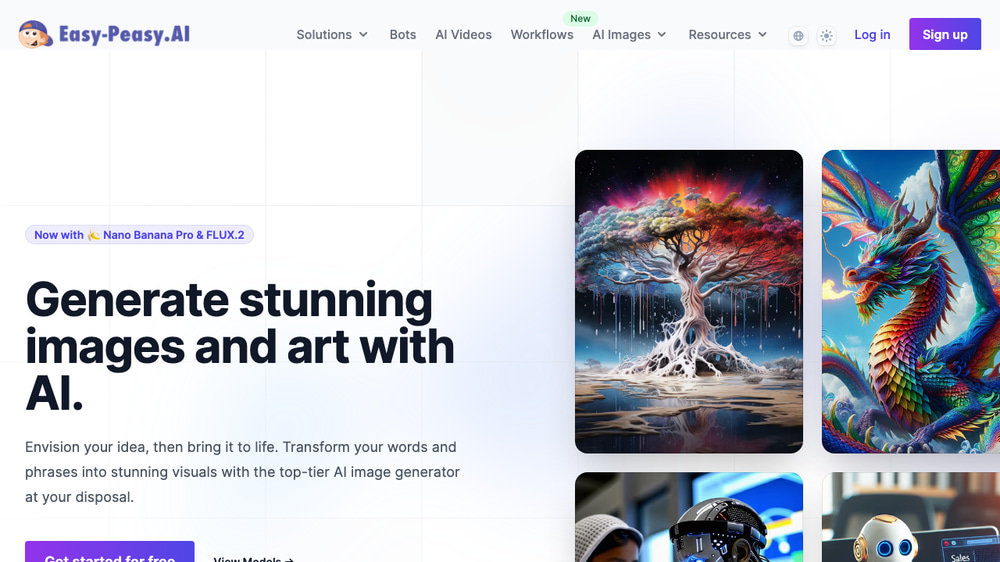
Available models include:
| Provider | Models |
|---|---|
| Imagen 4, Imagen 4 Ultra, Nano Banana Pro, Nano Banana 2 (up to 4K) | |
| OpenAI | DALL-E 3, GPT Image 1, GPT Image 1.5 |
| Black Forest Labs | FLUX.2 Max, FLUX.2 Pro, FLUX Kontext Pro/Max |
| ByteDance | Seedream 3.0, 4.0, 4.5, 5.0 Lite, Dreamina 3.1 |
| xAI | Grok, Grok Pro |
| Stability AI | Stable Diffusion XL, 3.0, 3.5 |
| Others | Midjourney, Recraft, Ideogram, Reve, HunyuanImage, and more |
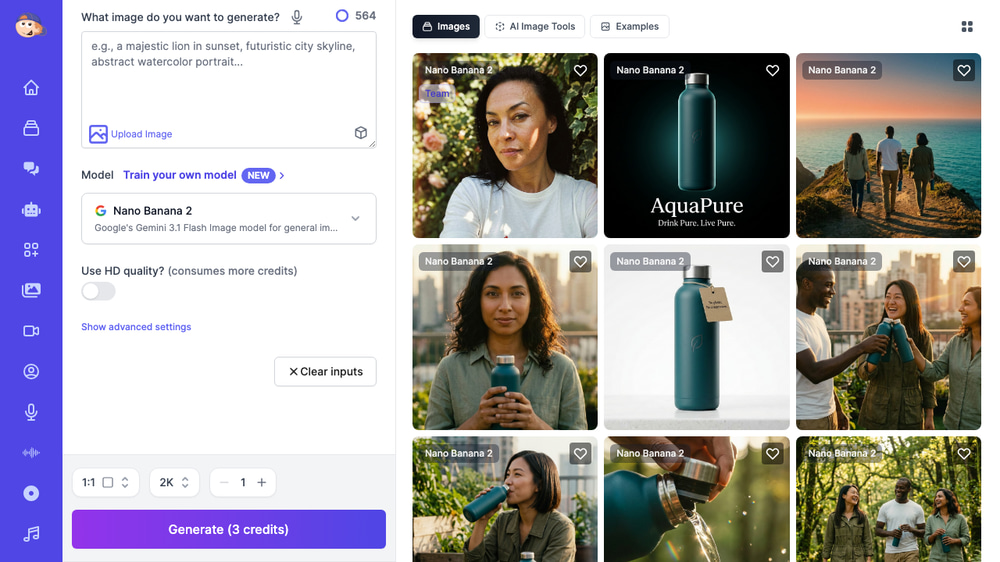
Your team can generate with multiple models simultaneously, choose from 15+ aspect ratios, upscale to 4K resolution, and use 11 built-in editing tools including background removal, style transfer, and character reference. Images start at just 0.1 credits each.
Best for: Marketing teams creating social media visuals, product images, and ad creatives. Design teams prototyping concepts. HR creating onboarding materials.
AI Video Generator — Create Videos from Text and Images
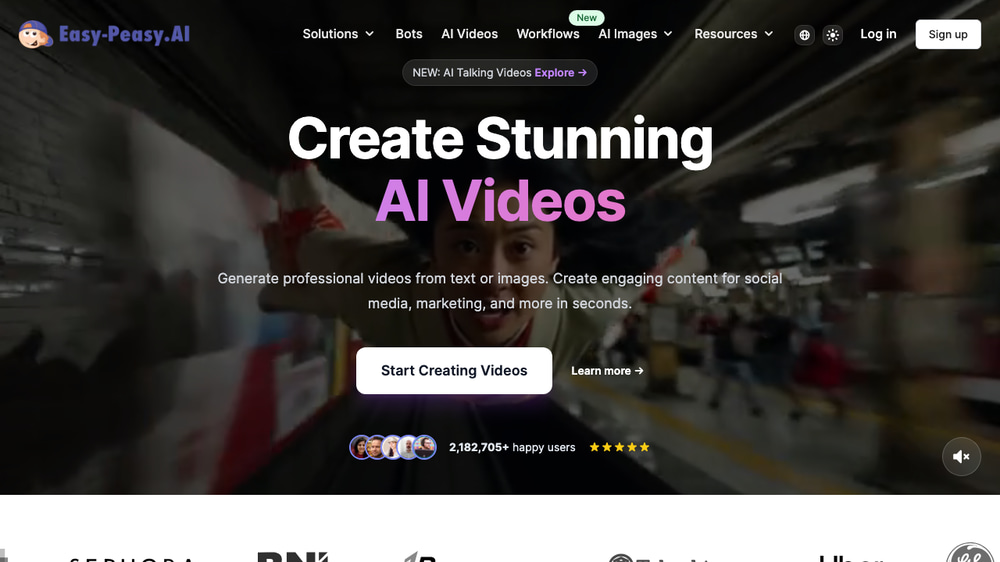
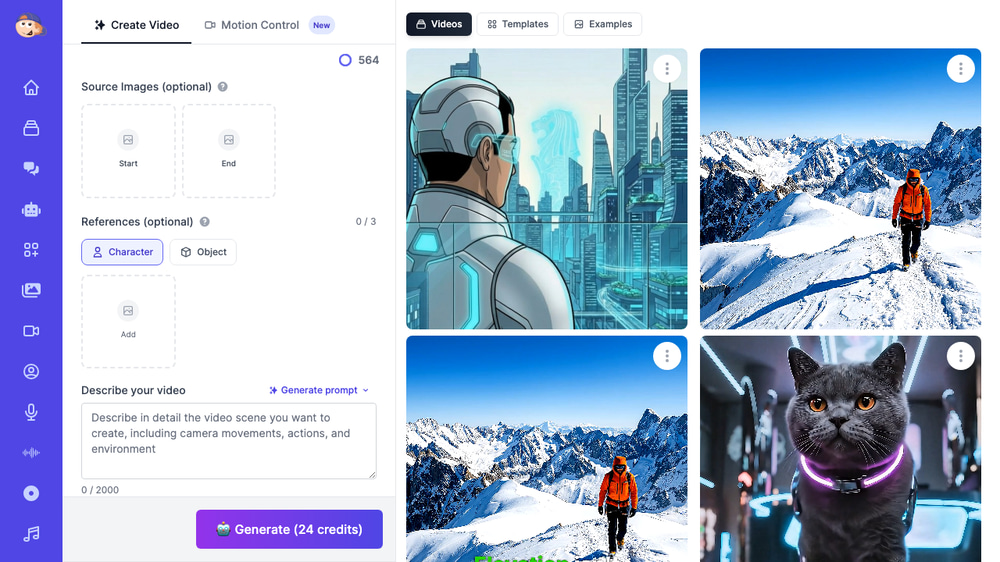
The AI Video Generator lets your team create professional videos from text descriptions or images using cutting-edge AI models — no video editing skills required.
Supported video models include:
- Veo 3.1 Fast (Google) — Text-to-video and image-to-video, up to 4K resolution, with optional AI audio generation
- Grok Imagine (xAI) — Fast generation, 5-15 second videos, multiple aspect ratios
- Kling 2.6 & 3.0 Pro — Cinematic quality with multi-shot support, up to 15 seconds
- Seedance 2.0 – Cinematic camera reproduction. Multi-shot storytelling with extreme character consistency — all at up to 2K resolution.
- Plus models from Runway, Pika, HailuoAI, and more
Best for: Marketing teams creating social media video content, product demos, and promotional clips. Sales teams producing personalized video outreach.
AI Talking Videos & Text-to-Speech
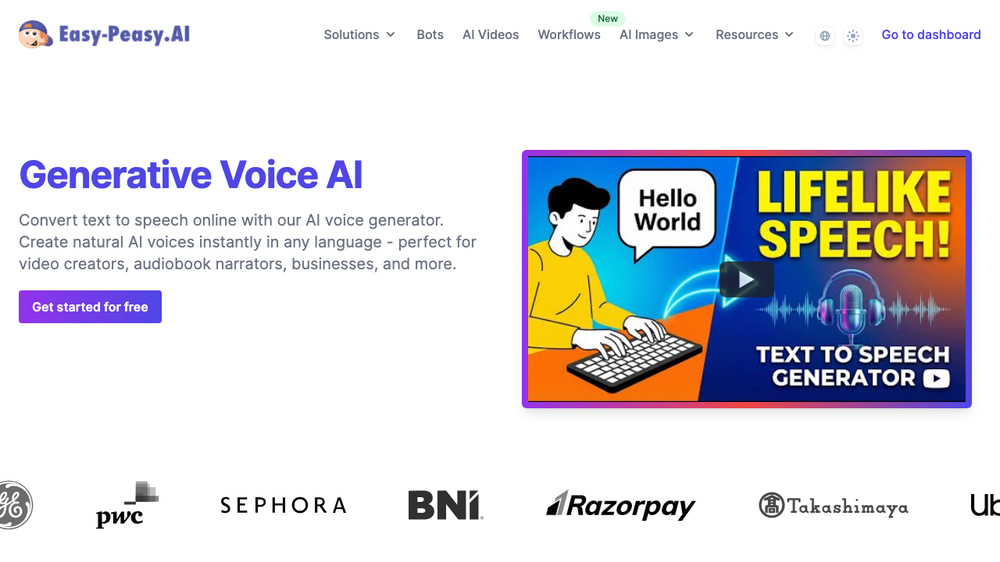
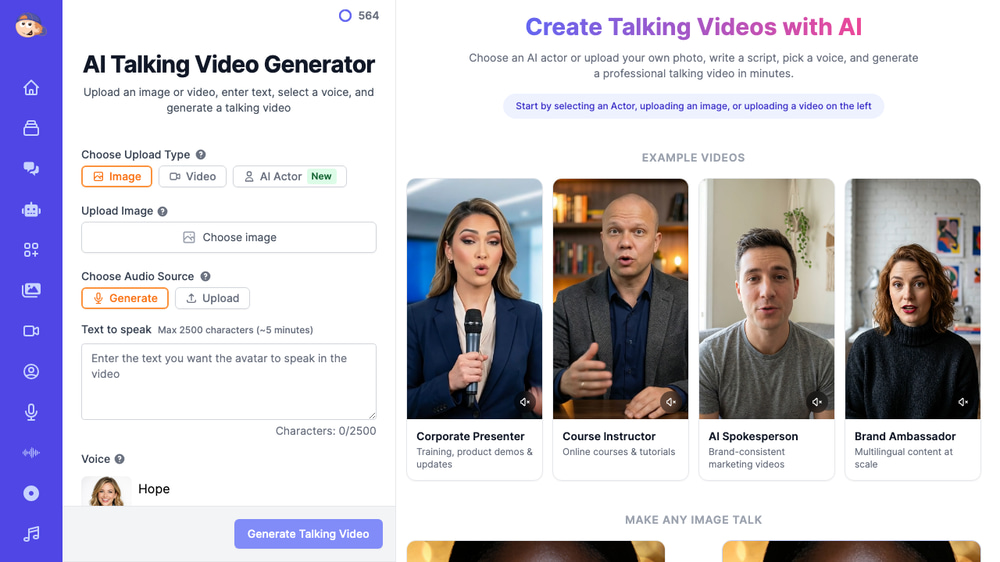
Turn text into lifelike speech and create talking head videos with AI-generated or cloned voices. Perfect for training videos, social media content, and customer-facing communications.
Key features:
- 40+ professional AI voices — multiple languages, accents, and styles
- Voice cloning — Clone custom voices for brand-consistent narration
- 100+ pre-made actors — Professional presenters, marketing experts, tech hosts, and more
- Auto-captioning — TikTok-style captions with customizable colors
- Custom image/video input — Upload your own portrait or video to create a talking avatar
Best for: L&D teams creating training videos, marketing teams producing social media clips, and customer support teams building video FAQs.
AI Transcription — Audio and Video to Text
The AI Transcription tool converts audio and video files to accurate text transcripts. It supports 40+ languages with speaker detection, so you always know who said what.
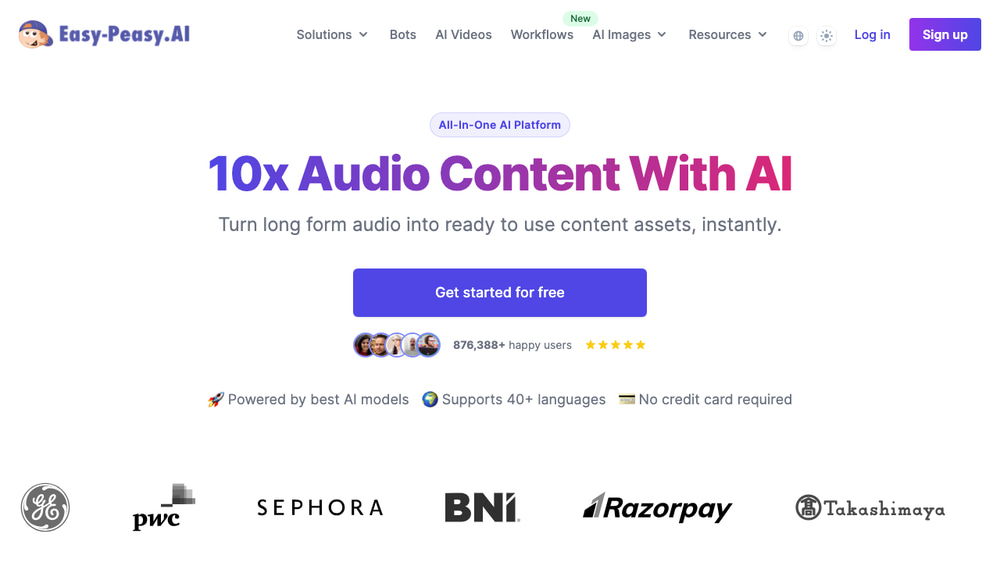
Supported input sources:
- Audio files (MP3, WAV, M4A)
- Video files (MP4)
- YouTube URLs
- Instagram and TikTok videos
- Google Drive files
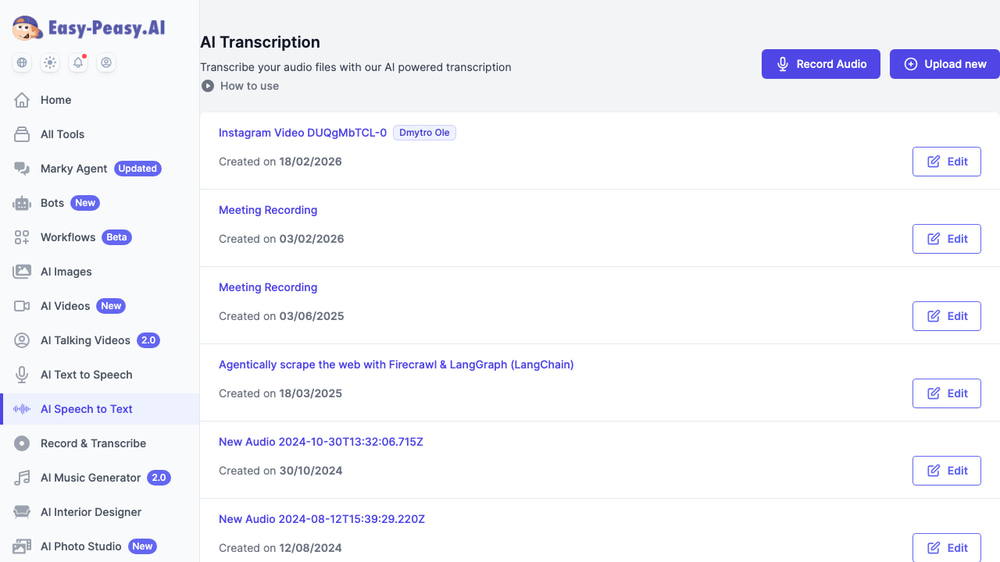
Advanced features include PII redaction for compliance-sensitive content, custom terminology boosting for industry-specific accuracy, and speaker diarization with timestamp tracking. Use it to generate meeting notes, podcast show notes, lecture summaries, and more.
Best for: Operations teams transcribing meetings, content teams repurposing podcasts, legal teams documenting interviews, and L&D teams converting lectures to study materials.
AI Agents — Build Custom Bots Trained on Your Data
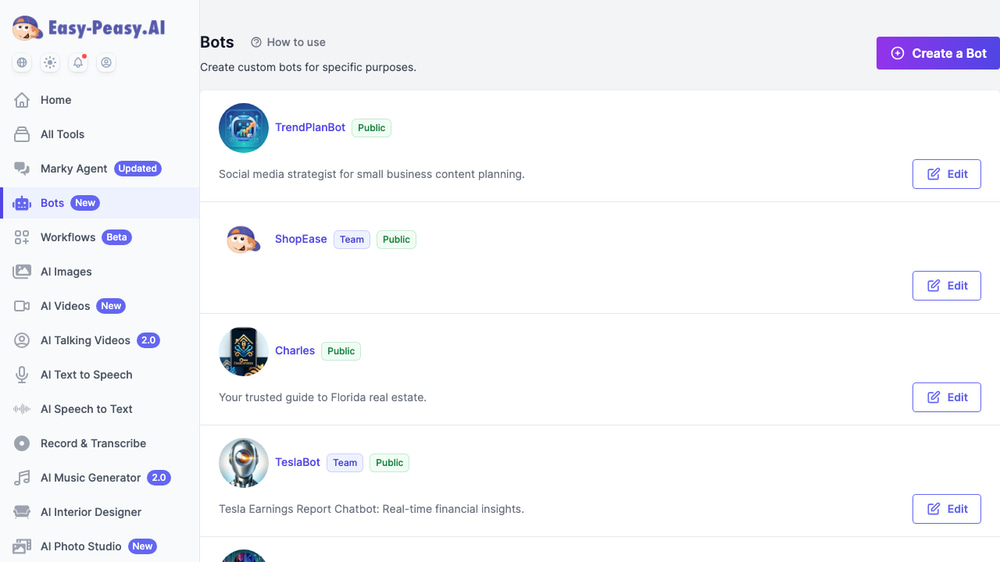
Create custom AI Agents trained on your organization’s knowledge base, documents, and websites. These bots answer questions based on your specific data — perfect for customer support, internal help desks, and lead generation.
What you can build:
- Customer support bots — Train on your FAQ, docs, and support articles to handle common questions 24/7
- Internal knowledge assistants — Feed in your company wiki, SOPs, and policies so employees get instant answers
- Lead generation bots — Embed on your website to qualify visitors and capture leads
- Sales assistants — Train on product catalogs and pricing to help prospects find what they need
Knowledge sources include websites (with automatic crawling), PDF/DOCX/CSV file uploads, YouTube videos, and plain text. Bots can be embedded on your website, integrated with Slack, Messenger, and Google Calendar, or accessed via API.
Each bot is configurable with your choice of AI model (Claude, GPT, Gemini), custom instructions, temperature settings, and RAG (Retrieval Augmented Generation) for accurate, source-backed answers. Share bots with your team using the Team badge — visible right in the dashboard.
Best for: Customer support teams, HR departments (employee self-service), sales teams (product information), and IT help desks.
Brand Voice — Keep Every AI Output On-Brand
One of the biggest concerns when rolling out AI across a team is consistency. Will the AI sound like your brand, or will every output feel generic? Easy-Peasy.AI solves this with Brand Voice — a feature that teaches the AI your organization’s unique writing style.
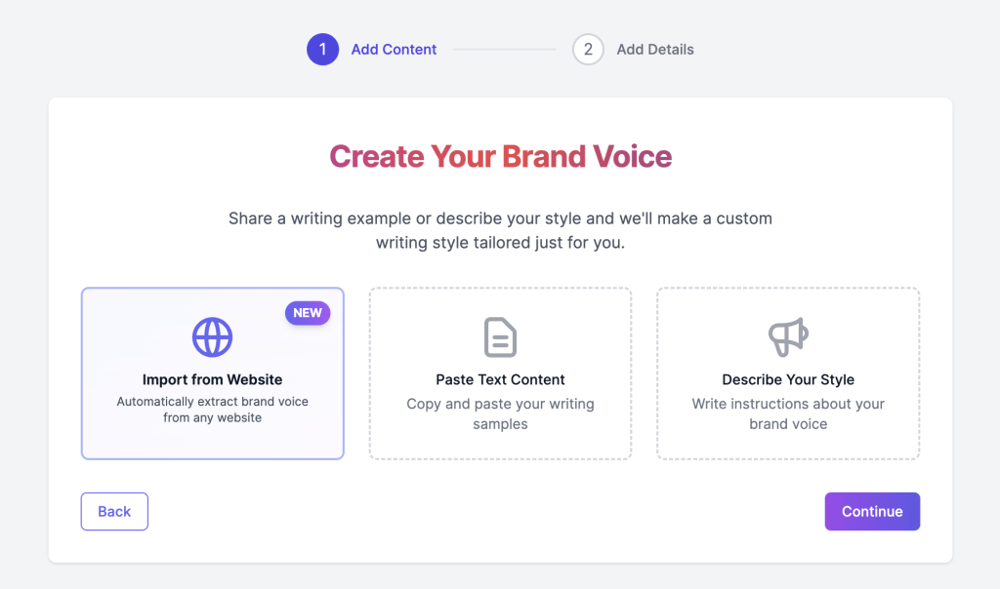
Setting it up takes just two steps:
- Add Content — Choose from three ways to teach the AI your style:
- Import from Website — Automatically extract your brand voice from any URL
- Paste Text Content — Copy and paste your best writing samples
- Describe Your Style — Write instructions about your tone, vocabulary, and voice
- Add Details — Fine-tune the voice profile with specifics about your audience, industry terminology, and dos/don’ts
Once configured, every AI tool in the platform — Marky Agent, Workflows, chatbots, and content generators — can use your brand voice. This means whether your intern or your CMO is generating content, the output sounds like your company, not a generic AI.
Best for: Marketing and communications teams that need consistent brand messaging across all AI-generated content.
For Admins: Manage Your Team and Track Usage
Adding AI to your organization isn’t just about giving your team tools — it’s about maintaining control and visibility. Easy-Peasy.AI provides a dedicated admin dashboard where team owners can manage everything from one place.
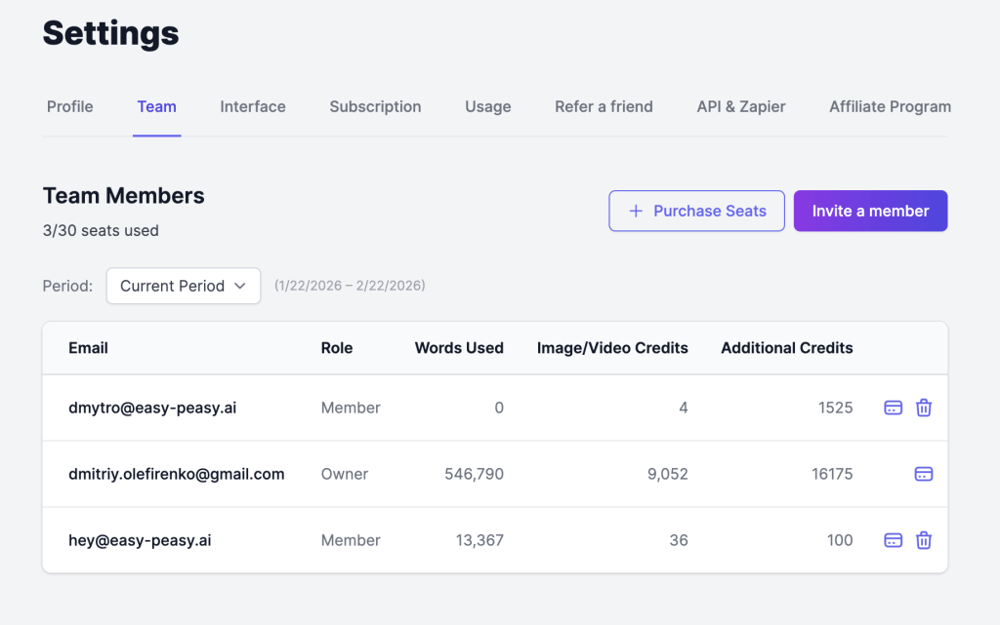
Admin capabilities include:
- Invite and remove team members — Send email invitations or share a join link. Add up to 50 additional seats beyond your plan’s base
- Track individual usage — See exactly how many words, image credits, text-to-speech characters, and transcription minutes each team member has used
- Buy additional credits — Purchase extra credits for specific team members when they need more
- Control sharing — Team-shared bots and workflows are clearly labeled with a “Team” badge
- View usage history — Access detailed usage stats for the current period and up to 6 months prior
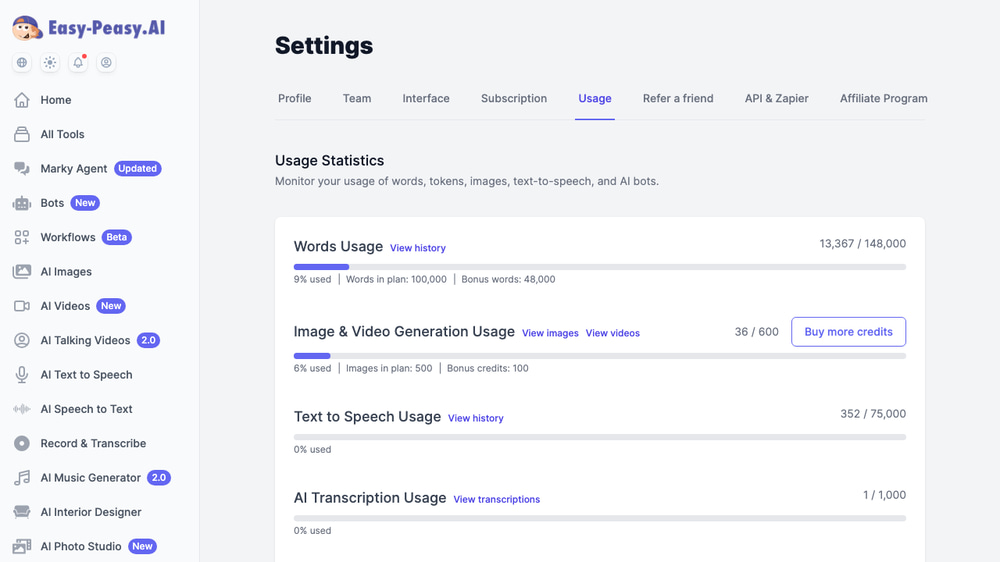
The usage dashboard gives you a clear breakdown across all AI tools: words, images, videos, text-to-speech, transcriptions, and AI bots. You can track spending, identify power users, and make data-driven decisions about expanding AI access across your organization.
How to Add AI to Your Organization (Step-by-Step)
Here’s a practical roadmap to go from zero to AI-powered.
Step 1: Identify High-Impact Use Cases
Start by looking at where your team spends the most time on repetitive, manual tasks. Common high-impact areas include:
- Content creation — Blog posts, social media captions, product descriptions, email campaigns
- Customer support — FAQ responses, ticket triage, chatbot conversations
- Marketing — Ad copy, SEO optimization, image and video creation
- Internal communications — Meeting summaries, report generation, documentation
- Data analysis — Summarizing reports, extracting insights, generating visualizations
Pick one or two areas to start. Trying to adopt AI everywhere at once leads to overwhelm and abandoned projects.
Step 2: Sign Up and Invite Your Team
Create your Easy-Peasy.AI account and choose a Teams plan. Then invite your pilot team using email invitations or a shareable join link. Each member gets their own account with tracked usage.
Step 3: Start with a Pilot Project
Choose one team and one use case for a two-week pilot. For example:
- Have your marketing team use Marky Agent to draft social media posts and generate images
- Let your support team build a custom chatbot trained on your FAQ docs
- Ask your content team to use AI Workflows to automate their blog production pipeline
Set clear success metrics before you start: time saved, output quality, team satisfaction.
Step 4: Train Your Team
AI tools are only as good as the people using them. Invest time in training your team on:
- Prompt engineering basics — How to give AI clear, specific instructions to get better outputs
- Review workflows — AI generates drafts, humans review and refine. Establish a clear process
- Brand guidelines — Use AI templates and brand voice settings to maintain consistency
Step 5: Build AI into Your Workflows
Once the pilot proves successful, integrate AI into your team’s daily processes:
- Create reusable AI Workflows for recurring tasks and share them with the team
- Set up custom chatbots for each department’s knowledge base
- Update your SOPs to include AI-assisted steps
- Use the admin dashboard to monitor adoption and usage across the organization
Step 6: Measure, Optimize, and Expand
Track the impact with the built-in usage dashboard:
- Time saved per task — How much faster are AI-assisted tasks?
- Output volume — How much more is your team producing?
- Cost per output — What’s the cost of AI-generated content vs. traditional methods?
- Team adoption — Which members are using AI the most, and which need more support?
Use these metrics to justify expanding AI to additional teams.
Best AI Use Cases by Department
| Department | Best Tools | Use Cases |
|---|---|---|
| Marketing | Marky Agent, Image Gen, Video Gen, Workflows | Blog posts, social media visuals, ad creatives, video clips, automated content pipelines |
| Sales | Marky Agent, Chatbots, Talking Videos | Prospect research, personalized video outreach, product info bots, proposal drafts |
| Customer Support | Chatbots, Transcription, Marky Agent | 24/7 FAQ bots, call transcription, ticket summaries, video FAQs |
| Product | Marky Agent, Transcription, Workflows | User feedback analysis, feature specs, meeting transcripts, automated reporting |
| HR & L&D | Chatbots, Talking Videos, TTS, Image Gen | Onboarding bots, training videos, policy assistants, job descriptions |
| Operations | Workflows, Transcription, Marky Agent | Automated pipelines, meeting notes, process documentation, data summaries |
Common Mistakes to Avoid When Adding AI
Trying to Automate Everything at Once
Start with one or two high-impact use cases. Focus, prove value, then expand. Organizations that try to deploy AI everywhere simultaneously often end up with poor adoption and wasted budgets.
Choosing Too Many Tools
Using five different AI tools for five different tasks creates complexity and increases costs. Choose a comprehensive platform like Easy-Peasy.AI that handles multiple use cases in one place — text, images, audio, video, and chatbots.
Not Setting Quality Standards
AI outputs should always be reviewed by a human before publishing or sending. Set up a clear review process and quality checklist. AI generates the first draft — your team makes it perfect.
Ignoring Your Team’s Input
The people doing the work know where AI can help most. Involve your team in choosing use cases and give them a voice in how AI tools are implemented.
Skipping the Training Phase
Even the most intuitive AI tools require some training. A 30-minute workshop on prompt engineering can dramatically improve the quality of outputs your team produces.
How to Get Executive Buy-In for AI
If you need to convince leadership to invest in AI, focus on these three arguments:
- ROI is measurable and fast — Most organizations see positive ROI within the first month. Calculate hours saved multiplied by average hourly cost, then subtract the platform subscription.
- Competitors are already doing it — Over 70% of organizations are experimenting with AI. Not adopting it isn’t playing it safe — it’s falling behind.
- Low risk to start — A pilot project with one team costs very little and provides concrete data. You’re not asking for a massive investment — just permission to test.
Pro tip: Run a small pilot on your own, document the results, and present the data. Nothing convinces executives faster than real numbers from their own organization.
Frequently Asked Questions
How much does it cost to add AI to an organization?
Easy-Peasy.AI offers Teams plans starting with 3 seats, scaling up to 40+ seats. The cost is typically a fraction of what you’d pay for even one hour of a contractor’s time. Most organizations find that AI pays for itself within the first week through time savings alone.
Do we need technical staff to implement AI?
No. Every tool in Easy-Peasy.AI is designed for non-technical users. If your team can use Google Docs or Canva, they can use these AI tools. No coding, no data science background, no special hardware required.
Is our data safe when using AI tools?
Easy-Peasy.AI is HIPAA compliant, ISO 27001 certified, and SOC2 certified. Your data stays confidential, files are securely processed, and inputs are never used to train models or shared with third parties.
Will AI replace our employees?
AI augments your team — it doesn’t replace them. Think of it as giving every employee a highly capable assistant. Your team still makes strategic decisions, reviews outputs, and applies human judgment. AI handles the repetitive, time-consuming groundwork.
Can team members share AI assets with each other?
Yes. On Teams plans, members can share chatbots, workflows, and generated content. Shared items are tagged with a “Team” badge so everyone knows what’s available. The admin can control sharing permissions.
How does the admin track what the team is using?
The admin dashboard shows per-member usage for words, images, videos, text-to-speech, and transcriptions. Admins can view current and historical usage, buy additional credits for specific members, and manage team seats.
Start Adding AI to Your Organization Today
The organizations winning today aren’t the ones with the biggest budgets — they’re the ones that adopted AI early and learned how to use it effectively. With Easy-Peasy.AI, your team gets access to an AI agent, 40+ image models, video generation, talking videos, transcription, custom chatbots, automated workflows, and a full admin dashboard — all in one platform.
Try Easy-Peasy.AI free and see how quickly your organization can go from manual workflows to AI-powered productivity. No technical skills needed — just sign up, invite your team, and start creating.