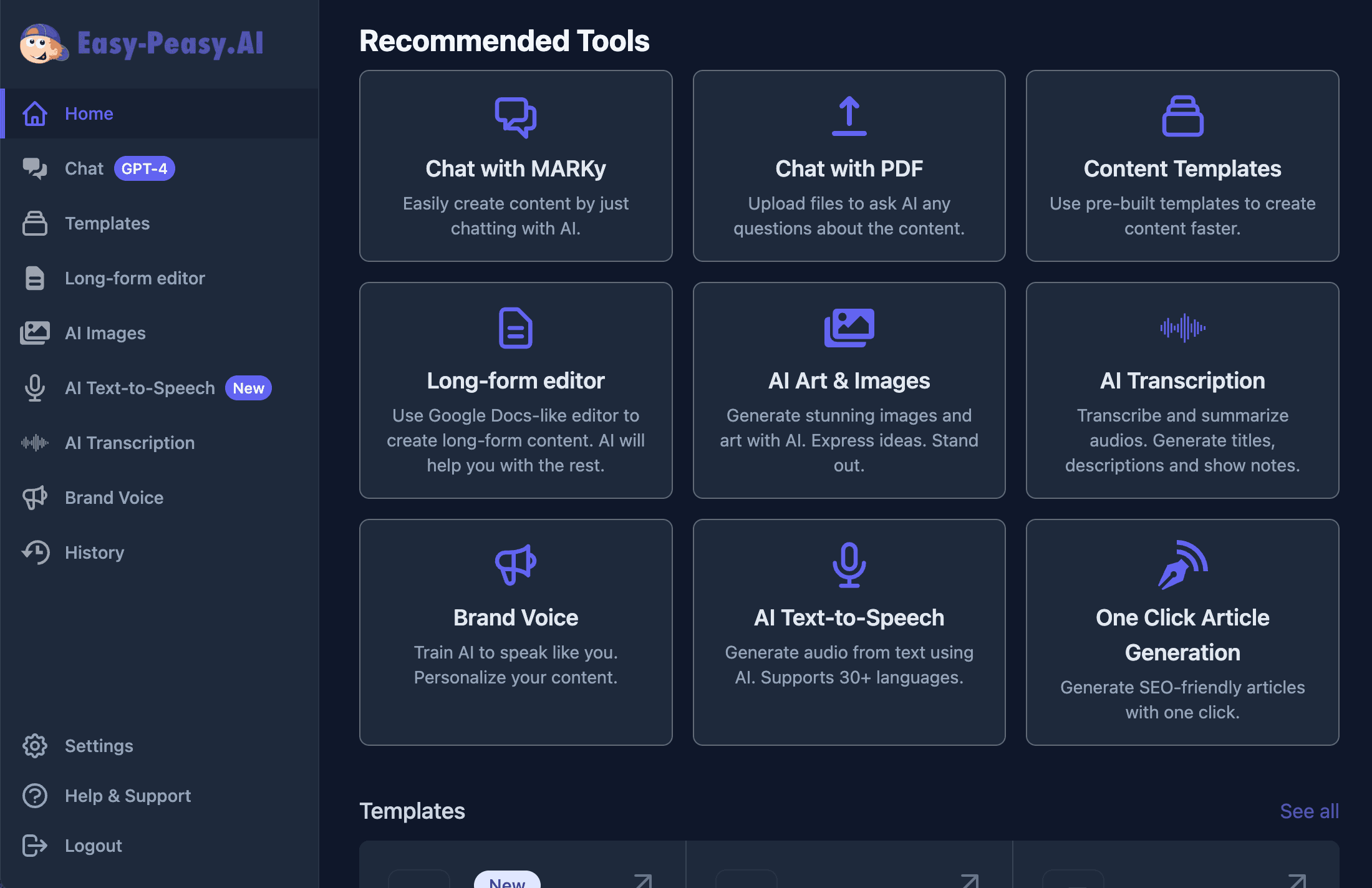
Carousels are the most save-worthy format on social media — but building one usually means fighting with Canva, wrestling with fonts, and writing copy from scratch for every slide. It can eat an hour before you’ve posted a thing. In this guide, you’ll learn how to make a carousel for Instagram and LinkedIn in minutes using AI, with Easy-Peasy.AI’s Instagram Carousel Generator and LinkedIn Carousel Generator. Type one idea, and you get a full set of designed slides plus a ready-to-post caption — no design skills required.
What Is a Carousel Post?
A carousel is a single social media post that holds multiple images you swipe through, one slide at a time. On Instagram it’s the multi-photo post marked with a little stacked-squares icon. On LinkedIn it’s the swipeable document (or multi-image) post that shows a dot for each slide.
Because people have to swipe, carousels keep readers on your post longer than a single image. That extra time and interaction is exactly what the algorithms reward — which is why carousels are consistently one of the highest-engagement, most-saved formats on both platforms.
The catch is that a good carousel needs two things most of us don’t have time for: tight, punchy copy on every slide and consistent, professional design from the cover to the call to action. That’s the exact problem an AI carousel generator solves.
Why Instagram and LinkedIn Carousels Are Worth It
Carousels do a lot of heavy lifting for creators and businesses. They’re a great fit if you’re:
- A creator or coach who wants save-worthy, educational posts that grow your following
- A founder or marketer building authority on LinkedIn without hiring a designer
- A social media manager who needs to ship on-brand content for multiple accounts, fast
- A small business owner turning tips, products, or FAQs into scroll-stopping posts
- Anyone who has ideas but freezes at the blank Canva page
With the AI carousel generators, you go from a one-line idea to a finished, downloadable carousel in a couple of minutes — copy, design, and caption included.
Meet the AI Carousel Generators
Easy-Peasy.AI has two dedicated tools that share the same smart engine but are tuned for each platform:
- Instagram Carousel Generator — turns any idea into a save-worthy Instagram carousel with an expressive, creator-led look and a caption full of emojis, a save/share prompt, and 8–15 hashtags.
- LinkedIn Carousel Generator — turns the same kind of idea into a scroll-stopping, professional LinkedIn carousel with a high-signal editorial style and a caption that ends with a question and 3–5 hashtags.
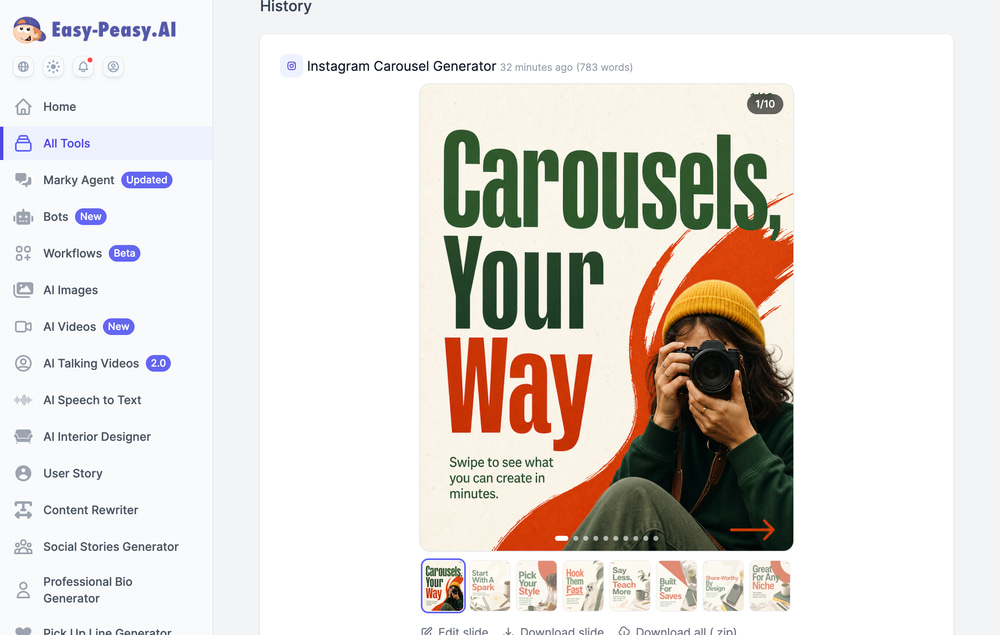
Both tools do the whole job for you. The AI writes the slide copy, designs each slide as a real image with the text rendered right on it, picks a cohesive color palette, and writes a matching caption. You get every slide as a portrait 4:5 image (1024×1280 px) — the ideal size for both feeds — which you can download one at a time or all at once as a ZIP.
How to Make an Instagram Carousel with AI (Step-by-Step)
Here’s how to go from a blank page to a finished Instagram carousel in five quick steps.
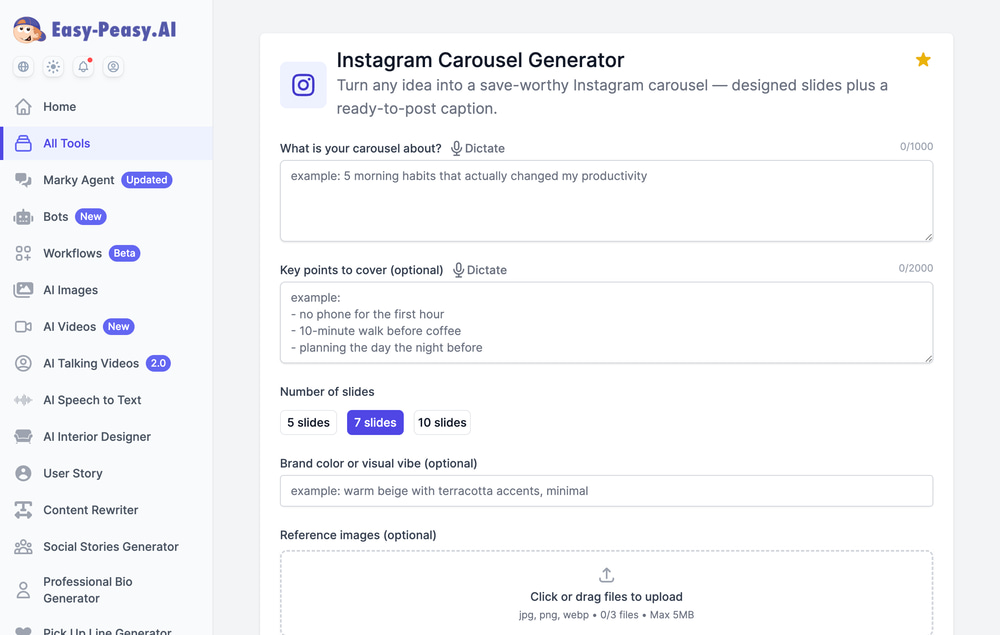
Step 1: Describe what your carousel is about
Open the Instagram Carousel Generator and type your topic into the “What is your carousel about?” field. One clear line is all you need. For example: 5 morning habits that actually boosted my productivity.
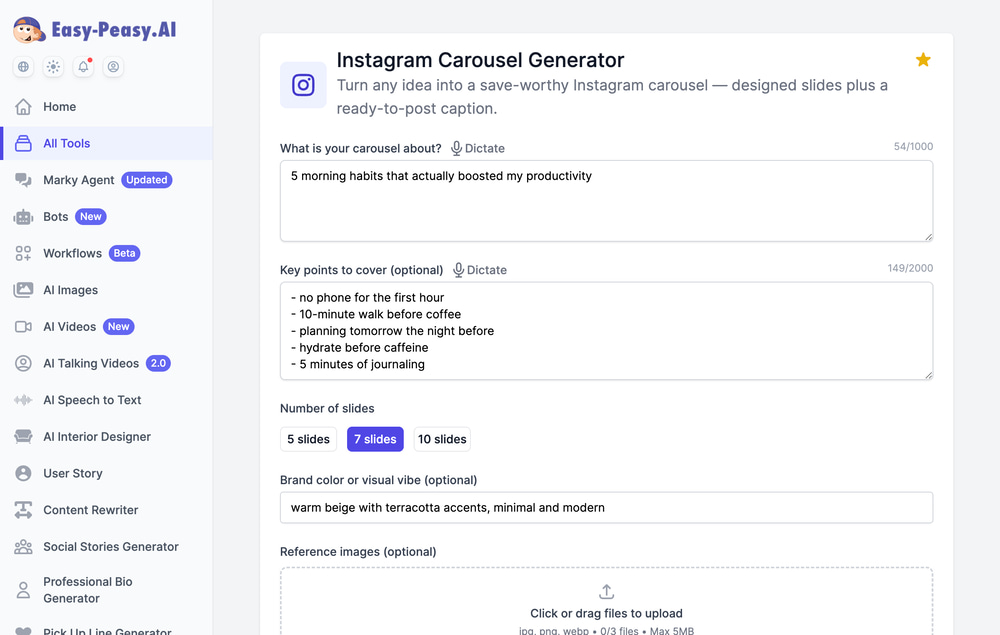
The more specific your idea, the sharper the slides. “5 morning habits that boosted my productivity” will always beat a vague topic like “productivity.”
Step 2: Add your key points (optional)
If you already know the points you want to hit, drop them into the “Key points to cover” box, one per line. This is how you keep the AI on-message instead of guessing. For our example we added things like “no phone for the first hour,” “10-minute walk before coffee,” and “planning tomorrow the night before.” Leave it blank and the AI will fill in the structure for you.
Step 3: Choose your number of slides
Pick 5, 7, or 10 slides. Seven is the default and a great all-rounder: enough room for a strong cover, a few teaching slides, and a closing call to action. Go with 5 for a quick tip and 10 for a deeper how-to or listicle.
Step 4: Set your brand color or vibe
Use the “Brand color or visual vibe” field to steer the design — something like warm beige with terracotta accents, minimal and modern or deep navy with an electric-blue accent. Want the slides to match your existing brand? Upload up to three reference images (brand slides, product shots, or your logo) and the AI will match their style and can feature them on the slides.
Step 5: Generate, review, and download
Pick a tone of voice, hit Generate, and the AI writes the copy and designs every slide in one go. When it’s done, you get a swipeable preview with your designed slides plus the finished caption. From there you can flip through the slides, use Edit slide to tweak any single design, and Download all (.zip) to grab the full set. Here’s a real caption the tool produced for our morning-habits example:
Ready to supercharge your mornings? These 5 habits can transform your productivity! 🌅✨ Start each day with intention and clarity. Save this post for your daily routine inspiration and share it with someone who needs a productivity boost! #MorningRoutine #ProductivityTips #RiseAndShine #Motivation #HealthyHabits #SuccessMindset #TimeManagement #WellnessJourney
How to Make a LinkedIn Carousel with AI
The steps for LinkedIn are exactly the same — open the LinkedIn Carousel Generator, describe your idea, add key points, choose your slide count, and generate. What changes is the output, which is tuned for a professional audience.
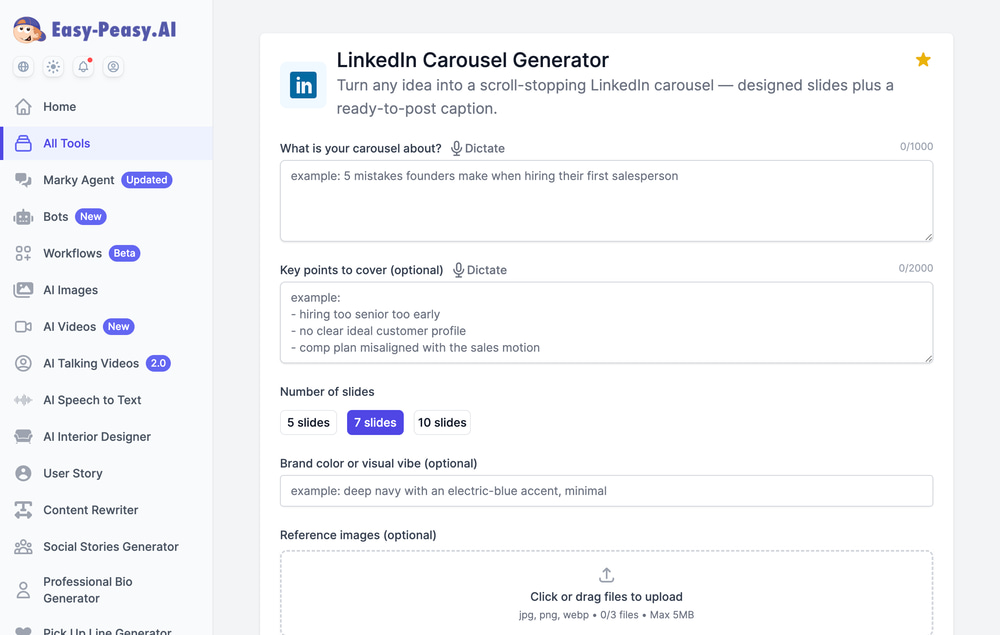
Compared to the Instagram version, the LinkedIn generator leans into a cleaner, more editorial, business-focused design and writes copy with a high-signal, professional voice. The caption is built for LinkedIn too: it opens with a hook, ends with a question to spark comments, and uses just 3–5 relevant hashtags instead of a big block. A topic like 5 mistakes founders make when hiring their first salesperson comes back looking like a polished, thought-leadership post.
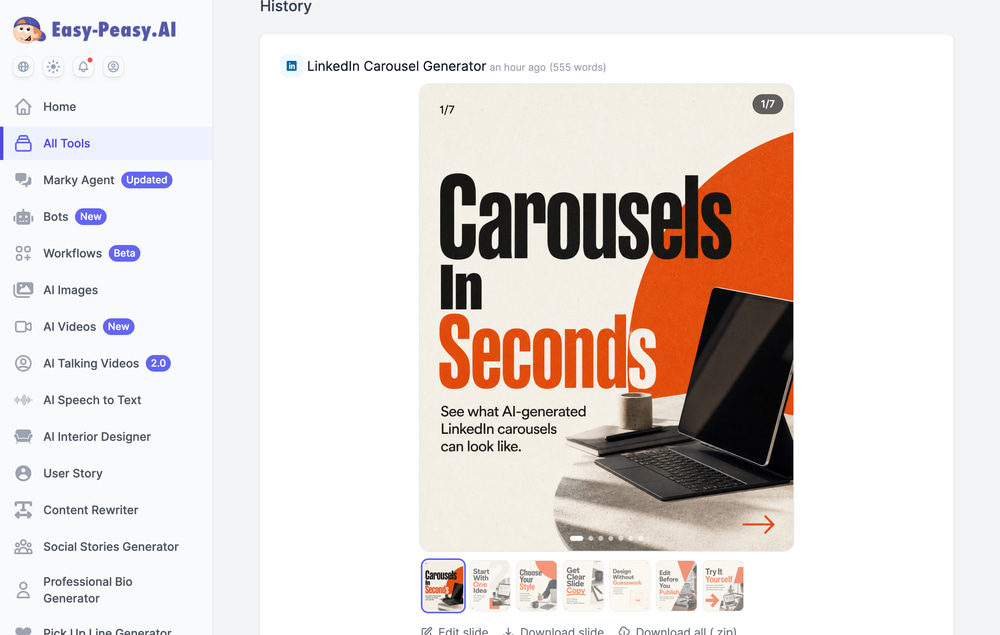
Examples of AI-Generated Carousel Slides
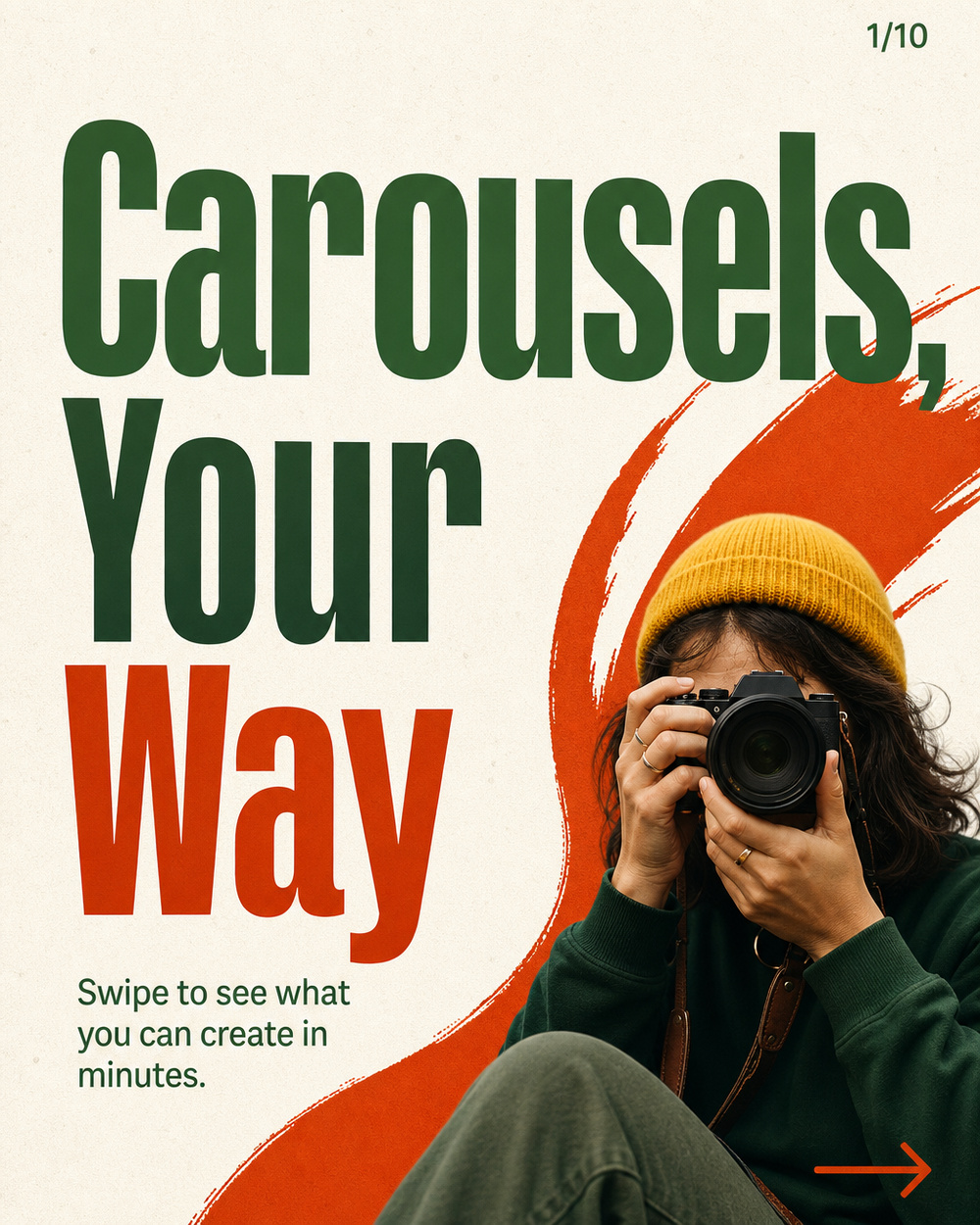
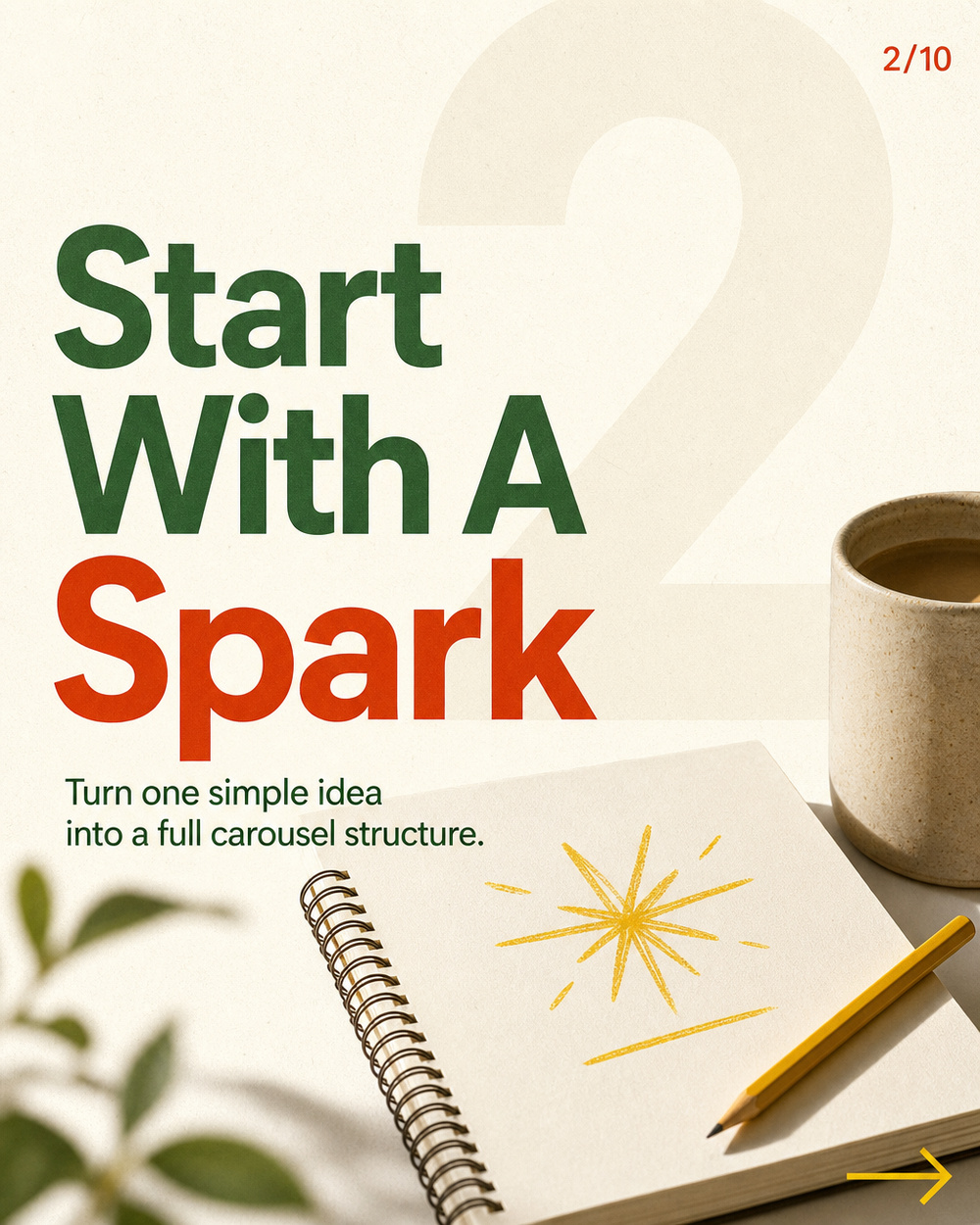
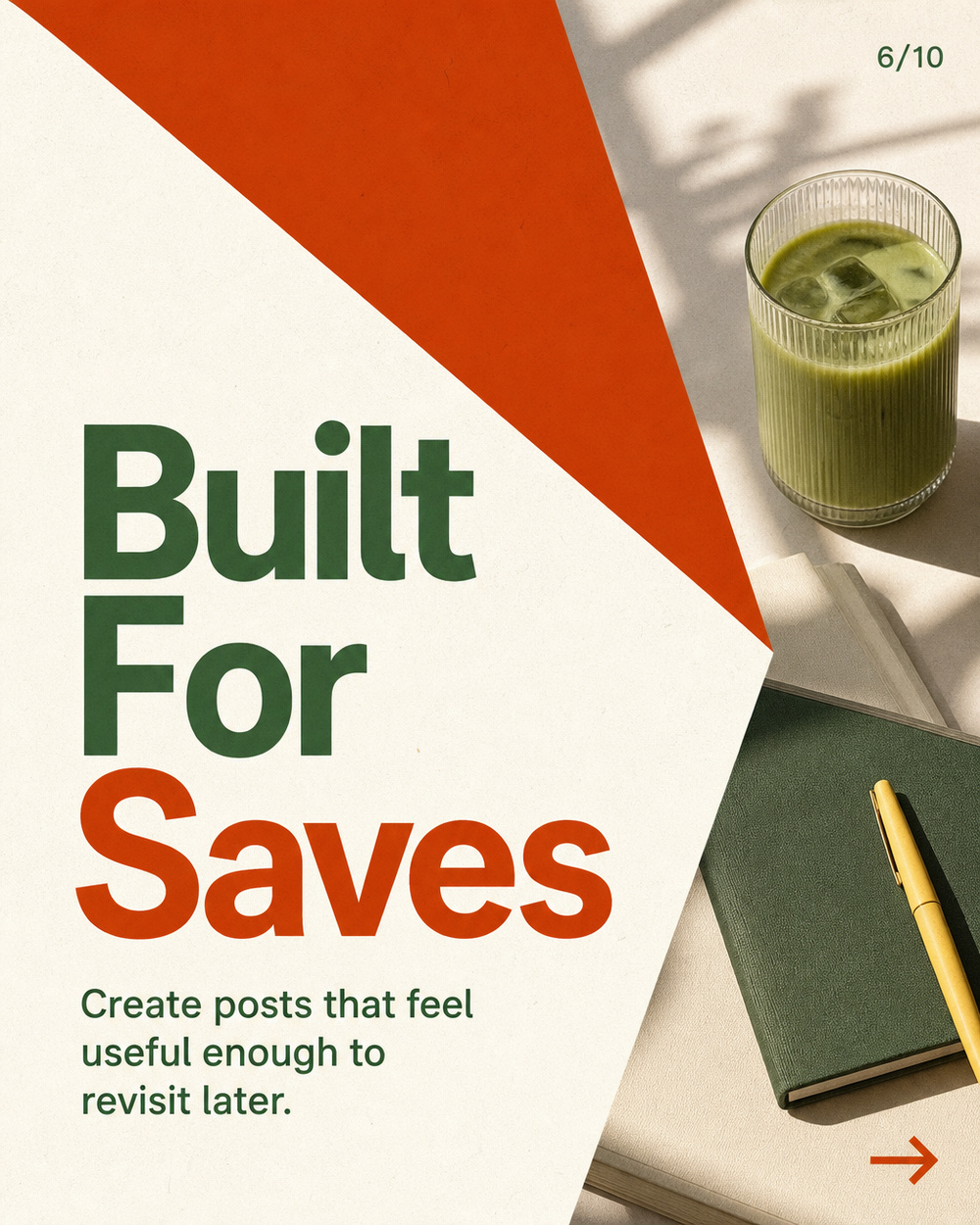
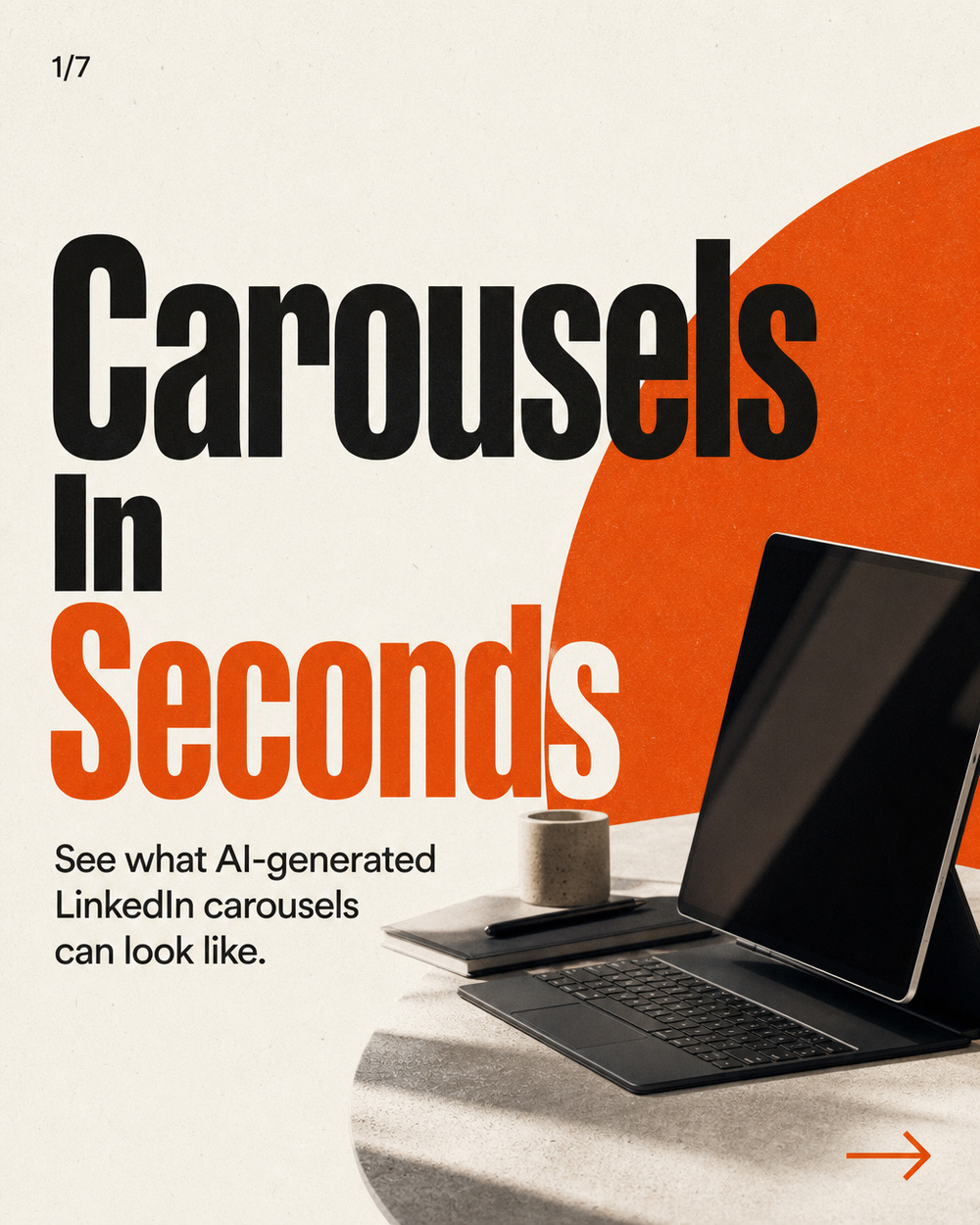
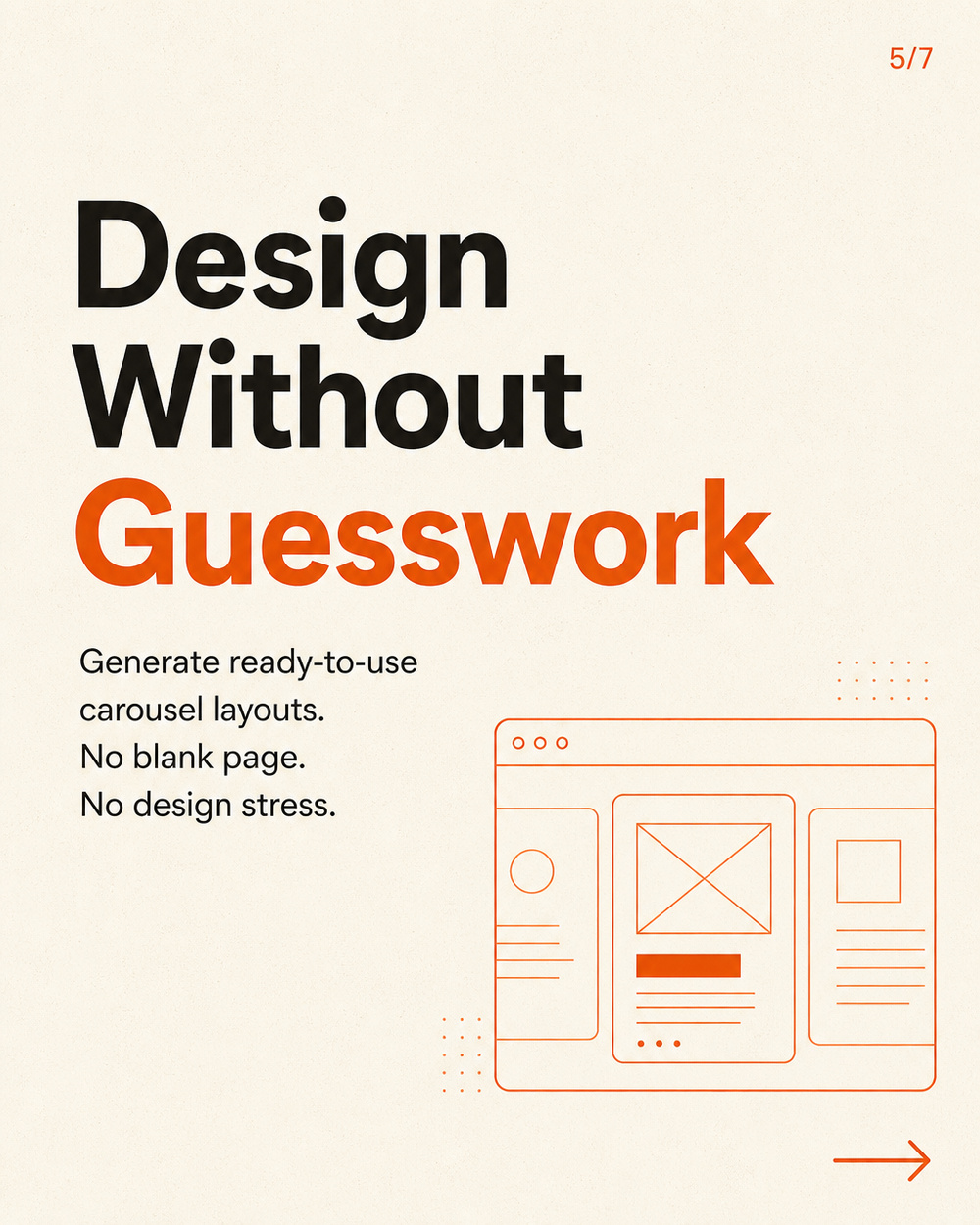
The best way to understand these tools is to see the slides they produce. Notice how each set keeps one consistent palette and layout system from the cover through to the call to action — the part that’s hardest to nail by hand.
Instagram carousel styles
Warm, expressive, and creator-led, with lifestyle photography and bold typographic covers:
LinkedIn carousel styles
High-signal and professional, with clean editorial layouts and business-focused imagery:

How to Post Your Carousel on Instagram
Once you’ve downloaded your slides, posting the carousel takes a minute:
- Save all the slide images to your phone (use Download all (.zip) and unzip, or download each slide).
- In the Instagram app, tap + and choose Post.
- Tap the multiple-photos icon (the stacked squares), then select your slides in order.
- The 4:5 size is already feed-perfect, so you usually won’t need to crop. Add your caption — the generator wrote one for you — and share.
Instagram now lets you add up to 20 images or videos in one carousel (it used to be 10), so a 5-, 7-, or 10-slide set fits comfortably.
How to Post Your Carousel on LinkedIn
LinkedIn gives you two easy ways to share a carousel:
- As a multi-image post: start a post, click the image icon, and upload your slides in order. LinkedIn shows them as a swipeable gallery. This is the quickest option.
- As a document (PDF) post: combine your slides into a single PDF, then use Add a document when creating your post. This gives you the classic swipeable “carousel” look with page dots, and it’s great for longer, more in-depth slides.
Either way, paste the caption the tool generated, and you’re live.
Tips for Carousels People Actually Save and Share
Win the first slide
Your cover slide is 90% of the battle — it’s the only thing most people see before deciding to swipe. Lead with a clear promise or a bit of curiosity (“5 morning habits that actually work”), and let the AI carry the design.
Give the AI real key points
The quality of your input shapes the output. Feeding in three to five specific bullet points gives you far tighter slides than a one-word topic. Think of the key-points box as a quick outline.
Lock in your brand
Set a consistent brand color or vibe (and upload reference images) so every carousel you make looks like it came from the same account. Consistency is what turns a random post into a recognizable brand.
Always end with a call to action
The last slide should tell people what to do next: save it, share it, follow for more, or comment. The generator adds a CTA slide automatically — keep it, because saves and shares are what push carousels into more feeds.
How the AI Carousel Generator Works Behind the Scenes
For the curious, here’s what happens the moment you hit Generate:
- Copywriting — a language model writes your slides in a strict cover → content → call-to-action structure, plus a platform-matched caption.
- Design — each slide is sent to an advanced image model that renders the headline and text directly onto a designed 4:5 slide, with a cover treatment, a closing CTA, and rotating layouts (giant slide numbers, accent shapes, highlights, and line-art) in between.
- Consistency — one color palette is locked in across the whole set, chosen from your brand vibe, your reference images, or a curated palette that fits your topic.
All the slides are generated in parallel, so a full carousel is ready in about a minute or two. The default design model renders especially crisp typography, and the tools are available on Easy-Peasy.AI’s paid plans, using a few image credits per slide.
Frequently Asked Questions
How many slides should a carousel have?
Five to ten works best for most posts. The generator offers 5, 7, or 10 slides, with 7 as a balanced default: a strong cover, a handful of value slides, and a clear call to action.
How many photos can you put in an Instagram carousel?
Instagram now supports up to 20 images or videos in a single carousel (it was previously capped at 10). A 5-, 7-, or 10-slide AI carousel fits well within that.
Can I make a seamless Instagram carousel?
The generator creates a cohesive set of individually designed slides that share one palette and layout system, rather than a single image sliced across panels. For most educational and save-worthy carousels, consistent standalone slides actually perform better because each one can be understood on its own.
Is this a good Canva alternative for carousels?
Yes. If you usually build carousels in Canva, this skips the template hunting, manual typesetting, and copywriting entirely — you describe the idea and get finished, designed slides plus a caption. You can still fine-tune any slide with the built-in Edit option.
Can I match my brand colors and logo?
Absolutely. Set a brand color or visual vibe in the form, and upload up to three reference images (including your logo). The AI matches that style across every slide so your carousels stay on-brand.
Can I edit a slide after it’s generated?
Yes. Each slide has an Edit slide option so you can adjust an individual design with AI, and you can download slides one at a time or all together as a ZIP.
Do I need any design skills?
None at all. If you can type a sentence, you can make a carousel. The AI handles the copywriting, layout, typography, and color for you.
Can I use the carousels commercially?
Yes — carousels you generate on a paid plan are yours to post on your business and client accounts. See the Easy-Peasy.AI terms of use for the details.
Start Creating Carousels Today
Whether you’re growing a following on Instagram or building authority on LinkedIn, you no longer need a designer or an hour in Canva to ship a professional carousel. Describe your idea, choose your slides, and let the AI handle the rest. Try the Instagram Carousel Generator or the LinkedIn Carousel Generator and turn your next idea into a swipeable, save-worthy post in minutes.