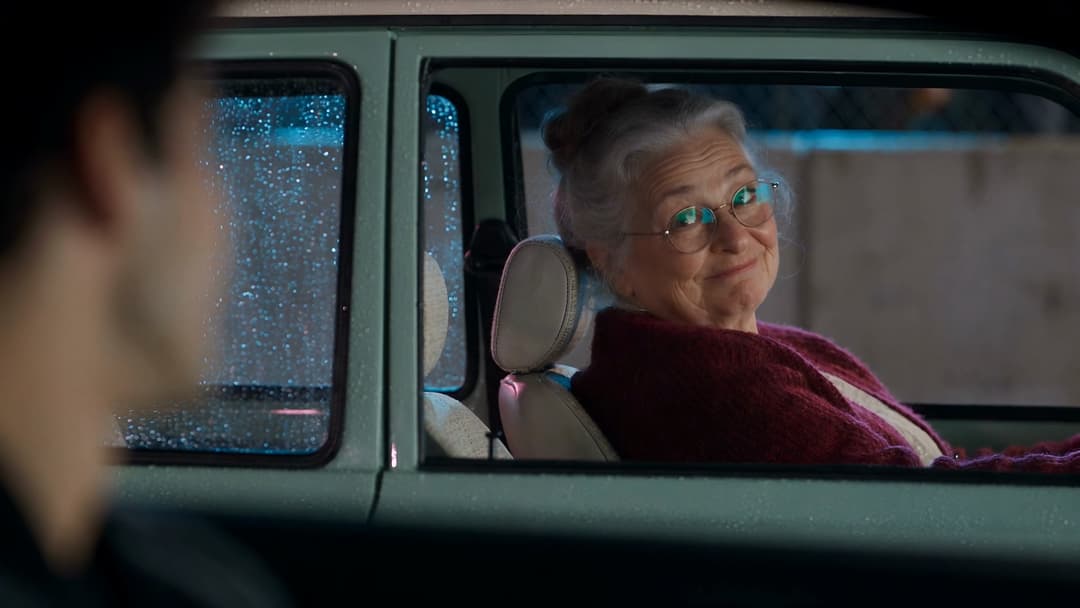
You know a Vox-style video the second you see one: a calm narrator asking a question, bold typography stamping onto archival footage, a map zooming in while a yellow highlighter sweeps across a document. It is the most copied explainer format on the internet — and until recently, making one meant weeks inside After Effects. In this guide, we’ll break down exactly what makes the style work, then show you how to recreate it in minutes with Easy-Peasy.AI’s AI Video Generator and Google’s Gemini Omni Flash video model — narration, music, and motion graphics included.
Here’s a clip we generated from a single text prompt while writing this post. Sound on — the voiceover, music, and sound design were all generated by the model in the same pass:
And here’s a two-scene mini explainer where both scenes share one locked visual style — made with the image-first workflow covered later in this guide:
What Is a Vox-Style Video?
A Vox-style video is a short documentary explainer that answers one focused question — “Why do cities trap heat?”, “Why are shipping containers all the same size?” — using a conversational voiceover and dense, purposeful motion graphics. The name comes from Vox.com, whose YouTube channel launched in 2014 with the mission of “explaining the news.”
The style was shaped by a small team of journalist-animators. Founding producer Joe Posner called the format an “animated opinion essay” and set two famous rules: no desks (a person behind a desk looks like cable news) and no talking-head interviews as the backbone of a video. Series like Borders (Johnny Harris), Earworm (Estelle Caswell), and Vox Atlas (Sam Ellis) turned the approach into a recognizable genre — one now used by creators like Johnny Harris, Cleo Abram, and thousands of channels covering history, geopolitics, and science.
What most people miss: the look is only half of it. A true Vox-style video is a script formula plus a visual language. You need both, and we’ll cover both.
The 7 Signature Techniques of the Vox Look
Study enough Vox videos (and the After Effects tutorials that reverse-engineer them) and the same techniques appear again and again. These are the ingredients your AI prompts will need to name.
1. Kinetic Typography and the Highlight Sweep
Big, bold, condensed sans-serif words punch onto the screen exactly as the narrator says them. The single most copied move is the highlight sweep: a yellow marker stroke wiping across a phrase in a newspaper scan, court document, or quote while the voiceover reads it. Vox’s trademark yellow is so recognizable that recreations are judged by it.

2. Archival Photos as Paper Cutouts
Old photographs sit on warm, textured paper backgrounds like physical objects — drop shadows, torn edges, a slow push-in with subtle 2.5D parallax between layers. Vox art director Joey Sendaydiego literally builds some visuals from construction paper, and his rule explains the whole aesthetic: “You don’t want it to look perfect because that might make it look more like an ad than an editorial piece.”
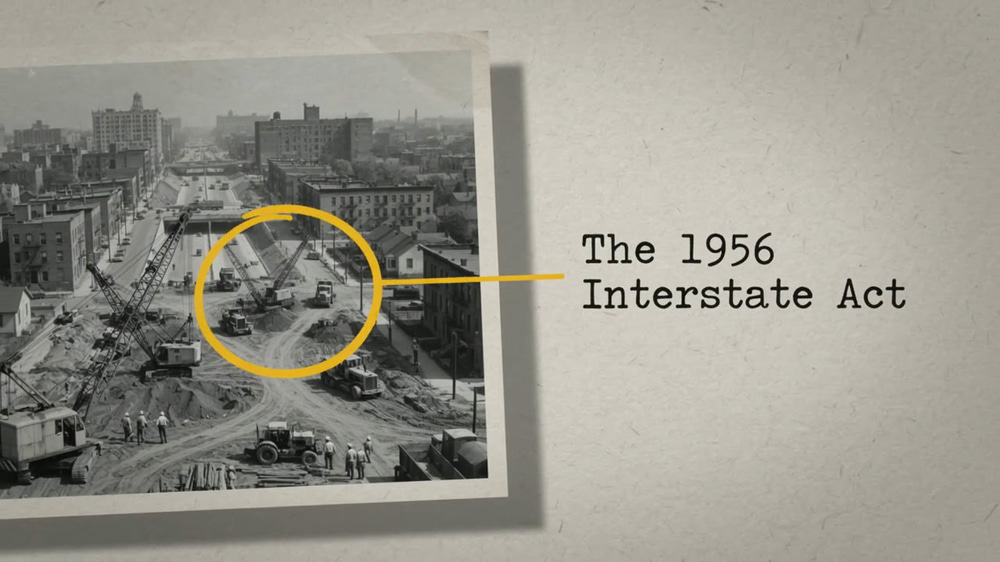
A frame from our AI-generated example: archival photo, paper texture, hand-drawn annotation — every element of the collage look, generated in one pass.
3. Zooming, Annotated Maps
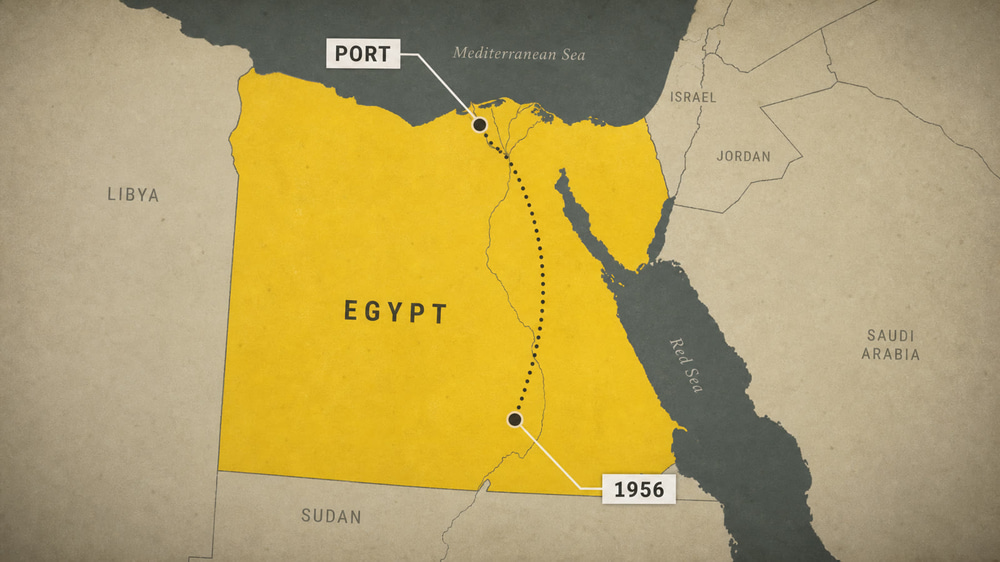
The Atlas and Borders signature: a clean, decluttered map zooms toward a region, a country fills with an accent color, callout lines and labels appear on cue. Traditionally this takes the GEOlayers plugin for After Effects plus a custom Mapbox map style with the labels stripped out. Johnny Harris animates five properties — latitude, longitude, zoom, bearing, and pitch — and offsets the bearing keyframes so the camera “comes down and orbits.”
4. Data That Answers the Narrator
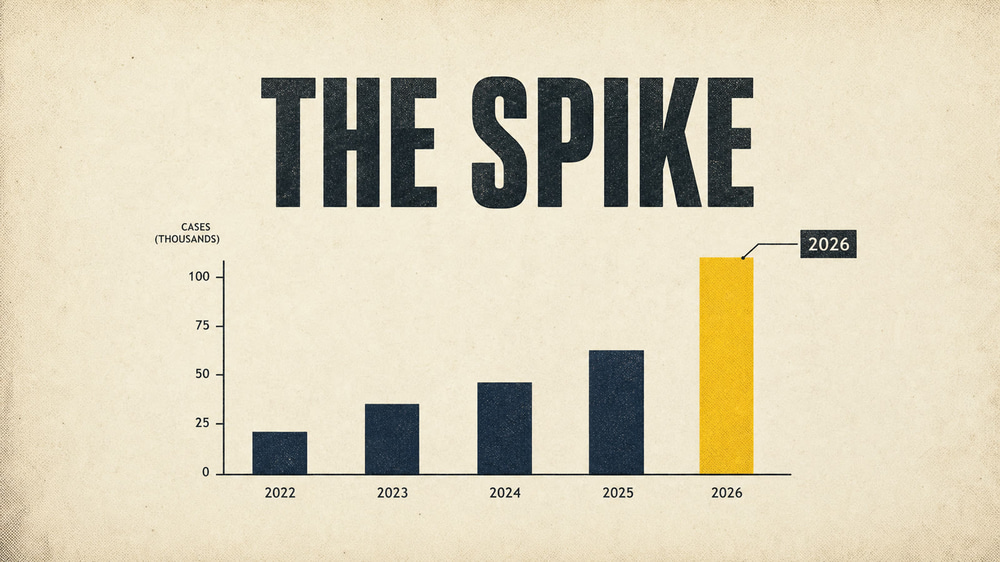
Charts grow at the exact moment the narrator cites the number. Timelines scroll as decades pass. The pro-versus-amateur difference is that every animated element answers a question the narration just raised — nothing moves just to move.
5. The 12fps “Stutter”
Here’s the deep-cut secret: Vox graphics are often animated at 12 frames per second inside a 24fps timeline (“animating on twos,” borrowed from hand-drawn animation). That slightly choppy, stop-motion feel is why Vox motion graphics read as handmade while corporate explainers feel synthetically smooth.
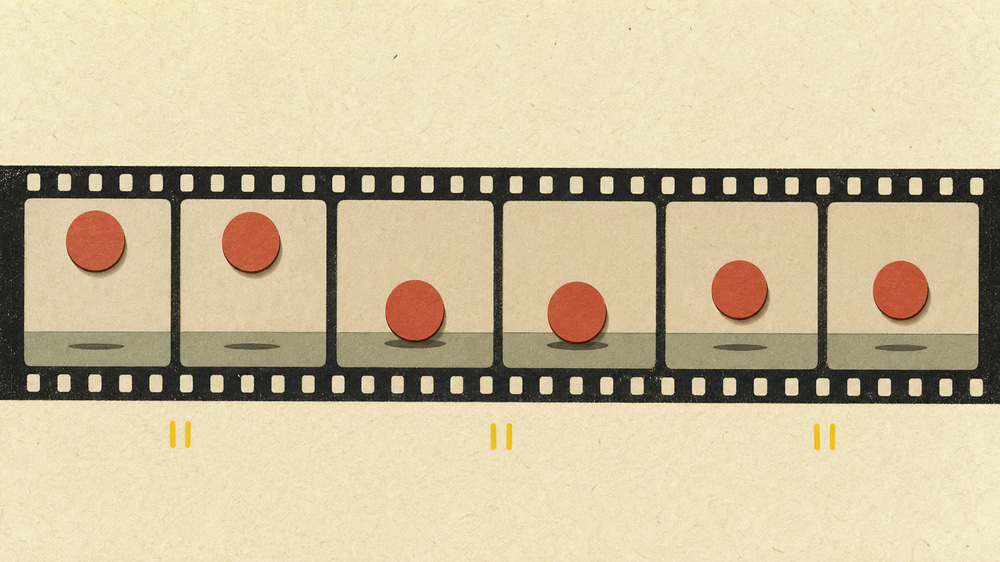
Animating “on twos”: each pose is held for two frames, so 24fps footage carries only 12 drawings per second — the source of the hand-made stutter.
6. Texture on Everything
No pure white backgrounds, ever. Paper grain, halftone patterns, film grain, light leaks, a touch of chromatic aberration at the edges, a soft vignette pulling your eye to the center. Editors call this “breaking the digital feel” — screens should feel like screens, paper should feel like paper.

7. A Muted Palette with One Loud Accent
Desaturated, editorial base colors — cream, navy, gray — with a single bold accent (Vox’s yellow) reserved for the thing you must look at right now. Consistency across every scene is what makes a video feel like one continuous piece instead of a slideshow.
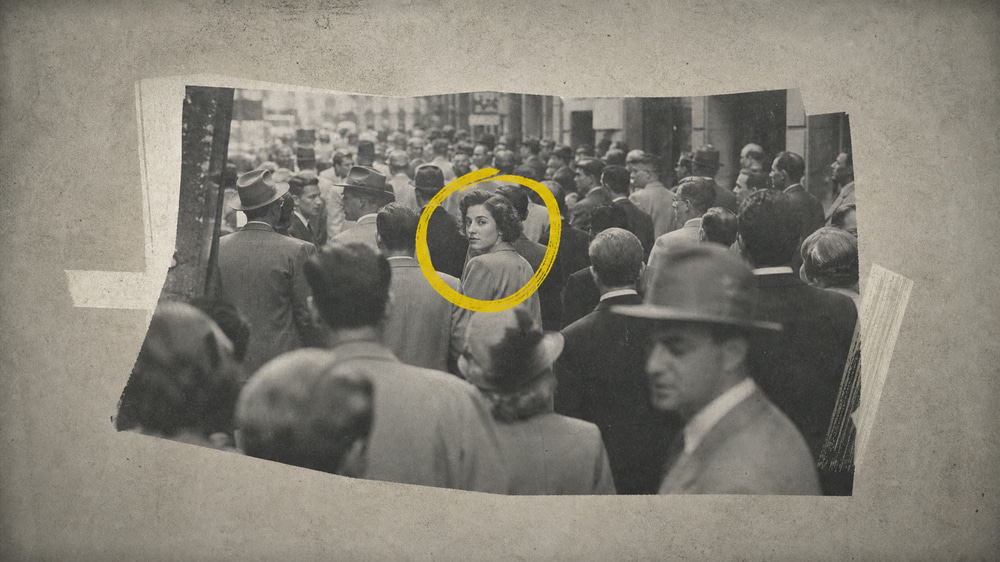
The whole frame stays desaturated so the single yellow mark owns your attention — annotation and palette working as one system.
The Vox Script Formula: Visual Anchor, Then Context
Johnny Harris has described the structure that makes these videos so watchable in three words: “visual evidence, then context.” Fans call it the anchor-and-bridge structure, and it inverts how TV news works:
- Cold open on a visual anchor. A concrete, filmable thing — a purse woven from worthless banknotes, a bridge, a strange border on a map. No background, no history. Just: look at this thing.
- The question. One sentence that turns curiosity into a promise: “So why does this exist?”
- Short context bridges. The history and explanation arrive in small pulses, always after an anchor has made you hungry for them. Context stays the minority of the runtime.
- Recurring anchors. The same visual returns throughout the video like a character in a story.
- The zoom-out. The ending answers the question, then widens to a bigger idea, leaving the viewer thinking.
The audio follows the same rhythm. Vox producers change the music roughly every 20 seconds, duck it under the voice, and cut animations to the beat. The narration is written to be spoken, not read — full of “Look at this” and “Here’s the thing,” with deliberate pauses so viewers can think.
Keep this formula in mind — it’s about to become your prompt structure.
The Classic Workflow (and Why It Takes Three Weeks)
Traditionally, one producer does everything: research, scriptwriting, narration, animation, and sound. The toolkit is Adobe Premiere Pro and After Effects, plus GEOlayers and Mapbox for maps, Photoshop for cutouts, texture libraries for grain and paper, and a stack of learned tricks like Posterize Time at 12fps and masked Gaussian blurs that fake a camera lens.
Even at Vox, a single video took around three weeks of full-time work — and producers there described accepting “B+ polish” to hit deadlines. That skill-and-time wall is exactly what AI video generation just removed.
Enter AI: Explainer Videos From a Text Prompt
Everything changed in 2025 when Google’s Veo 3 became the first mainstream model to generate synchronized audio — narration, dialogue, music, and sound effects — in the same pass as the video. Within months, AI-generated documentary and explainer clips were everywhere, from viral TikTok history channels to an NBA Finals ad made for about $2,000.
The model we’ll use in this guide is Gemini Omni Flash, Google’s any-to-video model announced at Google I/O 2026. It generates 720p clips up to 10 seconds long with native audio, and it’s unusually good at exactly the things the Vox style needs:
- Native narration — write the voiceover line in your prompt and a natural, documentary-style narrator speaks it, synced with music and sound design.
- Legible on-screen text — short titles, captions, and labels render cleanly, which most video models still struggle with. (Look at the typewriter caption in our example above — that text came straight out of the model.)
- Motion-graphic literacy — it understands instructions like “kinetic typography,” “animated map with callout lines,” and “paper cutout with drop shadow.”
- Conversational editing — you can feed a generated clip back in and ask for changes in plain English instead of re-rolling from scratch.
On Easy-Peasy.AI, Gemini Omni Flash costs 3 credits per second of video — a full 10-second scene is 30 credits — and sits alongside dozens of other models like Veo 3.1, Kling, and Seedance, so you can mix models within one project.
How to Make a Vox-Style Video with AI (Step-by-Step)
Here’s the full workflow, from blank page to finished explainer scene. Total time for your first clip: about two minutes.
Step 1: Write a Mini-Script for One Scene
Don’t prompt the visuals first — the script drives everything, just like at Vox. For each 10-second scene you need exactly two things:
- One narration line of 20 words or fewer. Any longer and the voiceover sounds rushed. Write it the way you’d say it out loud.
- One visual idea — a single anchor: a map zoom, an archival photo, a chart, a typography moment. One idea per scene, never three.
For example: Narration: “Cities are getting hotter — and it’s not just the climate. It’s the concrete.” Visual: aerial city footage, title typography, then a heat map blooming red. If you want help outlining a full video, ask Marky, Easy-Peasy.AI’s AI assistant, to turn your topic into a scene-by-scene script with one anchor per scene.
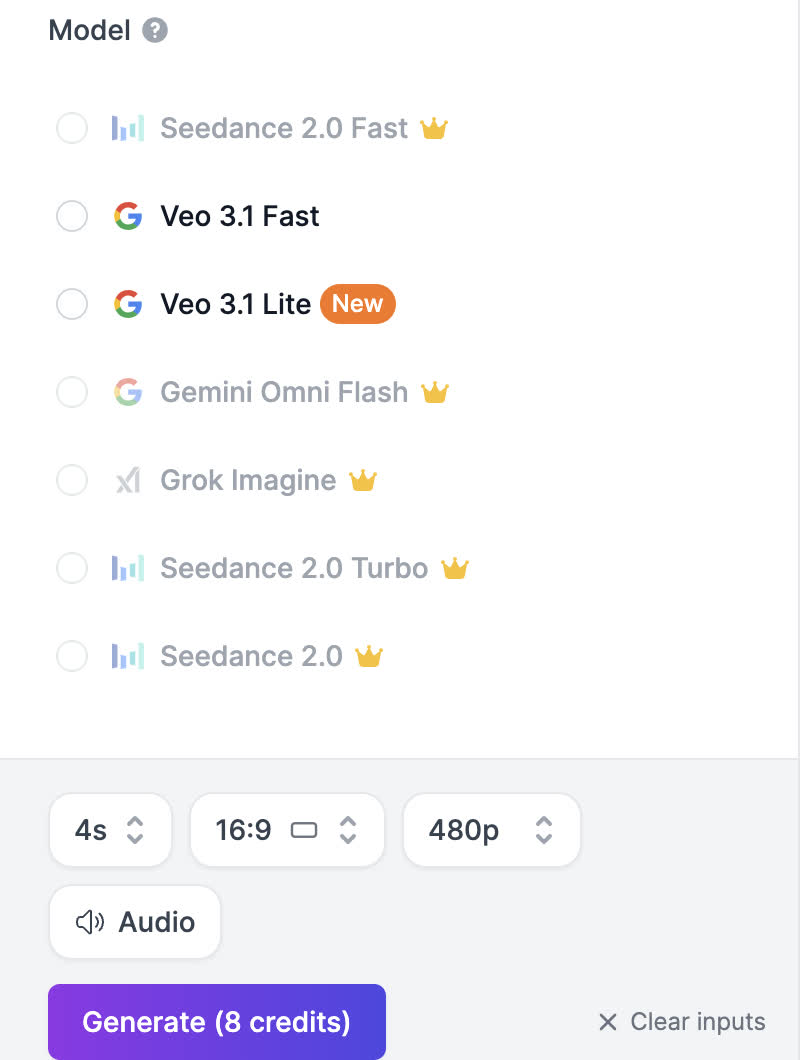
Step 2: Open the AI Video Generator and Pick Gemini Omni Flash
Go to the AI Video Generator, scroll to the Model list, and select Gemini Omni Flash (it’s a premium model, included in paid plans — look for the Google icon). Set the aspect ratio to 16:9 for YouTube (or 9:16 for Shorts, Reels, and TikTok) and the duration to 10 seconds — you want the maximum room for the narration to breathe.
Step 3: Write the Prompt Using the Vox Formula
A reliable Vox-style prompt has five parts. This is the template we used for every example in this post:
- Style declaration — open with
A Vox-style documentary explainer videoso every element inherits the aesthetic. - The visual sequence — describe 2–3 beats in order: what we open on, what changes, what we end on.
- The signature details — name the techniques from the anatomy list: muted desaturated colors, film grain, bold condensed kinetic typography, yellow highlighter sweep, annotated map, paper texture, drop shadows.
- The narration —
A calm, curious narrator says: "your line here". Describing the voice (“warm,” “conversational,” “curious”) meaningfully changes the read. - The audio bed —
soft documentary music bed with gentle percussion, smooth slow push-in camera moves.
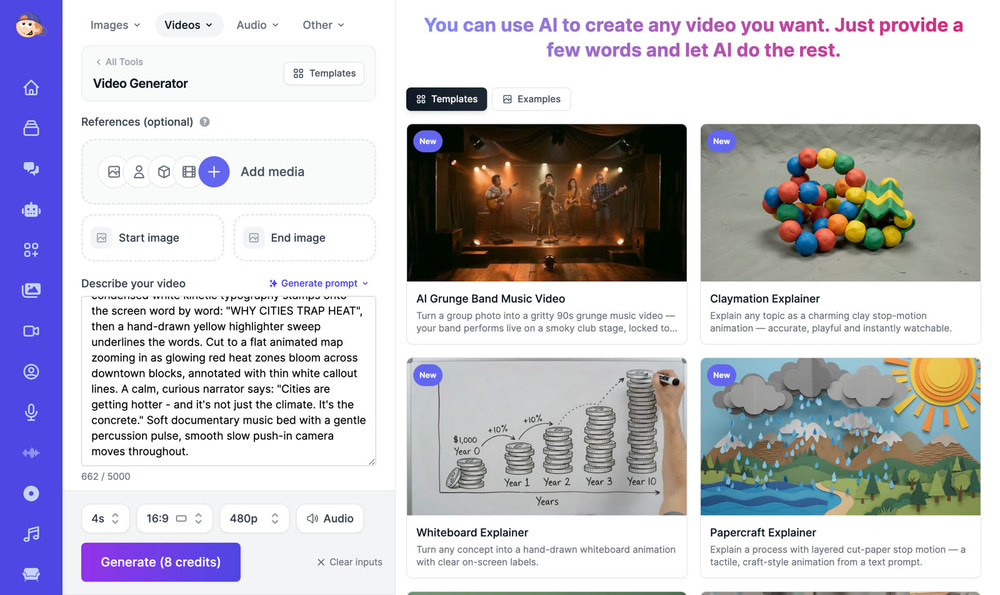
Here is the complete prompt that generated the clip at the top of this post:
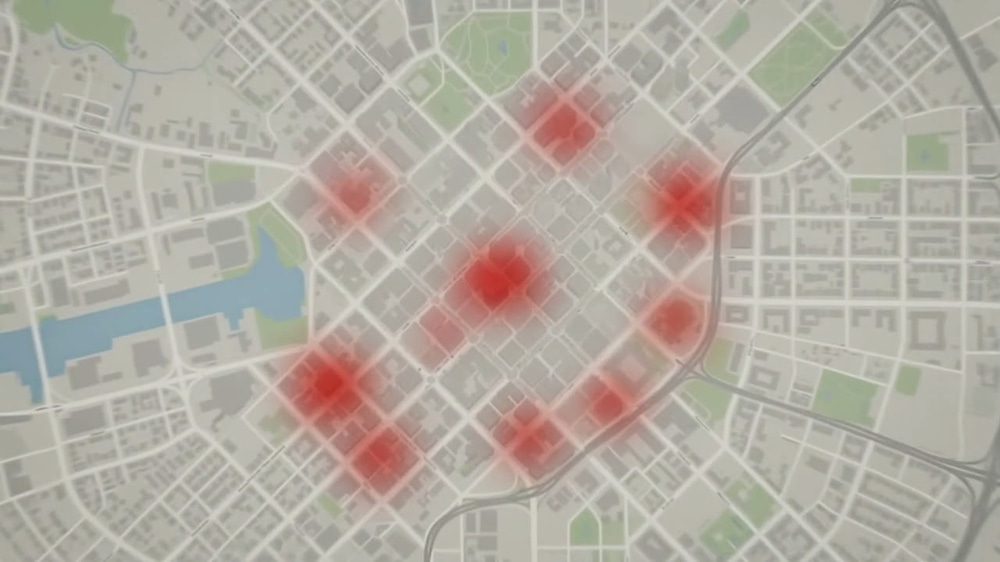
A Vox-style documentary explainer video. Opens on archival-style aerial footage of a dense city grid, muted desaturated colors, subtle film grain. Bold condensed white kinetic typography stamps onto the screen word by word: "WHY CITIES TRAP HEAT", then a hand-drawn yellow highlighter sweep underlines the words. Cut to a flat animated map zooming in as glowing red heat zones bloom across downtown blocks, annotated with thin white callout lines. A calm, curious narrator says: "Cities are getting hotter — and it's not just the climate. It's the concrete." Soft documentary music bed with a gentle percussion pulse, smooth slow push-in camera moves throughout.
Step 4: Generate and Review
Click Generate. Gemini Omni Flash typically returns a finished 720p clip with audio in under a minute. Watch it with sound on and check three things: Is the narration line complete and unhurried? Did the on-screen text render correctly? Does the pacing leave the key visual on screen long enough? Vox editors hold a single image for five or six seconds — slow is correct here.
Step 5: Iterate Conversationally
If a scene is almost right, don’t re-roll it — edit it. Switch to Gemini Omni Flash Reference mode, attach the generated clip, and describe the change in plain English: “Make the highlight sweep yellow instead of red” or “Slow down the map zoom and add a label over the downtown area.” You can also attach up to five reference images (a character, an object, or a style frame) to keep faces and design consistent from scene to scene.
Step 6: Stitch Scenes Into a Full Explainer
A complete Vox-style video is just this loop repeated: one scene per script beat, generated one clip at a time, then assembled. Drop your clips into the AI Video Editor to sequence them, add music, and caption the result. Two pro tips for longer videos:
- Reuse your style sentence verbatim. Copy the exact same style and palette wording into every scene prompt — word-for-word repetition is what keeps ten clips looking like one video.
- Consider one continuous voiceover. For videos longer than a minute, generate the clips as visuals-only (add
no narrationto the prompt), then record a single narration track with Easy-Peasy.AI’s Text to Speech so the voice never changes between scenes.
The Pro Workflow: Image-First, for Perfect Consistency
Everything above generates finished scenes straight from text, and for a single clip that’s the fastest path. But study the fully AI-made explainers going viral right now and you’ll notice almost none of them prompt text-to-video scene by scene. They all use the same three-stage pipeline — and it exists to solve the one problem that separates amateur AI videos from convincing ones: consistency.
A real explainer keeps one visual language from the first second to the last; only the story changes. When every scene is a fresh text-to-video roll, scene one and scene twelve drift — slightly different colors, slightly different style, and the result feels like a slideshow of strangers. The fix is to stop asking the video model to reinvent the look every time:
- Lock one style frame. Generate a single master image that defines your entire visual world — palette, textures, typography, the collage treatment. This is your art direction, frozen into a file.
- Generate every scene as a still, from that style frame. For each script beat, use the AI Image Generator in edit mode with your style frame attached as the reference: “Using the exact same style, palette and textures as this reference image, create a new scene showing…” Because every still inherits from the same parent, scene one and scene twelve look like they came from the same designer.
- Animate each still with image-to-video. Switch the video generator to Gemini Omni Flash Image mode, attach the still, and describe the motion plus the narration line. The model animates exactly what’s in the frame — the style is already locked, so it can’t drift.
We ran this exact pipeline for the demo below. First, the master style frame — one image generation that defines everything:
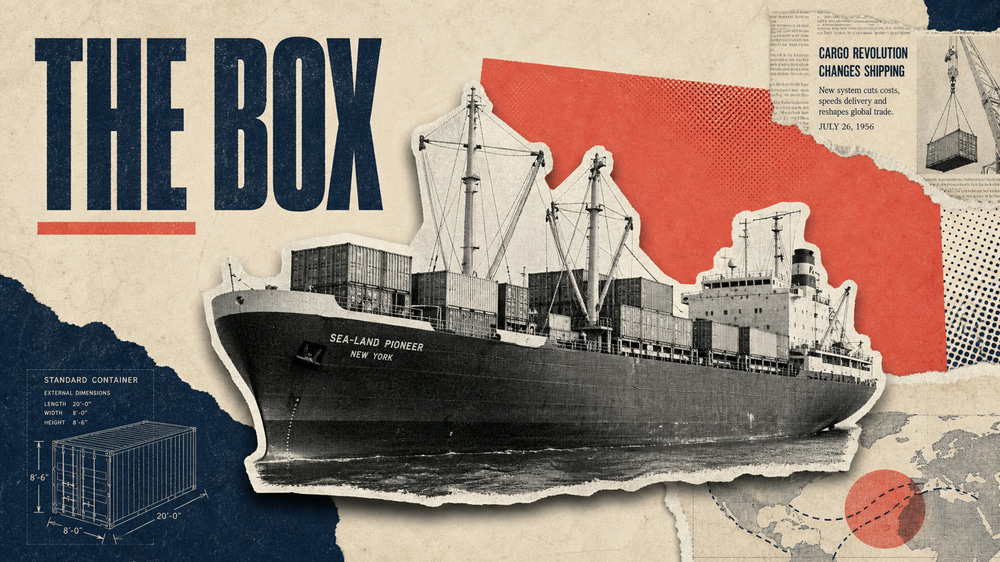
Then two scene stills, each generated with the style frame attached as reference. Note how the palette, halftone cutouts, paper texture, and typography carry over exactly:
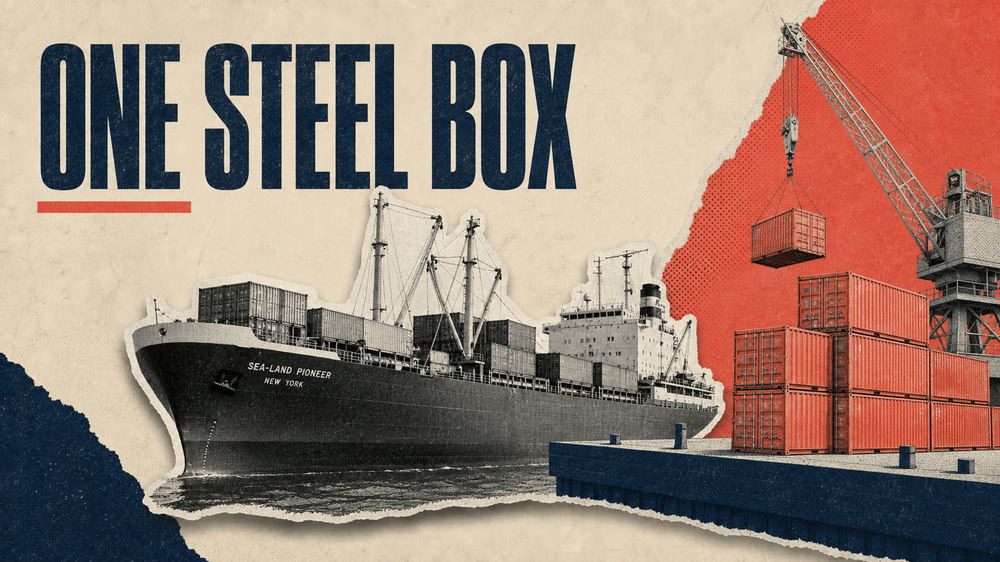
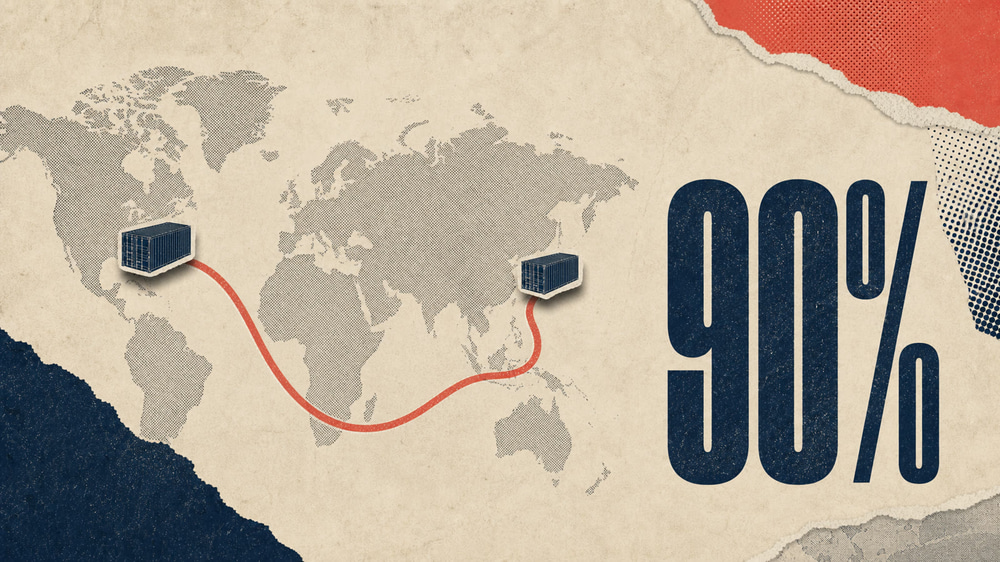
Finally, each still was animated with Gemini Omni Flash’s image-to-video mode — the prompt describes the motion (“the coral containers stack up one by one with soft paper ticks”) and carries the narration line, so the action lands on the words. Here are both scenes cut together:
That scene-to-scene coherence is the thing text-to-video alone can’t reliably give you — and it’s exactly how the best AI explainer channels work. Two finishing touches for longer videos: assemble your clips in the AI Video Editor with one continuous narration track from Text to Speech so the voice never changes mid-video, and keep your stills — they’re your storyboard. If scene seven needs a fix, you regenerate one still and one 8-second clip, not the whole video.
There’s a bonus hiding in this workflow: localization. Because the visuals and the voice are separate layers, you can regenerate the narration in Spanish, Portuguese, or Hindi with Text to Speech, swap the audio track in the editor, and ship a native version of the same video to every market — no re-animation needed.
And if you’d rather not run the loop by hand at all: Marky can write the script, generate the styled images, and kick off the video generations inside one conversation — describe the video you want and iterate from there.
Real Examples: Two Vox-Style Scenes, Two Prompts
Both of these clips were generated on Easy-Peasy.AI with Gemini Omni Flash, exactly as described above — no editing, no added audio.
Example 1: The Typography-and-Map Open
This is the classic explainer cold open: aerial footage, a stamped title with a highlighter sweep, then a data-driven map with callout lines — all beats we named explicitly in the prompt (shown in Step 3 above). Notice how the model even added isometric 3D buildings with annotation lines for the final beat.
Example 2: The Archival Annotation Scene
Prompt: A Vox-style documentary explainer segment with motion graphics. A vintage archival black-and-white photograph of 1950s highway construction sits as a paper cutout with a drop shadow on a warm textured paper background; the camera slowly pushes in with subtle 2.5D parallax between the photo layers. A bold yellow circle is drawn around one detail of the photo, and a thin line connects it to typewriter-style white caption text that types on: "The 1956 Interstate Act". A warm, conversational narrator says: "To understand American cities, you have to go back to one law from 1956." Quiet piano documentary score, soft film grain.
This one nails the hardest parts of the style: the paper-cutout treatment, the hand-drawn annotation, and — most impressively — clean, legible typewriter text, rendered by the model itself.
The Vox-Style Prompt Cookbook
Copy, paste, and adapt. Each of these is a complete single-scene prompt — just swap the topic, the narration line, and the on-screen text.
The chart reveal:
A Vox-style documentary explainer video. A minimalist bar chart on warm cream paper with subtle grain grows bar by bar as the narrator speaks, each bar stamping up with a soft tick; the tallest bar fills bold yellow while the rest stay muted navy, and a thin callout line labels it "2026". A calm narrator says: "And then, in one year, everything changed." Soft pulsing documentary music, slow push-in.
The map journey:
A Vox-style documentary explainer video. A clean flat map with muted colors and no labels zooms from a full continent down to a single coastal city; an animated yellow route line draws itself across the map, and small white callout labels appear at three stops along the way. A curious narrator says: "This 4,000 mile journey used to take three months. Now it takes eleven days." Gentle percussion music bed, smooth continuous zoom.
The document highlight:
A Vox-style documentary explainer video. A slow zoom into a scanned vintage newspaper page on a wooden desk, film grain and soft vignette; a yellow marker highlight sweeps across one headline as the camera pushes in, then the highlighted phrase enlarges as bold kinetic typography. A measured narrator says: "Buried on page twelve was a sentence that would change everything." Quiet suspenseful piano, paper rustle sound design.
The paper-cutout collage:
A Vox-style documentary explainer video. Paper cutout collage on a textured cream background: a grayscale cutout photo of a cargo ship slides in with a drop shadow, followed by cutout shipping containers stacking one by one in muted navy and coral, animated with a slightly choppy stop-motion feel. A warm narrator says: "Every object around you probably spent time inside one of these boxes." Playful minimal documentary music with soft ticks on each container.
The vertical Short (9:16):
A Vox-style documentary explainer video in vertical format. Bold condensed white typography stamps on line by line over muted archival city footage with film grain: "ONE LAW", "CHANGED", "EVERYTHING", each line underlined by a quick yellow highlighter sweep timed to the narration. An energetic but calm narrator says: "Here's how one law quietly redesigned every city you've ever visited." Punchy documentary music bed with soft percussion hits on each text stamp.
Tips for Getting the Best Results
One Idea Per Clip
The most common beginner mistake is cramming four visual ideas into ten seconds. Vox holds one image for five or six seconds and lets the narration do the work. If your prompt describes more than three beats, split it into two scenes.
Keep On-Screen Text Short
Gemini Omni Flash renders short text impressively well, but stack the odds in your favor: 2–5 word titles, quoted exactly, in one consistent case (“WHY CITIES TRAP HEAT”). If a longer phrase keeps glitching, cut it down or move the information into the narration instead.
Direct the Voice, Not Just the Words
“A calm, curious narrator,” “a warm, conversational narrator,” and “a measured, serious narrator” produce noticeably different reads of the same line. Vox’s register is a smart friend explaining, never a news anchor — “calm” and “curious” get you closest.
Name the Imperfections
The Vox look is deliberately imperfect: film grain, paper texture, hand-drawn annotations, slightly choppy stop-motion movement. Ask for these flaws explicitly — a prompt without them returns something closer to a slick corporate explainer.
Lock Your Style — a Frame Beats a Sentence
For pure text-to-video, freeze the exact wording of your style description — palette, texture, typography, mood — and paste it verbatim into every prompt; paraphrasing it is the fastest way to end up with ten clips that look like ten different videos. For anything longer than two or three scenes, go further and lock an actual style frame with the image-first workflow above — a reference image enforces consistency far more reliably than any sentence.
Fact-Check Like a Journalist
The style borrows the credibility of journalism, so respect it: use real numbers from real sources in your narration, and never let the model invent statistics. The visuals persuade — the facts have to earn it.
How Gemini Omni Flash Works Behind the Scenes
For the technically curious, here’s what happens when you click Generate on Easy-Peasy.AI:
- Prompt submission — your prompt (plus any reference images or video) is sent to Gemini Omni Flash, Google’s unified any-to-video model, with your chosen aspect ratio and duration.
- Joint video-and-audio generation — unlike older pipelines that bolted text-to-speech onto silent video, the model generates the visuals, narration, music, and sound design together, which is why the voice lands on the beats and the sound effects match the motion.
- Delivery — the finished 720p MP4 arrives in your library, usually in under a minute, ready to download, edit, or feed back in for conversational edits.
A 10-second scene costs 30 credits (3 credits per second), so a fully AI-generated 60-second explainer built from six scenes runs about 180 credits — a few dollars of credits versus roughly three weeks of skilled After Effects work.
Frequently Asked Questions
What is a Vox-style video?
A short documentary explainer that answers one focused question using conversational narration and dense motion graphics: kinetic typography, annotated maps, archival photos treated as paper cutouts, and data visualizations synced to the voiceover. The name comes from Vox.com’s YouTube explainers, which defined the genre starting in 2014.
Does Gemini Omni Flash generate the voiceover too?
Yes. It generates narration, music, and sound effects natively, in sync with the visuals — put the narrator’s exact line in quotes inside your prompt. Both example videos in this post use unedited audio straight from the model.
How long can each clip be?
Gemini Omni Flash generates clips of 4 to 10 seconds at 720p, in 16:9 or 9:16. For longer videos, generate one scene per script beat and stitch them together in the AI Video Editor.
How many credits does it cost?
3 credits per second on Easy-Peasy.AI — 30 credits for a full 10-second scene. Editing an existing video with the model is also billed at 3 credits per second of input video.
Can I keep characters or styles consistent across scenes?
Yes. Use Gemini Omni Flash Reference mode to attach up to five reference images (characters, objects, or style frames), and reuse your style description word-for-word in every prompt. For the strongest consistency, use the image-first workflow: one style frame, stills for every scene, then image-to-video.
Can I publish the same video in other languages?
Yes, and it’s one of the biggest advantages of keeping narration on its own track: regenerate the voiceover in another language with Text to Speech, swap the audio in the AI Video Editor, and reuse every visual as-is. One production, native versions for every market.
Can I use these videos commercially?
Videos you generate on Easy-Peasy.AI are yours to use in your projects, including commercial ones, under our terms of service. If you include real archival footage, quotes, or music from other sources in your final edit, standard copyright rules apply to those elements.
Do I need any video editing skills?
Not for single scenes — describe what you want and the model returns a finished clip with audio. For multi-scene explainers, the drag-and-drop editor covers sequencing and captions without any After Effects knowledge.
Start Making Vox-Style Videos Today
The explainer format that used to require three weeks of After Effects mastery now takes a well-written prompt. Learn the formula — one question, visual anchors first, short context bridges, one loud accent color — and let the model handle the animation, narration, and sound.
Open the AI Video Generator, pick Gemini Omni Flash, and paste in a prompt from the cookbook above. Your first Vox-style scene is about 60 seconds away.