What if your AI assistant could learn your exact workflow once and repeat it perfectly every time? That’s the idea behind Skills in Marky Agent, the AI chat inside Easy-Peasy.AI. Skills are reusable packets of knowledge and instructions that turn Marky from a clever generalist into a specialist for the tasks you care about — no coding required to get started.
In this guide, you’ll learn what Skills are, how to find them with the + button in the chat, how to add or build your own, and how power users can craft advanced Skills with scripts and bundled resources.
What Are Skills in Marky Agent?
A Skill is a small, self-contained package that teaches Marky how to do something specific. Think of it like an onboarding guide you hand to a new teammate: it explains the steps, the standards, and the tools needed for a particular job.
Every Skill is built around a single file called SKILL.md. That file has two parts: a short description of what the Skill does and when to use it, and a set of instructions Marky follows once the Skill is triggered. More advanced Skills can also bundle scripts, reference documents, and templates.
Because Marky is already a capable agent, a good Skill only adds what Marky doesn’t already know — your process, your brand rules, a specific file format, or a tricky multi-step workflow. The result is an assistant that behaves like an expert in your domain instead of guessing.
Why Use Skills?
Without Skills, you have to re-explain the same instructions in every new chat. With Skills, you teach Marky once and reuse that knowledge forever. Skills are useful for:
- Marketers and creators who want content written in a consistent style or format every time
- Teams that need everyone’s output to follow the same process or template
- Power users who want to bundle scripts and references for complex, repeatable tasks
- Beginners who simply want to switch on a ready-made capability and get better results instantly
The best part: Skills load only when they’re relevant. That keeps Marky fast and focused, so adding lots of Skills doesn’t slow down your everyday chats.
Where to Find Skills in the Chat
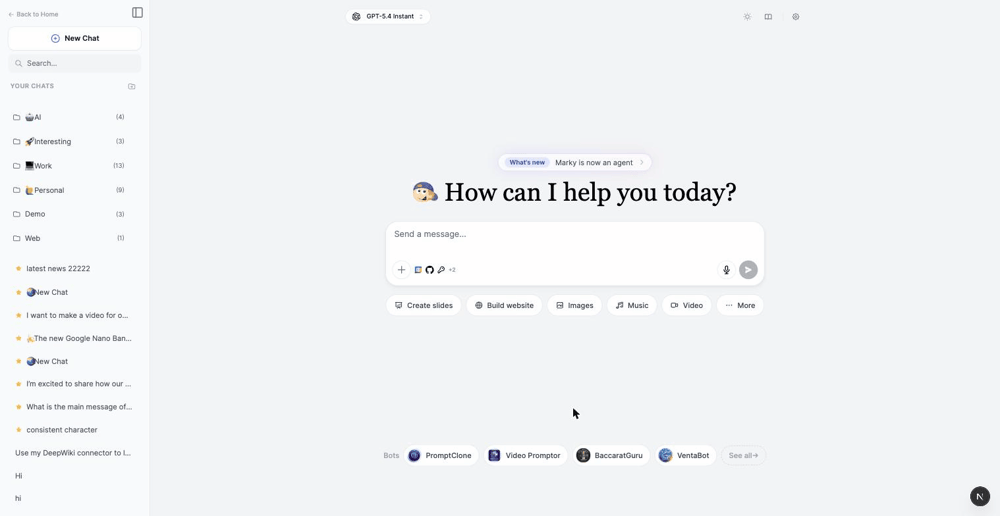
Skills live behind the + button next to the message box. Open Marky Agent, click the + icon on the left of the input, and you’ll see a menu with Skills alongside Brand Voice, Prompts, and Connectors.
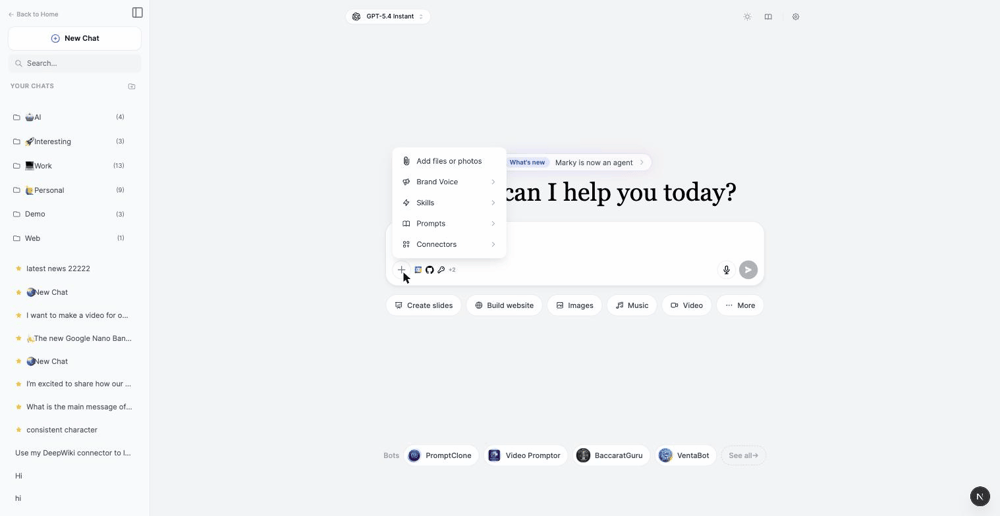
Hover over Skills to see the Skills you’ve turned on, or click Manage Skills to open the full library where you add, toggle, preview, and remove Skills.
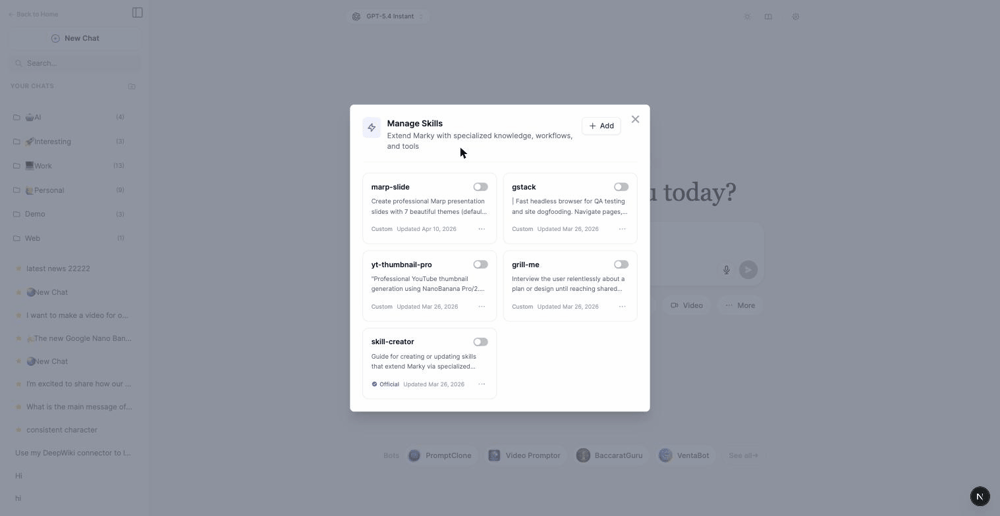
Each Skill card shows its name, a short description, and an on/off toggle. A blue Official badge marks Skills built by Easy-Peasy.AI, while Custom marks ones you added or created. Flip a toggle on to make that Skill available to Marky.
How to Add a Skill (Step-by-Step)
Open Manage Skills and click the + Add button in the top corner. You’ll get four ways to add a Skill.
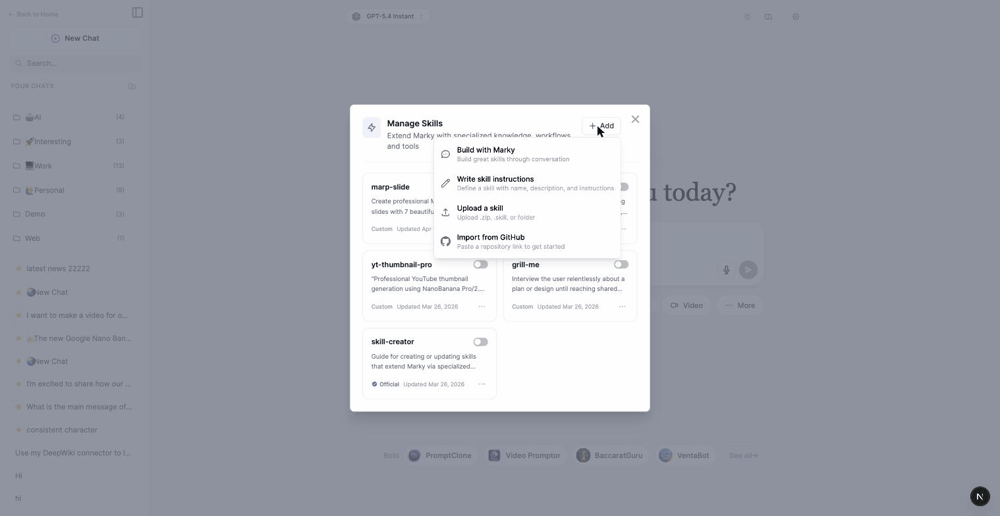
Option 1: Build with Marky
The easiest path for beginners. Choose Build with Marky and describe what you want the Skill to do in plain language. Marky interviews you, drafts the Skill, and helps you refine it through conversation. When it’s ready, you save it to your library with one click.
Option 2: Write Skill Instructions
If you already know exactly what you want, choose Write skill instructions and fill in three fields: a name, a description (what it does and when to use it), and the instructions themselves.
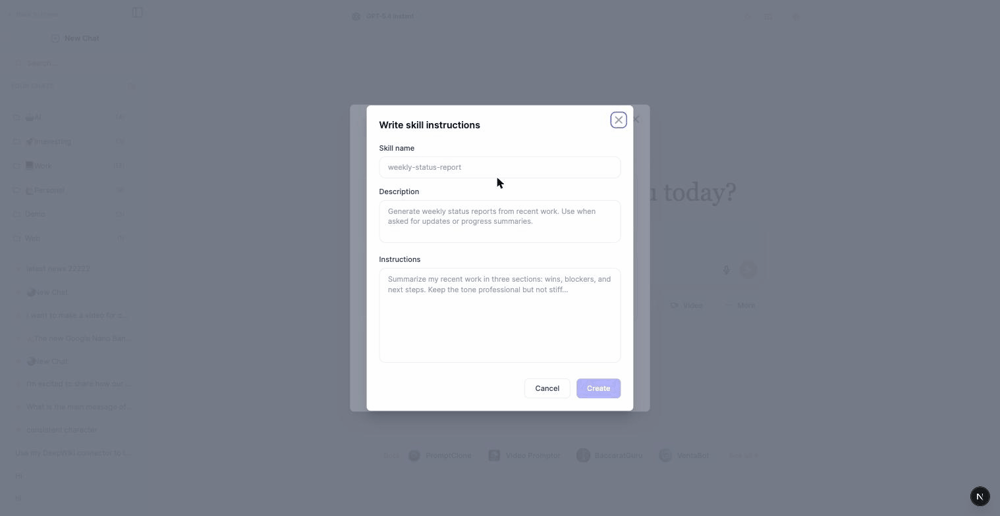
For example, a weekly-status-report Skill might be described as “Generate weekly status reports from recent work” with instructions like “Summarize my recent work in three sections: wins, blockers, and next steps.” Keep the name lowercase with hyphens, and make the description clear — that’s how Marky decides when to use it.
Option 3: Upload a Skill
Already have a Skill packaged as a .zip or .skill file? Choose Upload a skill and drag it in. The file just needs a SKILL.md at its root with a name and description in the YAML header. This is the quickest way to move a Skill between accounts or share one with a teammate.
Option 4: Import from GitHub
Choose Import from GitHub and paste a link to any public repository that contains a Skill. Marky pulls it in and adds it to your library. This is perfect for installing community-built Skills or your own version-controlled Skills straight from a repo.
How to Use a Skill in a Chat
Once a Skill is toggled on, you have two ways to put it to work:
- Just ask. Describe your task normally. Marky reads the descriptions of your active Skills and automatically uses the relevant one. If you turn on a thumbnail Skill and say “make me a YouTube thumbnail,” Marky knows to apply it.
- Trigger it directly. Open the + menu, hover Skills, and click the Skill you want. Marky drops a
/skill-nametag into the message box so you can be explicit about which Skill to run.
You can also Try it, Preview, Download, or Delete any Skill from the menu on its card in the Manage Skills window.
Example Skills to Try
Easy-Peasy.AI ships with ready-made Skills, and the community keeps adding more. Here are a few to give you ideas:
| Skill | What It Does |
|---|---|
| skill-creator | The official guide Marky follows to build and improve other Skills |
| marp-slide | Creates professional presentation slides with polished, ready-to-use themes |
| yt-thumbnail-pro | Generates eye-catching YouTube thumbnails using advanced image models |
| grill-me | Pressure-tests a plan or design by interviewing you until the thinking is solid |
| stock-analysis | Researches companies with market data, charts, and filing history |
Tips for Writing Great Skills
If you’re ready to build your own, these principles separate a Skill that works from one that gets ignored.
Make the Description Do the Heavy Lifting
Marky decides whether to use a Skill based almost entirely on its description. Spell out both what the Skill does and when to use it. “Create Marp slides with branded themes — use when asked to build a presentation” works far better than just “slides.”
Keep It Concise
Marky is already smart, so only add what it doesn’t know. Skip long explanations of obvious things and focus on your specific process, edge cases, and standards. A lean Skill is a reliable Skill.
Match the Level of Detail to the Task
For flexible, judgment-based jobs, give high-level guidance. For fragile, must-be-exact tasks, give precise steps or a script. Think of it as setting guardrails: a narrow bridge needs tight rails, an open field doesn’t.
Bundle Resources for Complex Skills
Beyond instructions, a Skill folder can include a scripts/ directory for reusable code, a references/ directory for documentation Marky loads only when needed, and a templates/ directory for boilerplate or assets. This keeps the main instructions short while still giving Marky everything it needs.
How Skills Work Behind the Scenes
For the technically curious, here’s what happens when you use a Skill:
- Discovery — The names and descriptions of your active Skills are shown to Marky at the start of each chat, using only a tiny amount of context.
- Triggering — When your request matches a Skill, Marky opens that Skill’s
SKILL.mdand reads the full instructions. - Execution — Marky follows the steps, loading any bundled references or running bundled scripts in its secure workspace as needed.
This three-level approach is called progressive disclosure: lightweight metadata is always available, the full instructions load only when a Skill is triggered, and heavy resources load only when actually used. It’s why you can keep a big library of Skills without slowing Marky down.
Frequently Asked Questions
Do I need to know how to code to use Skills?
No. You can switch on official Skills with a single toggle, or build your own just by describing it to Marky in plain language. Coding only comes into play if you want to bundle custom scripts into an advanced Skill.
How many Skills can I turn on at once?
You can keep a large library and toggle on as many as you like. Because Skills only load their full instructions when they’re relevant, having several active won’t clutter or slow your chats.
What’s the difference between Official and Custom Skills?
Official Skills are built and maintained by Easy-Peasy.AI and marked with a blue badge. Custom Skills are ones you wrote, uploaded, or imported from GitHub. Both work exactly the same way inside Marky.
Can I share a Skill with my team?
Yes. Download any Skill as a file and have a teammate upload it, or host it in a public GitHub repo and share the link to import. Skills are portable by design.
How are Skills different from Prompts?
A saved Prompt is a single message you reuse. A Skill is a full set of instructions — and optionally scripts and references — that Marky follows across an entire task, applying them automatically whenever they’re relevant.
Start Building with Skills Today
Skills turn Marky Agent into an assistant that knows your work, follows your process, and gets better the more you teach it. Whether you flip on a ready-made Skill or build a custom one from scratch, you only have to set it up once. Open Marky Agent, click the + button, and add your first Skill in under a minute.