Explainer videos are one of the fastest ways to teach an idea. The best ones use simple characters, icons, numbers and maps that appear right when the narrator mentions them. Making one by hand means writing a script, recording a voiceover and spending hours on animation. An AI explainer video tool does most of that work for you.
In this guide, you’ll learn how to make explainer videos with AI using the new Explainer mode in the Easy-Peasy.AI Video Agent. You describe a topic in a sentence or two. The agent writes and narrates the script, then draws animated boards that build up word by word. A few minutes later you have a finished video, plus an editor where you can change anything you like.
What Is an Explainer Video?
An explainer video is a short video that explains one topic in a clear, simple way. It can explain a product, a process, a money question or a bit of science. Most explainer videos run one to three minutes, while YouTube education channels often go up to ten.
The most popular kind is the animated explainer video: a narrator explains the topic while simple drawings appear on screen. A character asks a question, an arrow shows cause and effect, a number counts up, a map zooms in. Each picture shows up on the exact word the narrator says, so viewers hear and see the idea at the same time.
That timing is what makes explainers easy to follow. It’s also what makes them slow to produce, because an animator has to place every element on the right word, one by one.
Why Make Explainer Videos with AI?
Most AI video tools give you video clips or a slideshow of images. An explainer needs something else: a script that teaches, a narrator, and visuals planned around the words. The Explainer mode does all three, which makes it useful for:
- YouTube creators who run education, finance, science or faceless channels and need a steady flow of videos with chapters.
- Teachers and trainers who want a short animated lesson for a class or an onboarding course.
- Businesses that need to explain a product, a process or a policy without hiring an animation studio.
- Social media teams who want quiz, “this vs that” and top-list Shorts for TikTok, Reels and YouTube Shorts.
- Teams that publish in several languages and want the same video in Spanish, Japanese or Arabic.
Unlike a template-based explainer video maker, you don’t drag shapes onto a timeline or record your own voice. You write the idea; the AI writes the script, picks the visuals and times everything to the narration. You only step in to change what you want to change.
How to Make an Explainer Video with AI (Step by Step)
Here’s the whole process, from a one-line idea to a finished video in the editor.
Step 1: Open the Video Agent and Choose Explainer
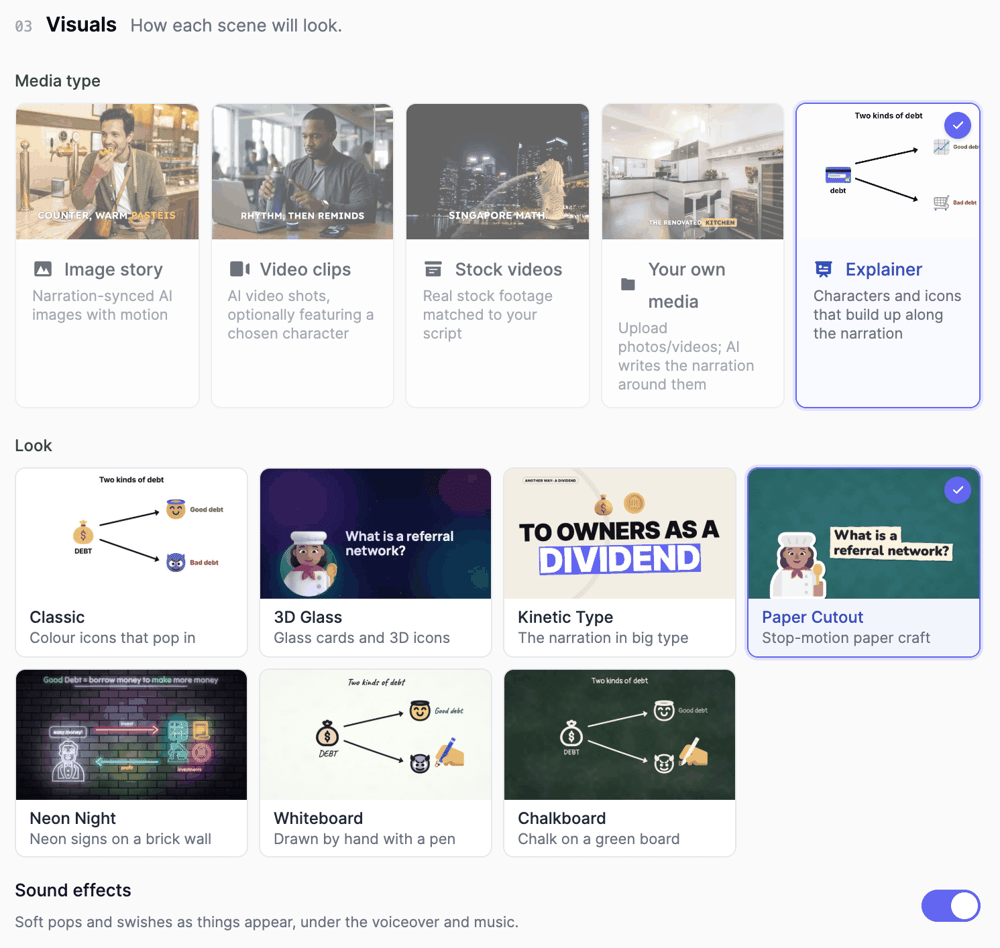
Open the Video Agent. In the Visuals section, under Media type, choose Explainer (“Characters and icons that build up along the narration”). Picking it first changes the rest of the form: you get a Kind option for videos and Shorts, and a Look picker instead of the usual image styles.
Step 2: Describe Your Topic
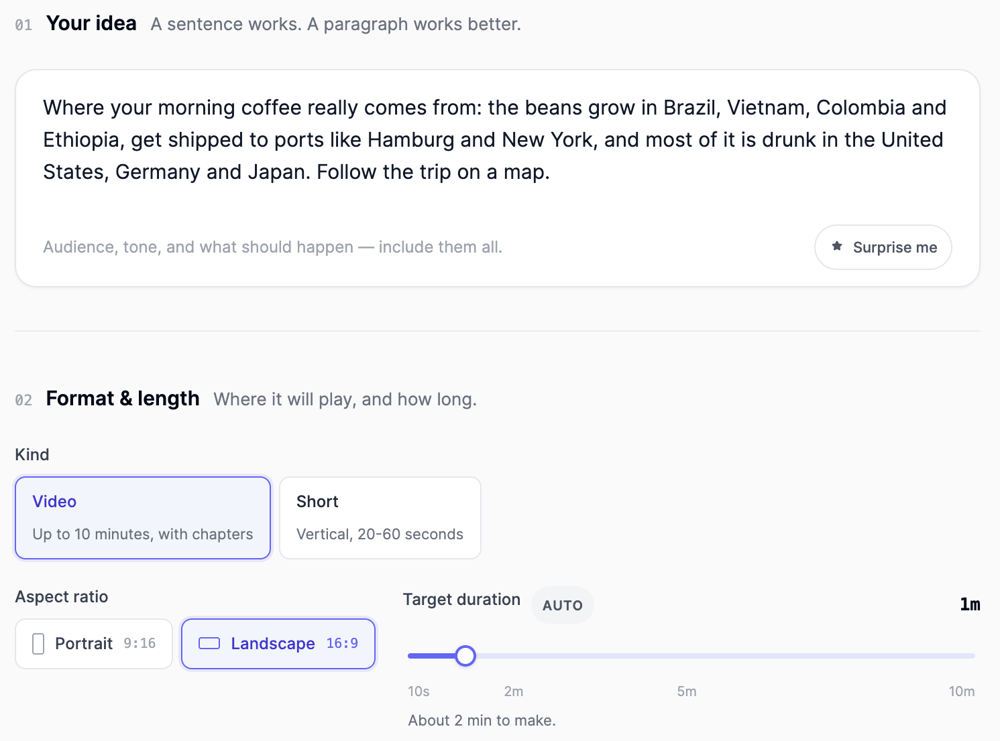
In Your idea, write what the video should explain and who it’s for. A sentence works, and a short paragraph works better. Include the facts you want to see on screen, such as names, places, numbers and years. The boards are built from what the narrator says, so anything in your idea can end up on a chart, a map or a list.
Here’s the exact prompt behind the coffee video above:
Where your morning coffee really comes from: the beans grow in Brazil, Vietnam, Colombia and Ethiopia, get shipped to ports like Hamburg and New York, and most of it is drunk in the United States, Germany and Japan. Follow the trip on a map.
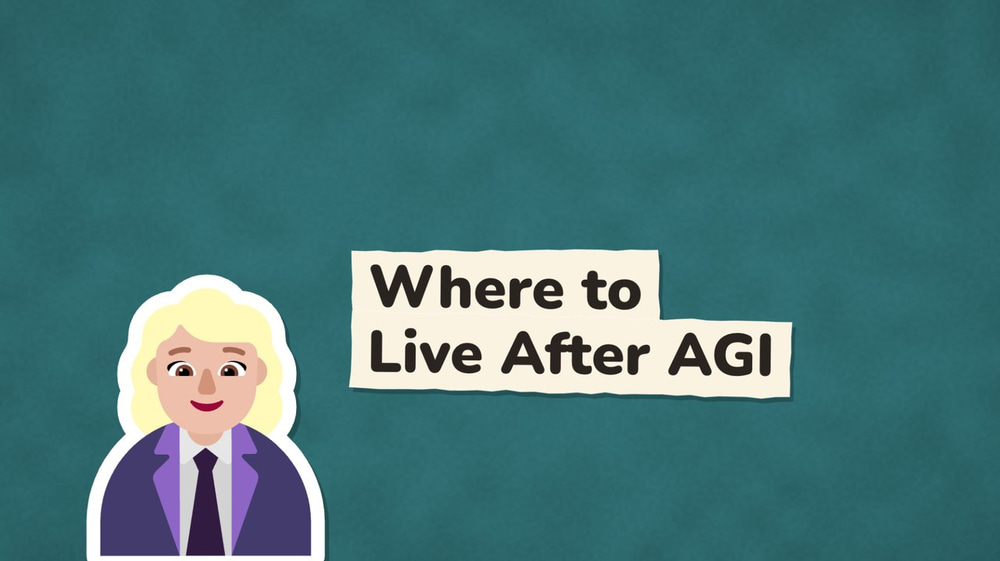
You don’t always need that much detail. One of our nine-minute examples came from six words: best places to live after AGI/ASI. The script writer can research a topic on the web and builds the structure itself.
Step 3: Choose a Video or a Short and Set the Length
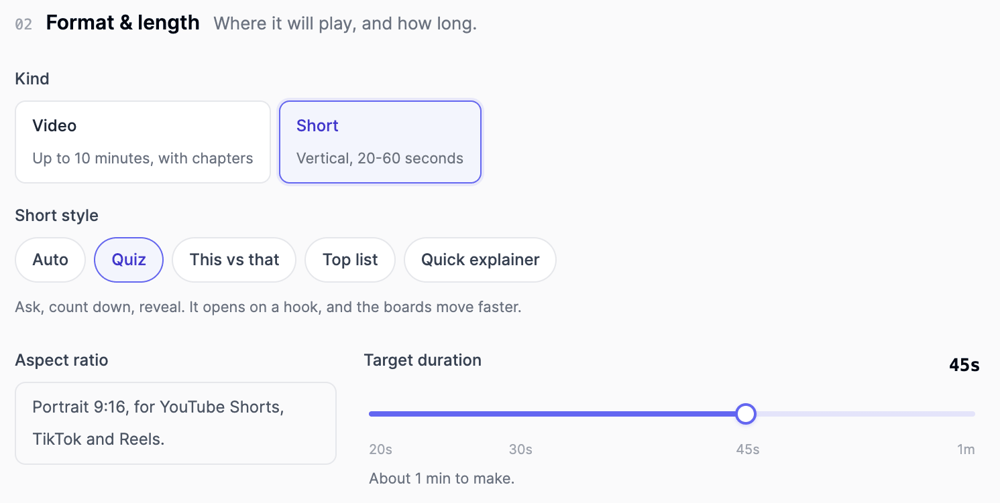
Under Kind, pick one of two options:
- Video: landscape (16:9) or portrait (9:16), from 10 seconds up to 10 minutes. Longer videos are split into chapters. Leave the length on Auto and the writer picks what the topic needs, between 45 seconds and 2 minutes.
- Short: vertical 9:16, 20 to 60 seconds, made for YouTube Shorts, TikTok and Reels. A Short opens on a hook and the boards move faster.
For a Short, also pick a Short style:
- Quiz: asks a question, counts down 3, 2, 1 and reveals the answer.
- This vs that: compares two things side by side.
- Top list: counts down to number one.
- Quick explainer: one idea, fast.
- Auto: the writer picks the style that fits your topic.
Step 4: Pick a Look
Under Look, choose how the boards are drawn. There are seven: Classic, 3D Glass, Kinetic Type, Paper Cutout, Neon Night, Whiteboard and Chalkboard. Hover over a card to see it move. You’ll find all seven side by side in the next section.
3D Glass, Kinetic Type, Paper Cutout and Neon Night can add soft pops and swishes as things appear. Turn Sound effects off if you’d rather keep just the voice and the music.
If you’ve saved recurring characters, they show up here under Your characters. Pick up to four of them to make them the cast of the new video.
Step 5: Choose the Narrator, Music and Language
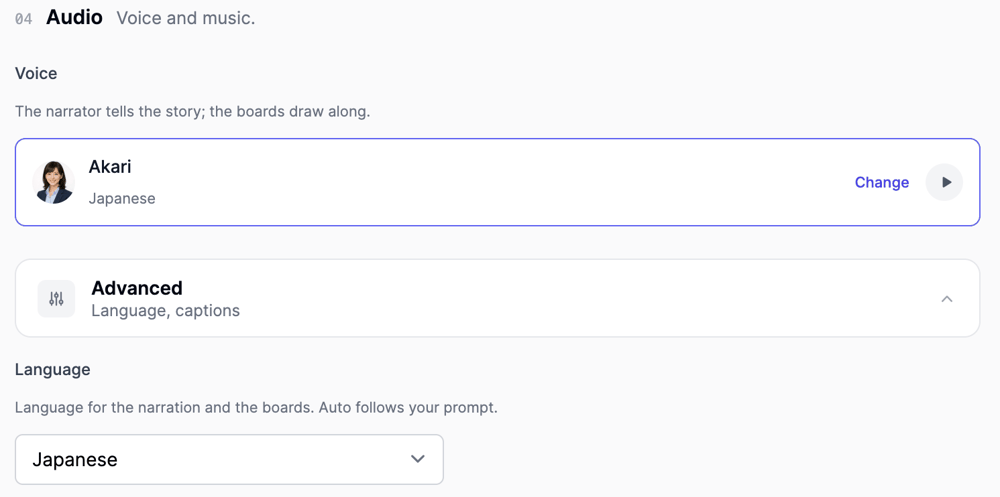
Under Voice, click Change to pick a narrator from the voice library. Your own cloned voices are listed there too. Under Background music, pick a track from the library, let the agent choose one with Auto, describe a new one with AI Generate, or choose No music.
Open Advanced to set the Language. Explainers work in 28 languages, including Spanish, French, German, Portuguese, Japanese, Chinese, Korean, Hindi and Arabic. If you pick a language before choosing a voice, the narrator switches to a native speaker. In the screenshot below, choosing Japanese switched the narrator to Akari, a Japanese voice.
Captions are off by default, because the boards already show the key words. You can turn them on here or later in the editor.
Step 6: Click Generate Video
Click Generate video. Here’s what the agent does next:
- Writes the script. It can research facts on the web, and it splits longer videos into chapters.
- Records the narration with the voice you picked.
- Plans the boards. It reads the narration and picks a board for each moment: a character, a list, a chart, a map and so on.
- Times every element to a word. Each icon, label, number and arrow appears when the narrator says it.
- Opens the project in the AI Video Editor, where you can watch it, edit it and export it.
A one-minute video usually takes about two minutes to make, and a ten-minute video around five to seven. The project is saved to your account automatically.
7 Explainer Video Styles to Choose From
Every look can draw the same kinds of boards; only the style changes. Here is the same board, “Two kinds of debt”, in all seven looks.
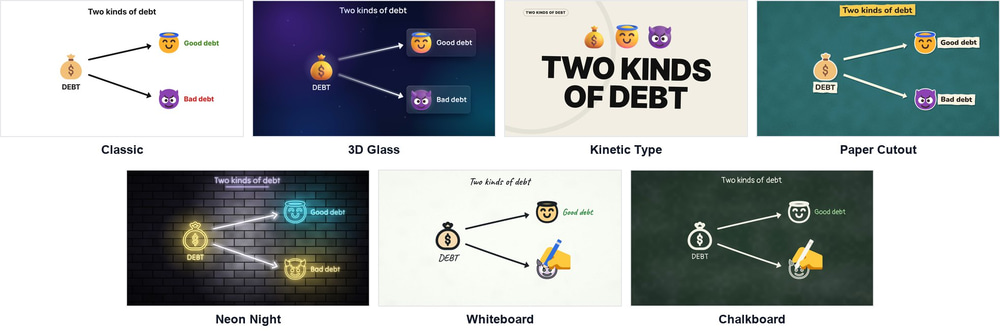
You can also switch the look of a finished video in the editor, so you don’t have to get it right the first time.
Classic
Colour icons, simple bean characters and bold headings on a clean white board. Elements pop in with a little bounce. Classic is the default and the easiest to read, which makes it a great fit for finance, science and how-it-works topics.
3D Glass
Frosted glass cards and glossy 3D icons over a night-sky background, with a camera that slowly moves toward each new element. People are drawn as 3D emoji-style figures instead of beans. It suits tech, AI and premium-feeling topics.
Kinetic Type
Kinetic Type puts the narration itself on screen in big, bold words, a few at a time, with the key word set on a colour block. Numbers count up and icons join the words they belong to. If you’ve been looking for a kinetic typography generator, this one is already synced to a voice. It works well for punchy Shorts, quotes and topics with few visuals. This look has no characters.
Paper Cutout
Stop-motion paper craft: torn paper strips, pastel cards with hard shadows, sticker icons and paper people with a white cut edge. Everything moves at a slightly choppy frame rate, like real stop motion. It’s friendly and warm, which works for family, lifestyle and big-picture topics.
Neon Night
Glowing neon signs on a brick wall. Icons and characters are drawn as neon tubes that flicker on, hum and light up the bricks around them. Use it for music, nightlife, gaming or anything that should feel bold.
Whiteboard (Whiteboard Animation)
This is classic whiteboard animation: a hand with a pen draws each element while the narrator talks, with handwritten labels. It’s the style people know from training and sales videos, and you don’t need separate whiteboard animation software to make it. When a board is done, an eraser wipes it clean for the next one.
Chalkboard
Chalk on a green school board, drawn by hand just like the Whiteboard look. It’s a natural pick for lessons, history and anything that should feel like a class.
What the AI Puts on Each Board
An explainer is a series of boards, and the agent picks a board type for each moment of the narration. Here’s what it can draw.
Characters with Moods, Poses and Speech
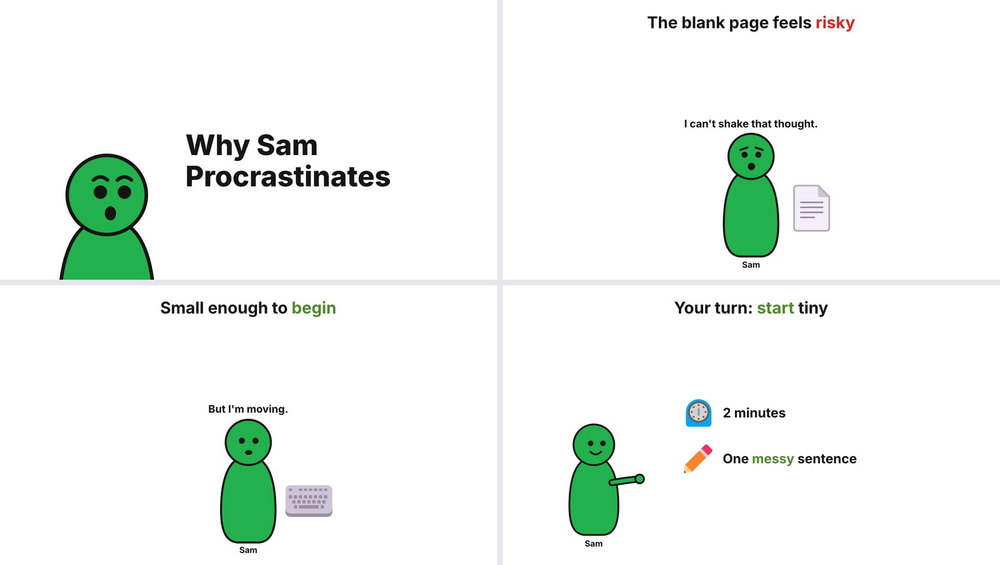
Characters talk in speech bubbles, hold props and react to the story. They can look happy, sad, surprised or angry, and they can wave, point, cheer or think. In Classic, Whiteboard and Chalkboard they’re simple bean characters whose mouths move while they speak. In 3D Glass, Paper Cutout and Neon Night they become emoji-style figures, such as a doctor, a chef or a cat.
Lists, Comparisons and Cycles
Lists build up one item at a time. A split board shows one thing leading to two outcomes, like good debt and bad debt. A cycle shows a loop, such as money going out to an investment and coming back as income. A versus board puts two things side by side, with the winning value in green.
Charts and Big Numbers from the Narration
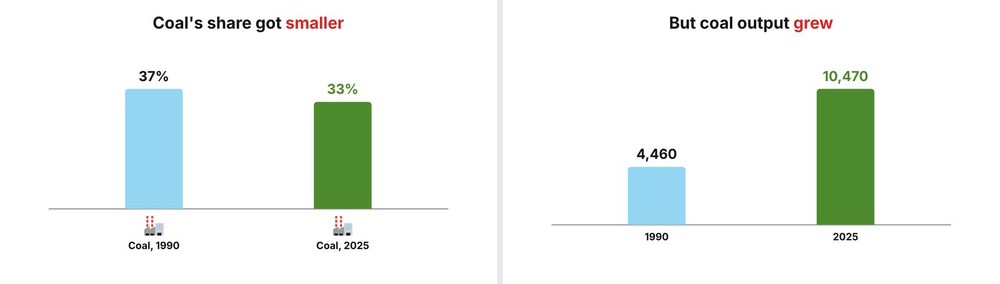
When the narrator gives numbers, the agent can turn them into bar charts, line charts, donut charts and pictograms (for example, “7 in 10” drawn as icons). Big stats count up from zero. The numbers come only from what the narrator actually says, so the chart always matches the voice.
Timelines
When the narrator walks through dates, the agent can draw a timeline, with each event appearing as its year is mentioned.
Maps That Zoom to the Places Named
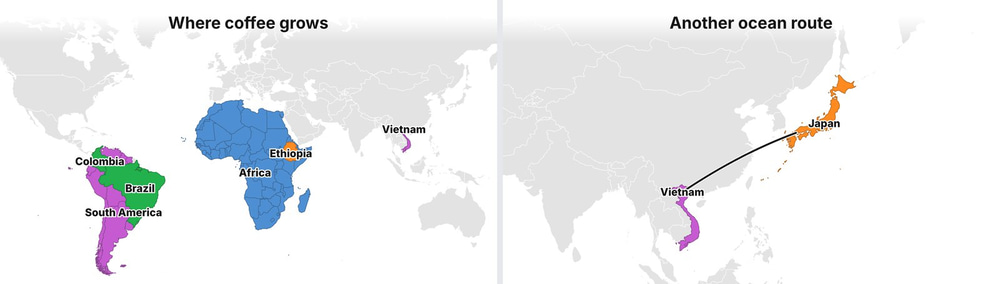
Name a country, a region or a city and the agent can show it on a real world map. The camera zooms in as each place is mentioned, colours countries and regions, marks cities and draws routes between them, like the shipping routes in the coffee video.
Quizzes, “This vs That” and Top Lists
Shorts get their own board types. A quiz shows the answer options as they’re read out, counts down 3, 2, 1 during a short pause in the narration, then turns the right answer green. A ranking board fills numbered slots on the way to number one.
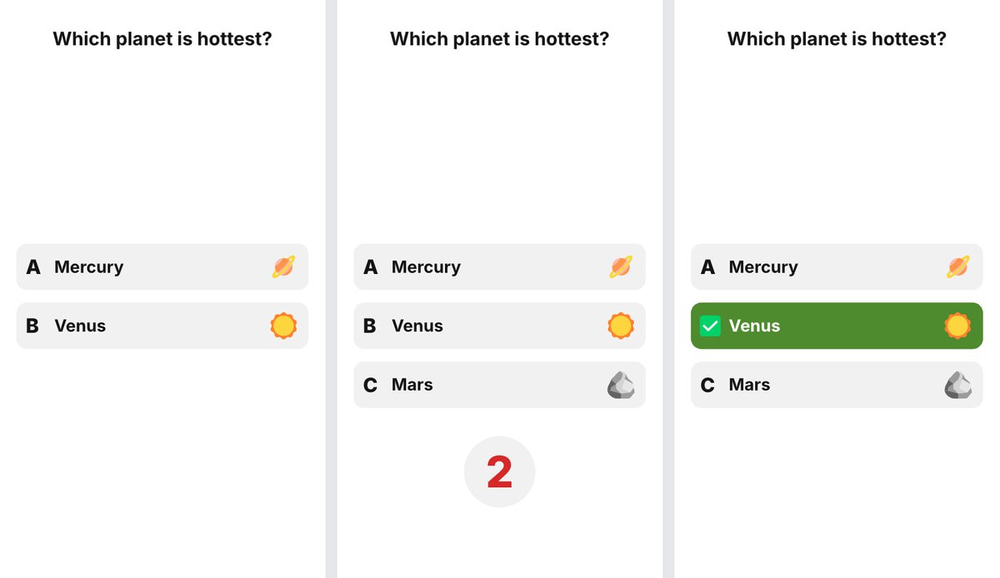
Here’s the full Short. It was made from this prompt: Which planet in our solar system is the hottest? Most people guess wrong. Quiz the viewer, then explain why.
Chapter Cards and a Recap
Longer videos get a chapter card at the start of each chapter. Videos longer than 90 seconds also end with a short recap board that sums up the main points.
How to Edit Your Explainer Video
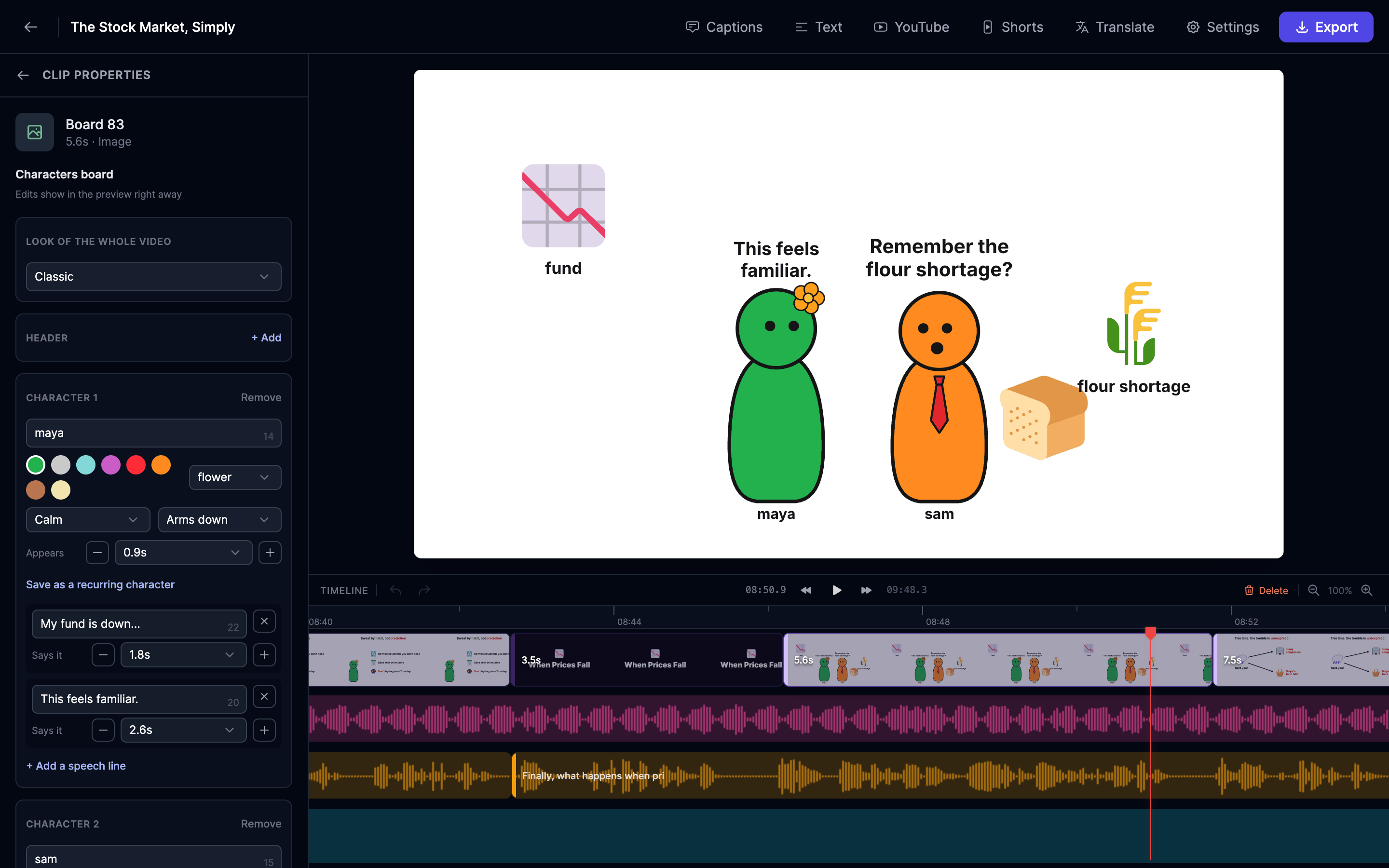
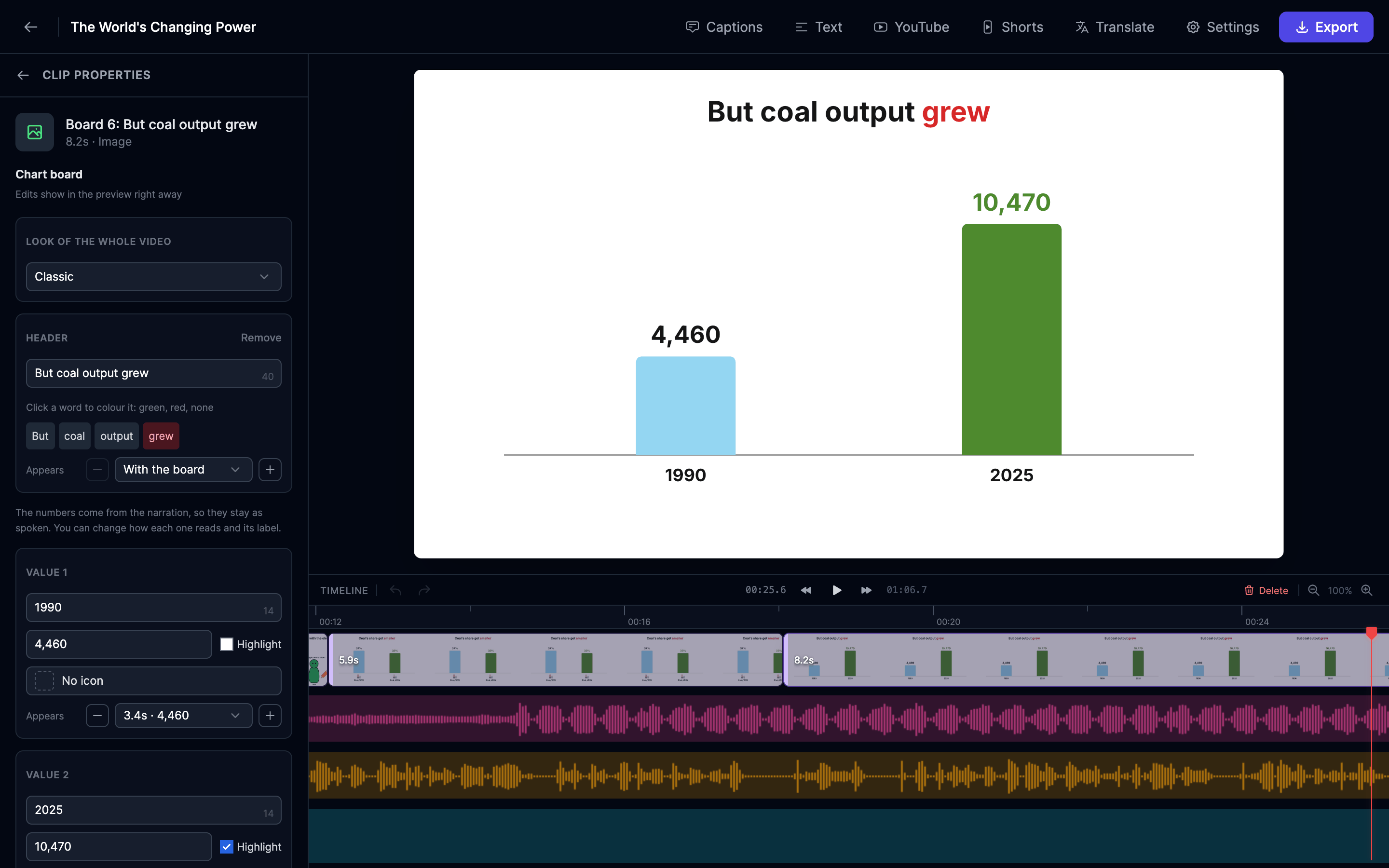
The finished project opens in the AI Video Editor. Every board is a clip on the Boards track, with the narration, music and captions on their own tracks. Click a board to edit it in the left panel. Your changes show in the preview right away and save automatically.
Change Text, Icons and Characters
Edit any heading, label or speech line. Click a word in a heading to colour it green or red. Swap any icon for another one from a library of more than 700. For each character, you can change the name, colour, accessory, mood and pose, or add a new speech line.
Fix the Timing
Each element has an Appears time that’s tied to a word of the narration. Nudge it earlier or later, or pick the word it should appear on. On chart boards, you can also change how each value reads and its label, while the numbers themselves stay as spoken.
Redo One Board
Not happy with a board? Click Redo this board, add a note such as “show it as a list”, and the agent plans a new board for the same part of the narration, with your characters and your look. Revert to the original board brings back the first version.
Switch the Look of the Whole Video
Use Look of the whole video at the top of the panel to redraw every board in another look, and turn sound effects on or off. Your edits carry over to the new look.
Captions, Narration and Export
The rest of the editor works as it does for any project: add captions, change the music, add text or trim clips. You can regenerate the narration with new wording or another voice, but the boards keep their original timing, so keep the new wording close to the old one. When you’re happy, click Export and choose 1080p or 4K.
One Video, Many Uploads: YouTube Details, Shorts and Translations
Three buttons in the editor’s top bar turn one explainer into a full publishing kit.
Get a YouTube Title, Description, Chapters and Hashtags
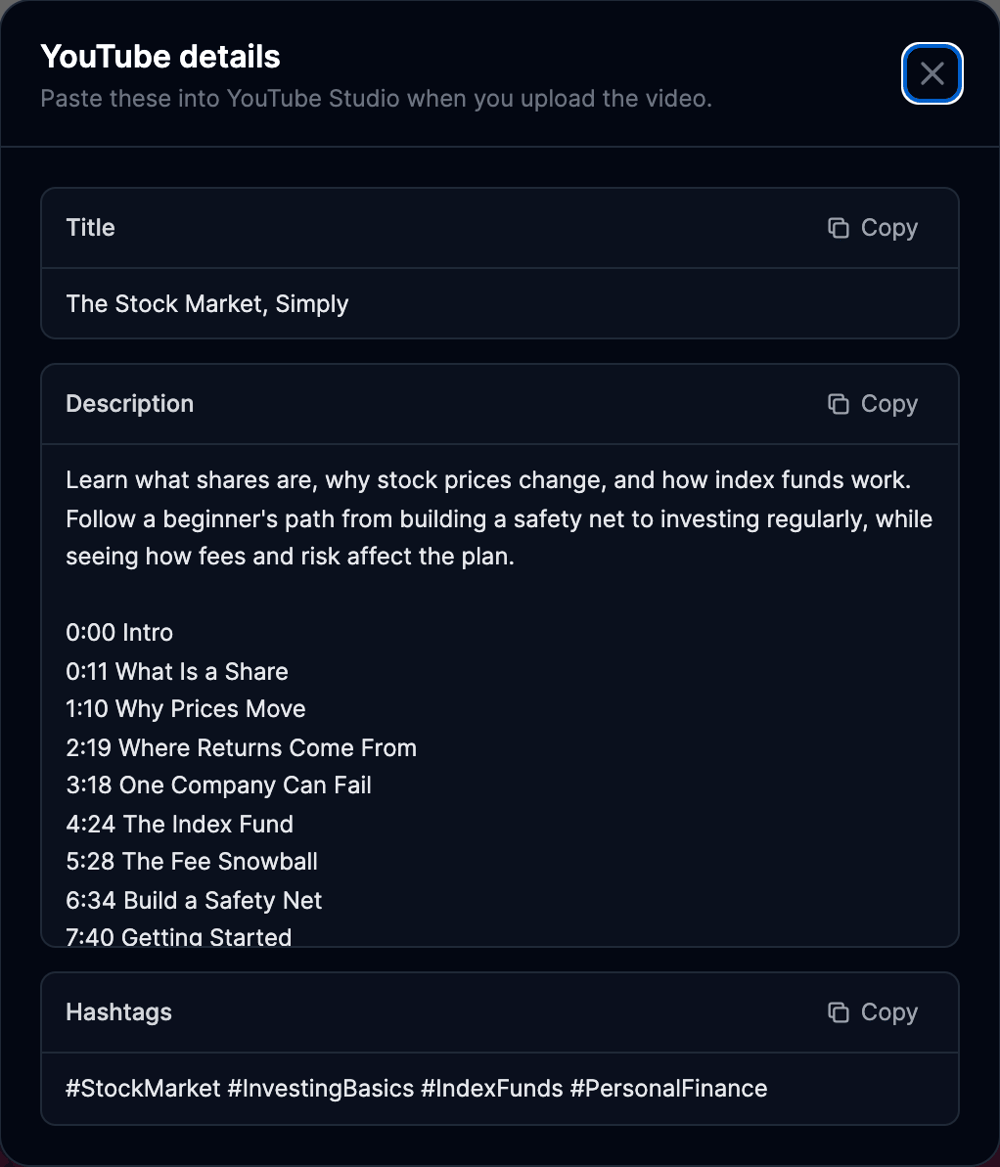
Click YouTube to get a title, a description and hashtags that are ready to paste into YouTube Studio. The description includes chapter timestamps taken from the video’s chapter cards, plus the sources the writer used. If you edit the video, the chapters follow your edits. YouTube shows chapters when a video has at least three chapter cards, each at least 10 seconds long.
Turn a Chapter into a Short
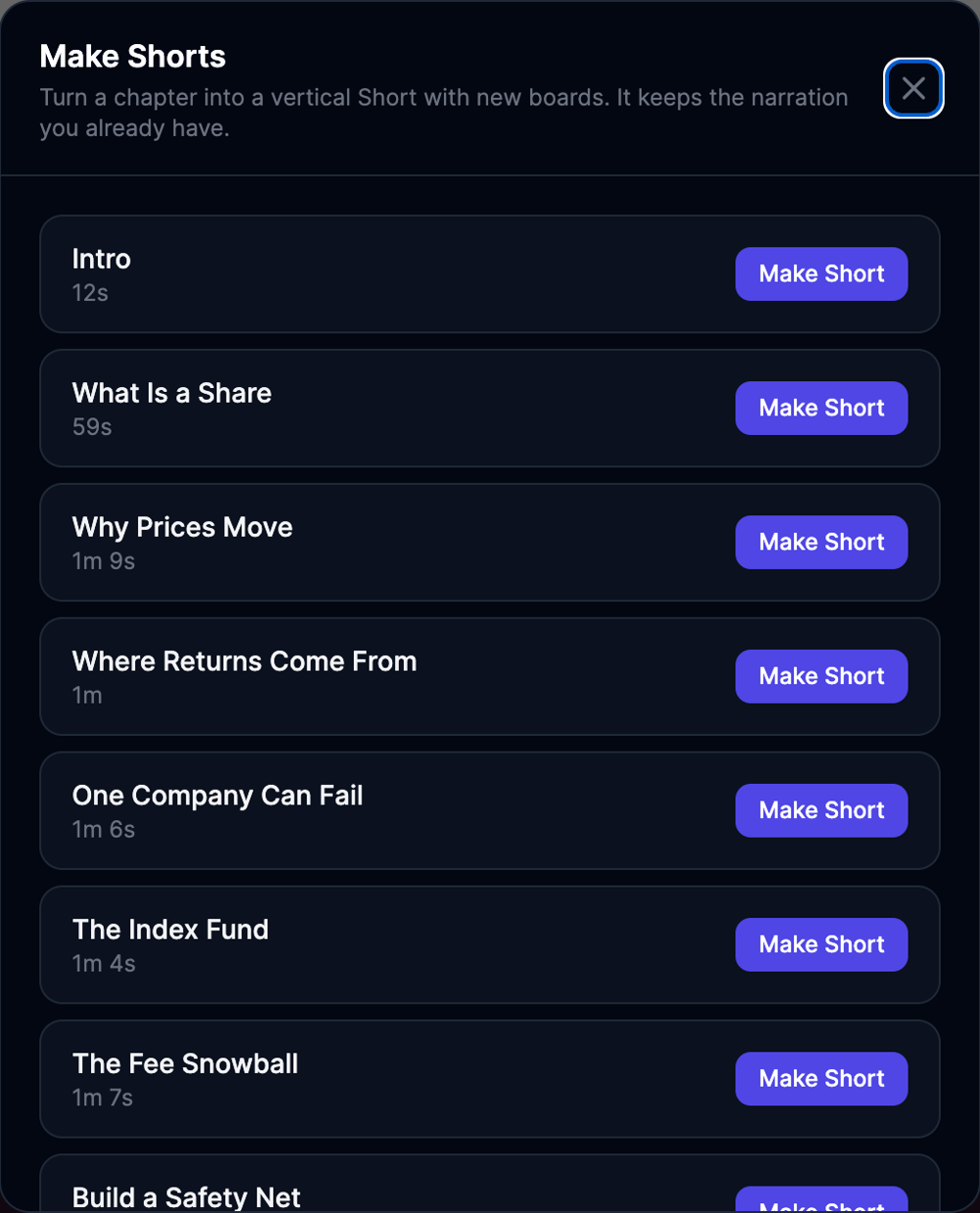
Click Shorts to see every chapter of a long video. Pick one (up to 3 minutes long) and the agent turns it into a new vertical Short with fresh boards. It reuses the narration you already have, along with your characters, look and music.
Translate the Whole Video
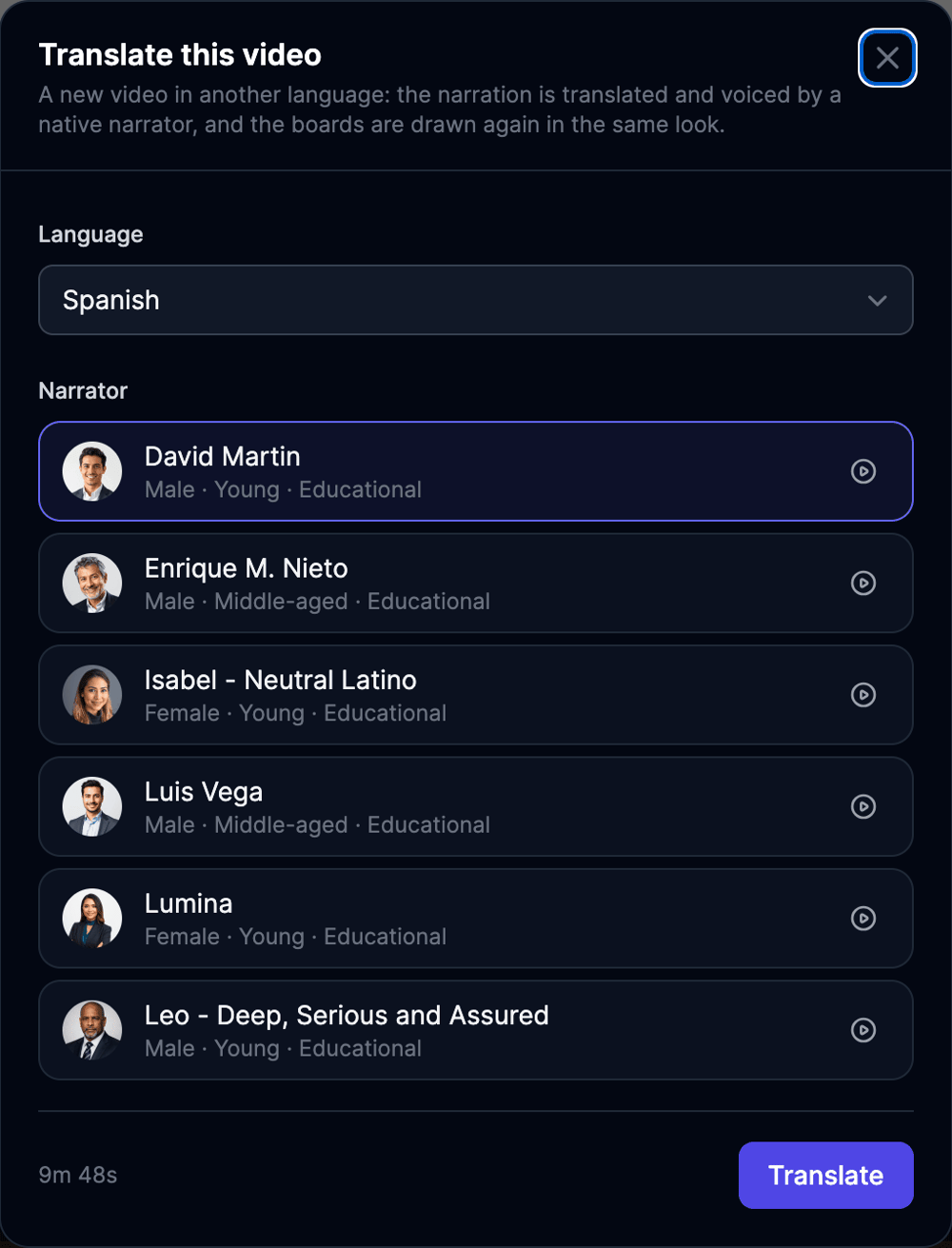
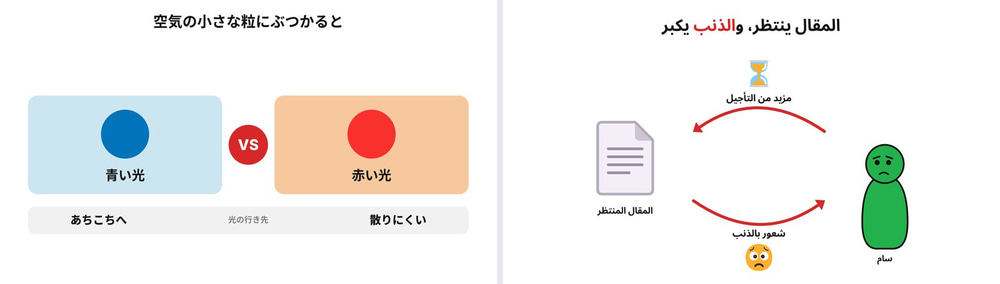
Click Translate, choose a language and pick one of the native narrators. The agent translates the narration, the chapter titles and the character names, records the new narration and redraws every board in the same look. Arabic videos are laid out right to left, and Japanese, Chinese, Korean and Hindi get proper fonts and line breaks.
Keep the Same Characters Across a Series
Making a series? In the editor, select a board with a named character and click Save as a recurring character. Next time, pick up to four saved characters under Your characters on the form, and the writer uses them with the same names, colours and looks.
Explainer Video Examples Made with AI
Each of these was made with the Explainer mode from a single prompt.
| Example | Look | Length | What it shows |
|---|---|---|---|
| The Stock Market, Simply | Classic | 9:48 | 10 chapters, two characters (Maya and Sam), 94 boards |
| Where to Live After AGI | Paper Cutout | 9:05 | 92 boards from a six-word prompt |
| How Computer Caches Work | Whiteboard | 2:07 | A simple analogy: a desk tray as the computer’s cache |
| Your Coffee’s Journey | Classic | 1:06 | Maps with countries, regions, cities and shipping routes |
| The World’s Changing Power | Classic | 1:06 | Bar charts built from the narrated numbers, with sources in the YouTube description |
| Why Sam Procrastinates | Classic | 0:49 | A character with moods and poses, translated into Arabic, Chinese and Hindi |
| Hottest Planet Quiz | Classic (Short) | 0:53 | A quiz with a 3, 2, 1 countdown and a reveal |
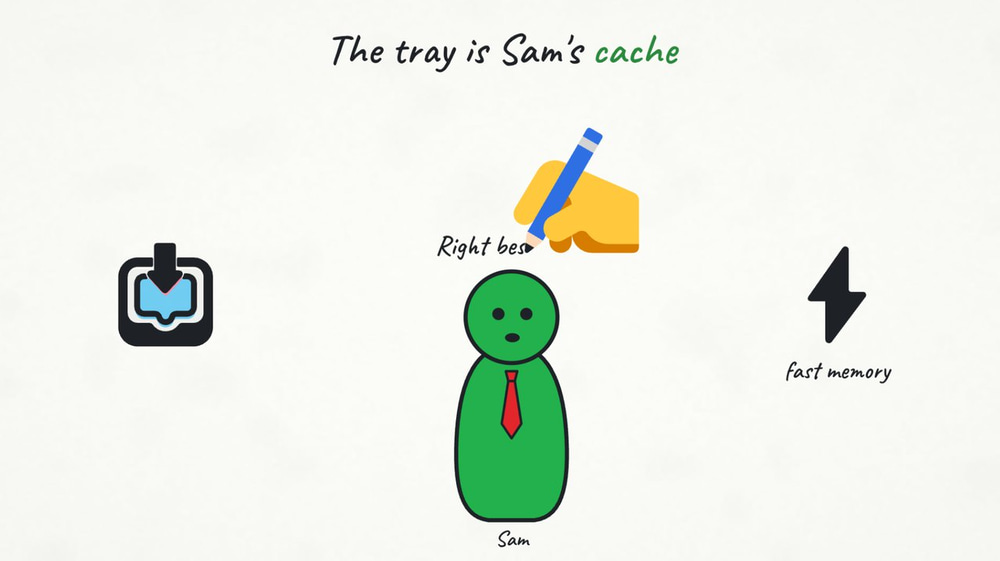
The prompt behind it: How does a computer's memory cache work? Explain it to beginners with a simple analogy, and why a cache makes apps feel fast.
And the prompt behind the ten-chapter stock market video: Explain how the stock market works for complete beginners: what a share is, why prices move every day, what an index fund is, why fees matter so much over decades, and how an ordinary person can start investing without gambling.
Tips for Writing a Good Explainer Video Script
The agent writes the explainer video script for you, but your idea shapes it. These tips make the biggest difference.
Say Who the Video Is For
“For complete beginners”, “for kids” or “for small business owners” changes the words, the pace and the examples. The stock market prompt above starts with exactly that.
Put Your Facts in the Prompt
Charts, stats, timelines and maps are drawn only from what the narrator says. If you want a certain number, year or place on screen, put it in your idea. You can also ask for visuals outright, like “compare years and percentages” or “follow the trip on a map”.
Ask for a Story or a Character
“Told through Sam, a student who keeps putting off his essay” gives the agent a character to follow from board to board. A story keeps viewers watching longer than a list of facts.
Ask for an Analogy
Hard topics land better with a familiar picture. Asking to “explain it to beginners with a simple analogy” turned computer caches into a desk with a small tray.
Keep One Idea per Video
A focused topic gives you a tighter script. For a big topic, make a longer video: it gets chapters, and you can turn each chapter into a Short later.
Lead Shorts with a Hook
Shorts work best with a question or a surprise in the first seconds. “Most people guess wrong” in the quiz prompt gives the writer a hook to open on.
Check Names and Numbers Before You Publish
The writer researches facts, but you know your topic best. Watch the video once, then fix any label or number in the editor. It takes a few clicks.
How Much Does It Cost?
Explainers use credits from your plan. Before you click Generate video, the form shows the most the video can cost, and you’re never charged more than that. If the video comes out shorter than you asked for, it costs less. The narration counts toward your text-to-speech allowance, like other Video Agent videos.
Redoing a board, turning a chapter into a Short, translating a video and exporting the final MP4 also use credits.
On the Free plan, you can make Explainers up to 30 seconds long. They don’t use credits, but each one counts toward the Free plan’s 2 video projects per month. Paid plans unlock videos up to 10 minutes. See pricing for the plans.
Frequently Asked Questions
What is an AI explainer video?
An AI explainer video is an explainer where AI writes the script, records the narration and creates the animation. With Easy-Peasy.AI, you describe a topic and get a narrated video whose characters, icons, charts and maps appear on the words the narrator says.
How long does it take to make an explainer video with AI?
About two minutes for a one-minute video, and around five to seven minutes for a ten-minute video. Editing takes as long as you like, and small fixes take seconds.
How long should an explainer video be?
For a product or a single idea, aim for 60 to 90 seconds. Lessons and YouTube deep dives can run 5 to 10 minutes with chapters, and Shorts should stay under a minute. If you’re not sure, leave the length on Auto and the writer picks between 45 seconds and 2 minutes.
Can I make whiteboard animation videos with AI?
Yes. Pick the Whiteboard look and a hand with a pen draws every element as the narrator speaks. There’s also a Chalkboard look that draws in chalk on a green board.
Can I make explainer videos for free?
Yes. On the Free plan you can make Explainers up to 30 seconds long. They don’t use credits and count toward the Free plan’s 2 video projects per month.
Can I change what the narrator says?
Yes. You can regenerate the narration in the editor with new wording or another voice. The boards keep their original timing, so keep the new wording close to the old one. For bigger changes, generate a new video with a more specific prompt.
Which languages can I use?
Explainers work in 28 languages, including English, Spanish, French, German, Portuguese, Italian, Russian, Japanese, Chinese, Korean, Hindi, Arabic, Turkish and Vietnamese. You can also translate a finished video into any of them from the editor.
Can I make vertical videos for TikTok, Reels and YouTube Shorts?
Yes. Choose Short for a vertical video of 20 to 60 seconds, or turn any chapter of a long video into a Short from the editor.
Can I use the videos on YouTube and for my business?
On a paid plan, you get full commercial rights to the videos you make, and those rights stay with you even after your subscription ends. Videos made on the Free plan are for non-commercial use. See our terms of use for the details. If you use a library music track that names an artist, check whether the track asks for a credit in your video description.
Do I need animation skills?
No. You write the idea, and the AI handles the script, the voice, the visuals and the timing. The editor is there if you want to change something, but you don’t have to touch it.
Start Making Explainer Videos with AI
Think of a topic you explain all the time: a product feature, a lesson, a money question. Open the Video Agent, choose Explainer, write one or two sentences and click Generate video. A few minutes later you’ll have a narrated, animated explainer that you can edit, translate and turn into Shorts.
Looking for a different style of video? See how to make a documentary with AI or how to make Vox-style videos with AI.