How to Add an AI Voice Agent to Your Website (No Phone Number Needed)

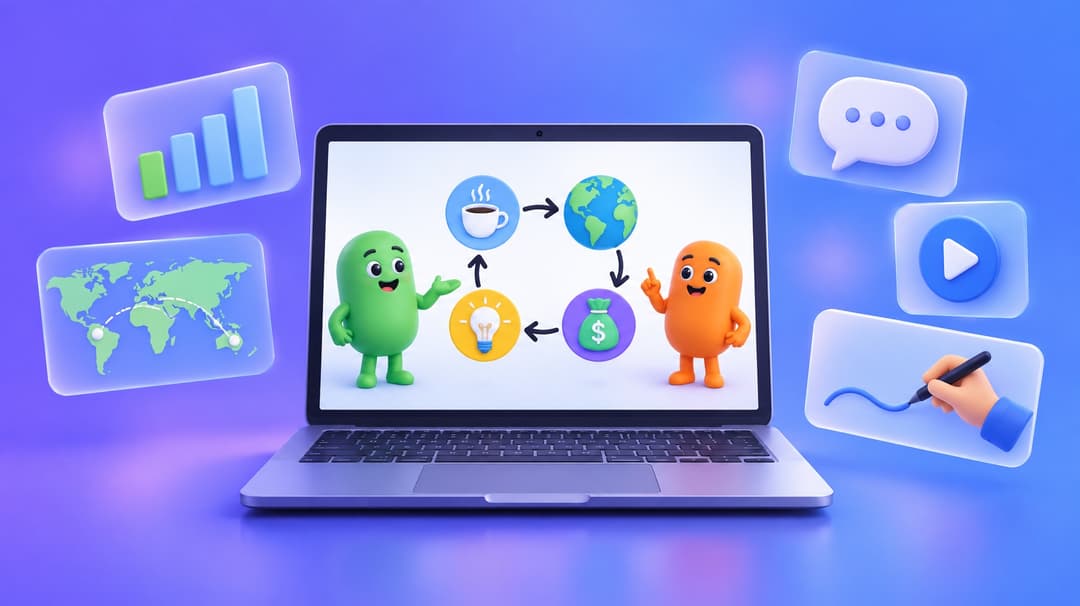
Some visitors will never type a long question into a chat box, but they will happily ask it out loud. That is why we built voice mode for Easy-Peasy.AI Agents: your agent can now take real-time voice calls right inside your website chat widget. In this guide you’ll learn what an AI voice agent is, how to set one up in a few minutes, and how to tune it so conversations feel natural. You don’t need a phone number, a telephony provider, or any code.
Prefer to watch? This tutorial builds an AI voice agent for a small yoga studio’s website from start to finish, including a real call where a visitor books a class by voice.
Updated September 29, 2026: added the video tutorial and a new section on taking bookings by voice.
What Is an AI Voice Agent?
An AI voice agent is an AI assistant you talk to instead of typing to. It listens to what you say, works out the answer, and speaks the reply back in a natural voice, all in a normal back-and-forth conversation.
Most AI voice agent platforms are built for phone lines and call centers. Voice mode is different: it lives on your website. A visitor opens your chat widget, taps the call button, and starts talking. The same agent that answers text chats answers the call, using the same knowledge base, the same instructions, and the same actions.
Think of it as a voice chatbot that already knows your business, because it is your chatbot.
Why Add Voice to Your Website Chatbot?
Typing works well for short questions. Talking works better when a question is long, the visitor is on a phone, or they simply prefer to explain things out loud. Voice mode helps:
- Support teams who want to answer “how do I…” questions instantly, 24/7, without a queue
- Local businesses such as clinics, salons and real estate agents whose customers are used to calling
- Online stores that want a hands-free way to ask about products, shipping and returns
- Course creators and coaches who want a friendly voice that explains things like a tutor
- Accessibility-minded sites whose visitors find typing slow or difficult
Because the call runs on your existing agent, there is nothing new to train. If your agent already answers text chats well, it will answer calls well too.
How Voice Mode Works for Your Visitors
Here’s what a visitor sees when they call your agent:
- They open your chat widget and tap the round call button next to the message box.
- The chat turns into voice mode in place. An animated aura shows the agent’s state: Listening, Thinking or Speaking.
- They talk normally. They can interrupt the agent, just like on a real call.
- If they need to share something that is hard to say out loud, like an email address or an order number, they can type it during the call.
- They tap End, or simply close the widget, and the call hangs up.
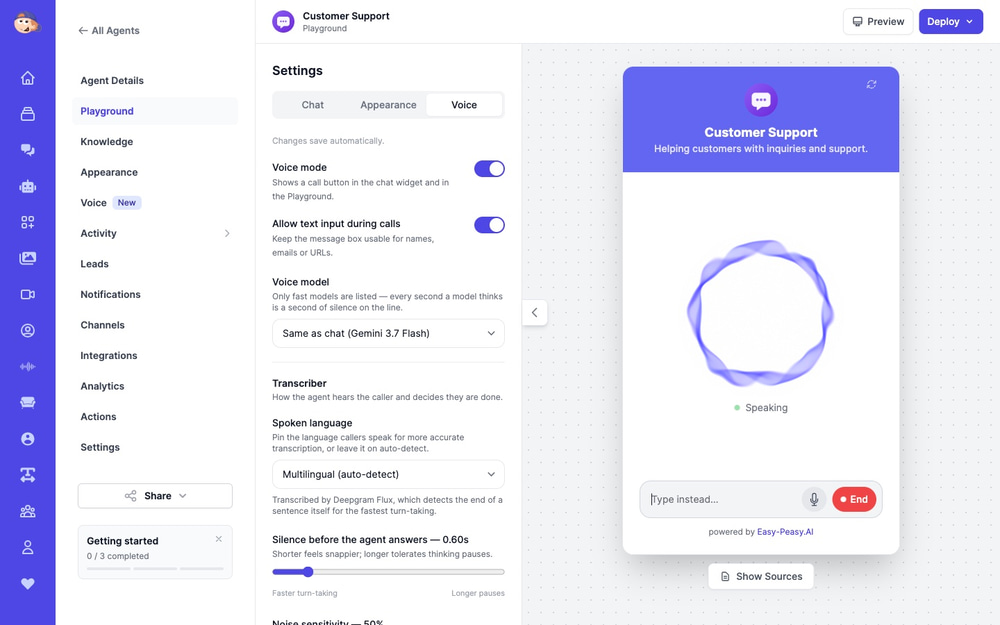
Every spoken turn is saved to the chat transcript, so you can read calls later in your agent’s Conversations tab alongside your text chats.
How to Add an AI Voice Agent to Your Website (Step-by-Step)
You can go from a text-only chatbot to a talking AI agent in about five minutes. If you don’t have an agent yet, start with our guide on how to add an AI chatbot to your website, then come back here.
Step 1: Open Your Agent’s Playground
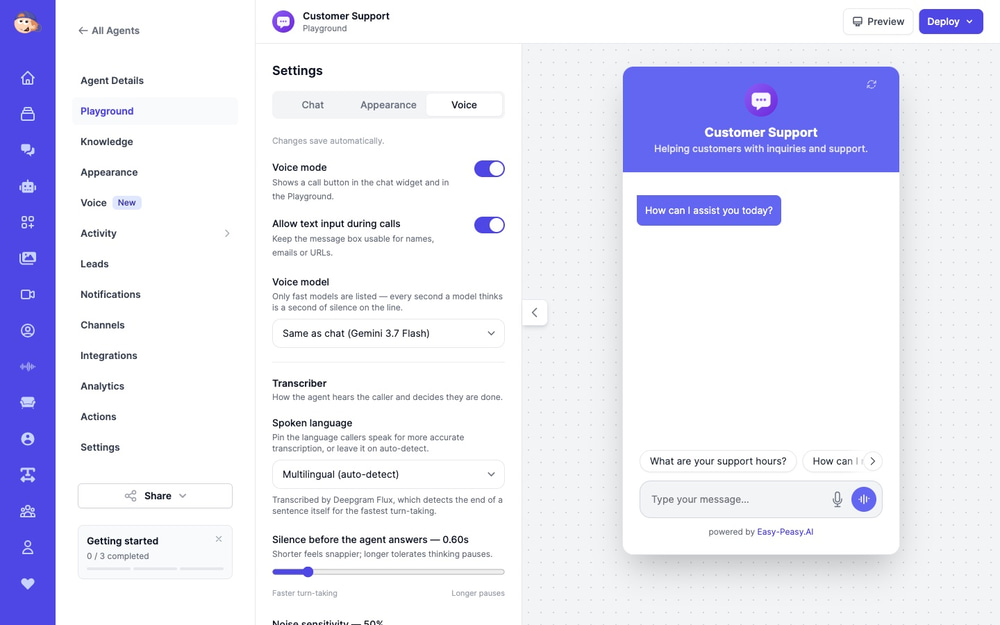
Go to AI Agents, open your agent, and click Playground in the sidebar. The Playground is where you test your agent before visitors see it. The settings column on the left now has three tabs: Chat, Appearance and Voice.
Step 2: Turn On Voice Mode
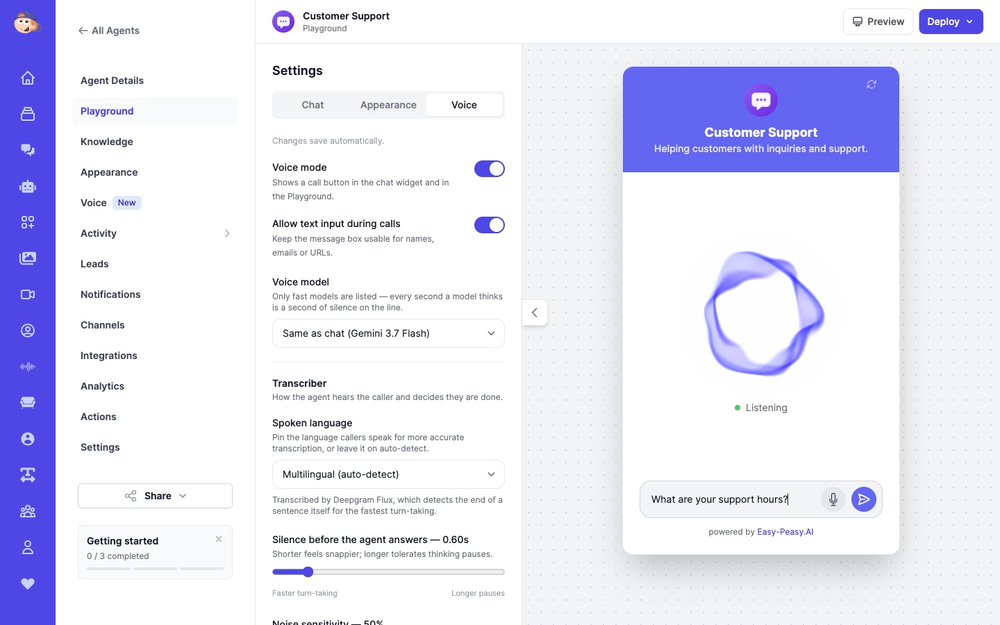
Click the Voice tab and switch on Voice mode. This adds a call button to your chat widget and to the Playground preview. Changes in the Voice tab save automatically, so there is no Save button to forget.
Leave Allow text input during calls switched on. Callers can then type names, emails or links without leaving the call, which cuts down on spelling mistakes.
Step 3: Pick a Voice
Scroll to Agent voice and click Change. You can press the play button on any voice to hear a sample before you choose it.
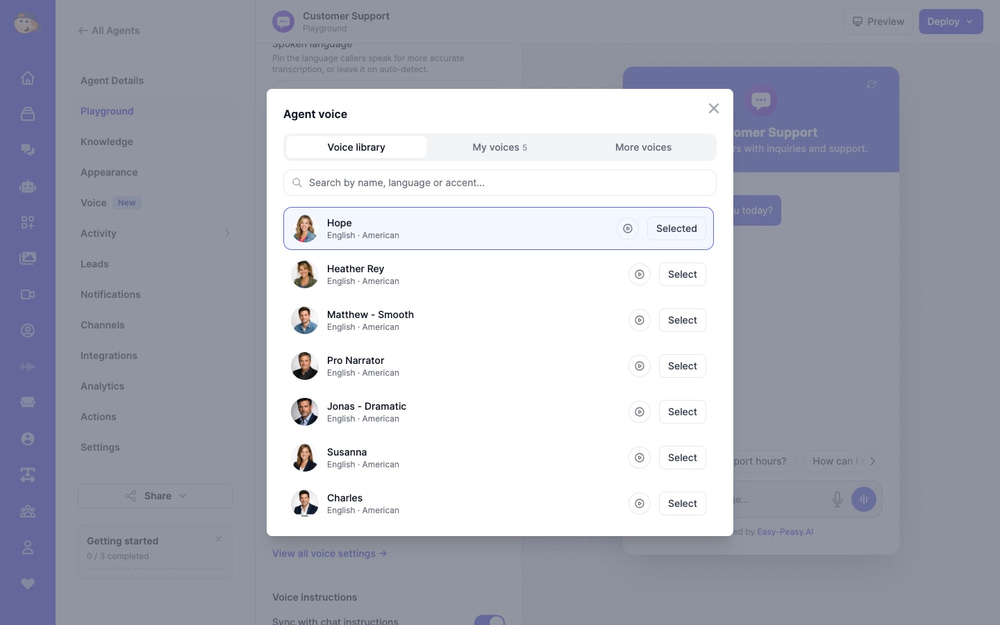
There are three places to find a voice:
- Voice library: more than 1,900 natural ElevenLabs voices. Search by name, language or accent.
- My voices: voices you cloned with Easy-Peasy.AI’s text to speech tools. Your agent can speak in your own voice or your brand’s voice.
- More voices: 90 Deepgram Aura-2 voices with native accents in 7 languages, plus expressive Inworld voices that speak every supported language with the same voice.
Step 4: Set the Speaking Speed and Language
Use the Speaking speed slider if the voice feels too slow or too fast for your audience. Friendly support agents often sound best just above 1.00×, while calm explainers work well slightly slower.
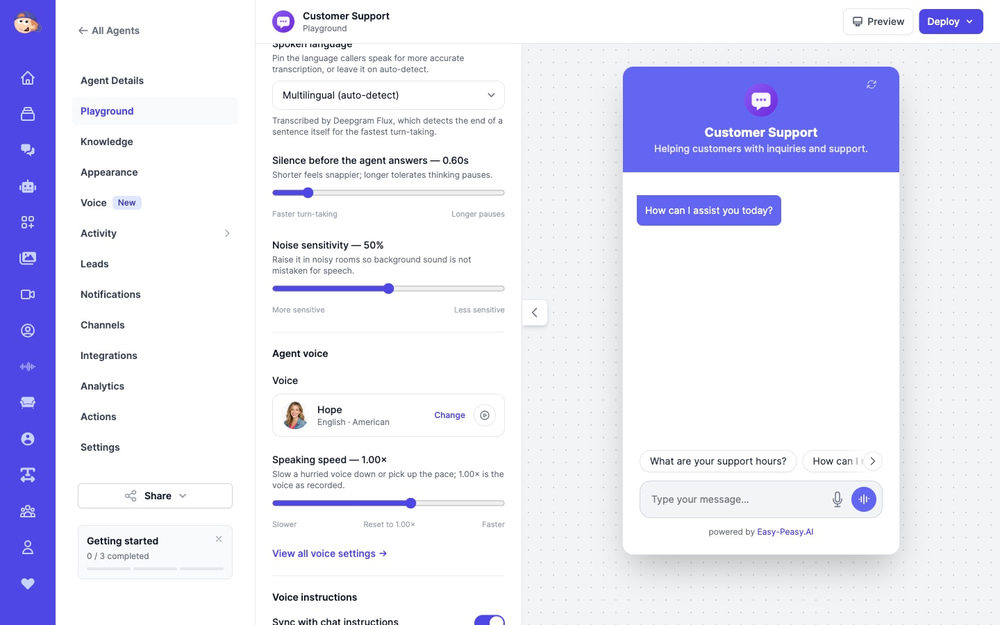
Under Spoken language, keep Multilingual (auto-detect) if your visitors speak different languages. If almost everyone speaks one language, pin it for more accurate transcription.
Step 5: Test a Call in the Playground
Click the call button in the preview on the right and say hello. Ask the questions your customers ask most, for example What are your support hours? or How can I reset my password?. Try interrupting the agent, and try typing a question mid-call to see how it handles both.
If an answer is wrong, fix it the same way you would for text chat: add the missing information to your agent’s Knowledge, or update its instructions.
Step 6: Put It Live on Your Website
If your chat widget is already on your site, you’re done: the call button appears automatically for your visitors. If it isn’t yet, click Deploy at the top of the Playground, choose Website widget, and paste the snippet into your site. It works with any website builder, including Wix, WordPress, Shopify, Webflow and Squarespace.
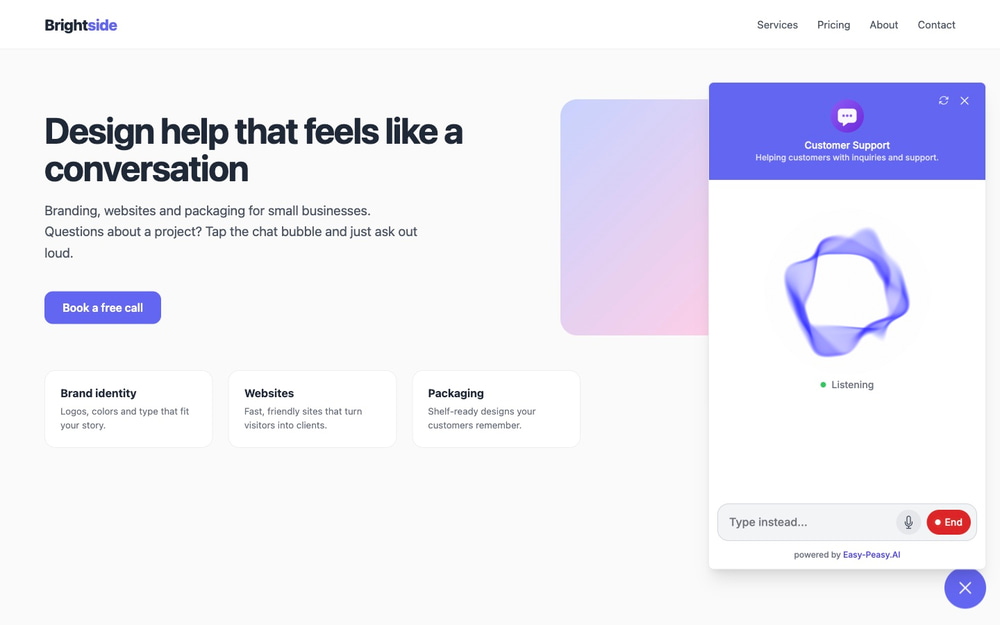
Tip: an already open browser tab keeps the old widget settings. Reload the page to see voice mode appear.
Let Your Voice Agent Take Bookings
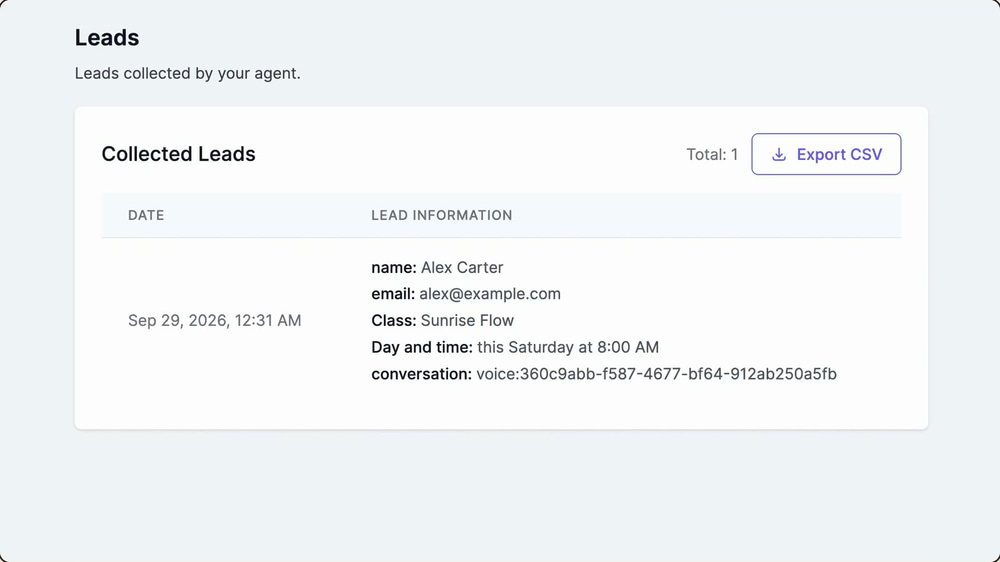
A voice agent gets much more useful when it can do something, not just answer. With the Collect Data action, your agent asks callers for the details you need, in a normal conversation, and saves them for you. In the video above, a caller books a free yoga class by voice, and the booking lands in Leads a moment later.
Step 1: Add a Collect Data Action
Open Actions in your agent’s dashboard and choose Collect Data. Give it a clear name, like Book a free first class, and say when to use it, for example: When someone wants to book a class or their free first class, or asks to reserve a spot.
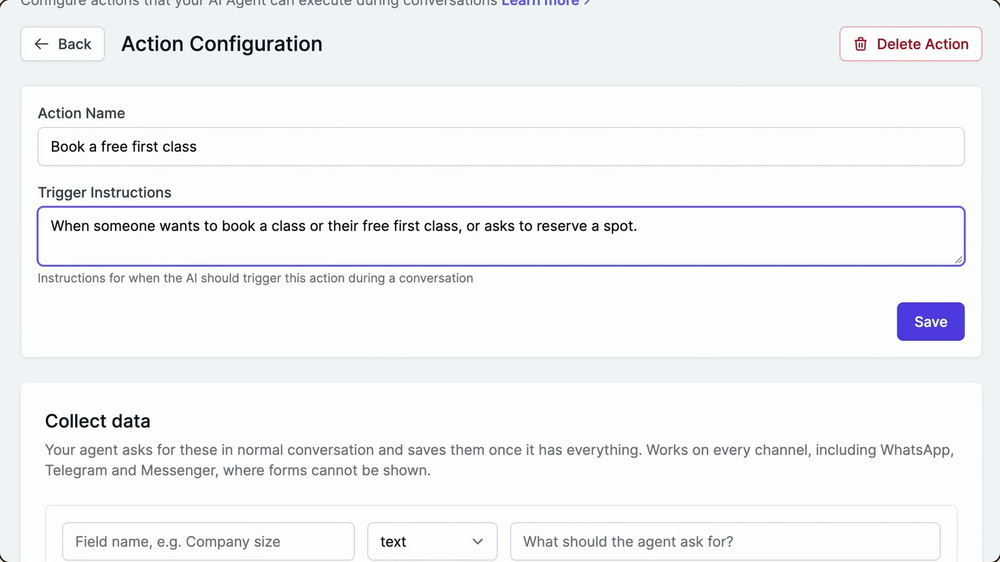
Step 2: List the Details You Need
Add one field for each detail, choose its type, and write what the agent should ask. For a class booking that is Name, Email (type email), Class and Day and time. Keep Also save to Leads switched on, and add a short thank-you message. You can also send each booking to a webhook or to your email.
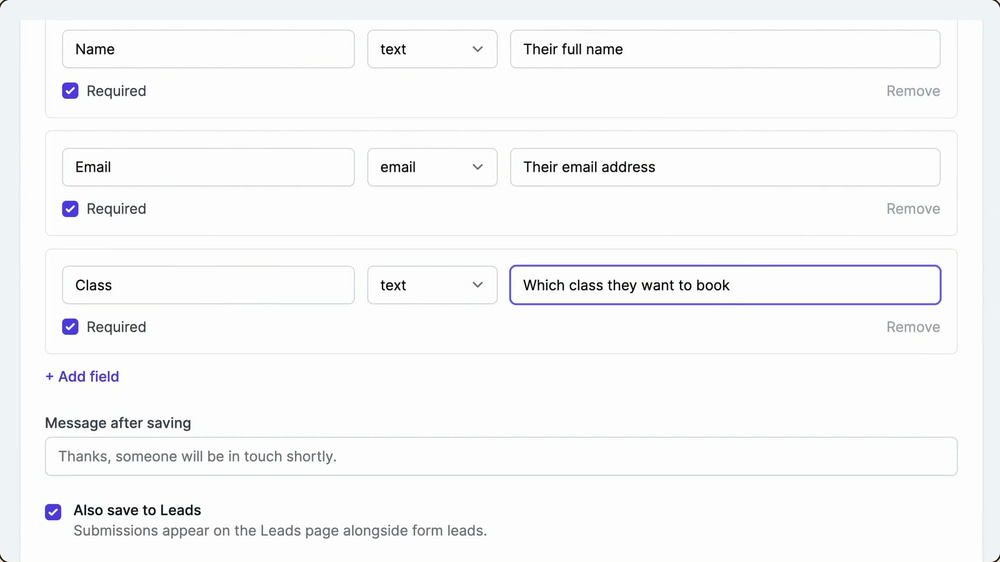
Step 3: Take a Call and Check Leads
Now a caller can simply say “Can you book me into Sunrise Flow this Saturday at eight? My name is Alex.” The agent asks for anything that is missing, like the email address, and confirms the booking out loud. Every booking appears in Leads with all the details.
And in Conversations you can read the whole call, word for word.
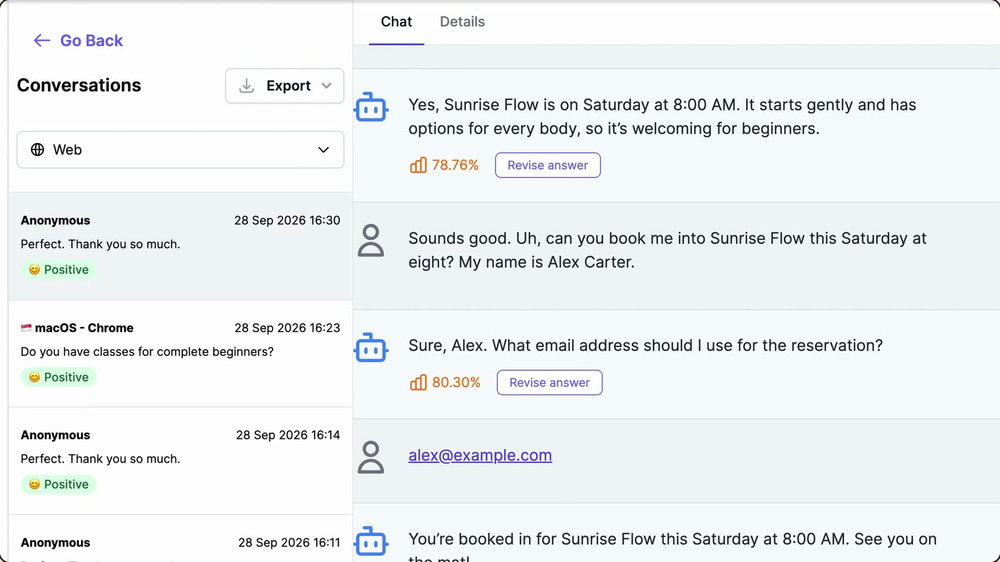
Tip: spelling an email address out loud is error-prone. Leave Allow text input during calls on, so callers can type their email into the chat box without ending the call.
Voice Settings Explained
The Playground’s Voice tab covers the essentials. For every option, click View all voice settings or open Voice in your agent’s sidebar.
| Setting | What it does | When to change it |
|---|---|---|
| Voice model | The AI model that writes spoken replies. “Same as chat” uses your agent’s chat model. | Pick a faster model if replies feel slow. Every second the model spends thinking is a second of silence on the line. |
| Silence before the agent answers | How long the caller must pause before the agent replies. | Lower it for snappier turn-taking. Raise it if callers pause to think and get cut off. |
| Noise sensitivity | How easily background sound counts as speech. | Raise it if your callers are often in noisy places. |
| Voice instructions | Instructions for calls only. By default they sync with your chat instructions. | Turn off sync to ask for shorter, conversational answers without lists or links. |
| Greeting | The first thing the agent says when a call connects. | Make it short and welcoming, and mention what the agent can help with. |
| Allow interruptions | Lets callers talk over the agent to redirect it. | Keep it on for natural calls. Turn it off in very noisy settings. |
| End the call after silence | Hangs up when nobody speaks for this many seconds. | Lower it to free up capacity when callers walk away. |
| Maximum call length | The longest a single call can last, in minutes. | Match it to your typical conversation length. |
| Calls per visitor per day | Limits how many calls one visitor can start each day (5 by default). | Raise it for returning customers, lower it to prevent abuse. |
Tips for a Natural-Sounding Voice Agent
Write Voice Instructions for Talking, Not Reading
A reply that looks great on screen can sound awkward out loud. Turn off Sync with chat instructions and add something like Keep answers to two or three short sentences. Never read out URLs or bullet lists. Offer to send details by email instead.
Choose Speed Over Brilliance for the Voice Model
On a call, a quick good answer beats a slow perfect one. If your chat model is a heavy reasoning model, set Voice model to a fast option such as GPT-5 mini or Gemini Flash.
Pick a Voice That Matches Your Brand
Play samples from a few voices with your real greeting in mind. A law firm and a toy store should not sound the same. If you already have a brand voice, clone it once and select it under My voices.
Test With Real Questions
Open your Conversations tab and replay the ten most common questions from text chats as voice calls. It is the fastest way to spot answers that are too long to listen to.
Pin the Language for Single-Language Sites
Auto-detect is great for international audiences. If your site is in Spanish only, pinning Spanish gives more accurate transcription, especially for names and product terms.
How the AI Voice Agent Works Behind the Scenes
For the technically curious, here’s what happens when a visitor taps the call button:
- A secure real-time audio connection opens between the browser and our voice servers, powered by LiveKit, the same WebRTC technology used by many modern voice AI products.
- Speech is transcribed as it streams using Deepgram, which also detects when the caller has finished a sentence so the agent knows when to reply.
- Your agent writes the answer through its normal pipeline: it searches your knowledge base, can use your agent’s actions, and follows your instructions.
- The reply is spoken in the voice you picked (ElevenLabs, Deepgram Aura-2 or Inworld) and streamed back while the text appears in the transcript.
- The conversation is saved to your agent’s Conversations, just like a text chat.
AI Voice Agent Pricing and Free Trial
Every account can try voice mode, including Free accounts:
| Plan | Where calls work | Limits |
|---|---|---|
| Free and plans below Unlimited 200 | Playground only | 10 free voice minutes per month, up to 3 minutes per call |
| Unlimited 200 and above (including Teams and Enterprise) | Your website chat widget and the Playground | Your own maximum call length and per-visitor limits |
Speech recognition, voices and call time are included. Spoken replies use your plan’s word allowance at twice the rate of a text reply. See all plans on the pricing page.
Website Voice Agent vs. Phone Voice Agent
Voice mode and phone calls solve different problems, and you can use both with the same agent:
- Voice mode runs in the browser on your website. Visitors don’t need to leave the page, and you don’t need a phone number.
- Phone calls let people dial a real number. If you need that, follow our Twilio voice integration guide.
Frequently Asked Questions
Can an AI voice agent take bookings or collect leads?
Yes. Add a Collect Data action with the fields you need (for example name, email, class and time). The agent asks for them during the call, confirms out loud, and saves each booking to Leads. It works the same in text chat.
What is the difference between a voice chatbot and an AI voice agent?
Older voice chatbots follow fixed menus and scripts. An AI voice agent understands free-form speech, answers from your own knowledge base, and can take actions, so callers can ask anything in their own words.
Do I need a phone number or Twilio account?
No. Voice mode works inside your website chat widget in the visitor’s browser. You only need Twilio if you also want people to call a phone number.
Which languages does the voice agent understand?
Voice mode can auto-detect the caller’s language or you can pin one. The voice library includes voices in dozens of languages and accents, and Inworld voices can speak every supported language with a single voice.
Can my agent speak in my own voice?
Yes. Clone your voice with Easy-Peasy.AI’s instant voice cloning, then pick it under My voices in the voice picker.
Can visitors type during a call?
Yes, as long as Allow text input during calls is on. It is ideal for emails, names, order numbers and links.
Is there a free AI voice agent trial?
Yes. Every account, including Free, gets 10 voice minutes per month to test calls in the Playground. Website calls are available on Unlimited 200 and higher plans.
Are voice calls recorded?
The transcript of every call is saved to your agent’s Conversations tab, the same as text chats, so you can review what callers asked and how the agent answered.
What happens if a visitor closes the chat widget during a call?
The call ends automatically, so nobody is left talking to an agent they can no longer see.
Do I need technical skills?
No. Turning on voice mode is a single switch, and every setting has a sensible default. If your chat widget is already on your website, visitors get the call button without any code changes.
Give Your Website a Voice Today
Whether you run a small shop or a busy support team, voice mode lets visitors get answers the way they already ask questions: out loud. Open your agent in Easy-Peasy.AI Agents, switch on voice mode in the Playground, and have your first conversation with your own AI voice agent in minutes.