Let a scene breathe
Give a product shot, establishing scene, or character moment a little more time before the next cut.
A great shot deserves a little more time. Continue your video with new motion, a longer scene, or the ending you imagined.
Paid plans · Credits shown before you start · Original file kept
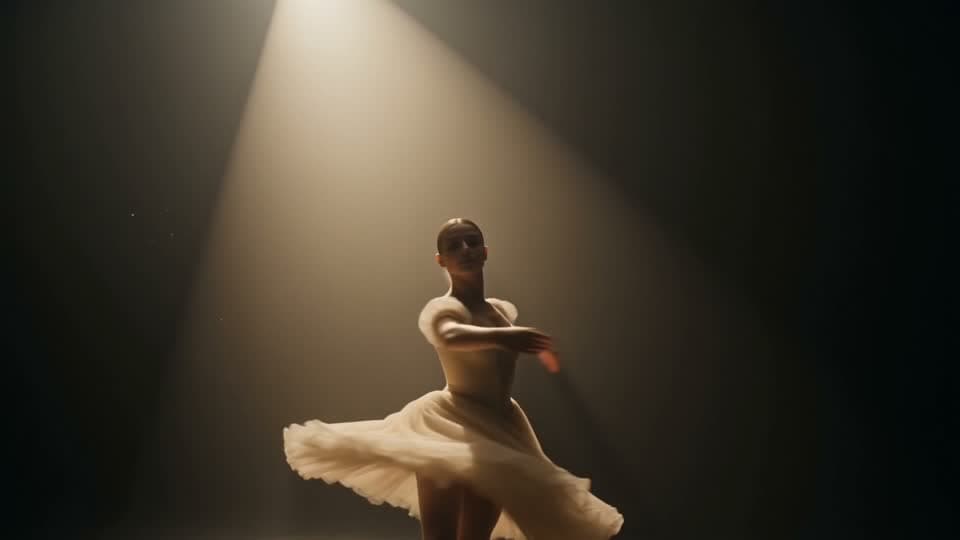 Example footage
Timeline illustration. Actual results vary by prompt and model.
Give a product shot, establishing scene, or character moment a little more time before the next cut.
Describe the action, camera movement, and mood in plain language. Keep the prompt focused for a more natural continuation.
Continue from an eligible result, or trim a longer clip to fit your chosen model’s source window.
Balance source length, creative control, and credit cost. Every option opens in the same focused workspace.
Fast, cheaper continuation with the same camera and character consistency.
The cheapest way to add a shot to an existing clip.
Full-quality continuation with native audio, up to 4K output.
The newest model — the strongest shot-to-shot continuity, and segments up to 30 seconds.
Continues from 10 seconds of context rather than the last frame alone — the strongest continuity, with native audio.
This example starts with a 5-second source clip. Choose how much new footage to add.
Seedance 2.5 and Gemini Omni bill source + added seconds. Seedance 2.0 tiers bill the new segment only. The final quote uses your uploaded file. Explore paid plans →
Upload an MP4 or MOV, or use a saved clip. Check the source-length and file-size limits for your model.
Write a continuation prompt, choose added length and resolution, and review the credit total.
Your video processes in the background. Find the finished file in your gallery, ready to preview, download, or use in your next edit.
Straight answers to help you choose the right tool for your video.
Talk to our team →It generates a continuation for an existing video based on your prompt. Describe what happens next, choose the length of the new segment, and receive a longer video. This adds new footage rather than simply slowing down or looping the original.
Seedance 2.0, Fast, and Mini add 4–15 seconds per run. Seedance 2.5 supports selected lengths up to 30 seconds. Gemini Omni Flash 1.1 adds 3–10 seconds. Available choices are shown in the workspace.
Upload MP4 or MOV. Seedance 2.0 tiers accept source clips up to 15 seconds and 100 MB; Seedance 2.5 accepts up to 30 seconds and 100 MB. Gemini Omni Flash 1.1 accepts up to 10 seconds and 20 MB. Sources must be at least 2 seconds long.
Your original saved file is kept, and the extended result is a separate video. Seedance appends a continuation from the last frame. Gemini Omni uses more of the source as context and can re-render it, so review the whole result when exact preservation matters.
Yes, as long as the latest result still fits the selected model’s source-length and file-size limits. Choose another supported model or trim the input when a clip exceeds those limits.
Describe the next action and how the camera should move. Keep the scene, subject, and lighting consistent for a natural continuation. For example: “The camera slowly pulls back as the dancer finishes her turn; keep the warm stage lighting.”
The models offer output-resolution choices, including up to 4K. For improving the resolution of the existing video without adding a scene, use the dedicated AI Video Upscaler.
The cost depends on the model, added length, and output resolution. Seedance 2.0 tiers bill the added segment. Seedance 2.5 and Gemini Omni also bill the source duration. A paid plan is required, and the workspace shows the total before you start.
A dedicated workspace. A clear credit quote. Your original file kept.