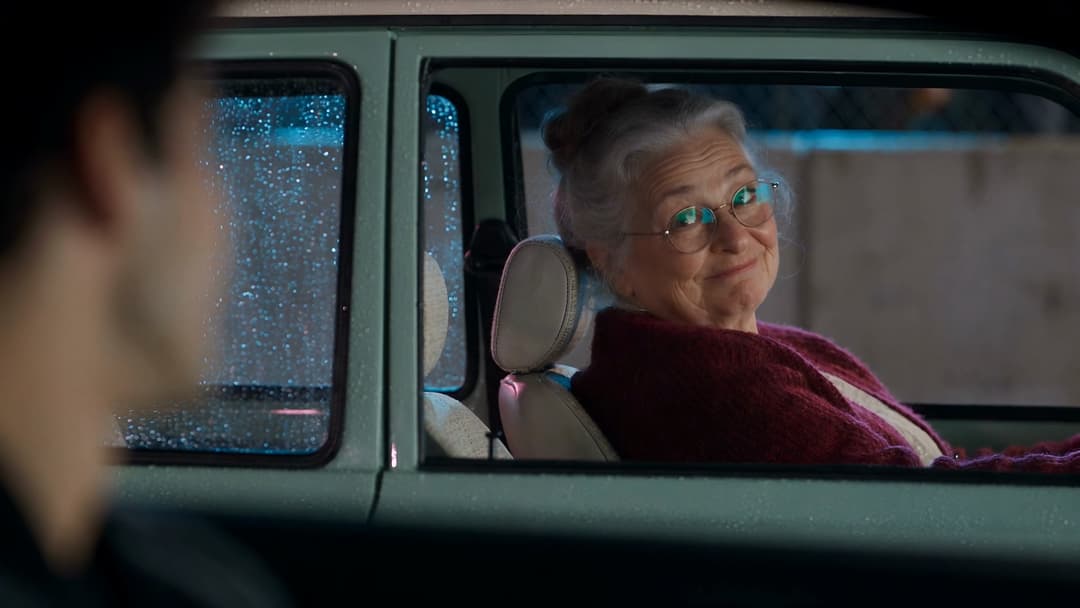
AI pet videos are all over TikTok, Instagram Reels and YouTube Shorts: a puppy that throws a tantrum when its phone is taken away, a cat that snarls on cue, a dog that ends up DJing a club full of dogs. You can make viral pet videos like these yourself, starring a made-up pet or your own cat or dog. With the AI Video Generator on Easy-Peasy.AI, you turn a single picture into a short clip with motion and sound.
This guide shows how to make pet videos with AI: real example clips, the best models, a step-by-step walkthrough, and prompts to copy for funny AI cat videos, dog videos and even a pet dance video.
AI Pet Video Examples (Cats, Dogs and More)
Here are a few clips to spark ideas. Each template link opens a page where you can start your own version, with the prompt and settings filled in.
Best AI Models for Pet Videos
For pets, start with these video models. All of them can add sound in the same pass, like purring, barking or music.
| Model (as named in the app) | Good for | Clip length | Free plan |
|---|---|---|---|
| Seedance 2.5 Image | One long, smooth take with sound, great for little stories | 4 to 30 seconds | No |
| MiniMax H3 Image | Smooth, coherent motion in 768P or 2K, with sound always on | 4 to 15 seconds | No |
| Seedance 2.0 Fast Image | Quick clips in the shape you choose, like 9:16 (used for the puppy clip) | 4 to 15 seconds | No |
| Seedance 2.0 Mini Image | The lowest-cost Seedance model, good for testing ideas | 4 to 15 seconds | Yes, at 480p and up to 5 seconds |
| Veo 3.1 Lite Image and Veo 3.1 Fast Image | Google’s Veo models, in 16:9 or 9:16 | 8 seconds | Yes, at 720p |
Seedance 2.5 Image and MiniMax H3 Image keep the shape of your picture, so use a vertical (9:16) picture for a vertical clip. The Seedance 2.0 and Veo models let you pick the aspect ratio. Learn more about Seedance 2.5 and MiniMax H3.
How to Make AI Pet Videos (Step by Step)
Here’s how the puppy tantrum clip came together. The same five steps work for any cat or dog idea.
Step 1: Create the pet picture
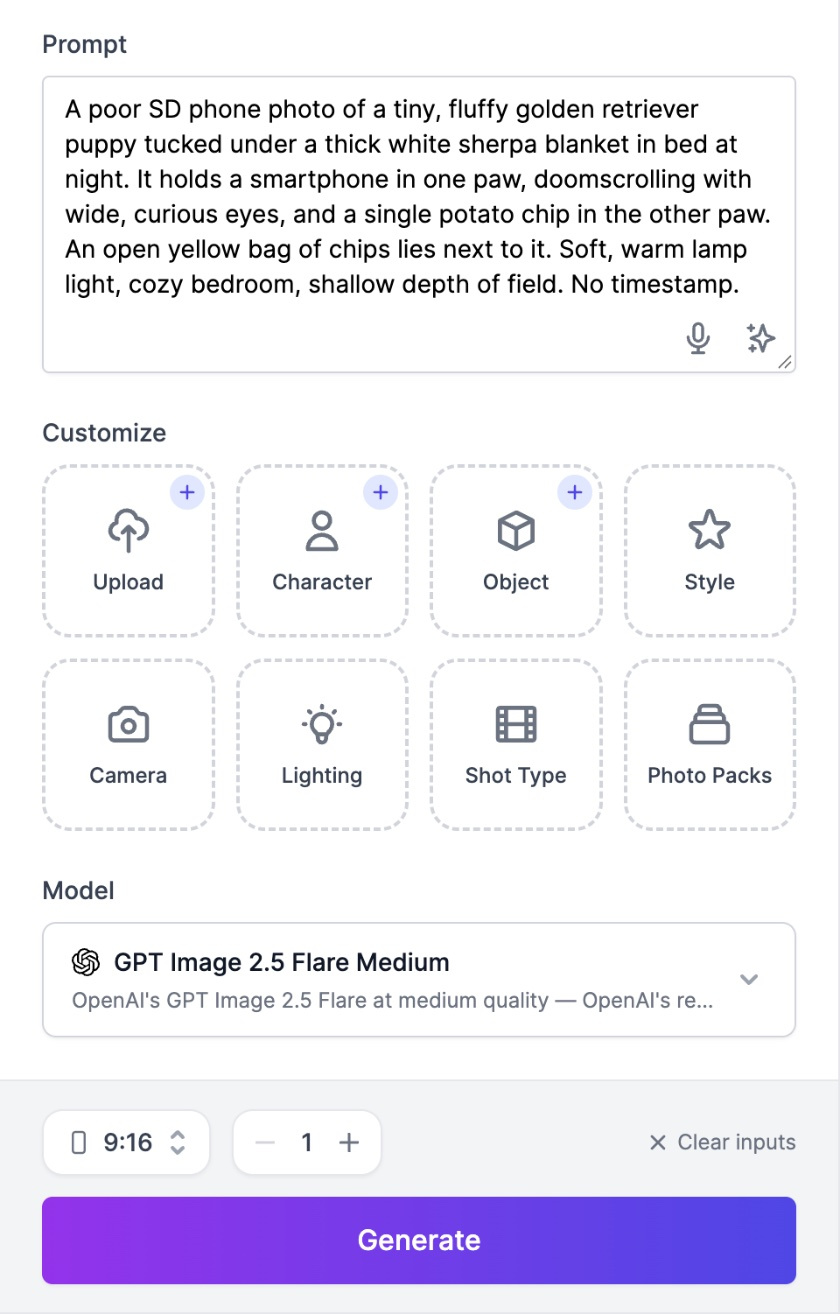
Open the AI Image Generator and describe the first frame of your video. The default model, GPT Image 2.5 Flare, is a great all-rounder, and Nano Banana 2.1, Google’s newest Nano Banana model, is a strong alternative. Pick the 9:16 shape for TikTok, Reels or Shorts. (On the Free plan the AI Image Generator makes square pictures only; wide and tall shapes need a paid plan.)
A prompt for the doomscrolling puppy:
A poor SD phone photo of a tiny, fluffy golden retriever puppy tucked under a thick white sherpa blanket in bed at night. It holds a smartphone in one paw, doomscrolling with wide, curious eyes, and a single potato chip in the other paw. An open yellow bag of chips lies next to it. Soft, warm lamp light, cozy bedroom, shallow depth of field. No timestamp.
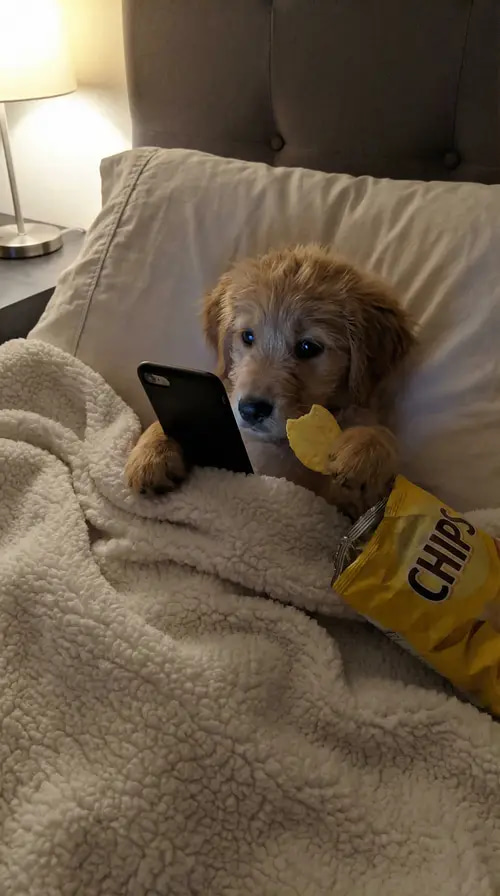
Pro tip: asking for a “poor SD phone photo” makes the picture look like a real phone snap, not a polished render.
Step 2: Send the picture to the video generator
Click your picture to open it, then click Generate video. Or hover over the picture and click the video camera icon.
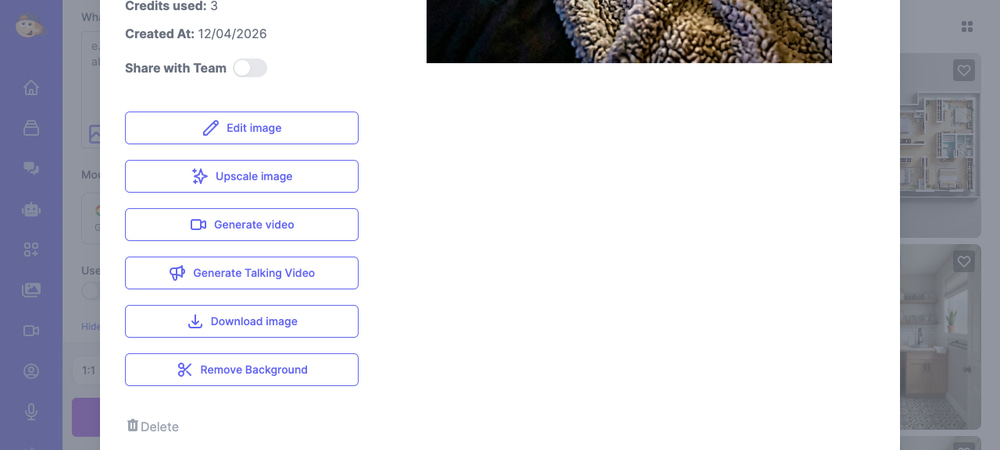
On the Free plan, the window that opens asks you to upgrade. Instead, open the AI Video Generator, click Start image and pick the picture from your History tab.
Step 3: Pick a model and settings
In the Generate Video from Image window, choose a model. The puppy clip used Seedance 2.0 Fast Image with these settings:
- Duration: 8 seconds, enough for a setup and a punchline.
- Aspect Ratio: 9:16 for TikTok, Reels and Shorts.
- Generate audio: on, so the model adds the crunching and whimpers from the prompt.
For one longer, smoother take, choose Seedance 2.5 Image. It has no aspect ratio menu because the clip follows your picture’s shape.
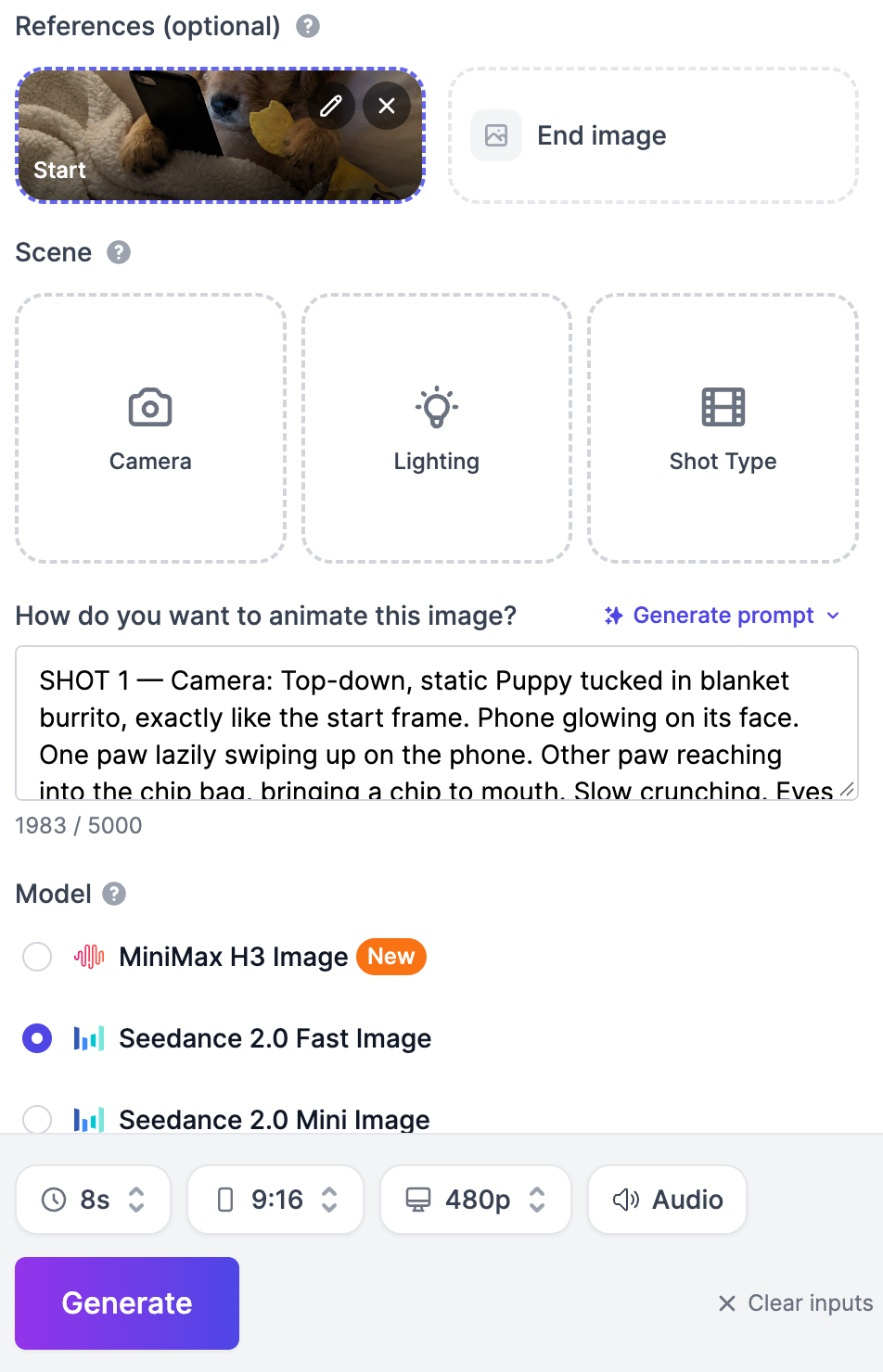
Step 4: Write a shot-by-shot video prompt
Describe each shot’s camera angle, action and sound, like a tiny screenplay. Here’s a shortened version of the puppy prompt (the template has the full one):
SHOT 1 (top-down, static): The puppy lies in a blanket burrito, exactly like the start frame, phone glowing on its face. One paw swipes the screen, the other brings a chip to its mouth. Sound: soft crunching, faint music from the phone.
SHOT 2 (same angle, slight zoom in): A human hand reaches in and grabs the phone. The puppy's eyes go wide and the chip falls in slow motion. Sound: a record scratch.
SHOT 3 (close-up): The puppy stares at its empty paw, looks up, then back at the paw. Its lip quivers and its eyes get glassy. Sound: silence, then a tiny squeaky inhale.
SHOT 4 (medium shot, handheld shake): The puppy wails like a toddler, kicking under the blanket. Chips fly everywhere and the bag tumbles off the bed. Sound: baby crying mixed with puppy whimpers.
SHOT 5 (same shot): The puppy rolls onto its tummy, buries its face in the blanket, pounds one paw on the mattress, then sulks. Sound: the crying fades to little whimpers.
SHOT 6 (low angle, eye level): The puppy slowly turns to the camera, one tear rolling down. Text overlay: "give it back." Sound: one sad violin note.
SHOT 7: Cut back to shot 1. The puppy has somehow gotten the phone back.
Stuck? In the AI Video Generator, click Generate prompt above the prompt box and the AI drafts one for you.
Step 5: Generate and watch the result
Click Generate Video. The cost shows on the button before you click, and the finished clip appears in the Videos tab of the AI Video Generator, ready to download.
Shortcut: open the Puppy Phone Tantrum template and click Use this template to load this start picture, prompt and settings, then swap in your own pet’s picture.
How to Animate a Photo of Your Own Pet
You don’t need an AI-made pet. A photo of your own cat or dog works too.
- Open the AI Video Generator.
- Under References, click Start image and upload your photo (at least 512 x 512 pixels, at most 4100 pixels per side).
- The generator switches to an image-to-video model. Keep it or pick another, such as Seedance 2.5 Image or MiniMax H3 Image.
- Describe the motion in the How do you want to animate this image? box and click Generate.
Use a sharp, well-lit photo with your whole pet in frame, and ask for motion that fits the pose: a curled-up cat can stretch, yawn and blink. Add an End image too, and the AI creates a smooth transition between them.
Want your dog somewhere it’s never been, like the moon? Upload its photo in the AI Image Generator, describe the new scene, then animate the result. See how to animate photos with AI for more tips.
How to Keep the Same Pet in Every Clip
A series beats a one-off: people follow an account to see the same pet again. To keep your pet looking the same in every clip, use reference photos.
- In the AI Video Generator, click Add media and upload a few clear photos of your pet (front and side views help).
- The generator switches to the matching Reference model: Seedance 2.5 Reference takes up to 30 images, MiniMax H3 Reference up to 9, and Seedance 2.0 Mini Reference up to 9 (on the Free plan at 480p, up to 5 seconds).
- Point to the photo in your prompt, for example “the dog from @image1”, the way our pet templates do.
A start image and reference images can’t be combined in one clip. Pet POV Night Out (below) and Giant Pet Caretaker (above) were both made from the same reference photo of a golden retriever.
The same idea works for pictures: see how to keep characters consistent with AI image editing.
AI Cat Video Ideas (Funny and Cute Prompts)
Use these with a photo of your cat, or on their own to build the scene from text.
1. Caught red-handed (funny)
A gray tabby cat sits on a kitchen counter next to a full glass of water. It slowly pushes the glass toward the edge with one paw. A voice off-screen says "Hey!" and the cat freezes, staring straight into the camera. Two seconds of silence. Then, still holding eye contact, it pushes the glass off the counter. Handheld phone video, natural kitchen light. Sound: soft paw taps, a gasp, glass shattering.
2. The kitten chef (cute)
A fluffy orange kitten in a tiny white chef's hat stands on a stool at a kitchen counter, stirring a small pot of noodles with a wooden spoon held in its paws. Steam rises. The kitten tastes the broth, closes its eyes and nods slowly like a TV chef. Close-up, warm cooking-show lighting. Sound: a bubbling pot, a happy little meow, soft jazz.
3. The synchronized stare (template)
The Pet Portrait Stare template puts you and your cat in a dark studio portrait: you open your eyes together, then the cat snarls. Add a photo of yourself and one of your cat.
4. The giant cat (template)
In The Giant Beast Awakens, you stand in armor in a dark cave while your own pet, grown to colossal size, looms over you.
5. Your cat in a real video (paid plans)
Turn a clip of a person into an AI cat video: upload an MP4 or MOV of 4 to 30 seconds to Edit Video and describe the change, one person per edit:
Replace the man in the video with a fluffy gray cat wearing the same clothes. Keep the background, camera movement and timing exactly the same.
AI Dog Video Ideas (with Prompts)
Each of these AI dog video ideas works with your dog’s photo or from text alone.
1. Dog vs. robot vacuum (funny)
A small white terrier stands in a living room barking bravely at a robot vacuum. The vacuum turns toward the dog and beeps, and the dog jumps back and hides behind the sofa, peeking out with one eye. Low angle at dog height, phone video look. Sound: tiny barks, a vacuum hum, a beep.
2. The food critic (funny)
A serious golden retriever in round glasses sits at a fancy restaurant table with a napkin tucked into its collar. A waiter's hand sets down a bowl of plain kibble. The dog sniffs it, looks into the camera, raises one eyebrow, then slowly pushes the bowl away with its nose. Sound: quiet restaurant chatter, a disappointed sigh.
3. Dog POV night out (template)
Strap an action camera on your dog and follow its point of view into a club, where it ends up behind the DJ decks. Open Pet POV Night Out and add your dog’s photo.
4. The giant caretaker (template, cute)
In Giant Pet Caretaker, your dog, grown taller than you, carries you to the sofa after a long day. Add a photo of yourself and one of your dog.
For a bigger project, see how we made a Dog Olympics video with AI.
AI Dance Video Idea: Make Your Pet Dance
A dancing pet is a classic AI dance video, and there are two ways to make one.
Describe the dance in your prompt
Use your pet’s photo as the start image, pick a model with sound such as Seedance 2.5 Image, and spell out the moves:
The cat stands up on its hind legs and dances to an upbeat pop song: two steps left, two steps right, a little spin, then a proud pose for the camera. Keep the cat's fur, the room and the framing the same. Sound: upbeat pop music, a happy meow at the end.
Copy a real dance with Motion Control
Motion Control in the AI Video Generator (paid plans) copies the moves from a dance clip of 3 to 30 seconds onto a character picture; the Viral Dance template is a ready-made start. It works best when the picture matches the video’s framing, so try a full-body cartoon of your pet standing on two legs.
Tips for Viral Pet Videos on TikTok, Reels and Shorts
Go vertical
TikTok, Reels and Shorts are built for vertical video, so make your start picture 9:16 or pick 9:16 when the model offers it.
Hook viewers in the first second
Open on something odd or funny, like the cat mid-push or the puppy mid-wail. Slow intros get scrolled past.
Keep it short and loopable
Aim for 8 to 15 seconds with one setup and one punchline. Ending where you started, like the puppy getting its phone back, makes the loop seamless.
Add text and sound
Put a short line of on-screen text in your prompt (the puppy’s “give it back” came from the prompt) or add captions when you post. Keep the model’s sound, or turn Generate audio off where allowed and add a trending sound.
Label realistic AI content
TikTok and YouTube both ask creators to label realistic AI-generated videos and have a setting for it when you upload. If your clip could pass for real footage, turn the label on.
Frequently Asked Questions
Can I make AI cat videos for free?
Yes, within limits. Free accounts can use Seedance 2.0 Mini (at 480p, up to 5 seconds) and Veo 3.1 Lite and Veo 3.1 Fast (at 720p). Each clip costs credits (the price is shown before you generate), and the Free plan’s monthly credits are small, so regular posting needs a paid plan with every model and longer, sharper clips.
How long does it take to make an AI pet video?
The picture takes seconds. A clip usually takes a few minutes, longer for long or high-resolution clips, and you don’t have to wait on the page: it appears in your Videos tab when it’s ready.
Can I use my own pet?
Yes. Upload your pet’s photo as the Start image to animate it, or add a few photos as references to put your pet in brand-new scenes.
Why do AI pet videos go viral?
They mix two things people love to share: animals and a surprising twist. The best follow a simple arc (cute, surprise, drama, payoff) and need no words, so anyone can enjoy them.
Can I make AI videos of other animals?
Yes. Describe any animal in your prompt or upload its photo. For a fun AI animal video, try the Giant Bunny Taxi template, where a car-sized rabbit pulls up instead of a cab.
Start Making Your Own AI Pet Videos
Pick an idea, make the first frame in the AI Image Generator (or use a photo of your pet), and bring it to life in the AI Video Generator. Your first AI cat video could be ready before your pet wakes up from its nap.