How to Animate a Picture with AI: Step-by-Step Guide

Posted · Updated
Mary Elo
Mary Elo

Want to know how to animate a picture so it feels like a real moment caught on video? With AI, you upload a photo, describe the motion in a sentence, and get back a short clip where people blink and smile, hair moves in the wind and the camera glides through the scene. This guide shows you how to do it step by step in the Easy-Peasy.AI Video Generator, helps you choose a model, and gives you prompt recipes for portraits, pets, products, artwork and old family photos.

Still sepia portrait of a smiling couple standing in a park, before AI animation
Before: the original still picture.
After: the same picture animated with AI. The couple turn to each other and smile.

What Does It Mean to Animate a Picture with AI?

Animating a picture means turning one still image into a short video. Older apps did this with pan and zoom effects: the frame slides across the photo, but nothing inside it moves. Image-to-video AI is different. It uses your picture as the first frame and invents the frames that follow, so eyes blink, leaves sway, water flows and the camera can push in, orbit or tilt. That is how AI can make a picture move instead of just zooming into it, and many models add matching sound too.

Whether you call them living photos, moving images or animated pictures, there are three common ways to make them:

Approach What moves Best for
Pan and zoom effect Only the frame. The camera slides over a still photo. Simple slideshows
AI image-to-video People, animals, water, clouds and the camera Lifelike animated photos, social posts, ads and family memories
Talking photo (lip sync) The face, in sync with a voice Greetings, presenters and explainers

This guide focuses on AI image-to-video. For more before and after examples, visit the AI image animator page.

How to Animate a Picture with AI (Step-by-Step)

Here is how to animate a picture in the Video Generator, from upload to download. Before you start, have these ready:

  • A clear picture: JPG, PNG or WEBP, at least 512 x 512 pixels and no larger than 4100 pixels on either side. Sharp faces and good light give the most natural motion.
  • One idea for the motion: a smile, a turn of the head or waves rolling in. One main action per clip works best.
  • An Easy-Peasy.AI account: each animation costs credits, and the price is shown on the Generate button before you start.

Step 1: Add Your Picture as the Start Image

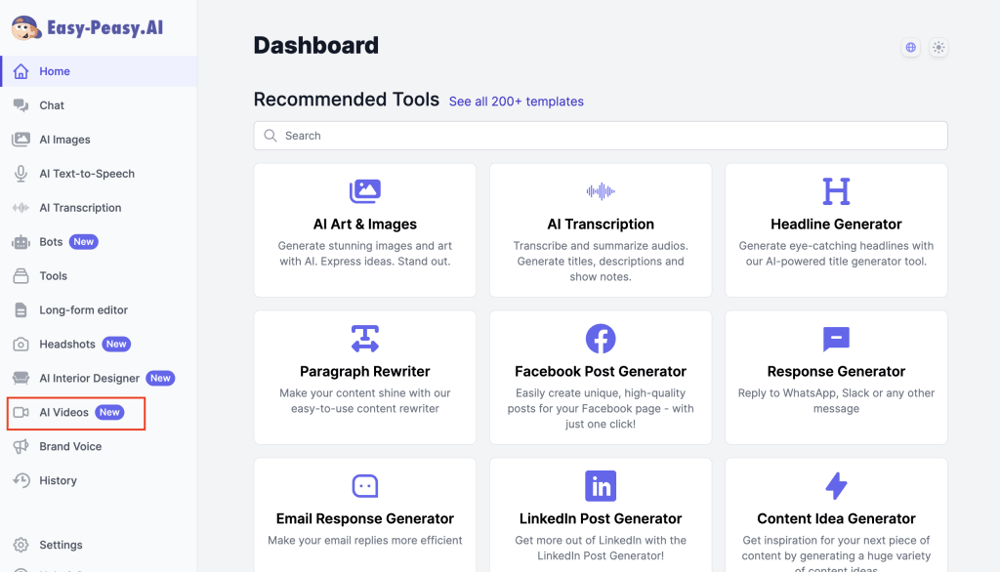
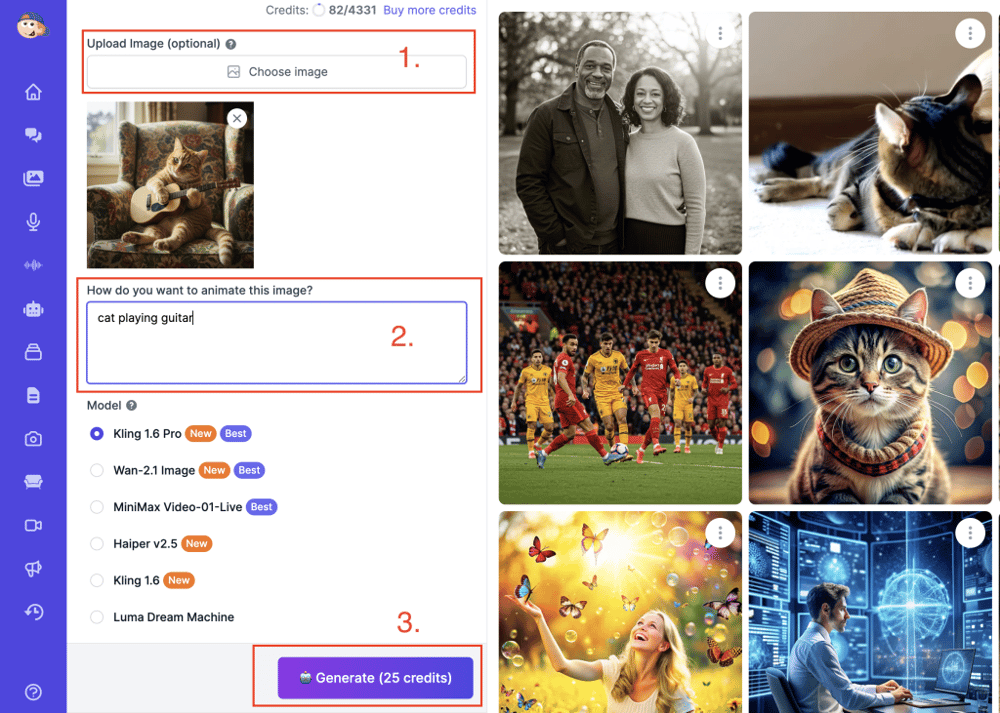
Open the AI Video Generator. Under References (optional), click the Start image box. A picker opens where you can upload a new picture or choose one from your uploads or your image History.

Once the picture is in place, the prompt label changes to How do you want to animate this image? and the model list shows only models that can animate a picture. The pencil icon on the picture opens the image editor, so you can fix small things first, like removing a distracting sign.

Easy-Peasy.AI Video Generator form for animating a picture, with a cartoon fox as the Start image, Scene options and a motion prompt
The Video Generator with a picture in the Start image slot, the Scene options and a motion prompt.

Step 2: Add an End Image (Optional)

If you want the clip to finish on a specific frame, add a second picture in the End image box. The AI then creates a smooth transition from your start image to your end image, and the model list narrows to models that support both frames. Try it with a product shown from two angles, or the same street by day and by night.

Step 3: Describe the Motion

In the prompt box, describe what should move. A good prompt covers the subject, the action, the camera and the mood in one or two sentences, like the one in the screenshot:

The fox hero smiles, blinks and gives a confident nod while his blue cape ripples in the wind. Slow push-in camera move, soft city lights glowing in the background.

Not sure what to write? Click Generate prompt and choose Simple: the AI looks at your picture and drafts a motion prompt you can edit (Advanced opens more options). The Scene buttons (Camera, Lighting and Shot Type) add cinematic direction without typing.

Step 4: Pick a Model

Choose a model from the Model list. Each moves pictures a little differently; the next section compares seven good starting points. On the Free plan, models you can’t use yet show a crown icon.

Image-to-video model list in the Easy-Peasy.AI Video Generator with Seedance 2.5 Image selected
Once a start image is added, the list shows only models that can animate a picture.

Step 5: Set Length, Resolution, Shape and Sound

The bar above the Generate button holds the settings for the model you picked:

  • Duration: from a few seconds up to 30 seconds on models built for long takes.
  • Resolution: up to 4K, depending on the model. Lower settings like 480p are handy for quick tests.
  • Aspect ratio: shown on models that let you choose, such as 16:9 for YouTube, 9:16 for Reels, TikTok and Shorts, or 1:1 for feeds. Some models, like Seedance 2.5 Image and MiniMax H3 Image, always keep your picture’s shape, so crop it first if you need a vertical or square video.
  • Audio: on by default. Click it to turn sound off; on some models that also lowers the price.

Step 6: Generate and Download

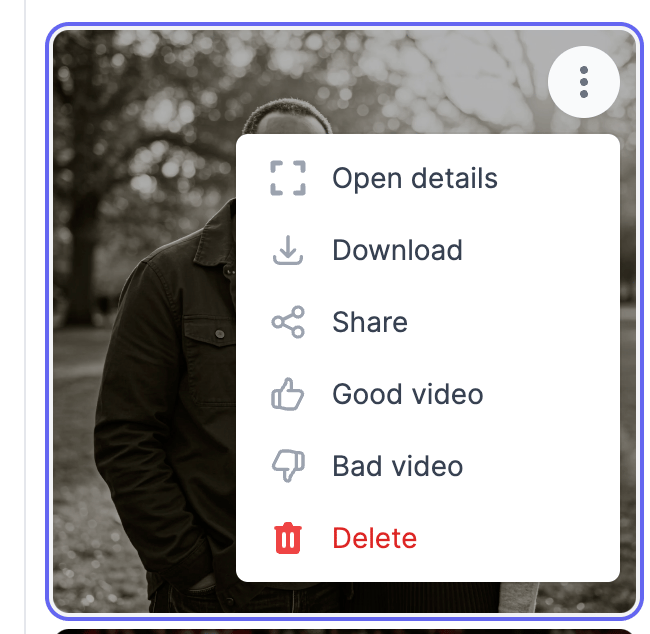
Click Generate. The button shows the price in credits before you commit, and your clip appears in the Videos tab when it’s ready. Open the three-dot menu on the video card to Download or Share it. Every video is also saved to your History.

Step 7: Extend, Upscale or Edit (Optional)

Each finished video also has these follow-up tools in its three-dot menu and details view:

  • Extend video: adds a new segment that continues from the last frame, so a short clip can keep going. See the AI video extender page.
  • Upscale video: raises the resolution up to 4K, with Standard, Pro and Ultimate quality options. See the AI video upscaler page.
  • Edit with AI: changes parts of the clip when you describe what should be different.
  • Regenerate: loads the same settings so you can try another version.

Which AI Model Should You Use to Animate a Picture?

The Video Generator has dozens of image-to-video models. These seven are good starting points, based on their specs. There is no single best model, so run the same picture and prompt through two of them and keep your favorite.

Model (as shown in the app) What it does well Clip length Sound
MiniMax H3 Image Coherent motion from natural language instructions, 768P or 2K output, optional end image 4 to 15 seconds Always included
Seedance 2.5 Image Long single takes that keep your picture’s framing, optional end image 4 to 30 seconds Yes, can be turned off
WAN 3.0 Image Long takes at native 1080p, with a choice of aspect ratio 5 to 30 seconds Yes, can be turned off
Veo 3.1 Image Google’s model for 8-second clips up to 4K, in 16:9 or 9:16 8 seconds Yes, can be turned off
Kling 3.0 Pro Image Cinematic visuals and fluid motion in 16:9, 9:16 or 1:1 3 to 15 seconds Yes, can be turned off
Seedance 2.0 Mini Image Fast, affordable tests with camera control; open to the Free plan 4 to 15 seconds (Free plan: up to 5) Yes, can be turned off
Grok Imagine Image Quick, simple animations at 480p or 720p; powers the Animate Image template 5 to 15 seconds No sound

On the Free plan, you can animate pictures with Seedance 2.0 Mini Image (480p, clips up to 5 seconds) and the Veo 3.1 Lite and Veo 3.1 Fast image models (720p), including Veo 3.1 Fast First-Last Frame for start and end images. Other models need a paid plan.

Prompt Recipes for Every Kind of Picture

Copy a recipe and swap in your own details. Each one pairs a single main action with a camera instruction, which gives the most natural result.

Portraits and Selfies

The woman slowly turns her head toward the camera, blinks and breaks into a warm smile. A light breeze moves her hair. Keep her face and outfit exactly the same. Static camera, soft evening light.

A portrait animated with a slow head turn and a soft smile.

Landscapes and Travel Photos

Clouds drift across the sky, waves roll onto the shore and the palm leaves sway in the wind. Slow drone push-in toward the beach, warm golden hour light.

Nature scenes are forgiving, because sky, water and plants move in ways the AI handles well.

Product Photos

The sunglasses float in mid-air and make one slow 360-degree turn. Locked camera, clean white background, soft reflections on the lenses. Keep the product’s shape, colors and details exactly the same.

Sample result of the Levitating Product Spin template, made with Seedance 2.5 Image.

Pets

The golden retriever tilts its head, perks up its ears and wags its tail, then looks straight into the camera. Static camera, cozy living room light.

For funny pet skits and more ideas, see our guide on how to create viral pet videos with AI.

Artwork, Paintings and Illustrations

Bring the painting to life: the clouds drift slowly, the water ripples and the trees sway in a gentle wind. Keep the brushstrokes, colors and style exactly as they are. Static camera.

Cartoons and mascots work well too. Ask for a simple gesture, like a wave or a nod, so the character keeps its look.

Sample result of the Animate Image template: a cartoon fox mascot waves and strikes a pose.

Old Family Photos

The couple in the old photo blink, breathe and share a small, gentle smile. Very subtle, natural movement. Keep their faces, clothes and the grain of the photo exactly the same. Static camera.

How to Animate Old Photos with AI

Bringing back a grandparent’s smile is a lovely reason to animate old photos, and it is also where a light touch matters most. Follow the same steps, with a little extra care:

1. Scan and Restore the Photo First

Scan the print at a high resolution and crop it to the people you want to animate. Then open the Colorize tool, upload the scan and click Generate. It is built to restore old or damaged photos: it cleans up imperfections and adds color while keeping the character of the original. A cleaner picture gives the video model better faces to work with.

2. Keep the Motion Subtle

Use the restored picture as the start image and ask for small movements: a blink, a breath, a slight smile, a gentle head turn. Add “keep their faces exactly the same” to your prompt. Big actions like walking or laughing can change a face until it no longer looks like your relative.

3. Share with Care

The AI invents motion that never happened. Tell your family the clip is an AI animation, think twice before making a real person say words they never said, and only animate photos you have the right to use. To turn family history into a longer story, see our guide on how to make a documentary with AI.

How to Make a Photo Talk (Talking Photo AI)

Image-to-video models add motion and often sound, but they don’t read a script you write. To make a photo talk with lip-synced speech, use talking photo AI instead. Easy-Peasy.AI’s Make Image Talk feature lip-syncs a face to the voice you choose:

  1. Open the AI Talking Video Generator, choose Image as the upload type and upload a clear, front-facing portrait.
  2. Under Choose Audio Source, pick Generate to type the words and choose a voice (you can even clone your own), or pick Upload to use a recording.
  3. Choose the avatar model: Premium for the highest quality lip sync or Standard for a lower cost. Turn on captions if you want them.
  4. Click Generate Talking Video.

On the Free plan you can use the Standard model at 480p, and the clip length depends on the credits you have left. For scripts and presenter tips, read our talking head video guide.

One-Click Effects: Animate a Picture with a Template

Templates are the quickest way to try a look. Each one opens the Video Generator with the model, the prompt and a sample picture filled in. Click the Start image box, swap in your own picture and generate.

Money Rain Video Effect
Dolly In Video Shot

Browse more with the Templates button in the Video Generator. To make the person in your picture copy a dance or gesture from a real video, try Motion Control: upload the picture and a reference video, and the movement transfers to your character.

Tips for Better AI Animations

  • Start with a sharp picture. Blurry or tiny images give the AI less to work with.
  • Ask for one main action. “A slow blink and a small smile” looks more natural than five actions squeezed into five seconds.
  • Describe the camera separately. Say “static camera” for portraits or “slow push-in” for depth.
  • Protect what must not change. Add “keep the face, outfit and logo exactly the same” for people and products.
  • Test small, then go big. Try a short, lower resolution clip first, then regenerate the winner at a higher resolution or upscale it.
  • Make two or three versions. Results vary from run to run, so a second try is often the keeper.

Frequently Asked Questions

Can ChatGPT animate a still image?

ChatGPT is a chat assistant, so it is best at the writing part: it can look at a photo and help you write a motion prompt. Turning the still into a video takes an image-to-video model. In Easy-Peasy.AI you get both: Generate prompt writes the motion prompt and the Video Generator makes the clip.

Can CapCut animate photos?

Yes. CapCut offers keyframe animation and photo effects in its editor, plus an AI image-to-video feature. To compare dozens of AI models on the same picture, use the Easy-Peasy.AI Video Generator.

Is CapCut animation free?

CapCut has a free version, and its website advertises a free AI image-to-video tool. A paid Pro plan unlocks extra features, and the limits change often, so check CapCut’s current pricing first.

How can I animate my photo for free?

Easy-Peasy.AI has a Free plan that can animate pictures with Seedance 2.0 Mini Image (480p, up to 5 seconds) or the Veo 3.1 Lite and Veo 3.1 Fast image models (720p). Each clip still costs credits at the normal price, and the Free plan’s credit allowance is small, so it suits a quick test more than regular use. The Generate button always shows the price first.

How do you make still pictures move?

Upload the picture as the start image in an image-to-video tool, describe the motion in a sentence or two, and generate. The AI keeps your picture as the first frame and creates the motion that follows.

How long does it take to animate a picture with AI?

Most short clips are ready in a few minutes. While a video renders, its card notes that it can take 2 to 5 minutes, and you can leave the page and find the clip later in your History.

Which AI model is best for animating a picture?

It depends on your goal. For long single takes, try Seedance 2.5 Image or WAN 3.0 Image (up to 30 seconds). For 8-second clips up to 4K, try Veo 3.1 Image, and for a quick, low-cost test, Seedance 2.0 Mini Image.

Can I animate a photo of someone else?

Only animate photos you have the right to use, and ask before you animate a recognizable person, especially for anything you publish. The Video Generator also checks every uploaded picture and blocks images that break its content policy.

Start Animating Your Pictures Today

Now you know how to animate a picture: add it as the start image, describe one clear motion, pick a model and generate. Open the AI Video Generator and bring your first photo to life in minutes.


Create Faster With AI.
Try it Risk-Free.

Stop wasting time and start creating high-quality content immediately with power of generative AI.

App screenshot

More Stories