Answering questions is good. Booking the meeting is better. With the Google Calendar integration for Easy-Peasy.AI Bots, your AI agent doesn’t just tell visitors how to schedule a call — it opens your calendar, offers real available time slots, and books the meeting right inside the chat. No back-and-forth emails, no scheduling links, no missed leads.
What Is the Google Calendar Integration?
It connects your bot to your Google Calendar and unlocks a scheduling Action — a real capability the bot can use during conversations. When a visitor says “can we set up a call next week?”, the bot can:
- Check your availability and offer genuine open time slots in your timezone
- Book the meeting directly on your calendar, with the visitor’s name and email as an attendee — so they get the invite automatically
It’s part of Bot Actions, the system that lets your agent do things rather than just answer — see the complete guide to Bot Actions for the bigger picture.
Why Let Your Bot Book Meetings?
- Strike while interest is hot. A visitor asking about a demo books it in the same conversation — not after finding a scheduling link, checking email, and losing momentum.
- Kill the back-and-forth. “Does Tuesday work? No? Thursday?” The bot offers only slots that are actually free.
- 24/7 booking. Prospects in other time zones book while you sleep; the invite is on your calendar in the morning.
- Works everywhere your bot works. Website widget, WhatsApp, Telegram, Slack — the scheduling action rides along on every channel.
What You’ll Need
- An Easy-Peasy.AI account with a bot set up
- A Google account whose calendar should receive the bookings
How to Set Up Calendar Booking (Step-by-Step)
Step 1: Connect Google Calendar
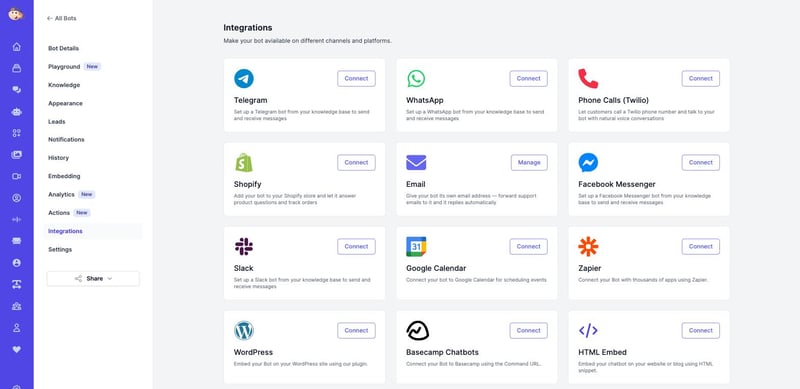
Open your bot, go to Integrations, and find the Google Calendar card. Click Connect with Google, sign in, and approve calendar access. The card flips to Connected, and a Manage Google Calendar button appears for later.
Step 2: Create the scheduling Action
Go to your bot’s Actions page and add a Google Calendar action. Configure:
- Timezone — the timezone your availability is offered in (e.g.
Europe/Berlin) - Default meeting duration — 30 minutes by default; set what fits your calls
- Instructions — guidance for when and how the bot should offer meetings, e.g. “Offer a call when someone asks about pricing or a demo. Business hours are 9–17 weekdays.”
Enable the action and it’s live on every channel your bot serves.
Step 3: Book a test meeting
Open the Playground (or your live widget) and say: “I’d like to book a call next week.” The bot checks your calendar, offers open slots, asks for your name and email, and books the meeting. Check your Google Calendar — the event is there with the attendee invited.
Tips for Great AI Scheduling
Tell it when to offer a meeting
The instructions field is where the magic happens. “Offer a call when the visitor asks about pricing, custom plans, or a demo” turns your bot from an answer machine into a booking machine.
Protect your focus time
The bot books into free slots on your connected calendar — so block your deep-work hours in Google Calendar and they’ll never be offered.
Set the timezone deliberately
Availability is offered in the timezone you configure on the action. If your customers are mostly elsewhere, mention in the instructions that the bot should confirm the visitor’s timezone when booking.
Pair it with lead capture
The bot collects the visitor’s name and email to send the invite — every booked meeting is a captured, qualified lead in your bot’s dashboard.
Frequently Asked Questions
Which calendar do meetings land on?
The Google account you connect on the Integrations page. Reconnect with a different account anytime from the Manage page.
Does the visitor get a calendar invite?
Yes — they’re added as an attendee with the email they provide in chat, so the event appears in their calendar too.
Can the bot double-book me?
No — it offers time slots based on your actual availability, so existing events are respected.
Does scheduling work on WhatsApp, Telegram, and other channels?
Yes — Actions work across every connected channel: the website widget, WhatsApp, Telegram, Slack, and Messenger.
How do I turn it off?
Disable the Google Calendar action on the Actions page (the bot stops offering meetings), or disconnect the calendar entirely from the Integrations page.
Turn Conversations Into Calendar Events
Every “let’s hop on a call” should end with a booked slot, not a lost lead. Create your AI agent, connect Google Calendar, add the scheduling action — and let your bot fill your calendar while you do the actual calls.