AI Presentation Maker
Describe your presentation. Marky makes the deck.
Marky, the AI agent in Easy-Peasy.AI, turns a topic, your notes or a Word document into a finished slide deck. It writes the outline and every slide, designs them in one look and hands you the deck as PowerPoint or PDF, or opens it in Google Slides.
- No design skills needed
- PowerPoint, PDF and Google Slides
- Free to start
See a deck Marky made. Flip through every slide.
This investor pitch was made in one chat for Tidewell Coffee Roasters, a made-up roastery in Lisbon. Every slide is shown as it came out, placeholders included.
Tidewell Coffee Roasters
1 / 8

Pitch deck
Tidewell Coffee Roasters
Eight slides in Creative mode with the Fashion Editorial template: the problem, roasting to order, three blends, subscriptions, the café, the team and the seed round.
- Model
- GPT-6 Astra
- This run took
- About 3 minutes
See the request
Make an 8-slide investor pitch for Tidewell Coffee Roasters, a small-batch roastery in Lisbon: the problem with stale supermarket coffee, roasting to order, our three signature blends, subscription growth, the café, the team and our €400K seed round for a second roaster.
What Marky did
- Showed the cover first and waited for a yes
- Designed all 8 slides in the Fashion Editorial template
- Filled in the real numbers from a follow-up message
- Ready as PowerPoint or PDF, or opened in Google Slides
Bracketed slots like [Name] are placeholders Marky left for details it wasn’t given.
Trusted by teams at companies and universities like






How to make a presentation with AI. Four steps, no design work.
You bring the topic and the facts. Marky writes and designs the deck, and you can follow every step as it works.
- 01
Describe the deck.
Say the topic, who it’s for and how many slides. Attach notes, a Word document, a PDF or a spreadsheet, and Marky builds the slides from them.
- Topic
- Audience
- Your files
- 02
Pick a look.
Choose Creative or Editable, then a template or a style in your own words. With no template, Marky designs a look for your topic.
- Creative
- Editable
- Templates
- 03
Marky writes and designs it.
It plans the outline, writes every slide and designs them in one style. Creative decks show you the cover first and wait for your yes; Editable slides are checked for text that runs off or overlaps.
- Outline
- Design
- Checks
- 04
Edit, present and share.
Change slides in the viewer or by asking Marky, add speaker notes and present with Presenter view. Then download PowerPoint or PDF, or send it to Google Slides.
- Edit
- Present
- Download
Creative or Editable. Two kinds of deck.
Pick one next to Marky’s message box before you send, or just ask for an editable deck. Both come with speaker notes, Presenter view and downloads.

From the Tidewell deck aboveAI edit Creative
Striking AI-designed slides. The text is part of the picture, so it can’t be edited.
- Each slide is one designed picture, with the words drawn into it like a magazine page.
- Best for pitch decks, keynotes, launches and events, where the look matters most.
- Change a slide by asking Marky, or with AI edit: click a spot on the slide and say what to change there.
- Downloads as a PowerPoint of pictures, notes included, or a PDF.
Free plan: a preview of the cover. Whole decks on paid plans.
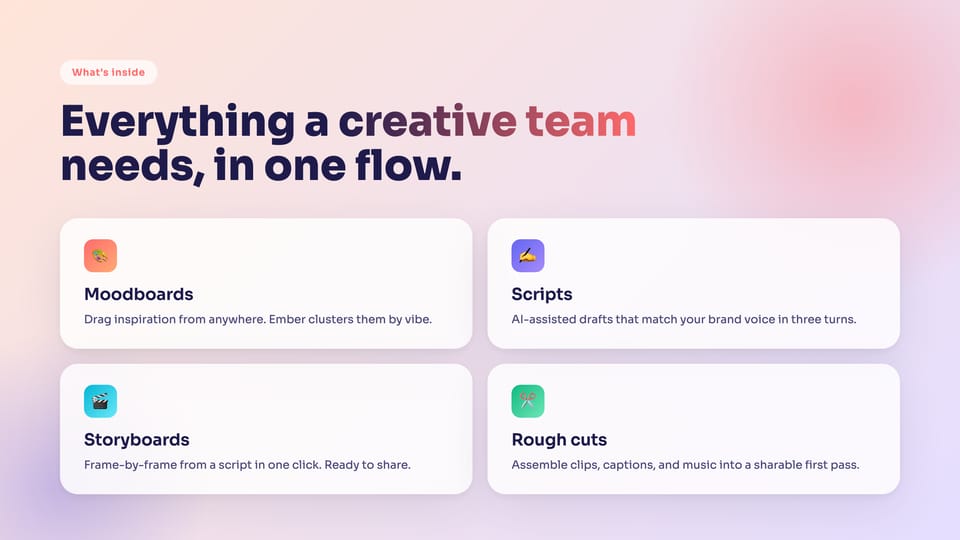
From an Editable template in the galleryEdit text Editable
Designed slides with real text. Change anything and download an editable PowerPoint.
- Real text boxes, shapes and pictures, designed slide by slide in one theme.
- Best for reports, lessons and team decks that you’ll keep updating.
- Type over any text right in the viewer, and go back to an earlier version whenever you like.
- Downloads as an editable PowerPoint with your speaker notes, or a PDF. In Google Slides, the text stays editable too.
On every plan, Free included.
A deck for every occasion. Pitch, teach, report.
Start from one of these ideas or bring your own. Marky shapes each deck to its job: the ask for investors, a quiz for a class, charts for a report.
Pitch decks
Problem, solution, market, traction and the ask, with your real numbers and clear placeholders for the ones you don’t have yet.
“Make a 12-slide pitch deck for a meal-kit startup for busy parents: the problem, how it works, the market, our pricing, traction, the team and a $1.2M seed round. Leave placeholders for numbers I haven’t given you.”
Lessons and lectures
Lessons with diagrams, examples and a quiz at the end, with the answer key kept in the speaker notes.
“Make a 10-slide lesson on photosynthesis for 7th grade science, with a labeled diagram, a real-world example on each slide and a 4-question quiz at the end.”
Business reports
Quarterly reviews, board updates and project reports, with charts drawn from the numbers you paste or attach.
“Make a board update from these numbers: revenue of $84K in July, $91K in August and $97K in September, churn of 2.1% and two new enterprise customers. Add a revenue chart and next quarter’s plan.”
Sales and marketing
Sales decks, proposals and launch plans, written for one customer or one market.
“Make a 9-slide sales deck for an office cleaning company pitching to office managers: their problem, our three service plans, a case study placeholder, pricing and next steps.”
Talks and keynotes
Big visuals and few words on each slide, with notes you can speak from.
“Make a 14-slide keynote on how small teams can work with AI agents, with bold visuals, very few words per slide and speaker notes for a 20-minute talk.”
Training and onboarding
Onboarding decks, how-tos and workshops that walk people through a process step by step.
“Make an onboarding deck for new support agents: our tools, the ticket workflow step by step, tone of voice with examples and a 5-question check at the end.”
School and university projects
Book reports, science projects and thesis defenses, with a source on every slide that uses researched facts.
“Make a 10-slide presentation for my history class on how the printing press changed Europe, with a source on each slide.”
Word to PowerPoint
Turn a Word document, a PDF or a long report into slides that keep its structure and main points.
“Turn the Word document I’m attaching into a 10-slide presentation that keeps its headings and key points, with speaker notes for each slide.”
Attach the file in Marky before you send.
Start from a template. Or from scratch.
Pick a look from Marky’s template gallery or describe your own. On paid plans you can also upload a deck you already have (PowerPoint, PDF or pictures) and Marky follows its style. With no template, Marky designs a look for your topic.

Fashion EditorialCreative 
ChalkboardCreative 
EditorialEditable 
TimelineCreative 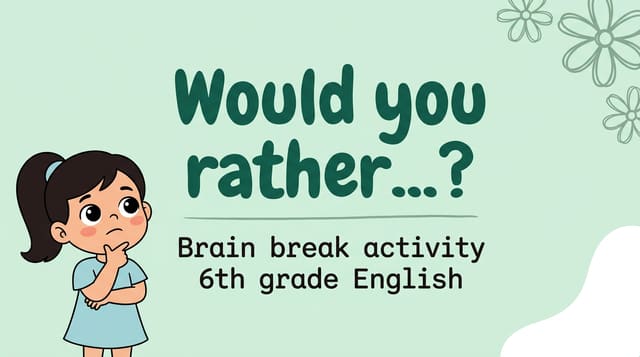
Kids PlayfulCreative 
Dark TechEditable 
Neon NoirCreative 
Wedding & EventsCreative
The gallery has looks for classrooms, boardrooms, launches, weddings and more.
Everything a deck needs. Built in.
You don’t have to ask for the basics. Every deck opens in a viewer where you can edit and present it, with speaker notes and downloads for PowerPoint, PDF and Google Slides.
Speaker notes
Type notes under any slide or have Marky write them. They go into the PowerPoint download too.
Presenter view
Present full screen while a second window shows your notes, the next slide, a clock and a timer.
Edits in the viewer
Type over any text on an Editable slide, and duplicate, move or delete slides in any deck. Every change can be undone.
AI edit on the spot
Click spots on a slide and say what to change there, or pick Polish, Be concise, Add more, Enrich visuals or Refresh layout.
Charts, tables and diagrams
Charts, tables, timelines and diagrams built from your numbers, plus quizzes with the answers kept in the notes.
Your files and photos
Attach a Word document, a PDF, a spreadsheet or photos. Marky builds slides from them and puts your own pictures on the slides.
Facts with sources
Marky can research a topic on the web. Slides with researched facts get a source line, and numbers about your business come only from you.
Version history
Editable decks keep every version. Restore an earlier one from the History panel, or ask Marky to bring back a single slide.
PowerPoint, PDF and Google Slides
Download as PowerPoint or PDF, convert to Google Slides, or save straight to Google Drive or OneDrive.
Questions, answered.
The slides guide covers templates, edits and downloads step by step.
What is an AI presentation maker?
An AI presentation maker, or AI slide generator, turns a description into a finished slide deck. In Easy-Peasy.AI that’s Marky, an AI agent: it plans the outline, writes and designs every slide and gives you the deck as PowerPoint or PDF, or in Google Slides.
Is the AI presentation maker free?
You can start on the Free plan, which has a small monthly allowance. On Free, a Creative deck stops at a preview of its cover, and Marky can make the whole deck as an Editable deck instead. Paid plans add whole Creative decks, more usage, every model, your own templates and commercial use.
Can I download my presentation as a PowerPoint?
Yes. Editable decks download as an editable PowerPoint (.pptx) with real text boxes and your speaker notes. Creative decks download as a PowerPoint where each slide is a picture, notes included. Every deck also downloads as a PDF.
Does it work with Google Slides?
Yes. Connect your Google account once, then pick Convert to Google Slides in the Download menu: the deck lands in your Google Drive as a Google Slides file. Editable decks keep text you can edit, Creative slides come in as pictures, and the speaker notes come along. You can also save the PowerPoint to Google Drive or OneDrive.
Can I turn a Word document into a PowerPoint?
Yes. Attach the Word file, a PDF or a text file in the chat and ask for a presentation. Marky reads it and turns its structure and main points into slides. Say how many slides you want and what to leave out.
Can it make a pitch deck for investors?
Yes. Tell Marky about the business and the round, and it builds the story: problem, solution, market, traction, team and the ask. Numbers about your business come only from you, and anything missing becomes a clear placeholder, like the [Name] slots on the Tidewell team slide above.
Can I edit the slides after they’re made?
Yes. On Editable decks, type over any text right in the viewer. On any deck you can reorder, duplicate or delete slides, use AI edit on a spot of a slide, or ask Marky in the chat. Creative slides are pictures, so their words change through AI edit or Marky, not by typing.
Can I add speaker notes and present from Marky?
Yes. Every slide has a notes box: type your own or ask Marky to write them. Present opens a full-screen slideshow, and Presenter view shows your notes, the next slide and a timer in a second window.
Can I use my own template or brand?
Yes. Pick a template from the gallery or describe your brand’s colors and fonts. On paid plans you can also upload a deck of your own (PowerPoint, PDF or pictures) and Marky matches its style. Attach your logo and photos and Marky puts them on the slides.
How long does it take?
Usually a few minutes: the 8-slide Tidewell deck above took about 3. Bigger decks take longer. Follow along as Marky works, or close the tab and come back to the finished deck.
Can I use the slides for my business?
Yes, on paid plans. Decks made on the Free plan are for non-commercial use.
Got a presentation due? Start it now.
Describe it in a sentence and Marky takes it from there. Free to start, no credit card.