
Make a deck
1
Switch to Slides
Start a new chat and click Create slides under the message box. A Slides chip appears in the box, with the options for the deck next to it. To leave Slides mode, hover over the chip and click the ✕.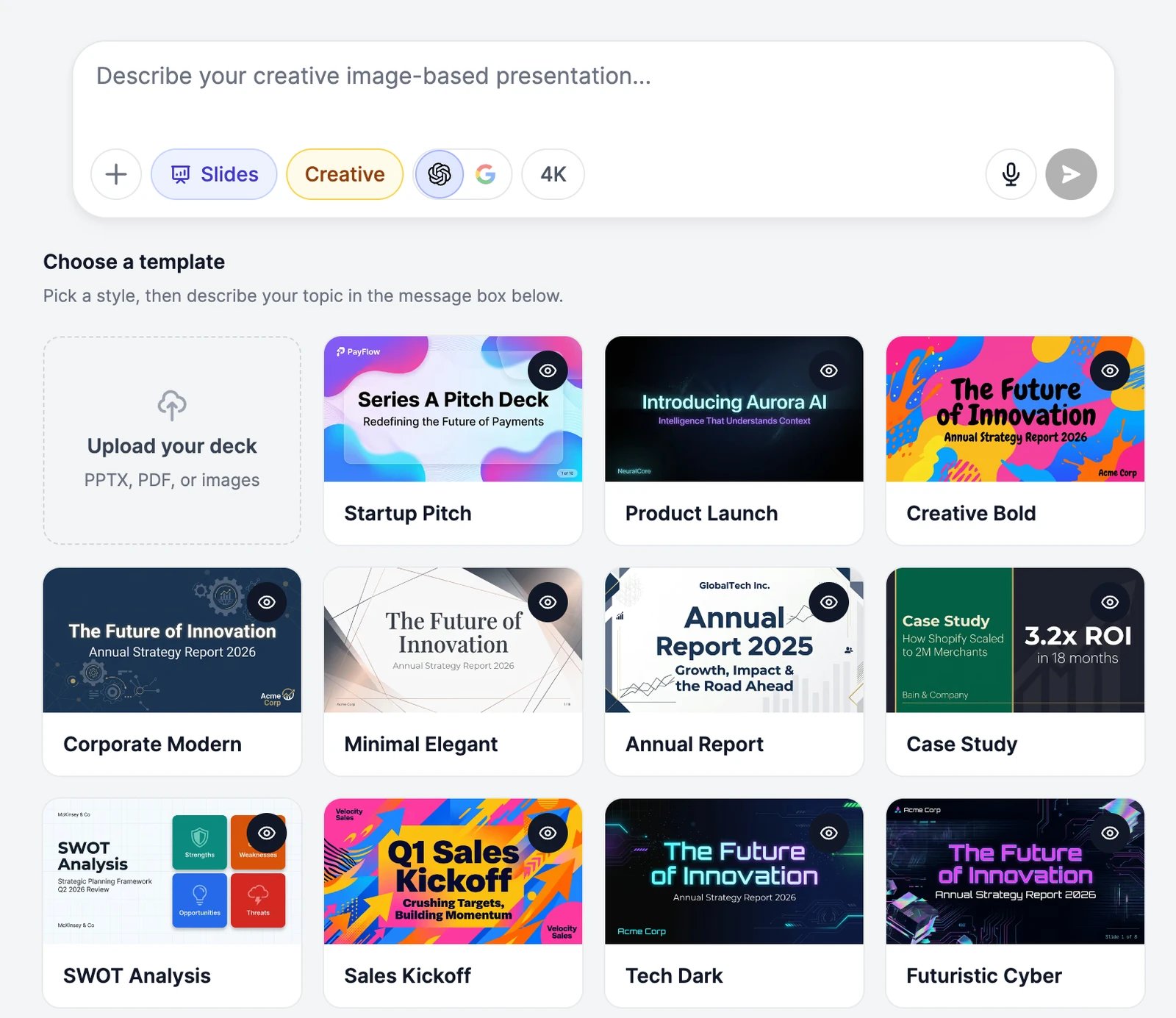
2
Pick a template (optional)
Under Choose a template, click a style such as Startup Pitch, Annual Report, or Tech Dark. The eye icon on a card opens a preview with Use this template. If you don’t pick one, Marky designs a look that fits your topic.Most templates make Creative slides, and a few make HTML slides. Picking one turns Creative on or off to match. To use your own brand look, click Upload your deck. See Use your own deck as a template.
3
Describe the deck
Say what the deck is about, who it’s for, and roughly how many slides you want. For example: “A 4-slide deck introducing Sunrise Yoga, a small yoga studio in Austin: who we are, our classes, pricing, and how to book a first class.” You can also attach notes, a report, or a spreadsheet with + and ask Marky to build the deck from it.
4
Approve the title slide
With Creative on, Marky makes the title slide first and asks whether you like the style. Choose Yes, continue to make the rest, or Adjust style first and say what to change, such as the colors, the mood, or the imagery. This way you only pay for the whole deck once you like the look.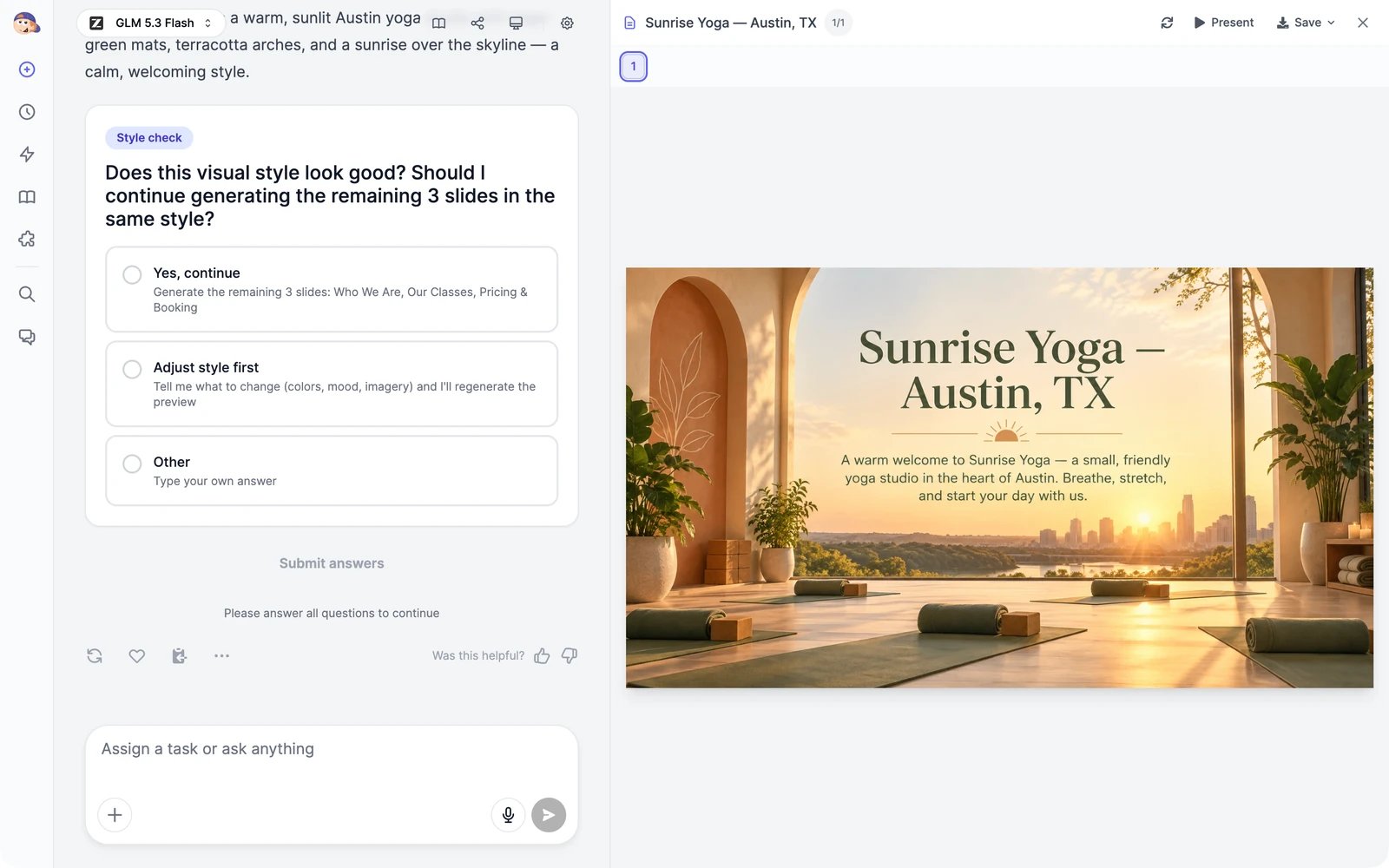
5
Present or download
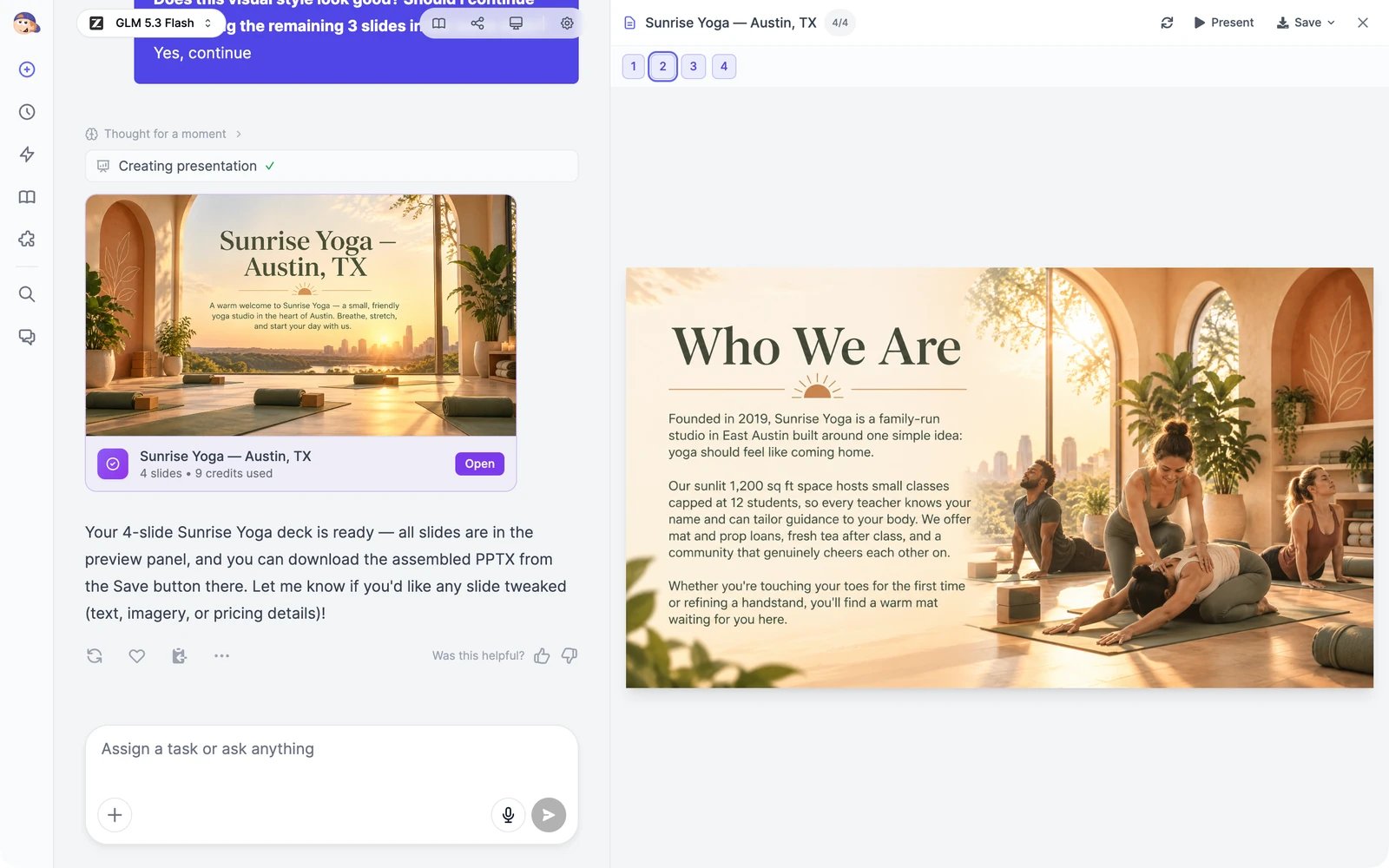
The finished deck opens in the panel on the right. Click a slide number to look at a slide, Present to show the deck full screen, or Save > Save as PPTX or Save as PDF to download it. Save works once every slide is finished. To open the panel again later, click Open on the deck card in the chat.
Creative and HTML slides
The Creative button in the message box decides how the slides are made. It’s on by default.
A Creative deck can have up to 15 slides.
Image engine and resolution
With Creative on, two more buttons appear:- Engine: the OpenAI logo is GPT Image 2.5 (OpenAI), the default. The Google logo is Nano Banana 2 (Google).
- 4K: makes each slide in 4K instead of the standard 2K. It’s sharper, for printing or very large screens, and costs more.
The title slide is charged when Marky makes it; the other slides are charged when you approve. A 4-slide deck at 2K with GPT Image 2.5 costs 12 credits: 3 for the title slide and 9 for the rest. The deck card in the chat shows only the second part.
Change a deck
Ask in the same chat. For example:- “Make slide 3 about our weekend workshops instead.”
- “On slide 2, change ‘Founded 2018’ to ‘Founded 2019’.”
- “Use a darker background on every slide.”
Use your own deck as a template
On a paid plan, you can upload a deck in your brand’s style, and Marky makes new slides that look like it.- In Slides mode, click Upload your deck under Choose a template.
- Drop a PowerPoint (PPTX), a PDF, or images of your slides. Files can be up to 50 MB.
- Click Save template. Marky studies the colors, fonts, and layouts, and adds the template to your gallery.
- Pick your template, then describe the new deck.
Can I make slides on the Free plan?
Can I make slides on the Free plan?
Yes. HTML slides (Creative off) work on every plan and use words. For a Creative deck, the Free plan makes only the title slide so you can see the style; the full Creative deck and uploading your own templates need a paid plan.
The text on a Creative slide has a typo
The text on a Creative slide has a typo
Creative slides are images, so you can’t retype them. Ask Marky to fix the slide, for example: “On slide 2, change ‘Founded 2018’ to ‘Founded 2019’.” For decks you’ll edit a lot, turn Creative off and use HTML slides.
Where do I find a deck later?
Where do I find a deck later?
Decks stay in the chat where you made them. Open the chat from the sidebar and click Open on the deck card. Download the files if you want to keep a copy: HTML slides live in Marky’s workspace, which is cleared some time after you stop using the chat.
What happens if I run out of credits halfway?
What happens if I run out of credits halfway?
Marky stops at the last slide your credits cover and tells you. The slides made so far stay in the panel, and you can download them. Buy more credits or wait for your plan to renew, then ask Marky to finish the deck.
Build a website
Turn a description into a live website or web app.
Plans and credits
How words and image & video credits work.