Ever looked at a photo and thought it was missing something? Maybe sunglasses would make that selfie cooler, a Santa hat would turn it into a holiday card, or a missing family member should be standing in the group shot. A few years ago, edits like these meant hours in Photoshop — or paying someone who knew how to use it. Today, you can add almost anything to a photo with AI by typing one sentence. In this guide, we’ll show you exactly how to do it with the Easy-Peasy.AI Image Generator, plus 50+ real examples of things you can add — from beards and makeup to laser eyes and angel wings.
What Does “Adding Objects to a Photo with AI” Mean?
AI photo editing works differently from traditional editors. Instead of cutting, pasting, and blending layers by hand, you upload your photo and describe the change in plain English — for example, Add stylish sunglasses to this photo.
The AI understands both your photo and your request. It figures out where the object should go, matches the lighting and shadows, wraps it around the person or scene naturally, and leaves everything else untouched. The person still looks like themselves — they’re just wearing sunglasses now.
This works for practically anything: accessories, clothing, people, pets, effects, backgrounds, weather, furniture, and more. If you can describe it, the AI can usually add it.
Why Use AI Instead of Photoshop?
- It takes seconds, not hours. Type what you want, click Generate, done in about 10–20 seconds.
- No skills required. There are no layers, masks, or blend modes to learn. If you can write a sentence, you can edit a photo.
- Realistic results. Modern AI models match lighting, perspective, shadows, and reflections automatically — the hardest parts of manual compositing.
- The rest of the photo stays intact. Good AI editors change only what you ask for and preserve faces, backgrounds, and details.
- It’s affordable. Edits start at 1 credit per image, and the free plan includes credits to try it out — no credit card needed.
How to Add Anything to a Photo (Step-by-Step)
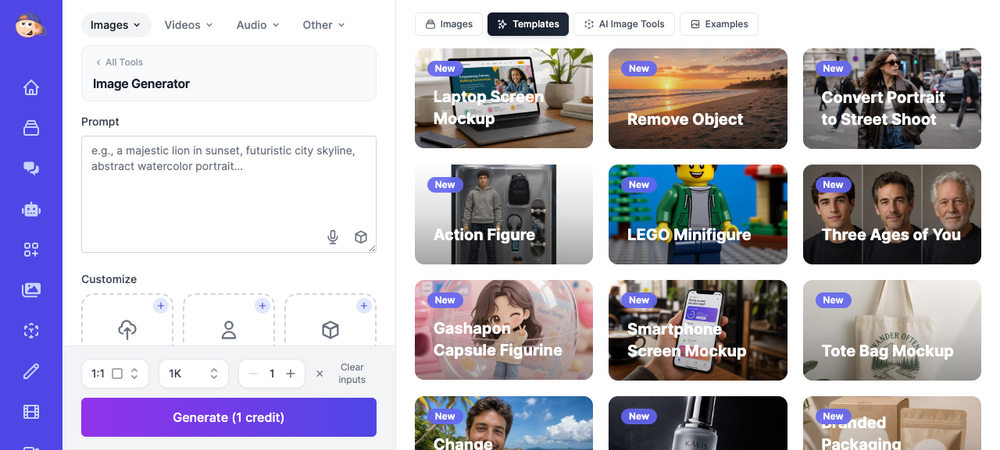
Here’s the full workflow using the AI Image Generator. We’ll add sunglasses to a selfie as our example, but the steps are identical for any object.
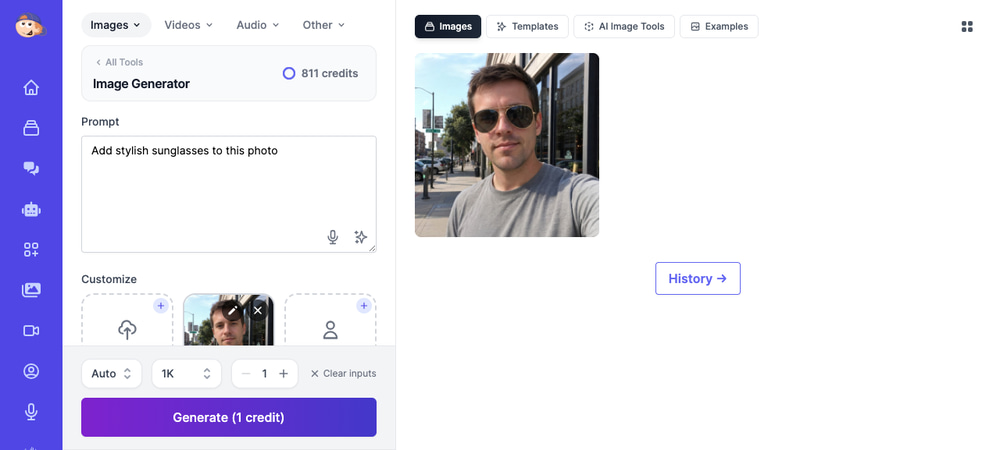
Step 1: Open the Image Generator and Upload Your Photo
Go to the Easy-Peasy.AI Image Generator and sign in (or create a free account). In the Customize section under the prompt box, click the upload slot and choose the photo you want to edit. Selfies, group shots, product photos, and room photos all work.
Step 2: Describe What You Want to Add
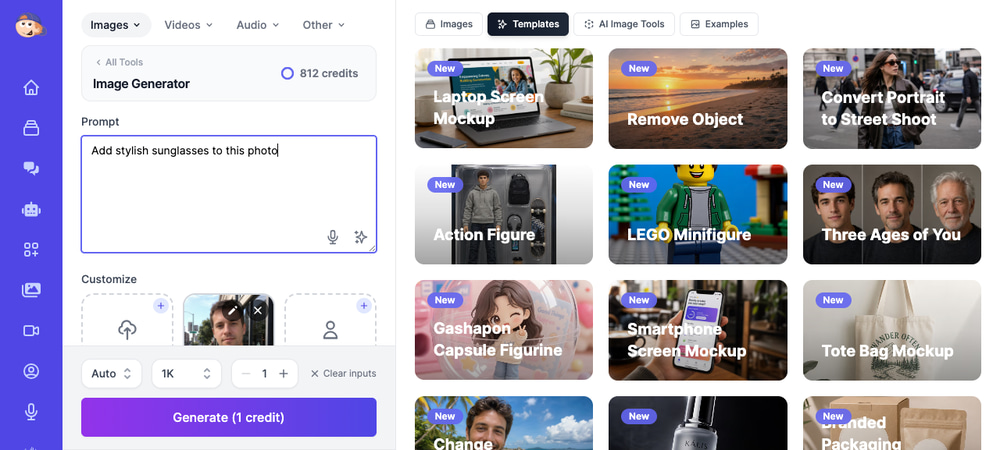
In the Prompt field, write a short instruction starting with “Add”. Be specific about what and where:
Add stylish sunglasses to this photoAdd a golden crown on her headAdd falling snow to this photoAdd a modern grey sofa to this empty living room
Step 3: Pick Your Settings
Leave the aspect ratio on Auto so the edited image matches your original photo’s shape. The default model costs just 1 credit per edit and handles most requests beautifully. For extra-detailed edits, you can switch to a premium model like GPT Image 2 or Nano Banana Pro in the model picker.
Step 4: Click Generate
Hit the Generate button and wait a few seconds. The AI analyzes your photo, adds the object, and shows the result right next to your prompt.
Step 5: Download or Keep Editing
Happy with the result? Download it in one click. Want to stack more edits? Use the result as your new input and add the next thing — a hat, a different background, anything. One edit at a time gives the most control.
Before & After: What the Results Look Like
Here’s the exact edit from the tutorial above — one photo, one sentence, about fifteen seconds:
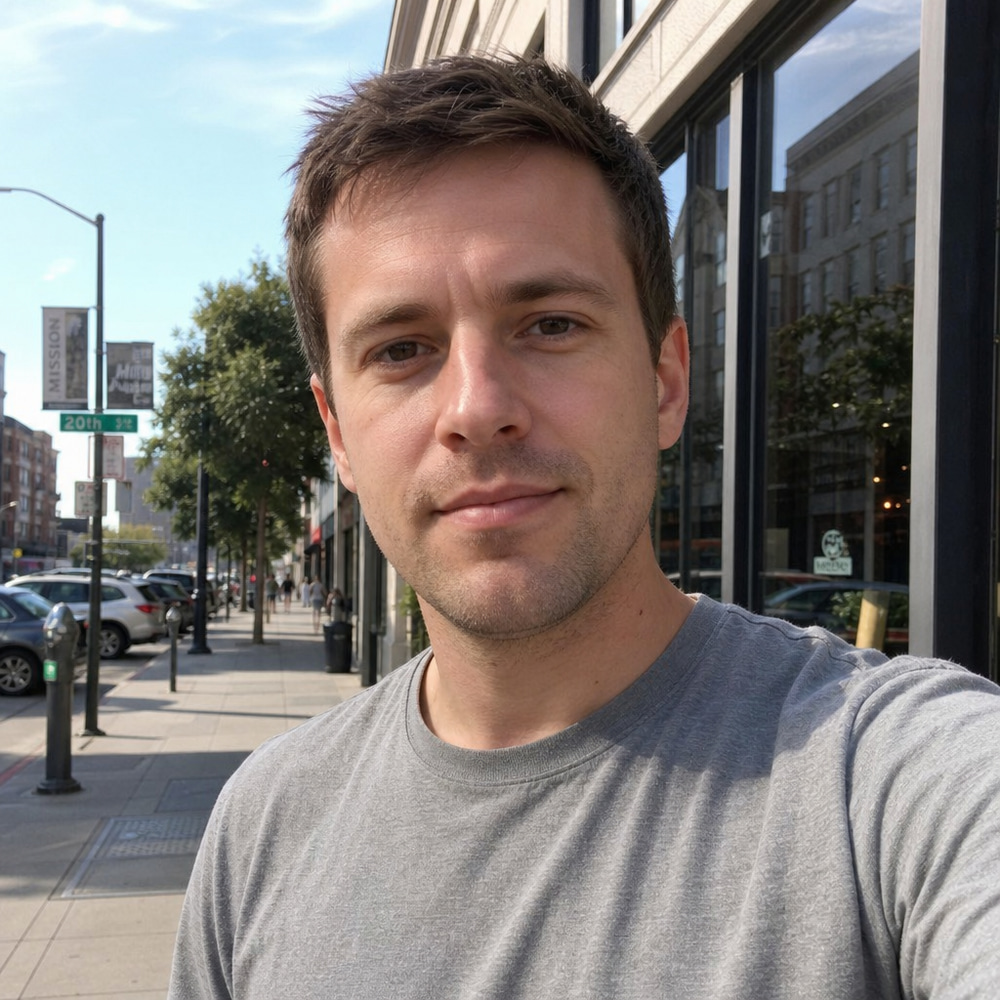 Before |
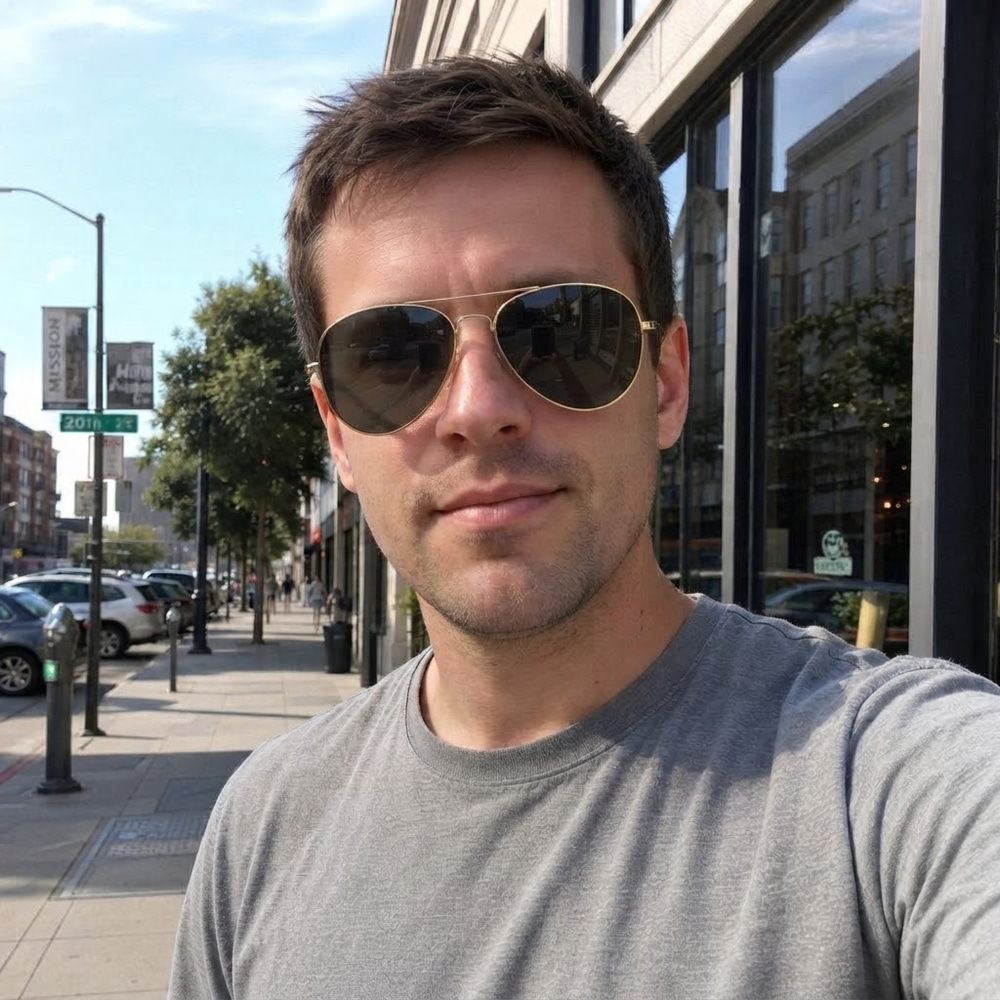 After: “Add stylish sunglasses to this photo” |
Notice how the AI kept the same face, the same street, and the same lighting — it even added realistic reflections to the lenses. That’s the difference between AI editing and pasting a clipart sticker on top.
50+ Ideas: Things You Can Add to a Photo with AI
To show what’s possible, we generated real examples for the most popular requests. Every image below was made with the exact prompts described — click any link to see the full-size result.
Accessories and Style
The most common edits are the personal ones — trying a new look without commitment:
- Add sunglasses to a photo or regular glasses
- Add a beard, a moustache, or any facial hair style — great for previewing a new look
- Add makeup, eyelashes, or freckles
- Add bangs or more hair — preview a haircut before booking it
- Add a tattoo or a piercing — see the ink before it’s permanent
- Add earrings or jewelry — jewelry sellers use this for product try-on shots
- Add a hat or change the outfit entirely
- Add a smile, abs, or muscle
People and Loved Ones
These are the edits people care about most:
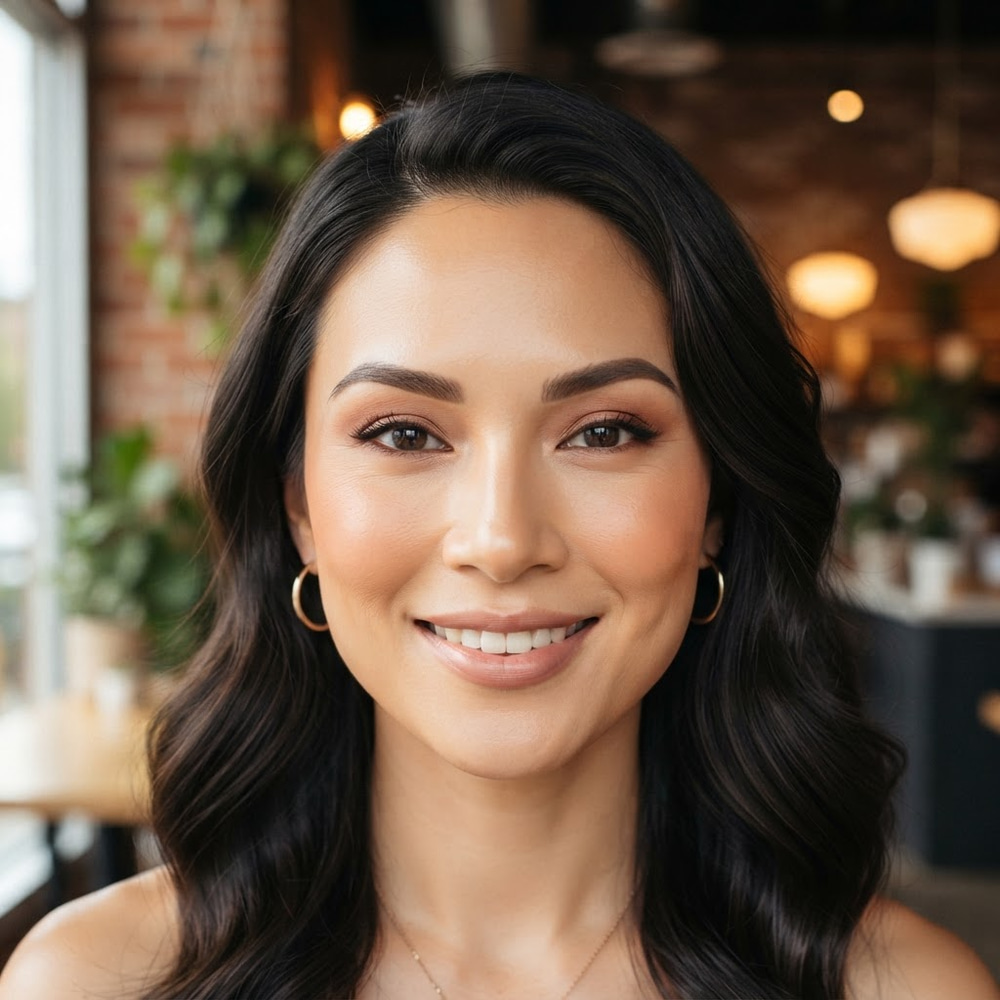
- Add a person to a photo — upload both photos as references and describe where they should stand
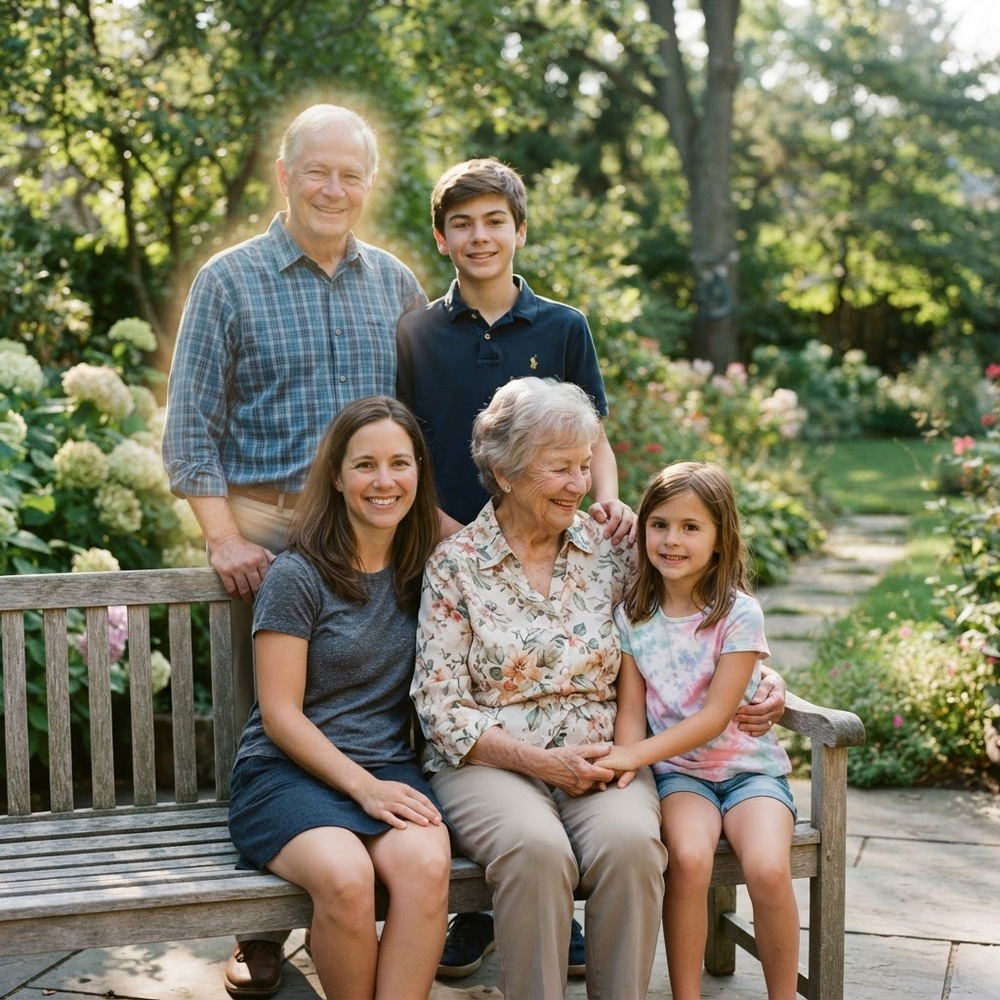
- Add someone to a group photo — perfect for the friend who missed the reunion shot
- Add a deceased loved one to a photo — a deeply meaningful way to include someone who has passed in a family portrait or wedding photo
- Add your own face to any photo
Fun Effects and Magic
This is where AI editing gets playful — edits that would be genuinely hard to do by hand:
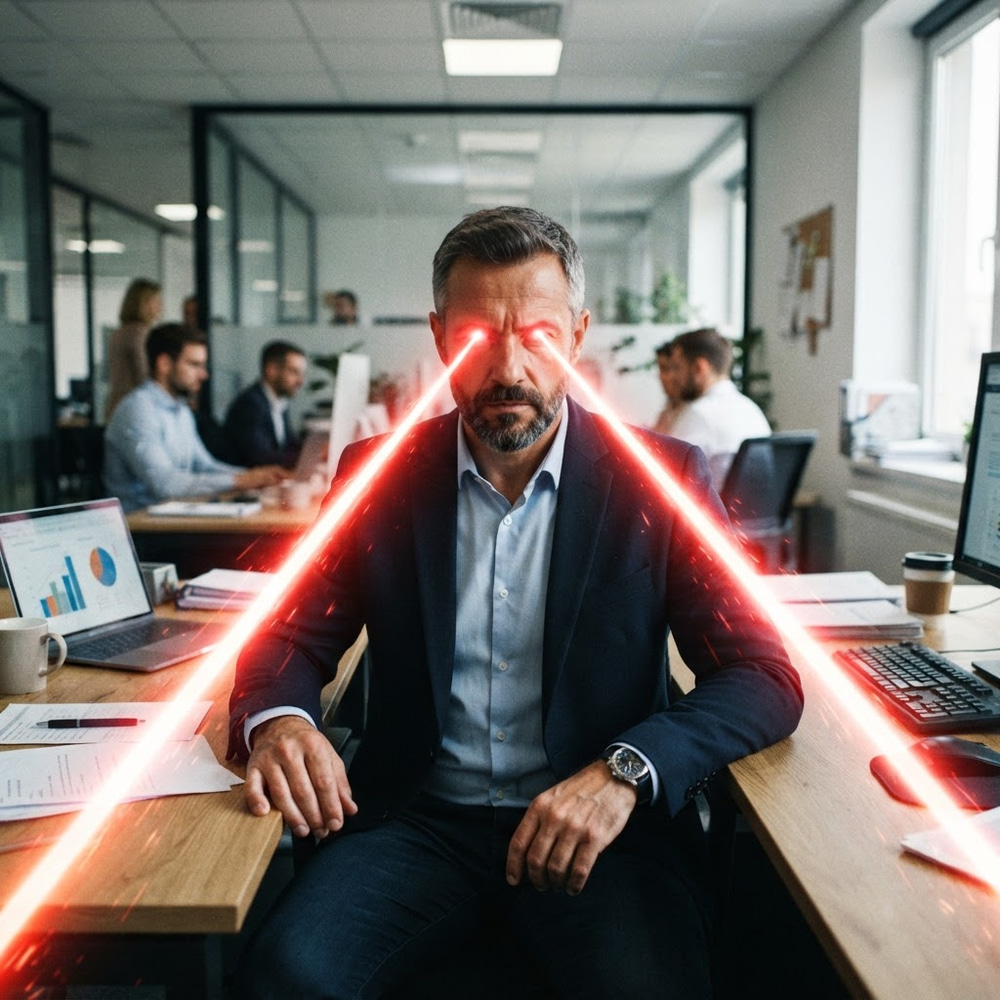
- Add laser eyes — the classic meme edit, one prompt away
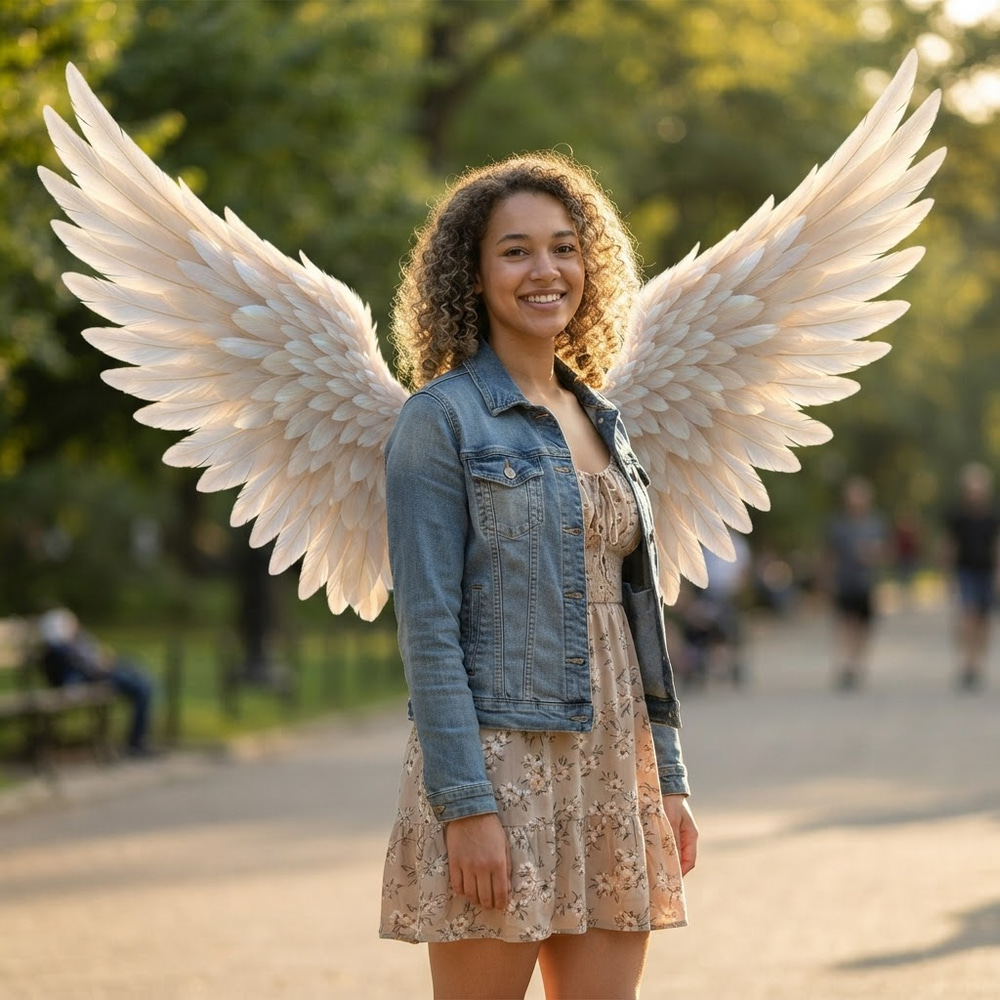
- Add angel wings or fantasy wings
- Add a crown — royalty in one click
- Add sparkles, hearts, or floating bubbles
- Add smoke effects, lens flare, or lightning for cinematic drama
- Add motion blur for that action-shot energy
- Add a speech bubble or thought bubble for memes and comics
Weather, Backgrounds, and Scenery
- Add falling snow or gentle snowflakes
- Add atmospheric lighting or a golden sunset
- Add flowers to a portrait or scene
- Add a clean white background — the fastest way to make product photos or headshots
- Replace the background entirely with any scene you can describe
- Add color to black and white photos — bring old family photos back to life
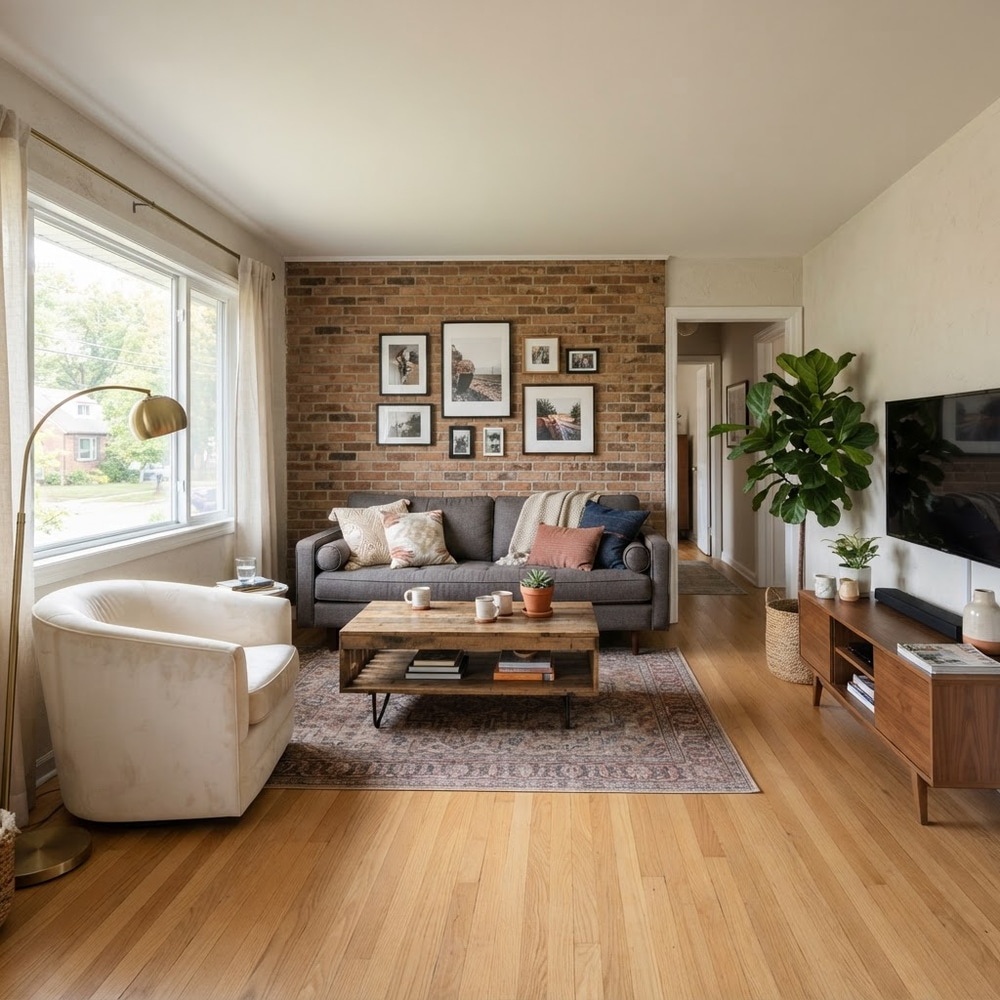
- Add furniture to a room photo — realtors and interior designers use this for virtual staging
Holidays and Celebrations
- Add Santa to your photo — instant magic for kids’ Christmas cards
- Add a Santa hat or Christmas hat to profile pictures
- Add Christmas lights to a house or room photo
- Add a birthday hat or party hat for celebration posts
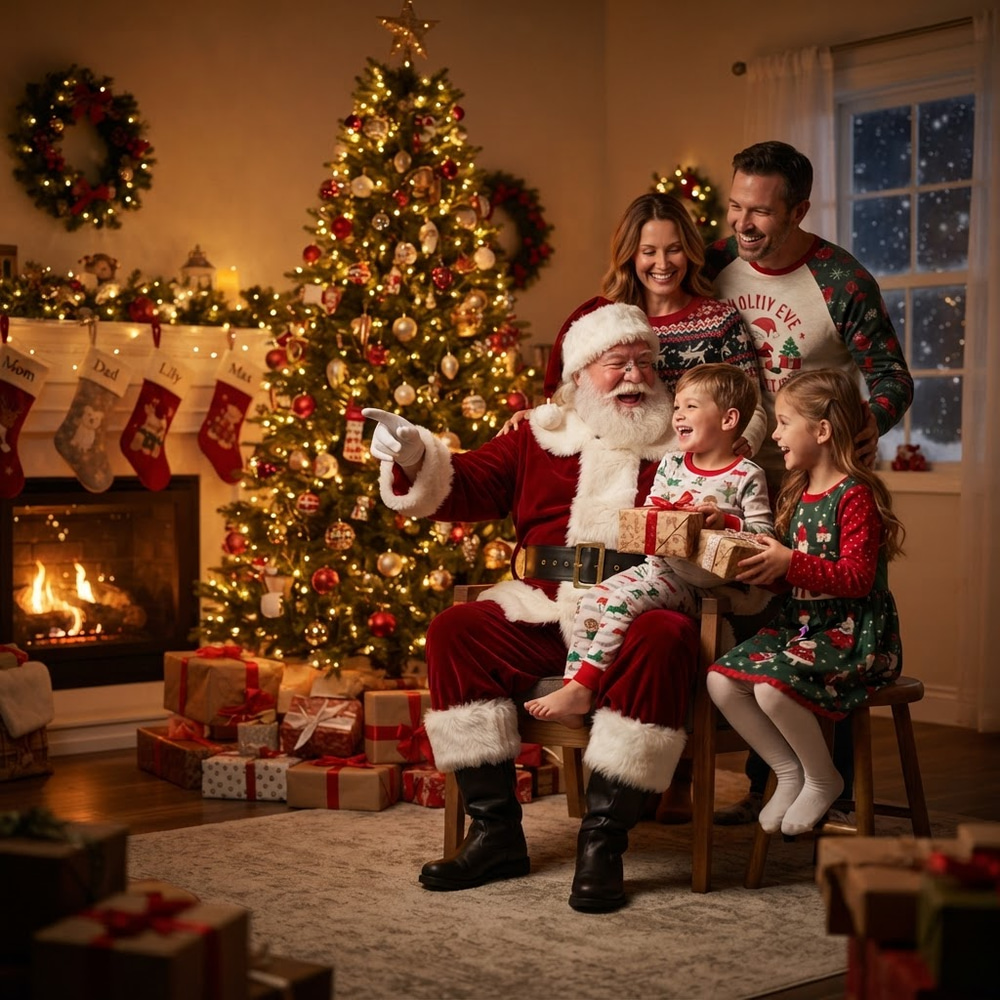
And if none of these fit, just add any object you can think of — the AI doesn’t work from a fixed list. Describe it, and it appears.
Tips for Getting the Best Results
Be Specific About What and Where
“Add glasses” works, but Add thin gold-rimmed round glasses works better. If placement matters, say it: Add a red balloon in the top left corner of the sky.
Make One Change at a Time
Asking for five edits in one prompt gives the AI too many jobs at once. Add the hat first, then use the result to add the sunglasses. Chaining single edits keeps each one clean and gives you a checkpoint at every step.
Mention the Style You Want
Add words like realistic, subtle, or matching the lighting for natural results — or cartoon style and exaggerated when you’re making a meme. The AI follows tone as well as content.
Use a High-Quality Source Photo
The AI preserves the quality of what you give it. A sharp, well-lit photo produces a sharp, well-lit edit. Blurry inputs give blurry outputs.
Generate More Than Once
Every generation is slightly different. If the first sunglasses aren’t quite right, run it again — at 1 credit per try, exploring variations is cheap.
Frequently Asked Questions
Can I add things to photos with AI for free?
Yes. Easy-Peasy.AI’s free plan includes monthly image credits, and each standard edit costs just 1 credit. You can try several edits without paying anything or entering a card.
Will the AI change the rest of my photo?
No — that’s the point of AI photo editing. The models are built to change only what you ask for while preserving faces, backgrounds, and details. In our sunglasses example above, the street, shirt, and face are pixel-for-pixel consistent.
Can I add a person from another photo?
Yes. Upload both images — your main photo and a photo of the person — as references, then describe where they should appear. The AI carries their likeness into the scene. This is how the add a loved one edits work.
What kinds of photos work best?
Clear, reasonably lit photos where the subject is visible. Selfies, portraits, group photos, product shots, and room photos all work well. Extreme close-ups and very dark images are harder for the AI to edit convincingly.
Can I remove things from photos too?
Yes — the same editor handles removal. Use the Remove Object template or simply prompt Remove the [object] from this photo. Adding and removing use the same one-sentence workflow.
Can I use the edited photos commercially?
Images you create on a paid plan can be used commercially. Check the Terms of Service for details, and remember to get consent before editing and publishing photos of other people.
Start Adding Anything to Your Photos Today
The next time a photo feels incomplete — missing the sunglasses, the snow, the Santa hat, or the person who should have been there — you don’t need Photoshop or a designer. Upload it to the Easy-Peasy.AI Image Generator, type one sentence starting with “Add”, and watch it appear in seconds.
Try the AI Image Generator free — your first edits are on us.